OneAuth + iOS 27: Login Smart With The Latest Foundation Model

We're used to doing certain things the same way every day.
If a sign-in request arrives, we automatically approve or deny. We open the app and scroll through notifications to catch up on what happened. When we want to take an action in the app, we navigate through menus or help guides to figure out how to get it done.
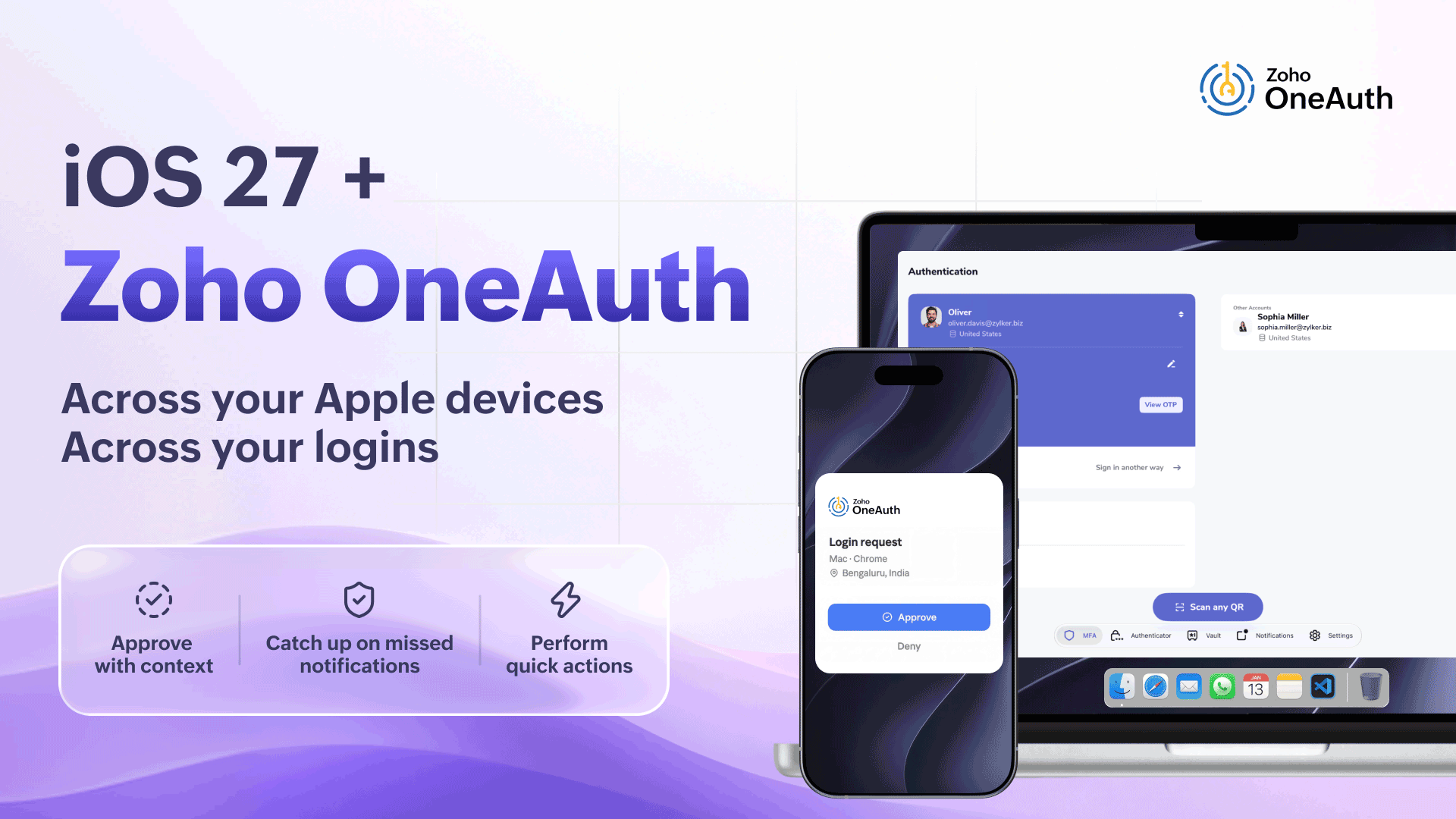
With foundation model and new intelligence capabilities coming to Zoho OneAuth with iOS 27, everyday interactions across Apple devices are becoming more contextual, intuitive, and seamless.
Let's look at how these familiar moments are being redesigned through Zoho OneAuth's foundational features for you.
1. Get the context behind the login
A sign-in request arrives on your phone.
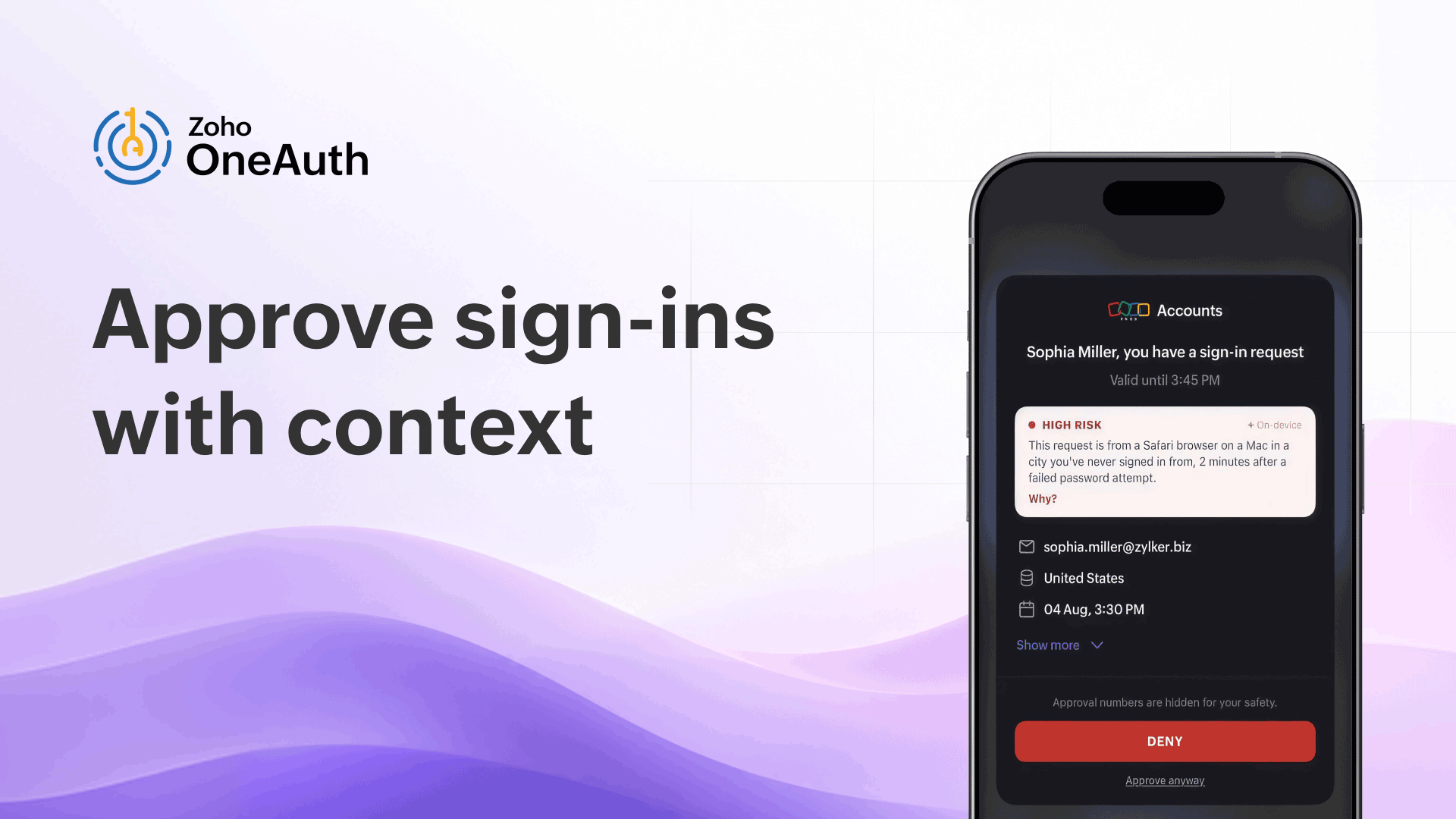
Sign-in prompts can become easy to approve out of habit, which is exactly what phishing attacks take advantage of. But a sign-in request doesn't always tell you enough to make the right decision. You need the context behind the login.
With the Risk Summary in Zoho OneAuth, instead of a simple "approve" or "deny,” OneAuth now gives you context on where and when the sign-in happened, along with the device and browser used, so you have more information before approving the request. The analysis runs entirely on your device, so your account data never leaves it.
2. See what happened at a glance
Long notification feeds can make important security events easy to miss.
The Visual Summary in Zoho OneAuth turns what happened on your accounts into a quick, easy-to-understand summary. Missed account notifications are visualized and categorized into a chart, while critical alerts are highlighted.
Instead of scrolling through a long list of alerts, you can grasp what happened across your accounts at a glance and quickly identify the events that need your attention.

3. Perform quick actions without the extra steps
Finding the right answer or figuring out what to do next can mean navigating through the app or digging through help guides.
With Ask OneAuth (Zoho OneAuth's in-app assistant), you can ask OneAuth to perform quick actions in plain language, right from the chatbot.
For example, ask “Enable MFA for my account” and view a summary of the MFA modes enabled for your account. Confirm the action, verify your biometrics, and enable MFA without leaving the chat.
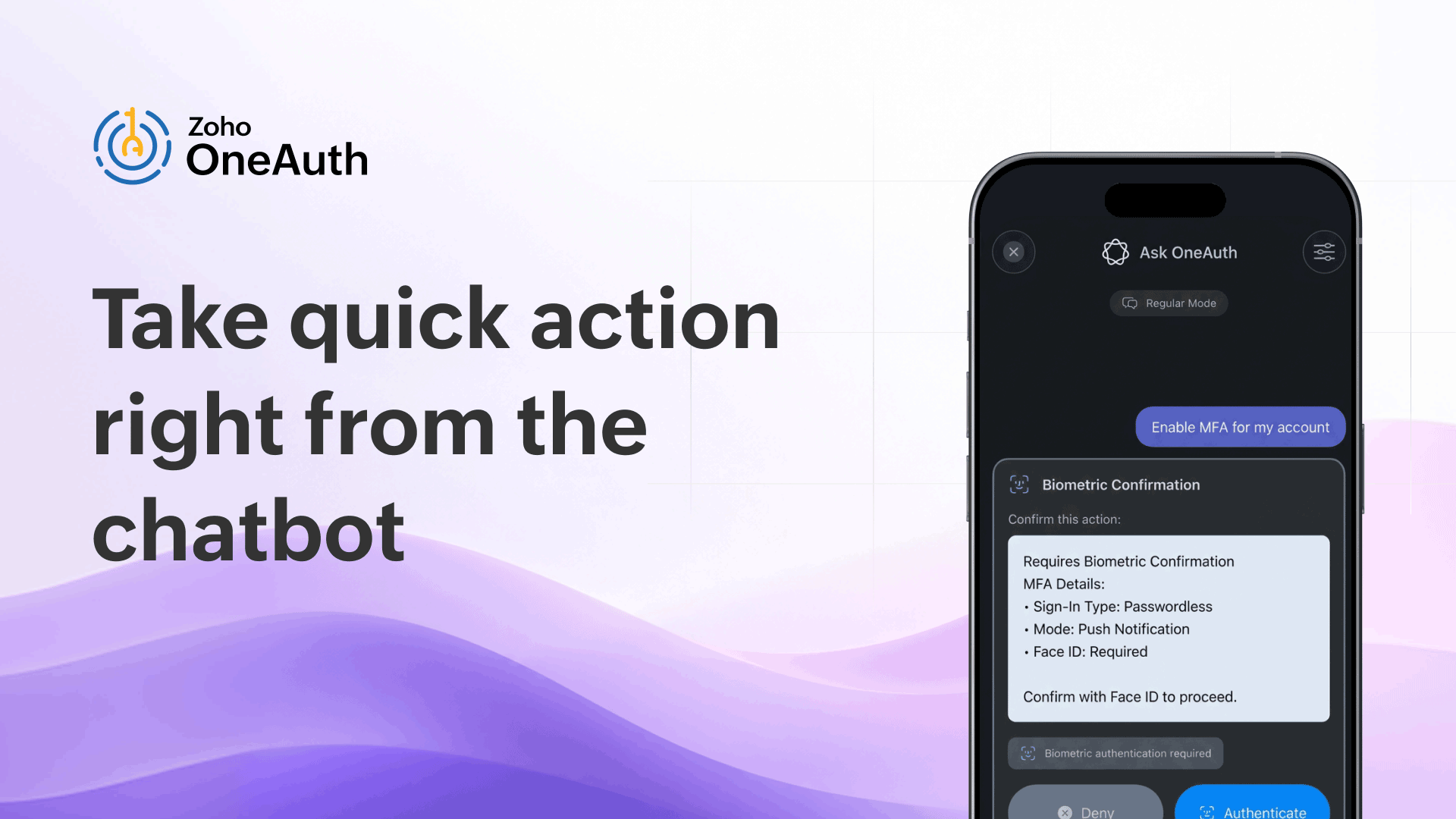
The three foundational capabilities—Risk summary, Visual summary, and Ask OneAuth help you approve only authorized logins, grasp account activity at a glance, and perform quick actions, directly from within OneAuth.
Ready to try OneAuth on iOS 27?
Download Zoho OneAuth and try it out. Already a Zoho OneAuth user? Update to the latest version and give it a try.
iOS 27 goes beyond these foundational capabilities, making everyday authentication easier across your Apple devices.
Spotlight search your 2FA code
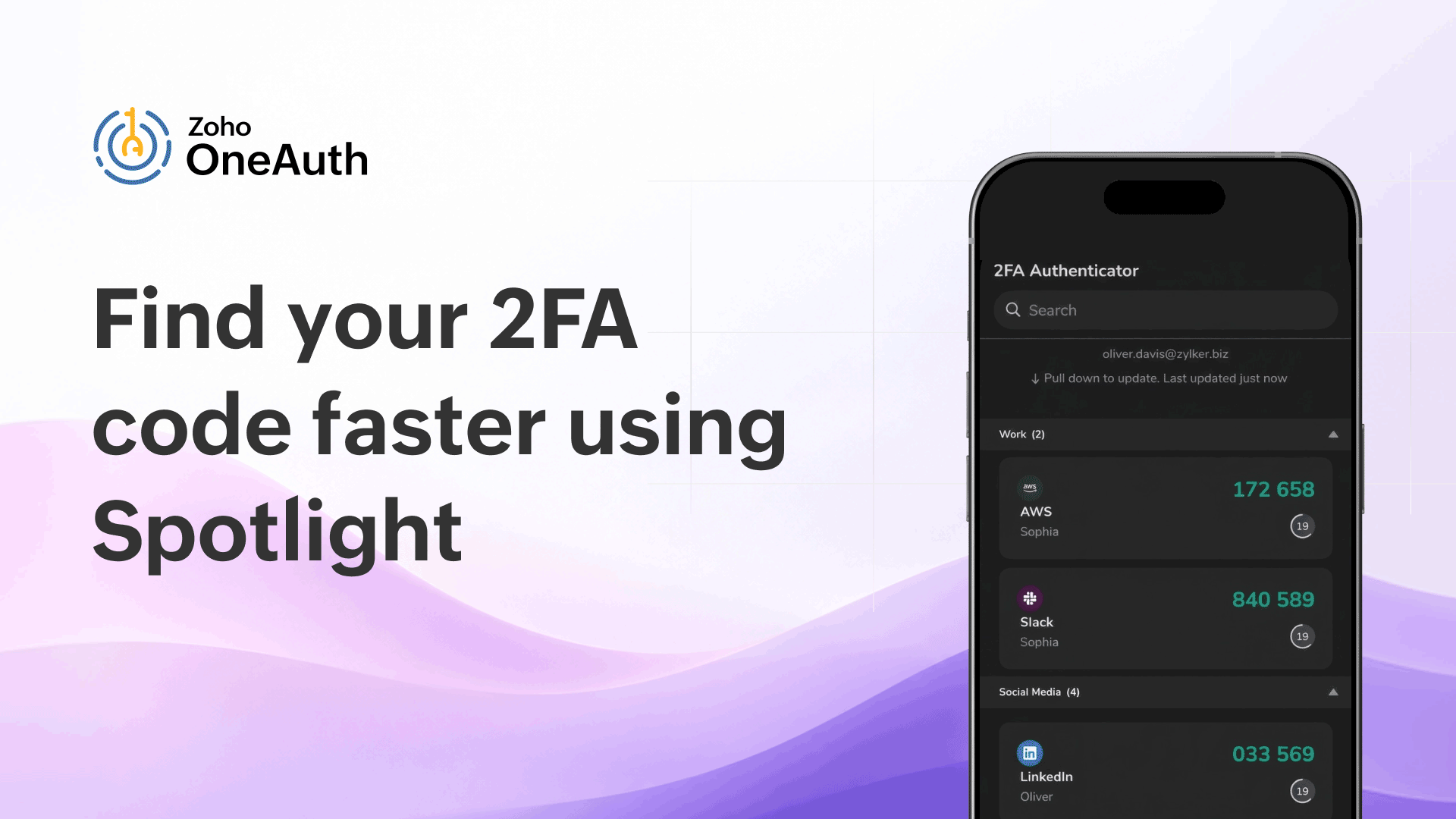
When you're signing in to an account protected by 2FA, finding the right 2FA code can mean opening OneAuth and scrolling past other codes, adding friction to the sign-in process.
Now, you can find the account directly from Spotlight Search or using Siri. Get the exact 2FA code you need and continue signing in without opening the app.
Access more 2FA codes from your Home Screen
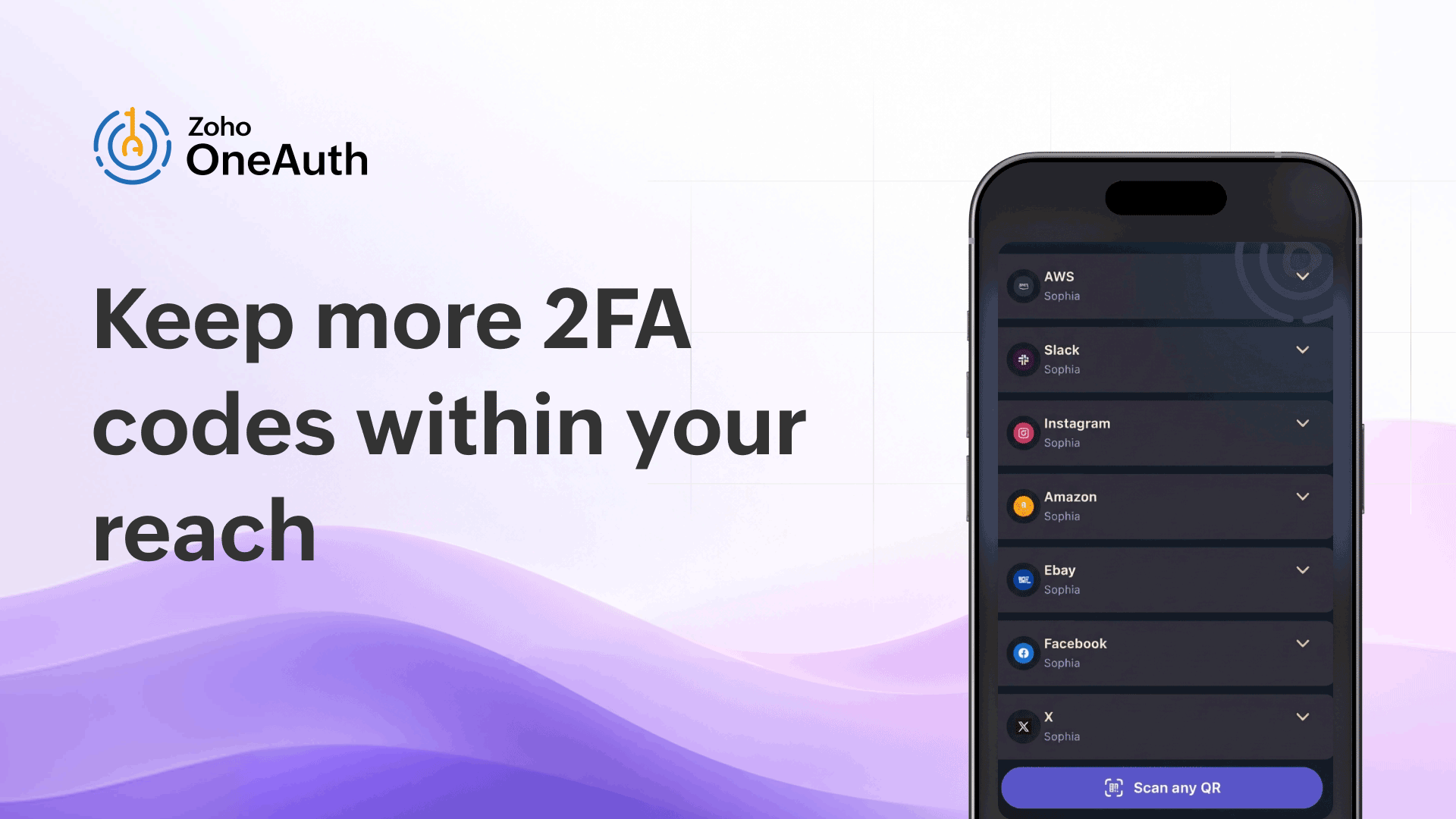
The OneAuth widget already lets you access your 2FA codes from the Home Screen. But when you manage several accounts, finding the right code can still mean scrolling through them.
With the new extra-large widget, you can now see more 2FA accounts and their OTPs at once, making it easier to find and copy the code you need without opening OneAuth.
You can also scan QR codes for Zoho account logins directly from the Home Screen.
A first-class OneAuth experience across screens
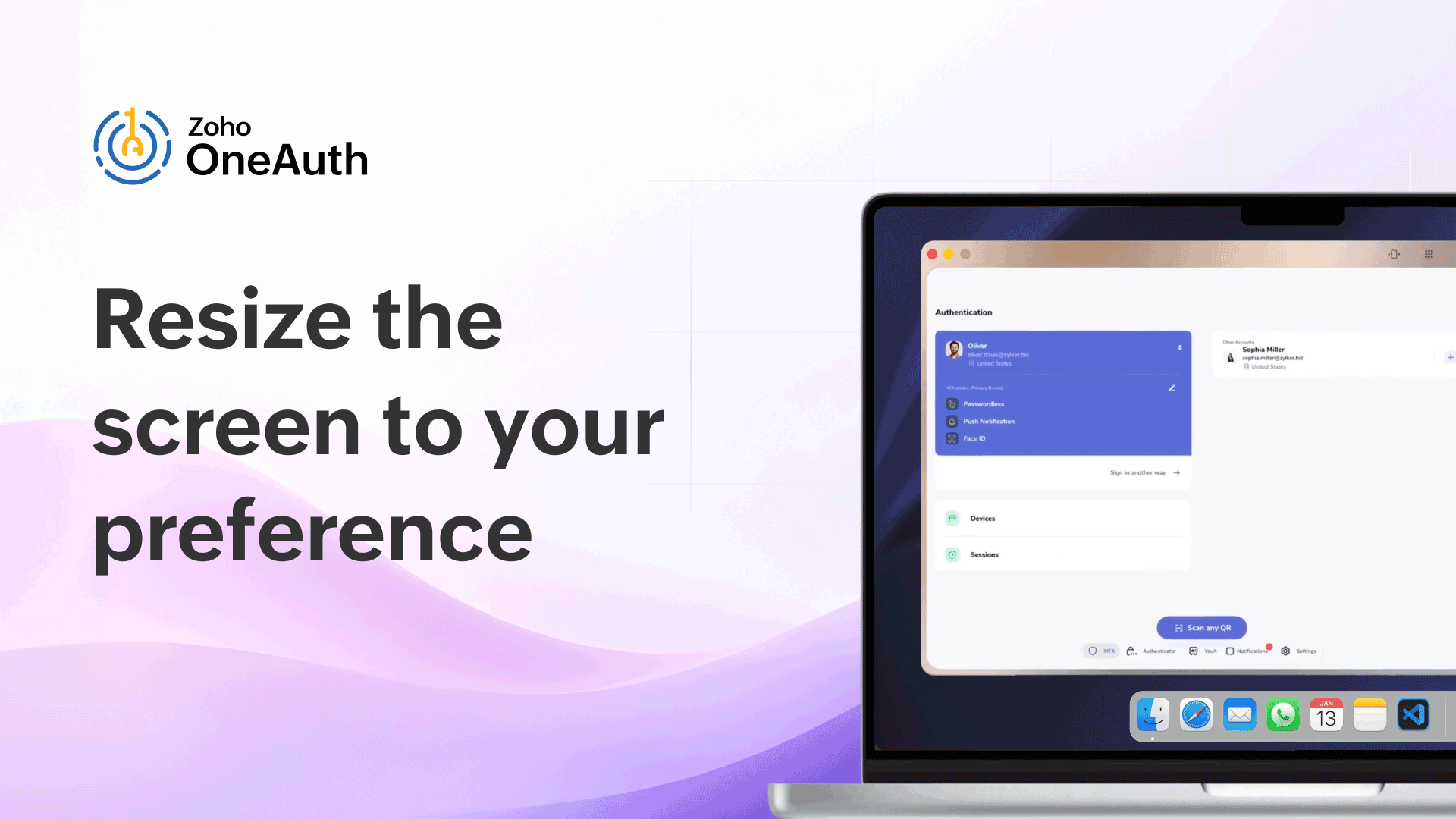
You might access OneAuth across different Apple devices. For example, during an iPhone mirroring session on your Mac, you may need to keep OneAuth open while continuing to work in other apps.
With app resizability, OneAuth adapts its layout to the available space on iPad and Mac in landscape view. This gives you more room to keep your 2FA codes visible side-by-side with the other apps you're using, instead of being limited to a phone-sized window.
Curious to experience OneAuth on iOS 27 ?
The hassles we started with—approving sign-ins, scrolling through activity, and finding what we need are now simpler with OneAuth on iOS 27.
We can approve sign-ins with more context, see what matters at a glance, and perform actions quickly.
And when we need a 2FA code, we can search for it through Spotlight or Siri, access more OTPs through the extra large widget, or use OneAuth in a resizable window across our Apple devices.
Together, these capabilities make OneAuth more contextual, actionable, and effortless across the Apple ecosystem.


Comments