Importing XML Files
XML (eXtensible Markup Language) is a structured data format used for configuration files, document representation, and data exchange between systems. Zoho Analytics imports XML files through the standard import wizard and flattens nested element structures into a tabular form using dot-path column names.
This page covers the XML-specific options. For the general import procedure, plan availability, role permissions, and common settings that apply to all file formats, see Importing Data from Files.
Supported file extensions
| Extension | Description |
| .xml | XML file |
XML import is available from all three file sources: Local Drive, Pasted Data, and FTP. See Starting an Import on the landing page for source-specific entry steps.
Supported XML structures
Zoho Analytics supports importing data from XML files that follow specific structural patterns. The supported patterns include:
- Elements only - flat structures with simple repeating elements
- Elements and attributes - elements that contain both child element values and XML attributes
- Attributes only - elements that store their data entirely in attributes
- Tree structure - complex nested structures with multiple repeating groups
For concrete examples of each pattern, see Supported Formats for Importing XML Files.
Importing an XML file
XML import follows the standard procedure described in Starting an Import on the landing page. The XML-specific step is the file-type selection:
- After selecting your source and providing the source details, the import wizard opens.
- From the File Type dropdown, select XML.
- Complete the general settings: Table Name, First Row Contains Column Names, and Format of Date Columns. These are documented in Configuring Import Settings.
- Configure the XML-specific option in XML-specific settings below.
- Verify the Data Preview, configure On Import Errors, then click Create.
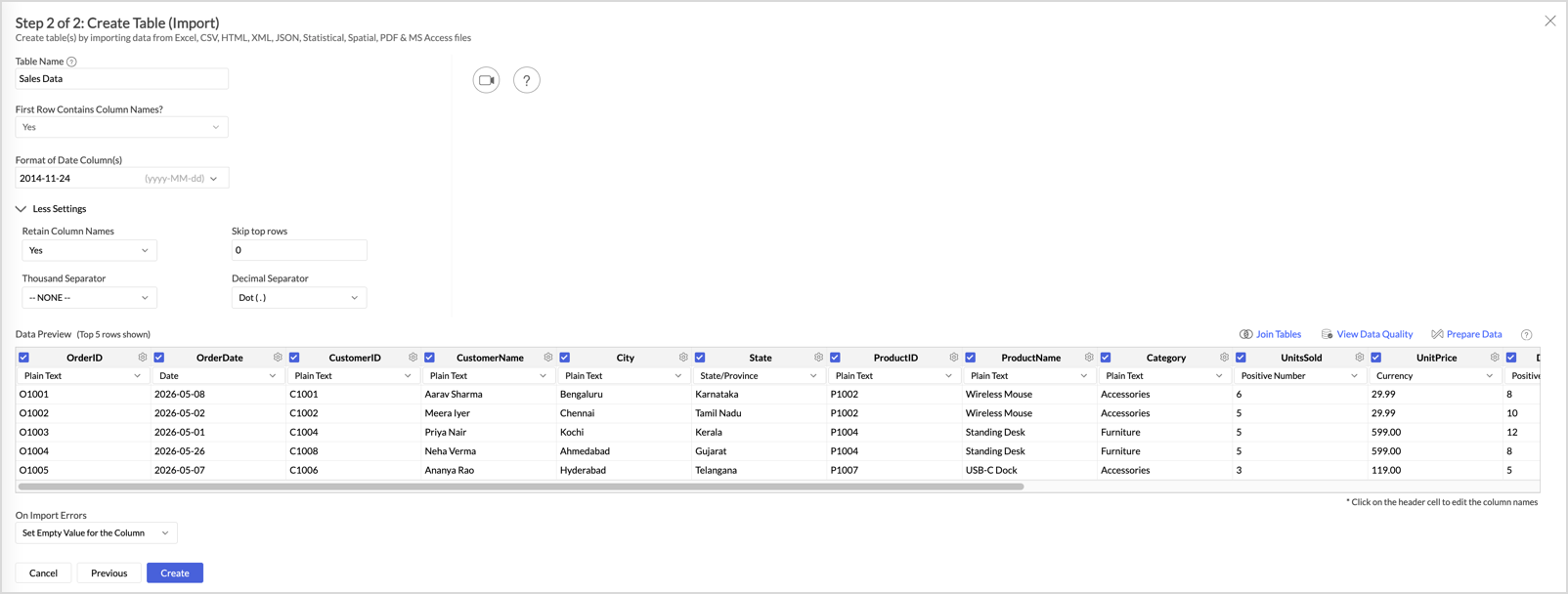
XML-specific settings
The following option appears in the More Settings section of the wizard when the file type is set to XML.
Retain Column Names
Controls how Zoho Analytics generates column names from the elements in your XML file. The default value is No.
When set to No (the default), Zoho Analytics generates column names by concatenating the full XML element path using dots. For example, if your XML structure is <SalesData><Sale><Order><ID>O1001</ID></Order></Sale></SalesData>, the corresponding column name is SalesData.Sale.Order.ID. This preserves the full hierarchy in the column name and avoids ambiguity when multiple branches of the XML have elements with the same name.
When set to Yes, the column uses only the leaf element name. Using the same example, the column would be named ID instead of SalesData.Sale.Order.ID.
How nested XML is flattened
When Zoho Analytics imports an XML file, it identifies the repeating element automatically and creates one row per occurrence. Nested elements are flattened into individual columns, with column names reflecting the element path (when Retain Column Names is set to its default value of No).
For example, the following XML:
<SalesData>
<Sale>
<Order>
<ID>O1001</ID>
<Date>2026-05-08</Date>
</Order>
<Customer>
<ID>C1001</ID>
<Name>Aarav Sharma</Name>
</Customer>
</Sale>
<Sale>
...
</Sale>
</SalesData>
imports as a table with columns named SalesData.Sale.Order.ID, SalesData.Sale.Order.Date, SalesData.Sale.Customer.ID, and SalesData.Sale.Customer.Name. Each <Sale> element becomes one row.
Notes and limitations
- File size limit: 100 MB per file and 1 million rows per import. For larger XML files, see Import Large Data Files using Zoho Databridge.
- Supported structures: For the full list of XML structures Zoho Analytics can import, with examples, see Supported Formats for Importing XML Files.
Related
- Importing Data from Files - import home page covering source selection, common settings, and operational tasks
- Supported Formats for Importing XML Files - reference page with concrete XML structure examples
- Importing JSON Files - for similar hierarchical data in JSON format
- Importing HTML Files - for tabular data on web pages
- Import Large Data Files using Zoho Databridge - for XML files larger than 100 MB