Importing PDF Files
PDF documents often contain tabular data that can be useful for analysis. Zoho Analytics extracts tables from PDF files and imports them as Zoho Analytics tables. You can preview the tables in the source PDF, choose which tables to import, and bring multiple tables into your workspace in a single import operation.
This page covers the PDF-specific options. For the general import procedure, plan availability, role permissions, and common settings that apply to all file formats, see Importing Data from Files.
Supported file extensions
| Extension | Description |
| PDF document |
PDF import is available from the following sources:
- Local Drive
- FTP
- Feeds/URLs
- Cloud Drive - currently supported for Google Drive, Amazon S3, and Google Cloud Storage.
- Azure Data Lake
- Local File via Zoho Databridge for files larger than 100 MB
What can be imported
Zoho Analytics extracts only the table data contained in the PDF. Other content is not imported:
- Images and figures are ignored
- Freeform text outside tables is ignored
- Headers, footers, and page numbers are ignored
Page orientation and size do not affect the import. Both portrait and landscape pages are supported, regardless of page dimensions.
How tables are identified
Zoho Analytics identifies tables in your PDF and decides how to group them based on the following rules:
- Table break within a page, column names differ: Treated as separate tables.
- Table break within a page, column names match exactly: Treated as a single table.
- Table continues across multiple pages with the same column headers (no break): Merged and treated as a single table.
- Table continues across multiple pages with different column headers or no column headers: Treated as separate tables.
Up to 100 tables can be displayed in the table selection screen. You can import up to 20 tables in a single import operation.
Importing a PDF file
The PDF import procedure differs from other file formats in that it has a dedicated Select Tables step.
- After selecting your source and providing the source details, click Next.
- From the File Type dropdown, select PDF.
- Click Next. Zoho Analytics analyzes the PDF and opens the Create Table (Import) screen.
- Review the detected tables, then select the ones you want to import. Each table is shown with a page number reference for easy identification. You can select up to 20 tables in a single import.
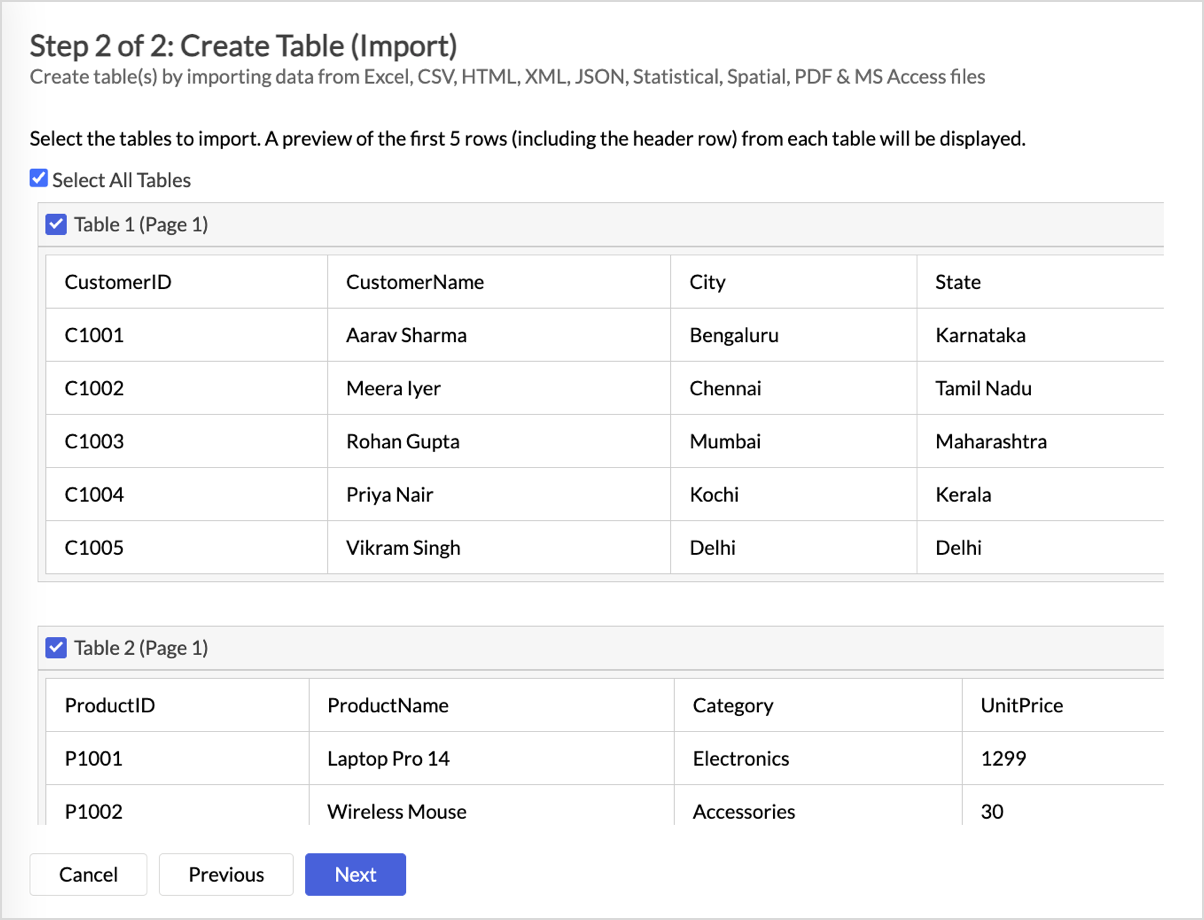
- Click Next to open the Configure Import step. The settings shown depend on whether you selected a single table or multiple tables. See Configuring the import below.
- Click Create. Zoho Analytics begins importing the selected tables.
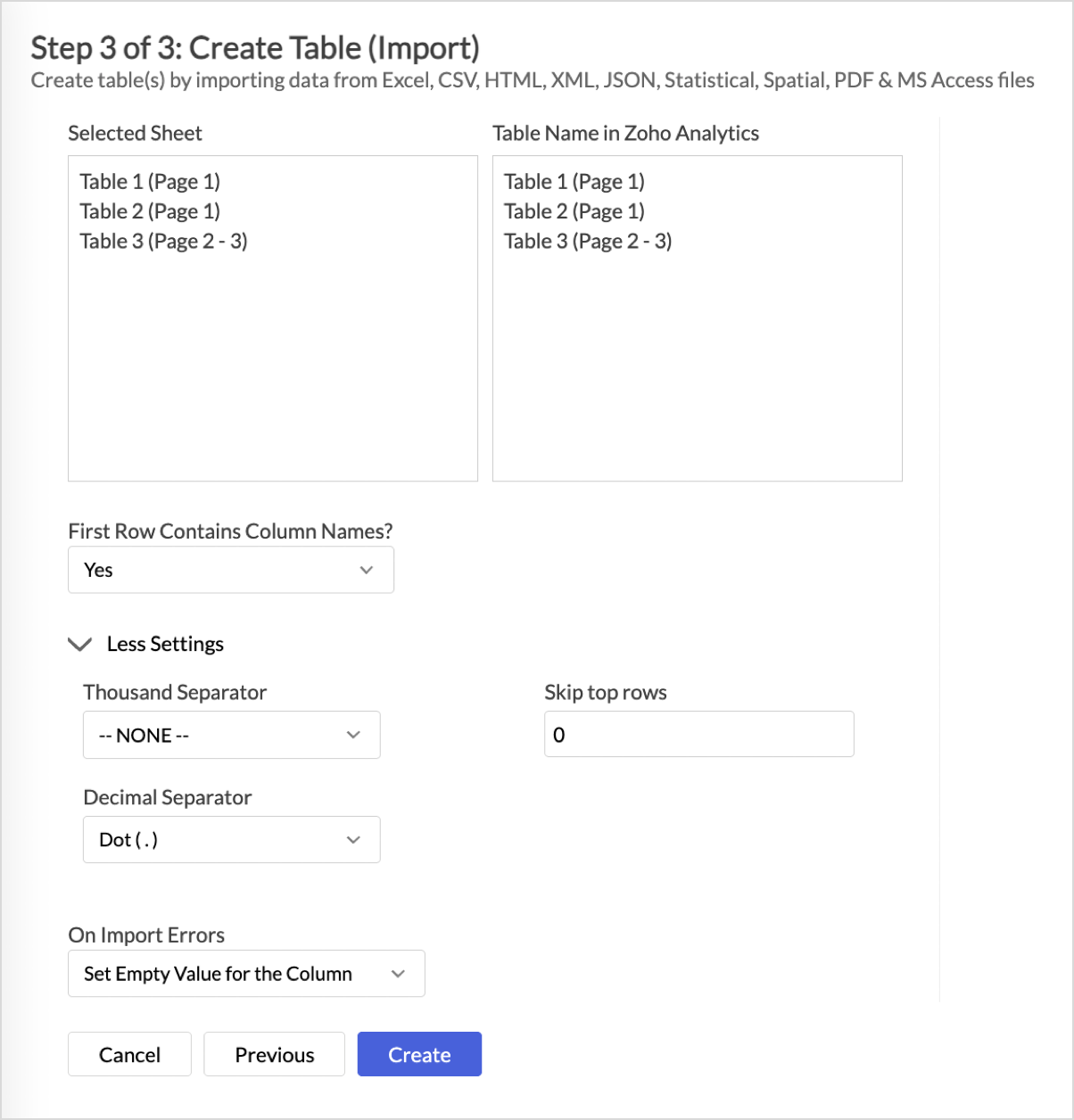
Configuring the import
The Configure Import step differs based on the number of tables you selected.
Single table
When you select a single table, the following settings are available:
- Rename Table - rename the table before import
- Workspace Name and Workspace Description - required only if you are not importing into an existing workspace
- First Row Contains Column Names? - Yes or No
- Format of Date Column(s) - detected automatically; can be adjusted
- More Settings (optional) - see Configuring Import Settings on the landing page
- Table Preview - shows a preview of the data before import
- On Import Errors - error handling option
Multiple tables
When you select multiple tables, the Table Preview and Date Column Format steps are not available. The following settings remain:
- Rename selected tables - rename each selected table before import
- Workspace Name and Workspace Description - required only if you are not importing into an existing workspace
- First Row Contains Column Names? - Yes or No (applied to all selected tables)
- More Settings (optional) - see Configuring Import Settings on the landing page
- On Import Errors - error handling option (applied to all selected tables)
Scheduling and import modes
PDF imports can be scheduled to refresh automatically. Scheduling is supported for all PDF sources except Local Drive (because Local Drive has no persistent connection to the source after the initial import).
For scheduled imports, choose one of the following import modes from the How do you want to import data? section:
- Add records at the end - appends new records to the existing table
- Delete existing records and add - replaces all existing records with the new ones
- Add records and replace if already exists - updates existing records that match the new data and appends new records
- Add new, replace existing, and delete missing records - updates existing records, appends new ones, and removes records that are no longer in the source
The default import mode depends on whether you imported a single table or multiple tables:
- Single table: Add records at the end
- Multiple tables: Delete existing records and add
You can also enable a checkbox to automatically import new columns added to the source PDF in subsequent syncs.
Multiple schedules: Multiple schedules per data source are supported only when the PDF is imported via Zoho Databridge. For all other sources, only one schedule per data source is supported.
Periodic Full Fetch: Not supported for PDF imports.
Behavior when the PDF structure changes
PDF schedule sync is sensitive to changes in the source PDF's table layout. If the source PDF is modified, the following behavior applies:
- A new table is added between existing tables: All tables below the new table fail in the next scheduled sync, because their positions have shifted.
- Tables are reordered: The affected tables fail in the next scheduled sync if their columns do not match the table now at the original position.
To recover from these failures, edit the data source setup and remap the tables to their new positions in the PDF.
Managing the data source
After import, the workspace shows a Data Source section with the standard management actions:
- Edit Setup - modify the connection or selected tables. For multi-table imports, this includes an additional Edit Table Settings option to change the import mode, toggle the auto-import new columns checkbox, and remap tables.
- Sync Now - trigger an immediate sync (data-source level and table level)
- Sync History, Audit History, Schedule Settings
- Remove data source - remove the entire PDF data source
Adding new tables: New tables can be added to an existing PDF data source only if the source is imported via Zoho Databridge. For other sources, adding new tables to an existing data source is not supported.
Removing a table: Removing individual tables is supported only for PDF imports via Zoho Databridge. For Feeds/URLs, Cloud Drive, and Local Drive sources, individual tables cannot be removed; you must remove the entire data source instead.
Notes and limitations
- File size limit: 100 MB per file for direct upload. For larger PDF files, use Import Large Data Files using Zoho Databridge.
- Page limit: 1000 pages per PDF.
- Table preview limit: Up to 100 tables can be shown in the table selection screen.
- Tables per import: Up to 20 tables can be imported in a single operation.
- Table column and row limits: 300 columns per table and 1 million rows per table (standard Zoho Analytics limits).
- V2 API: PDF data sources are not supported through the V2 API.
- Importing into an existing table: Importing PDF data into an existing table is supported from any source. See Importing into an Existing Table on the landing page.
Related
- Importing Data from Files - import home page covering source selection, common settings, and operational tasks
- Importing Excel Files - for spreadsheet data with multiple sheets
- Importing HTML Files - for tabular data on web pages
- Importing Data from Feeds - for importing PDFs from Web URLs
- Importing Data from Cloud Storage - for importing PDFs from cloud drives
- Import Large Data Files using Zoho Databridge - for PDF files larger than 100 MB