Connect Notion Data with Zoho Analytics
Sync your Notion data with Zoho Analytics to gain a unified view of your projects and operations. Monitor progress in real time, identify bottlenecks across tasks and workflows, and uncover actionable insights from your data. Track key project metrics, proactively manage risks, and make informed, data-driven decisions to improve team productivity and scale operational efficiency across your organization.
- How to Import Notion Data into Zoho Analytics?
- Handling Data Synchronization Failure
- Managing Data Sources
- Data Modeling & Preparation
- Visualize Notion Data
- Sharing & Collaboration
- Help & Support
How to Import Notion Data into Zoho Analytics?
- Click Import Your Data > Project Management > Asana.
- Notion Advanced Analytics setup pane will open. Click Next to proceed.
- Provide a suitable Workspace Name and Description.
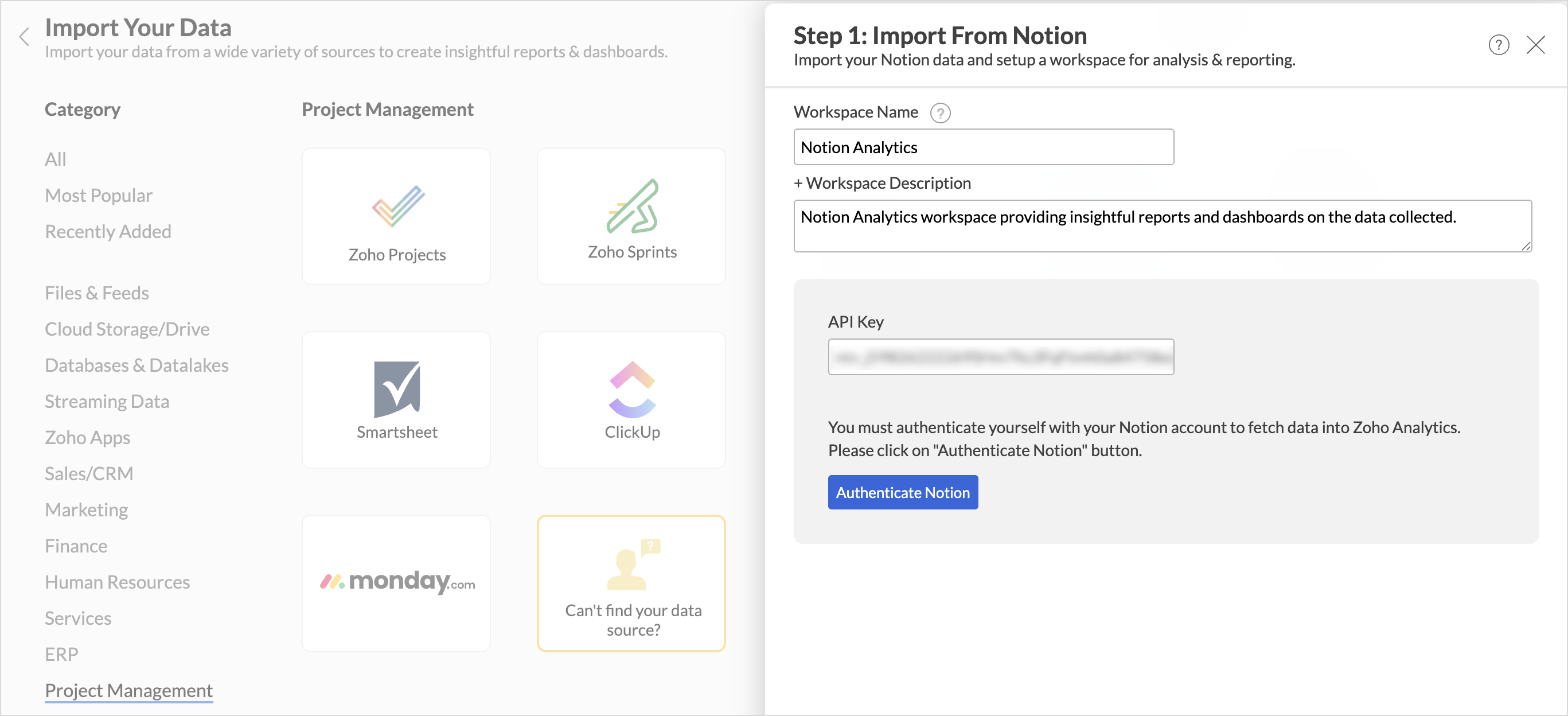
- Paste the API key copied from your Notion account
- Select the Modules and Fields to be imported.
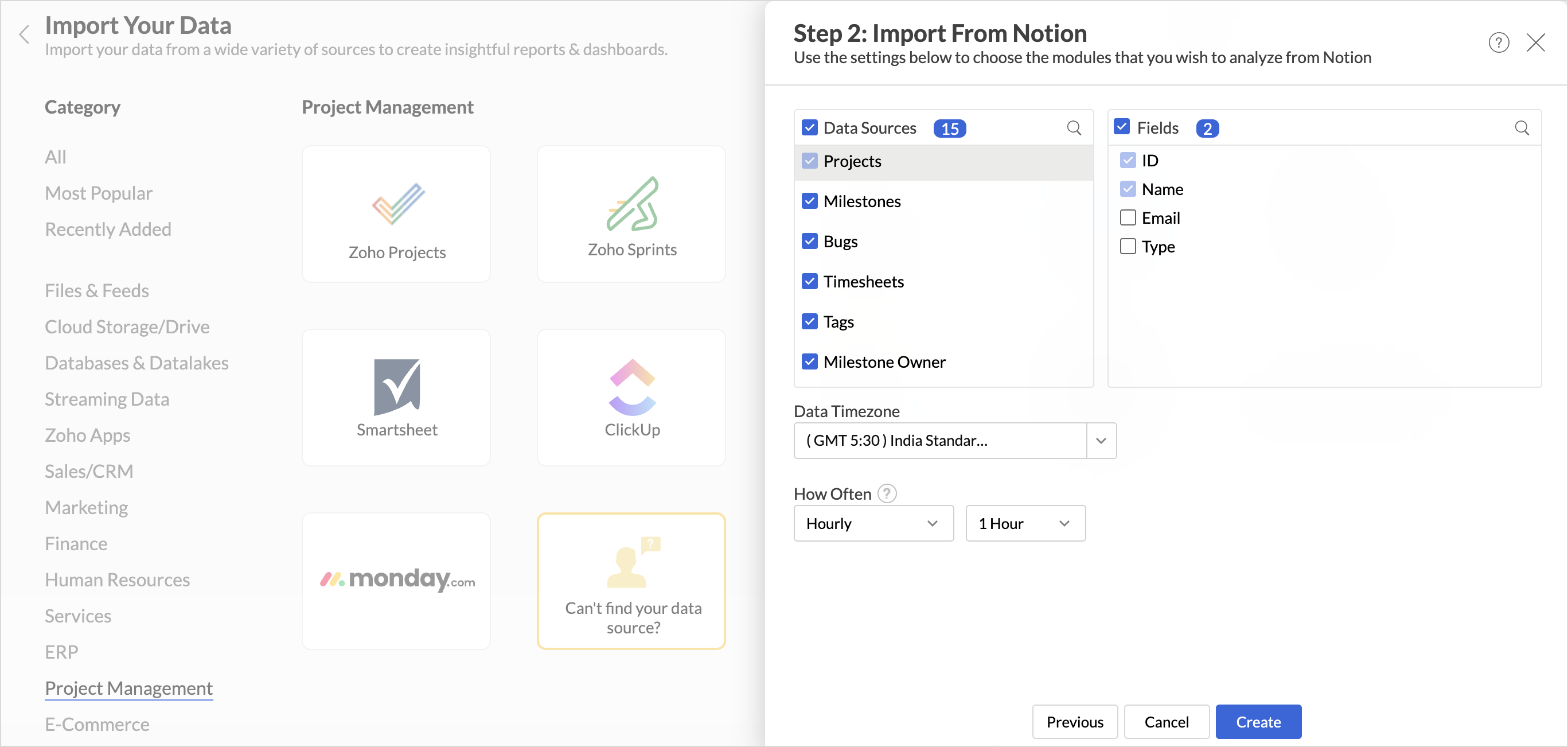
- Select the Data Sync Interval in which the data should be imported.
- Click Create.
Note:
- The initial fetch might take a few minutes depending on the volume of the data to be imported. An email and an in-app notification will be sent once the initial fetch is complete.
- The setup process can sometimes fail for a variety of reasons. In this case, we request you to access the Data Sources tab and click the Retry link to import again. If the issue persists, write to support@zohoanalytics.com.
Data Sync Frequency
Zoho Analytics offers flexible sync schedules to ensure that your data is always up-to-date for effective analysis. These schedules allow you to automate the process of updating your data, ensuring that your analyses are based on the latest information.
- 1 Hour (Enterprise plan only)
- 3 Hours
- 6 Hours
- 12 Hours
- Every day
Handling Data Synchronization Failure
Data synchronization can fail,
- If the data type of a field is changed in the Notion Application.
- If the Modules and Field selected for analysis are deleted in the source application.
- If the user who configured the integration no longer has permission to access the modules.
In any of the above mentioned cases, the data sync will be paused. You will be notified via email and in- app notification with the exact reason for failure along with the solution.
To resolve the sync failure, delete or restructure the views, or restore the specific modules and fields from the source application. Refer to Data Sync failure and solutions article for more details.
Once you have made the changes, click the Sync now option in the data source tab to resume data sync. If the issue persists, contact support@zohoanalytics.com
Managing Data Sources
The Data Sources tab provides essential information to monitor and manage the integration setup. It also allows you to edit the settings as needed. Users with administrator privileges will be able to view and modify the connection settings.

Data Source Permalink
The Data Source Permalink helps you easily access the data source tab. Only the Organization Admin and Account Admin can make changes in the Data sources page, other users can know the synchronization details like whether the last data sync was successful or not, when the last data sync happened, when the next sync is scheduled to happen, etc. This link can also be pasted in dashboards so that everyone accessing the dashboard can know about the sync status.
Edit Setup
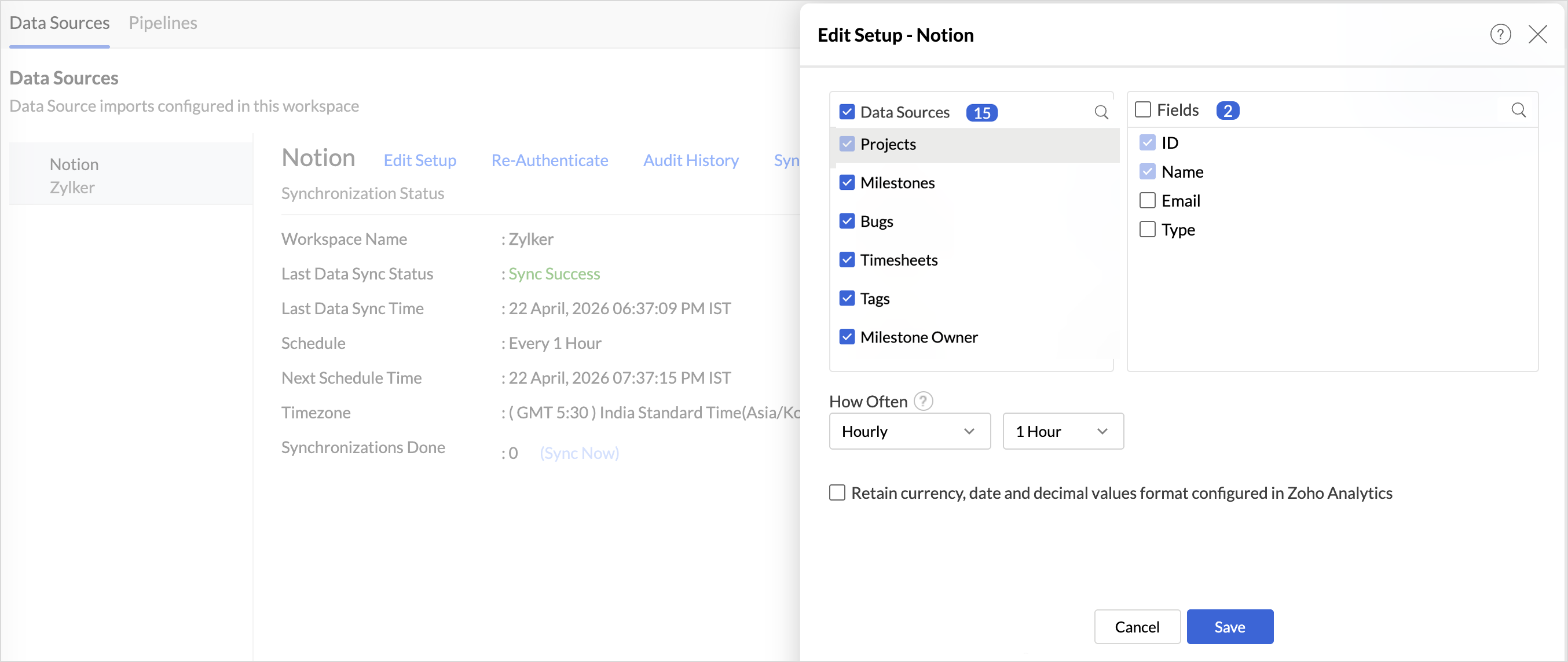
The Edit Setup tab allows you to add or delete modules or fields, change the schedule interval, and modify other settings specific to the business application.
To modify the settings,
- Click Data Sources > Edit Setup.
- The Edit Setup - Notion dialog will open. Modify the settings as needed and click Save.
Re- Authenticate
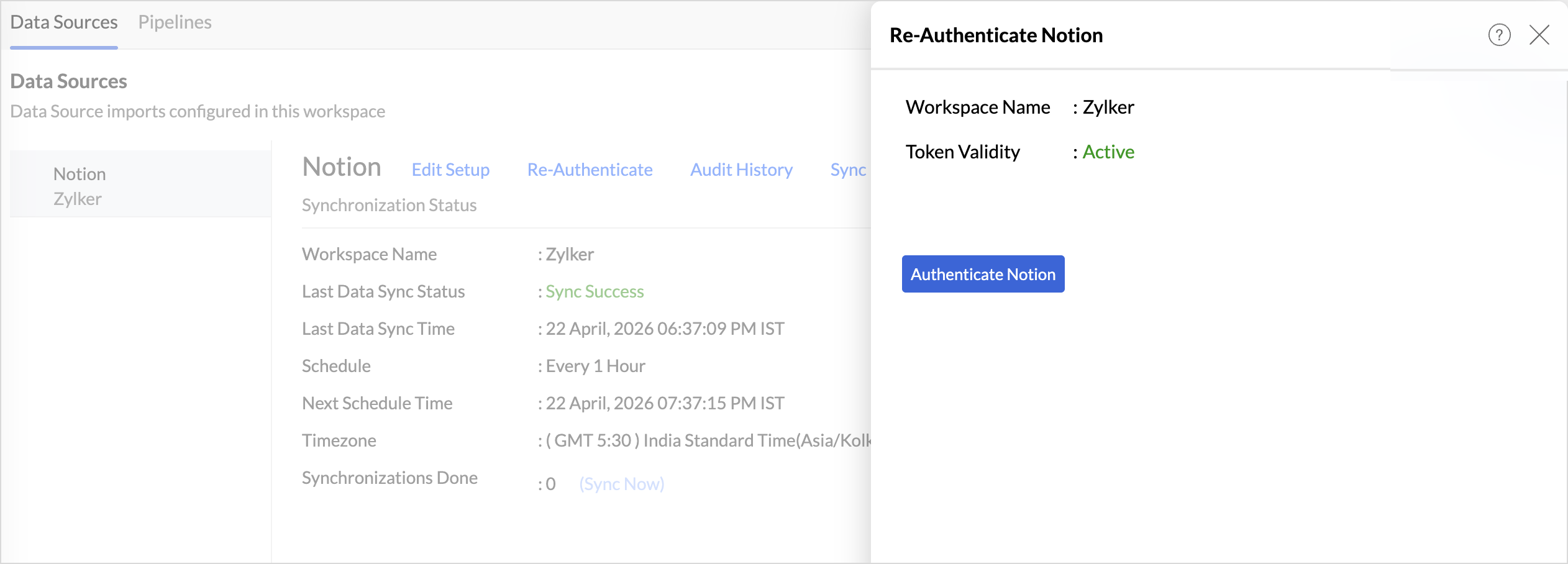
Re-authentication will be helpful when the API key or password is changed. In this case, the data sync will be paused, and the administrator who configure the connector setup must re-authenticate to resume the data sync.
To reauthenticate the setup,
- Click Data Sources > Re-Authenticate.
- The Re-Authenticate - Notion dialog will open. Enter the credentials and click Authenticate Notion.
Sync History
The Sync History tab provides details about the data sync for the last 45 days. A successful data sync is marked in green, and a sync failure is marked in red.
To view the Sync history,
- Click Data sources > Sync History.
- A calendar with the Sync History of the last 45 days will open. The date when the data sync has happened will be highlighted. Hover to view the number of times the data had got synced on a specific date.
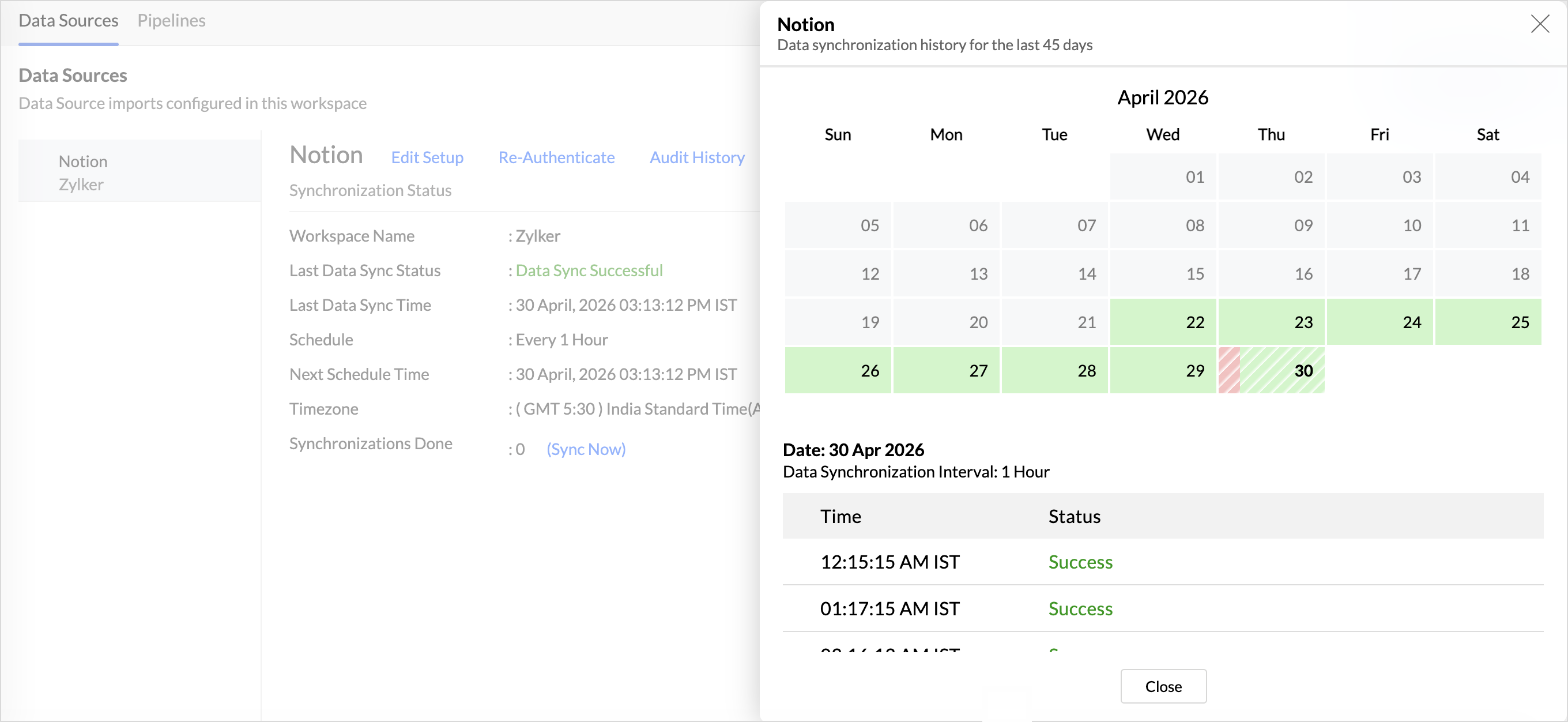
- Click the date to view more details.
- Time - Displays the time when the data is synced.
- Status - Shows whether the sync was a success or a failure.In case of failure, the reason will be displayed. Refer to this page to learn how to resolve the issue and avoid further failure.
Audit History
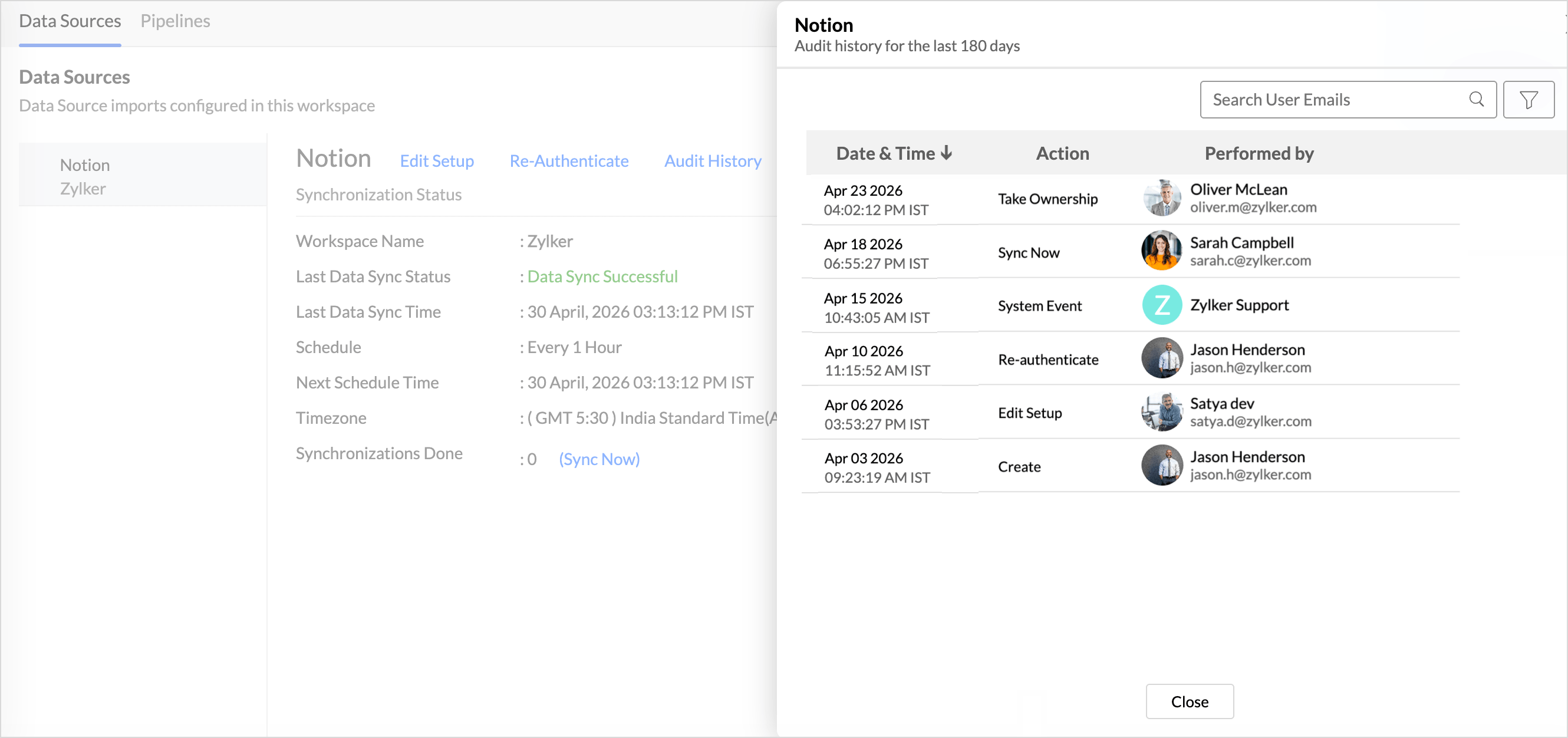
Zoho Analytics logs all the user activities and system events within the Notion workspace. The following actions that are logged in Zoho Analytics,
- User Action: Create, Modules Added, Modules Removed, Fields Added, Fields Removed, Schedule Change and Entities Modified, Delete, Take Ownership, Re-authenticate, Sync Now, Retry.
- System Action: Plan upgrade or downgrade.
To view the audit history,
- Click Data Sources > Audit History.
- A dialog with the activities for the last 180 days will open.
Remove Data Source
Zoho Analytics allows you to remove the integration if needed. Removing the integration will suspend further data synchronization. The data tables and the reports will be available.
Click the Settings icon in the Data Sources tab, and select Remove Data Source from the drop-down menu.

Data Modeling & Preparation
Zoho Analytics allows you to combine data from various sources such as Files, Feeds, Databases and Business Applications for an in-depth analysis. Query Tables allows you to combine data from different tables to create reports.
While blending data from other data sources, Zoho Analytics automatically identifies similar columns and provides suggestions for lookups. Refer to the Joining Tables article for more details.
Visualize Notion Data
Turn your Notion data into insightful reports and dashboards with Zoho Analytics. Analyze your projects with rich visualizations that help you monitor progress, identify trends, and make data-driven decisions. Zoho Analytics offers a wide range of visualization types to conduct your analysis. Refer to the Creating Reports section to learn more.
Create reports such as:
- Task Status Overview – Track tasks by status (To-do, In Progress, Completed) using charts.
- Project Progress Dashboard – Monitor overall project completion and timelines.
- Team Workload Analysis – Understand task distribution across team members.
- Timeline & Deadline Tracking – Identify overdue tasks and upcoming deadlines.
- Priority-wise Task Breakdown – Analyze tasks based on priority levels.
With customizable dashboards, you can bring all key metrics into a single view, enabling better visibility, faster insights, and improved project execution.
Sharing and Collaboration
- Share data and reports with your colleagues & friends with fine-grained permission
- Enable real-time commenting on a shared view to efficiently collaborate with your users
- Publish reports for wider consumption. Embed reports/dashboards within your websites, web applications, and blogs.
- Export, Email, and Print reports in a variety of formats.
- Use Zoho Analytics mobile apps (optimized for both IOS and Android platform) and access the reports and dashboards on the go.
Help & Support
We offer 24x5 technical support (Monday to Friday). In case if you need our assistance kindly do mail us your questions to support@zohoanalytics.com.
You can also reach out to us on our toll-free numbers.
United States: +1 (888) 900 9646
United Kingdom: +44 (20) 35647890
Australia: +61-2-80662898
India: +91 44 6965 6060