- HOME
- Product updates
- Introducing the Large List Field in Zoho Forms
Introducing the Large List Field in Zoho Forms
- Last Updated : July 7, 2026
- 17 Views
- 4 Min Read

Imagine you're building a form for a hospital and you need staff to select the right diagnosis from tens of thousands of medical codes. Or you're onboarding vendors who need to pick their product categories from an exhaustive list. Or you're running a government survey where every citizen needs to find their occupation from a list that spans thousands of classifications.
These are real forms. Real organizations build them. And for too long, building them well has meant accepting a compromise.
Not anymore.
The problem most form builders don't solve
When you're working with large datasets like medical codes, product SKUs, occupational classifications, or location directories, standard choice fields start to show their limits. They're designed for manageable lists, and for those, they work well. But push them beyond what they're comfortable with and the experience starts to suffer: slow loads, laggy responses, forms that don't behave the way they should.
The standard industry response to this problem is no response at all. Most form builders leave teams to handle it themselves: build a workaround, trim the dataset, or use a free-text field and clean up the data later. None of these are good options. Workarounds add friction. Trimmed lists produce inaccurate data. Free-text fields introduce the very inconsistencies that structured choice fields exist to prevent.
Zoho Forms now has a purpose-built answer: the Large List field.
What Large List actually does
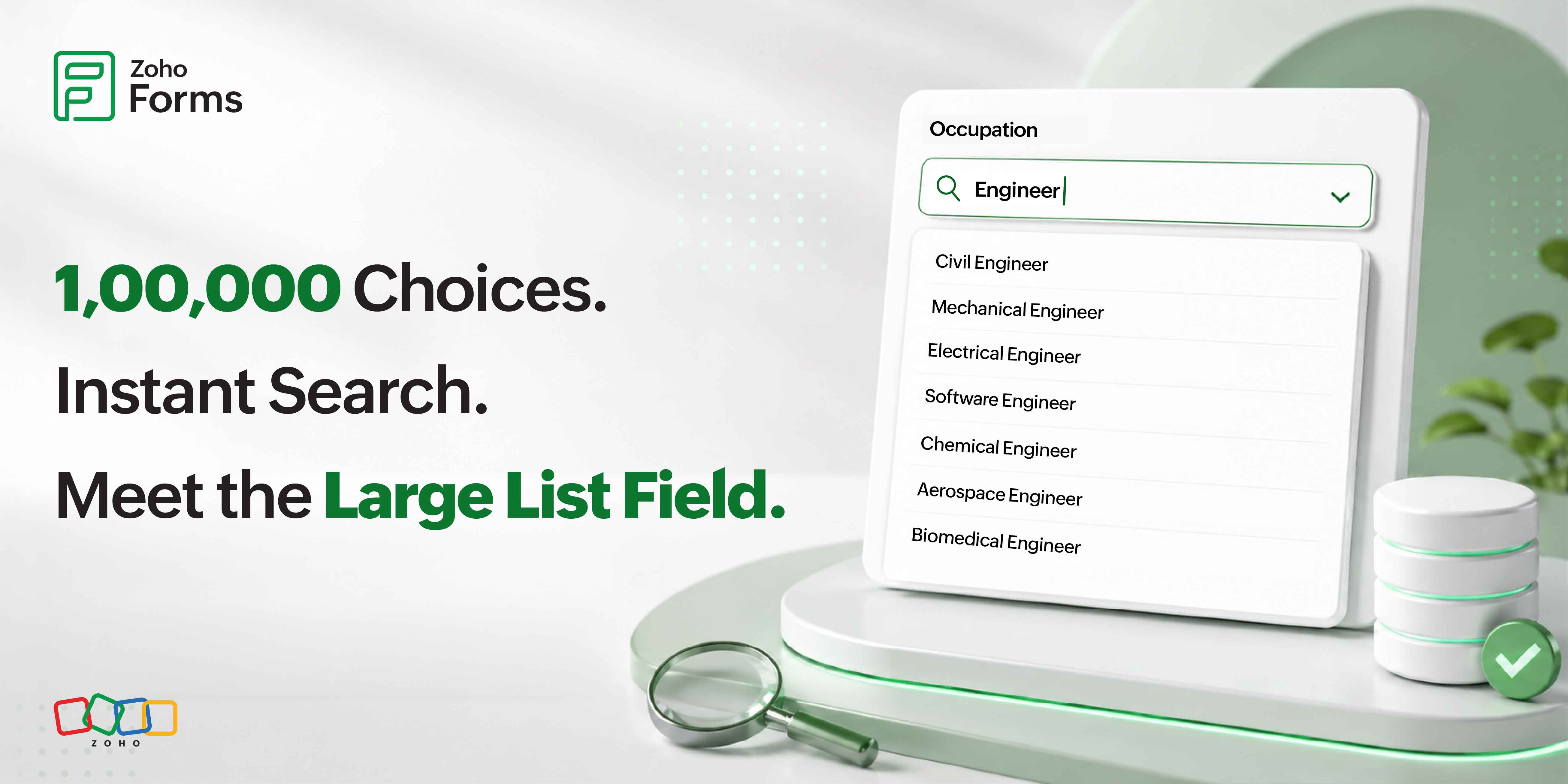
Large List is a new field type in Zoho Forms built specifically for choice data at scale. It supports up to 1,00,000 choices and delivers instant search results regardless of how large the list is, because it doesn't load options the way a standard field does.
Standard choice fields load the full option list when the form opens. That approach works fine when the list is short. Large List takes a different approach entirely: it uses search-based indexing powered by Zoho Search. Choices are stored in an index, and only the results matching what a respondent types are fetched and displayed, fast, on demand, every time.
For respondents, it looks and feels like a smart search box: start typing, see relevant matches appear instantly, select the right one. For form builders, the setup is straightforward. It's a field like any other, just backed by infrastructure designed for much larger data.
Standard choice fields are recommended for lists up to around 1,000 choices, where they work well. For anything beyond that, Large List is the right tool.
A few use cases where this makes a difference
Healthcare and clinical research
ICD-10 (International Classification of Diseases) alone has over 70,000 diagnostic codes. Drug names, procedure codes, lab test names, and specialist categories mean clinical forms are routinely dealing with datasets that no standard field is designed to handle. The usual outcome is a compromise: free-text entry that introduces inconsistencies, or a simplified dropdown that loses the specificity clinical data requires. Large List takes the full list as-is, no trimming, no approximation.
HR and workforce management
Occupational classification frameworks like ISCO (International Standard Classification of Occupations) or NIC (National Industrial Classification) list thousands of job codes across dozens of major groups. For employee onboarding forms, skills assessments, or workforce surveys that need to capture precise role data, a shortened list means inaccurate data. Large List lets you upload the full classification and lets employees find exactly what they do: by searching, not scrolling.
Retail and e-commerce operations
Mid-to-large product catalogues regularly run into tens of thousands of SKUs, product names, and category codes. Order intake forms, vendor submissions, returns processing, internal procurement: any workflow that references product data can now connect to the full catalogue. No more maintaining a trimmed-down list every time a new product line launches.
Government and civic services
Public service registrations, licensing applications, census instruments, and survey forms frequently require respondents to select from authoritative reference lists: PIN codes, administrative districts, educational institutions, and languages. These lists can't be trimmed without compromising the integrity of the data collected. Large List handles them in full, exactly as they are.
Three field types, one underlying engine
Large List supports three configurations, all powered by the same search index:
Dropdown for the standard single-select experience, now at any scale. Respondents type, results appear, one choice is made.
Grouped Dropdown for lists with a natural hierarchy. Medical specializations grouped by body system. Job codes grouped by occupational category. Product types grouped by department. It supports up to 200 groups, with up to 1,00,000 total choices distributed across them.
Multiple Choice for cases where respondents need to select more than one item. Skills assessments, multi-category selections, multi-condition clinical forms. It allows up to 50 selections per response.
Lists are managed centrally, reused everywhere
Large lists live in the Control Panel under Global Choice List > Large Lists, not embedded inside individual forms. This is a deliberate design choice with practical consequences.
A single list can be connected to as many forms as needed, with no duplication and no rebuilding from scratch. An organization-wide occupation list, once created and published, is available to every form builder in the org. When the underlying data changes (new products added, codes updated, entries retired), the list is updated once in the Control Panel and every form using it reflects the change automatically.
Access control is flexible: lists can be kept private, shared with specific users, or published to the entire organization.
Get started
The Large List field is available now. You'll find it under the Choices section in the Form Builder. Lists are created and managed in the Control Panel, where you can upload a CSV, configure grouping, and manage sharing in a few steps.
If you want to go deeper on setup, the Zoho Forms help center has a full walkthrough of the Large List field and all its options.
Already using it? We'd love to hear what list you built it around and what problem it solved for your team. Drop it in the comments below.