How to use watermarks in Zoho Writer in Zoho Workplace
Have you ever noticed those faint words or logos running behind official documents, like Confidential, Draft, or a company logo? Those are watermarks, and they quietly do a big job. They help protect sensitive content, convey the document’s status, and add a touch of branding all without getting in the reader’s way.
Before we dive into how to add and customize them, let’s take a moment to understand what a watermark really is and why it matters.
Table of Contents
- What is a watermark?
- Types of watermarks
- Why should you add watermarks to your documents?
- How do you add a watermark in Zoho Writer?
- How do you add different text watermarks to different pages?
- How to edit a watermark in Zoho Writer
- How to remove a watermark in Zoho Writer
- Best practices for using watermarks
- Using watermarks in team collaboration
- Final thoughts: Protect and brand your documents
- FAQ
What is a watermark?
A watermark is a faint text or image placed behind the main content of a document. It’s used to indicate the document’s purpose (like Draft or Confidential), include branding elements such as logos, or discourage unauthorized sharing. While subtle, it plays an important role in keeping documents professional, secure, and easy to identify.
Adding watermarks is simple and versatile it helps in keeping your documents professional, organized, and clear. In this article, we’ll guide you through how to add, customize, and manage them effectively.
Types of watermarks
Text watermarks: These are words or short phrases (like “Confidential” or “Draft”) that appear behind the document text. You can customize their font, size, orientation, and transparency.
- Image watermarks: Perfect for adding brand elements such as a company logo or seal. You can upload any image, adjust its scale and transparency, and position it as needed.
- Dynamic watermarks: These automatically pull in variable data (like recipient name or date) using Mail Merge fields, making them ideal for personalized or bulk document generation.
Why should you add watermarks to your documents?
Watermarks do more than decorate your pages. They help maintain professionalism and control. Here’s how they elevate your document management process.
They enhance professionalism: Every shared document reflects your brand identity.
They add a layer of security: Discourage unauthorized use or distribution.
They clarify document purpose: Mark files as “Draft,” “Final,” or “For Review.”
They maintain brand consistency: Keep all organization documents aligned with your design standards.
How do you add a watermark in Zoho Writer?
With Zoho Writer in Zoho Workplace, adding watermarks is fast and easy. Whether you want to mark internal drafts, personalize files with your company logo, or create data-driven watermarks for multiple recipients, it offers everything you need to get it done right from your workspace.
Follow these simple steps to insert a watermark in your document:
Click the More option (☰) at the top-left corner.
Select the Page Setup option.
In the top panel, open the Design section.
Choose the Watermark option.
- Check the box to Enable Watermark. Choose between adding a text or image watermark.

Option 1: Add a Text Watermark
Select the As Text option under Watermark type.
Enter your desired text in the Text & placement field.
Set the orientation, Horizontal or Diagonal.
Customize the font, size, and color as needed.
Click Apply.

Option 2: Add an image watermark
Select the As Image option.
Upload your preferred image.
Use the Scale and Washout options to fine tune the image's size and visibility.
Preview your document to ensure that the watermark doesn’t overpower the content.
- Click Apply.

How do you add different text watermarks to different pages?
Want to display different watermark text on specific pages? You can do this manually using a text box:
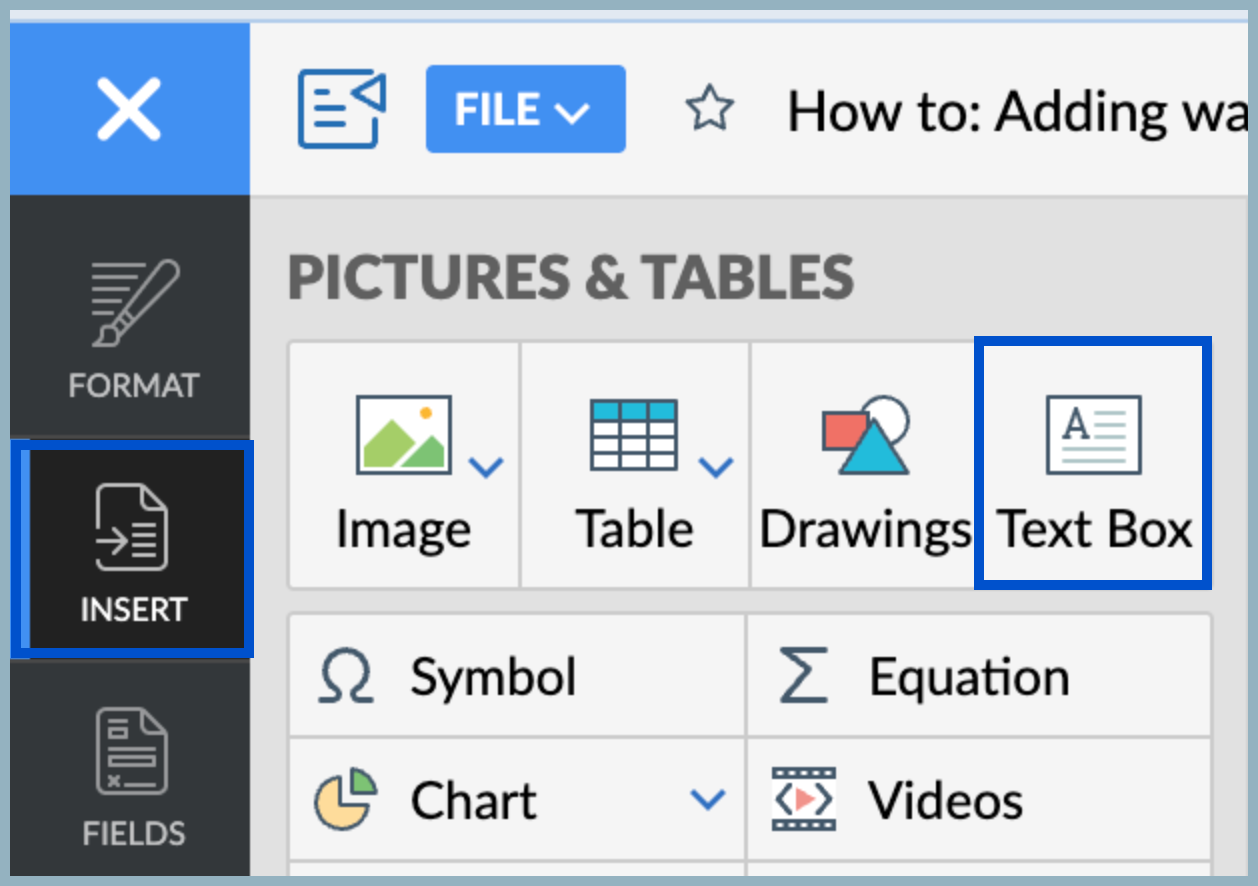
From the left pane, go to Insert → Text Box.
Type the desired watermark text.
In the Text Box Options pane, set Wrap Text → Behind Text.
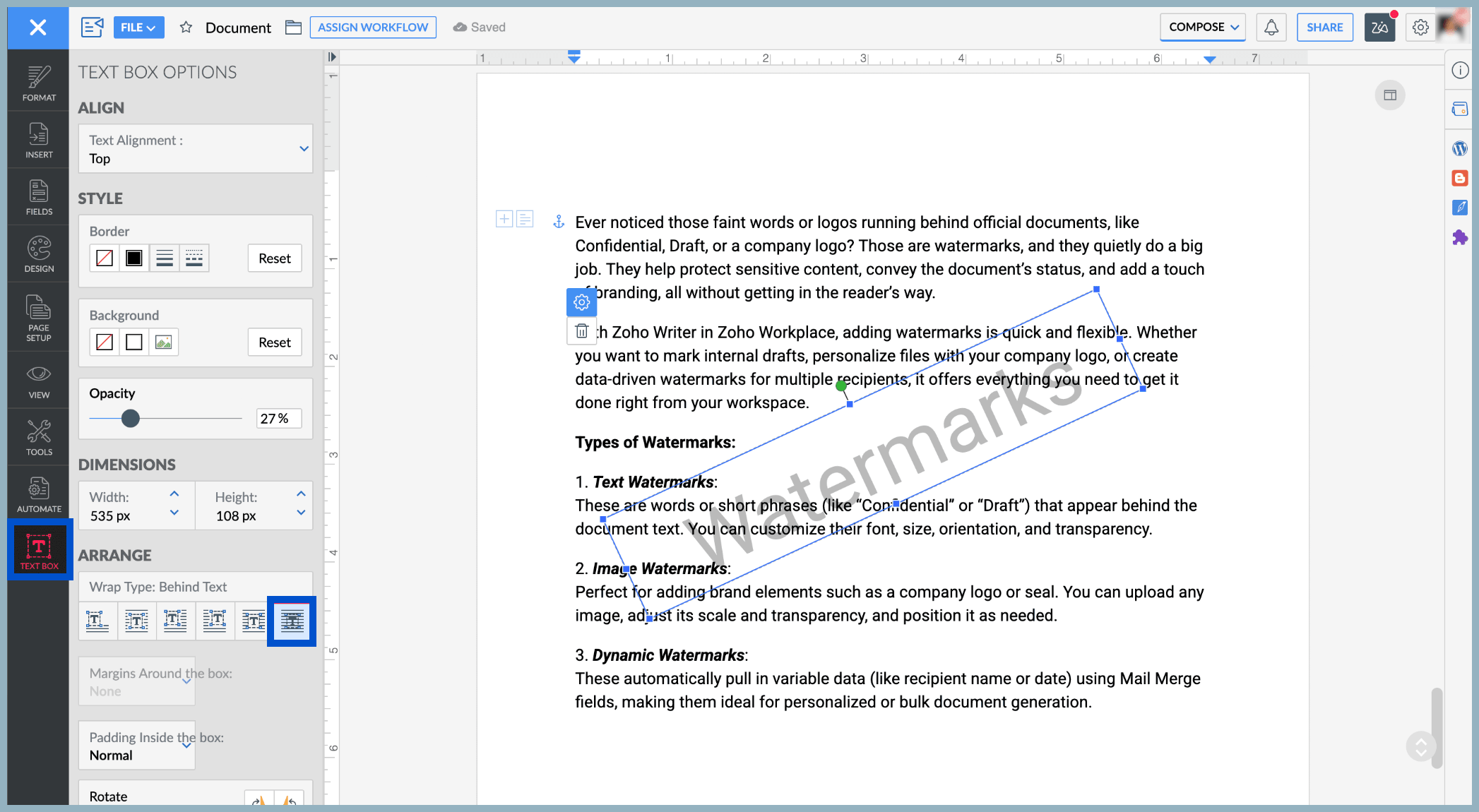
Adjust the opacity to make it appear faint like a watermark.
Move and resize it as needed.
This method works well when you want unique labels (like “For Review” or “Internal Use”) on different pages.
How to edit a watermark in Zoho Writer
Sometimes, you may want to tweak your watermark; maybe change the text from draft to final, adjust its color, or replace the image with a new logo.
Here’s how to make those quick updates:
Go to Page Setup and select Watermark.
Edit the watermark text, image, font, color, or orientation as needed.
Click Apply to save the changes.
Your edits are applied instantly across all pages of the document.
How to remove a watermark in Zoho Writer
If a document no longer needs a watermark, such as when a draft becomes a final version, you can easily remove it.
Just follow these steps:
Go to Page Setup and select Watermark.
Uncheck the Enable Watermark option.
The watermark will be removed from every page automatically.
Best practices for using watermarks
A watermark may seem like a small design element, but how you use it can make a big difference. The right balance ensures that your document looks professional, readable, and consistent without distracting from the main content.
Here are a few best practices to help you get it right:
Keep it subtle
Use soft colors and moderate transparency so the main content is easy to read while the watermark remains visible enough to serve its purpose.
Stay consistent with branding
Use the same watermark style, font, and logo in all of your documents. This keeps your files uniform and strengthens your brand identity, whether it’s an internal draft or a client-ready proposal.
Always preview before sharing
Before you download or send your document as a PDF, take a quick look at the preview. Make sure the watermark doesn’t interfere with text, graphics, or signatures, especially when printing or viewing on different screen sizes.
Match the watermark to the document's purpose
The type of watermark you use should fit the document’s intent. For internal drafts, simple text like “Draft” works well. For client-facing documents, a light logo or professional tagline helps maintain a polished, branded look.
Using watermarks in team collaboration
In a collaborative workspace, clarity and consistency are key. When multiple people edit or review the same document, it’s easy to lose track of its version or purpose. That’s where watermarks help teams stay aligned, maintain document integrity, and keep every shared file looking professional.
Here’s how watermarks in Zoho Writer make collaboration smoother and smarter.
Every collaborator sees the watermark
Whether your teammates are viewing or editing the document, the watermark remains visible to everyone. This ensures that everyone knows the document’s purpose—whether it’s marked Draft, Confidential, or Approved.
Watermarks stay intact on export
When you export your document as a PDF or DOCX file, the watermark goes with it. This keeps your document consistent and professional even outside Zoho Workplace.
They maintain brand consistency across teams
Including a logo or branded watermark ensures that all documents reflect your organization’s visual identity. Every file, whether shared internally or externally, looks cohesive and represents your brand well.
They protect sensitive information
Watermarks act as a subtle reminder to handle documents carefully. Marking files as Confidential or Internal Use Only helps prevent accidental sharing or misuse during collaboration.
Final thoughts: Protect and brand your documents
Adding a watermark in Zoho Writer is a simple yet effective way to protect and brand your documents. With options for text, image, and dynamic watermarks, you can tailor every file to its purpose to ensure clarity, consistency, and credibility across your organization’s content.
FAQ
What types of watermarks can I add in Zoho Writer?
You can add text watermarks, image watermarks, and dynamic watermarks.
Can I add different watermarks on different pages of the same document?
Yes. You can insert a text box on a specific page, place it behind the text, and adjust the opacity to create a custom watermark for that page.
Will watermarks affect collaborative editing or comments?
No. Watermarks are always behind the main content. Team members can edit, comment, or highlight text without interfering with the watermark.
Top Articles