Organization Settings
Zoho Voice offers a dedicated Organization Settings page where admins can configure organization-wide preferences to align with their communication needs. The settings configured on this page apply across the organization.
You can also manage the Auto Credit feature here. When enabled, credits are automatically added to your account whenever the balance falls below a configured threshold. The credits added is based on the Credit Renewal Amount specified here in Settings → Organization Settings. The added credits will be included in your next subscription renewal invoice.
Note
Only super admins and admins can access and manage these settings.
To access Organization Settings, navigate to Settings and click Organization Settings.
User Management and Notifications
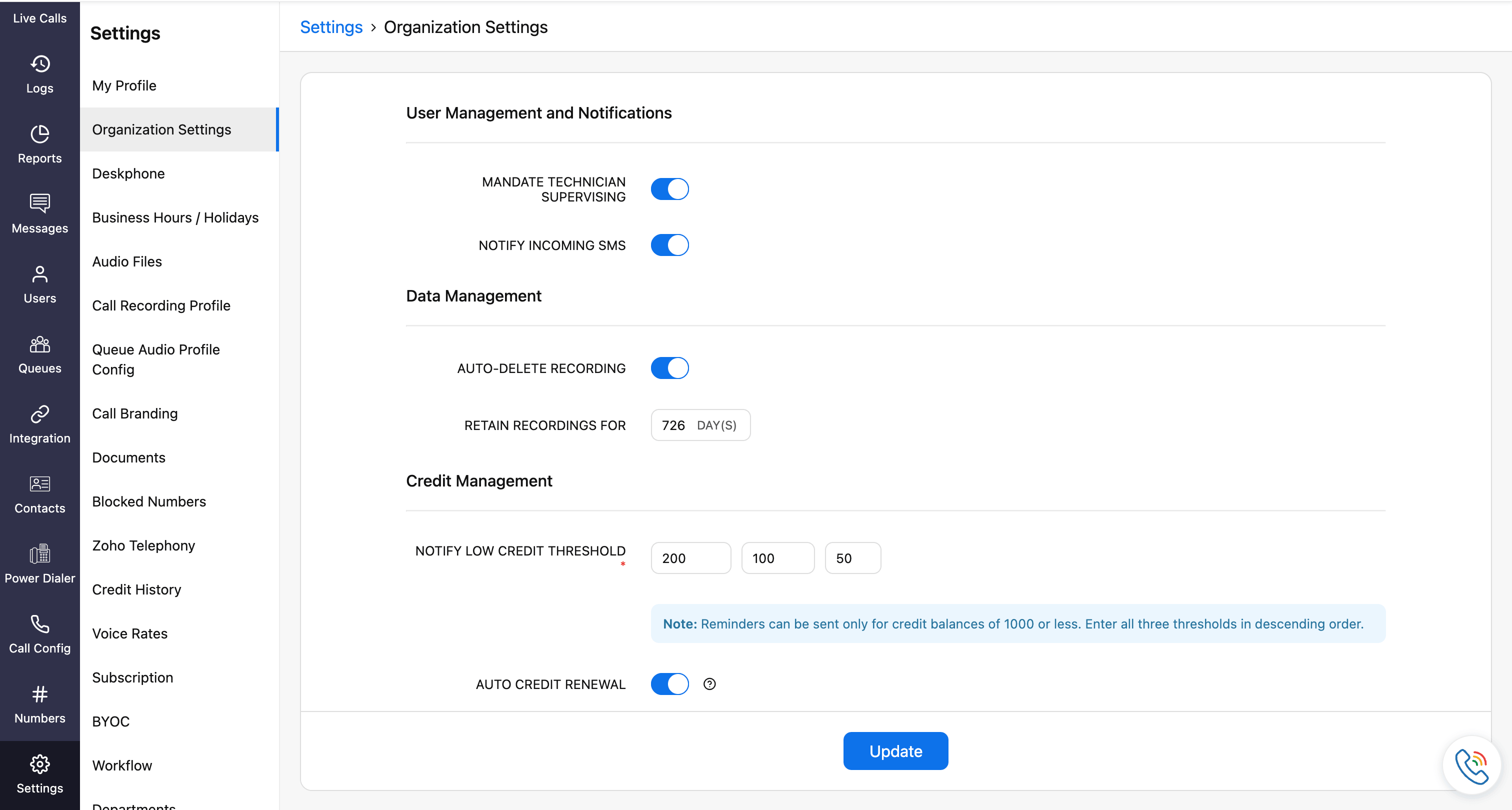
Mandate Technician Supervising
Enable to allow adding technicians to the organization only if a supervisor is assigned to them.
Notify Incoming SMS
Enable this option to send notifications for all incoming SMS messages across the organization.
Data Management
Auto-Delete Recordings
To delete voicemail and call recordings automatically, enable the Limit Retention Period option and set the maximum number of days you want to keep them. Once that period is over, the recordings will be permanently deleted.
Note
This field can be configured only by super admin.
Credit Management
Low Credit Notification
Configure up to three low-credit alert thresholds to receive notifications when the credit balance falls below the specified values.
Thresholds can only be configured for credit balances of 1000 or less.
All three threshold values are mandatory.
Values must be entered in descending order.
Note
This is a mandatory configuration.
Auto Credit Renewal
Enable this option to automatically add credits to your account when the available credit balance falls below the configured threshold. In the Credit Renewal Amount field, specify the credit value to be added automatically each time the threshold is reached. You can configure a maximum of 500 credits.
Points to note
When configuring for the first time, ensure that the Available Credits is greater than the lowest credit balance threshold.
Auto Credit can be triggered a maximum of three times within 30 days.
For yearly plans, the minimum credit renewal amount should be 100.
If there are any pending payments, auto credit will remain inactive until all dues are cleared.

Agent Settings
Receive Calls Only When Available
Enable this option to allow users to receive direct and agent-to-agent calls only when their status is set to Available.
Receive Calls Only When On Call or Wrapping Up
Enable this option to allow users to receive second direct, transferred and agent-to-agent calls only when their status is set to On Call or Wrapping Up.
User-Level Override
Enable this option to allow users to individually configure the Receive Calls Only When Available and Receive Calls Only When On Call or Wrapping Up settings from their Users > Edit page.
Note
These settings apply only to direct calls and agent-to-agent calls. Queue calls are not affected.

Queue Stats Configuration
The settings configured here are reflected under Org Config in the Queue Stats page (Reports → QueueStats → Settings → Org Config).
Talk Time
The duration during which an agent actively speaks with a caller, excluding hold time. Talk time begins when the call is answered and ends when the call is disconnected. This metric is used to calculate the Queue Service Time Index.
Wait Time
The duration a caller spends waiting in the queue before the call is answered by an agent. This metric applies only to answered calls and is used to calculate the Service Level Rate and Queue Service Time Index.
Hold Time
The duration a caller is placed on hold during an active call, after the call is answered and before it is resumed or ended. This metric is used to calculate the Queue Service Time Index.
Short Abandoned Time
The duration a caller stays in the queue before hanging up the call prematurely. This is usually within a short time (e.g.: under 5 seconds). Calls that end before this defined threshold are categorized as short-abandoned and not counted under standard abandoned calls.
Peak Hour Sensitivity
Determines how the system detects and highlights high-traffic periods based on incoming call volume. Sensitivity Levels:
Low: Detects all the minor increases/spikes in call volume, marking more periods as peak hours.
Medium: Provides a balanced approach by detecting both minor and major spikes. Offers moderate sensitivity.
High: Highlights only highest spikes. Fewer periods are marked as peak hours.
Allow On-Demand Config Access
Enable this option to allow supervisors to access and configure threshold values under On-Demand Config in the Queue Stats page (Reports → Queue Stats → Settings → On-Demand Config).
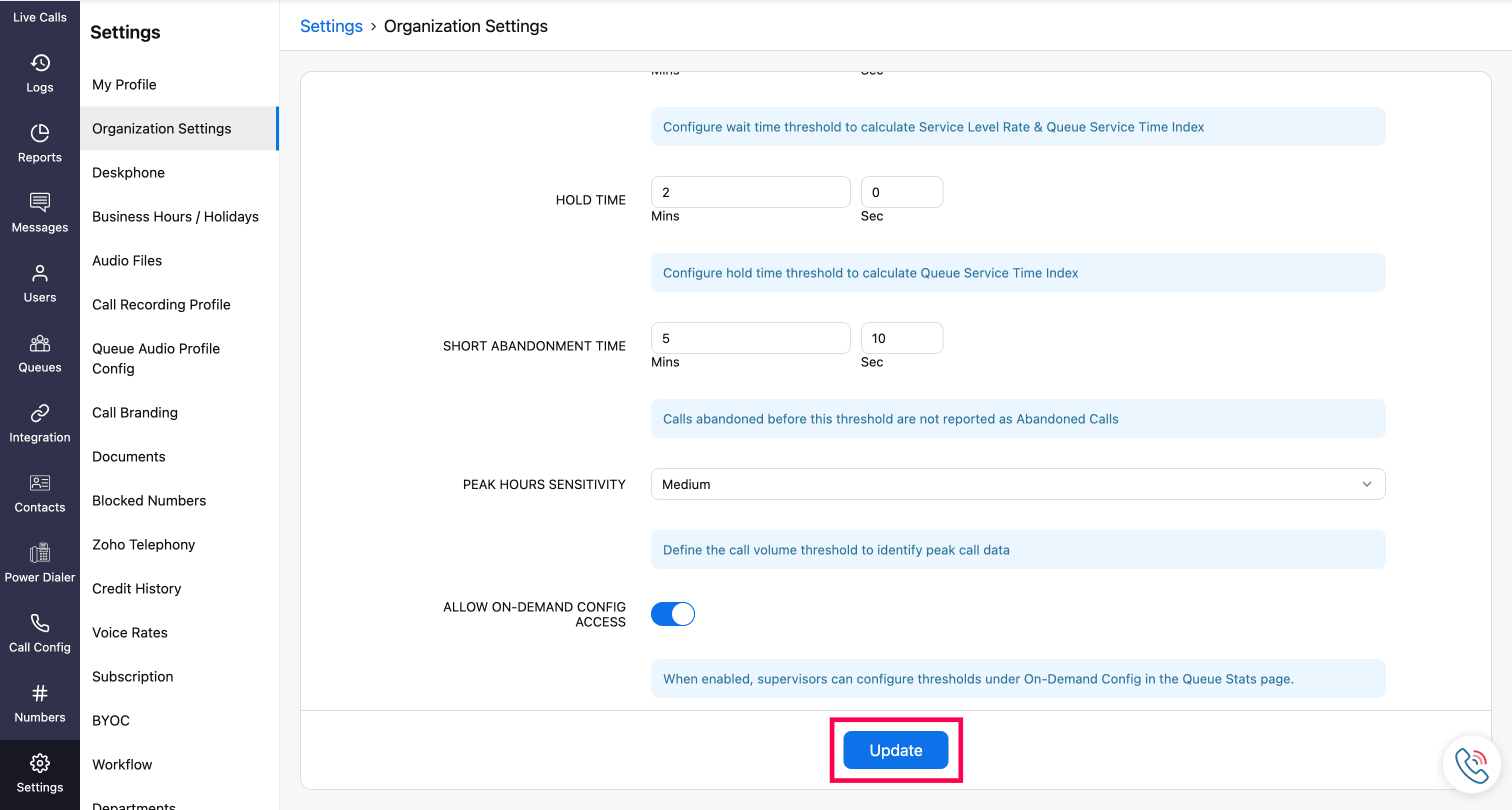
After configuring your organization preferences, click Update to save the changes.