Create Users
In Zoho Voice, once your account is created, you can begin adding users to your organization. Users can be invited via email and, upon accepting the invitation, will be able to sign in to Zoho Voice. Based on their assigned roles, users can access, configure, and manage various settings within the platform.
To add a user:
- Go to the Users module from the left sidebar menu.
Click Add Users at the top-right corner of the page.
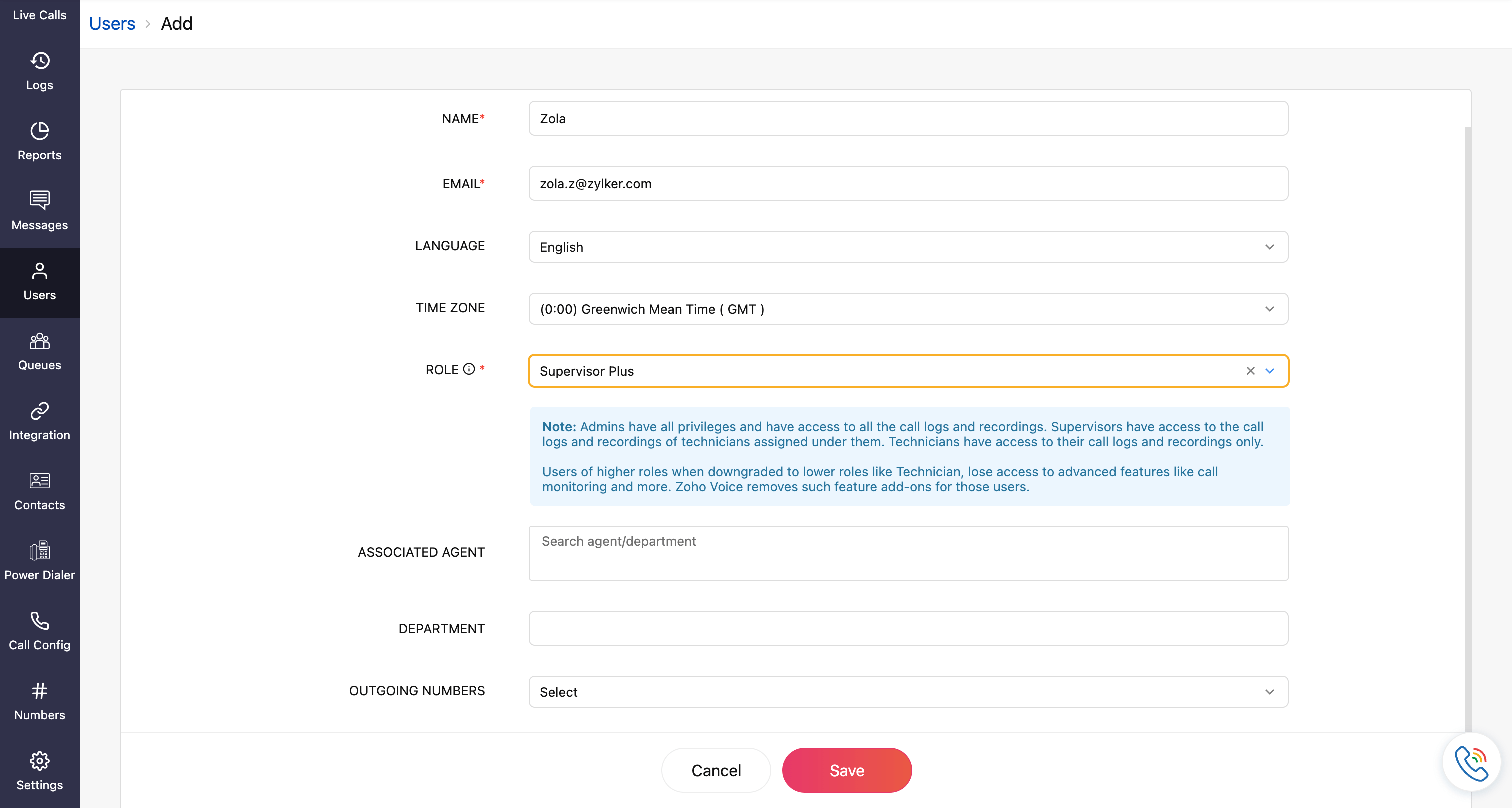
Now, fill in the following details:
- Name and Email Address of the user.
- Choose the Zoho Voice UI Language and Time Zone from the respective drop-down.
- Select the Role you want to assign.
Additional settings:
- For the roles supervisor plus and supervisor, you can map the associated technicians.
- For technicians, you can map them to their associated supervisor/supervisor plus.
- For all roles except admin and super admin, you can assign outgoing numbers. If numbers haven't been purchased yet, you can assign them later.
Department assignment:
- You can map the user to a Department.
To create a new department, enter the name and click Create New.

Now, click Yes.

Learn more about creating and managing departments
Once the required fields are mentioned, click Save.
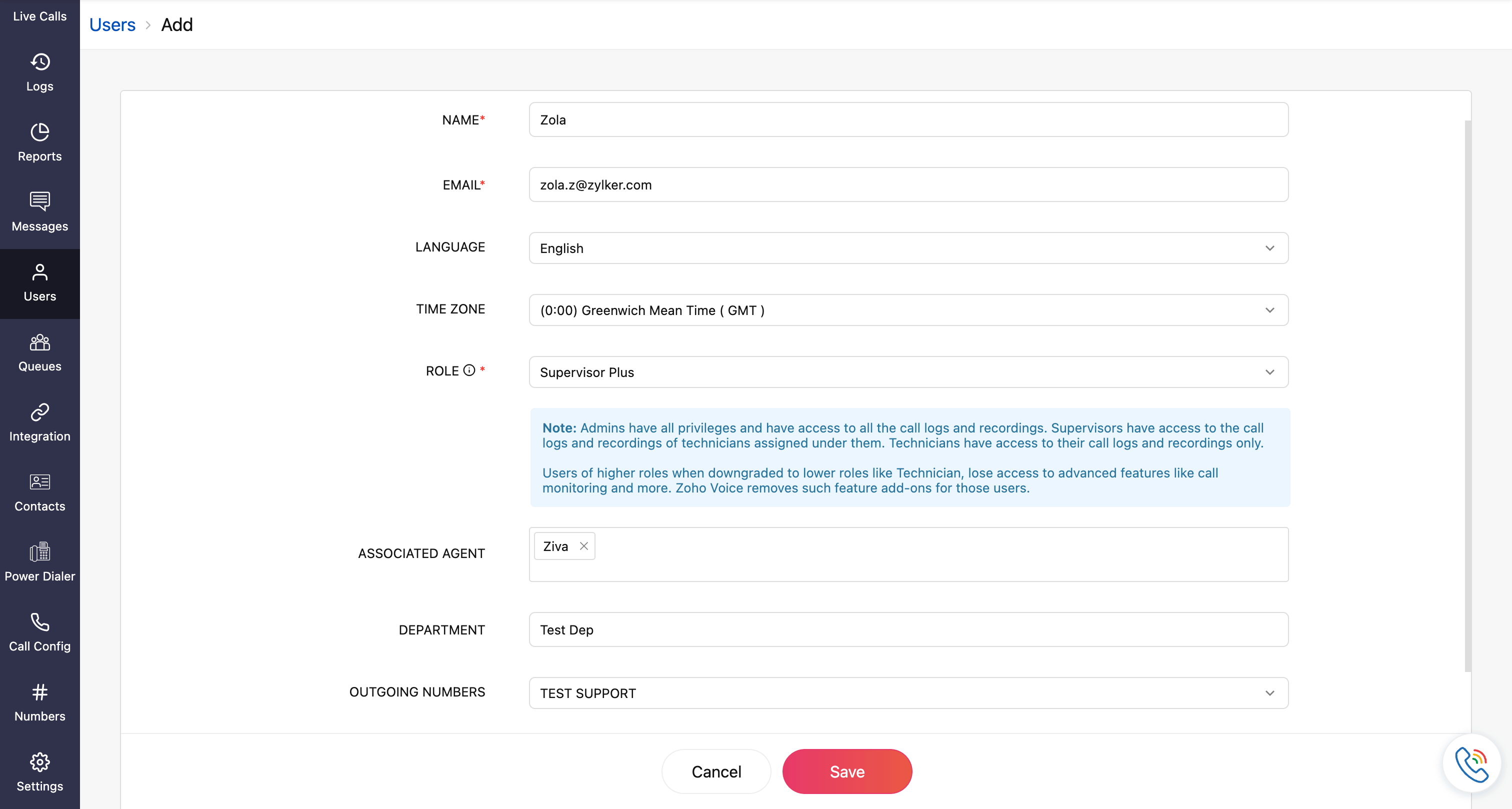
Note
- Name, email address, and role are mandatory fields.
- Admins have all privileges and have access to all the call logs and recordings. Supervisors have access to the call logs and recordings of technicians assigned under them. Technicians have access to their call logs and recordings only. Users of higher roles, when downgraded to lower roles like technician, lose access to advanced features like call monitoring and more. Zoho Voice removes such feature add-ons for those users.
Learn more about the roles and privileges.
User Invitation Process
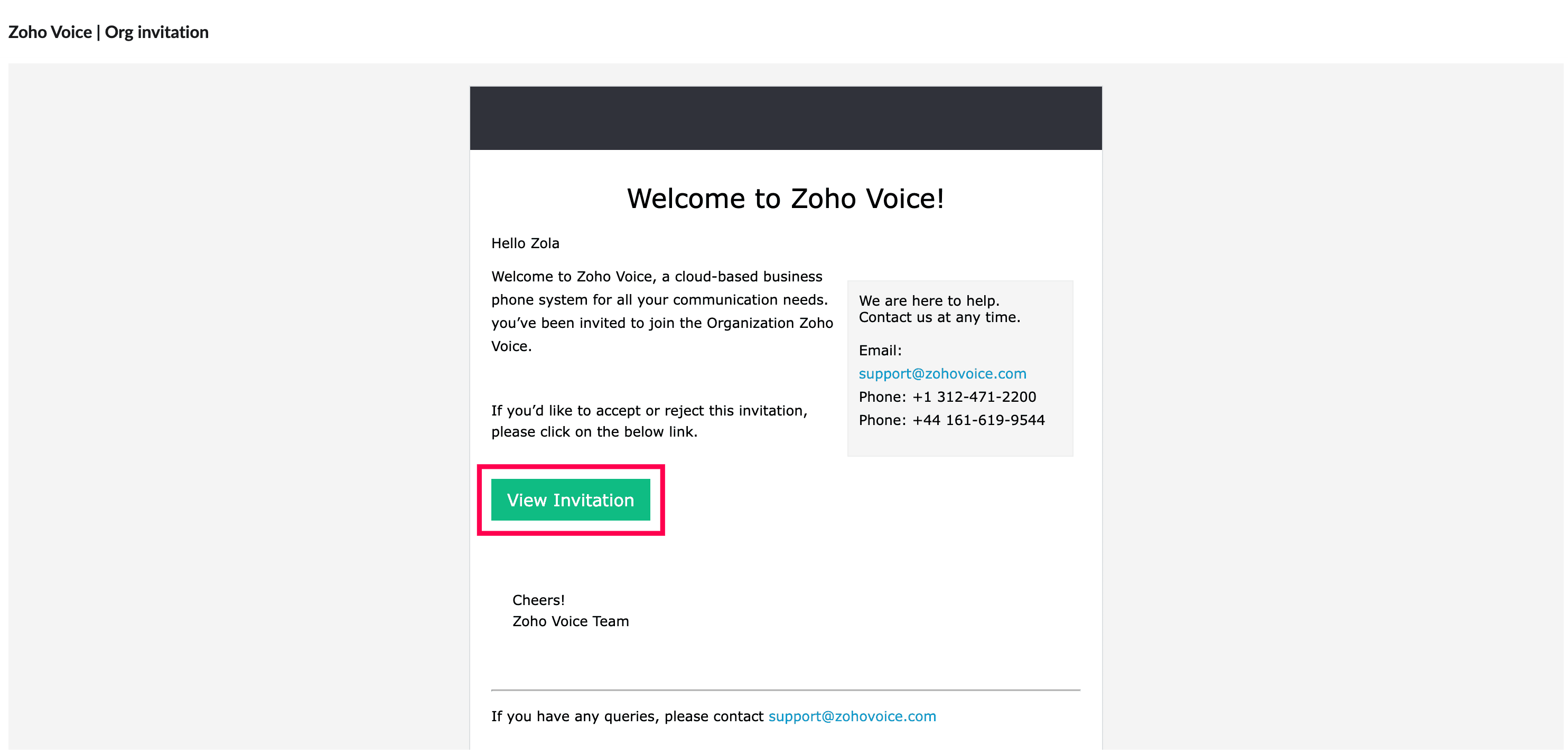
Once a user is added through the Users module, an invitation email will be sent to the email address provided.
To complete the setup:
Click View Invitation in the email.
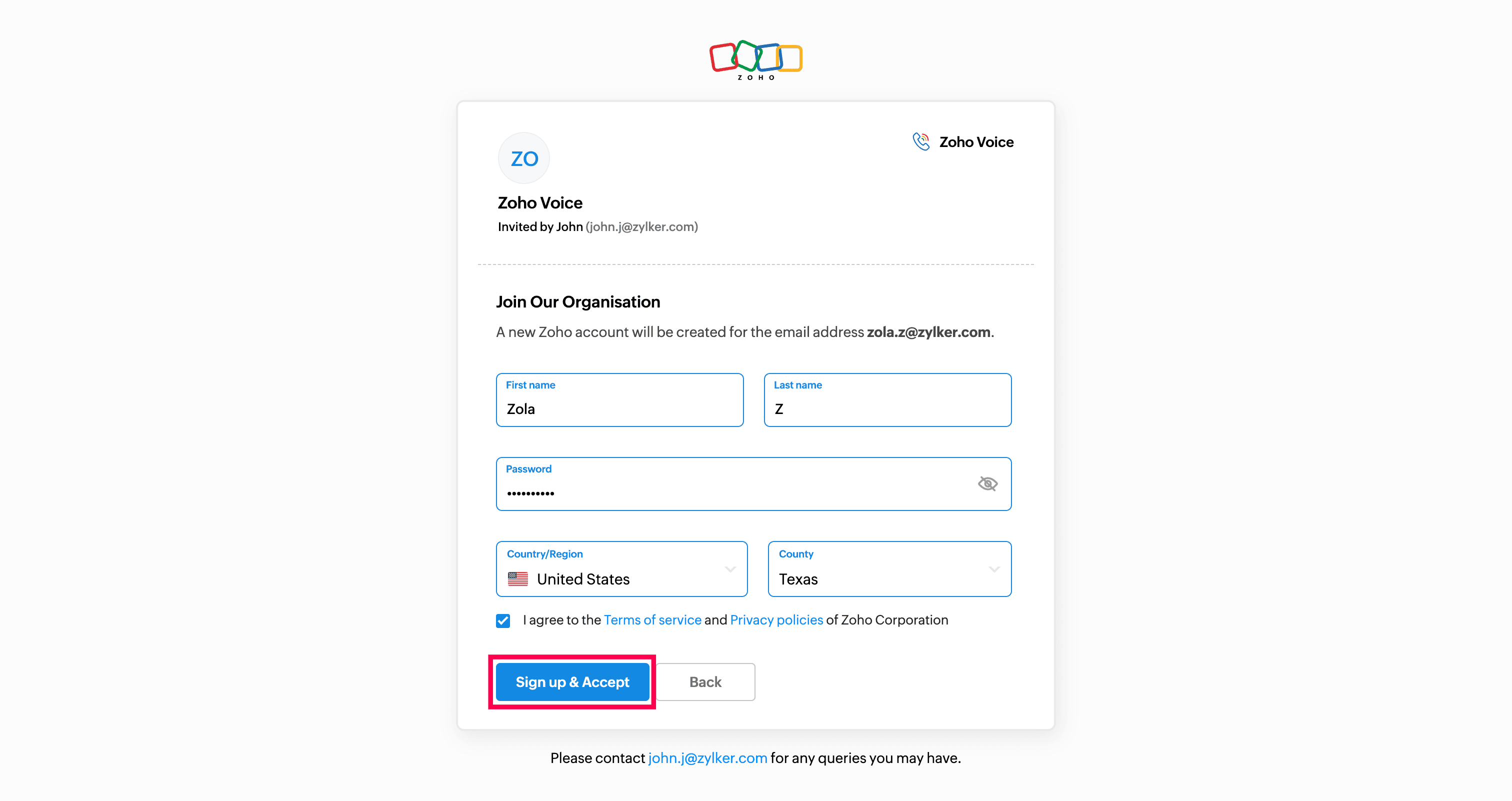
Select Sign up & Accept.
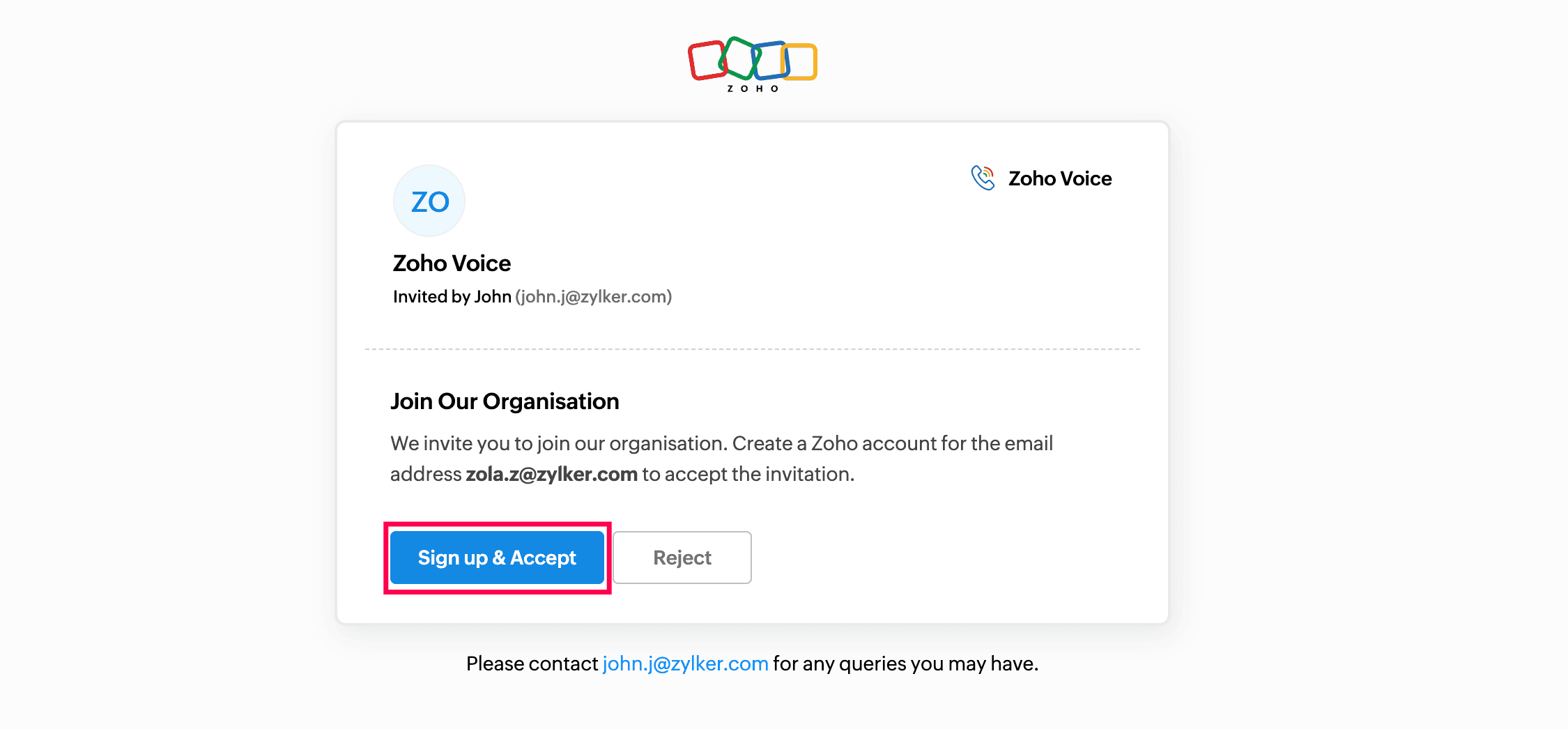
- Enter your First name and Last name, and create a secure password.
- Read and agree to the Terms of service and Privacy policies.
Click Sign up & Accept.
Upon successful sign-in, the user will be redirected to their Zoho Voice account.
Note
In the Users module, a user will be Active only after the successful signing in. Until then, they will remain in the In-active user category.