How to know if your email has been read: Ask for read receipts
When you send an email, it's common to wonder if the recipient has read and acknowledged your message. Unlike instant messaging platforms that use indicators like blue ticks, or face-to-face conversations where you can observe reactions in real time, email communication doesn't always provide immediate feedback. 
Knowing whether your recipient has read and acknowledged the message not only helps shape the conversation but also ensures clarity, reduces any future misunderstandings, and allows for timely follow-ups.
Even without getting a reply email from the recipient, technology has evolved so that you can still find out if the recipient has received your message. This is where Read receipts help you better understand your message engagement and ensures proper and effective communication.
Table of Contents
What are Read receipts?
Read receipts refers to notifications or indications that the user you've sent the message to has viewed and acknowledged your message content. With Read receipts enabled, the recipient will see a pop-up when they open your email, asking if they want to share an acknowledgement message that they've viewed your email.
If they agree to send Read receipts, you'll be notified that they've opened your message. It makes it easier to know when a message has been read, but Read receipts are optional and depend on the recipient’s settings. If the recipient chooses not to agree, you won't get any notification, even if they've read your message.
Benefits of using Read receipts
Enabling Read receipts helps you more than just knowing that the end recipient has acknowledged your email content. By enabling Read receipts, you can ensure:
- Timely follow up: Once you're aware that your end recipient has acknowledged your message, you can plan when exactly to send up a follow-up email if needed without constantly spamming the recipients with reminder emails.
- Email delivery confirmation: With Read receipts, you're assured that your message has reached the intended inbox rather than being lost, filtered, or being routed to a spam folder. This is especially useful when sharing sensitive, time-critical, or high-priority information.
- Accountability: Read receipts help senders and receivers take responsibility for their actions by showing that they've seen the messages. This encourages them to follow instructions, or act on the information they've received.
- Improved prioritization: Read receipts lets you see which emails have been opened and which haven't, helping you focus on the messages that actually need attention first. This ensures that you're spending time on the most important tasks instead of waiting.
- Quick response: You can know right away when someone has opened your email. When people see that you're tracking the message, they're often more likely to respond quickly. This helps you get faster replies and reduces waiting time.
Limitations and considerations for Read receipts
As Read receipts make it easier to understand the flow of communication, they also come with a few limitations you may need to consider. Additionally, they may not work the same way for everyone, depending on the email service or settings the recipient uses.
- Read receipts aren't guaranteed because the recipients can choose not to send them even if you've requested an acknowledgement.
- Some email services or apps may ignore read-receipt requests altogether.
- Some organizations and their policies are set to block Read receipts from being sent.
- A Read receipt only confirms that the email was opened, not that the content was read or understood.
Best practices for using Read receipts
While Read receipts can help you know whether your message reached the recipient, they can also affect the recipient’s privacy.
To use them wisely, here are some best practices to follow when requesting Read receipts:
- Request a read receipt only when it's truly necessary, such as for critically important or highly sensitive emails.
- Let the recipient know why you're requesting a read receipt, so it doesn't feel invasive.
- Avoid using Read receipts for casual or routine messages.
- Respect the recipient’s choice if they choose not to send a read receipt.
- Use other ways to confirm that your message has been received when appropriate, such as asking the recipient for a direct reply.
Read receipts in Zoho Mail
Zoho Mail provides you a convenient way to enable Read receipts from your end and ask for Read receipts from the recipient for better communication flow. Based on the recipient's Read Receipt settings, you'll be notified whether the email has been read or not.
If the recipient agrees to send a Read receipt, a new acknowledgment email is added to the relevant email conversation. This will be listed as a separate email response along with the date and timestamp in the email.
How to enable Read receipts in Zoho Mail
Read receipts in Zoho Mail can be turned on for both the sender and receiver, so you can use them when you send an email and also when you get one. This allows you to track whether your messages have been read and also gives you the option to notify senders when you open their emails.
You can choose to enable Read receipts in two ways in Zoho Mail:
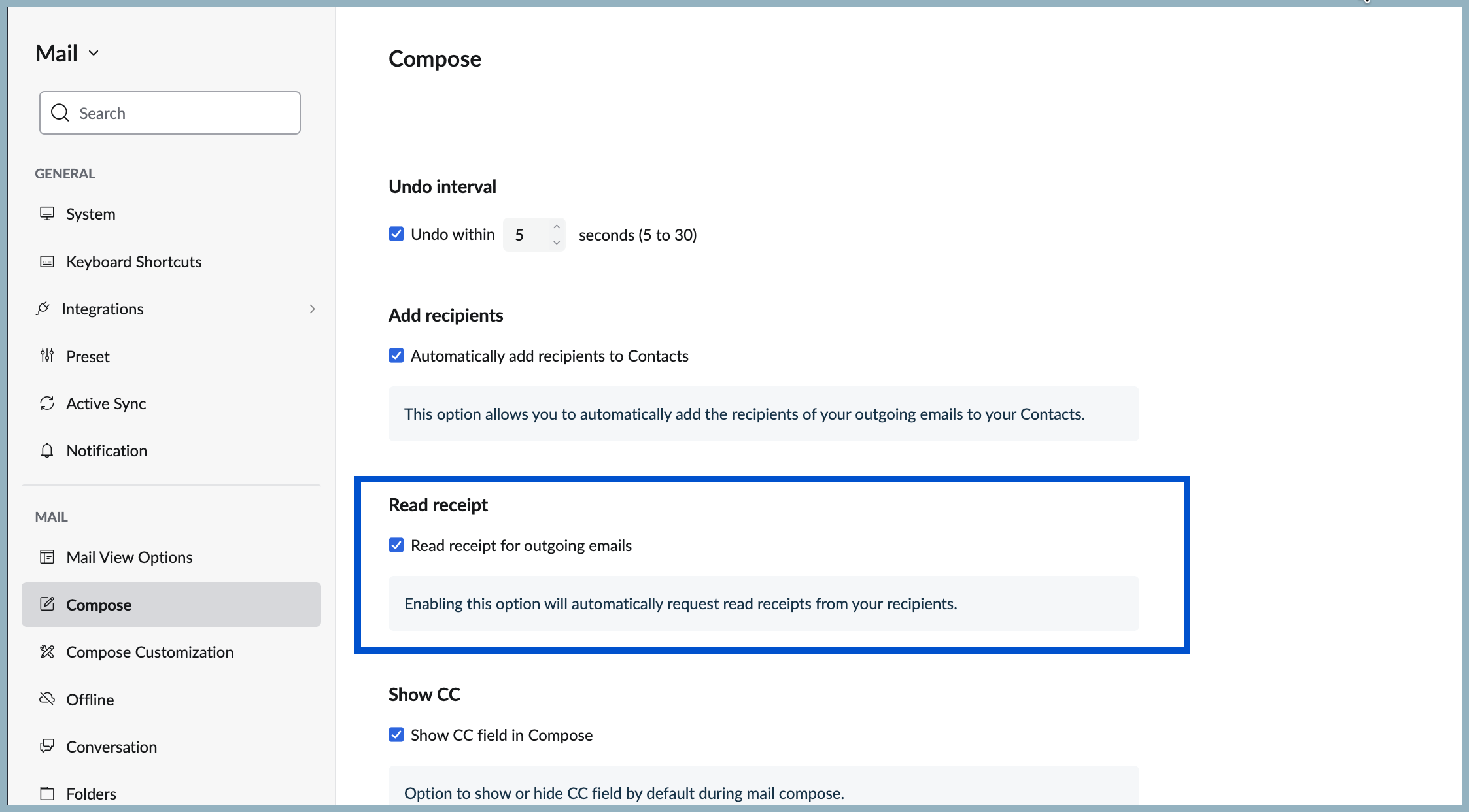
A. In the Settings (for all outgoing emails by default by enabling the same in Settings). To enable Read receipts from Settings, follow these steps:
- Log into your Zoho Mail account.
- Navigate to Settings > Compose > Read receipt.
- Click on the checkbox Read receipt for outgoing emails.
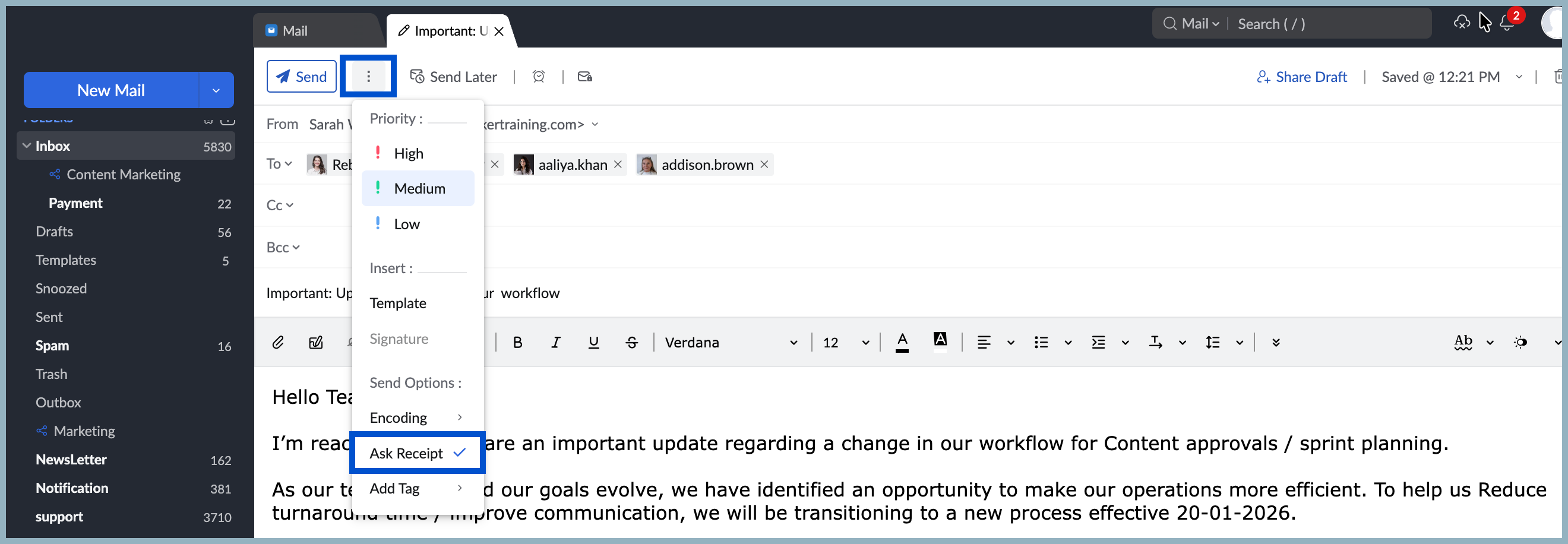
B. In the Compose page (for a particular email from the compose window). To enable Read receipts from Compose:
- Log into your Zoho Mail account.
- Click on Compose and draft your email content.
- Click on More Options icon in the header.
- From the list of options, click on Ask Receipt.
Configure sending Read receipts
You can auto-accept, deny, or choose to customize sending Read receipts to other users when you receive an email from your Zoho Mail settings.
To configure Read receipts settings for emails you receive, follow these steps:
- Log into your Zoho Mail account.
- Navigate to Settings > Mail View Options > Read receipts.
- From the three options, you can choose to:
- Select Always Send to always send a Read Receipt acknowledgment to the sender.
- Select Never Send to never send a Read receipt acknowledgment to the sender.
- Select Ask me to ask for confirmation before sending a Read receipt acknowledgment to the sender.


Once you set your read-receipt preferences, your email settings will handle all future read-receipt requests automatically. Only email messages that ask for a receipt will follow the rules you have set in your settings.
Managing requests (can recipients accept or decline Read receipts?)
When you receive an email that includes a read-receipt request, your email may prompt you to choose whether you want to confirm (Accept or Deny) that you've opened the message or not. This gives you control over your privacy—you can decide whether the sender will be notified about your activity.
If you choose to accept and send a receipt, the sender automatically receives an auto-generated response confirming that the message has been opened. This response email is then attached to the existing email thread so the sender can easily see that their message was viewed.
If you prefer not to share Read receipts information, you can simply decline the request. In that case, the sender will not receive any confirmation.
Conclusion
Read receipts are more than just a tool, they're a way to take the guesswork out of email communication. By letting you know when your messages have been seen, they help you follow up on time, ensure accountability, and streamline the flow of important conversations. You can stay informed and in control of your email communication without overstepping boundaries.
Top Articles