This article walks you through the best practices for building secure forms. From encryption choices to layered verification and responsible data handling, let's see how you can achieve this by using Zoho Forms.
What this page covers
- Protecting All Entries, Reports, Approvals and Tasks with form encryption
- Protecting sensitive fields with field-level encryption
- Layered defence: CAPTCHA, OTP Verification, and Double Opt-In
- Responsible data handling
- Frequently asked questions
1. Protecting All Entries, Reports, Approvals and Tasks with form encryption
Some forms don't just contain a few sensitive fields, they contain sensitive information throughout. Healthcare records, financial applications, legal documents, employee records, and government forms are all examples where protecting the entire submission is more important than selectively encrypting individual fields.
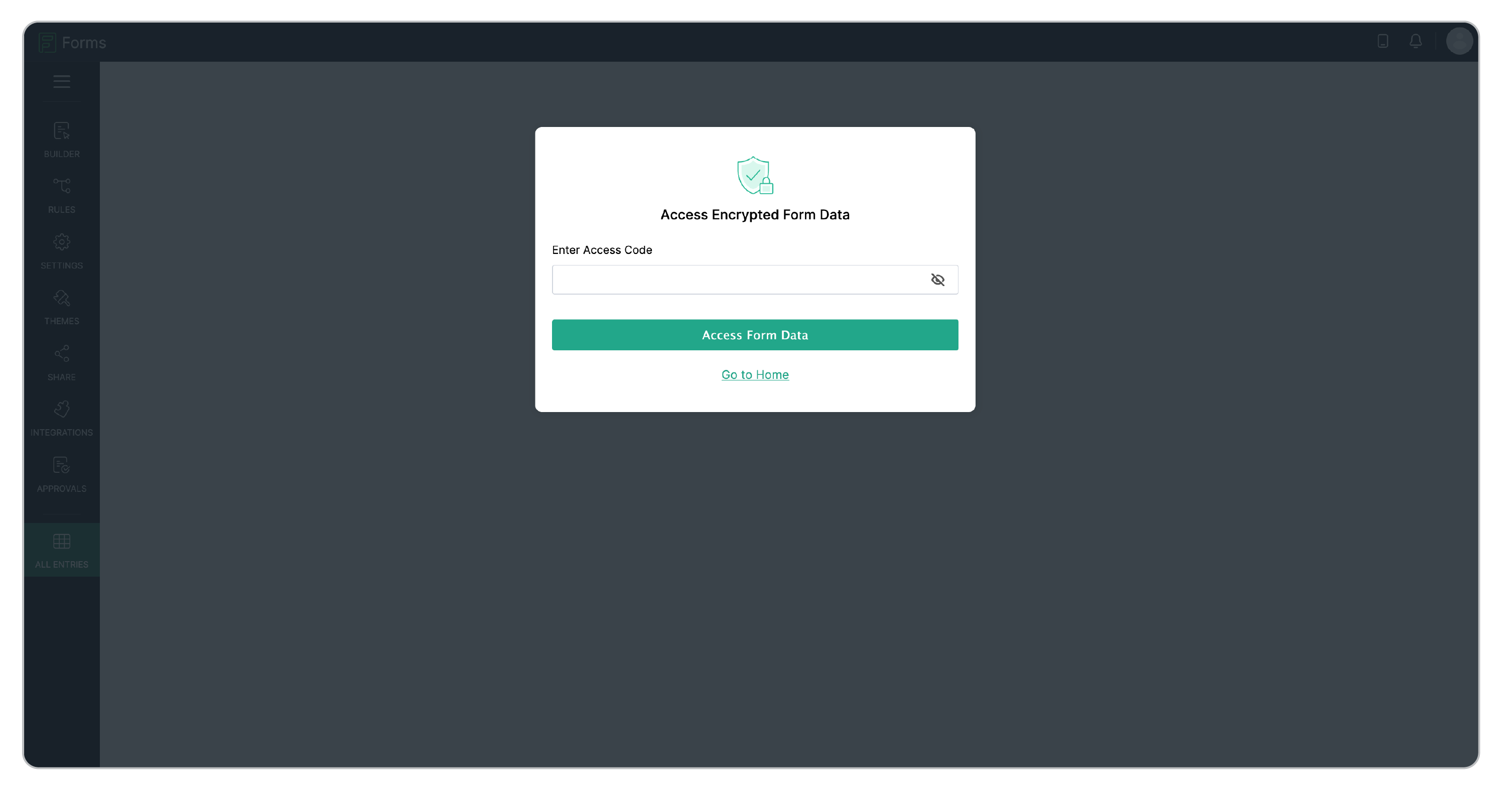
Form Encryption protects your form data by encrypting the entire submission using an Access Code. Without this code, the stored data remains unreadable, even if someone gains unauthorized access to it.
Key characteristics
- Access Code protected: Every encrypted form is secured with a unique Access Code. Anyone who needs to view or manage encrypted entries, including collaborators must enter this code.
- Organization-level enablement: Form Encryption must first be enabled by your organization's Super Admin before it becomes available for individual forms.
- Stricter data access controls: Features that expose form data, such as notifications, exports, and certain integrations, are restricted by default to reduce the risk of accidental data exposure.
- Permanent encryption: Once a form is encrypted, its existing and future submissions remain encrypted permanently. The encrypted data cannot be converted back to plain text within Zoho Forms.
This feature is best suited for forms that collect highly sensitive information where protecting the entire submission is a security and compliance requirement, rather than just encrypting a few individual fields.
2. Protecting sensitive fields with field-level encryption
Field-level encryption is ideal when you need to protect specific sensitive information within your form, such as national ID, passport, or bank account details. Using AES-256 encryption and TLS protocols, this feature ensures sensitive values are secured both in transit and at rest. It acts as an additional layer of security applied only to the fields that need it most, while leaving the rest of the form functioning normally.
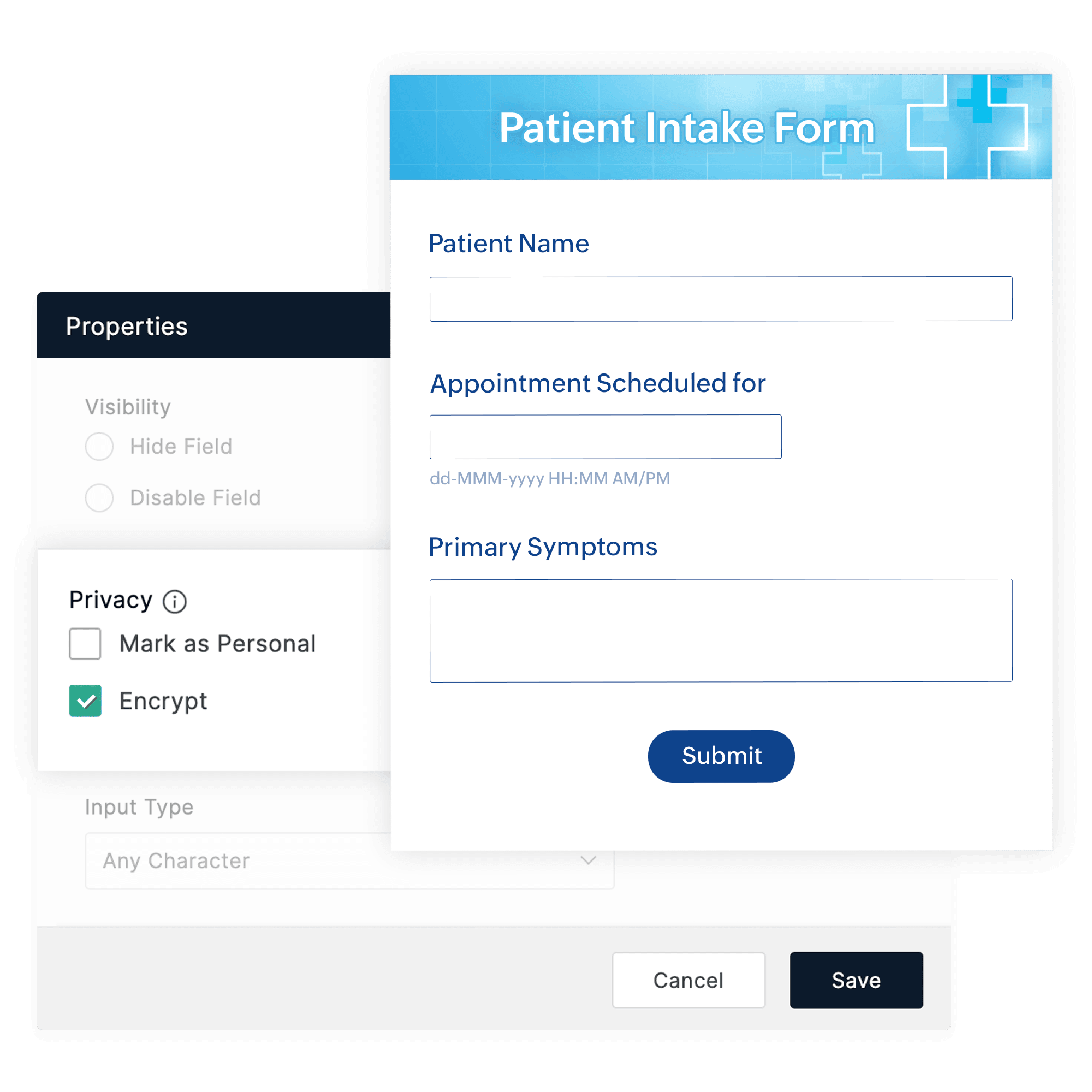
To prevent accidental exposure, the data in the encrypted fields is masked in reports, and you'll receive a confirmation prompt before including data in external notifications. Non-encrypted fields, integrations, and workflows continue to operate as usual, making this a practical choice for forms that handle a mix of general and sensitive information.
3. Layered defence: CAPTCHA, OTP Verification, and Double Opt-In
One of the most effective ways to secure your form is to verify that the person filling it out is who they claim to be, and whether they are a real human. Zoho Forms supports the following spam control mechanisms which can be layered to make the best out of them.
CAPTCHA
CAPTCHA acts as your first line of defence against bots. It prevents automated bots from submitting your form, protecting you from spam, fake entries, and automated attacks. Zoho Forms supports the following:
Zoho Forms CAPTCHA: A built-in challenge that displays sequence of distorted alphanumeric characters which bots struggle to read. This option that doesn't rely on third-party services, useful when you need to avoid external dependencies.
Google reCAPTCHA v2: Presents a visible challenge (e.g., "I'm not a robot" checkbox) or invisible reCAPTCHA badge that validates respondents in the background.
Google reCAPTCHA v3: Works entirely invisibly in the background with no user interaction required. It analyzes behaviour signals and assigns a risk score; only high-risk submissions are flagged or blocked. This is the best option for minimizing friction for genuine users.
Cloudflare Turnstile: A privacy-first, invisible alternative to reCAPTCHA that performs browser-level checks without tracking users or serving visual puzzles.
Additional bot prevention: Rate limiting
To further prevent bots from flooding your form, Zoho Forms supports IP-based rate limiting and submission throttling by default, which can prevent a single source from submitting repeatedly. This is an important control for high-traffic public forms.
OTP Verification
OTP verification sends a time sensitive code to respondents email address or phone number, which they must enter to access the form's public link.

This confirms that each respondent has access to the contact details they provided and effectively prevents bots from accessing the form. You can configure the OTP expiration time and the number of OTP requests allowed, giving you control over how strict the verification window is. Codes can be delivered via email, SMS, or WhatsApp, depending on your form configuration. This approach aims to effectively block bots from reaching the form.
Inline OTP Verification
Inline OTP verification sends a time-sensitive code to respondents email address or phone number. Unlike pre-access OTP, the respondent fills in their contact detail inside the form, receives the OTP to that address, and must verify it before the submission is recorded. This stops bots from triggering multiple emails to a third party's inbox in seconds, as a bot cannot submit the form without verifying it.
Double Opt-In
Double Opt-In sends a confirmation email to the respondents after they submit the form. The submission is only recorded once they click the confirmation link in that email. Beyond preventing bot submissions, Double Opt-In serves as a critical layer for GDPR compliance, it provides a documented "proof of consent" that ensures your email marketing lists only include users who have explicitly confirmed their interest.
Layered defence
Combining multiple security features isn't redundant—getting the right combination helps keep bots and human spammers out of your form.
Recommended combinations
| Combination | Why it works |
|---|---|
| CAPTCHA + Inline OTP | Stops bots (CAPTCHA) and verifies respondent identity in real time (OTP) |
| CAPTCHA + Double Opt-In | Ensures the user is human and the email is active. Even if a bot solves the CAPTCHA, the submission is never finalized until a human clicks the confirmation link |
| OTP Verification alone | Acts as a superior standalone layer which the bots cannot enter without a valid OTP |
Combinations to avoid
| Combination | Why to avoid |
|---|---|
| OTP Verification + Double Opt-In | Overloads the user. Verifying their email twice (once to enter the form and once after submission) will lead to high drop-off rates. |
4. Responsible data handling
Collecting data securely is only half of the battle. How you handle, transmit, and store that data after submission is equally important.
Avoiding sensitive data in email notification
Email notifications are one of the most common ways through which form data gets accidentally exposed. So keep the following in mind when drafting your email template:
- Never include highly sensitive fields like passwords, ID numbers, or medical information in email notification templates.
- Instead, include a link to the form entry in the notification, so only authorized users can view the data securely within the Zoho Forms rather than in email.
Securing file uploads
File upload fields can be easily exploited if not configured properly. While Zoho Forms secures data with AES-256 encryption (at rest) and TLS 1.3 (in transit), you must apply specific restrictions to prevent exploitation.
- Restrict allowed file types to what is necessary. For example, if you need a resume, allow only PDF and DOCX, not executable files.
- Set a maximum file size limit to prevent large harmful files from being uploaded.
- Be cautious when including your file upload links in reports—include them only when necessary.
- Enable field-level encryption for sensitive files like proof of ID.
- Enable HIPAA settings, if form collects health information, such as lab reports or prescriptions.
Data retention
Holding on to data longer than necessary can increase your exposure in case of a data breach. Implementing a structured retention policy is not just a security best practice, but is a legal requirement under several global frameworks.
Global compliance standards
Ensure your data collection aligns with the regulations relevant to your respondents:
GDPR (EU/UK): Requires a lawful basis for collection, limited retention, and the right to erasure.
CCPA (California): Grants users the right to access, delete, and opt-out of data sales.
HIPAA (Healthcare): Mandates strict security controls for protected health information (PHI).
In practice, responsible data collection means:
- Only collect what is essential. Removing unnecessary fields reduces your security liability and aligns with GDPR principles.
- Set a clear retention period for each form based on its purpose.
- Periodically delete old entries that are no longer needed, especially for forms collecting personal and sensitive information.
Frequently asked questions
Will CAPTCHA affect the experience of genuine respondents?
Most modern CAPTCHA options, such as Cloudflare Turnstile and reCAPTCHA v3, work invisibly in the background and do not require any action from genuine users. Only suspicious activity triggers a visible challenge.
How long should I retain form data?
There is no universal rule. Retention periods depend on the purpose of the form. As a general rule, delete entries that are no longer needed, especially for forms collecting personal or sensitive information.
Can encrypted form data be exported?
For field-level encryption, sensitive data is masked in exports by default and requires confirmation before it can be included.
Can I use OTP Verification and Double Opt-In together?
It is not recommended. Both verify the respondent's email—OTP Verification before the form is accessed and Double Opt-In- after submission—which is redundant and likely to cause drop-offs. Use one or the other based on where you want verification to occur.