Your respondents deserve more than a generic "Thanks for your response." once they fill out your form. Though writing a custom acknowledgement for each submission seems like a tedious task, with the right tools, you can send personalized notifications to your respondents that do not feel flat and boring. For better and quicker email personalization combine AI email copy generator with your respondent's responses. An AI email personalization tool helps in creating scalable, context-aware email copy using a short prompt, then pulling each respondent's actual answers into the message before it sends.
Why use AI for form email personalization?
Form notifications are crucial. They confirm to your audience what happens next, their action items, sets expectations, and doesn't leave them hanging for answers to important information. For a clear communication, include the next step, set expectations, and shape how a respondent feels about your business in your notification. In fact, studies suggest that personalized emails generate 6 times higher transaction rates than non-personalized ones, yet most brands still default to generic copy. Letting AI draft the message frees your team to focus on the workflows that need a human touch. [Source: Experian, 2013 Email Market Study]
1. Write faster without staring at a blank field
Use prompts to generate your emails if you dont' know where to get started or if you are tired of sending the same emails with repeated copy. You can tell Zia what the email needs to do (confirm a registration, acknowledge a support ticket, follow up on a quote request) and you get a working draft in seconds. For teams running dozens of forms across departments, this helps to stop reinventing the same wording for every confirmation and acknowledgment. Edit the draft to fit your brand voice, add merge fields where personalization matters, and move on to the next form instead of rewriting copy you've already written a hundred times.
2. Open rates and click rates that match the effort
Make the subject line catchy, and the body to carry actual information to improve the open rate and click rate of your notifications. When the subject line and body reflect what the respondent actually submitted, the email earns the open instead of lying unread in your respondent's inbox. Studies suggest that personalized subject lines see 26% higher open rates, and personalized promotional emails deliver 41% higher click-through rates, both within reach when AI-drafted copy is paired with merge fields.
Email notifications are bare minimum but the combination is what makes it more efficient: AI handles the framing and flow, merge fields handle the specifics, and the respondent reads something that sounds written for them rather than blasted to a list. [Source: Experian, 2013 Email Market Study]
3. Match the right message to the right submission
Make conditional workflows your friend. Conditional triggers help you route a sales lead, a support ticket, and a general inquiry to three completely different emails, set up under the Rules tab with the Send Email action. This way respondents get a message that fits their context rather than a one-size-fits-all acknowledgment, and your team stops handling notifications manually. A one time set up, and every future submission flows to the email that's contextual and carries relevant information.
4. Keep email work out of separate tools
Once the drafting, merging, attaching, and conditional logic all live inside the form's notification settings, there's no second system to sync, no API key to rotate, and no requirement of keeping tabs on same copy that lies in different places. To make your notification more meaningful, attach the submission as a PDF, files your respondents uploaded, include merged documents, or add a link that lets the respondent edit their response, all from one place without having to juggle between multiple settings and configurations.
5. Privacy stays intact by default
Content you submit to Zia for email generation isn't stored or used to train AI models, and the personalization runs on Zoho's in-house model rather than a third-party API. The AI Assistant is controlled centrally: a Super Admin or Admin enables it at the organization level, which means policy decisions about AI usage sit with the people responsible for compliance rather than being made form by form. For teams handling regulated data or sensitive customer information, you can always take control of AI governance in your organization through a configurable setting.
What can you do with AI email personalization in Zoho Forms?
Zia generates the email body, merge fields personalize it per submission, and conditional rules route the right message to the right respondent. Everything sits inside your form's notification settings, so there's no separate email tool to maintain.
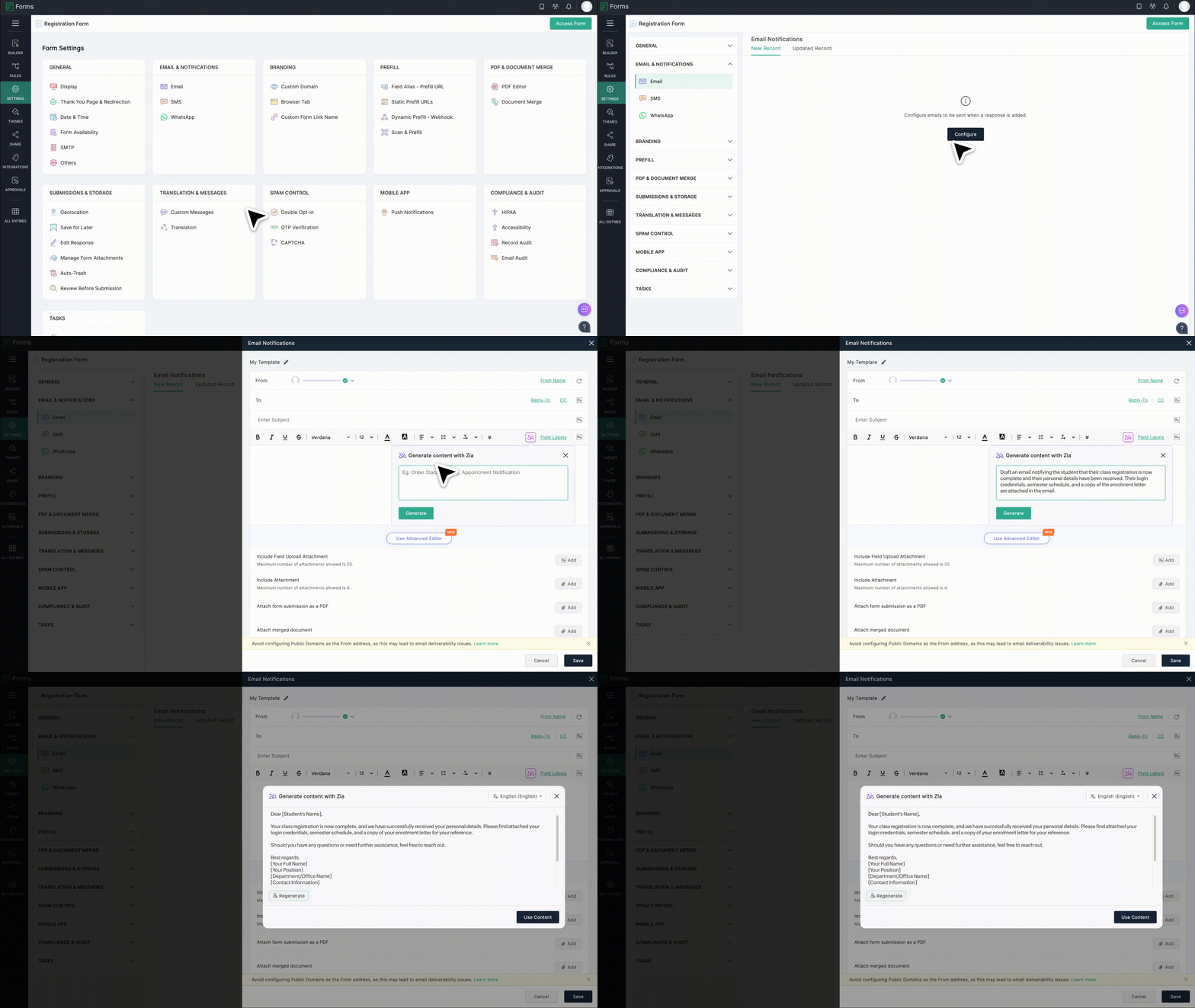
1. Draft email copy with a short prompt
Click the Zia icon inside the Message field, describe what you want the email to say, and Zia drafts a version you can edit. Use it for confirmations, follow-ups, internal alerts, or any notification that needs words.
2. Merge respondent answers into every email
Pull field values directly into the subject line and message body. Include the full form summary and any modified fields when an existing record is updated.
3. Send different emails based on what was submitted
Configure Form Rules with a Send Email action to trigger conditional notifications. A high-value lead, a support request, and a standard sign-up can each receive their own AI-drafted message.
4. Style the message with the Advanced Email Editor
Switch to the Advanced Email Editor to add images, links, tables, and formatted text. Brand the email without leaving the form builder.
5. Attach submission PDFs and respondent uploads
Include the form submission as a PDF, attach merged documents, pass along files the respondent uploaded, or add a link that lets the recipient edit their response.
Use cases: AI email personalization in real workflows
The fastest way to see how this fits your work is to look at the emails your forms already need to send. Below are three patterns teams set up most often, with the prompt given to Zia and a sample of what it returns. Field values in brackets are merge fields pulled from the submitted response.
Use case 1: Event registration confirmation that references the session chosen
An attendee signs up for a multi-track conference and selects one session. Their confirmation should restate the session, date, and venue so they don't have to dig for it later.
Prompt to Zia: "Write a warm event registration confirmation. Thank the attendee, restate the session they selected, include the date and venue, and remind them to check in at the registration desk."
Sample output:
Subject: You're confirmed for [Session Name] on [Session Date]
Hi [First Name],
Thanks for registering for [Event Name]. We've saved your spot for [Session Name] on [Session Date] at [Venue].
When you arrive, head to the registration desk to collect your badge. We'll send a quick reminder the day before.
See you there,
[Organizer Name]
Use case 2: Support request acknowledgment that mirrors the issue category
A customer submits a support form and selects an issue category from a dropdown. The auto-acknowledgment should reflect what they reported, not a generic "we got your ticket.
Prompt to Zia: "Acknowledge a support request. Confirm we've received the issue, restate the category they selected, and set expectations on first-reply time. Tone: calm and reassuring."
Sample output:
Subject: We've received your [Issue Category] request — ticket #[Reference Number]
Hi [First Name],
Thanks for reaching out. We've logged your [Issue Category] request and a specialist on that team is reviewing it now.
You can expect a first reply within [Response SLA]. If something's blocking you in the meantime, just reply to this email and we'll escalate.
Best,
The [Company Name] Support Team
Use case 3: Lead qualification follow-up that varies by budget range
A demo request form asks for budget range. Sales wants enterprise leads to hear from an account exec, mid-market leads to get a self-serve trial path, and small budgets to be routed to a guided onboarding sequence. One form, three different emails, set up with Form Rules.
Prompt to Zia (high-budget rule): "Write a sales follow-up to an enterprise lead. Reference what they're evaluating, acknowledge their budget range, and propose a working session with a solution engineer as the next step."
Sample output:
Subject: Next steps for [Company Name]'s [Use Case] rollout
Hi [First Name],
Thanks for sharing the details on [Company Name]'s plans for [Use Case]. Based on the [Budget Range] budget you noted, I'd like to set up a working session with one of our solution engineers to map this against your team's setup.
Here's my calendar: [Calendar Link]
Talk soon,
[Sales Rep Name]
Prompt to Zia (mid-market rule): "Write a sales follow-up to a mid-market lead. Acknowledge what they're evaluating and the budget range they shared, and invite them to start a free trial with a short guided setup."
Sample output:
Subject: Get hands-on with [Use Case] at [Company Name]
Body:
Hi [First Name],
Thanks for the details on what [Company Name] is looking to do with [Use Case]. For teams in the [Budget Range] range, the fastest way to see if we're a fit is to spin up a free trial and try the workflow on your own data.
Here's the setup link with a short walkthrough to get you started: [Trial Link]
If you hit a snag, reply to this email and I'll jump in.
Best,
[Sales Rep Name]
Prompt to Zia (small-budget rule): "Write a friendly follow-up to a small-budget lead. Acknowledge what they're evaluating, point them to our starter plan, and let them know a short onboarding sequence is on its way."
Sample output:
Subject: A starter path for [Company Name]'s [Use Case] plans
Hi [First Name],
Thanks for sharing what [Company Name] is hoping to do with [Use Case]. Based on the [Budget Range] budget you noted, our starter plan is likely the best fit, and you can sign up here: [Signup Link]
Over the next few days, you'll receive a short onboarding sequence with setup tips and templates other teams in your spot have used. Reply any time if you have a question.
Cheers,
[Sales Rep Name]
Three Form Rules, three AI-drafted emails, one form. Set the conditions once and every future submission lands with copy that fits the tier, alongside the respondent's name, company, and use case already merged in.
How does AI email personalization work in Zoho Forms?
1. Describe the email: In the Message field of your notification, click the Zia icon and tell it what the email should say (a confirmation, a welcome note, a follow-up).
2. Insert merge fields: Use the merge icon to pull respondent answers into the subject line and body. Choose All Fields, Non-Empty Fields, or Modified Fields to control what shows up.
3. Trigger and send: Save the template, or wire it to a Form Rule so different submissions automatically trigger different AI-drafted emails.
FAQ
1. What is AI email personalization?
AI email personalization uses an AI assistant to draft email content that adapts to each recipient's data and context. In a form workflow, the AI writes the body of a notification while merge fields pull the respondent's actual answers into the subject line and message, so the email reads like it was written for one person even though it sends automatically. It works on two layers at once: AI-drafted copy at the content level, and dynamic field values at the data level.
2. How does AI email personalization work in a form builder?
Inside your form's notification settings, you click an AI icon in the message editor and describe what the email should say. The AI generates a draft you can edit, and you insert merge fields that map to your form's data. Set up a conditional rule and publish. Every submission then sends an email with that respondent's specifics filled in.
3. What is the difference between merge fields and AI-generated email content?
Merge fields are placeholders that pull submitted data into the email, like a respondent's name, email address, or selected option, so the same template shows different specifics for each person. AI-generated content is the body copy itself, drafted by Zia from a short prompt you provide. Used together, AI handles the framing and flow while merge fields handle the per-respondent details.
4. Can I use AI email personalization for internal team notifications?
Yes. The same workflow that drafts respondent-facing emails also drafts internal alerts. Set up a notification that sends to a teammate, give Zia a prompt describing what the alert should say (a new lead summary, a high-priority support ticket, a record update), and merge in the relevant form fields. Conditional Form Rules can then route different alerts to different teams based on what was submitted.
5. What types of form emails can I personalize with AI?
Any notification triggered by your form. Common examples include submission acknowledgments, event registration confirmations, support ticket replies, sales follow-ups, internal lead alerts, order receipts, application status updates, and edit-link emails. If the form requires to send an email notification, you can draft it with Zia and personalize it with merge fields.
6. Can I send different personalized emails based on what a respondent submits?
Yes, through conditional notifications. Configure Form Rules under the Rules tab and select the Send Email action to trigger different emails when certain conditions are met. A single form can send an enterprise sales email to one segment, a self-serve trial invite to another, and a starter onboarding sequence to a third, each with its own AI-drafted copy and merge fields.
7. What else can I add to a personalized form email besides AI-drafted content?
Beyond the AI-drafted body, you can switch to the Advanced Email Editor to add images, links, tables, and formatted text. Attachments are also supported: include the form submission as a PDF, attach merged documents and files the respondents have uploaded with their submission, or add a link that lets the recipient edit their response.
8. Is the email content I share with the AI stored or used to train models?
No. The content you enter into Zia to generate email messages isn't stored or processed for training, and personalization runs on Zoho's in-house AI model. The AI Assistant is enabled at the organization level by a Super Admin or Admin, so AI usage policy stays with the people responsible for compliance rather than being decided form by form.