User Settings
In User Settings, if you’re an Admin or a Service Admin, you can add users to your organization and grant them access to the individual applications in Zoho Finance Plus. You can also limit their access to different types of data in each application by assigning specific roles.
For example: A staff member may need access to Zoho Expense to submit expense reports, however, they may not need access to Zoho Books and Zoho Inventory. You can provide them access only to Zoho Expense and limit their access to other applications.
Add users with role based access to the individual applications in Zoho Finance Plus. There are predefined roles for the individual applications which can be assigned to your users.
- Zoho Books/Zoho Invoice: Admin, Staff, Staff - Assigned Customers Only, Time Sheet Staff.
- Zoho Expense: Admin, Approver, Submitter.
- Zoho Inventory: Admin.
- Zoho Checkout: Admin.
- Zoho Billing: Admin, Staff.
- Zoho Payroll: Admin. [Available only in the IN edition]
You can also create custom roles within the individual applications and assign them to your users.
Note: You can invite up to 10 users per organization. Each additional user costs an additional $9 per month or $90 per year.
Add Users
To add new users:
- Click the Users module placed below the list of applications.
- Click + Add User on the top right corner of the page.

- Enter the user’s Name and Email Address.
- Click Add Applications and select the application and the role that you want the user to have access to.
- Click Done.
- Once you’ve selected all the applications that you want to grant access to, click Assign.
- Check the Send Notification Mail option to notify the user that they’ve been granted access to these applications.
- Click Add.
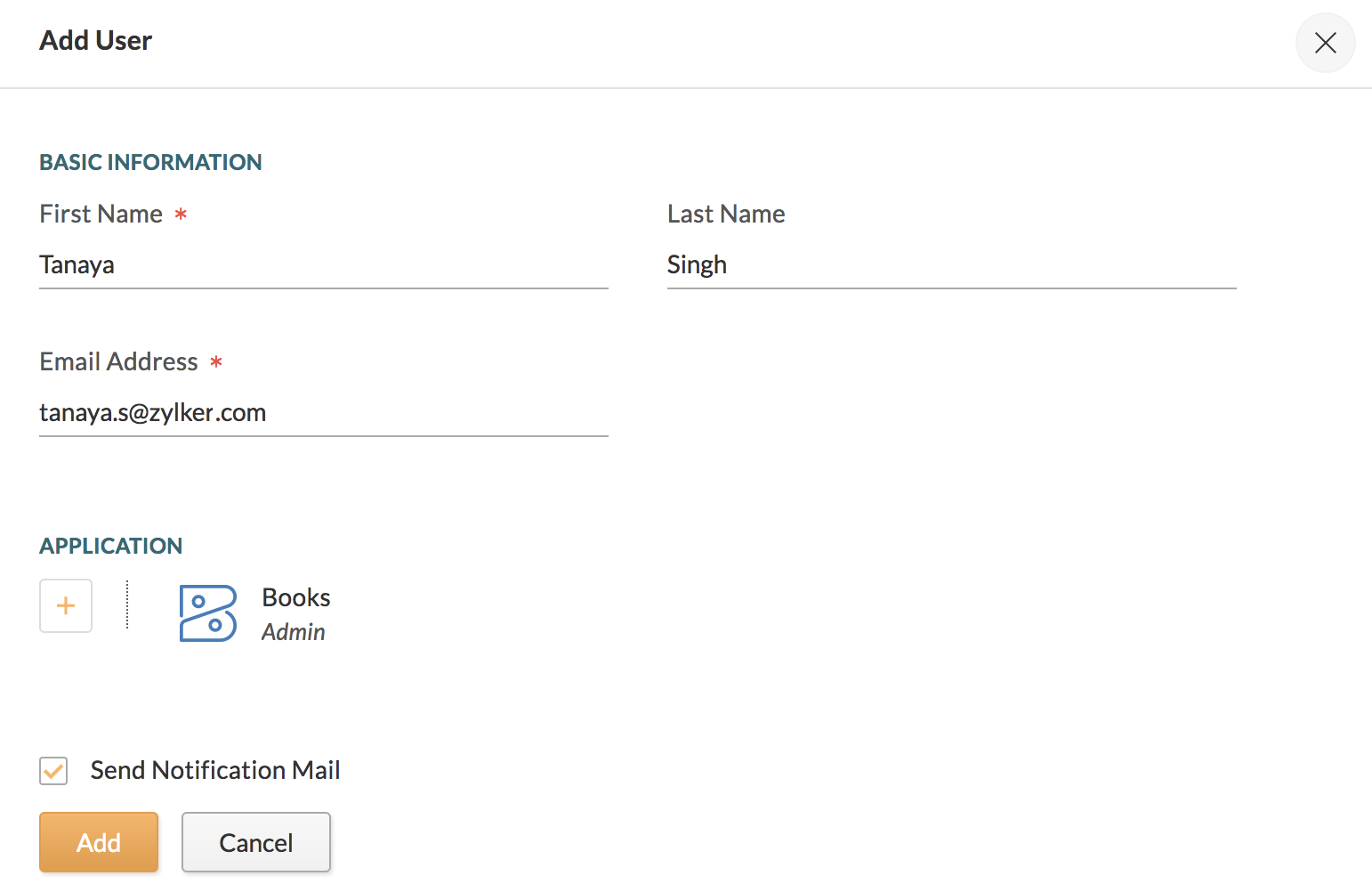
An invitation to join the organization will be sent to the user.
Resend Invitation
You can resend invitation to the users who haven’t accepted your invitation.
To resend invitation:
- Click the Users module on the left sidebar.
- Click the user who is yet to accept your invitation from the list of users.
- Click the Resend button to resend the invitation email.
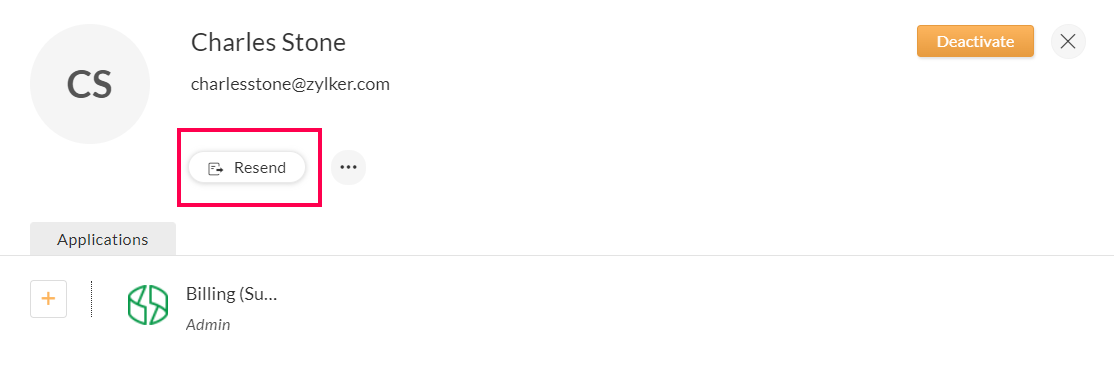
The invitation to join the organisation will be sent to the user again.
Assign applications to a user
You can assign new applications to your existing users.
To assign applications:
- Click the Users module on the left sidebar.
- Click a user from the list of users.
- The list of applications already assigned to that person will be displayed.
- Click the + icon, select the application and role that you want the user to have access to.
- Click Done.
Once you’ve selected all the applications that you want to grant access to, click Assign.
Update application access for users
You can update the user’s access to specific applications by changing their roles.
To update:
- Click the Users module on the left sidebar.
- Click the user whose access you want to modify. The list of applications already assigned to that person will be displayed.
- Hover the cursor over an application logo. Options to Edit or Unassign application access will appear.
- Click Edit and choose a Role from the dropdown.
- Click Update.
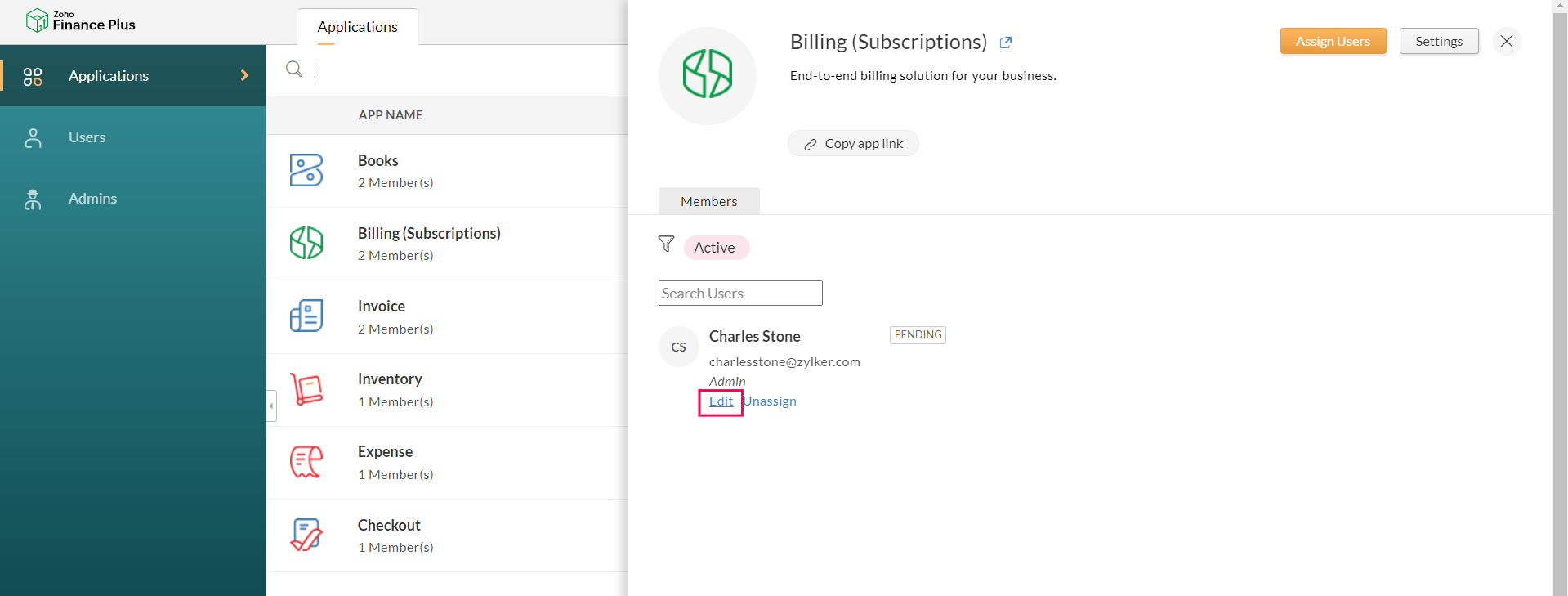
The user details will be updated.
Deactivate or Reactivate User
- Hover over the user and click the More icon.
- Click Deactivate or Activate from the dropdown and again click Deactivate or Activate to confirm.
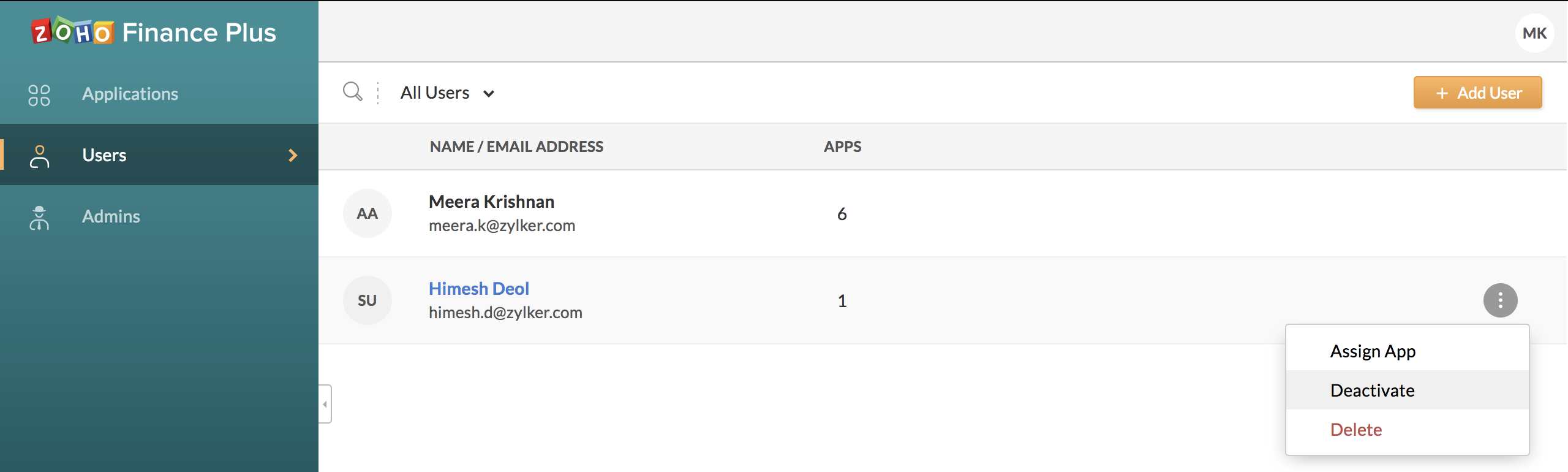
The user access to the application will be updated accordingly.
Delete User
- Hover over the user and click the More icon.
- Click Delete from the dropdown and then click Yes, Confirm.
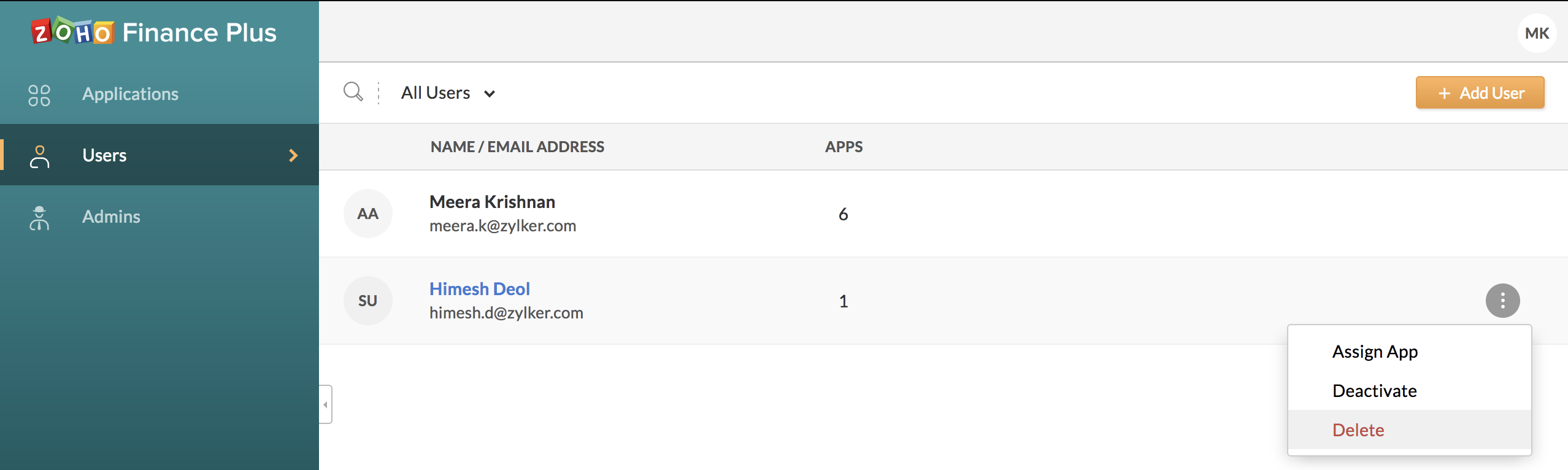
The user’s account will be removed from the Finance Plus bundle.