Customize field access and add custom fields in Zoho POS's Items module to suit your specific needs.
Summary
Customizing fields in Zoho POS’s Items module allows businesses to tailor inventory management to their specific operational needs. Administrators can control access to individual fields based on user roles, assigning permissions such as read and write, read-only, or hiding the field entirely. This ensures data security and role-based visibility. To configure access, navigate to Settings > Preferences > Items, select the Field Customization tab, and use the Configure Access option to set permissions. Additionally, up to 46 custom fields can be added to capture unique item details such as batch numbers, expiry dates, or supplier information. These fields can be set as mandatory, assigned default values, and configured to appear in sales transactions and PDF receipts. The process involves entering a label name, selecting a data type, and specifying display preferences before saving. This level of customization enhances accuracy, streamlines workflows, and supports compliance with business-specific requirements.
This content is generated by
The fields in the custom module can be customized based on your requirements.
Configure Access
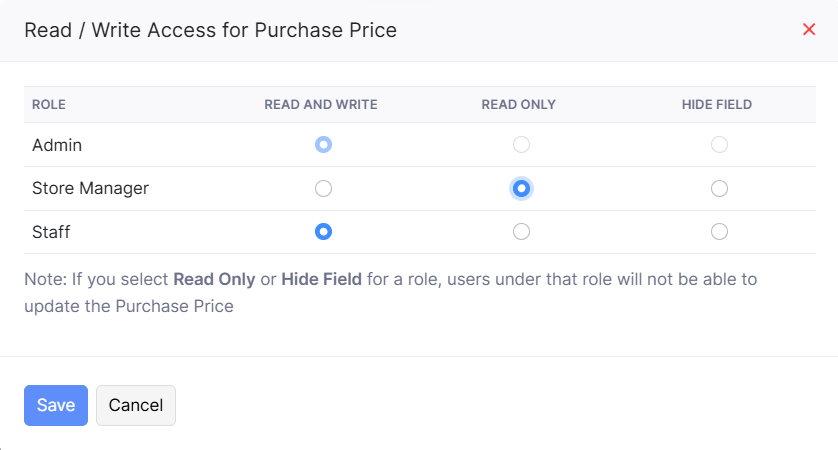
Access to a particular filed can be defined based on the roles in Zoho POS. You can either grant Read and Write, Read only permission, or choose to hide the field.
To configure access
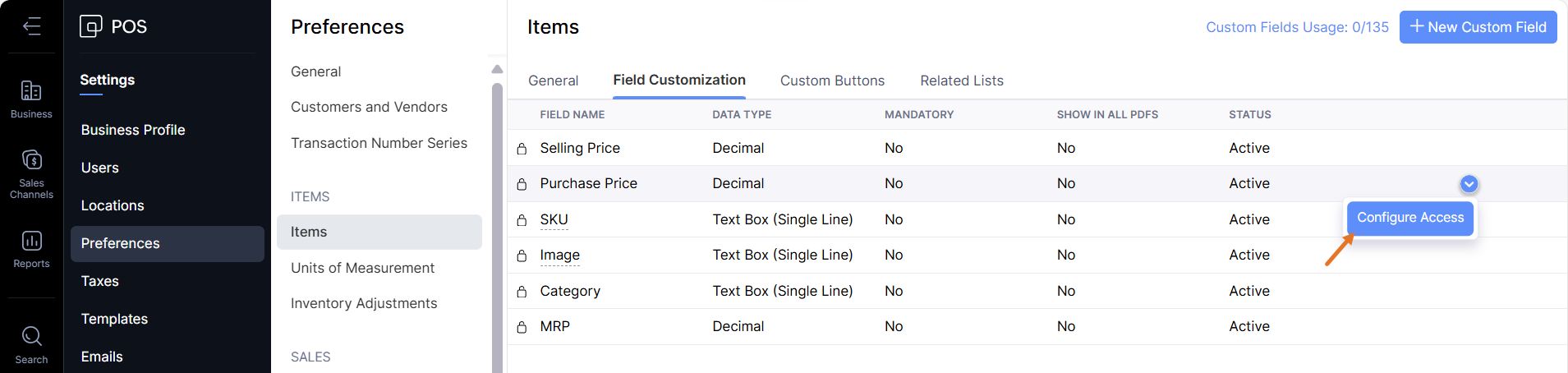
Go to Settings > Preferences > Items.
Click the Field Customization tab.
Click the Down Arrow > Configure Access.
Specify the permission and click Save.
Add custom fields
Apart from the default fields, custom fields can be added to the Items module. A maximum of 46 custom fields can be added.
To add custom fields
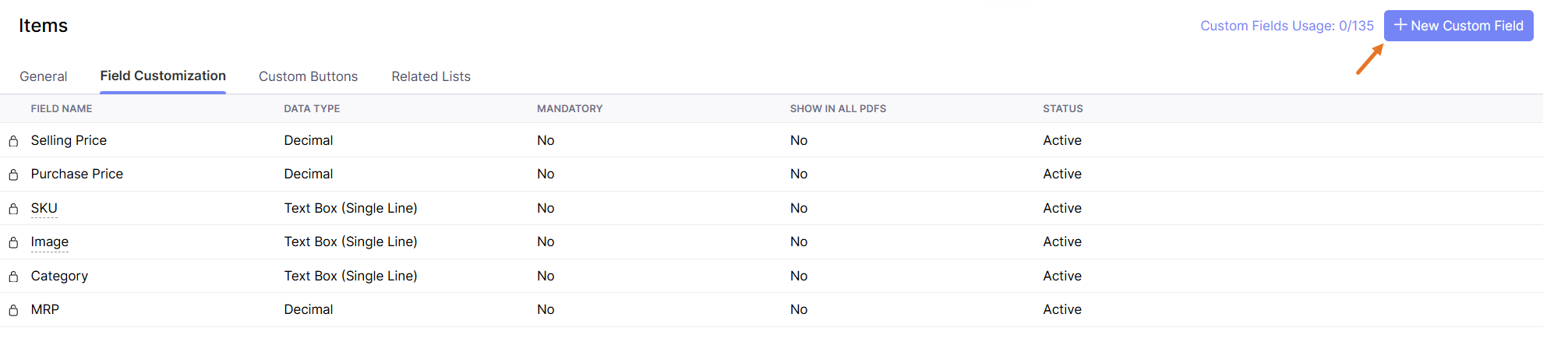
Go to Settings > Preferences > Items.
Select the Field Customization tab and click + New Custom Field.
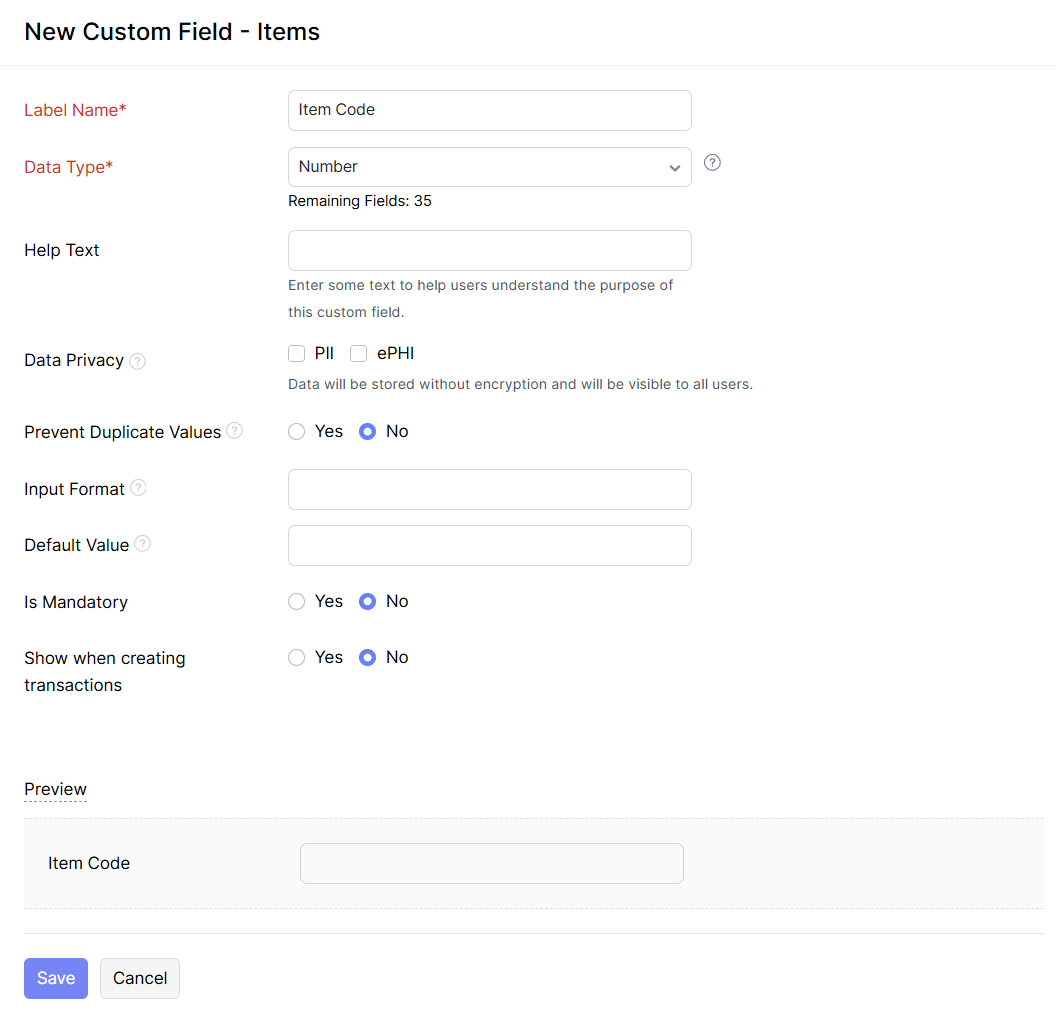
Enter the label name (field name) and specify the date type from the drop down list.
Specify the default value to be displayed in the field if required.
Click Yes if you want to the field to be mandatory.
Click Yes if you want this field to be displayed in transactions and PDFs.