Build a Real Automation
An end-to-end walkthrough to build an Automation Function that fires on a Deal stage change, reads CRM data, updates a record, and connects to a Workflow Rule.
Table of Contents
1. Create the Function
2. Define Arguments
3. Write the Script
4. Test in the Editor
5. Save the Function
6. Connect to a Workflow Rule
7. Verify End-to-End
In the first quickstart you ran a Hello World script in the editor. Now let us build a Function that runs inside your CRM. It will execute automatically when a Deal reaches Closed Won, fetch the Deal details, and update a custom field with a confirmation message.
By the end of this walkthrough you'll understand how categories, arguments, CRM data access, and trigger association all fit together.
What We're Building
Scenario: When a sales rep closes a Deal, we want to automatically stamp the record with a summary message like "Deal closed by John on 2025-07-15 for $25,000" in a custom field called Closure Summary.
This requires:
- A Function with the Automation category (so it can be attached to a Workflow Rule).
- Arguments to receive the Deal's data from the Workflow Rule.
- Deluge code that builds the summary and updates the record.
- A Workflow Rule that triggers the Function on stage change.
Step 1: Create the Function
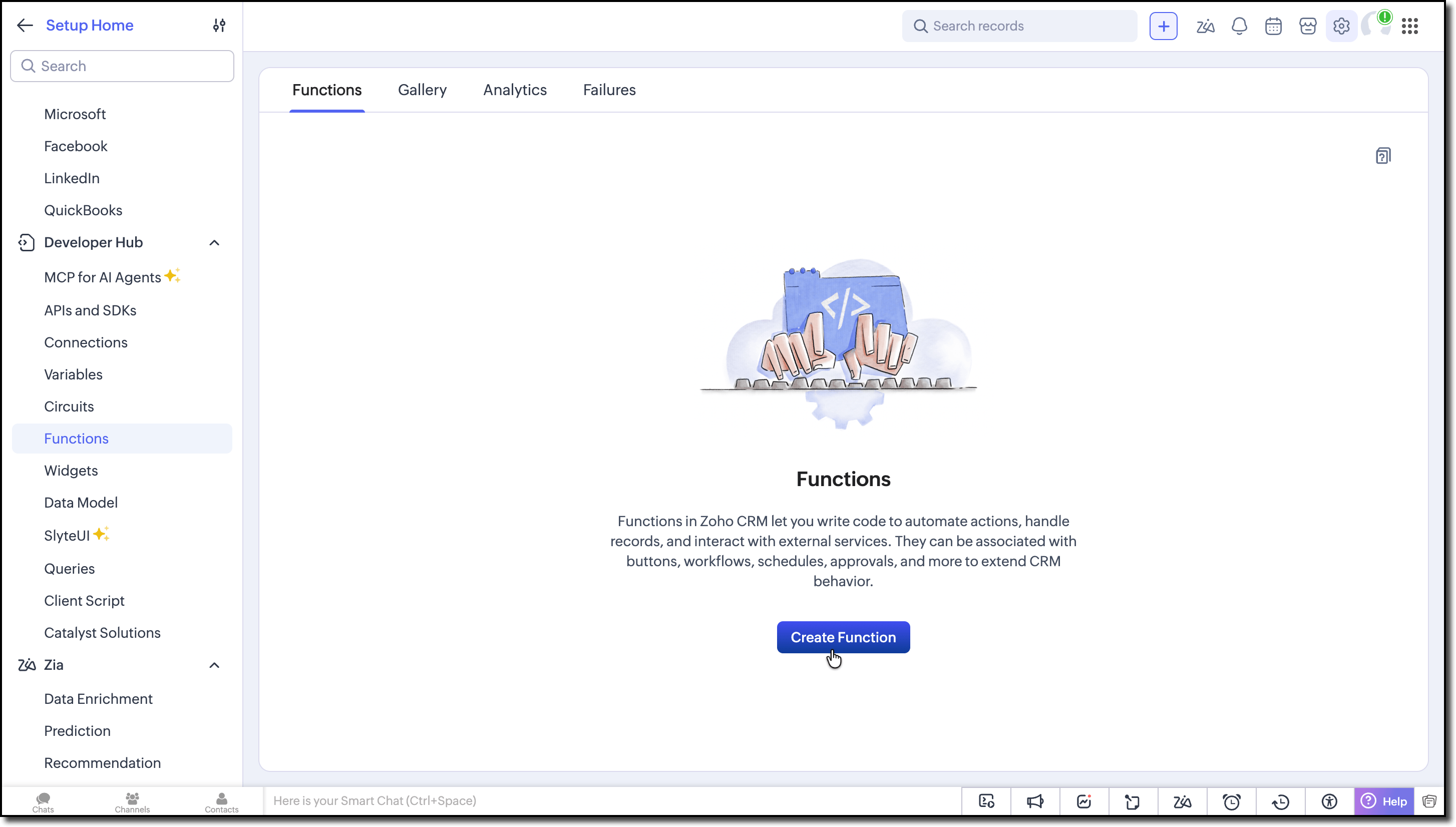
Navigate to Setup → Developer Hub → Functions and click Create Function.
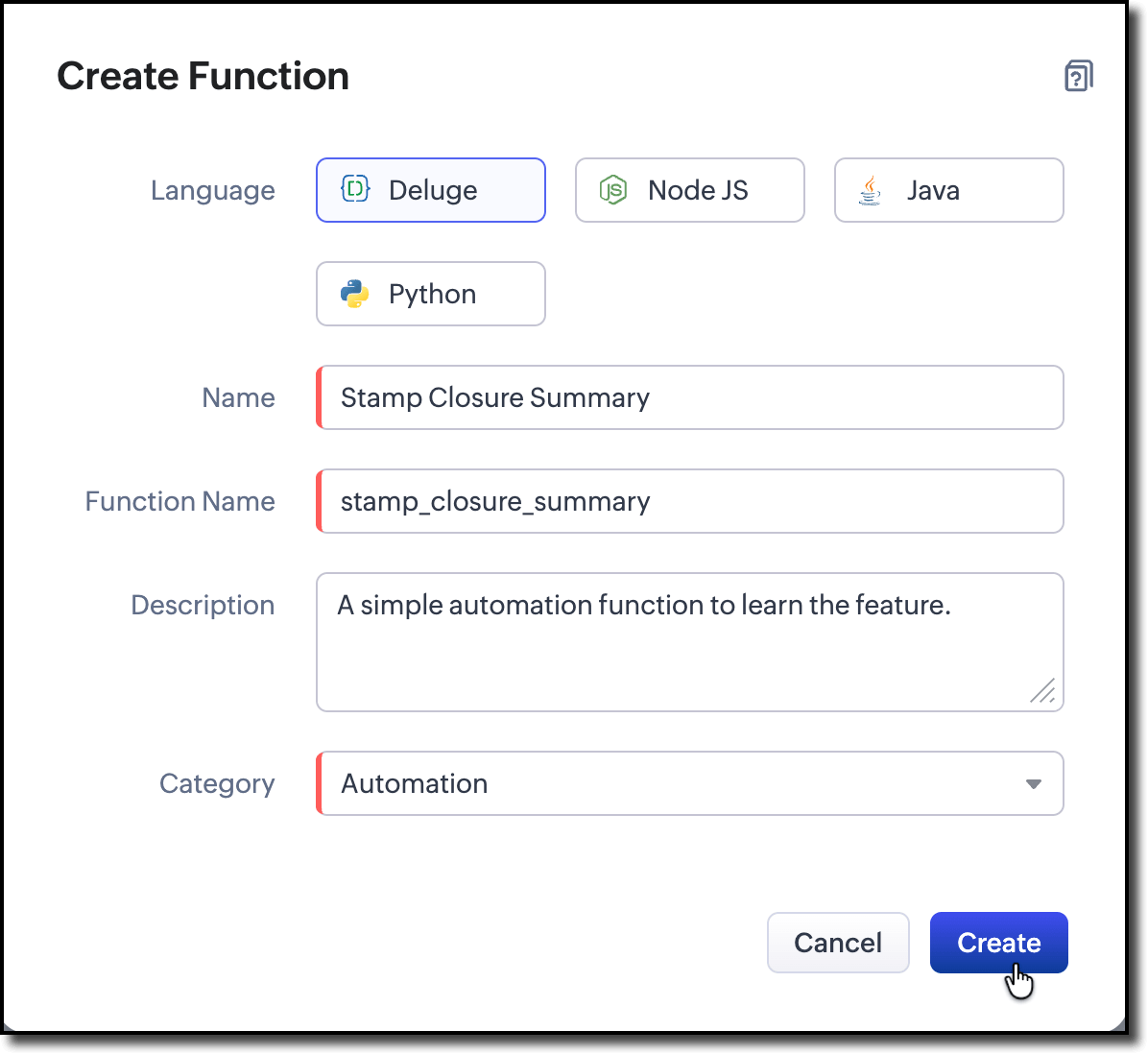
- Configure:
- Language: Deluge
- Name: Stamp Closure Summary
- Function Name: stamp_closure_summary
- Category: Automation
- Click Create to open the editor.
Why Automation?
This Function will be triggered by a Workflow Rule, an automated CRM event. The category determines where a Function can be used. For example, Button and Schedule Functions cannot be attached to Automation. See Function Categories for the full list.
Step 2: Define Arguments
The Function needs data from the Deal record, but Deluge does not automatically receive CRM data. Declare the required values as arguments, then map them to CRM fields when you configure the Workflow Rule.
Other languages:
If your Function is written in Java, Node.js, or Python, you do not need to declare arguments manually. These languages use basicIO, which automatically passes the trigger context (record data, user info, etc.) to the Function as a structured payload. The steps below are specific to Deluge.
Declare the required arguments using either the Arguments panel on the left or the Function signature in the editor. Both remain synchronized automatically. Add the following:
| Argument Name | Type |
|---|---|
| dealId | String |
| dealName | String |
| amount | String |
| ownerName | String |
These are the values the Workflow Rule will pass into your Function at runtime.
Why String for everything?
Workflow Rule merge variables pass values as strings. You can convert them inside the script if needed (e.g. amount.toDecimal()).
Step 3: Write the Script
Replace the editor contents with this:
void automation.stamp_closure_summary(string dealId, string dealName, string amount, string ownerName)
{
// Build the summary message
today = zoho.currentdate.toString("yyyy-MM-dd");
summary = "Deal closed by " + ownerName + " on " + today + " for $" + amount;
// Log the summary for debugging
info summary;
// Update the Closure Summary field on the Deal record
updateMap = Map();
updateMap.put("Closure_Summary", summary);
zoho.crm.v8.updateRecord("Deals", dealId.toLong(), updateMap);
info "Record updated successfully.";
}
What's happening here:
- zoho.currentdate gets today's date.
- We build a human-readable summary string from the arguments.
- info prints messages to the Console during editor testing and to the Function’s execution logs when the Function runs in CRM. Use it to inspect values and troubleshoot your Function at every stage.
- zoho.crm.v8.updateRecord writes the summary back to the Deal record's Closure_Summary field.
- The return type is void because Automation Functions do not return a value. Instead, they perform their work asynchronously after the CRM event is triggered.
Step 4: Test in the Editor
Before connecting this to a live Workflow Rule, test it with sample data:
- Click Run.
When prompted, enter test values:
- dealId: an actual Deal record ID from your CRM (find it in the URL when viewing a Deal).
- dealName: Zylker Corp Enterprise (Sample)
- amount: 25000
- ownerName: Patricia Boyle
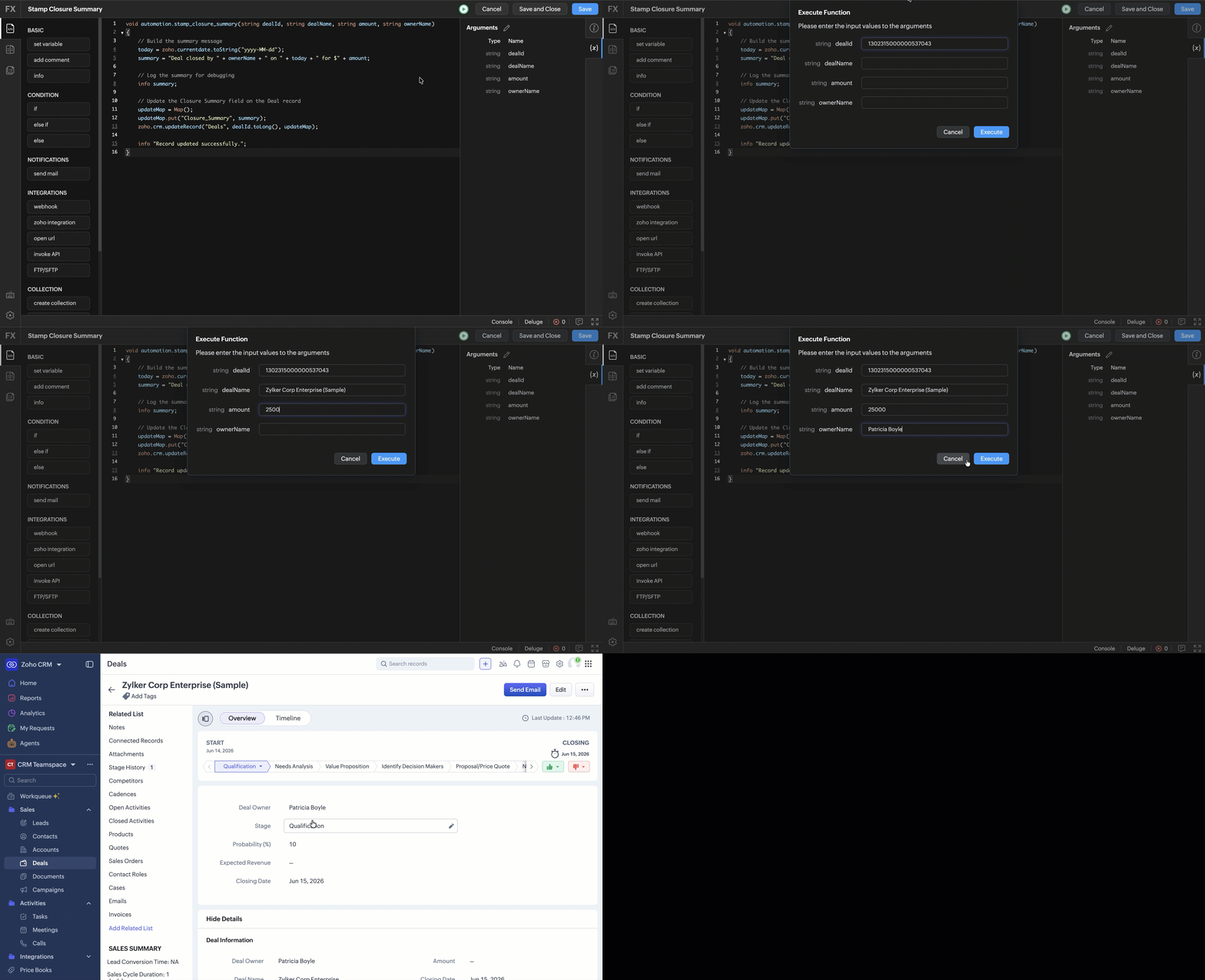
- Check the Console for output. You should see the summary message followed by "Record updated successfully."
- Open the Deal record in your CRM and verify that the Closure Summary field is populated.
Note:
Make sure the Closure_Summary custom field exists on the Deals module before running. If it doesn't, create it in Setup → Customization → Modules and Fields → Deals.
Step 5: Save the Function
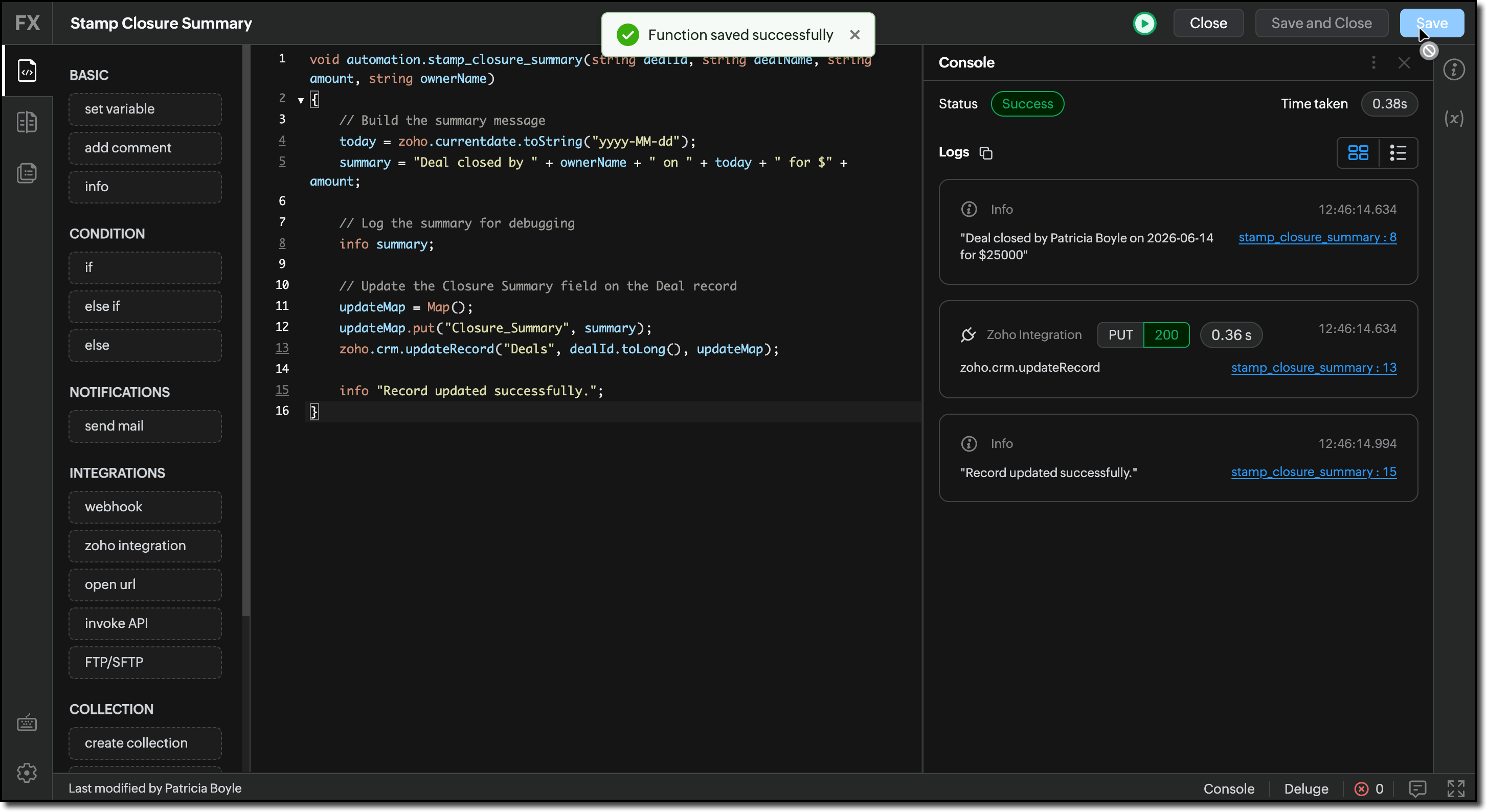
Once the test passes, save the Function.
Step 6: Connect to a Workflow Rule
Now wire it to a real CRM event so it runs automatically:
- Navigate to Setup → Automation → Workflow Rules.
- Click Create Rule.
- Configure:
- Module: Deals
- Rule trigger: When a record is edited
- Condition: Stage isany WON stages
- Under Instant Actions, select Function.
- Choose Stamp Closure Summary from the list.
Map the arguments to CRM fields using merge variables:
Argument Mapped To dealId ${Deals.Deals Id} dealName ${Deals.Deal Name} amount ${Deals.Amount} ownerName ${Deals.Deal Owner} 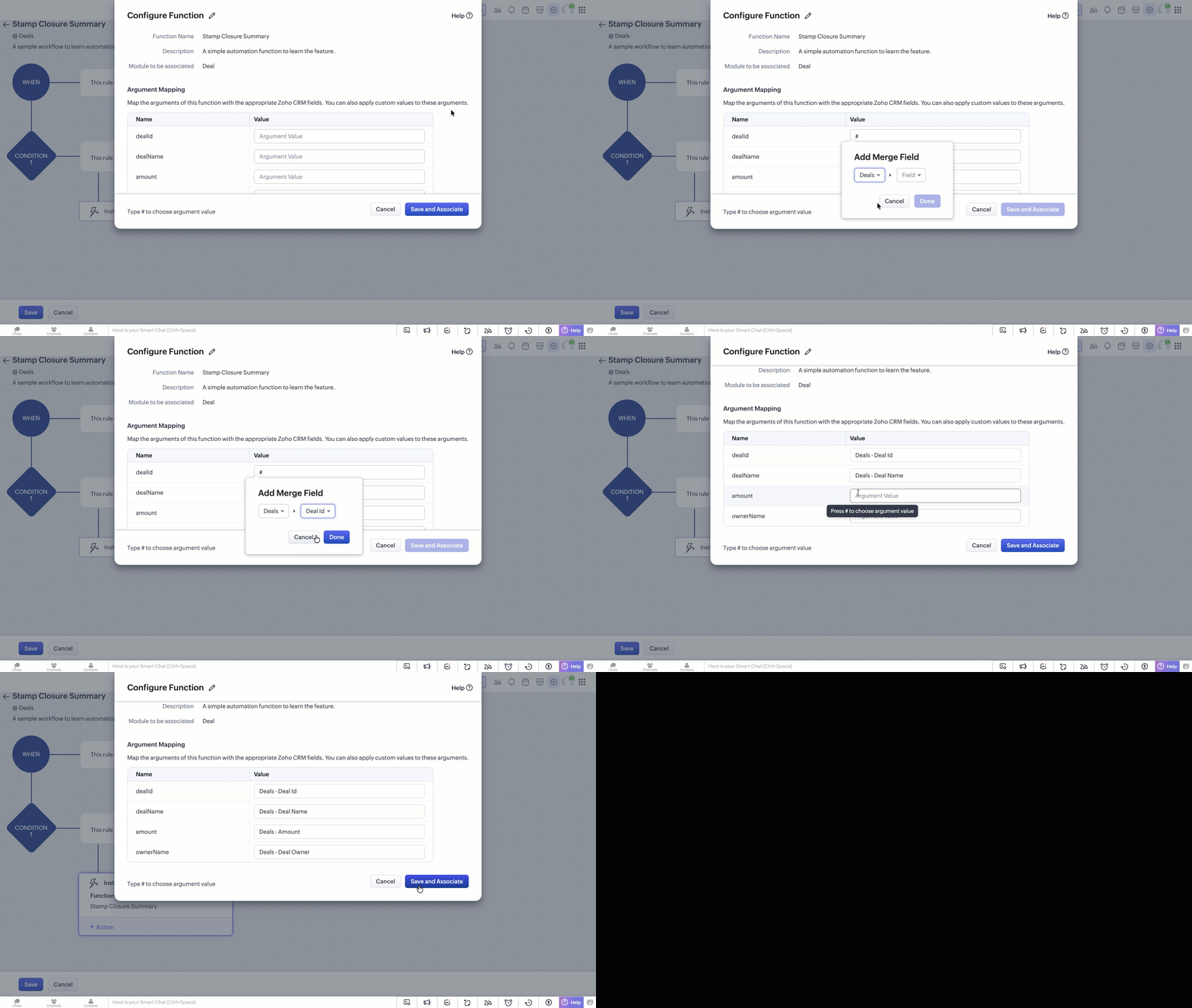
- Save the Workflow Rule and make sure it is Active.
Step 7: Verify End-to-End
- Open any Deal record in your CRM.
- Change the Stage to Closed Won and save.
- Wait a few seconds (workflow execution is offloaded), then refresh the record.
- The Closure Summary field should now show something like: "Deal closed by Patricia Boyle on 2026-06-14 for $25000".
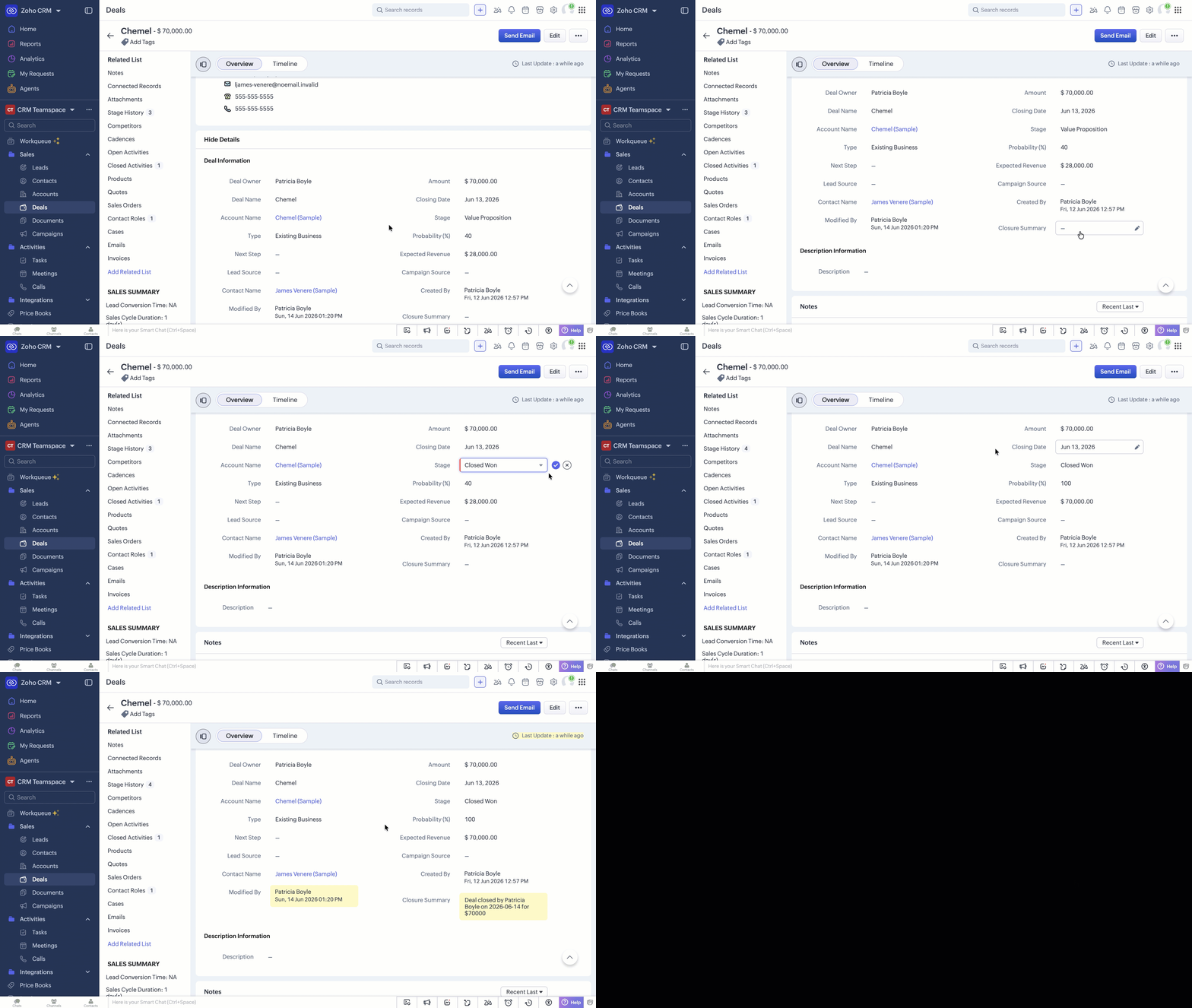
You can also check execution logs at Setup → Developer Hub → Functions → Stamp Closure Summary → Logs to see the full execution history, output, and any errors.
What You Just Learned
- Categories define where a Function can be used. For example, use Automation for Workflow Rules, Button for user-initiated actions, Schedule for time-based jobs, and Standalone for reusable logic or REST APIs.
- Arguments help you pass CRM data into a Deluge Function. Declare the required arguments in the editor, then map them to CRM fields when you associate the Function with a trigger. Java, Node.js, and Python use basicIO, which automatically passes the trigger context.
- zoho.crm.v8.updateRecord updates an existing CRM record. Deluge provides similar built-ins for other operations such as getRecord to read, createRecord to create, and searchRecords to search for records.
- Workflow Rules are the most common way to trigger a Function automatically in response to a CRM event.
- Testing in the editor first with hardcoded values saves time before wiring up a live trigger.
What's Next?
- Learn how to expose a Function as a REST API.
- Understand all the Function Categoriesin Zoho CRM.
- To associate your Function with buttons, schedules, blueprints and more, See Associating Functions with CRM help page.