
Email Templates
Table of Contents:
Key Concepts
Catalyst provides default email templates for email verification and password reset emails. You can override these default templates if needed, and customize the contents of the emails' subject, message body, and sender's email address in the template, and save it.
You can also insert placeholders in the email's subject and message body for dynamic content. A placeholder is a representational variable for a dynamic value that will be filled in when the email is sent. The placeholder variable refers to the API name of the specific component. It is inserted with % symbols at the beginning and the end of the variable's name like: %APP_NAME% or %EMAIL%.
The values of these placeholders are populated automatically from the data obtained from your project specifications and the populated values are inserted into the emails when they are sent.
There are three placeholders available that you can use in email templates:
- %EMAIL%: Denotes the email address of the user which they used to register for an account in Catalyst. This value is obtained from the user's information stored in Catalyst.
- %APP_NAME%: Denotes the name of your application. This value is the same as the name you specified in the client-package.json configuration file, and is obtained after you host the application.
- %LINK%: Denotes either the hyperlink of the Web App URL or the hyperlink of the reset password page that you configure in your application.
Emails sent for user sign-ups and password resets will be sent in these templates. You can also send these emails from your application using the SDKs, or using APIs.
Benefits
- Email templates enable you to define a standard format for the user invite and password reset emails, retaining uniformity in the structure of the emails you send to your users.
- You can easily customize the default email templates and create templates to suit your requirements.
- The placeholders in the templates auto-fill the essential details in your email, preventing manual workload from your end.
Implementation
Customize the Default Email Templates
To customize the template of the Email Verification or Password Reset email:
- Click the Email Templates tab in Authentication.
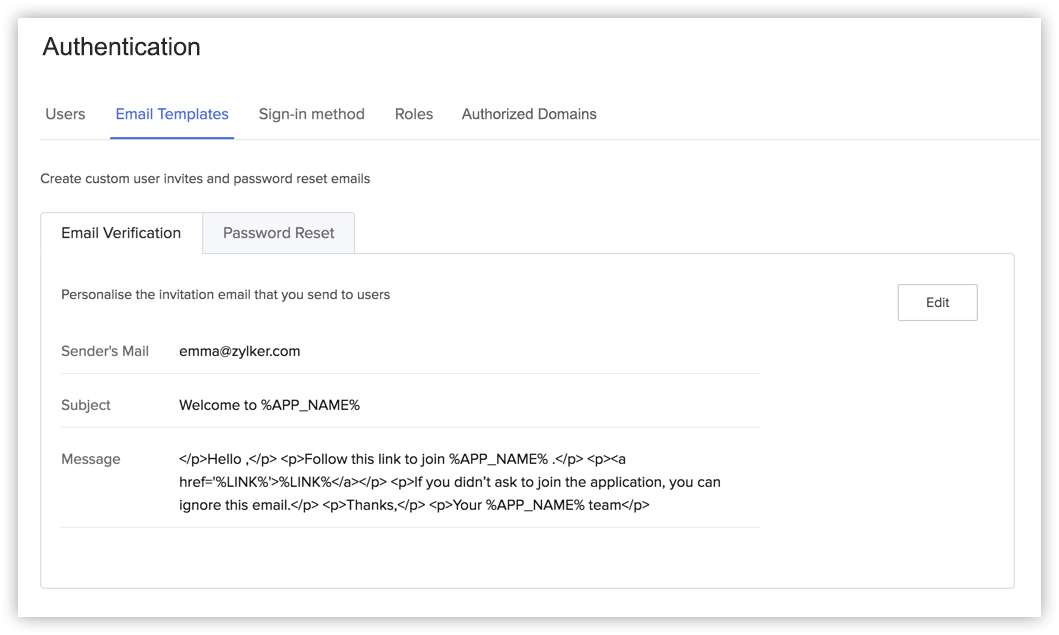
- If you want to edit the Password Reset email template, click the Password Reset tab.
- Click Edit to edit the default email template.
- Enter the Sender's Email, and customize the content for the email's subject and message. You can use placeholders if the content includes dynamic data.
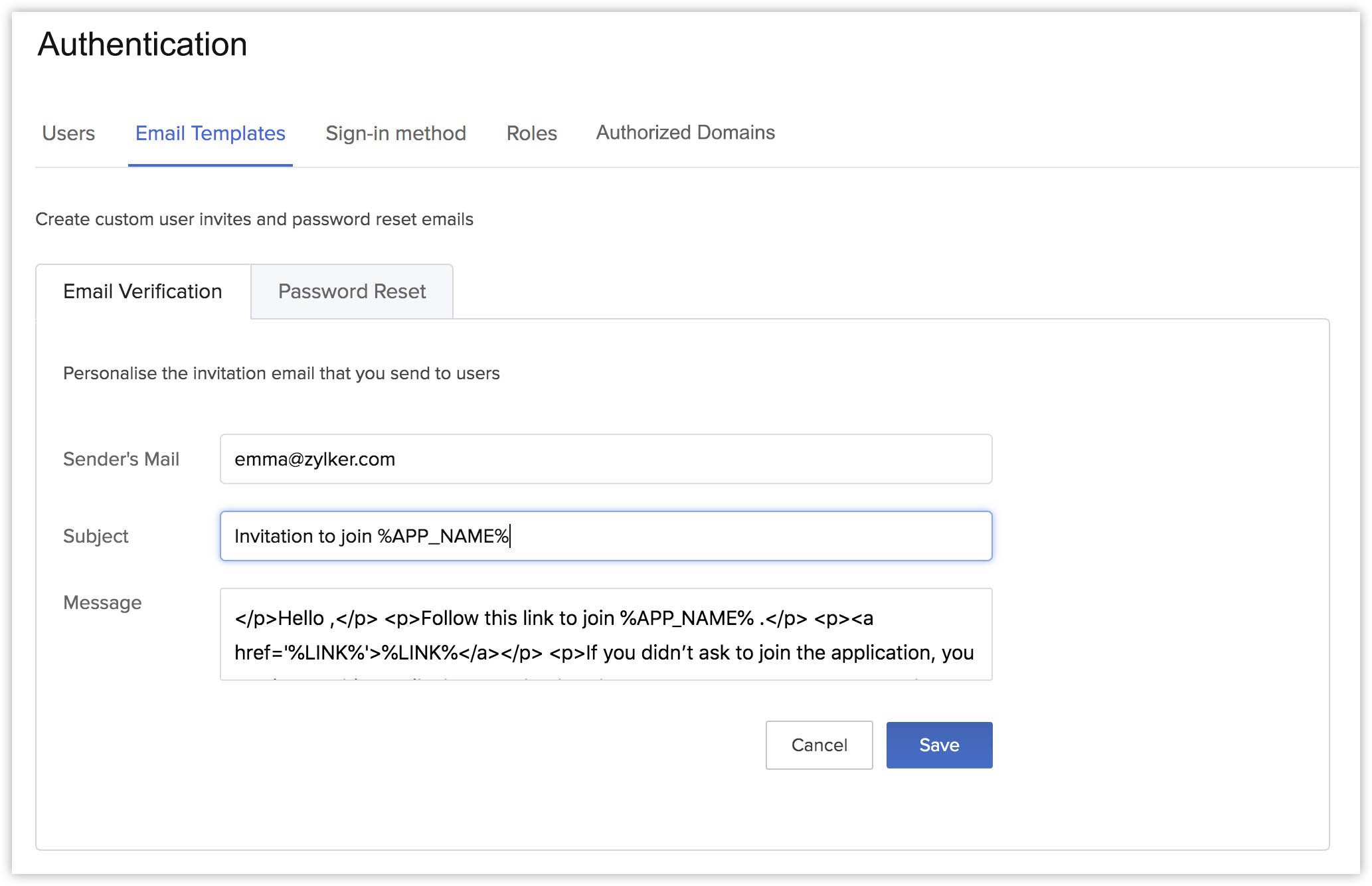
- Click Save.
The email verification or password reset emails that will be sent from Catalyst will now be sent as per the modified template.