
Step 2: Generate Grant Token
Table of Contents:
After you generate the client_id and client_secret, you must generate a Grant Token or code for your application.
Note: Generating a Grant Token is a one-time process, provided you generate the access_token and refresh_token within the time the Grant Token is valid for.
For Self Client Applications
If you previously selected the Self Client type, you must generate the Grant Token (code) in the following way:
- After registering your application, select Self Client from the Applications list in the API console and click Generate Code.
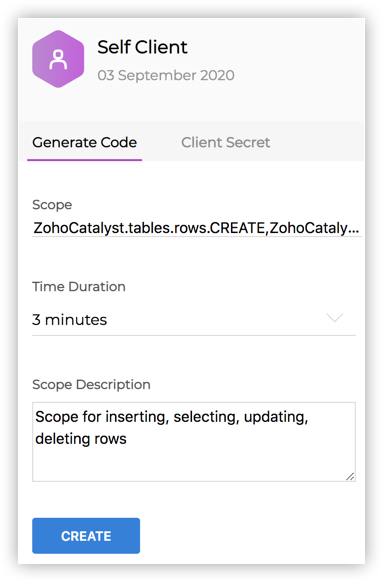
- Enter a valid scope. You can check the list of scopes available in Catalyst from this section.
- Choose a time duration from the dropdown list. The Grant Token generated in this step will expire after this time period.
Note: If the Grant Token is about to expire, you must generate a refresh_token before it expires, as described in the next step.
- Enter a description for the scope.
- Click Generate.
The API console will display the generated Grant Token or code value for your Self Client application.

For Other Applications
If you previously selected client types other than the Self Client type, you must generate the Grant Token using a redirect method:
- Send a request to the following URI with the params given below, to generate the Grant Token (code):
https://accounts.zoho.com/oauth/v2/auth?Note: You must access the https://accounts.zoho.eu/ domain for the EU data center, and https://accounts.zoho.in/ for the IN data center..
Parameter Description scope* The scope the Grant Token is to be generated for. You can provide multiple scopes by separating them using commas.
You can check the list of scopes available in Catalyst from this section.client_id* The Client ID that was generated during the client registration state An opaque string that is round-tripped in the protocol, i.e., whatever value you provide here will be passed back to you response_type* code (Provide this literal string as the value) redirect_uri* One of the Authorized Redirect URIs you provided while registering the client in the previous step. You must not provide an unregistered redirect URI. access_type The allowed values are offline and online. The online access_type only provides the Access Token for your application, which is valid for one hour. The offline access_type provides an Access Token as well as a Refresh Token for your application. The default value is considered to be online. prompt Consent (Provide this literal string as the value)
Prompts for user consent every time your app tries to access user credentials. If you don't specify this parameter, the user will only be prompted for credentials the first time your app requests access.Note:- Fields marked with * are mandatory.
- You can pass the parameters in the body of your request as form-data, for increased security.
Request Example
https://accounts.zoho.com/oauth/v2/auth?scope=ZohoCatalyst.tables.rows.CREATE,ZohoCatalyst.tables.rows.READ,ZohoCatalyst.tables.rows.UPDATE,ZohoCatalyst.tables.rows.DELETE&client_id=1000.0SRSxxxxxxxxxxxxxxxxx&state=testing&response_type=code&redirect_uri=https://www.zylker.com/ShipmentTracking/&access_type=offline - If you send the prompt parameter in this request, a user consent page will open.
After you click Accept, Zoho will redirect you to the redirect_uri with the Grant Token in the code parameter. Save the code value for the next steps.
Based on your login details, the system automatically detects your domain and uses the domain-specific authentication URL to generate the Grant Token. The state parameter is also passed in the URL.
If you click Reject, the browser redirects to the redirect URI with the parameter error=access_denied.Note: This code is only valid for 60 seconds. You must complete the next step within this time.
