Build conversational scheduling with Zoho MCP and Zoho Booking
- The scheduling engine: Zoho Bookings
- The workflow catalyst: Zoho MCP
- Practical scenarios with Zoho Bookings and Zoho MCP
- What next?
Last updated on: 12/05/2026
What if you could just talk to your calendar?
Constantly switching tabs for work breaks your focus and derails your workflow. Zoho MCP changes this by connecting Zoho Bookings directly to Large Language Models (LLMs) like Claude, so instead of jumping between contexts, you can orchestrate your entire workflow from a single chat window. For instance, ask AI to read your email, check availability, book appointments, and push these details to your CRM—all in one go.
Key takeaways
- Zoho MCP connects Zoho Bookings with LLMs to help you schedule using natural language.
- From reading emails to scheduling appointments and updating records, Zoho MCP handles multi-step workflows with a single prompt.
- No matter what your team does, if your work involves multiple tools, Zoho MCP removes the manual work that slows you down.
- Zoho MCP isn't limited to the Zoho ecosystem. It connects with a wide range of third-party tools like Salesforce, HubSpot, and Slack, so your existing stack works with it too.
The scheduling engine: Zoho Bookings
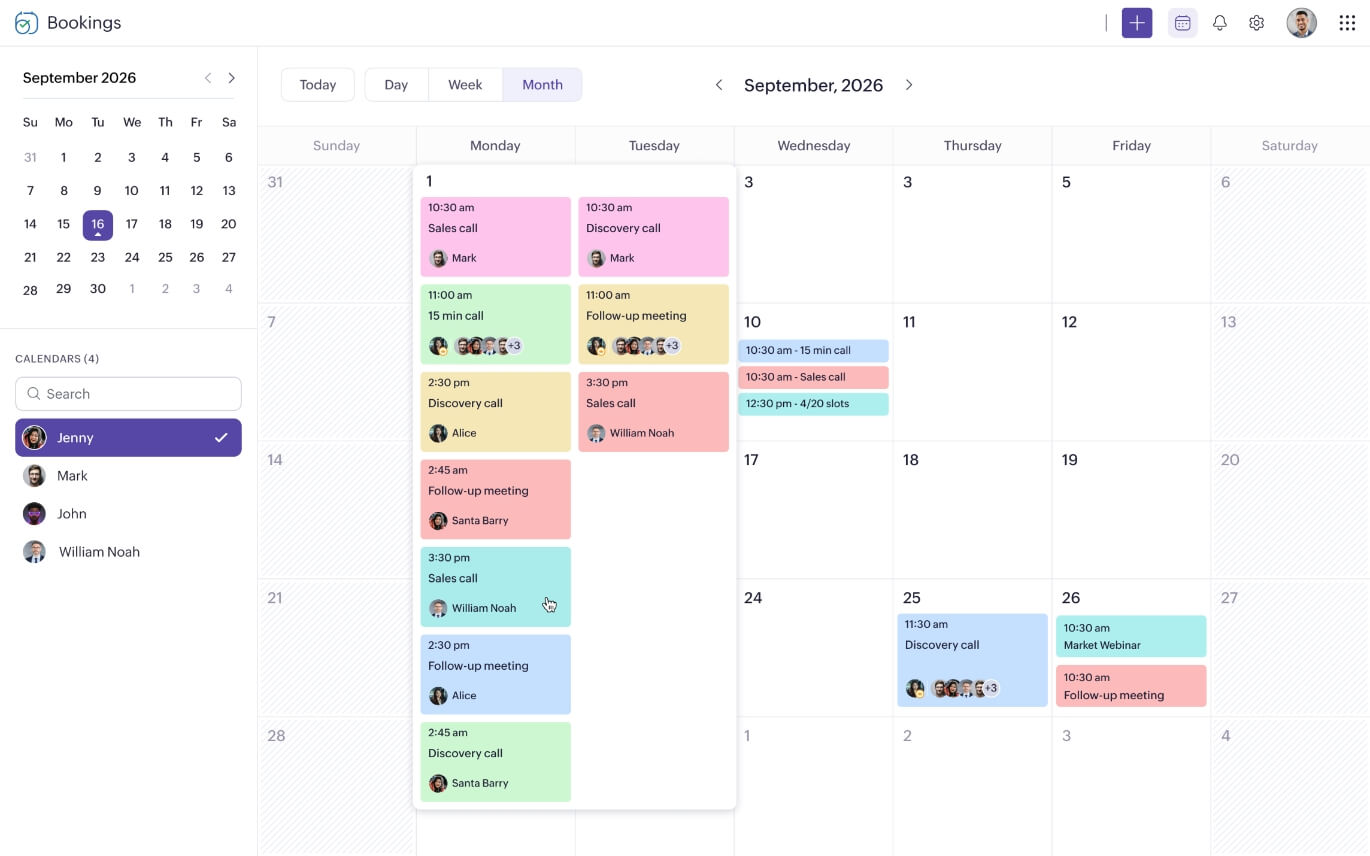
Zoho Bookings is the central engine responsible for end-to-end scheduling automation. It optimizes repetitive manual tasks and simplifies the booking process for all meeting participants.
The workflow catalyst: Zoho MCP
Zoho MCP is a standardized layer that enables LLMs (like Claude and ChatGPT) to securely access and interact with apps and their business data. It allows AI systems to:
- Retrieve structured data (e.g., pull lead info from Zoho CRM).
- Trigger actions (e.g., schedule a demo with Anand for the next available slot).
- Execute multi-step actions with natural language commands.
Benefits
- Reduces context switching and brings functionality directly to the user.
- Enables cross-platform orchestration eliminates data siloes.
- Requires little to no learning curve once configured.
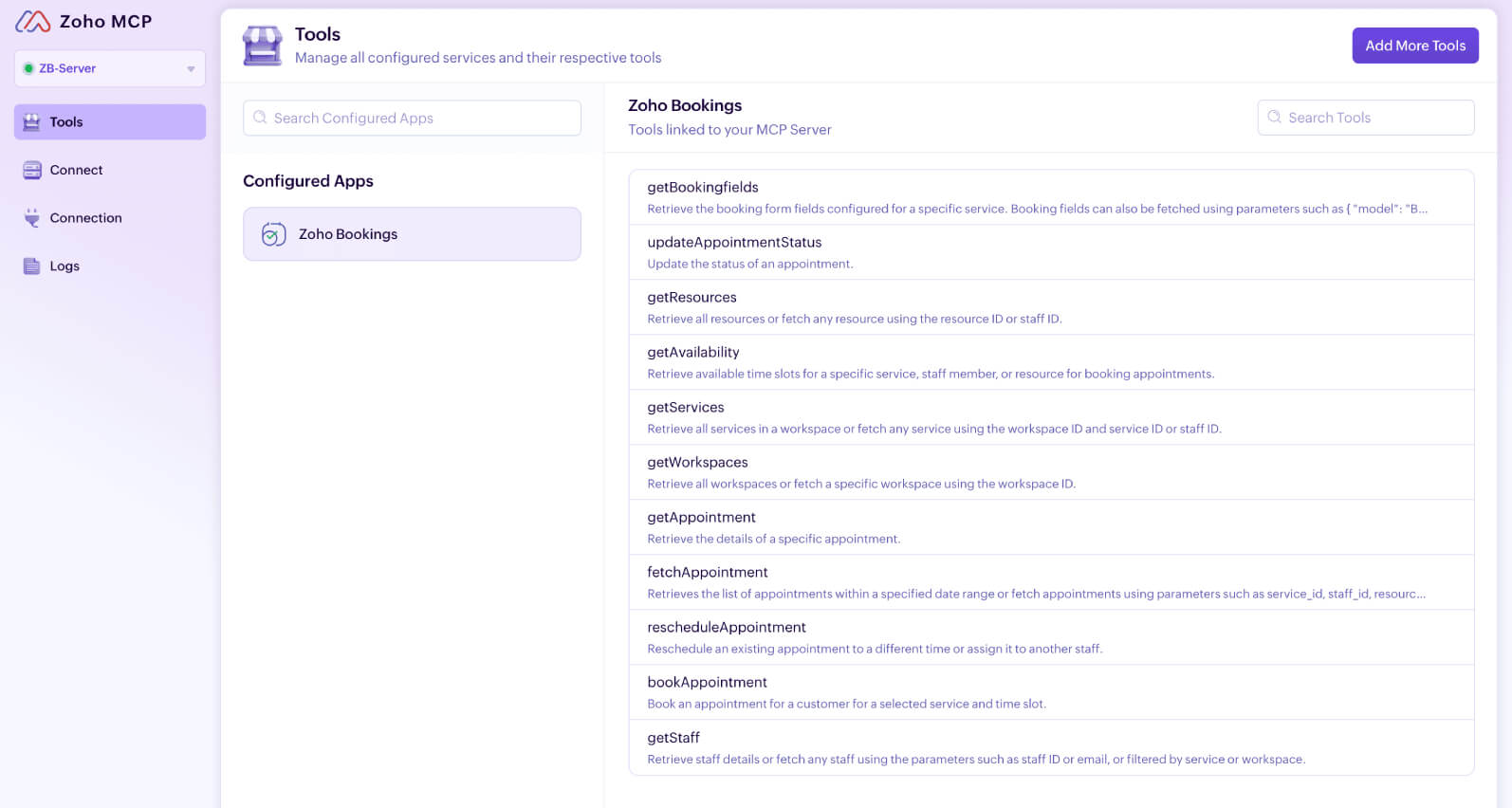
When paired with Zoho Bookings, Zoho MCP brings your entire scheduling workflow into one AI tool. Here's how to set it up
Practical scenarios with Zoho Bookings and Zoho MCP
These prompts are starting points that you can adjust as you go. Your LLM will ask for any missing details along the way.
Scenario 1: High velocity support scheduling
Apps used: Zoho Bookings and Zoho MCP
Problem: During critical customer interactions, even a few extra seconds spent searching for the booking link could cost you the deal.
Solution: Use Zoho MCP to fetch the relevant link with the next available slot instantly. If you're already on a customer call, request the customer's availability and ask AI to book a slot that works for the both of you–without pausing the interaction.
Results:
- Never lose momentum on a live call.
- You always have the right link, right when you need it.
Sample prompt:
The customer is available between 9 AM and 12 PM. Find the next available slot in my calendar for today during this window for a general consultation and book the appointment.
<Staff_name>
<Customer_name>
<Customer_email>
<Phone>
Use the <Server_name> connection to achieve this.
Scenario 2: Simplified recruitment management system
Apps used: Zoho Bookings, Zoho MCP, Zoho Recruit, and Zoho Mail
Problem: To schedule an appointment with a candidate, a recruiter has to navigate through multiple apps.
- Zoho Mail to check the candidate's availability
- Zoho Bookings to schedule an appointment with them
- Zoho Recruit to update the application status
Solution: Use Zoho MCP to read the candidate's availability via email, schedule an appointment in Zoho Bookings, and update the candidate's status in Zoho Recruit.
LLMs work with Zoho MCP to act as the administrative agent and help you find the right time to meet.
Results:
- Recruiters spend less time on admin, more time on efficient hiring.
- One dashboard takes care of everything.
Sample prompt:
Check my Zoho inbox (<Your_email_address>) for the latest email from <Customer_name> (Customer_email).
Extract <Customer_name>'s availability from the email.
Book the next available slot in Zoho Bookings under the Interview service in the <Workspace_name> with <Assigned_staff>.
Update Candidate Status to "Interview Scheduled" in Zoho Recruit. Use <
Server_name> and fetch all IDs automatically.
Scenario 3: Stalled deal recovery
Apps used: Zoho Bookings, Zoho MCP, Zoho CRM, and Zoho Mail
Problem: You send a sales proposal and wait. Days go by, and the deal isn't lost, but it isn't moving either. Without a clear next step, most deals just go cold.
Solution: Use Zoho MCP to find stalled deals stuck in the "Proposal sent" stage. Create an automated email with the Zoho Bookings link to schedule a follow-up and get the deal moving again.
Results:
- Stalled deals don't go unnoticed.
- Re-engagement emails go out in minutes, not days.
Sample prompt:
Use the ZB-server MCP connection to achieve the following:
1. In Zoho CRM, identify all deals that have remained in the “<Stage_name>” stage for more than 20 days.
Use the <Stage_name> field in the Deals module to calculate the duration.
2. Draft a personalized re-engagement email template that includes:
Recipient’s name
Proposal date
A call-to-action linking to the <Event_type_name> booking page in Zoho Bookings
3. Before sending any emails:
Present the drafted template for approval.
4. Once approved:
Send the email to all identified leads.
Use the sender address <Your_email_address>.
Scenario 4: Last-minute appointment reassignment
Apps used: Zoho Bookings, Zoho MCP, Zoho CRM, and Zoho Cliq
Problem: When a host becomes unavailable, it triggers a chain of manual updates. The appointment needs to be rescheduled in Zoho Bookings, the lead or contact record in Zoho CRM needs to be updated, and the team needs to be notified in Zoho Cliq. Do this for a few appointments and it eats up half your day.
Solution: Use Zoho MCP to reschedule the appointment in Zoho Bookings, update the record in Zoho CRM, and instantly notify your team in Zoho Cliq with the updated meeting details all from a single prompt.
Results:
- Teams stay informed automatically, so there are no surprises.
- Every reschedule is handled instantly across your tools.
Sample prompt:
<Staff_name> (<Staff_email>) is out of the office this week.
Find all his appointments for this week (<Date_range>) in Zoho Bookings.
Reassign them to the next available host in Bookings.
Change the lead owner from <Staff_name> to the newly assigned host in Zoho CRM.
Notify the team of these changes in the Zoho Cliq channel titled <Channel_name> with all the meeting details.
Use MCP server titled ZB-server to perform these actions inside these apps.
Scenario 5: Cross-platform deal tracking
Apps used: Zoho Bookings, Zoho MCP, HubSpot CRM, and Slack
Problem: Not every team relies on the same set of tools. If you have your sales pipelines in HubSpot and use Slack for daily communication, switching between them to log lead or appointment details can slow you down.
Solution: Use Zoho MCP as an orchestrator to schedule an appointment, push details into your CRM, and inform your team about upcoming appointments.
Results:
- One prompt updates three platforms instantly.
- Sales cycles move even faster.
Sample prompt:
Using <Server_name>, HubSpot, and Slack, do the following in order:
Book a <Event_type_name> in the <Workspace_name> for <Customer_name> <Customer_email> <Customer_phone>.
Pick the next available slot on <Date> between <Time>. If nothing's free in that window, pick the next available slot for that day.
Create a HubSpot contact with <Customer>'s basic details. Check for duplicates before creating.
Post to <Channel_name> on Slack with <Customer>'s contact details and all appointment details.
Use MCP server titled ZB-server to perform these actions inside these apps.
Scenario 6: Instant support briefings
Apps used: Zoho Bookings, Zoho MCP, and Zoho Desk
Problem: Agents rely on Zoho Desk to manage tickets and Zoho Bookings to schedule follow-ups. As soon as an appointment is booked, the confirmation lands inside Zoho Desk.
But there's no single view that tells a support manager which tickets have:
- A booking link shared
- An appointment booked
- An appointment that's completed
Some of these details rest inside Zoho Desk and others in Zoho Bookings. Manually connecting the two every morning is time better spent on making sure SLAs are met.
Solution: With Zoho MCP, support managers can get this complete picture in a single prompt. MCP scans all open tickets in Zoho Desk, cross-references data inside Zoho Bookings, and generates a clean report based on it.
Results:
- Get a unified view of every support ticket without switching tools.
- Catch gaps before they turn into escalations.
Sample prompt:
Pull all open tickets from <department_name> in Zoho Desk. For each ticket, check Zoho Bookings for a linked appointment using the contact's email. Then present the findings as a pictorial report. Use charts, visual cards, and badges to show the data. Group tickets by agent, sort by priority (High first), and make the appointment status visually clear.
Use the <server_name> connection to achieve this.
What next?
Zoho MCP acts as a central catalyst to speed up your operational efficiency. Integrate Zoho Bookings and Zoho MCP with your favorite apps to see how much more you can get done with a few prompts.
Author's bio:

Siva Product Marketer, Zoho Bookings
Siva is a product marketer at Zoho Bookings. Working with Bookings for over three years, he has developed a strong understanding of scheduling workflows and helps businesses resolve related challenges through webinars and other one-on-one sessions. His interest in books and digital worlds shape his curiosity for storytelling and user-focused content. Find him on LinkedIn.