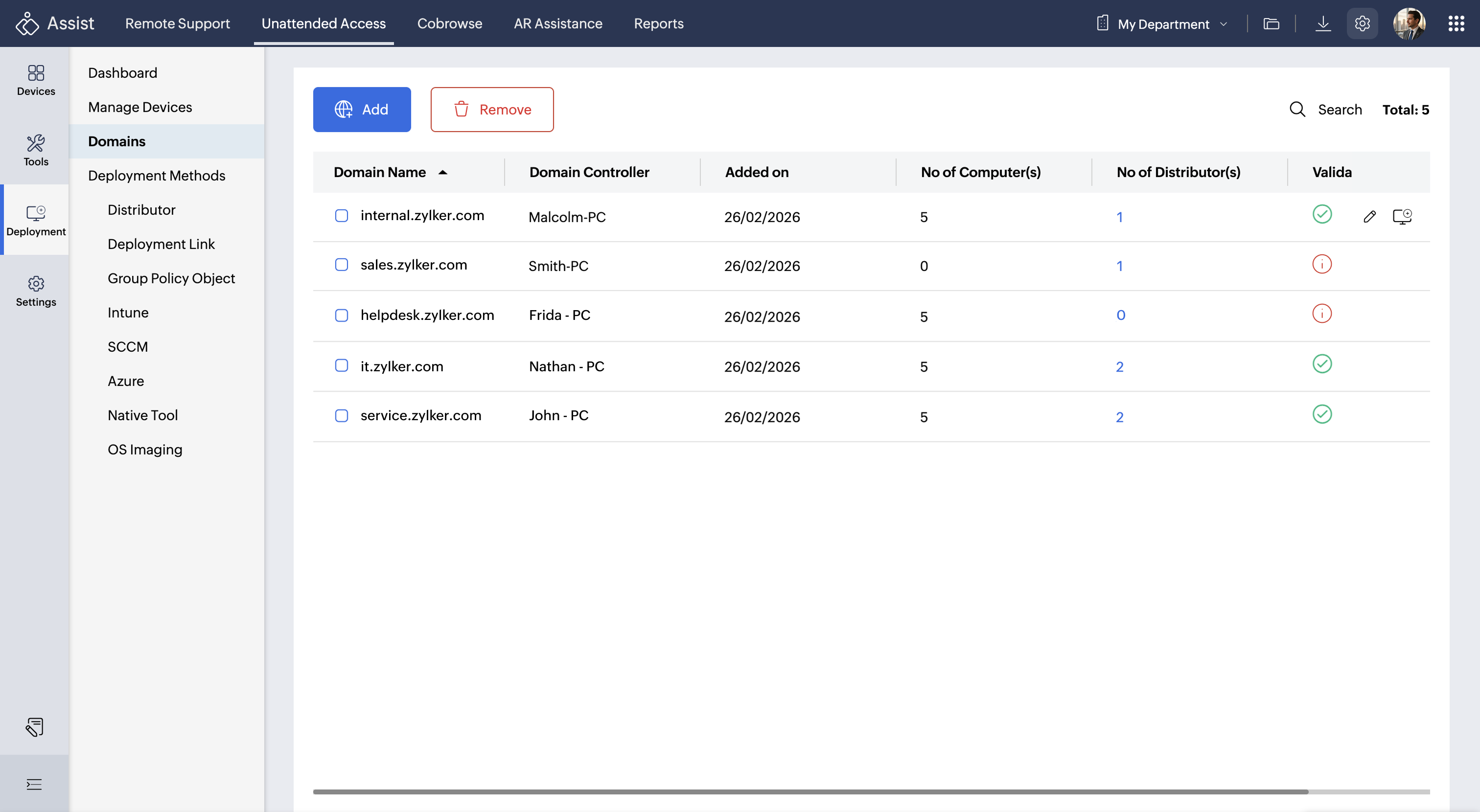
Domain
To deploy unattended access agents across multiple devices in your network, you can configure your domain under Deployment.
This requires a Distributor, an agent installed on a device within your Active Directory environment that has reliable connectivity to the Domain Controller. The Distributor acts as a bridge between your domain and the remote management platform, enabling bulk discovery and deployment across associated computers.
Once configured and validated, all computers within the domain are automatically listed. You can then select required devices and deploy the unattended access agent in bulk eliminating the need for individual installations and making large-scale device enrollment significantly faster and more efficient.
Add and Validate a Domain
- Navigate to Unattended Access > Deployment > Domains and click Add.
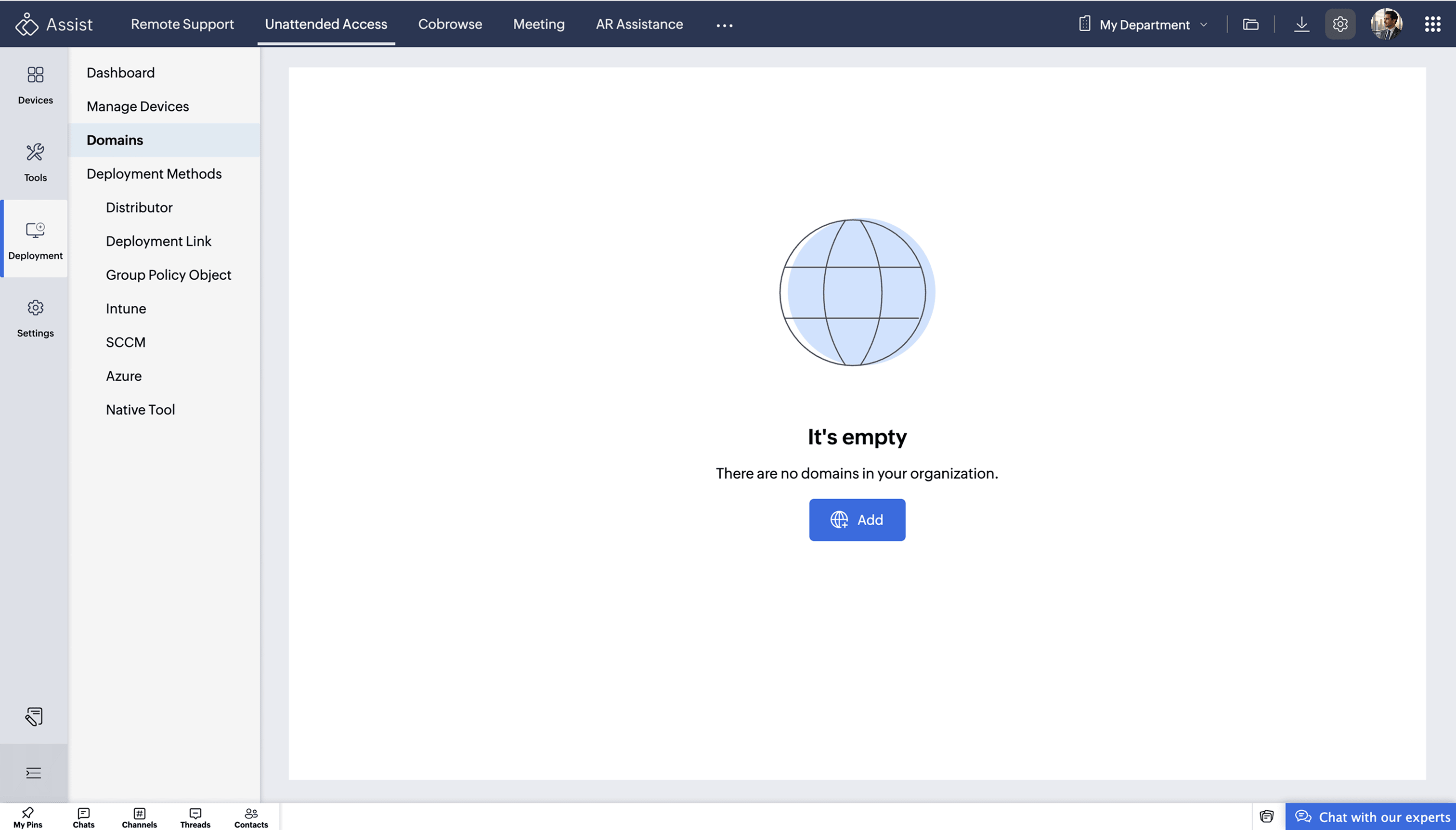
- Alternatively, go to Settings > Unattended Access > Domains and click Add to configure a domain.
- Select a Distributor from the drop-down menu. If not configured, click Configure Now and complete the setup. Learn more.
A distributor is a device that acts as a domain controller or has similar administrative privileges. It helps discover and manage computers within the domain network, allowing you to deploy agents to multiple devices without installing them individually.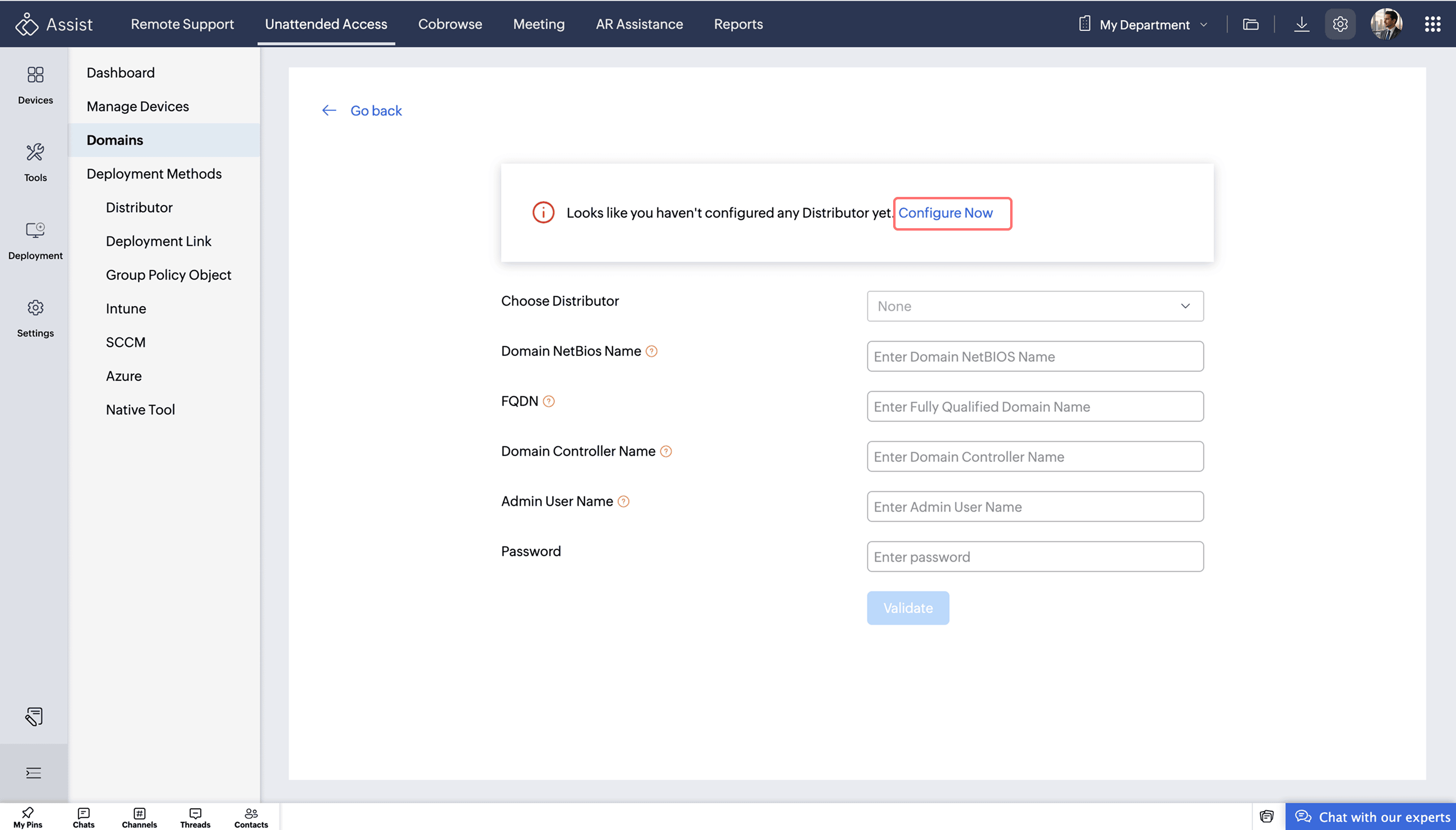
On clicking configure now,
Copy or share the installation link if you do not have physical access to the remote device, and install the agent remotely.
Alternatively, choose the installer type and click Download to install the agent directly on the remote device.
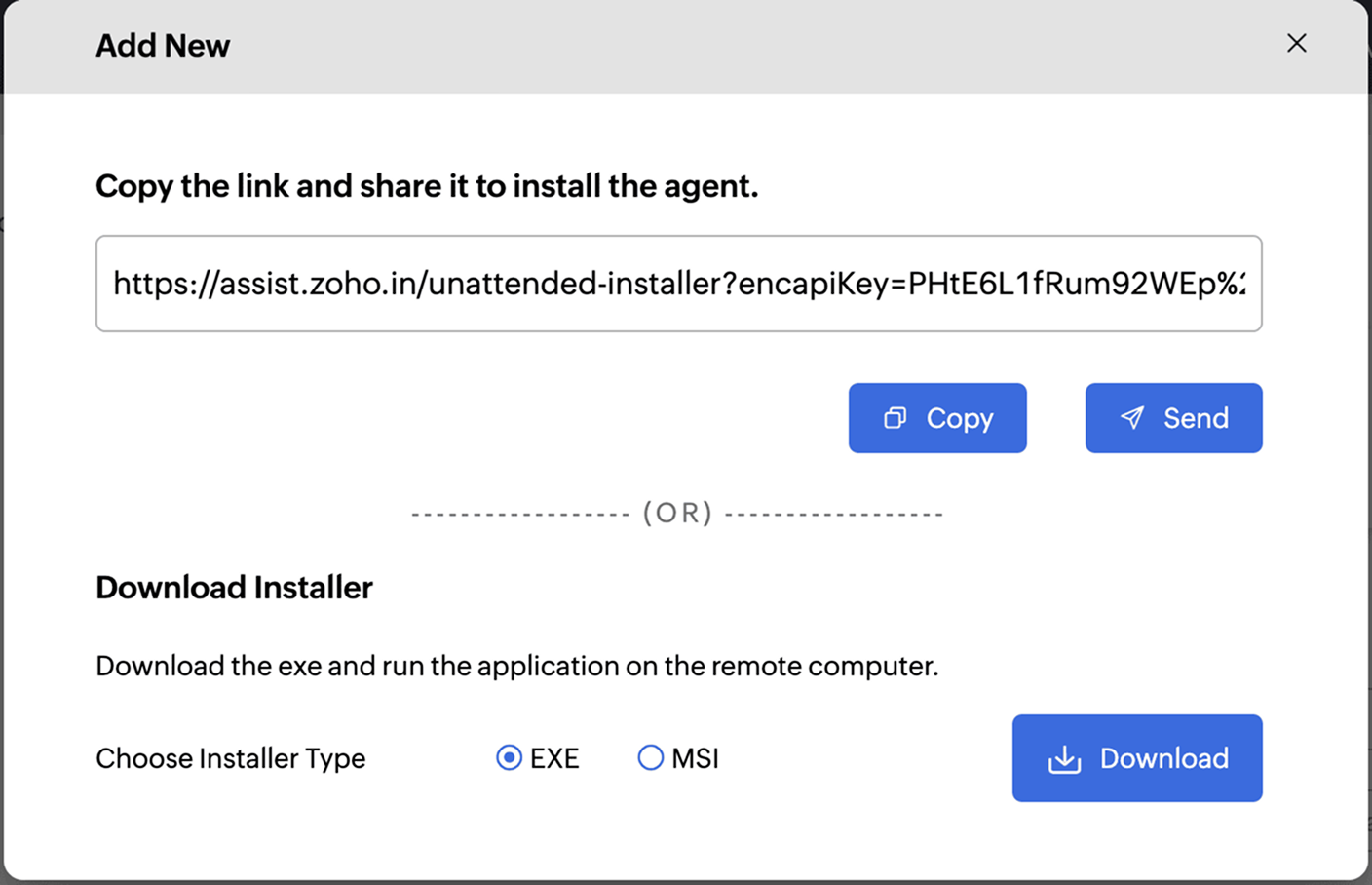
Once the installation is complete, the distributor will appear in the drop-down menu. You can select it to proceed with the configuration.
Note : You can also add multiple distributors for a domain based on your requirements.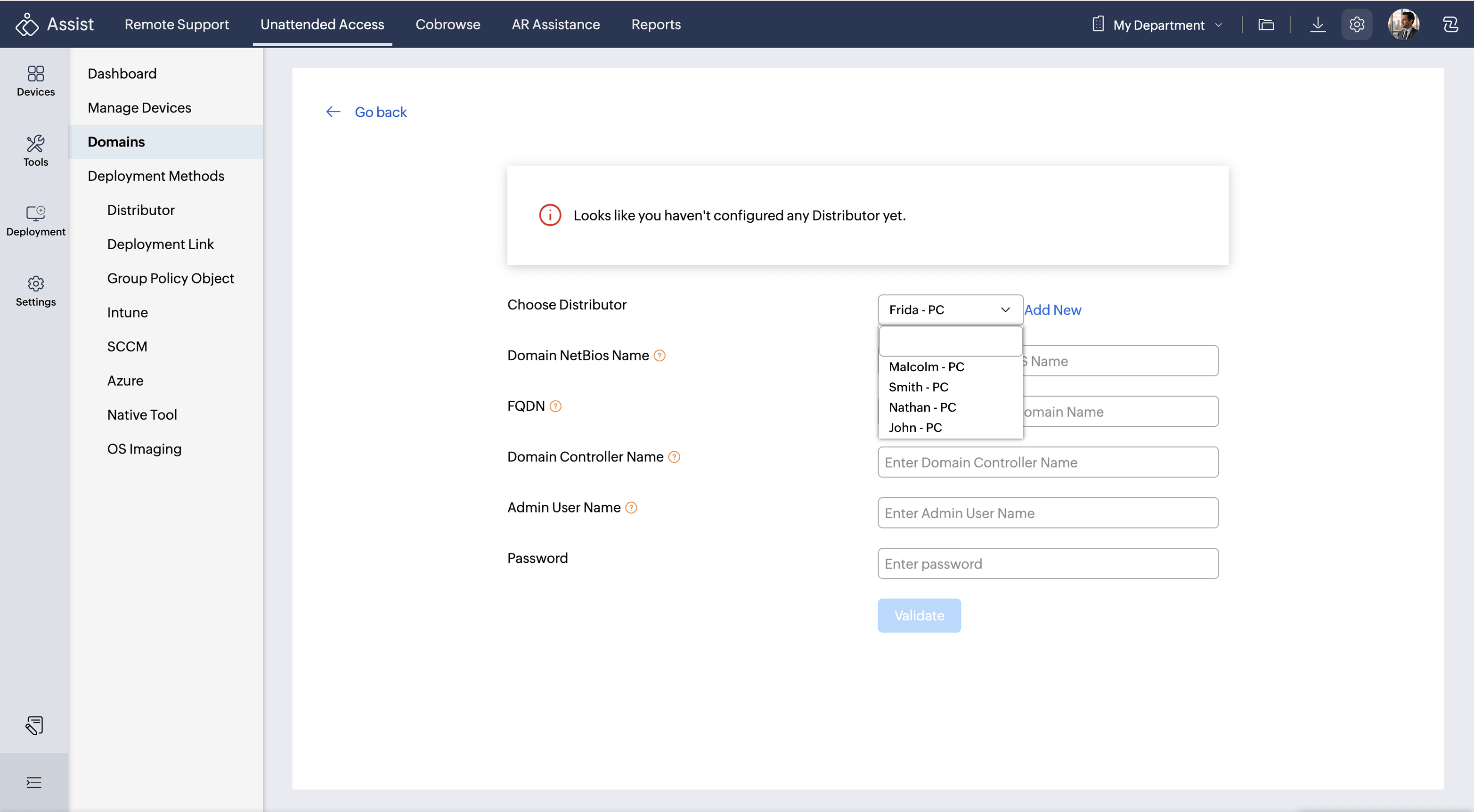
- Enter the following domain details:
- Domain NetBIOS Name
- FQDN (Fully Qualified Domain Name)
- Domain Controller Name
- Enter Admin Username and Password, then click Validate.
- After successful validation, the domain appears on the Domains page.
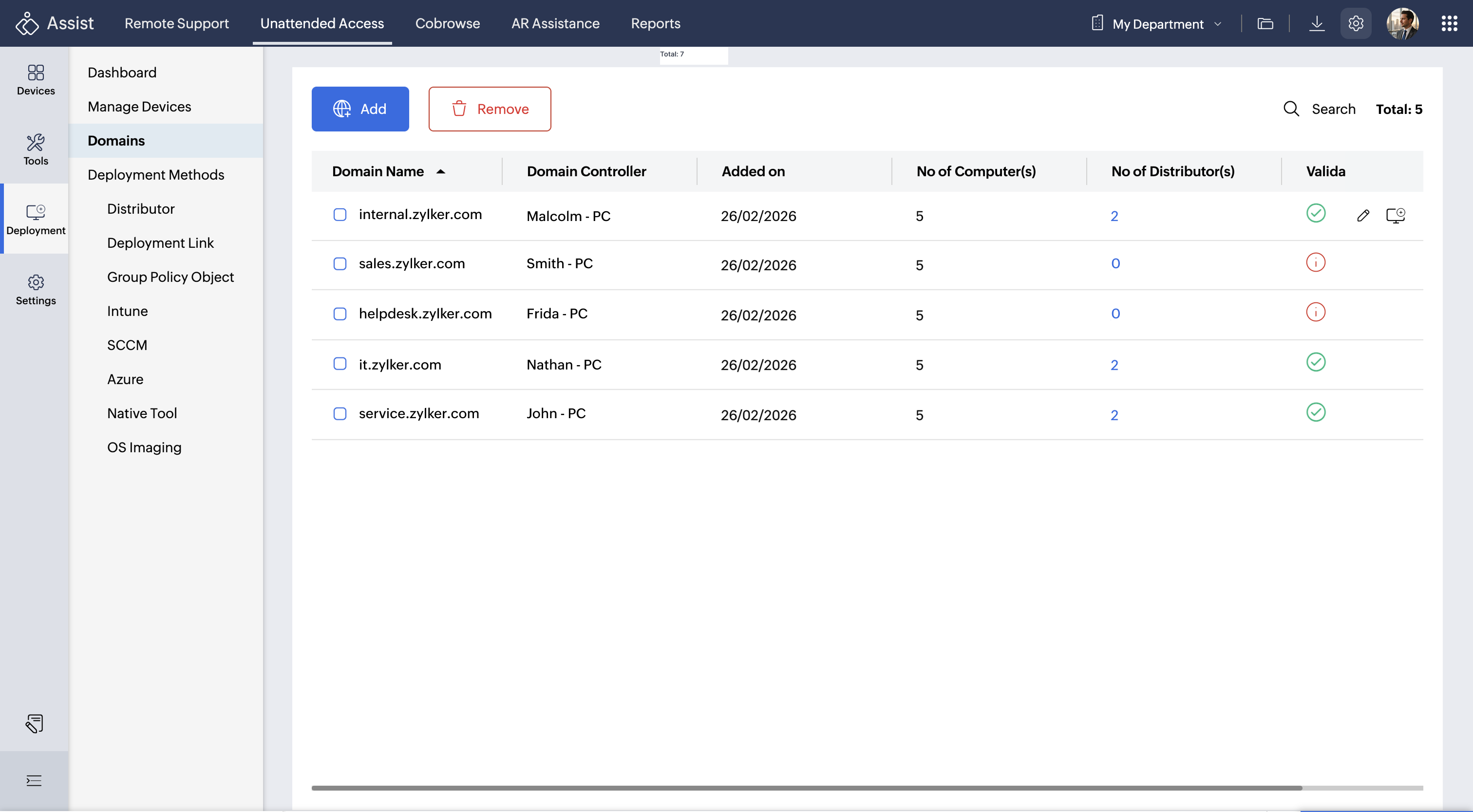
If validation fails, click the Validate icon and update the required details.
Add Computer
After validation, click the Add Computer icon to add devices from the domain. 
All computers in the domain will be displayed by default. Use the Filter option to refine the list if needed.
Click Deploy Now to immediately deploy the unattended access agent to the selected remote computer.
Click Select All to choose all computers in the domain.
Select the computers where you want to deploy the unattended access agent and click Add and Deploy Later to add them to the device list without immediate deployment.
The Add and Deploy Later option only adds the computers to the device list. These computers will appear on the Manage Devices page.
Note
This option only adds the computers to the device list on the Manage Devices page. To install the agent later, navigate to Unattended Access > Deployment > Manage Devices, hover to click the three-dot icon next to the device, and select Install. Once installed, the device will be listed under Unattended Access.
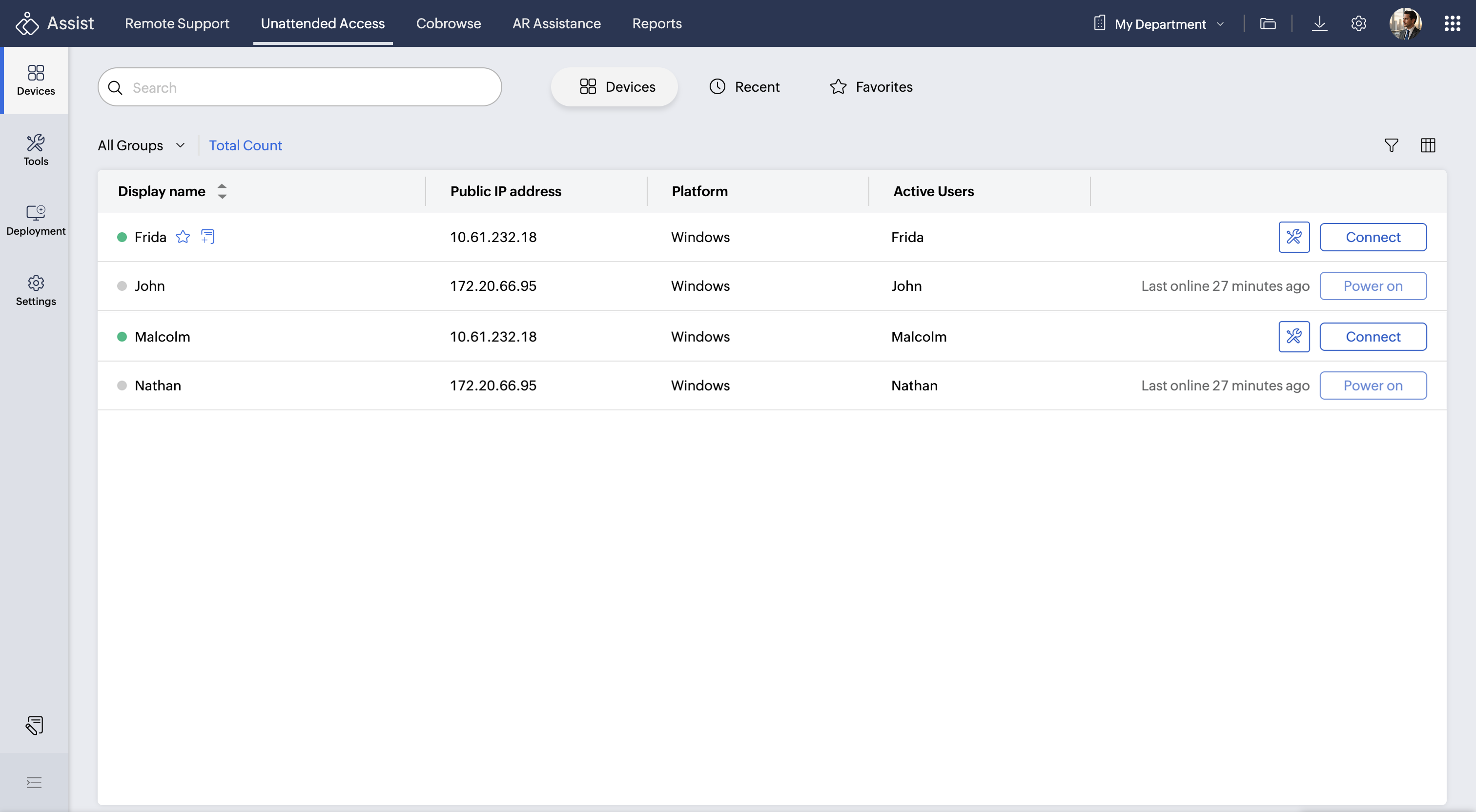
- After deployment, devices appear under Unattended Access. Click Connect to access them.
Manage Domains
All validated domains are listed here for further management.
- Click Edit to modify and revalidate domain details.
- Click the Number of Computers or Number of Distributors to add computers or distributors later.