Secure Connect
Secure Connect in Zoho Assist adds an extra layer of security to unattended access sessions by requiring technicians to complete an additional verification step before connecting to unattended devices, helping prevent unauthorized access.
When Secure Connect is enabled, technicians must complete Multi-Factor Authentication(MFA) before connecting to any unattended device configured in the organization. It also supports a configurable reauthentication timeout to minimize repeated authentication prompts and provides the option to exclude specific devices from Secure Connect authentication.
This feature is available only in the Unattended Access - Professional edition.
How to Enable Secure Connect
Note
- Secure Connect settings are accessible only to Super Admins.
- Multi-Factor Authentication (MFA) must be configured to enable Secure Connect.
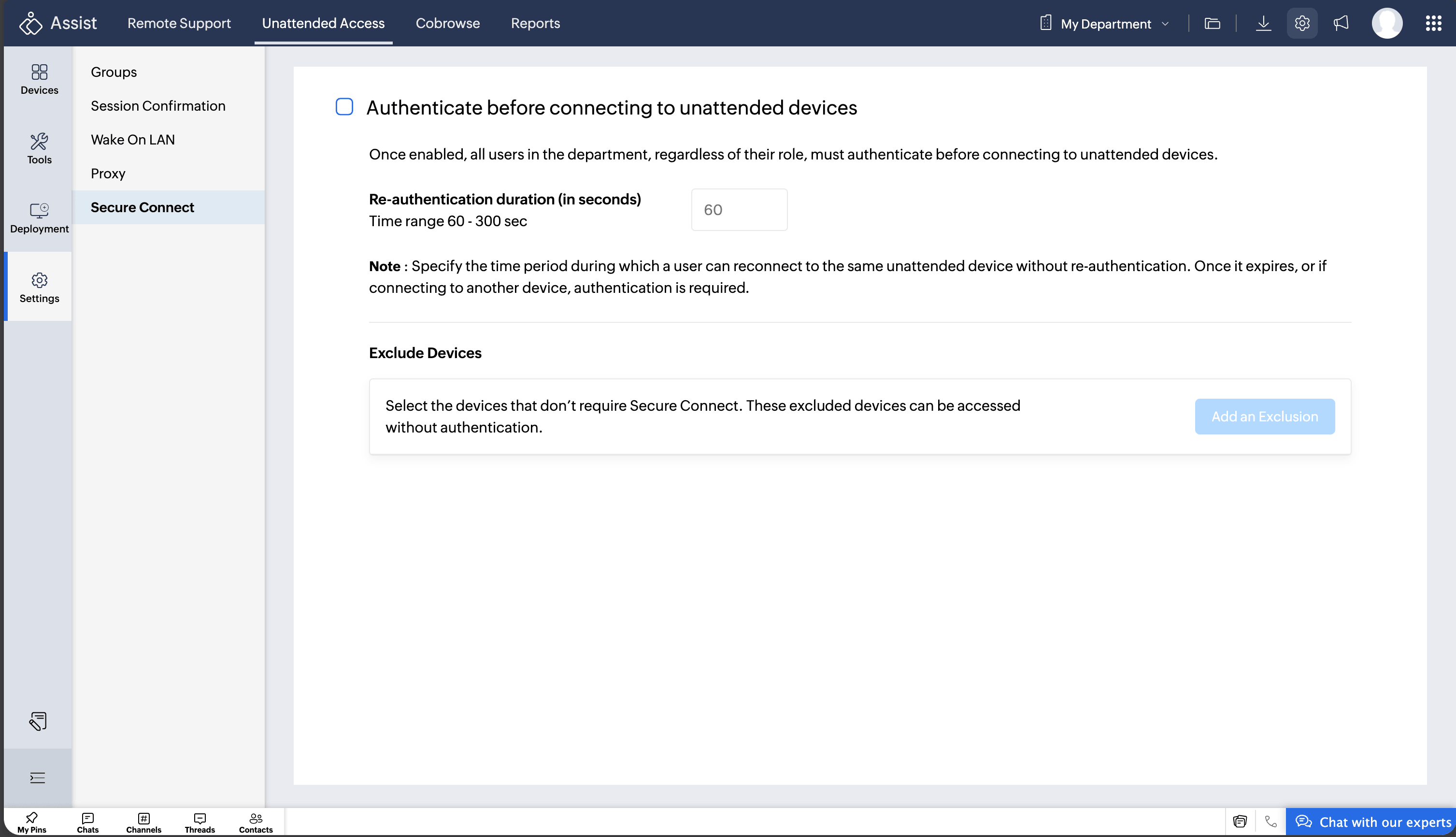
Navigate to Unattended Access > Settings > Secure Connect.
If MFA is already configured, enable the Authenticate before connecting to unattended devices checkbox .
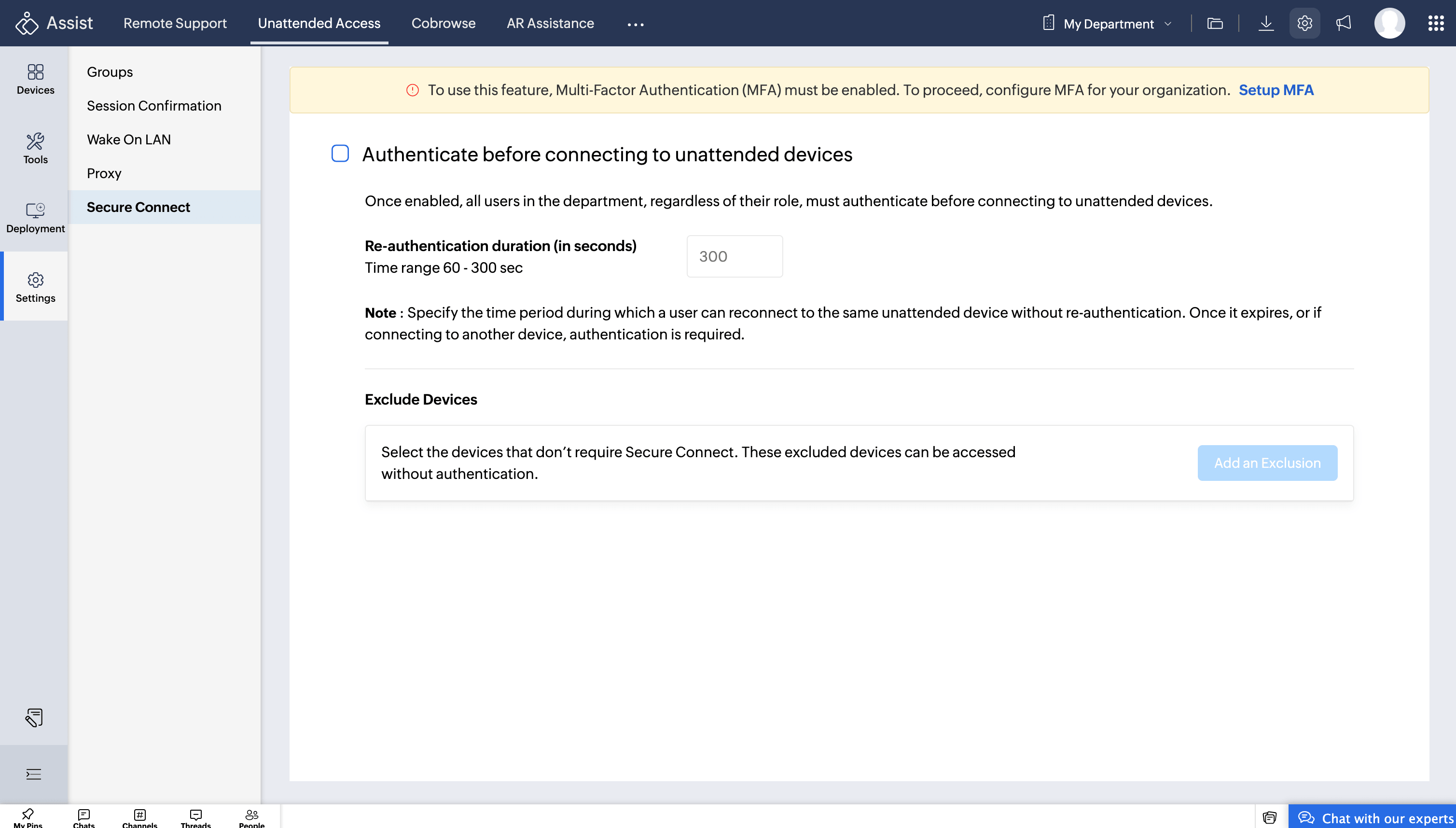
If MFA is not configured, you will be redirected to the Multi-Factor Authentication setup page upon clicking Setup MFA.
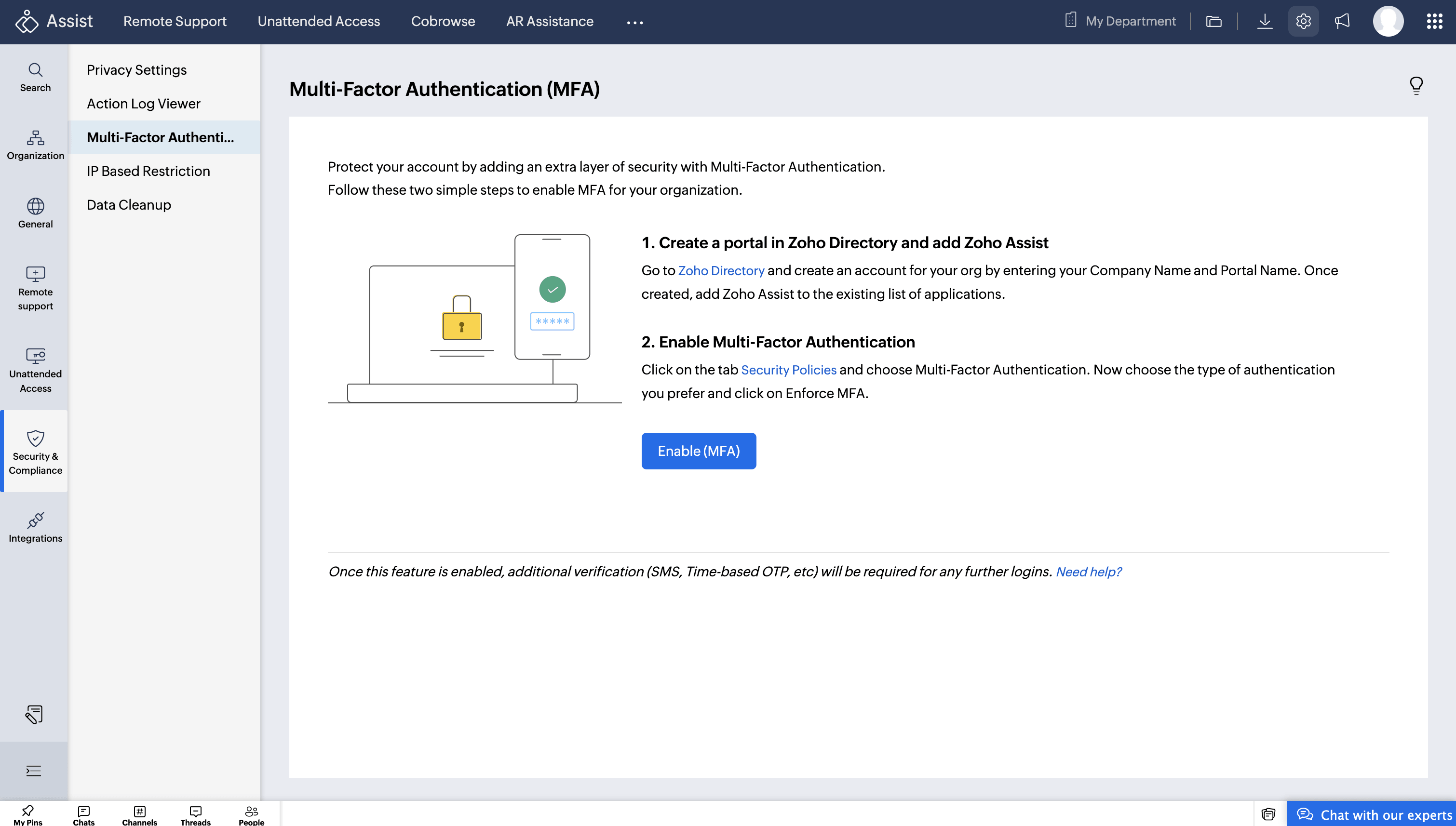
Follow the on-screen instructions to configure MFA. You can also refer to the MFA help documentation for detailed instructions.
After configuring MFA, return to Secure Connect settings and enable the option mentioned in Step 2.
Reauthentication Time
You can specify a time period during which technicians can reconnect to the same unattended device without completing authentication again.
When is reauthentication required?
Once the configured reauthentication time expires, technicians must complete authentication again to reconnect to the same unattended device.
When the technician attempts to connect to a different device, he should complete the authentication again to proceed.
Excluding Devices from Secure Connect
You can exclude specific unattended devices from Secure Connect authentication when required.
To exclude devices:
Navigate to Unattended Access > Settings > Secure Connect.
Click Add an Exclusion.
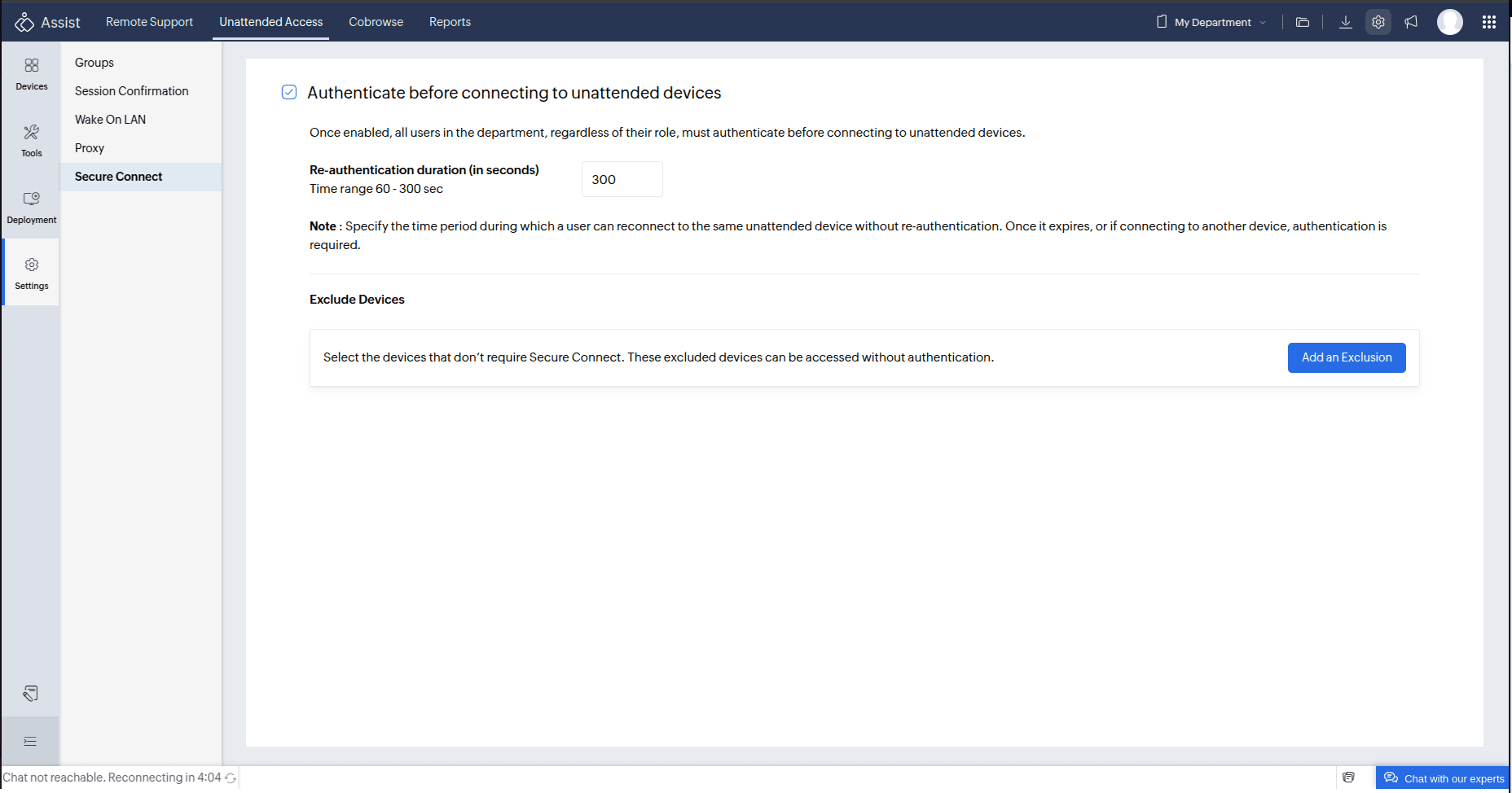
Select and add the devices that should be excluded from authentication.
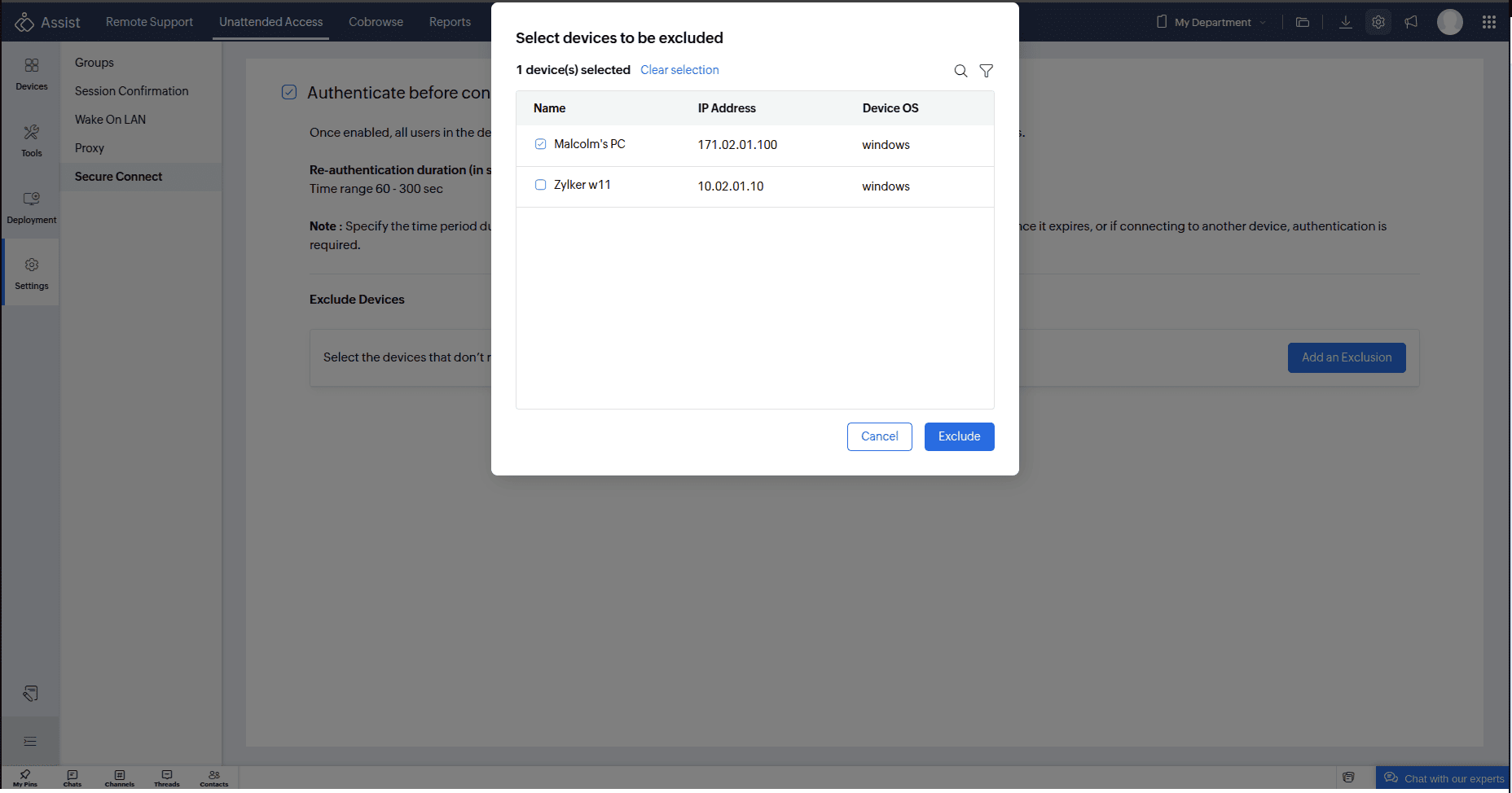
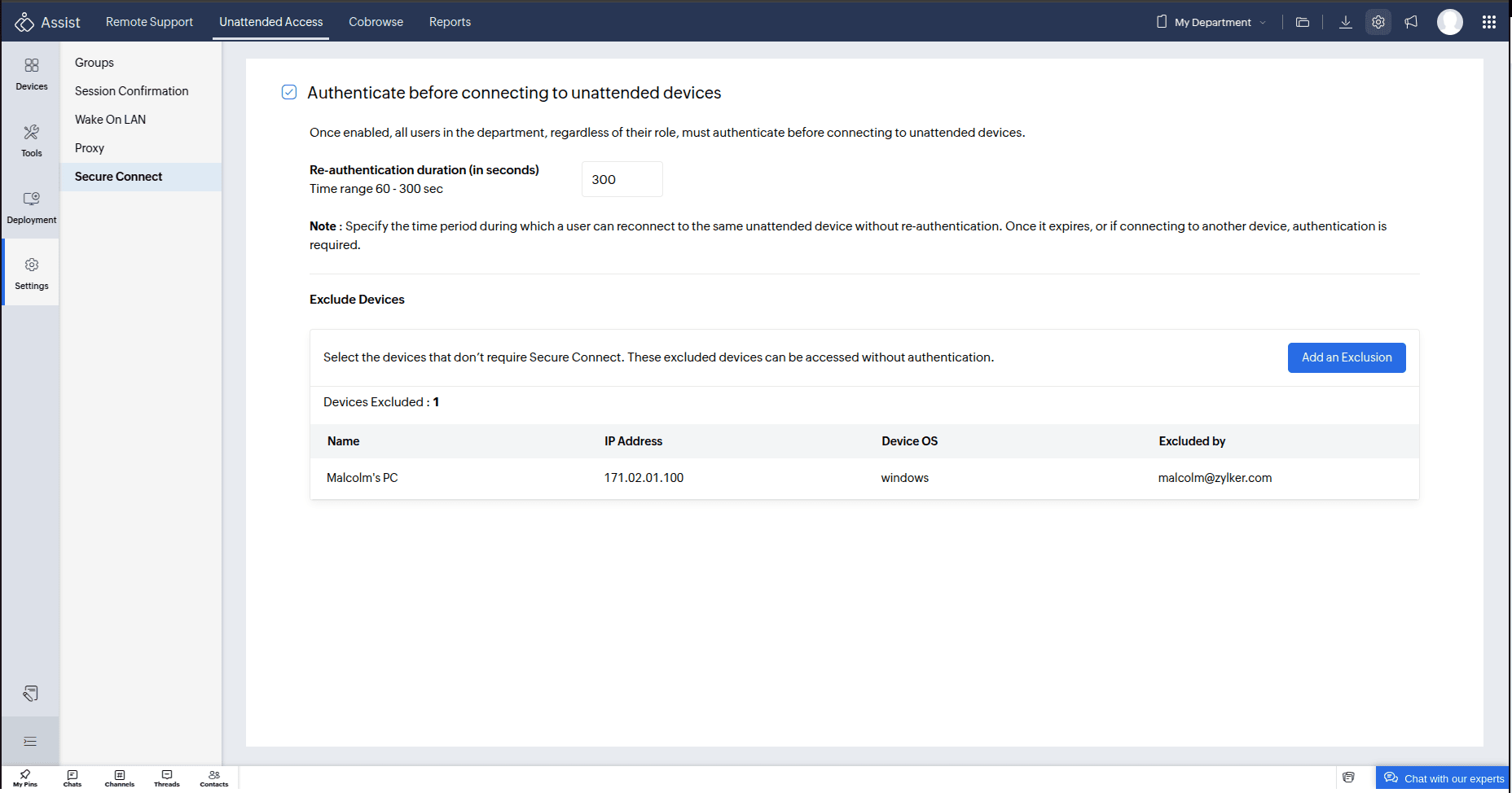
The device selected will be listed under the Excluded Devices section.
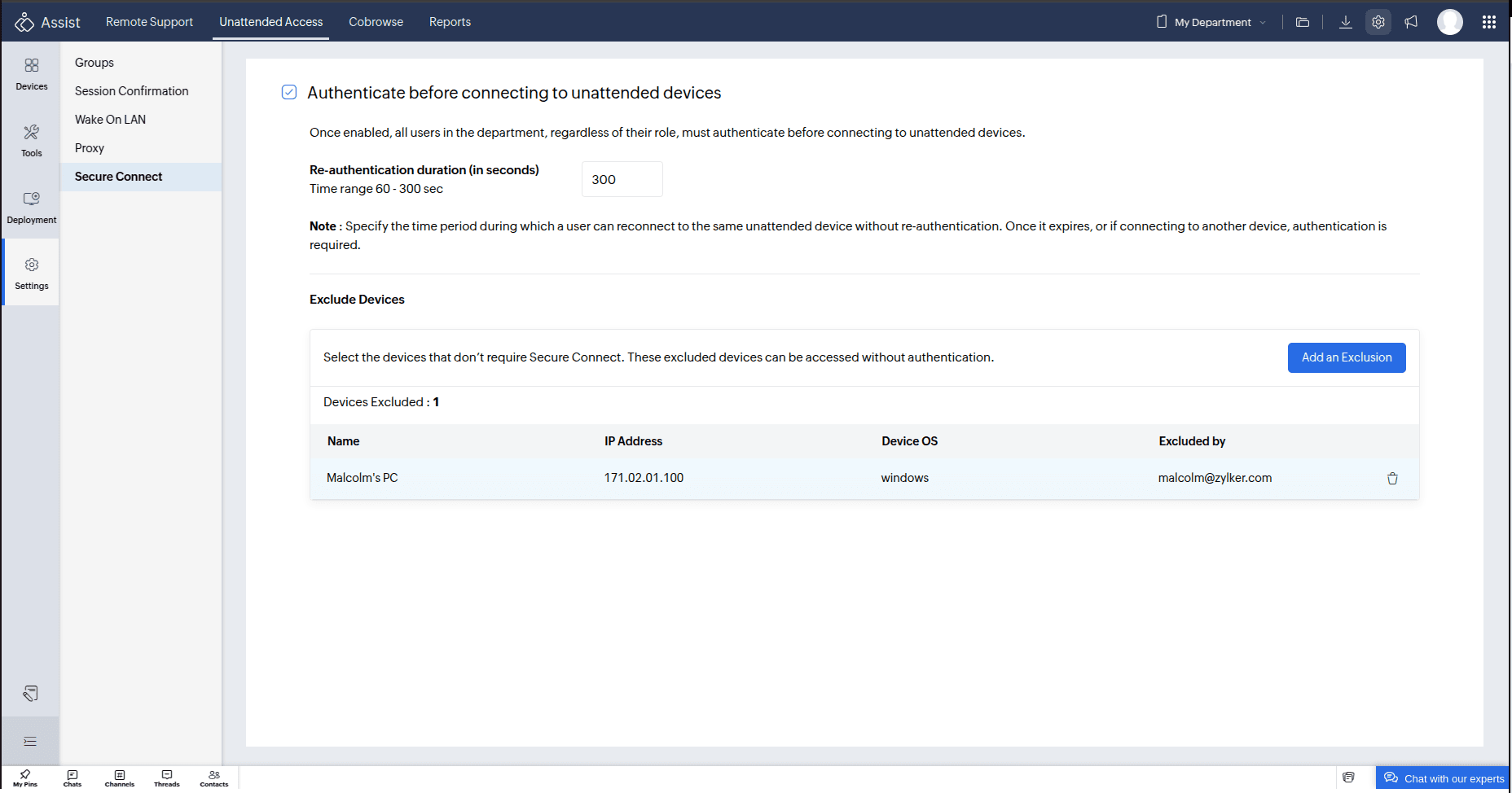
You can remove the device from the Exclusion anytime needed later by clicking the delete icon.
Note
- When Secure Connect is enabled for a department, any newly added technician with access to that department will be prompted to enter their Zoho account password during reauthentication by default.
- To enforce Multi-Factor Authentication (MFA) for these technicians, they must be included in an MFA security policy in Zoho Directory.
- To activate MFA for newly added technicians in the organization follow the below steps:
- Navigate to Settings and select Multi-Factor Authentication under Security & Compliance.
- Click Manage to open Zoho Directory.
- Go to the Users tab. Newly added users will be marked as External.
- Select the required user and click Convert to Org.
- An invitation email will be sent to the user.
- Once the user clicks Join Now, MFA will be activated for their account.