Advanced Analytics for FreshBooks
The Advanced Analytics Connector for FreshBooks streamlines data import for in-depth analysis of finances, billing, and client management. Through interactive dashboards and detailed reporting, businesses can uncover trends in revenue, expenses, and project billing. This integration empowers teams to optimize cash flow and enhance accounting efficiency through actionable, data-driven insights.
- Prerequisites
- Setting up the Integration
- Handling Data Synchronization Failure
- Managing Data Sources
- Data Modeling & Preparation
- Data Visualization/Analysis
- Sharing & Collaboration
- Help & Support
Prerequisites
To set up the Advanced Analytics Connector, you must first create a private app in your FreshBooks account.
- Log in to your FreshBooks account.
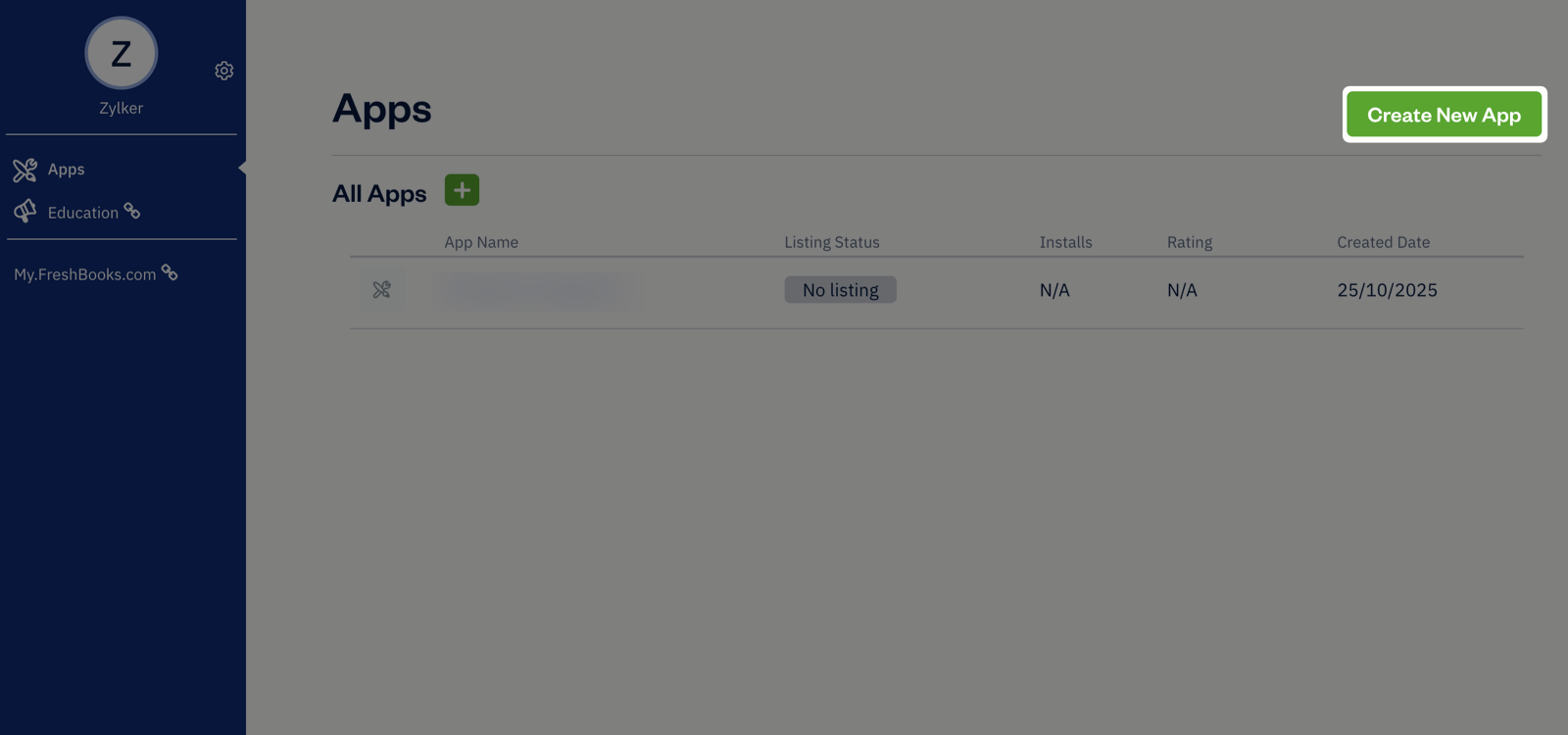
- Open the FreshBooks Developer Console and click Create New App on the Apps page.
- Enter an Application Name and choose Private App as the Application Type.
- Provide the following URL in both the Website URL and Application Settings URL fields.
URL - https://analytics.zoho.com/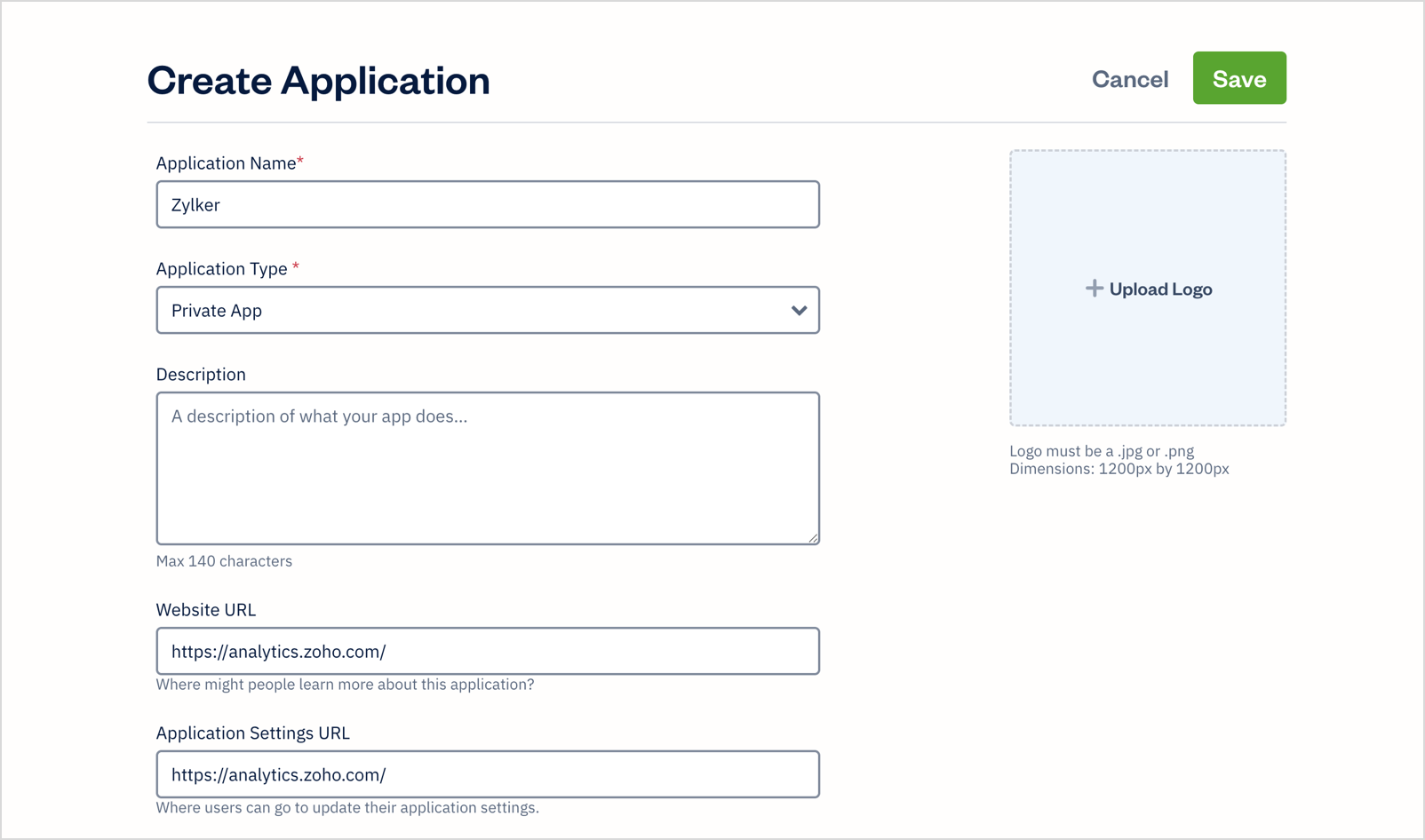
- Select the required scopes as listed below.
- user:profile:read
- user:bills:read
- user:bill_payments:read
- user:bill_vendors:read
- user:billable_items:read
- user:business:read
- user:clients:read
- user:estimates:read
- user:expenses:read
- user:invoices:read
- user:account:read
- user:journal_entries:read
- user:notifications:read
- user:online_payments:read
- user:other_income:read
- user:payments:read
- user:reports:read
- user:projects:read
- user:retainers:read
- user:taxes:read
- user:teams:read
- user:time_entries:read
- user:uploads:read
- Enter the following URL as the Redirect URI.
URI: https://analytics.zoho.com/connectorclientapi/service/001c70b6-d1e4-1f42-9292-f49e5fe0e639/oauth2/GETCODE/REDIRECT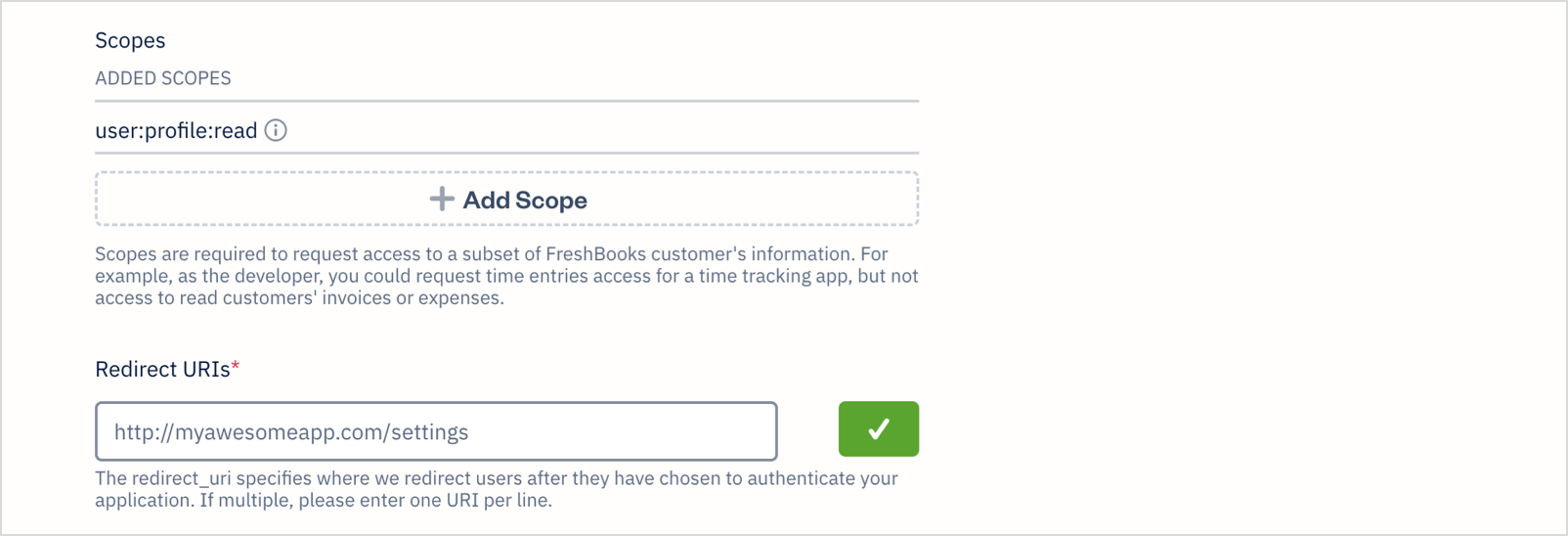
- Click Save to create the app.
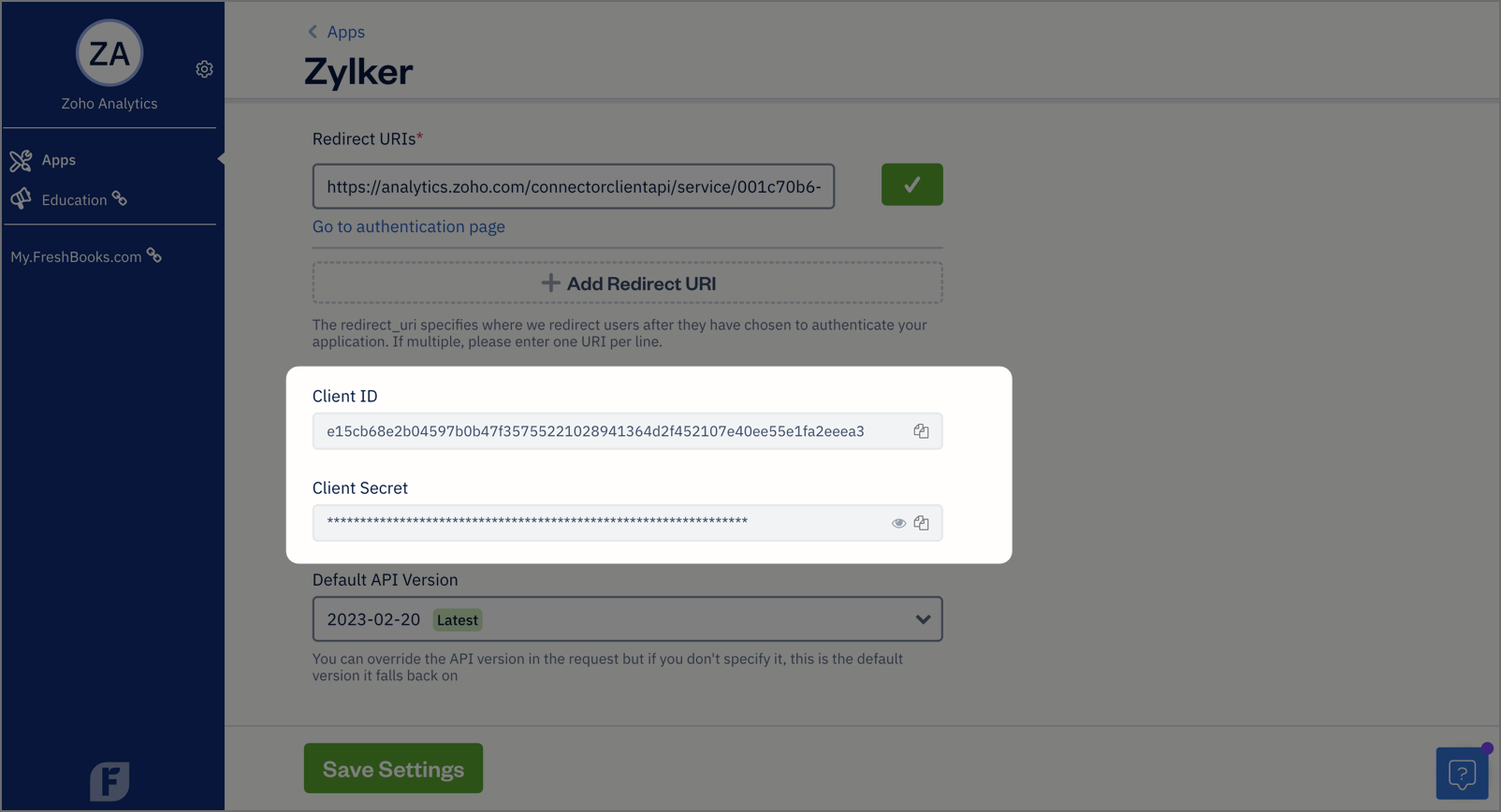
- Once created, open the app from the Apps page and copy the Client ID and Client Secret. These credentials are required to configure the FreshBooks connector in Zoho Analytics.
Setting up the Integration
A user with administrator privileges (Account admin, and Org admins) can configure the integration.
Follow the below steps to seamlessly import your FreshBooks data into Zoho Analytics:
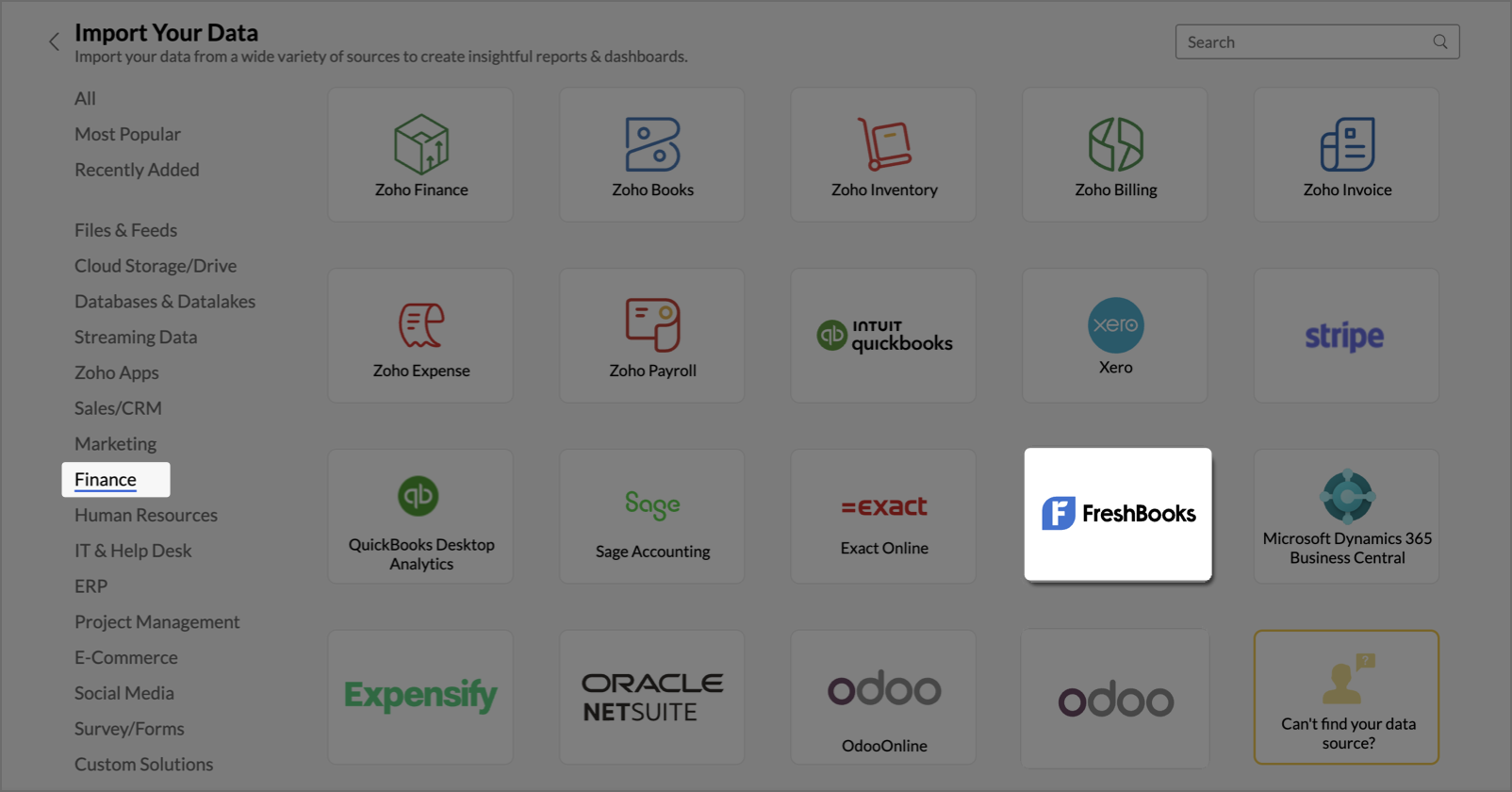
- On the Zoho Analytics home page, click Import Your Data.
- Navigate to the Finance tab and select FreshBooks from the available data sources.
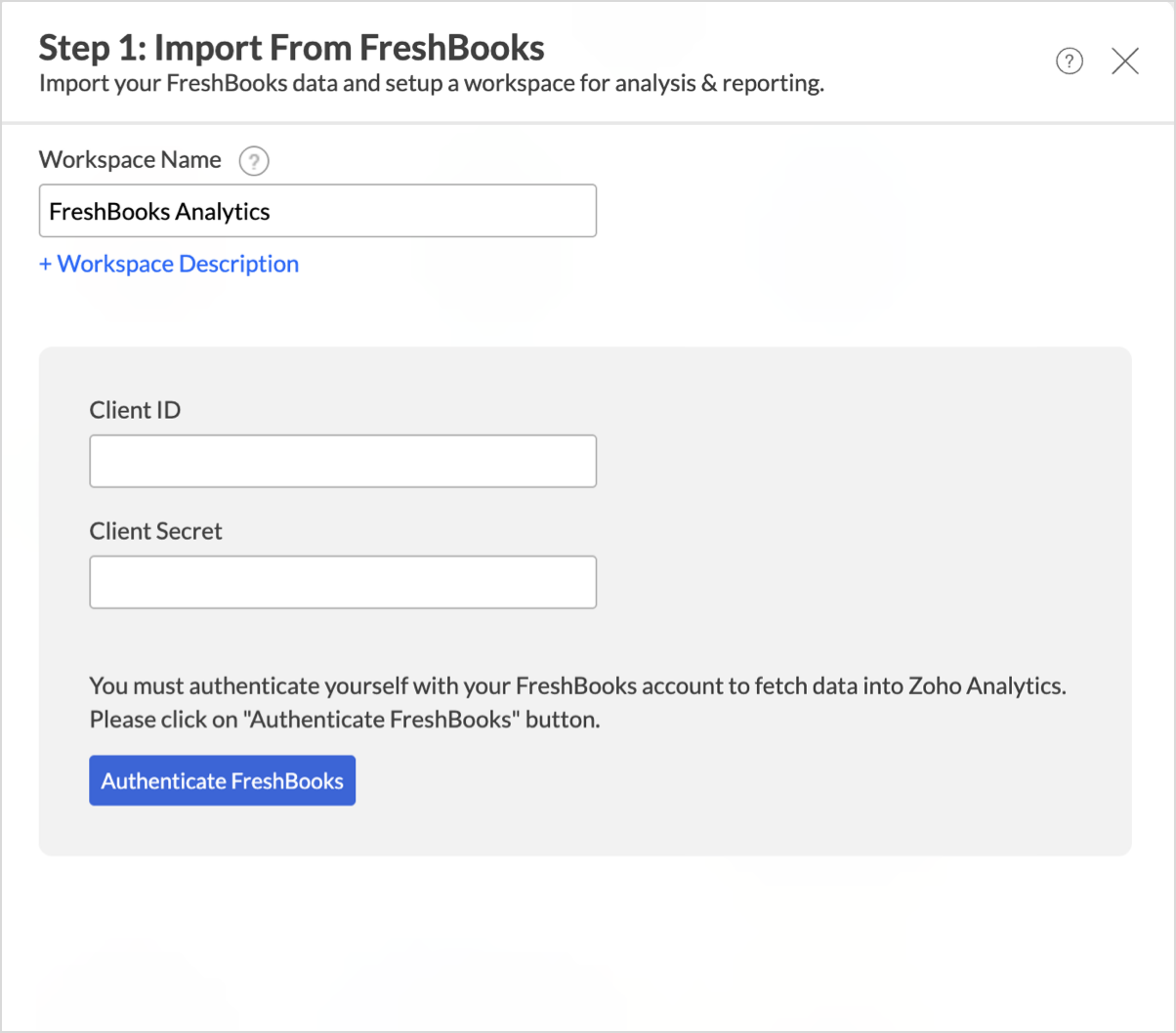
- The Step 1: Import from FreshBooks dialog will appear.
- Enter the Workspace Name and Workspace Description (Optional).
- Enter the Client ID and Client Secret you have copied from the private app created and click Authenticate FreshBooks.
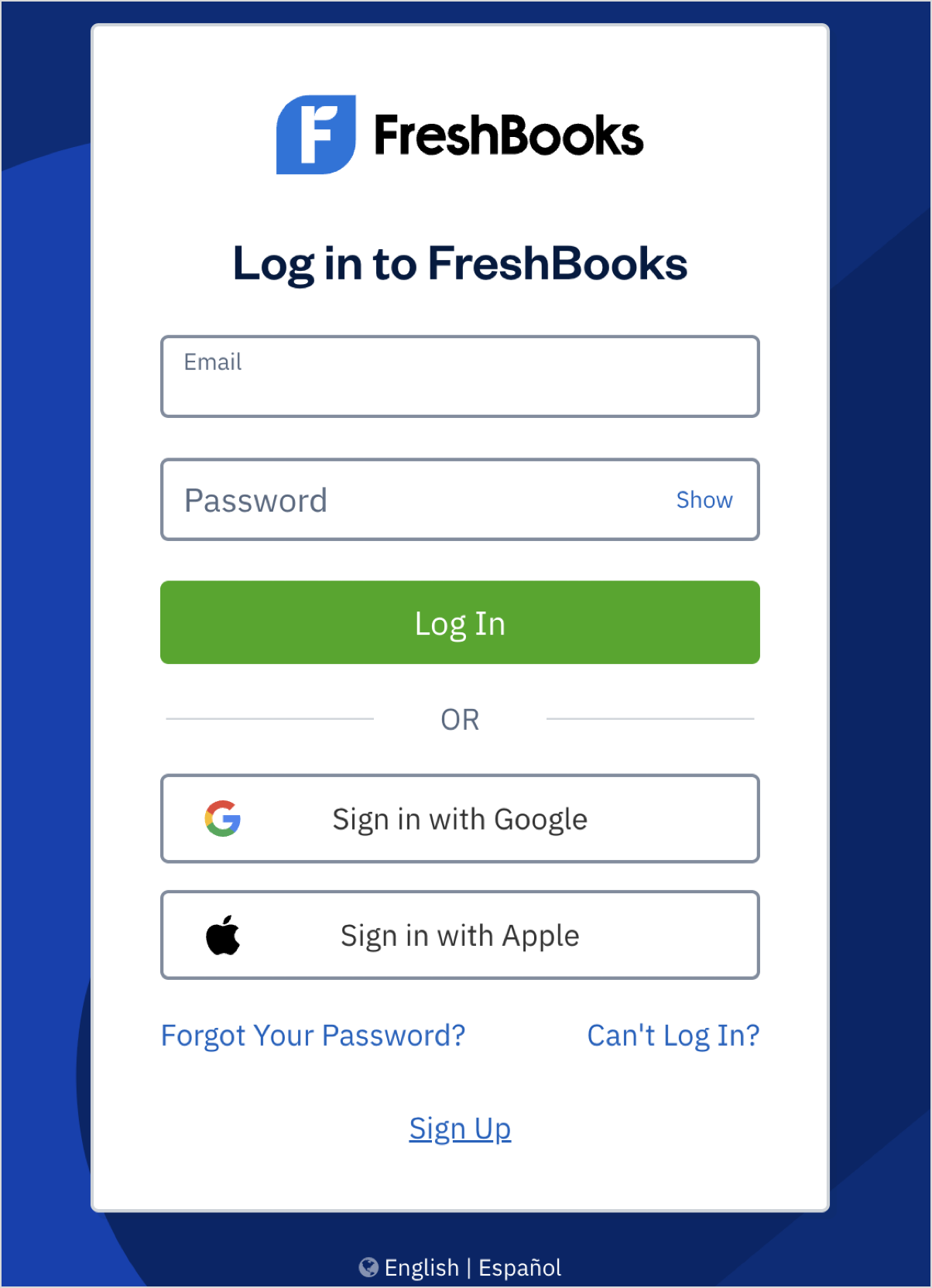
- You will be redirected to the FreshBooks login page, enter the credentials and click Login to authenticate.
- From the Step 2: Import from FreshBooks dialog select the Business Name and select their Modules and Fields from which you intend to import data.
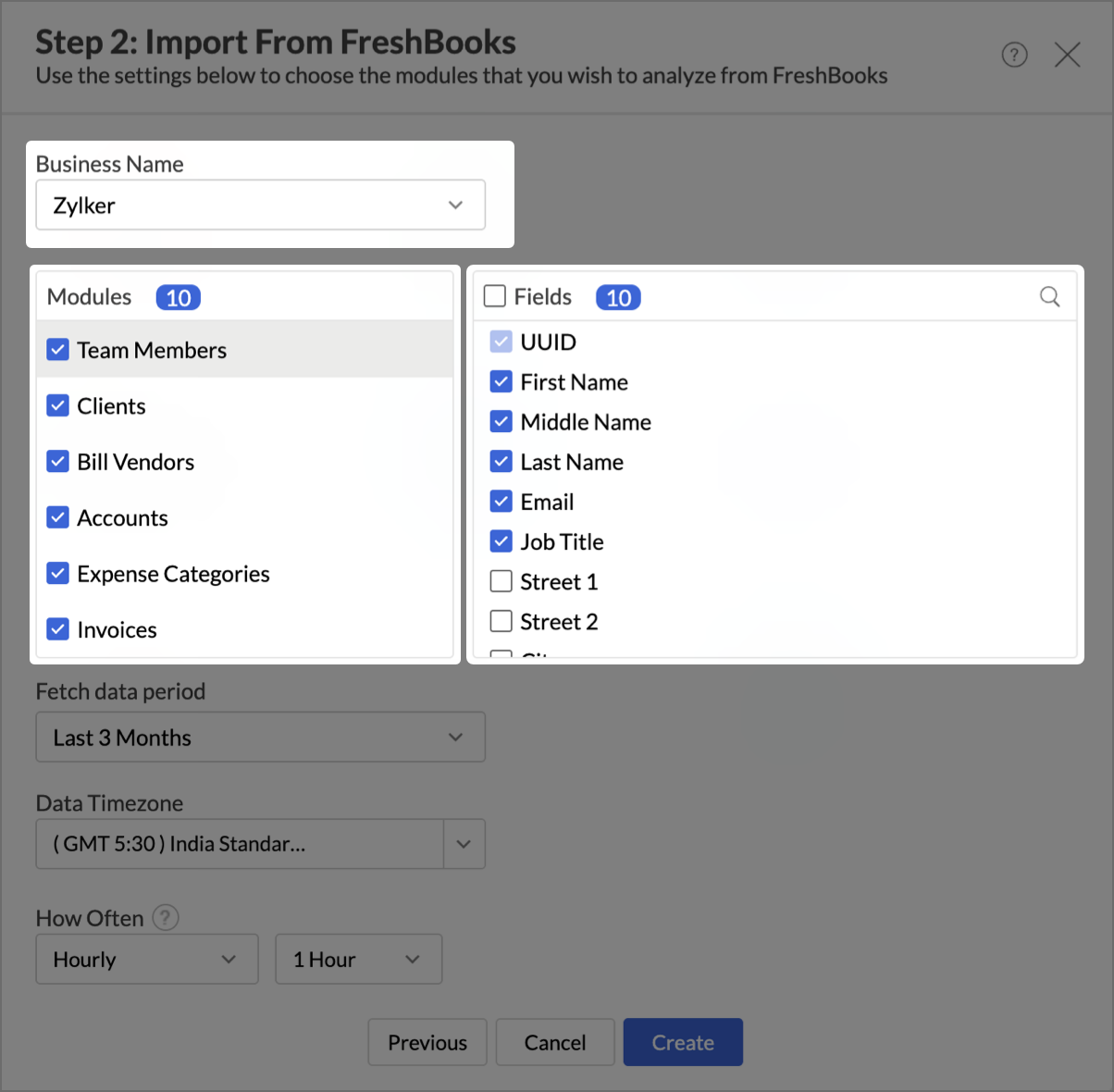
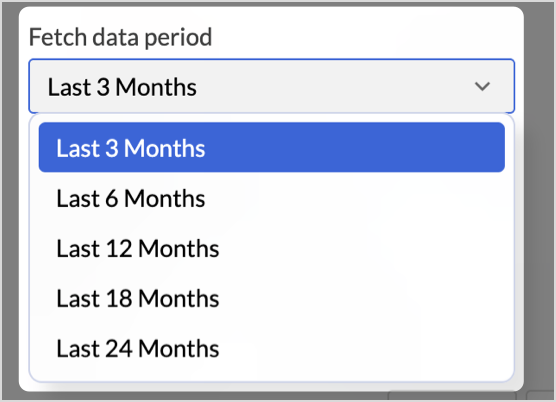
- From the Fetch data period section, select the data period from which you want to import data.
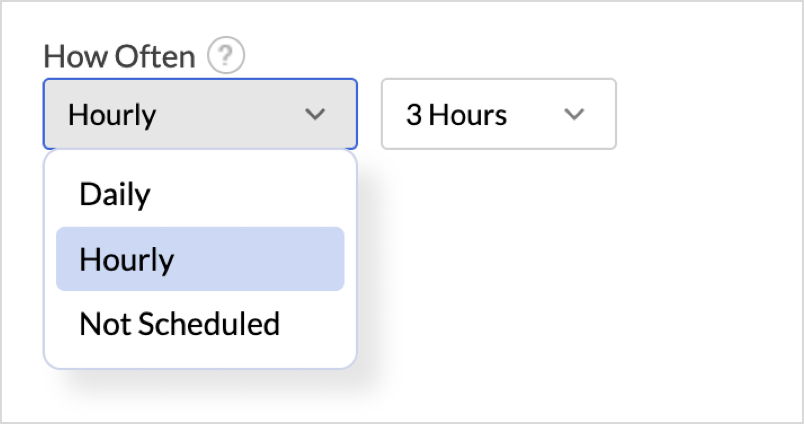
- In the How Often section, set up a schedule to import data at regular intervals. Refer to the Data Sync frequency section to learn more.
- Click Create.
The data import process will be initiated and may take a few minutes depending on the data being imported. You’ll receive an email and in-app notification once the initial data fetch is complete.

Note:
- The initial fetch might take a few minutes depending on the volume of the data to be imported. An email and an in-app notification will be sent, once the initial fetch is complete.
- The setup process can sometimes fail for a variety of reasons. In this case we request you to access the Data source tab and click the Retry link to import again. If the issue persists then write to support@zohoanalytics.com.
Modules & Fields (What are the modules and fields in FreshBooks that will be synchronized in Zoho Analytics Workspace?)
The below table lists the modules and fields that will be synced to Zoho Analytics.
| Modules | Fields |
| Team Members | UUID, First Name, Middle Name, Last Name, Email, Job Title, Street 1, Street 2, City, Province, Country, Postal Code, Country Code, Phone Number, Business ID, Business Role Name, Active, Identity ID, Invitation Date Accepted, Created At, Updated At |
| Clients | Client Id, UUID, Username, First Name, Last Name, Email, Note, Mobile Phone, Organization, Company Industry, Company Size, Role, Business Phone, Home Phone, Fax, Billing City, Billing Province, Billing Country, Billing Postal Code, Billing Street, Billing Street 2, Shipping City, Shipping Province, Shipping Country, Shipping Postal Code, Shipping Street, Shipping Street 2, Last Login, Signup Date, Updated, Number of Logins, Currency Code, Exceeds Client Limit, Has Retainer, Language, Last Activity, Preferred Email, Preferred Gmail, Retainer ID, Include PDF In Email, VAT Name, VAT Number, Late Fee Calculation Type, Late Fee Compounded Tax, Late Fee Created At, Late Fee Days, Late Fee Enabled, Late Fee First Tax Name, Late Fee First Tax Percent, Late Fee Repeat, Late Fee Second Tax Name, Late Fee Second Tax Percent, Late Fee Type, Late Fee Value, Visibility State |
| Bill Vendors | Vendor ID, Vendor Name, Account Number, Phone, Primary Contact First Name, Primary Contact Last Name, Primary Contact Email, Website, Street, Street2, City, Province, Postal Code, Country, Currency Code, Is 1099, Language, Note, Visibility State, Created At, Updated At |
| Accounts | Account UUID, Name, Number, Type, Sub Type, System Account Name, Parent Account, Description, Auto Created, State, Updated At |
| Expense Categories | ID, Category, Parent ID, Is Editable, Transaction Posted, Created At, Updated At, Visibility State |
| Invoices | ID, Address, Auto Bill, Autobill Status, Basecamp ID, City, Code, Country, Create Date, Created At, Currency Code, Customer ID, Date Paid, Deposit Percentage, Deposit Status, Discount Value, Display Status, Dispute Status, Due Date, Due Offset Days, Estimate ID, Ext Archive, First Name, Fulfillment Date, Generation Date, Gmail, Invoice Number, Language, Last Order Status, Last Name, Lock Status, Notes, Organization, Owner ID, Parent, Payment Details, Payment Status, PO Number, Province, Return URI, Sent ID, Series, Show Attachments, Status, Street, Street 2, Template, Terms, UUID, V3 Status, VAT Name, VAT Number, Version, Visibility State, Invoice Amount, Invoice Amount Currency Code, Deposit Amount, Deposit Amount Currency Code, Discount Rate, Discount Type, Discount Amount, Discount Amount Currency Code, Discount Total Amount, Late Fee Calculation Type, Late Fee Compounded Tax, Late Fee Created At, Late Fee Days, Late Fee Enabled, First Tax Name, First Tax Percent, Late Fee Repeat, Second Tax Name, Second Tax Percent, Late Fee Type, Late Fee Value, Net Paid Amount, Net Paid Amount Code, Outstanding Amount, Outstanding Code, Owner User ID, Paid Amount, Paid Code, Sender Address City, Sender Address Code, Sender Address Country, Sender Address Province, Sender Address Street, Sender Address Street 2 |
| Invoice Lines | Lines Basecamp ID, Lines Compounded Tax, Description, Expense ID, Invoice ID, Line ID, Project ID, Name, Product Code, Quantity, Retainer ID, Retainer Period ID, Task Number, Tax Amount 1, Tax Amount 2, Tax Name 1, Tax Name 2, Tax Number 1, Tax Number 2, Tax Rule Code, Type, Unit Code, Updated, Lines Amount, Lines Amount Currency Code, Lines Discount Rate, Lines Discount Type, Lines Discount Amount, Lines Discount Amount Code, Lines Unit Cost Amount, Lines Unit Cost Code |
| Invoice Profiles | Address, Auto Bill, Bill Gateway, City, Code, Country, Create Date, Currency Code, Customer ID, Description, Disable, Discount Value, Display Status, Due Offset Days, First name, Frequency, Invoice Profile ID, Include Unbilled Time, Is Infinite, Language, Last name, Next Issue Date, Notes, Number Recurring, Number Remaining, Occurrences To Date, Organization, Owner ID, Payment Details, PO Number, Province, Require Auto Bill, Retainer ID, Send Email, Send Gmail, Street, Street2, Terms, Updated, VAT Name, VAT Number, Vis State, Amount, Total Discount Amount, Total Accrued Revenue Amount, Tracking Last Invoice Date, Tracking Last Occurrence Date, Tracking Occurrences To Date |
| Invoice Profile Lines | Invoice Profile ID, Compounded Tax, Description, Line ID, Project ID, Name, Task Number, Tax Amount 1, Tax Amount 2, Tax Name 1, Tax Name 2, Type, Quantity, Amount, Currency Code, Unit Cost Amount |
| Estimates | ID, Estimate Number, Notes, Description, Customer ID, Owner ID, Create Date, Accepted, Address, City, Code, Country, Created At, Updated, Amount, Currency Code, Discount Value, Status, Display Status, PO Number, Require Client Signature, Rich Proposal, First Name, Last Name, Province, Street, Street 2, Invoiced, Language, Project ID, Sent ID, Template, Terms, UI Status, VAT Name, VAT Number, Visibility State, Discount Total Amount, Invoice ID |
| Estimate Lines | Lines Compounded Tax, Description, Estimate ID, Name, Quantity, Task ID, Task Number, Tax Amount 1, Tax Amount 2, Tax Name 1, Tax Name 2, Tax Number 1, Tax Number 2, Type, Amount, Currency Code, Unit Cost Amount |
| Payments | ID, Client ID, Invoice ID, Order ID, Amount, Currency Code, Date, Updated, Type, Gateway, Credit ID, From Credit, Overpayment ID, Send Client Notification, Note, Visibility State |
| Other Incomes | Income ID, Amount, Net Paid Amount, Currency Code, Date, Category Name, Payment Type, Source, Source ID, Note, User ID, Visibility State, Created At, Updated At |
| Other Income Taxes | Income ID, Tax Name, Tax Amount |
| Expenses | ID, Date, Notes, Status, Account Name, Amount, Currency Code, Tax Name 1, Tax Percent 1, Tax Amount 1, Tax Name 2, Tax Amount 2, Tax Percent 2, Vendor, Account ID, External Account ID, External Invoice ID, External System ID, Client ID, Category ID, Converse Project ID, Project ID, Invoice ID, Profile ID, Staff ID, Bank Name, Billable, From Bulk Import, Has Receipt, Include Receipt, Is Duplicate, Markup Percent, Potential Bill Payment, Version, Visibility State |
| Bills | Attachment ID, Bill Number, Created At, Currency Code, Due Date, Due Offset Days, Bill ID, Issue Date, Language, Overall Category, Overall Description, Status, Updated At, Visibility State, Amount, Outstanding Amount, Outstanding Amount Currency Code, Paid Amount, Paid Amount Currency Code, Tax Amount, Tax Amount Currency Code, Total Amount, Total Amount Currency Code, Vendor ID |
| Bill Lines | Bill ID, Lines Description, Lines ID, Lines List Index, Quantity, Tax Amount 1, Tax Amount 2, Tax Authority ID 1, Tax Authority ID 2, Tax Name 1, Tax Name 2, Tax Percent 1, Tax Percent 2, Amount, Currency Code, Category ID, Total Amount, Unit Cost Amount |
| Bill Payments | Bill ID, Bill Payments ID, Matched with Expense, Bill Payments Note, Paid Date, Payment Type, Visibility State, Payment Amount, Currency Code |
| Projects | ID, Title, Description, Project Type, Billing Method, Service Estimate Type, Due Date, Budget, Fixed Price, Rate, Billed Amount, Billed Status, Expense Markup, Client ID, Project Manager ID, Retainer ID, Group ID, Active, Complete, Sample, Internal, Logged Duration, Created At, Updated At |
| Project Services | ID, Service ID |
| Services | ID, Name, Billable, Project Default, Task ID, Vis State |
| Tasks | ID, Account UUID, Name, Description, Billable, Rate Amount, Currency Code, Tax 1, Tax 2, Vis State, Project Default, Updated |
| Time Entries | ID, Started At, Local Started At, Local Timezone, Created At, Duration, Timer, Timer ID, Timer Is Running, Identity ID, Client ID, Project ID, Task ID, Service ID, Retainer ID, Is Logged, Active, Billable, Billed, Internal, Pending Client, Pending Project, Pending Task, Note |
| Ledger Entries | ID, Name, User Entered Date, Account ID, Debit Amount, Credit Amount, Balance Amount, Debit Currency Code, Credit Currency Code, Balance Currency Code, Detail Type, Description, Client ID, Credit ID, Entry ID, Expense ID, Income ID, Invoice ID, Payment ID |
| Taxes | ID, Name, Number, Amount, Compound, Updated |
Data Sync Frequency
Zoho Analytics offers flexible sync schedules to ensure that your data is always up-to-date for effective analysis. These schedules allow you to automate the process of updating your data, ensuring that your analyses are based on the latest information.
- 1 Hour (Enterprise plan only)
- 3 Hours
- 6 Hours
- 12 Hours
- Every day
Handling Data Synchronization Failure
Data synchronization can fail,
- If the data type of a field is changed in the FreshBooks Application.
- If the Modules and Field selected for analysis are deleted in the source application.
- If the user who configured the integration no longer has permission to access the modules.
In any of the above mentioned cases, the data sync will be paused. You will be notified via email and in- app notification with the exact reason for failure along with the solution.
To resolve the sync failure, delete or restructure the views, or restore the specific modules and fields from the source application. Refer to Data Sync failure and solutions article for more details.
Once you have made the changes, click the Sync now option in the data source tab to resume data sync. If the issue persists, contact support@zohoanalytics.com
Managing Data Sources
The Data Sources tab provides essential information to monitor and manage the integration setup. It also allows you to edit the settings as needed. Users with administrator privileges will be able to view and modify the connection settings.

Data Source Permalink
The Data Source Permalink helps you easily access the data source tab. Only the Organization Admin and Account Admin can make changes in the Data sources page, other users can know the synchronization details like whether the last data sync was successful or not, when the last data sync happened, when the next sync is scheduled to happen, etc. This link can also be pasted in dashboards so that everyone accessing the dashboard can know about the sync status.

Edit Setup
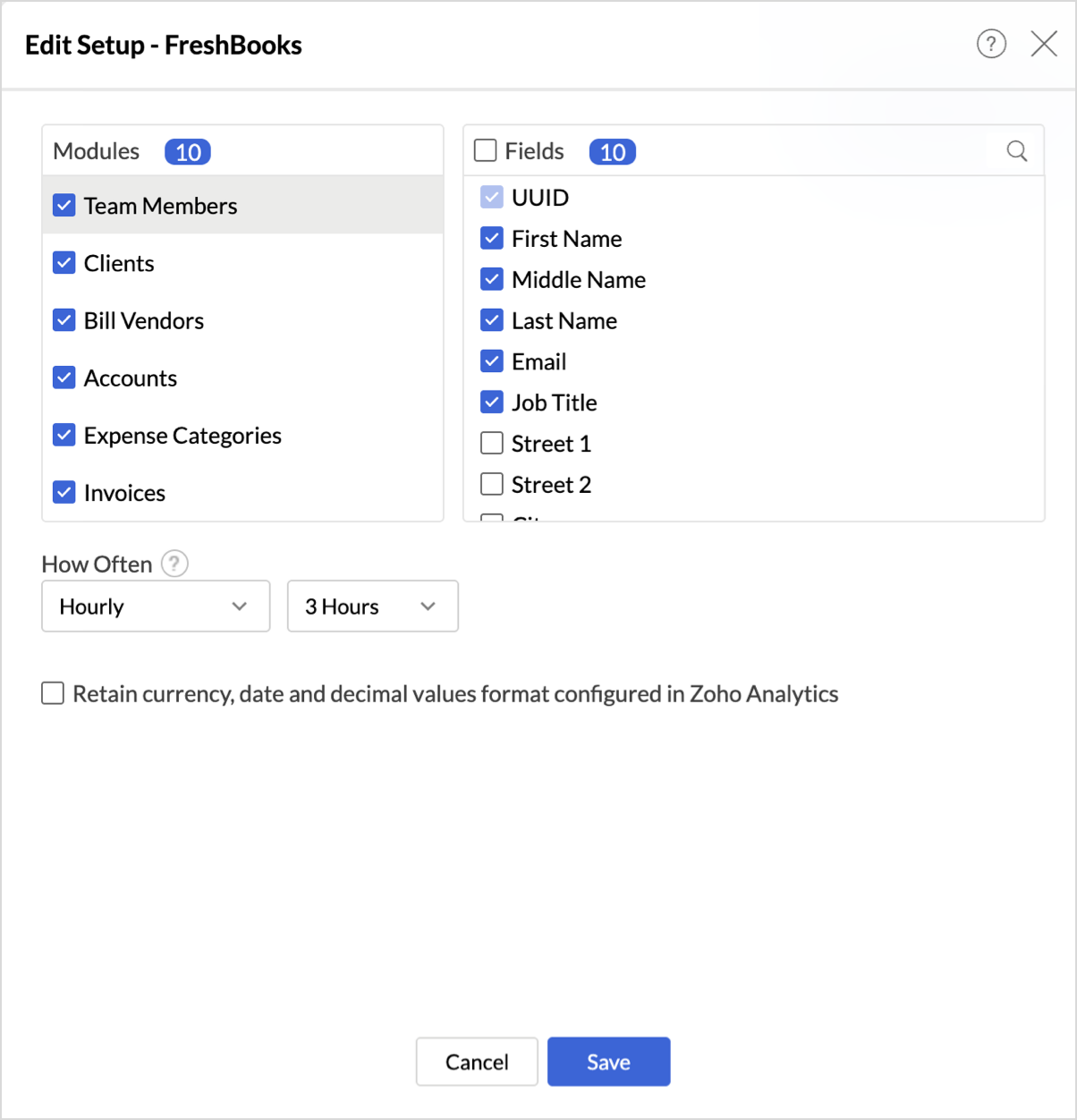
The Edit Setup tab allows you to add or delete modules or fields, change the schedule interval, and modify other settings specific to the business application.
To modify the settings,
- Click Data Sources > Edit Setup.
- The Edit Setup - FreshBooks dialog will open. Modify the settings as needed and click Save.
Re- Authenticate
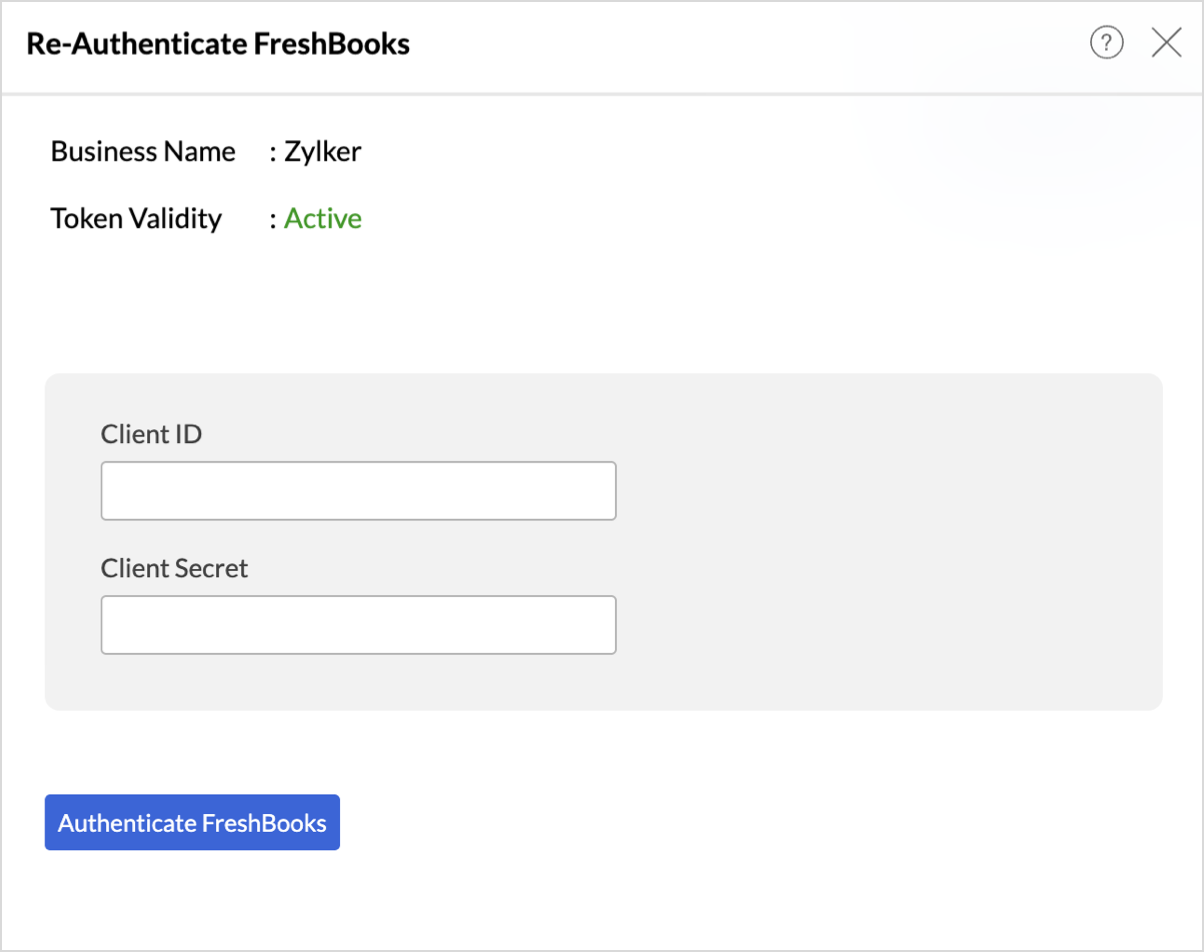
Re-authentication will be helpful when the API key or password is changed. In this case, the data sync will be paused, and the administrator who configure the connector setup must re-authenticate to resume the data sync.
To reauthenticate the setup,
- Click Data Sources > Re-Authenticate.
- The Re-Authenticate - FreshBooks dialog will open. Enter the credentials and click Authenticate FreshBooks.
Sync History
The Sync History tab provides details about the data sync for the last 45 days. A successful data sync is marked in green, and a sync failure is marked in red.
To view the Sync history,
- Click Data sources > Sync History.
- A calendar with the Sync History of the last 45 days will open. The date when the data sync has happened will be highlighted. Hover to view the number of times the data had got synced on a specific date.
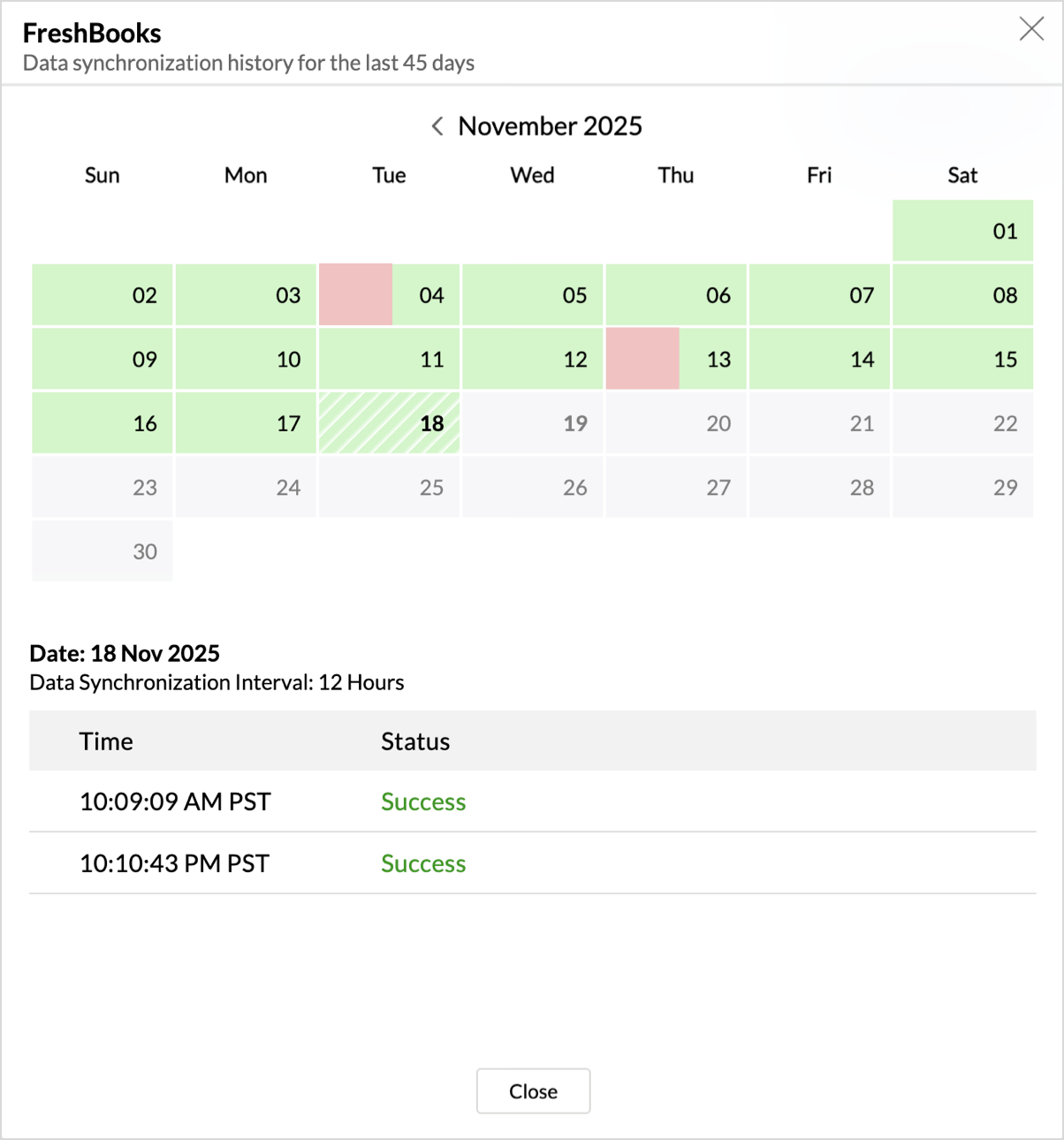
- Click the date to view more details.
- Time - Displays the time when the data is synced.
- Status - Shows whether the sync was a success or a failure.In case of failure, the reason will be displayed. Refer to this page to learn how to resolve the issue and avoid further failure.
Audit History
Zoho Analytics logs all the user activities and system events within the FreshBooks workspace. The following actions that are logged in Zoho Analytics,
- User Action: Create, Modules Added, Modules Removed, Fields Added, Fields Removed, Schedule Change and Entities Modified, Delete, Take Ownership, Re-authenticate, Sync Now, Retry.
- System Action: Plan upgrade or downgrade.
To view the audit history,
- Click Data Sources > Audit History.
- A dialog with the activities for the last 180 days will open.


Remove Data Source
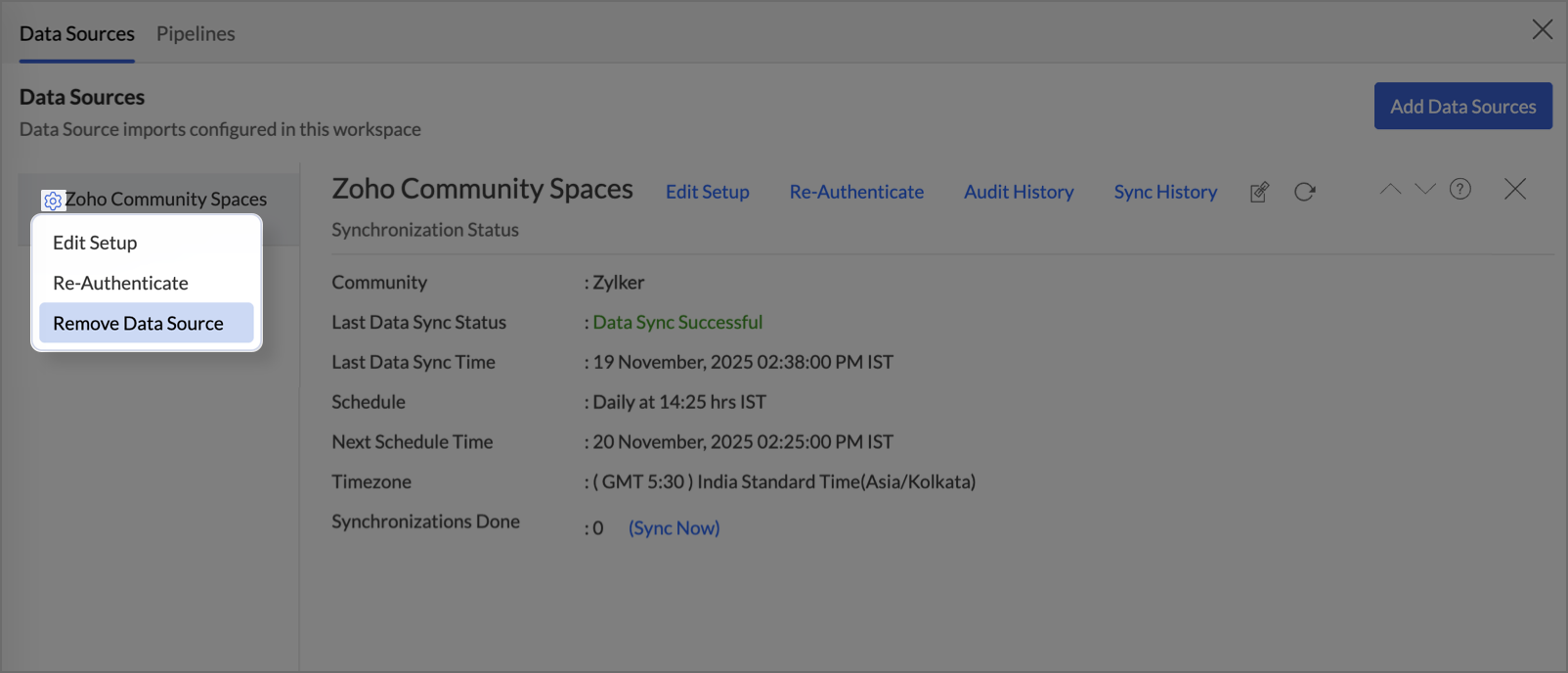
Zoho Analytics allows you to remove the integration if needed. Removing the integration will suspend further data synchronization. The data tables and the reports will be available.
Click the Settings icon in the Data Sources tab, and select Remove Data Source from the drop-down menu.
Data Modeling & Preparation
Zoho Analytics allows you to combine data from various sources such as Files, Feeds, Databases and Business Applications for an in-depth analysis. Query Tables allows you to combine data from different tables to create reports.
While blending data from other data sources, Zoho Analytics automatically identifies similar columns and provides suggestions for lookups. Refer to the Joining Tables article for more details.
Data Visualization / Analysis
Chart Types in Zoho Analytics
The below table lists the range of visualizations supported in Zoho Analytics.
| Visualization | Types |
Bar | Stacked bar, Histogram, Horizontal bar |
Stacked Bar | Horizontal Stacked bar, 100% vertical and horizontal stacked bar |
Area | Area with markers, Smooth Area, Smooth area with Markers |
Line and Bar Combination chart | Bar with Line, Bar with Bubble, Bar with Scatter, Bar with Area, Area with Bubble, Line with Bubble and Custom Combination |
Bubble Chart | Bubble Pie, Packed Bubble, Word Cloud |
Stacked Area | Stacked area with markers, Smooth stacked area, Smooth stacked area with markers |
Map | Heat Map, Map Scatter, Map Bubble, Map Pie, Map Bubble Pie, Map Filled, Geo Heat Map |
Pie | Pie, Ring, Semi Pie, Semi Ring |
Tree map | Default View |
| Sankey | Default View |
Sunburst | Default View |
Race Chart | Default View |
Doughnut | Default View |
Matrix View | Pivot table |
Tabular | Summary and Tabular view |
Dashboards and KPI widgets | Single Numeric Widget, Dial Chart Widget Bullet, Chart Widget |
Sharing and Collaboration
- Share data and reports with your colleagues & friends with fine-grained permission
- Enable real-time commenting on a shared view to efficiently collaborate with your users
- Publish reports for wider consumption. Embed reports/dashboards within your websites, web applications, and blogs.
- Export, Email, and Print reports in a variety of formats.
- Use Zoho Analytics mobile apps (optimized for both IOS and Android platform) and access the reports and dashboards on the go.
Help & Support
We offer 24x5 technical support (Monday to Friday). In case if you need our assistance kindly do mail us your questions to support@zohoanalytics.com.
You can also reach out to us on our toll-free numbers.
United States: +1 (888) 900 9646
United Kingdom: +44 (20) 35647890
Australia: +61-2-80662898
India: +91 44 6965 6060