Accessing external accounts via POP
If you have multiple accounts with other providers, you can check them in your Zoho Mail account, by setting up each account via POP in Zoho Mail. In this case, Zoho Mail acts like a POP client and retrieves the emails provided for retrieval by POP Clients. You can customize some POP behavior in Zoho Mail, however, the execution of the behavior highly depends on the POP server configured by you.
POP Retrieval Settings:
You can configure the retrieval settings for the POP Accounts. Based on the Time Interval you have set, Zoho Mail connects to your server and retrieves emails once in every x minutes. The Time interval is the gap between two subsequent retrievals from your POP Server. The maximum number of emails is the optimum number of emails that can be retrieved in a cycle. When you configure the account in Zoho for the first time, there will be a lot of emails in the POP server, hence it might take 3 to 5 days to retrieve the emails from your server to Zoho.
- Log in to Zoho Mail
- Go to Settings
- Navigate to Mail Accounts
- Click on the Settings iconon top of the Mail accounts page.
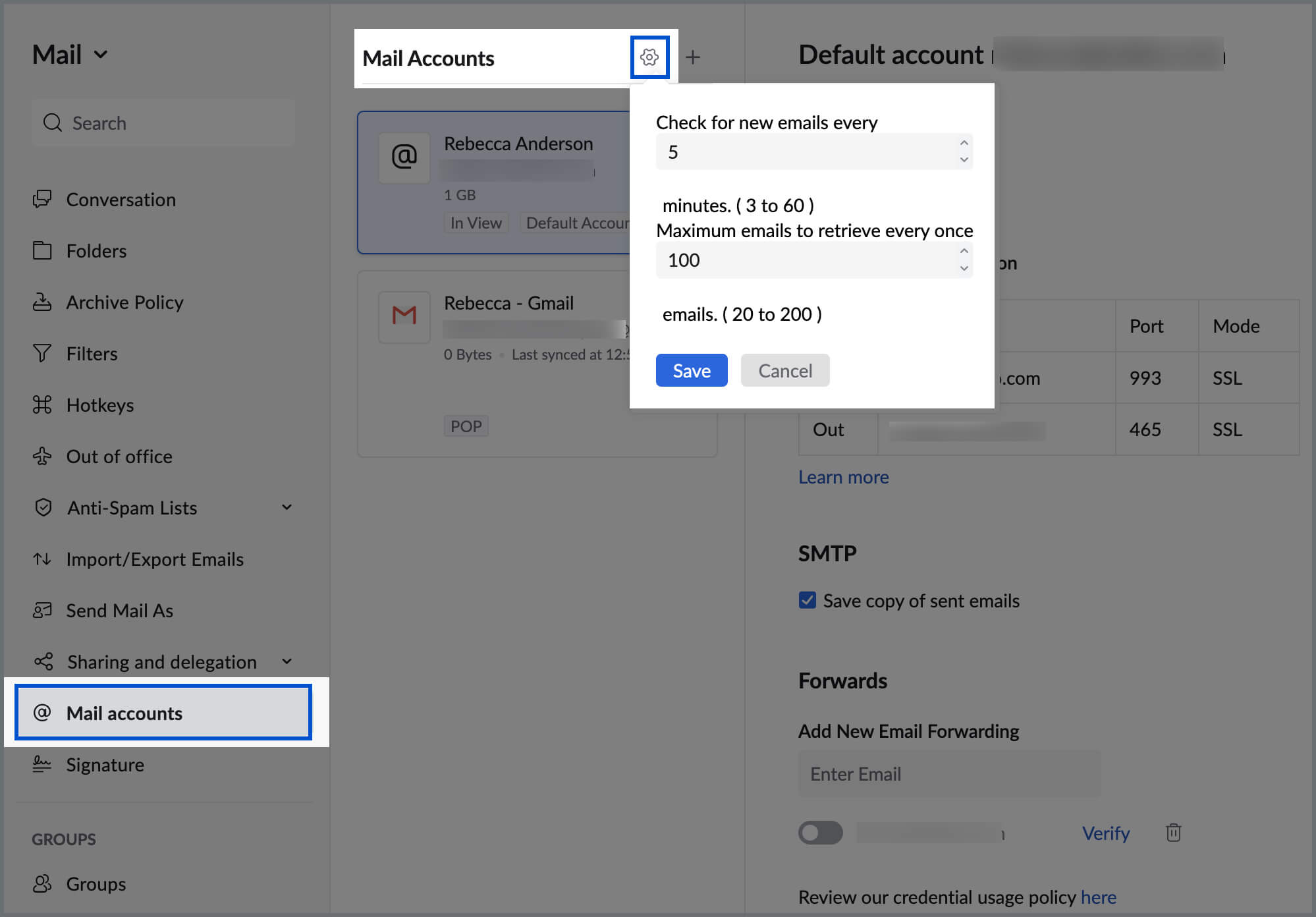
- Select the Time Interval from the drop-down. The optimum value is '5' minutes.
- Specify the maximum number of emails that can be retrieved in a single cycle. The number can be between 20 and 200. The optimum value is 100 or 150
- Click Save.

Authentication Failure for POP Accounts:
The 'Authentication Failure' error occurs when your POP server does not accept the credentials that you have provided in Zoho Mail. This error may occur when you have 'Changed your password with the Email Server' or 'your password has expired in your server due to password policies'.
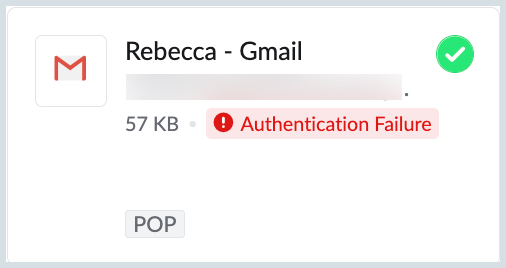
You need to update your password for the 'Incoming Server' and 'Outgoing Server' to send and receive emails without any issues.
Update Password - Incoming Server
- Log in to Zoho Mail
- Go to Settings
- Navigate to Mail Accounts
- Select the POP account for which you want to update the password.
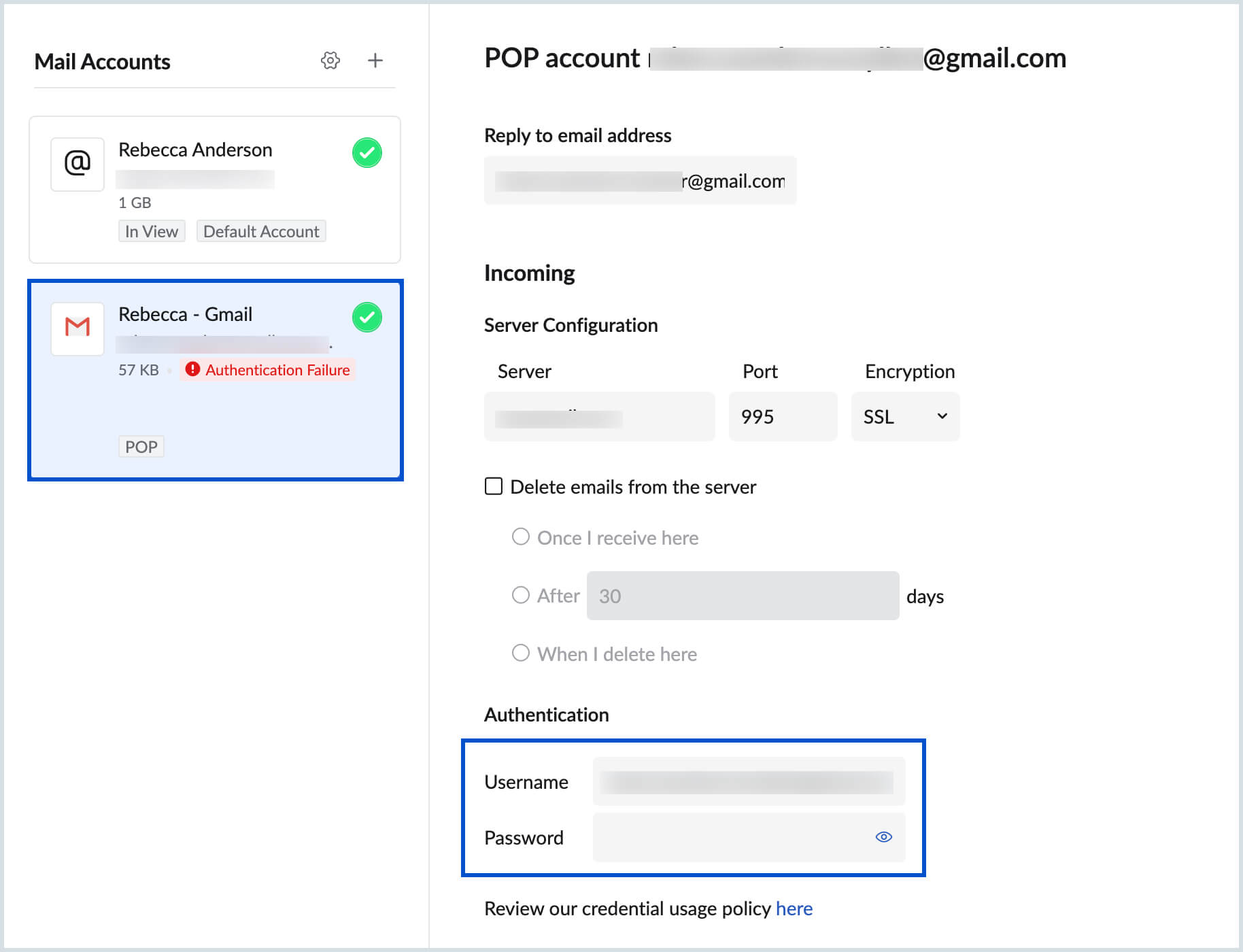
- Specify the new password and click 'Save'.

Update Password - Outgoing SMTP Server
- Log in to Zoho Mail
- Go to Settings
- Navigate to Send Mail As
- Choose the email address for which you want to update the password.
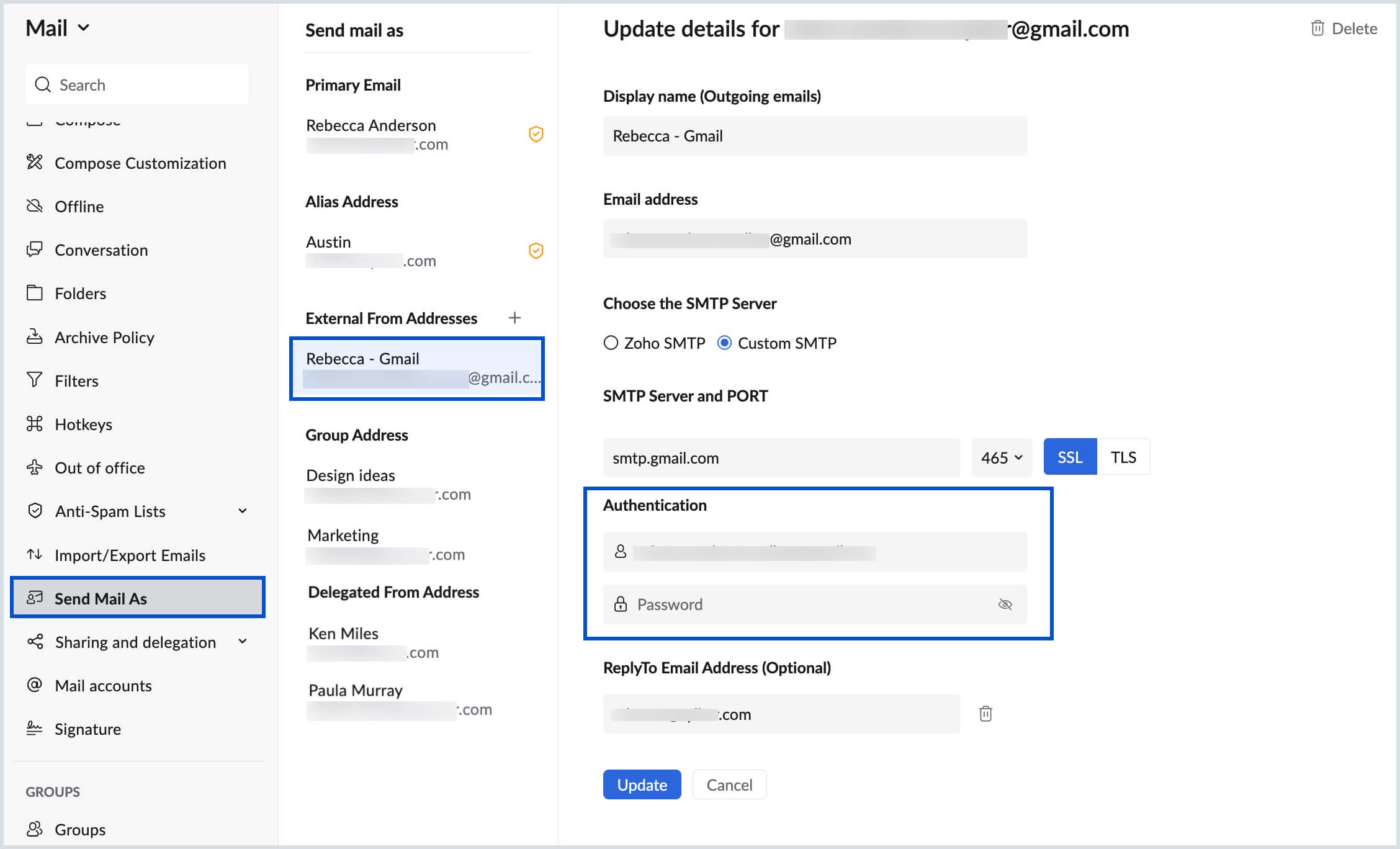
- Provide the new password in the Authentication section and click Update.

Set Reply To:
You can set Reply To address for the POP accounts in the Mail Accounts settings page. You can set a different email address as 'Reply to' address for the emails sent from the POP account. The Reply To address, need to be verified, to be able to use that while sending emails.
- Log in to Zoho Mail
- Go to Settings
- Navigate to Mail Accounts
- Choose the POP account for which you want to set the 'Reply To' option.
- Provide the email Address to which you want the recipients to Reply to in the 'Set Reply To' text box.
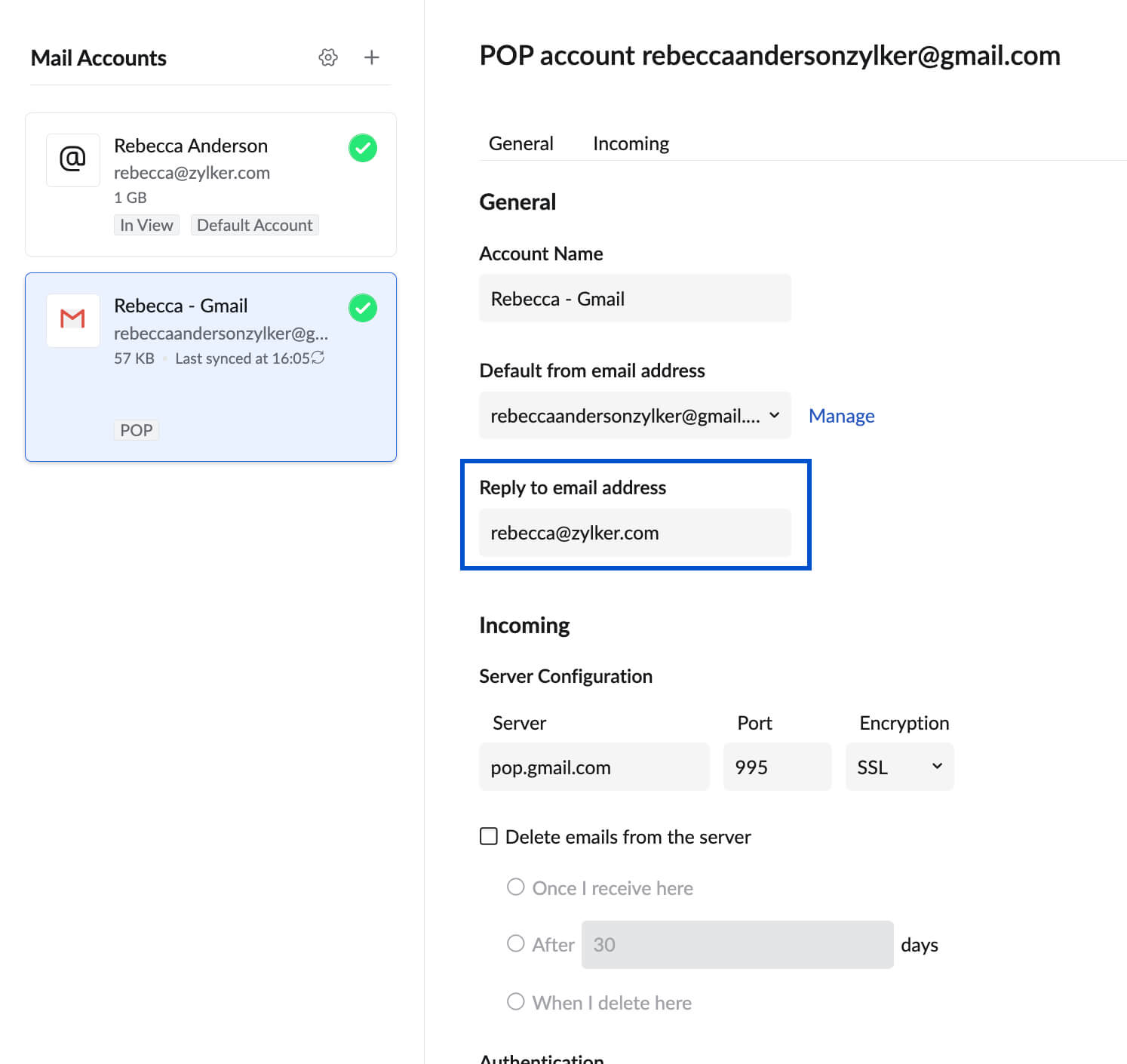
- Click Save.
- A verification email will be sent to the 'Email address' you added in the Reply To option. The Reply To will be enabled after verification.

Account Name:
You can set the Account Name option in the Mail Accounts section, to choose how the account name should be displayed in the left panel.
- Log in to Zoho Mail
- Go to Settings
- Navigate to Mail Accounts
- Choose the POP Account for which you want to set the 'Account Name'.
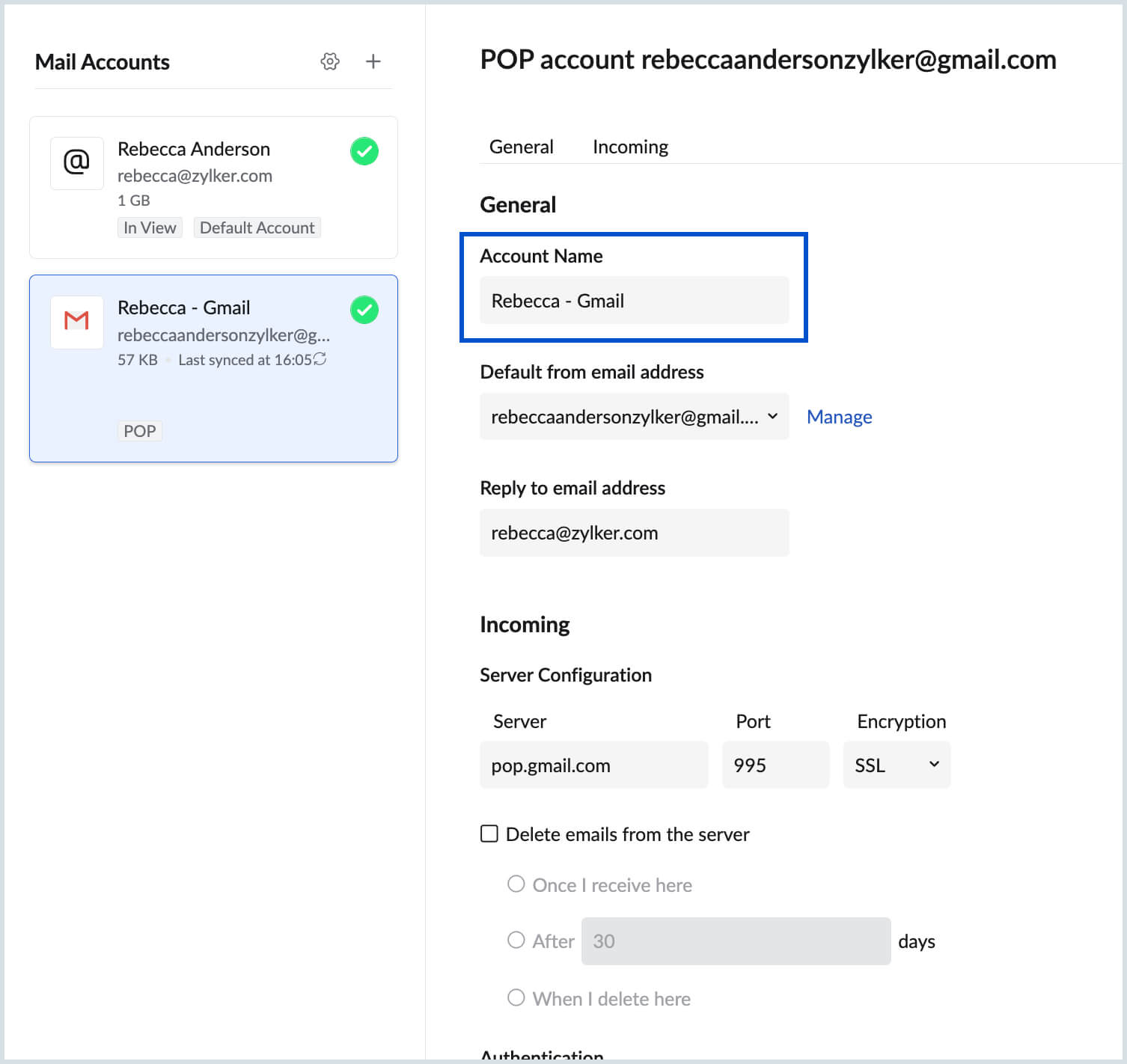
- Provide the Display Name as the name how you want the account to appear in the left pane. (Ex: My Work, My Personal etc)
- Click Save.

Account Sequence
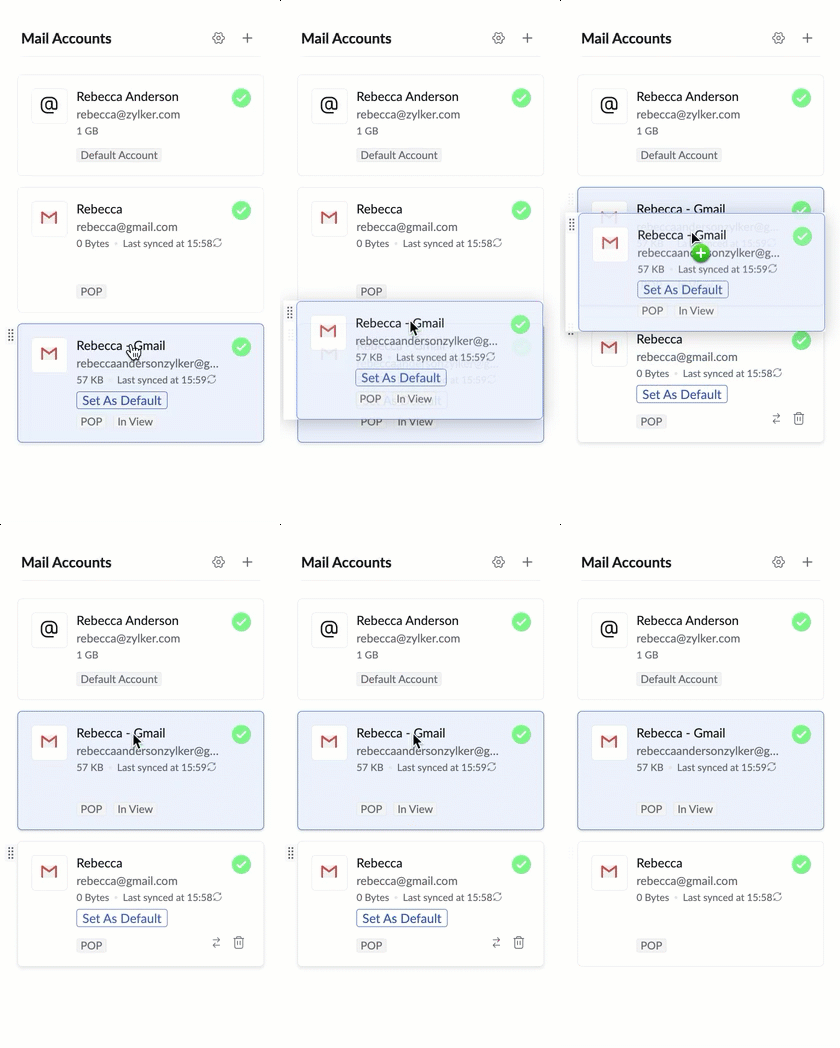
When you have multiple mail accounts, you can set the sequence or the order in which you want the POP accounts to be checked for mails. By default, the POP accounts are set in the order in which they are added. The same order appears in the POP accounts page by default. To change the order of POP accounts to your preference you can drag and drop the accounts to the required Order or number the accounts to reflect the required sequence.
Default Mail Account
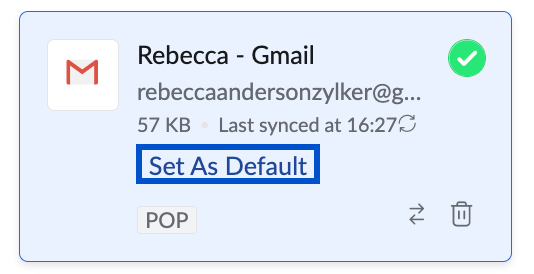
When you have multiple POP accounts configured, in addition to your Zoho account, you can choose the default account based on your preference. The account which you choose as 'Default Account' will be the account that will be displayed first when you log in to the Zoho Mail. To choose any account as Default, click on the 'Default' radio button across the account.
POP Settings for some Webmail providers:
The POP Settings for a few online mail service providers are listed below. In case your email account details are not listed here, you need to contact your Mail administrator for server details.
| POP Settings | Gmail | Hotmail | AOL | Outlook (Personal - @outlook.com) | Office 365 (Outlook Business users - @domain.com) |
Incoming POP Server Name | pop.gmail.com | pop3.live.com | pop.aol.com | pop-mail.outlook.com | outlook.office365.com |
Incoming Port Number | 995 | 995 | 995 | 995 | 995 |
Incoming - Secure Connection (SSL) | Yes | Yes | Yes | Yes | Yes |
Outgoing Mail Server Name | smtp.gmail.com | smtp.live.com | smtp.aol.com | smtp-mail.outlook.com | smtp.office365.com |
Outgoing Port No. | 465/ 587 | 587 | 465 | 587 | 587 |
SMTP Connection - SSL/TLS/Plain | SSL/ TLS | TLS | SSL | TLS | TLS |
| Outgoing Mail Server requires authentication | Yes | Yes | Yes | Yes | Yes |
| User Name format | username@gmail.com (or) recent: username@gmail.com | username@hotmail.com | username | username@outlook.com | Your Office 365 Email address |
For Yahoo users, the POP server names vary for different domains. Hence verify your settings page and Yahoo! Help for further POP server and port instructions. If you are not able to locate, please contact Yahoo! support for Mail server details.