


Record Deposits

When you record a customer payment in Zoho Books using a cash or bank account, you may need to deposit that amount in your actual bank account. If the payment was recorded using the same bank account, you don’t have to record a separate deposit. If it was recorded using a cash account, you must record a deposit for that amount into your bank account.
Zoho Books lets you transfer the amount from the cash account to your bank account. Once the deposit is recorded, you can match the bank statement entry with the corresponding transaction in Zoho Books. This lets you maintain accurate financial records and simplifies reconciliation.
Prerequisite: When you record a customer payment Zoho Books, ensure that you select a cash account in the Deposit To field if you plan to deposit it later.
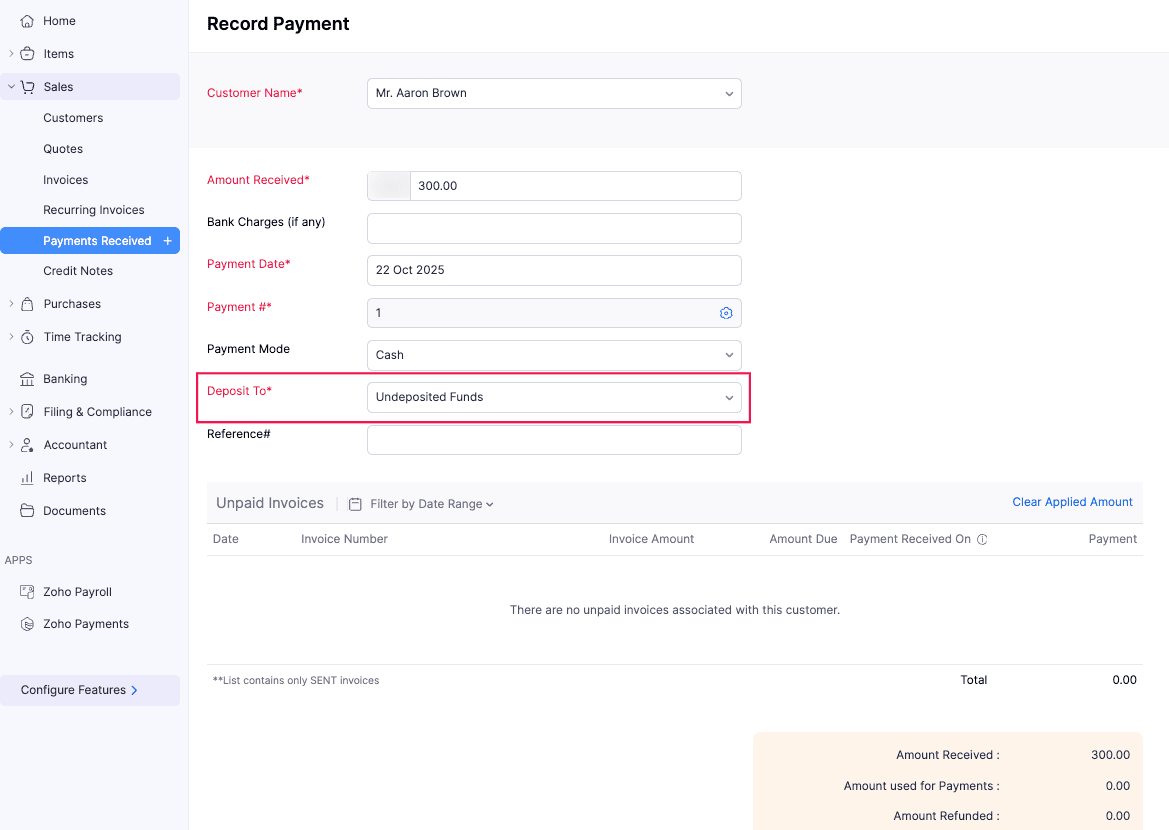
Once the payment is recorded, you must record a deposit slip for this payment under the respective cash or bank account in the Banking module. Here’s how:
Go to Banking on the left sidebar.
In the Banking Overview page, under Active Accounts, select the respective cash or bank account where you want to record the deposit slip.
In the next page, click Record Deposit in the top right corner.
In the Record Deposit pop-up, fill in the following fields:
- Date: Select the date when you want to record the deposit slip.
- To Account: Select the bank account to which you want to transfer the deposit amount. Note that this field appears only when you record deposit slips from a cash account.
- Paid Via: Choose how the amount will be transferred to the bank account.
- Reference#: Enter a unique reference number to track this transaction internally.
- Bank Charges (if any): If the transfer included any charges, mention them here.
- Description: Enter a short description on recording the deposit slip.
- Filters: Choose how you want to filter the list of transactions available under this account. Once you’ve selected the required filters, click Apply Filter.
- Received From: Select the customers based on whom you want to filter the transactions.
- Transactions: Choose which transactions to display. The available options are: All, Customer Payment, and Sales Receipt.
- Other Funds: If you want to include any additional amount apart from the selected deposit transaction, click Add Funds Manually, and enter the respective amount.
- Attachments: Include any attachments for internal use.
Click Save.
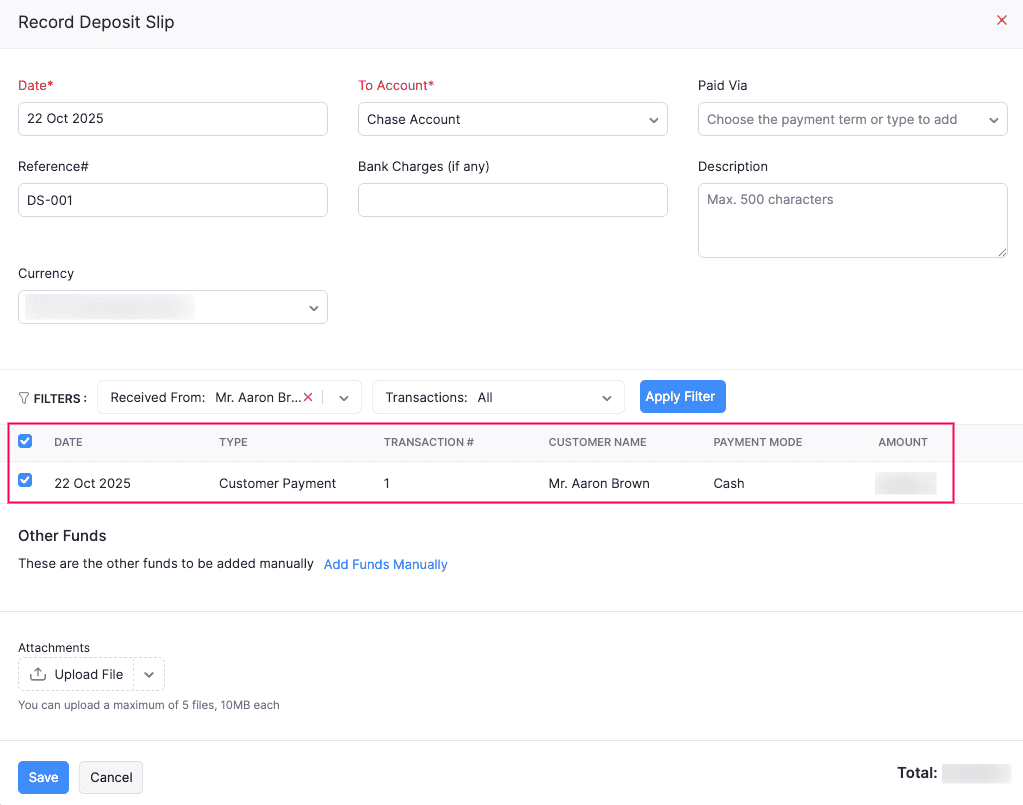
The deposit slip will be recorded.
The transaction will now be available in the respective bank account under the Banking module. You can match this statement with the transaction in Zoho Books. To do this:
- In the bank account’s page, under Uncategorized Transactions tab, select the bank statement you want to match.
- In the right pane that appears, under Best Matches, click Match next to the respective transaction.
The bank statement will be matched with the respective transaction.
 Yes
Yes