Activate and Synchronize Google Calendars from Workerly
Activate Google Calendar Integration
To activate Google Calendar from Zoho Workerly
- Log in to Zoho Workerly.
- Open Go to Setup > Extensions & APIs > Google
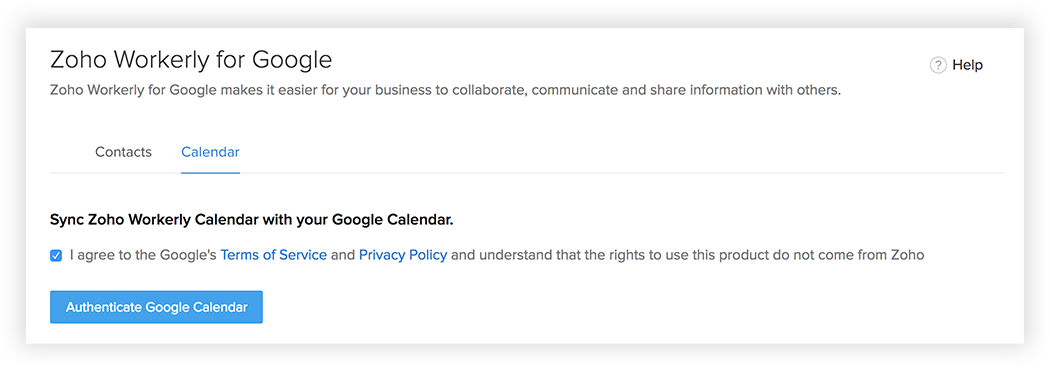
- In the Zoho Workerly for Google page, click Calendar tab, check the Terms of Service and Privacy Policy box.
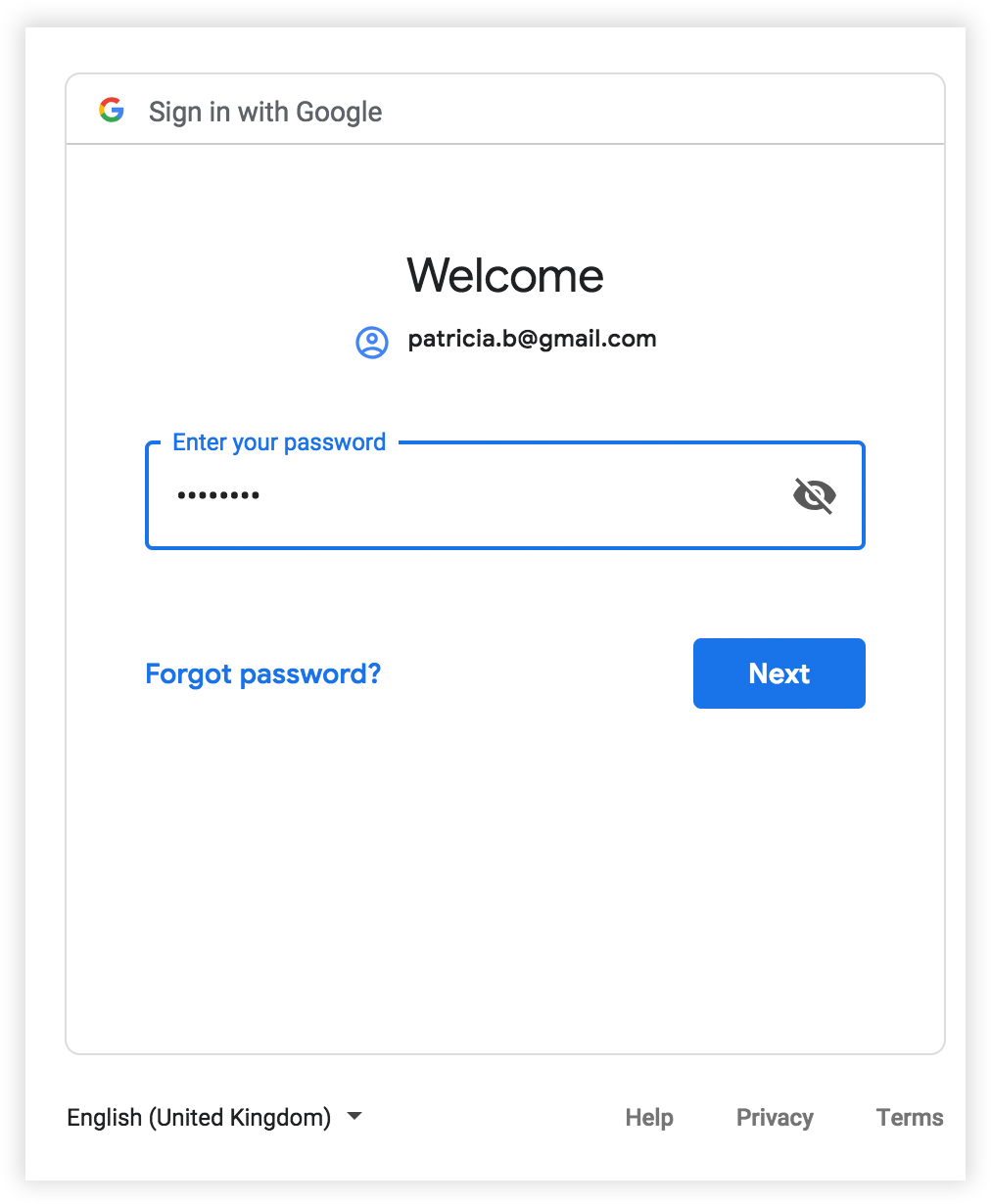
- Click the Authenticate Google Calendar button.In the Google Accounts popup, enter your email address and password to your Google Account and Sign in.
In the Google Accounts popup, enter your email address and password to your Google Account and Sign in.
- In the next popup, click the Allow.
The Zoho Workerly integration with Google Calendar will be activated.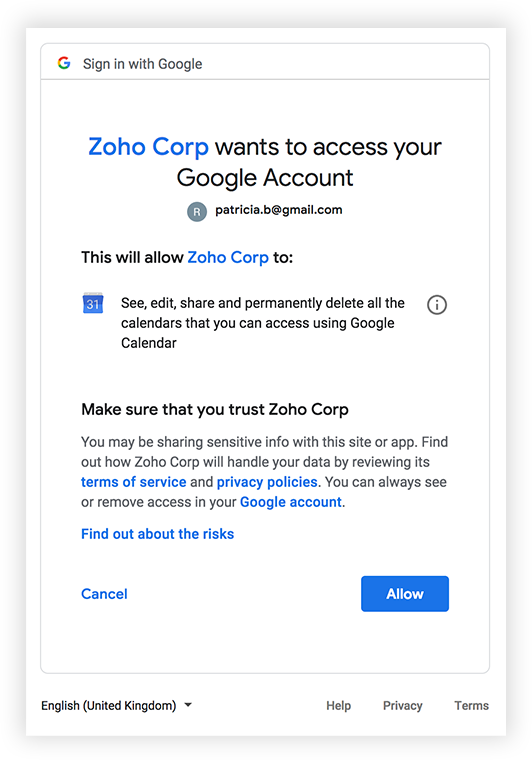
Synchronizing the Google Apps Calendar
Synchronizing calendar entries of Google Calendar and that of the Zoho Workerly Calendar is now made easy with the Google Calendar Synchronization feature. You can update the calendar entries in either Google Calendar or Zoho Workerly and have them updated in both. Please note that if you delete the sync configurations and again synchronize the calendar events, then duplicate records will be created.
Availability
 Profile Permission Required: Google Apps users with Sync with Google Calendar permission in Zoho Workerly.
Note
- You should also have the profile permissions for Sync with Google Calendar and the Activities tab, i.e. View, Create, Edit and Delete permissions.
To configure synchronization settings
- In Google Apps, click on
 (the Apps icon).
 - Click More > Zoho Workerly.
You will be redirected to Zoho Workerly - In the Calendar Synchronization page, do the following:
- Select the Sync Calendar from the drop-down list.
- Choose any one of the Sync Options:
- 2 Way Sync
- 1-Way: Zoho Workerly Calendar to Google Calendar
- 1-Way: Google Calendar to Zoho Workerly Calendar
- Click Save.
 (the Apps icon).
Note
- For both 1-way or 2-way synchronization for the first time, 5000 calendar entries for the past 3 months, from Google Calendar are synchronized with Zoho Workerly. For the consecutive syncs, maximum 500 entries will be synchronized.
- When you add an event in Zoho Workerly, it will be synchronized instantly but events from Google Calendar will be synchronized every few minutes.
- If you delete the sync configurations and again synchronize the calendar events, then duplicate records will be created. In case of two-way sync, duplicates will be created in both Zoho Workerly and Google Calendar.
- Events added from Google Calendar will be added under the All Events list view in Zoho Workerly.
- Only the Calendars for which you have the Read and Write permission will be listed in the Google Calendar drop-down list.
- In the case of two pop-up reminders for the event coming from Google Calendar, only the first pop-up reminder will be added in Workerly.
- Events with no title in Google Calendar will be added with the Subject as "Not Provided" in Workerly.
- We do not support the synchronization of recurring events.
The data will be transferred based on the field mapping mentioned below:
| Zoho Workerly Fields | Google Calendar Fields |
| Subject | Title |
| Start date time/end date time | Same as Zoho Workerly |
| Remind At | Reminders |
| Venue | Where |
| Description | Description |
| Add Invitees | Add guests |