Update Card & Address Details
In Zoho Voice, you can easily manage and update the billing information associated with your account. This includes:
- Card Details
- Address Details
Keeping this information updated helps prevent failed transactions and ensures all invoices reflect the correct billing data.
Note
Only the Super Admin has permission to update card and address details.
Card Details
To update the card details which you choose to save in Zoho Voice:
- Go to Settings and select the Subscription tab.
- Click Upgrade/Change plan. You will be redirected to the Zoho Store page.
- Click Your store details in the top-right corner of the page.
Select Payment Method from the dropdown.
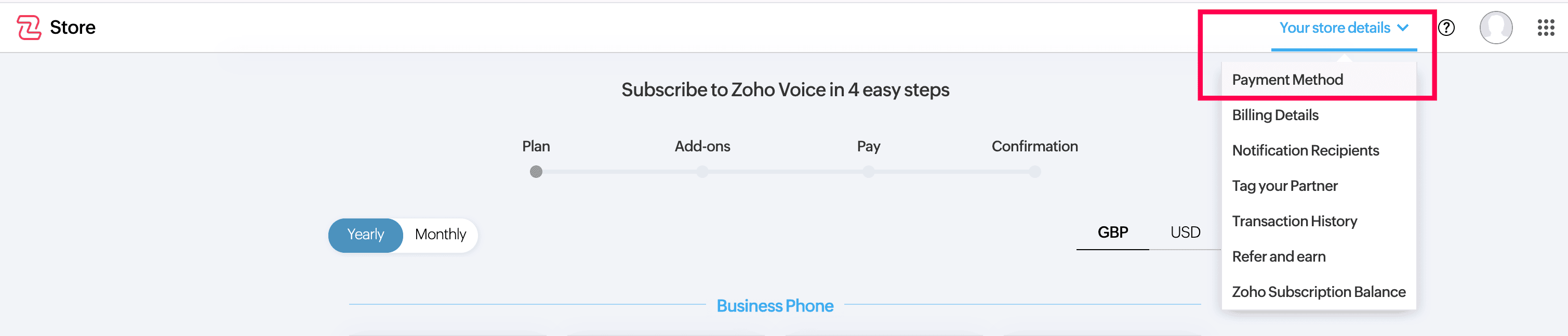
- Hover over the card details and click Change.
- Make the necessary changes and save the details.
Address Details
To update the address details you save in Zoho Voice:
- Go to Settings and select the Subscription tab.
- Click Upgrade/Change plan. You will be redirected to the Zoho Store page.
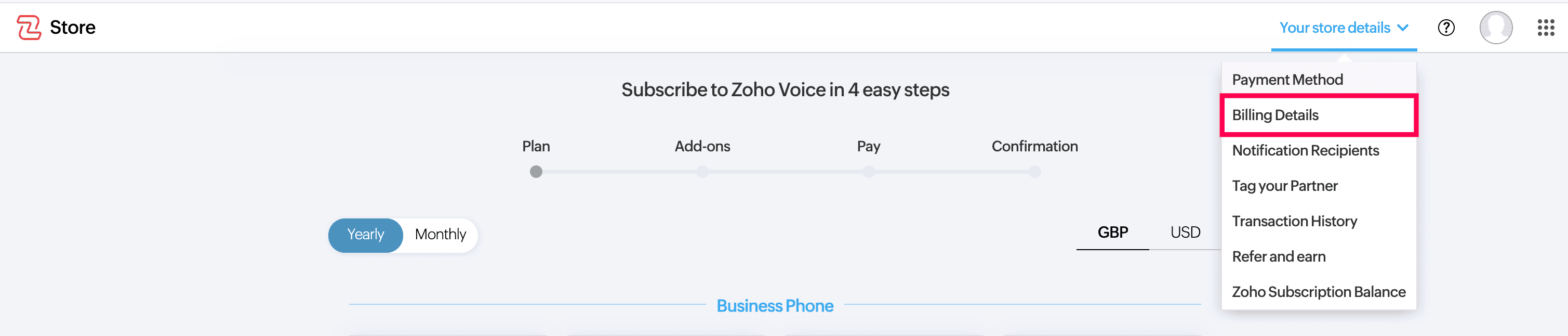
- Click Your store details in the top-right corner of the page.
Select Billing Details from the dropdown.
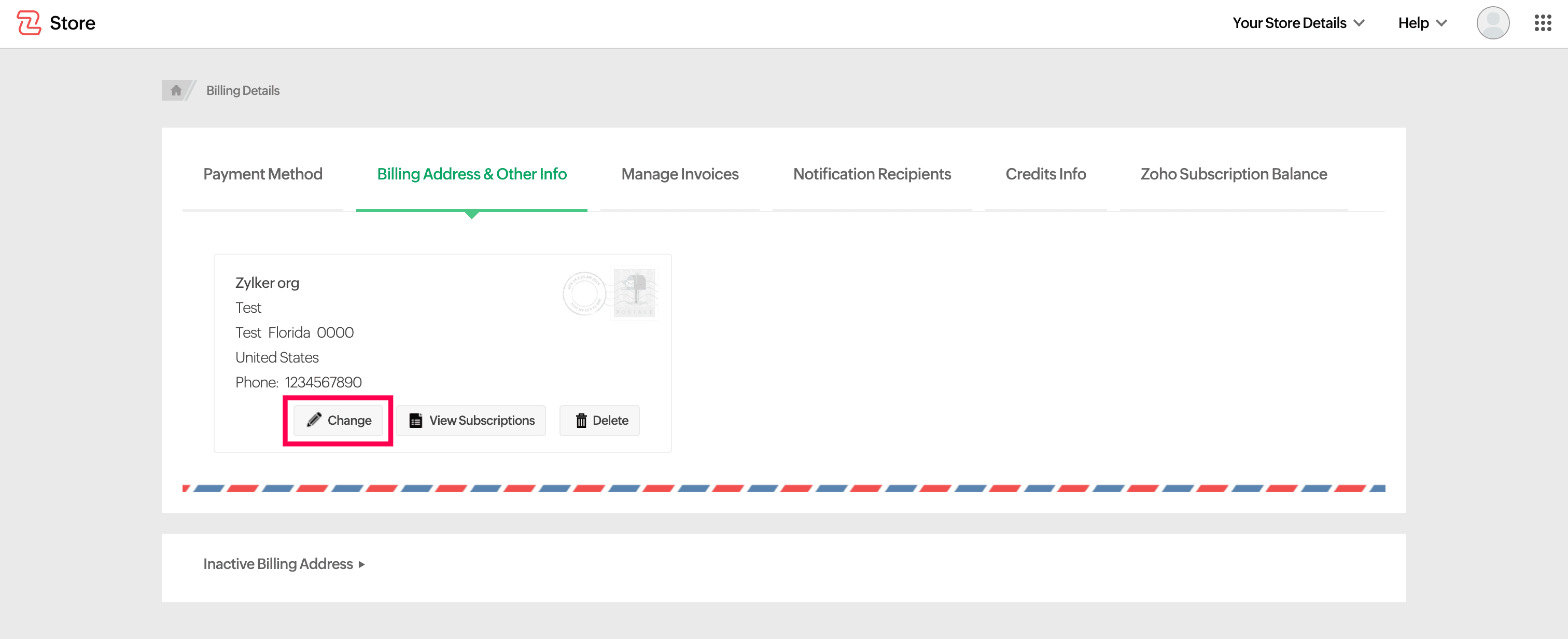
Click Change next to the billing address you want to update.
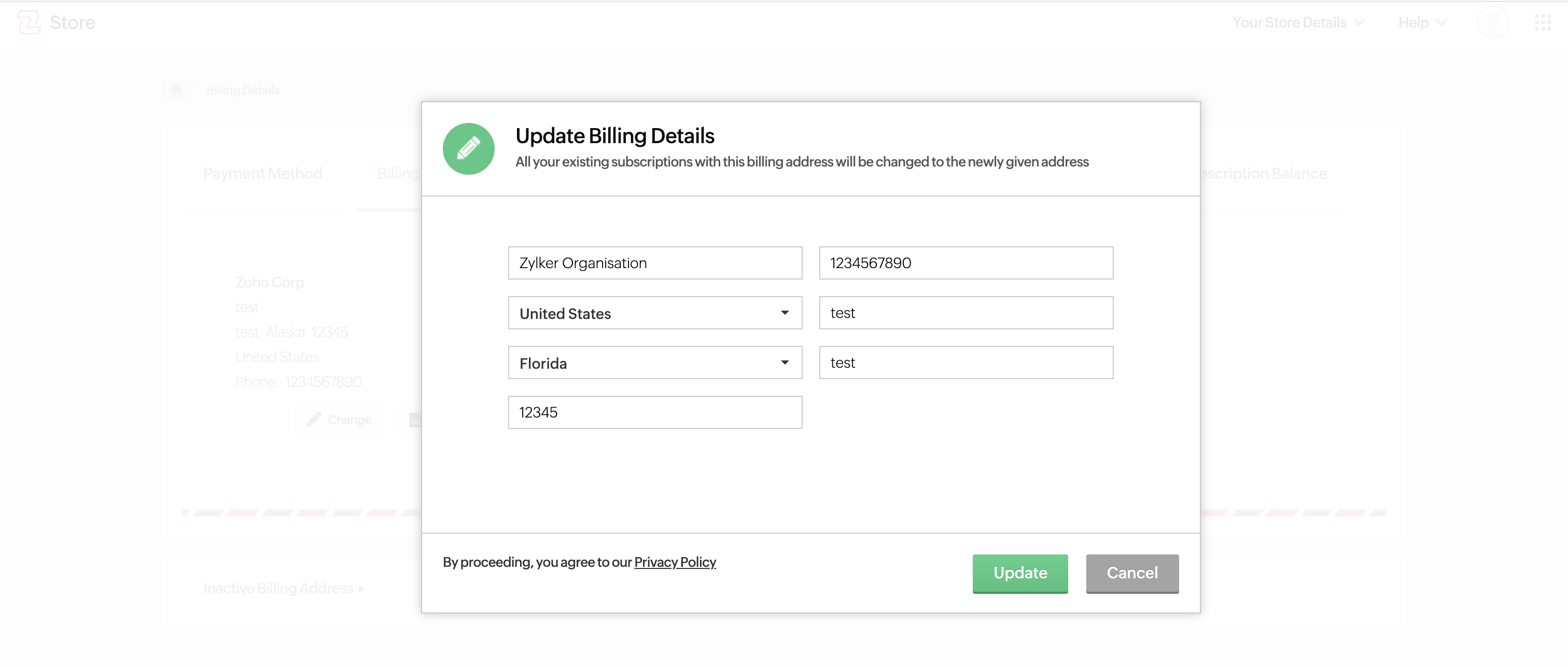
Make the necessary changes and click Update.