Sync Zoho CRM Contacts
After completing the Zoho Voice native integration with Zoho CRM, super admins and admins can sync contacts from Zoho CRM to Zoho Voice and manage them directly within Voice.
Supported Plans: This feature is supported on all plans except Solo plan.
To sync CRM contacts:
- On the App Integration → Integrate Zoho Voice with Zoho CRM page, click Sync Contacts from Zoho CRM.
Click Add Module.
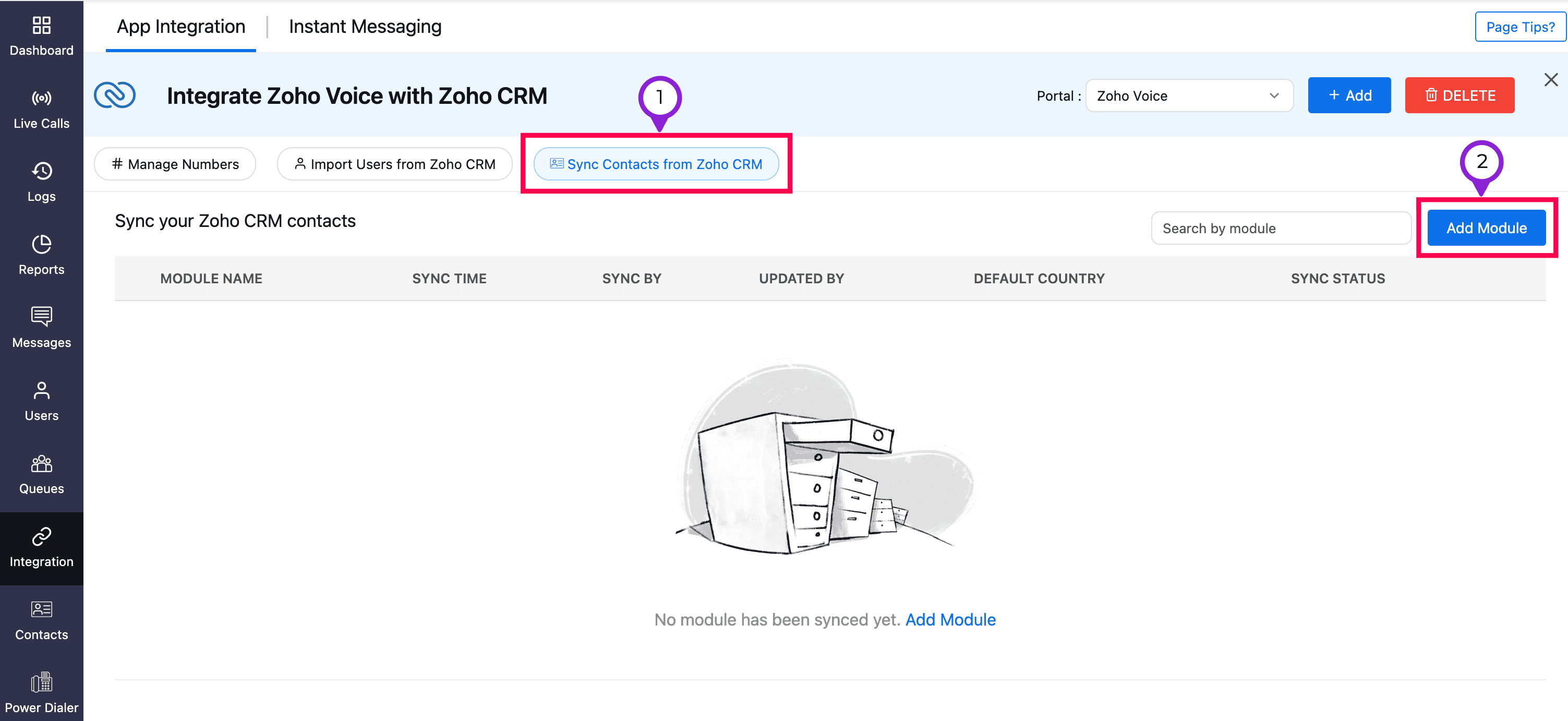
- Select the CRM module you want to sync.
Map the selected CRM module fields to the Zoho Voice contact template:
- Default Country
- First Name
- Last Name
- Mobile
- Landline
- Company
- Country
- State
- Address
- Status
- Favourite Contact
- Spam
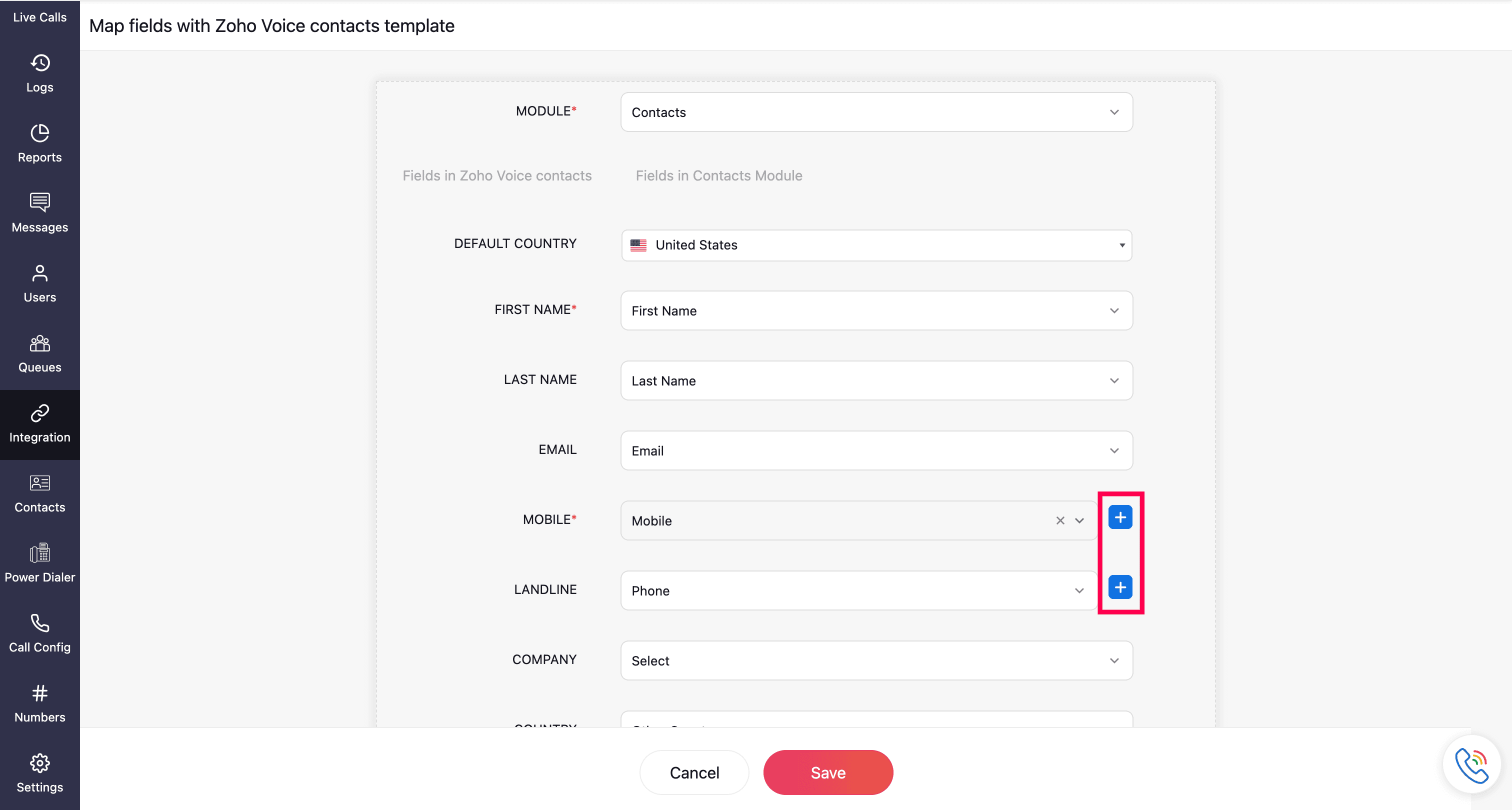
- You can also map additional phone fields (such as Home or Phone) to Mobile or Landline by clicking the Add icon next to the field. Once the mapping is complete, click Save.
Note
When a default country is selected, its country code is automatically applied to contacts without a country code.
- After saving, you can track the sync progress under Sync Status on the App Integration page.

- You can also edit or delete the module sync using the respective icons. When deleting, you can choose to remove the synced contacts from Zoho Voice or retain them.
- Once the sync is deleted, new contacts added in Zoho CRM will no longer be synced.

Access synced contacts
Go to the Contacts → CRM Contacts module in Zoho Voice.
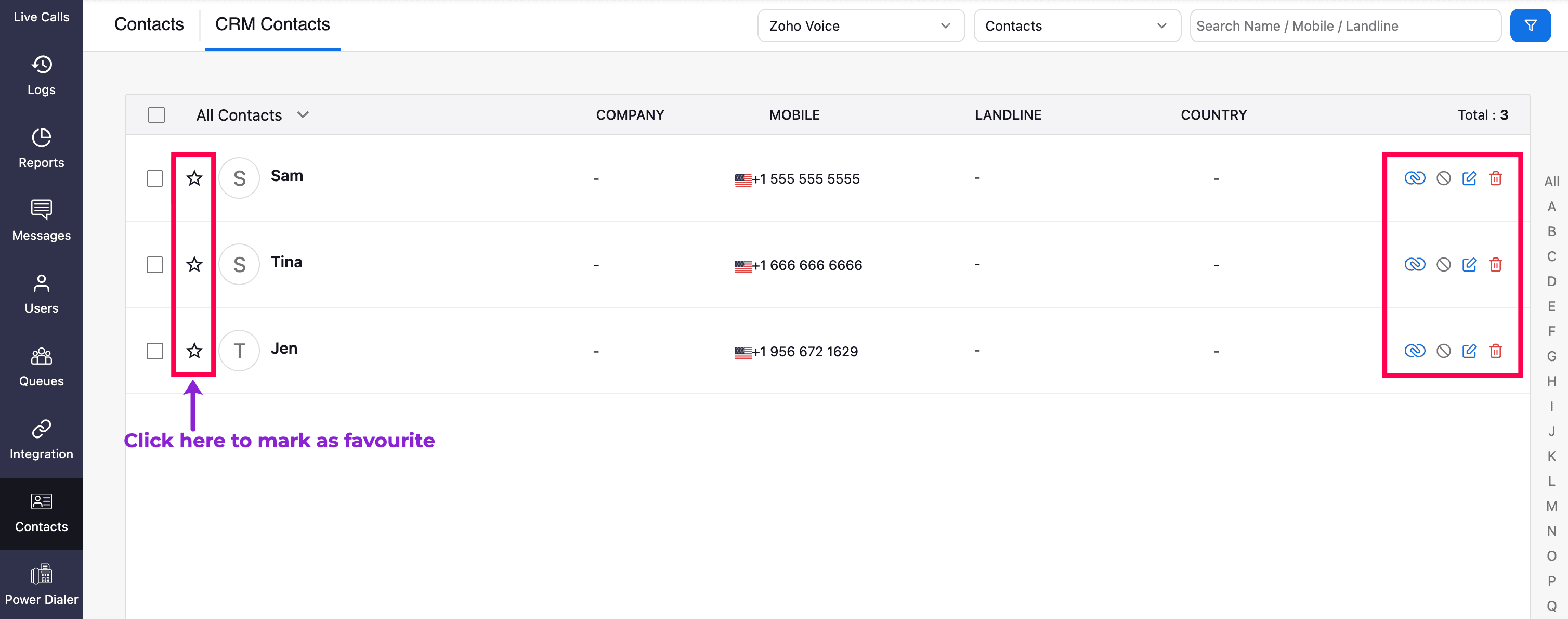
From there, you can mark them as favourite (click the Star icon) or spam, edit contacts, View contacts in Zoho CRM, or delete. Deleting a contact here removes it only from Zoho Voice and does not affect the record in Zoho CRM.
Note
- CRM Contacts tab is available only to super admin. For other users, synced contacts will appear within the Contacts module without a separate CRM Contacts tab.
- Duplicate contacts will also be added during sync.
