Manage your Profile Picture
Personalise your Zoho Voice account by adding or updating your profile picture. You can also remove your current picture at any time if you prefer not to display one.
To manage your profile picture:
- Log in to your Zoho Voice account.
- Select the User Profile icon in the top-right corner of the page.
- Click Zoho Account, and you will be navigated to your Zoho Accounts page.
Go to Profile in the left sidebar, click on the profile picture near your name, and choose your desired image.
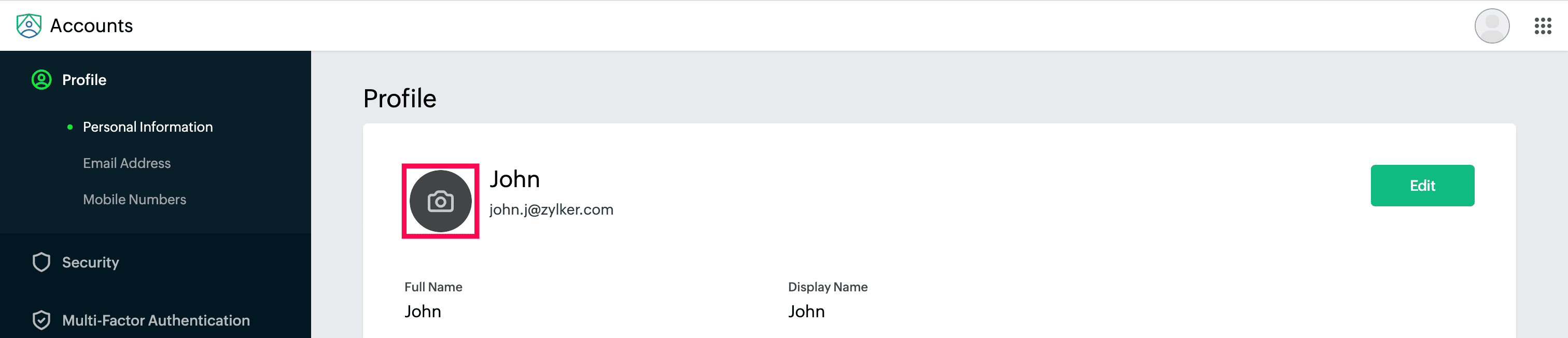
- Set your profile picture visibility preferences and click Update to save changes.
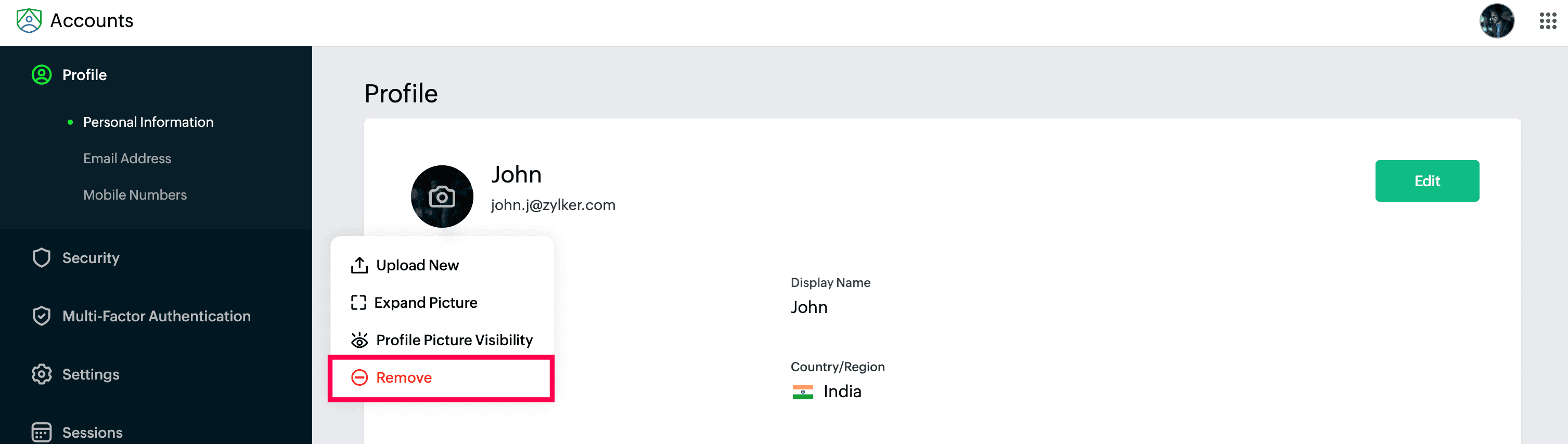
To delete your profile picture, click on your profile picture and select Remove.
Note
Changes made in the Zoho Accounts page will be applicable across all your Zoho products associated with this email ID.
- You can also upload a new picture and adjust the visibility settings for your profile picture.
