Deluge Integration: Create a Function
Deluge's integration with Zoho Voice aims to expand the integration of telephony capabilities beyond Zoho applications to meet broader business needs. However, to define the functionality of the service connected with Voice, you need to configure functions.
Note
Functions can be created from scratch or can be chosen from the gallery functions (a set of predefined functions). These functions are created after a connection with a service is established successfully.
How to create a Function to define the core of the Workflow?
In Zoho Voice console, navigate to Settings in the left pane menu and click Workflow.
In the Functions tab, click Add Function button.
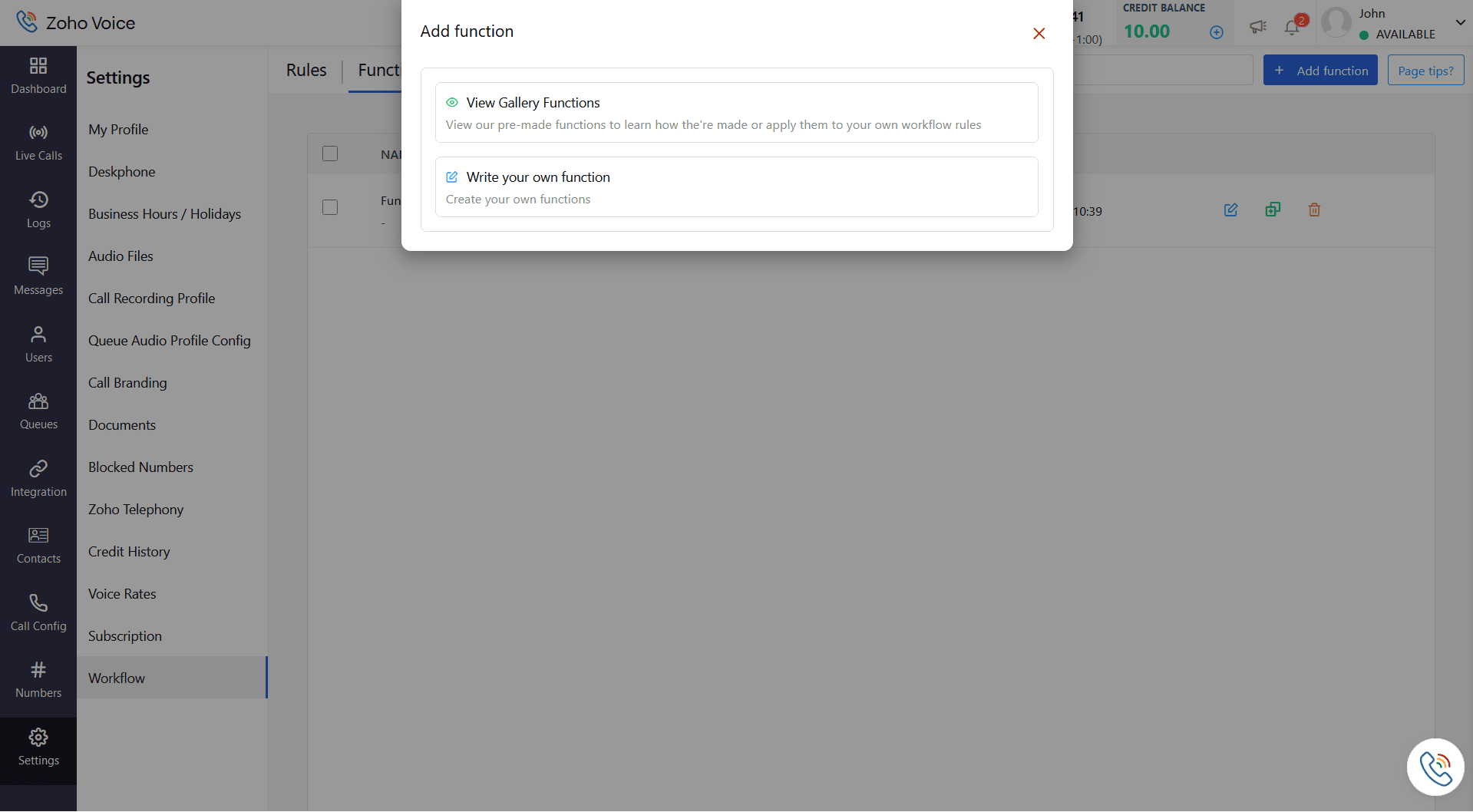
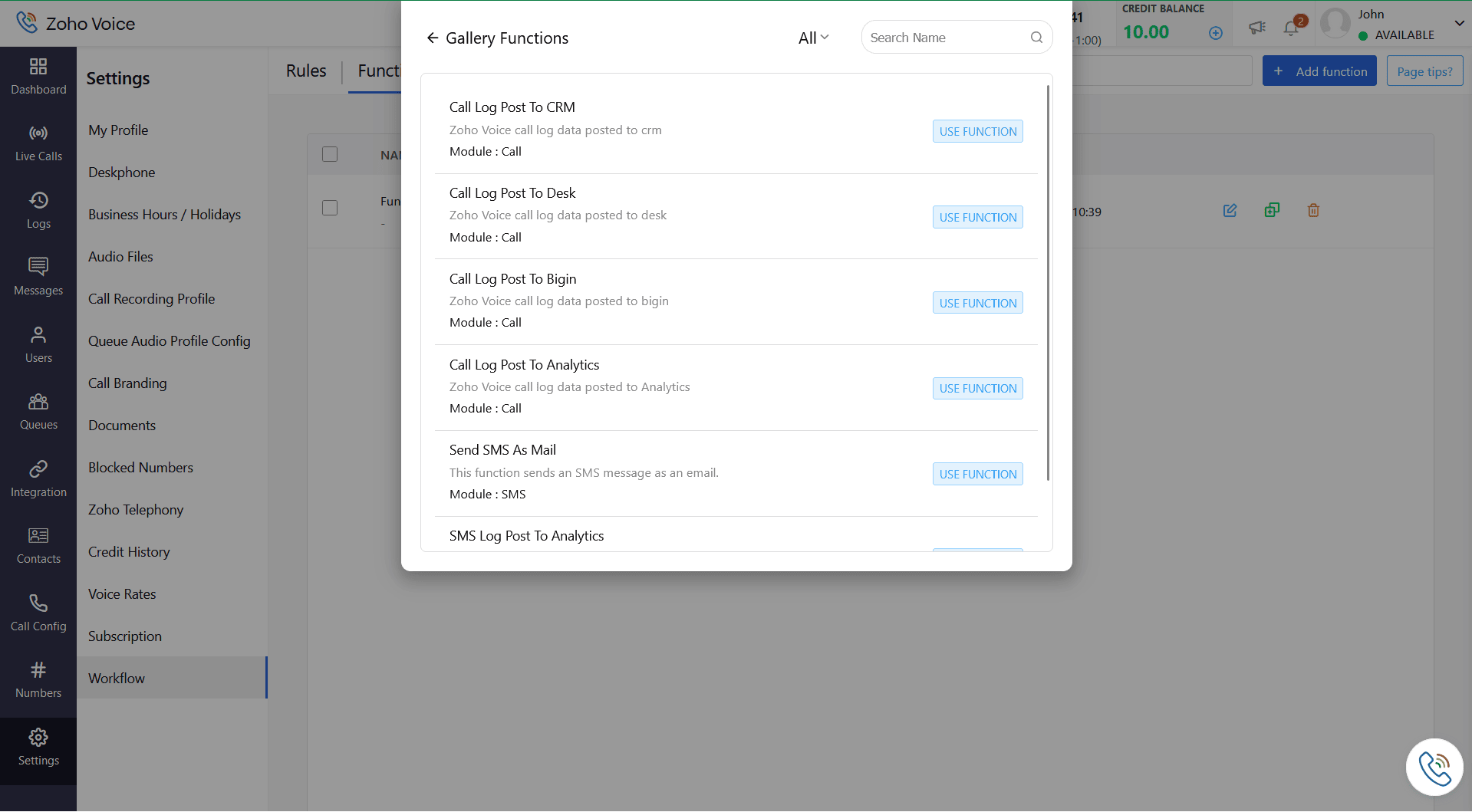
From the option listed, you can choose View Gallery Functions or Write your own function option as per your business requirement. Pre-defined functions (created by Zoho Voice) for a few select services are listed under Gallery Functions.
When the View Gallery Functions is selected, skip to step 9.
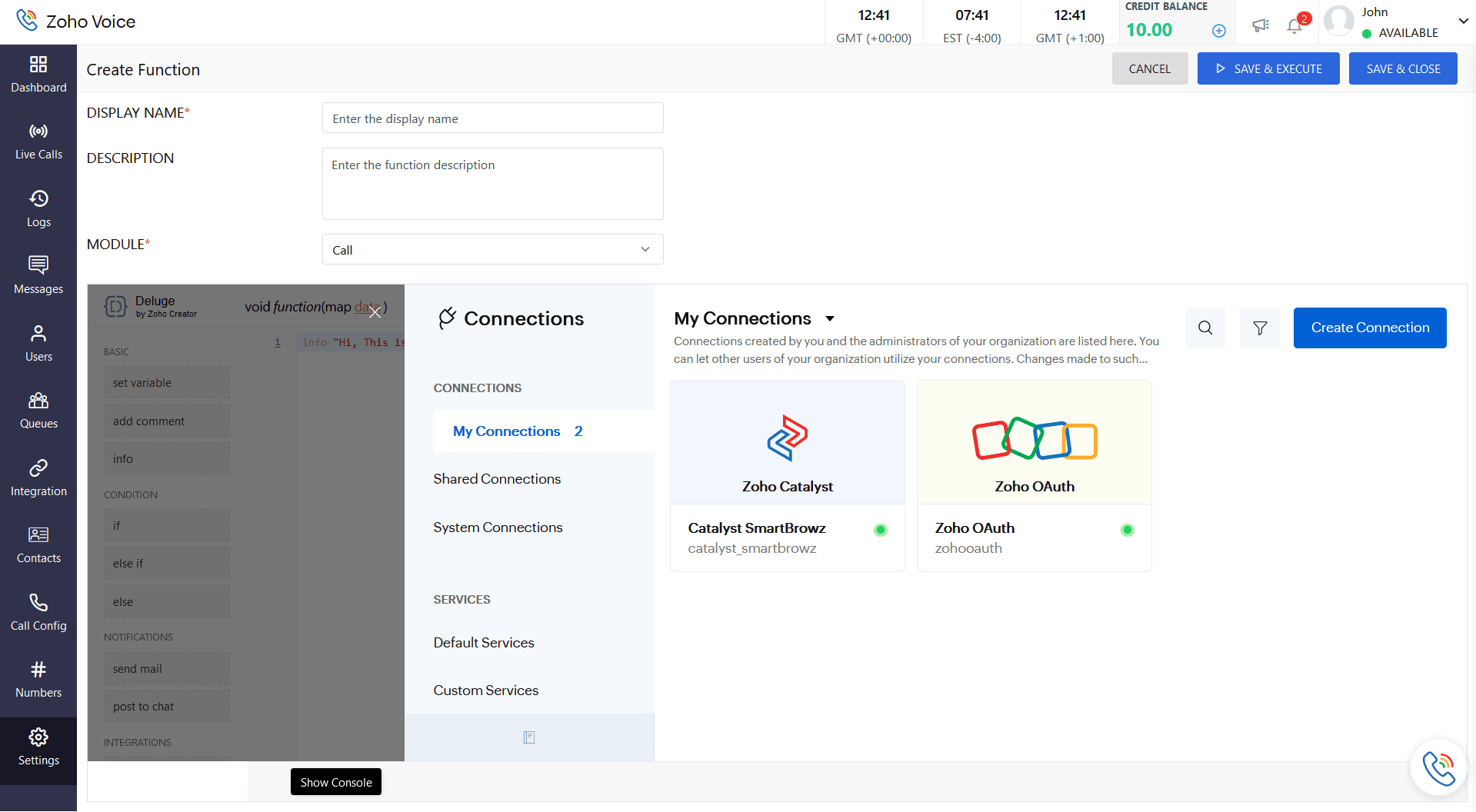
When you opt to Write your own function, provide Display Name, Description, and select the Module type.
The editor below the Module field is where the core logic for the connected service is built. Click Connections at the top-right of the editor view to find the connections created by you or the administrators of your organization.
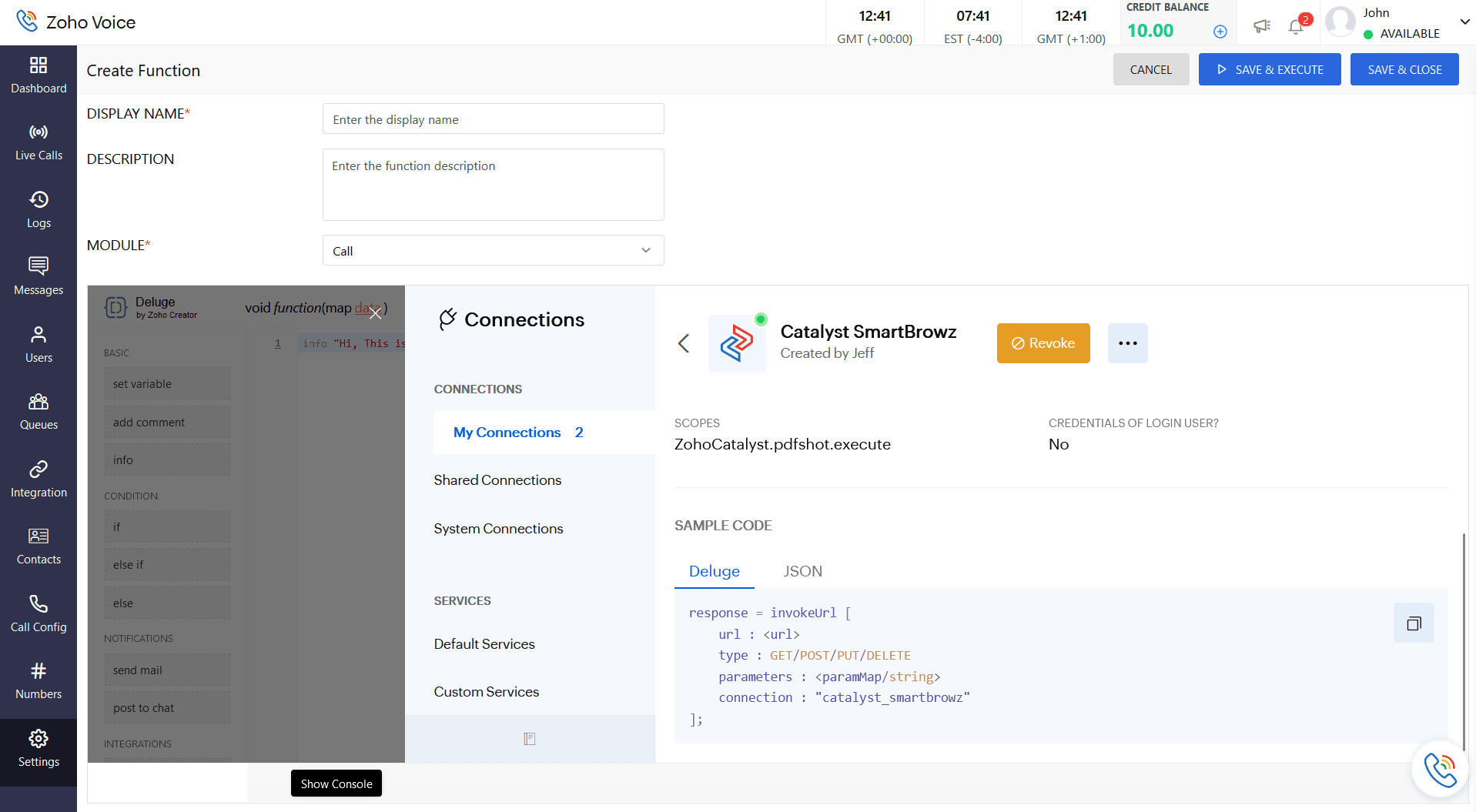
Select the service for which you want to build the function. Scroll to the bottom to find the sample code in Deluge and JSON format. Choose the appropriate format using which you want to build the function logic.
You can leverage Syntax Builder and the left pane options of the editor to build the business logic.
Click Save & Close to save the function. If you want to find the status/result of the function logic, click Save & Execute.
The Console view displays the status in the Result field, while the Log Messages displays the information.
