Configure Grandstream Desk Phone with Zoho Voice
Zoho Voice now enables you to connect your Zoho Voice account with any Grandstream IP-enabled hardphone, which are one of the most prominent workstations in major call centers. This enables you to easily make and receive Zoho Voice calls using Grandstream Session Initiation Protocol (SIP) phone device.
Note
Zoho Voice supports all SIP phone models under the Grandstream brand.
Configuring Grandstream SIP Phone
Follow the steps below to connect a Grandstream SIP phone with your agent's Zoho Voice account.
Steps to configure in Zoho Voice
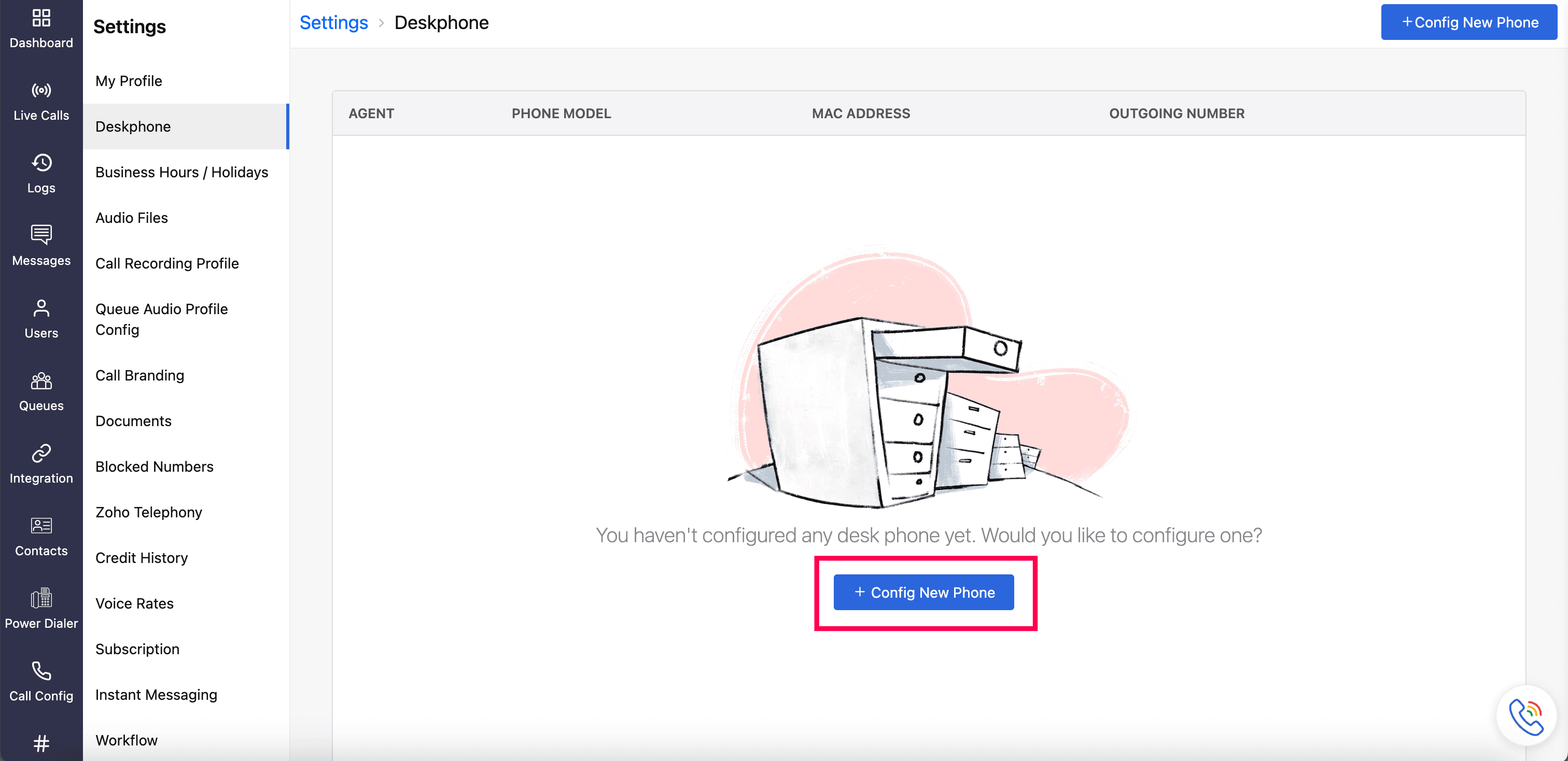
Go to Settings → Deskphone and click Config New Phone.
In the Add New Deskphone prompt, select the agent for whom you want to configure the desk phone and select the model as Grandstream.
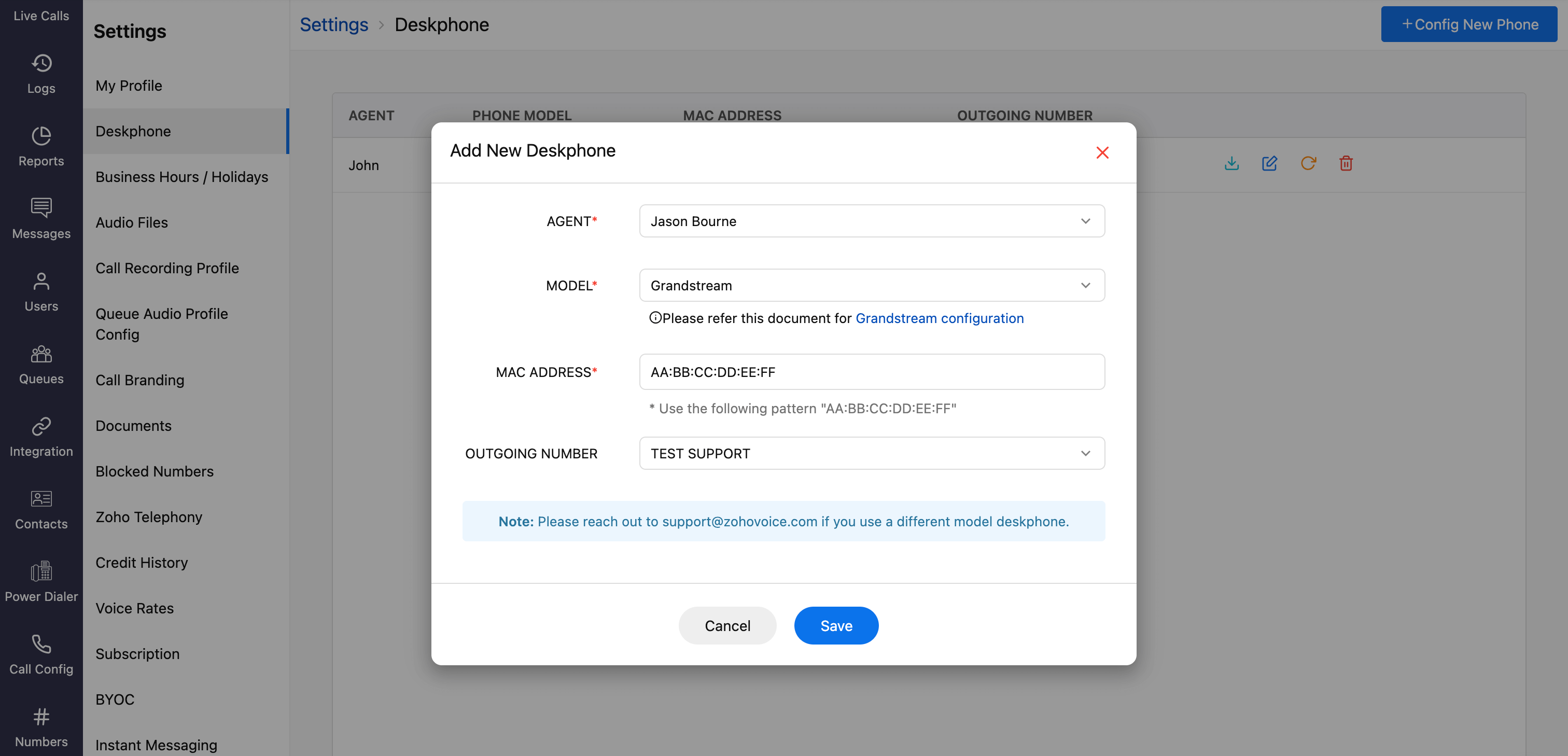
Enter the MAC address of your hard-phone device.
Note
To locate your desk phone’s MAC address, press the Settings button, then go to Status → Network → MAC address. You can also find it at the back of your device.
Select the phone number you want to use as the Outgoing Number while making calls from your desk phone.
Click Save to confirm your selection.
Zoho Voice will then generate a configuration file (.cfg) - download this file to proceed with your desk phone setup.

The saved configuration will appear on the Deskphone homepage. The agent specified in the configuration will receive an email with their SIP authentication details. If they haven’t received it, click the Reload (Resend Credentials) icon to resend the credentials.

To change the agent assigned in the saved configuration, click the Edit icon. Similarly, to remove the configuration, click the Delete icon.

Steps to follow on your Grandstream Desk Phone
For successful configuration, you need to log in to the Grandstream device web User Interface (UI). In order to access the web UI, you need to know the IP address of your Grandstream IP phone. To find the IP address of your desk phone:
Press the Settings button on your Grandstream desk phone
Navigate to Status → Network and IPv4 Addr option to locate the IP address of your device.
Once you have obtained the IP address, Enter the IP address in your browser (e.g., https://192.168.0.10 or 192.168.0.10). This will take you to your Grandstream desk phone's web UI.
Steps to configure in your Grandstream web UI
Log in to your grandstream desk phone's web UI by entering your Username and Password.

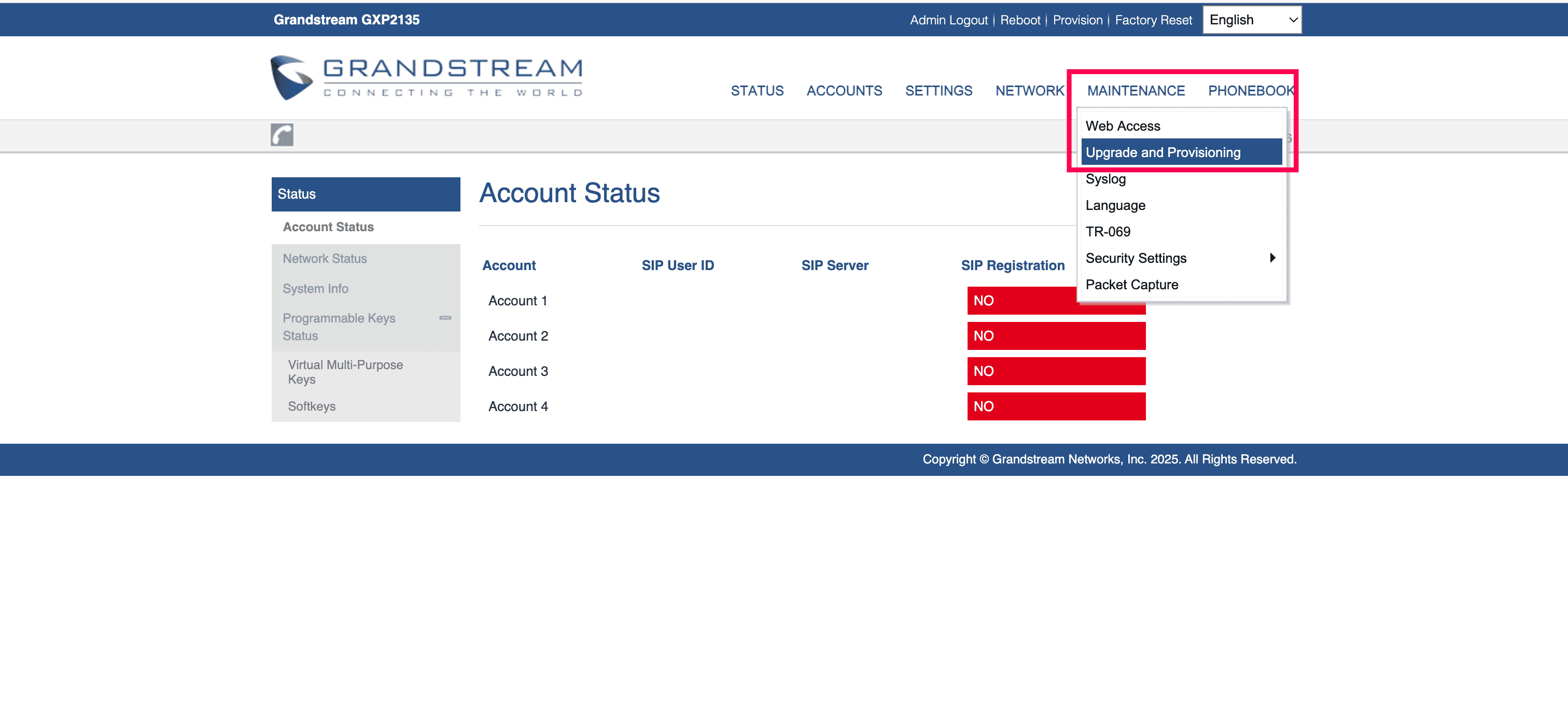
From the top menu bar, select Maintenance → Upgrade and Provisioning.
Go to the Config section and select the Upload Device Configuration option.
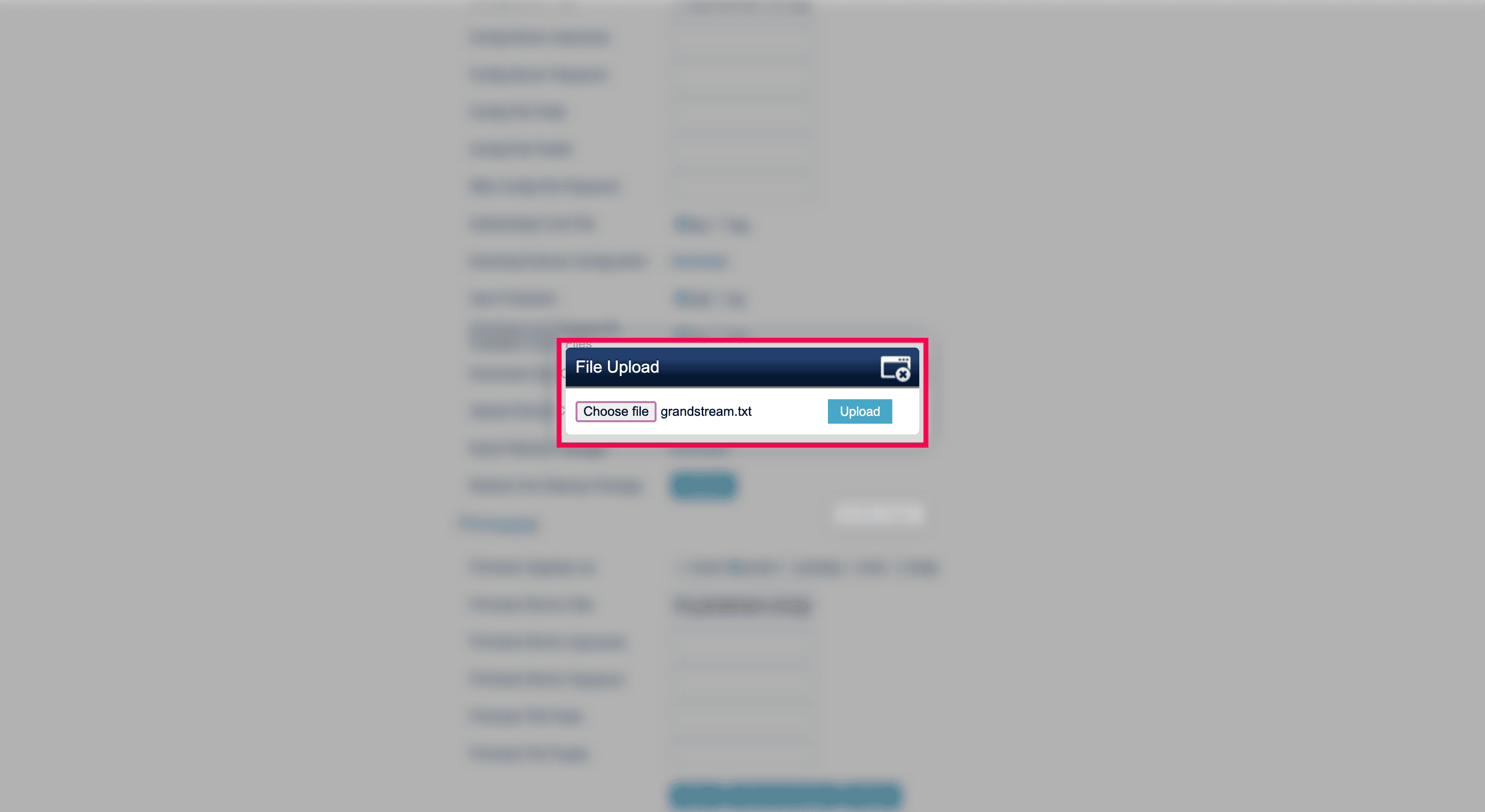
Click Upload and browse for the .cfg file you previously downloaded from Zoho Voice.
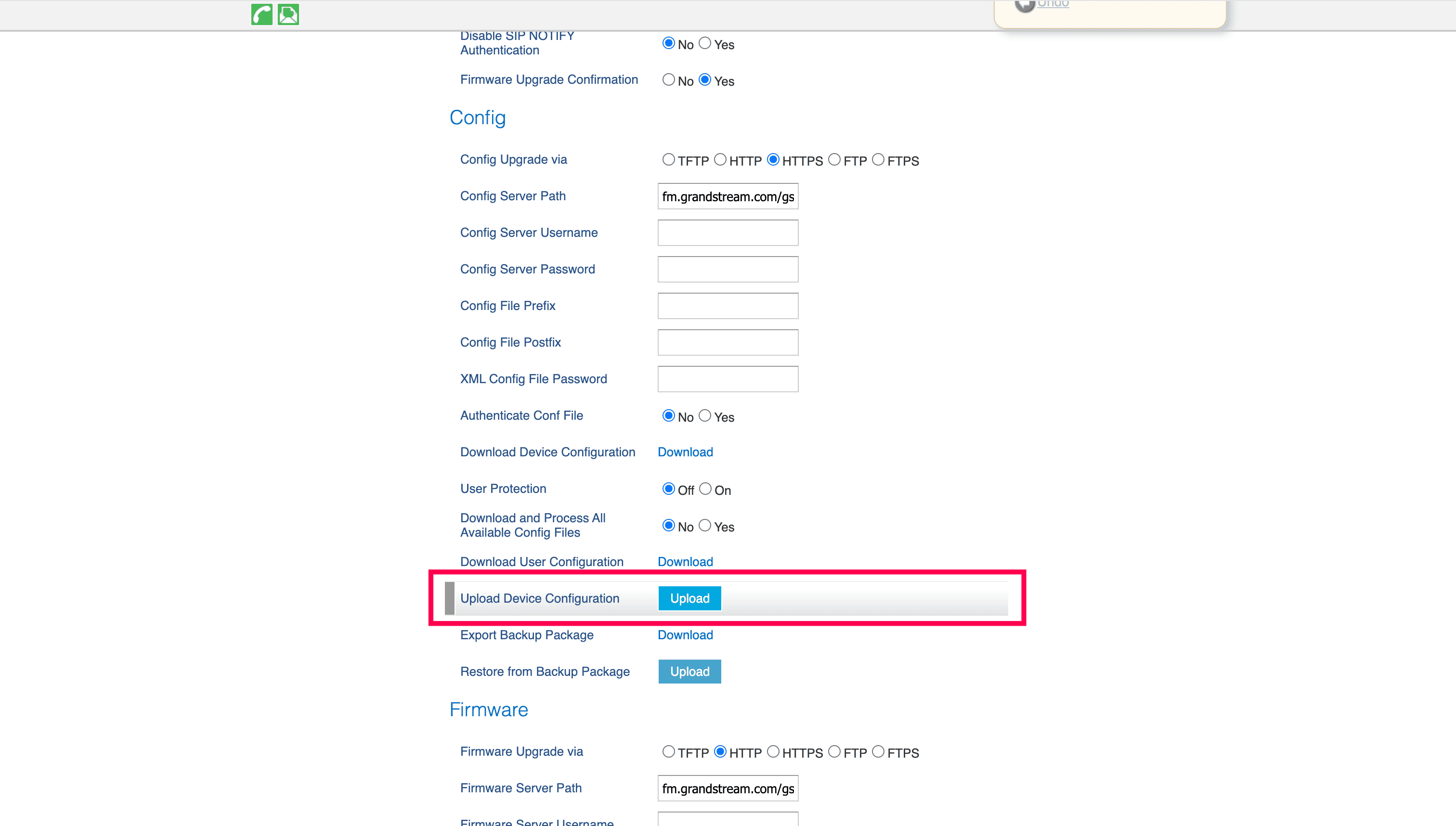
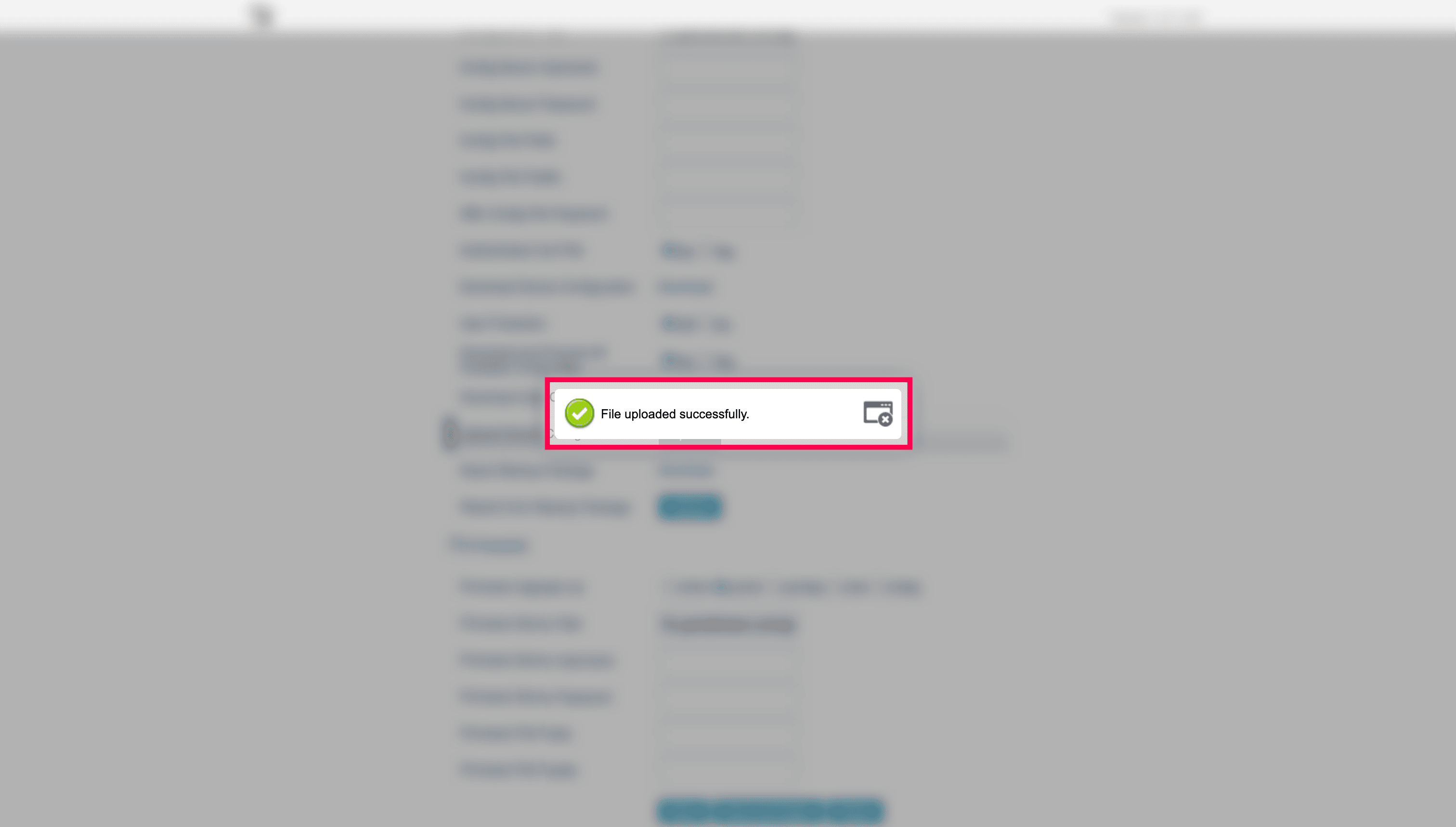
Click the Upload button to upload the config (.cfg) file.
Click Save and Apply at the bottom.
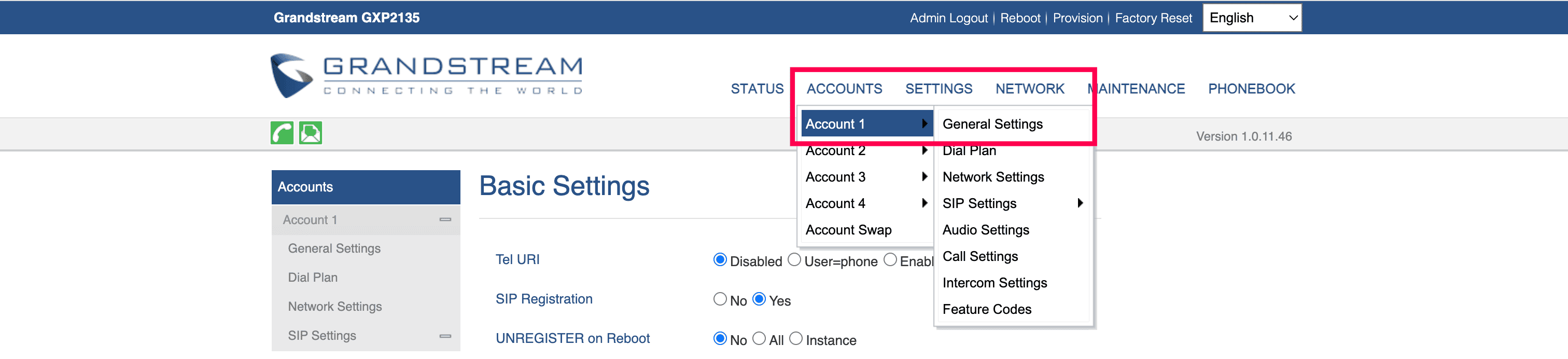
Click Accounts → Account 1 and the General Settings menu from the top menu bar.
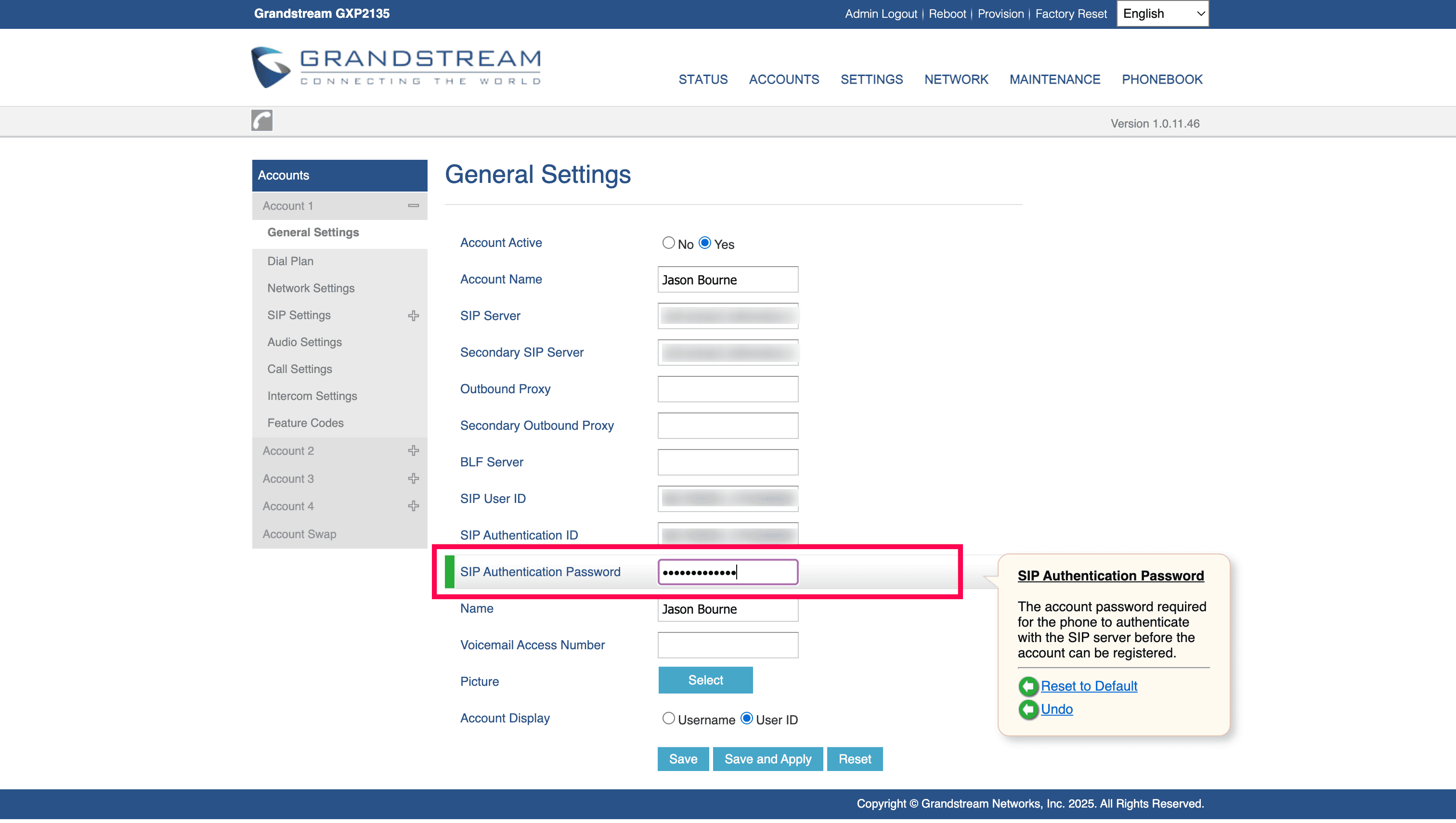
Navigate to the SIP Authentication Password field and copy and paste the SIP Authentication Password sent by Zoho Voice via email.
Note
The SIP authentication password is required for the phone to authenticate with the Zoho Voice's SIP server before the account can be registered.
Click the Save and Apply button at the bottom.
To confirm the registration status, select the Status → Account Status menu from the top menu bar.


For a successful registration, the SIP Registration status of the Account 1 will be listed in green as Yes as shown below.
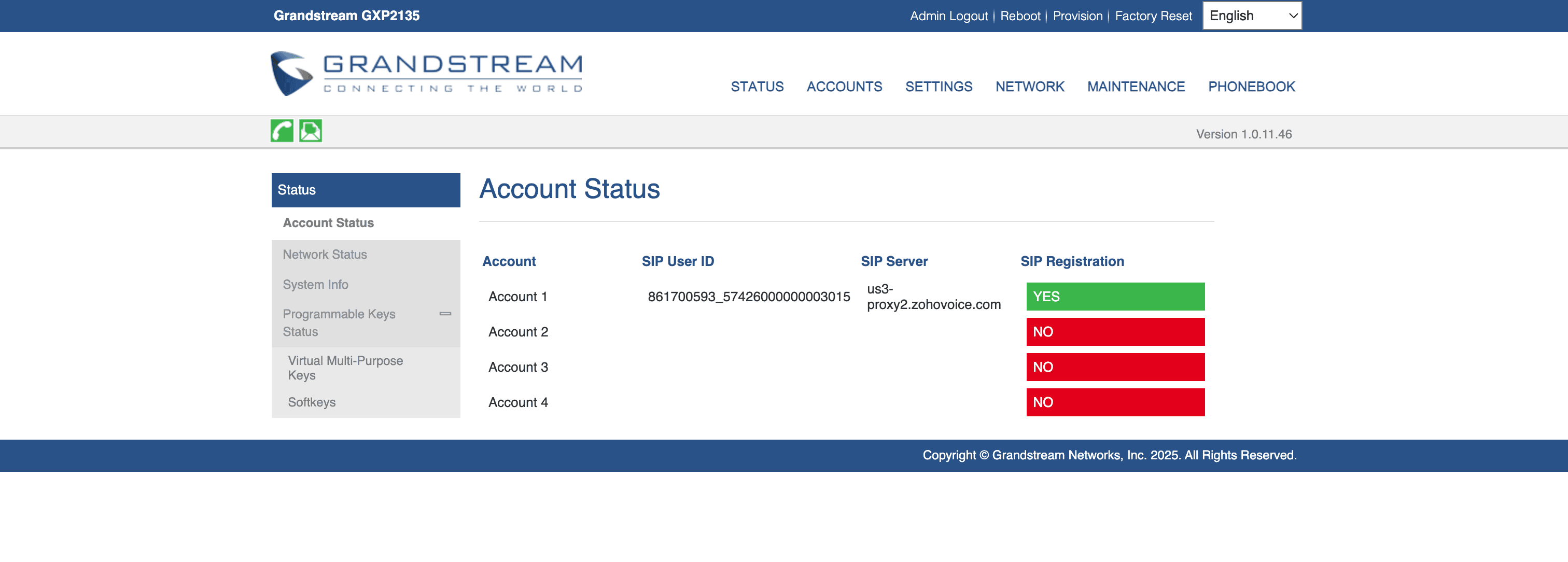
Once you've completed the above steps, your Grandstream desk phone will be fully configured to handle all Zoho Voice calls that are assigned to a particular agent.
Note
In the event of an unsuccessful registration, please make sure to factory reset your device and then retry the registration steps mentioned above.
Troubleshooting your Grandstream Desk Phone Registration and Call Handling
To quickly troubleshoot the issues that arise while performing certain procedures or activities, make sure you reproduce the whole sequence of steps involved in a specific process using your Granstream deskphones while activating Grandstream's Packet Capture functionality.
Note
Packet Capture is a special network troubleshooting functionality offered by Grandstream that enables you to easily capture, read, and effectively troubleshoot those SIP packet captures.
This can be especially useful while:
Registering your Grandstream desk phones with Zoho Voice's SIP servers.
Handling inbound and outbound calls via your Grandstream desk phones
Follow the steps below to capture SIP packets from your Grandstream devices.
Select the Maintenance menu and choose the Packet Capture option from the top menu bar.
On the Packet Capture page, click the Start button to start the network packet capture.
Immediately, reproduce the whole sequence of steps involved in the process you intend to troubleshoot. The process can be the registration process, making an outbound call via your Grandstream device, receiving an inbound call and more.
Note
To analyze and troubleshoot issues that occur during calls, you can enable the With RTP Packets option and select Yes to send the audio packets from the call. To skip sending audio packets, keep the default option set to No.
Once you're done reproducing the whole sequence, click the Stop button.
Click the Download button. This will automatically download the Captures.tar file.
Send the downloaded file to our Zoho Voice support team, support@zohovoice.com for analysis.