Callback Request
The Callback Request feature allows you to automatically or manually call back customers whose calls went unanswered in a queue. This ensures that no customer call goes unattended, even during peak call volumes.
There are two types of callback available:
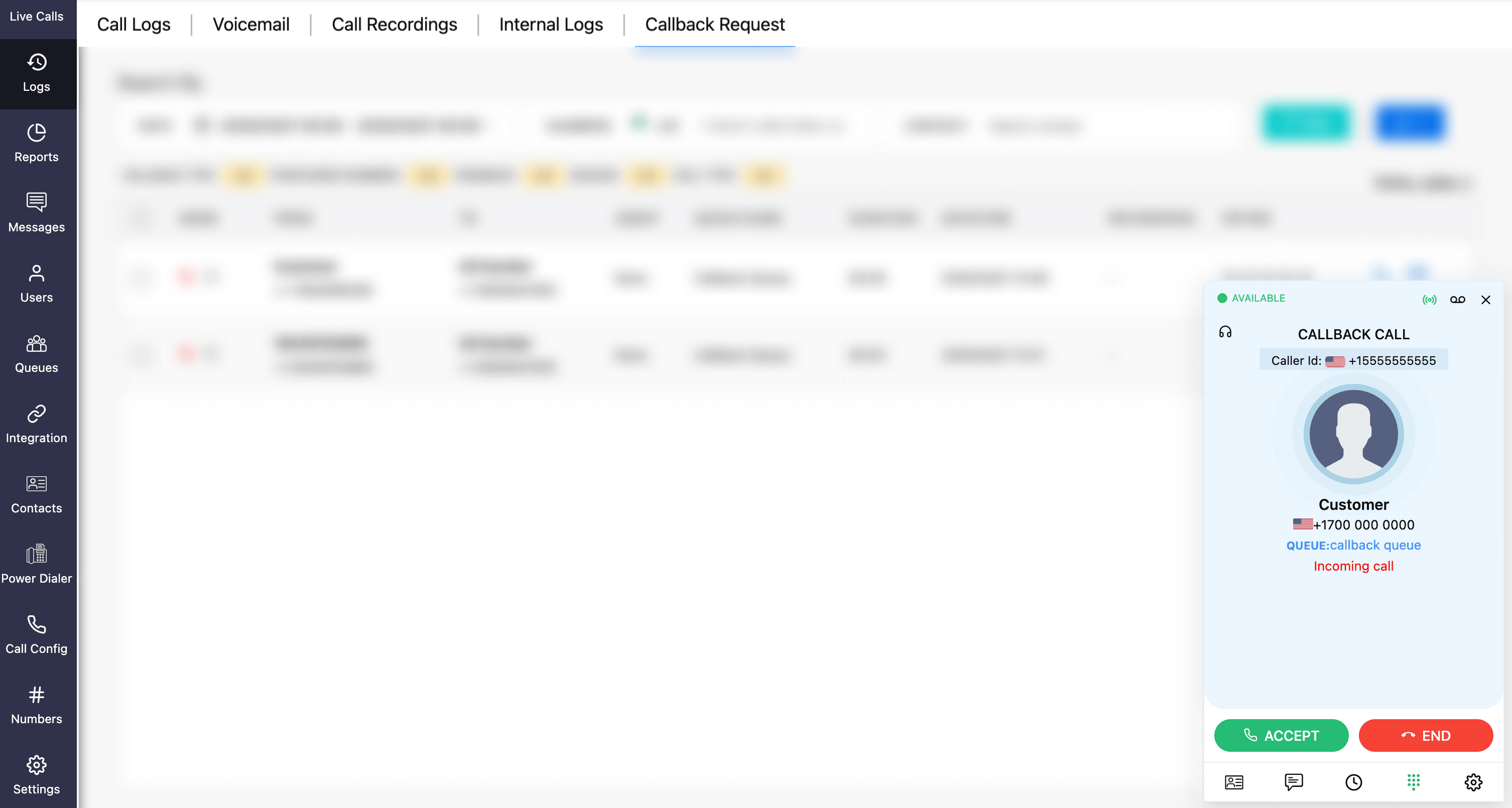
Auto Callback: The system automatically places a callback to the customer when the next agent becomes available in the queue. Once an agent’s status changes to Available in a queue, the system initiates a call to that agent. After the agent answers, the call is then connected to the corresponding customer.
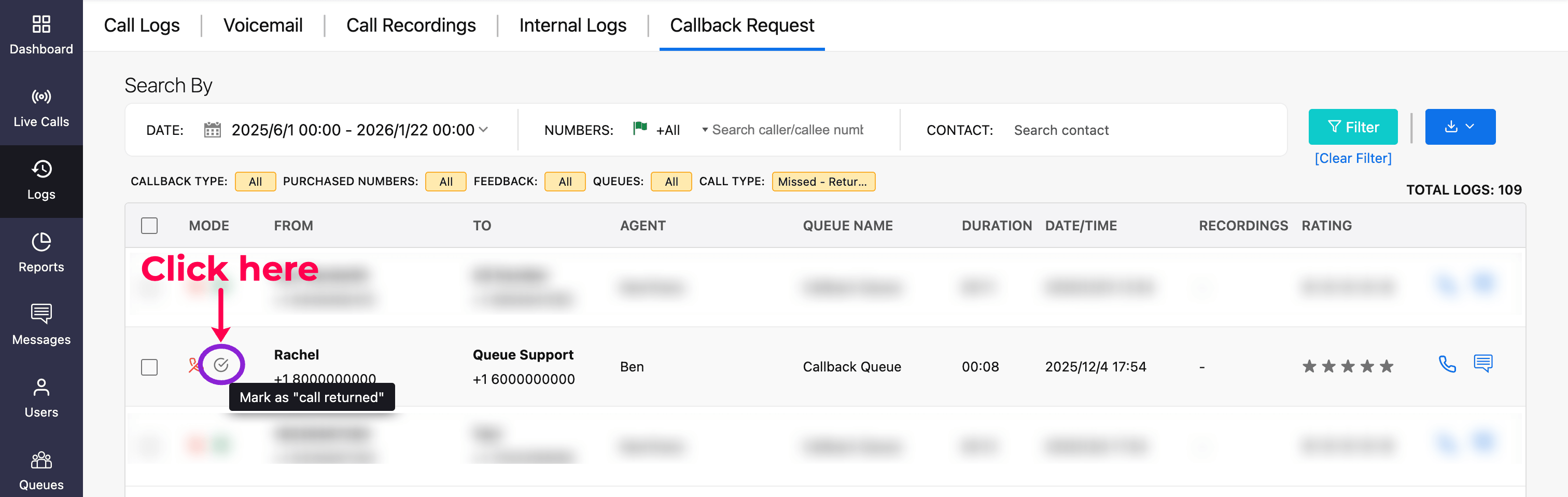
Manual Callback: Agents can manually mark callback request as returned (indicating that the callback was made to the customer) from the callback list available under Logs → Callback Request module.
How it works
When a customer's call goes unanswered in a queue, they can request a callback before exiting the queue. Based on your queue configuration, the system will either automatically place a callback when an agent becomes available or let agents manually initiate callbacks from the logs.
Note
If the agent’s status is anything other than Available, the auto callback will not be triggered.
Configuring Callback Request
You need to configure the Callback Request feature in two places. In the Queue module, configure the type of callback request (auto callback or manual callback). In the Settings → Queue Audio Profile module, specify whether the customer wants to request a callback or exit the queue without requesting one.
Callback request in queue
You can configure the callback request settings while setting up a queue.
Go to the Queue module.
Click Edit Queue or Add New Queue.
In the queue profile page, scroll down to the Callback field.
Enable or disable the Callback Request option.
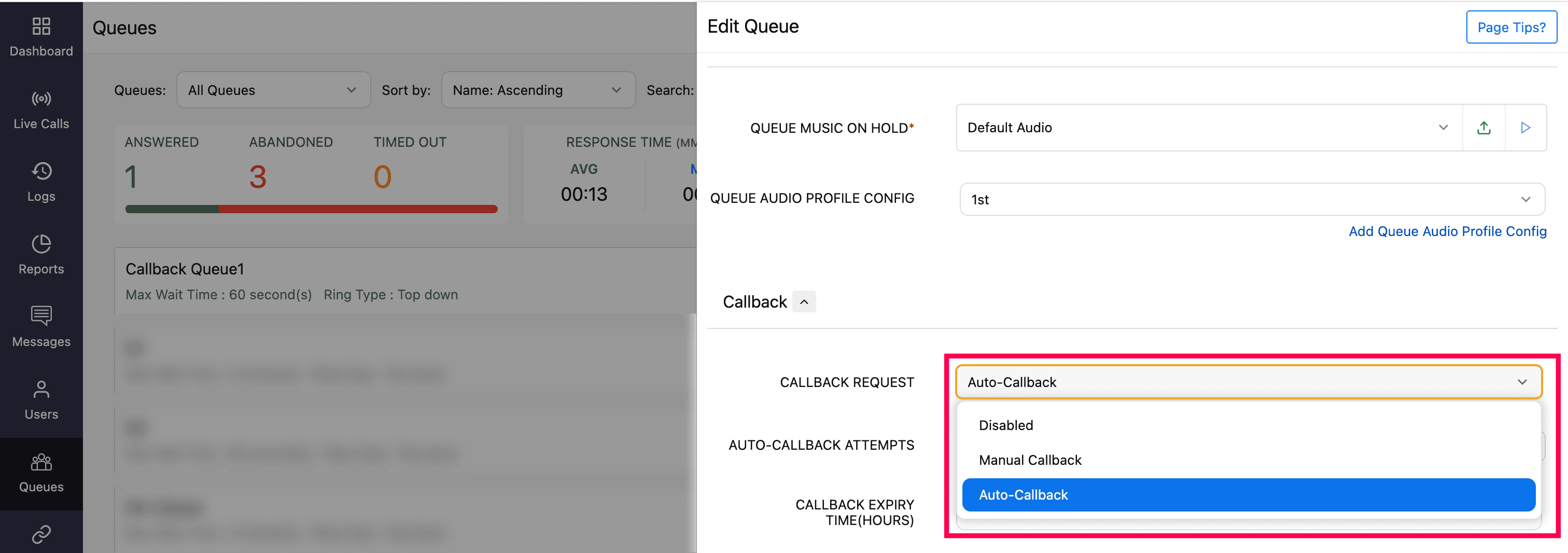
For enabling, select the type of callback request as Auto-Callback or Manual Callback from the dropdown.
Auto-callback configuration
For Auto-Callback option, you can configure the following fields:
Auto-Callback Attempts: Specify the number of attempts to make the callback to the customer.
Note
A maximum of 3 attempts is allowed.
Callback Expiry Time (hours): Define the duration (in hours) after which the callback request will expire.
Note
Callback requests expire automatically after 24 hours.
Customer Reach-out Interval: Set the interval between successive auto-callback attempts.
Note
- This applies only when the previous callback attempt rang but was not answered by the customer.
- Ensure that the number of callback attempts and the interval duration fall within the defined expiration period.
Click Save to apply the configuration.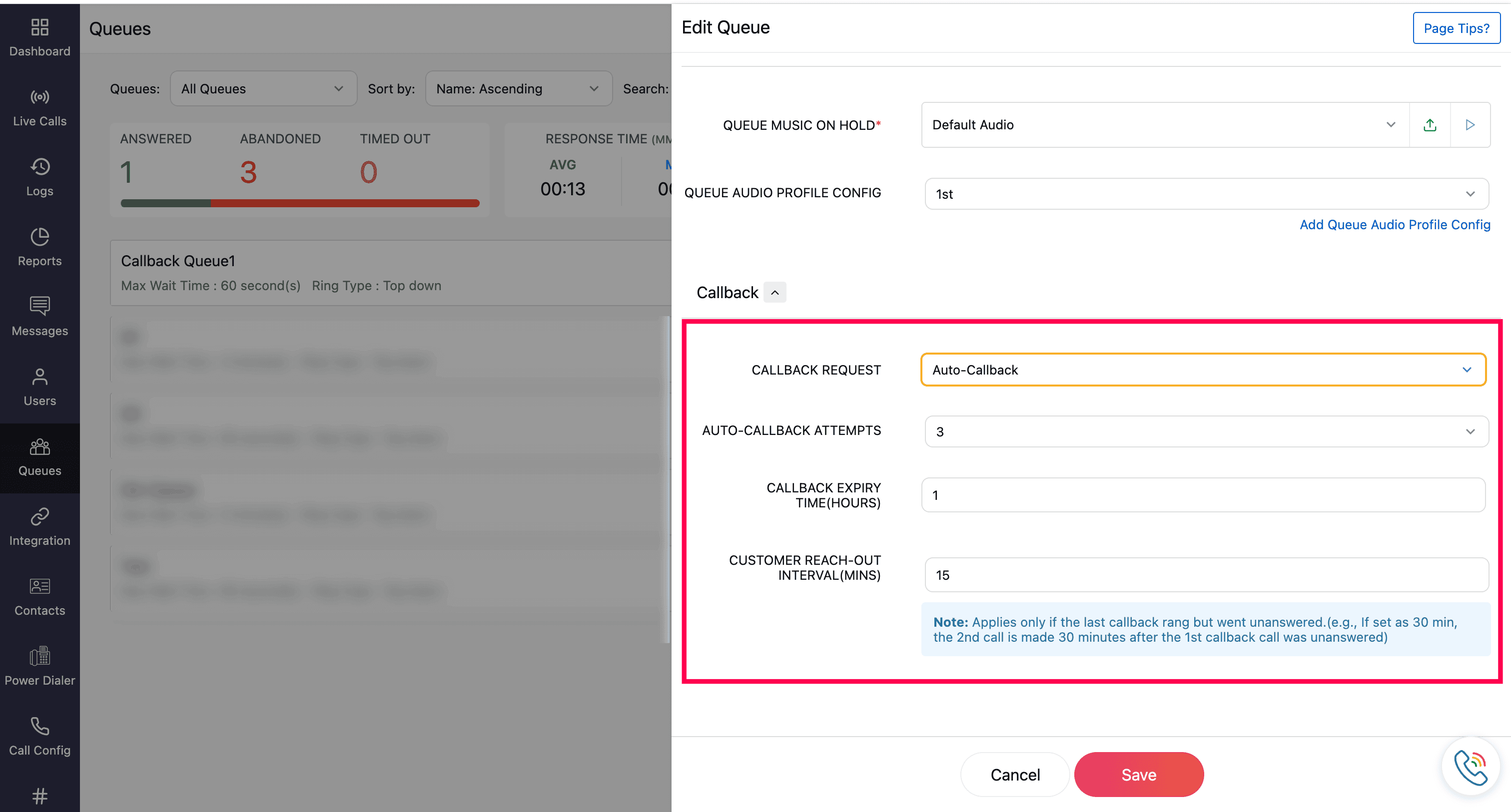
Example configuration
If the auto-callback attempts are set to 3, the callback expiration time to 6 hours, and the reach-out interval to 60 minutes, the following scenarios explain how the system behaves:
When a customer requests a callback, the system first initiates a call to an available agent in the queue (based on the ringing strategy).
Scenario 1
Agent: Answers the call.
Action: Call is directed to the customer.
Condition: Customer answers the call.
Result: Callback request is closed.
Scenario 2
Agent: Answers the call.
Action: Call is directed to the customer.
Condition: The callback attempt is initiated to the customer but customer fails to answer it.
Result: Attempt = 1. After 60 minutes (customer reach-out interval), the second attempt will be made.
Scenario 3
Agent: Fails to answer or disconnects the call
Result: Attempt = 1. The second attempt will be made immediately to the next available agent and the customer reach-out interval will not be applied.
Scenario 4
Agent: Answers the call but disconnects immediately before it rings the customer
Result: Attempt = 1. The second attempt will be made immediately to the next available agent, and the customer reach-out interval will not be applied.
Callback Request and Exit Announcement in Queue Audio Profile
You can configure whether the caller wants to exit the queue with a callback request or without a callback request.
Go to Settings → Queue Audio Profile Config.
Click Edit Queue Audio Profile Config or Add New Queue Audio Profile Config.
On the configuration page, you can update/configure the following fields:
Callback Exit Announcement: Specify the message that informs callers how to request a callback. The symbol * must be included in your message. When a customer presses *, a callback request will be added. Example: Press * to request a callback.
Queue Exit Announcement: Specify the message that allows callers to exit the queue without requesting a callback. Make sure to include the # symbol in the message for callers to exit. Example: “Press # to exit the queue.”
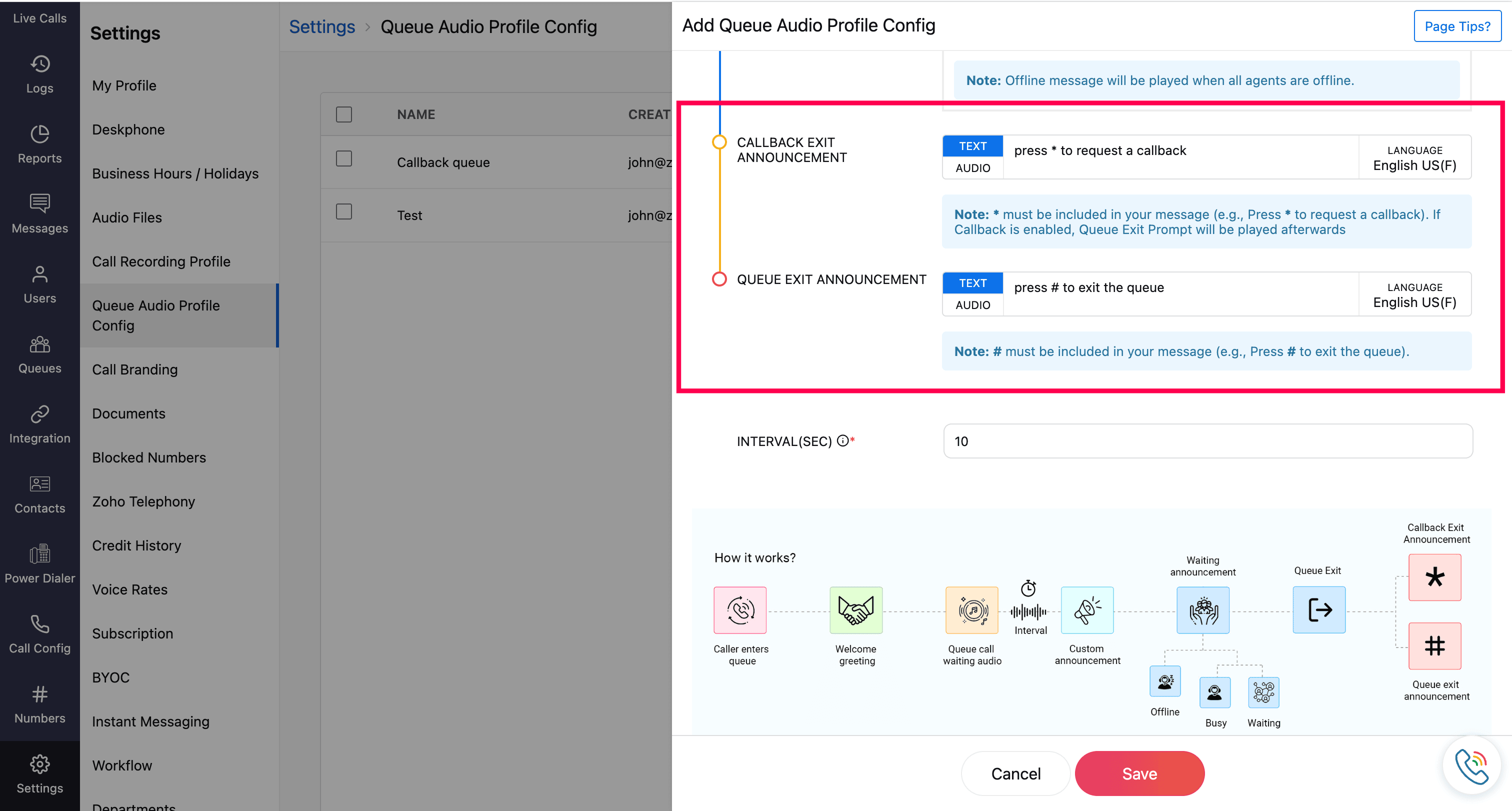
You can choose to add the message in text or audio format:
Text: Enter the message in the selected language.
Audio:
Click the Audio tab and select a file from the dropdown list.
The files listed are the pre-uploaded audio available under Settings → Audio File → IVR Audio.
If the required audio is not available, click the Upload icon, name the file, and upload your audio.

Once uploaded, the audio file will be available in the dropdown for future use.
Callback Request Logs
The Logs → Callback Request module in Zoho Voice provides a centralized view and management of all callback requests.
Searching and filtering logs
In the Logs → Callback Request module, use the Search and Filter options to locate specific records by date range, time, phone number, or contact name.
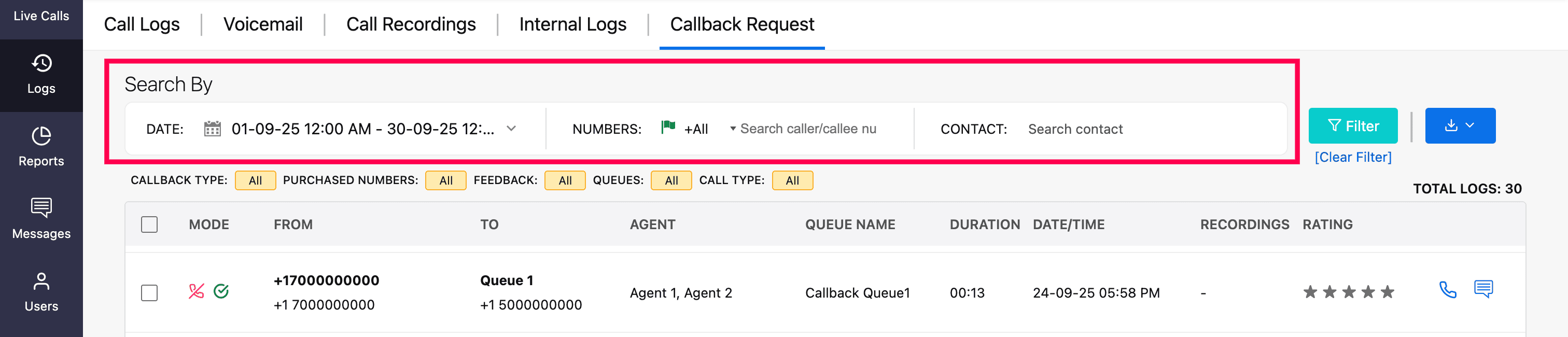
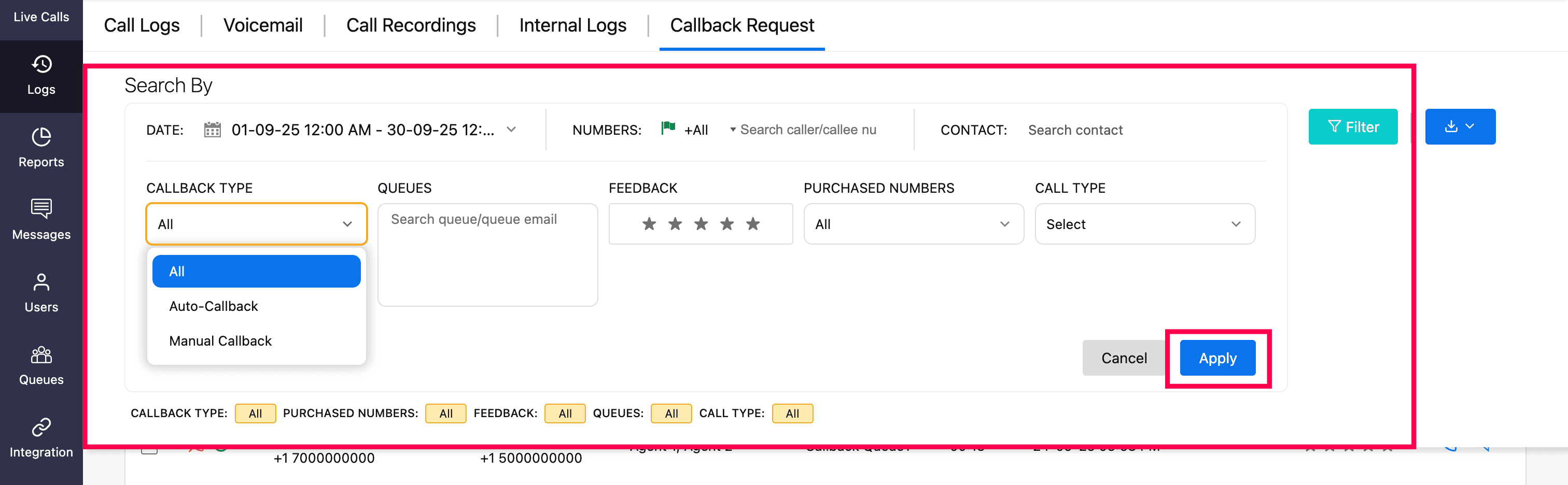
For more advanced filtering, click the Filter button to refine your results based on the following criteria:
Callback Type: Filter by Auto Callback or Manual Callback.
Queues: Search based on the queue name or the queue's email.
Feedback: Filter based on customer ratings.
Purchased Numbers: Filter logs based on the purchased number used.
Call Type: Choose between Missed Call - Returned (calls that were missed but followed up by an agent in that queue) or Missed Call - Unreturned (calls that were missed and have not yet been followed up).
Once you’ve selected your preferred criteria, click Apply to view the filtered results.
Managing callback requests
By applying the relevant filters, you can retrieve the callback requests that match your requirements.
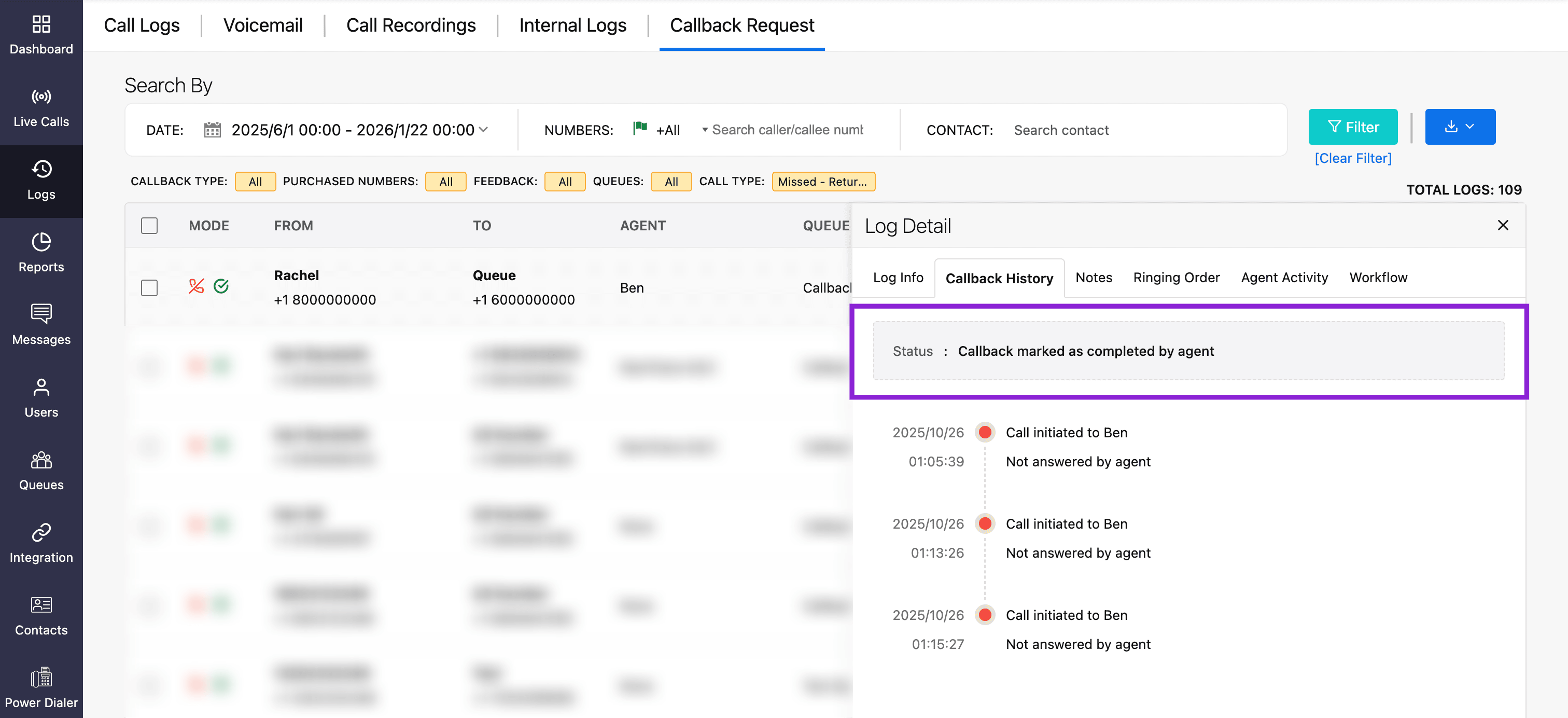
To mark a callback request as Call Returned manually (indicating that the call was made to the customer), hover over the log and click the Call Returned icon (as shown in the screenshot).
When a callback is marked manually, the Logs section will be updated to reflect that the callback has been marked as completed by the agent.
Viewing callback history
To view detailed information for a specific callback log:
Click on the desired log entry.
Navigate to the Callback History tab.
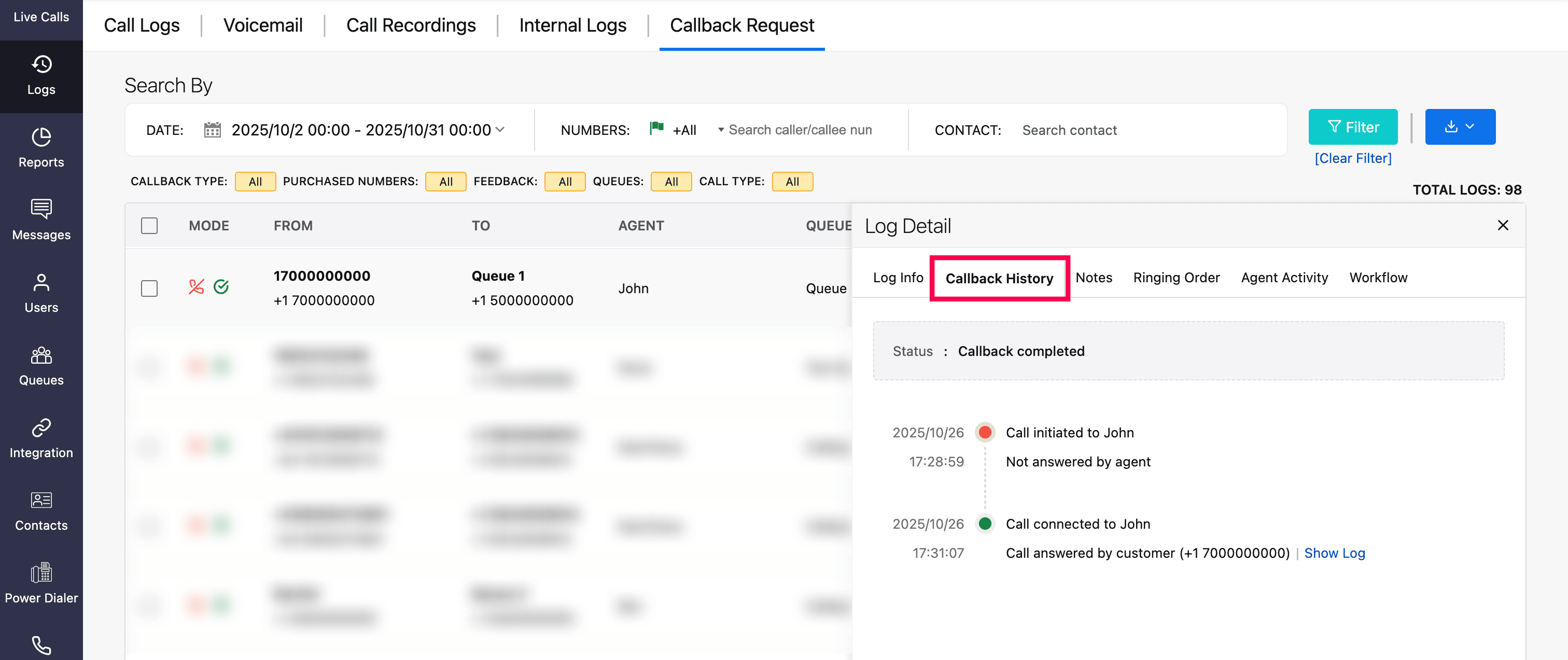
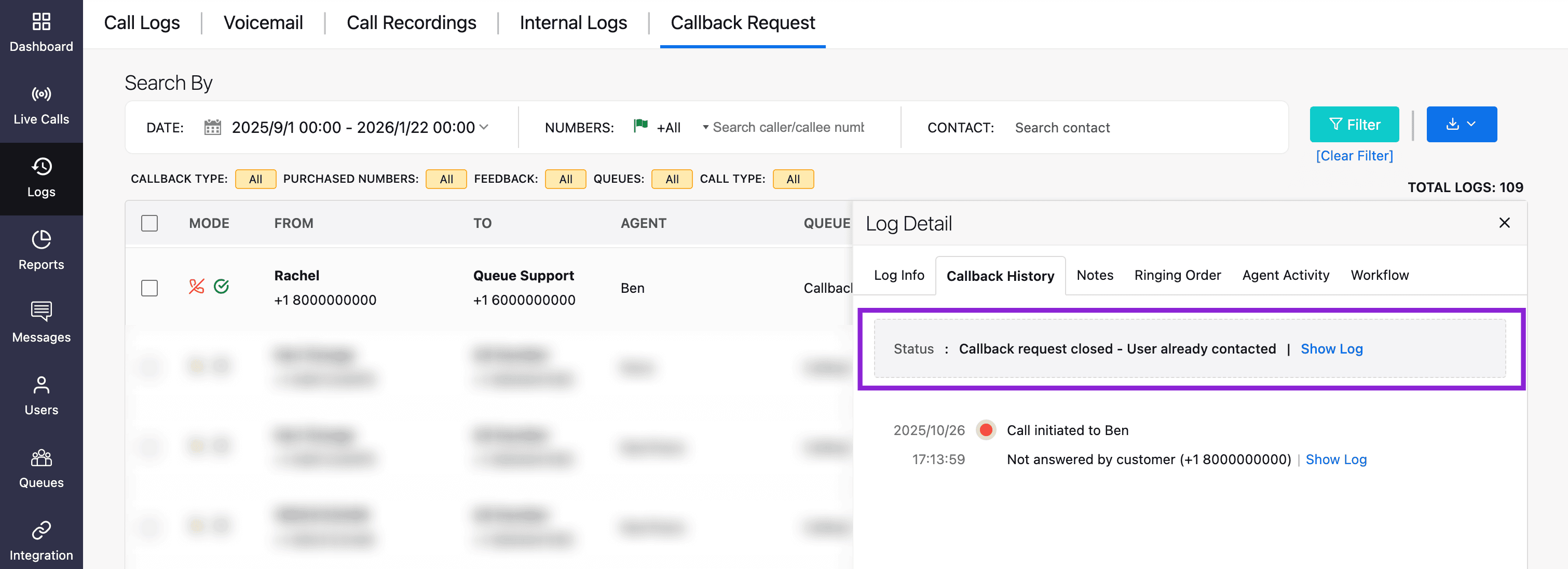
The Callback History tab displays the complete timeline of events from the moment a callback request was created. It includes details such as:
When and how many callback attempts were made.
Agents who handled each attempt.
Whether the customer attended the callback.
Any follow-up attempts made when the agent or customer failed to attend the call.
This view helps you track the full timeline of each callback request and ensures transparency in follow-up activities.
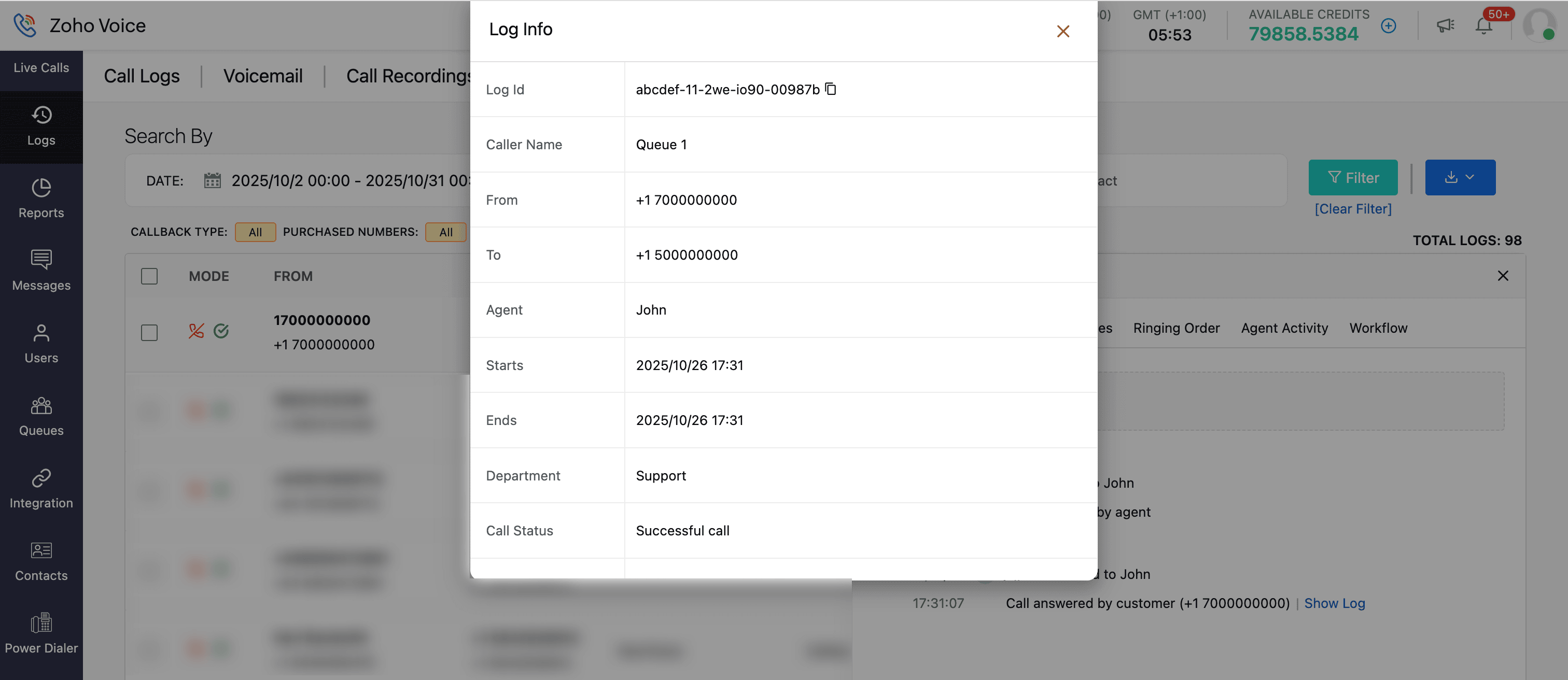
You can also view detailed log information by clicking Show Log.
Callback status
The following callback status are available:
Callback completed: The callback was successfully made and completed.
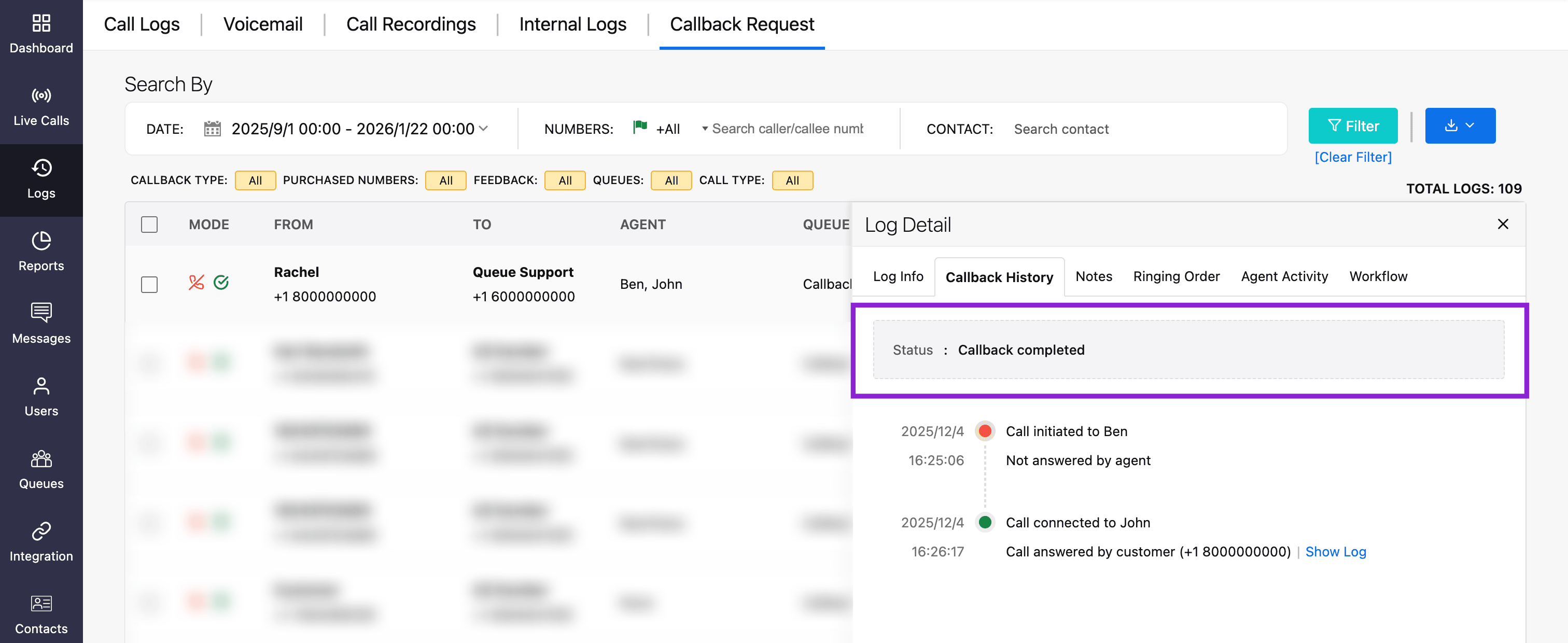
Callback attempt completed: The maximum number of callback attempts has been completed.
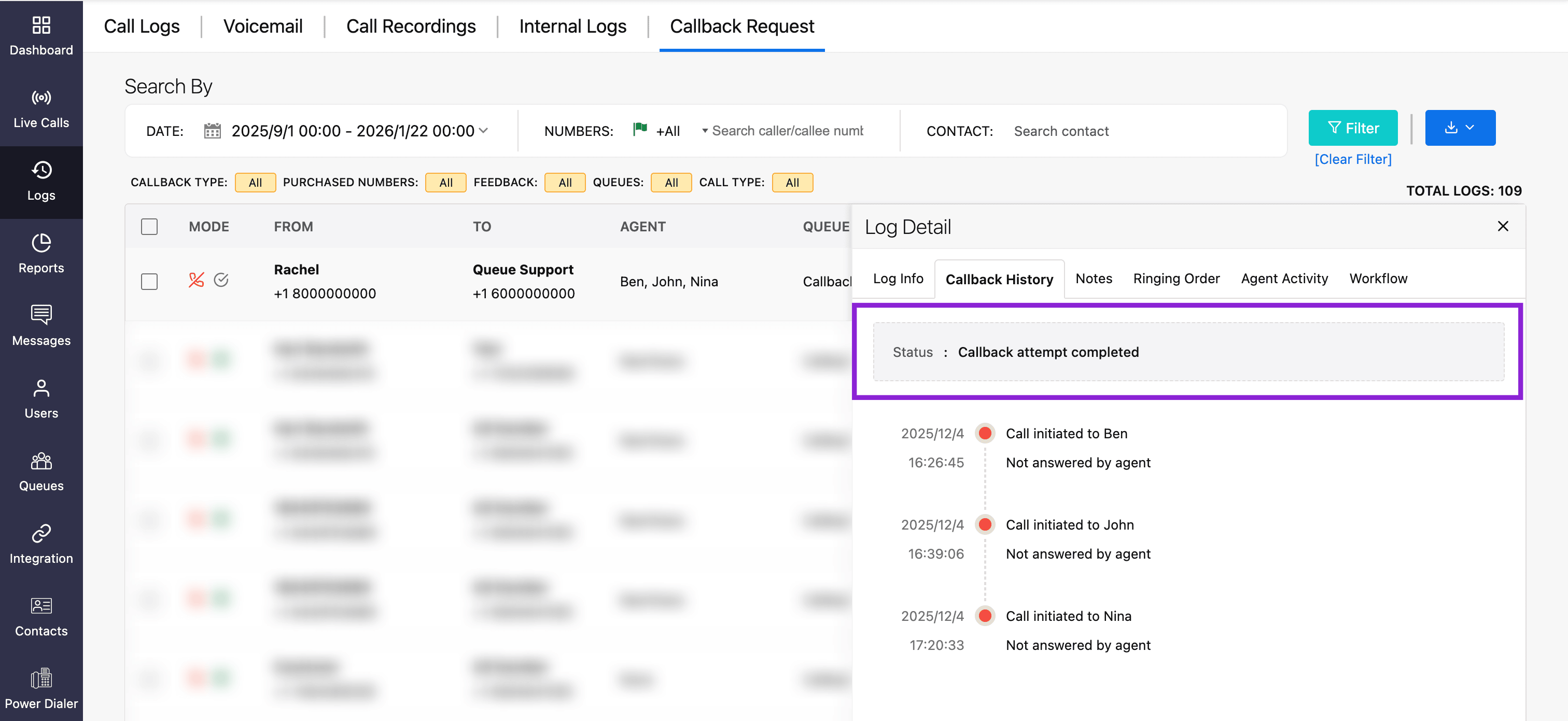
Callback expired: The set expiration time for the callback has been reached, and the callback request has expired.
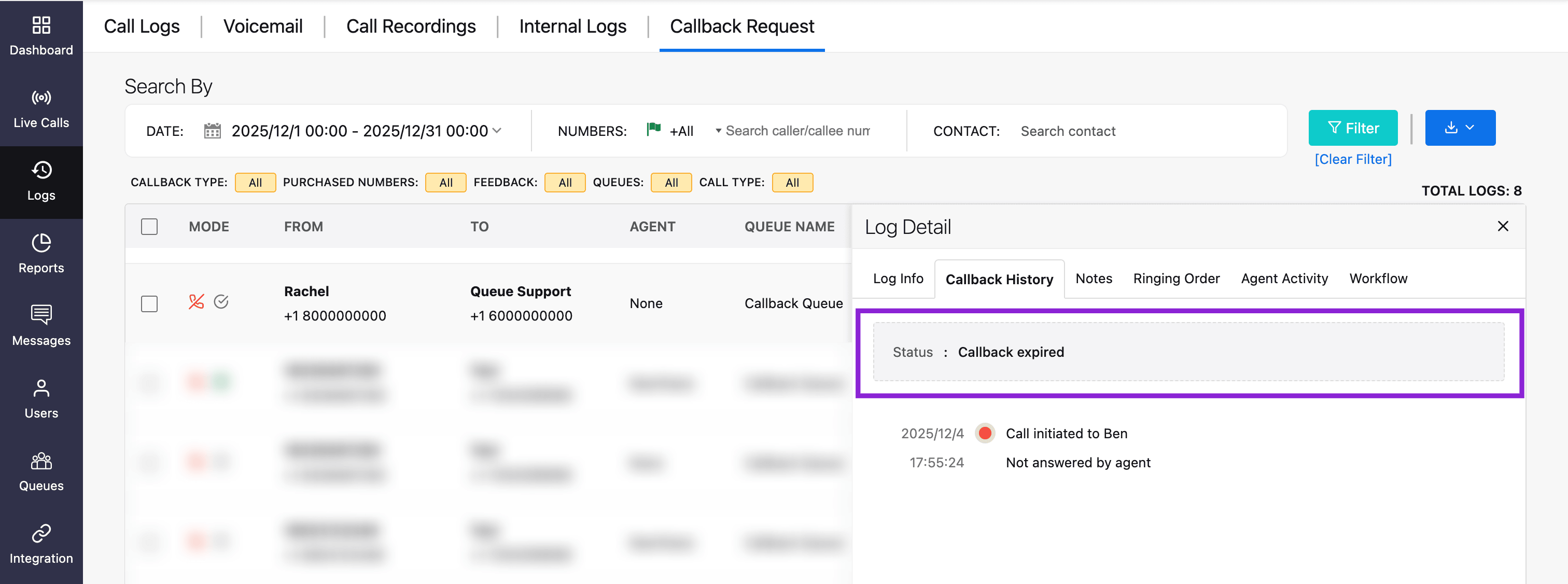
Callback marked as completed by agent: The agent manually marked the callback request as completed, indicating that the call was made to the customer.
Callback request closed - User already contacted: If a callback request is created, and before the auto-callback attempt is made, an incoming or outgoing call is initiated by any agent in that queue and answered by the customer, the request will be marked as User already contacted.