Call Transcription
With Call Transcription feature you can automatically converts your call recordings into written plain text. It uses speech recognition technology to analyse the audio, identify words, and produce a written conversation transcript.
What are the options available to perform call transcription in Zoho Voice?
You can transcribe all your call recordings automatically by enabling the Auto-Call Transcription.
You can transcribe the required call recordings on-demand manually.
What are the pre-requisties to perform the call transcription?
Call Recording must be enabled.
Call Recording Profile must be added for the numbers to which the transcription is to be performed.
Ensure that Auto-call Transcription is enabled for the numbers where call transcription should be performed automatically.
Note
The format of the generated-transcription varies depending on the channel (Mono or Stereo) selected in the Call Recording Profile.
Transcription providers available in Zoho Voice
Zoho: Supports English, Hindi, Russian, Spanish, Italian, German, Dutch, French, and Portuguese. It also supports various English dialects such as English (AU), English (CA), English (UK), English (US), and English (IN).
Google: Supports 10+ languages and dialects, including Portuguese, Dutch, French, Hindi, English, German, Spanish, Italian, Korean, and Japanese. It also supports several Indian languages, including Tamil, Hindi, Telugu, Malayalam, Kannada, Gujarati, Marathi, Bengali, and Punjabi (Gurmukhi).
How to enable Auto-call Transcription in Zoho Voice ?
In your Zoho Voice account, navigate to Call Config module.
Select the number and click the Edit icon for which the auto-call transcription is to be enabled.
Click the Add Call Recording icon to add the profile. You can also add the call recording profile via Settings → Call Recording Profile and select the same here in Call Config module.
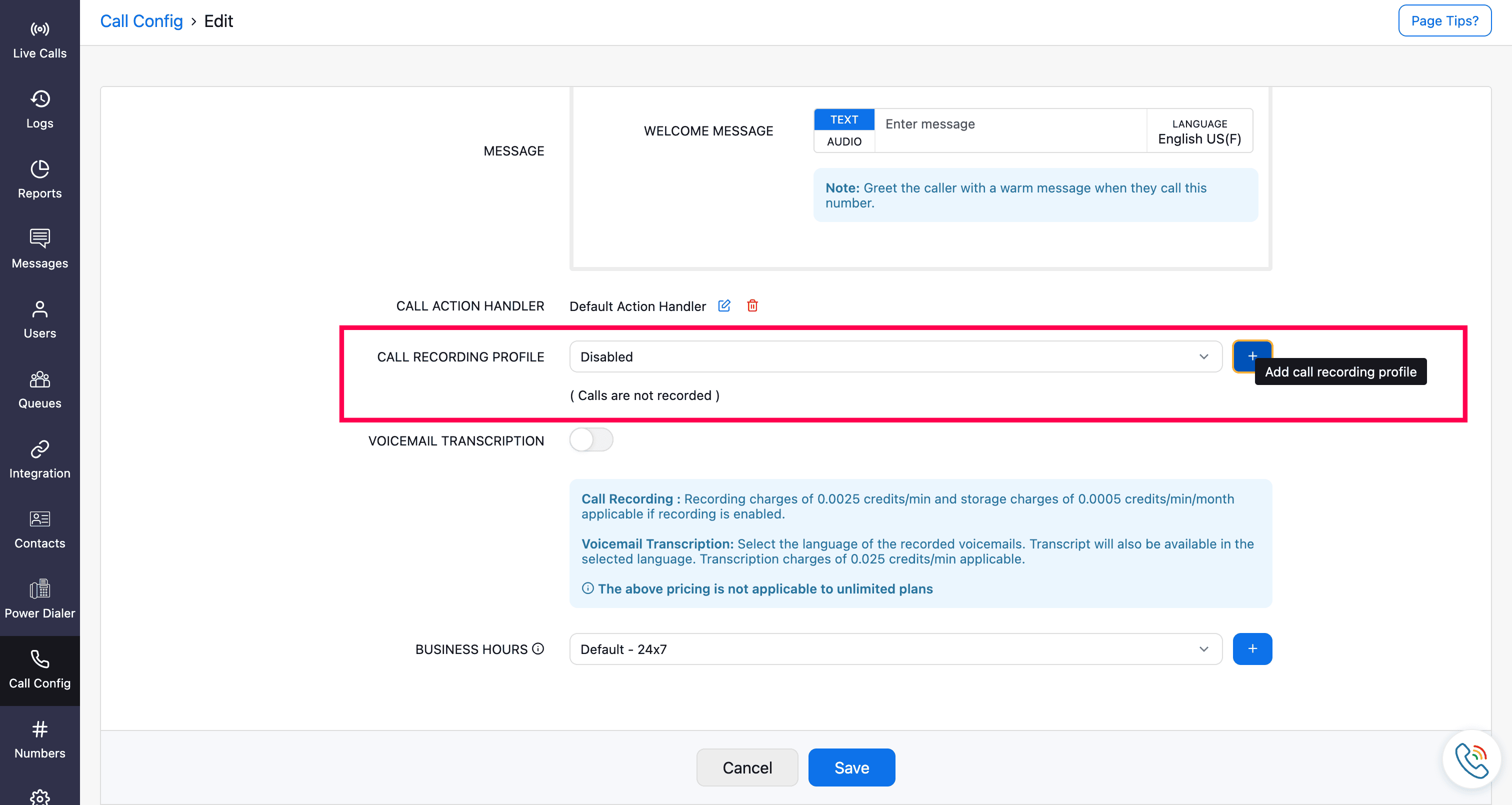
Enable the Auto-call Transcription.
Fill in the required fields.
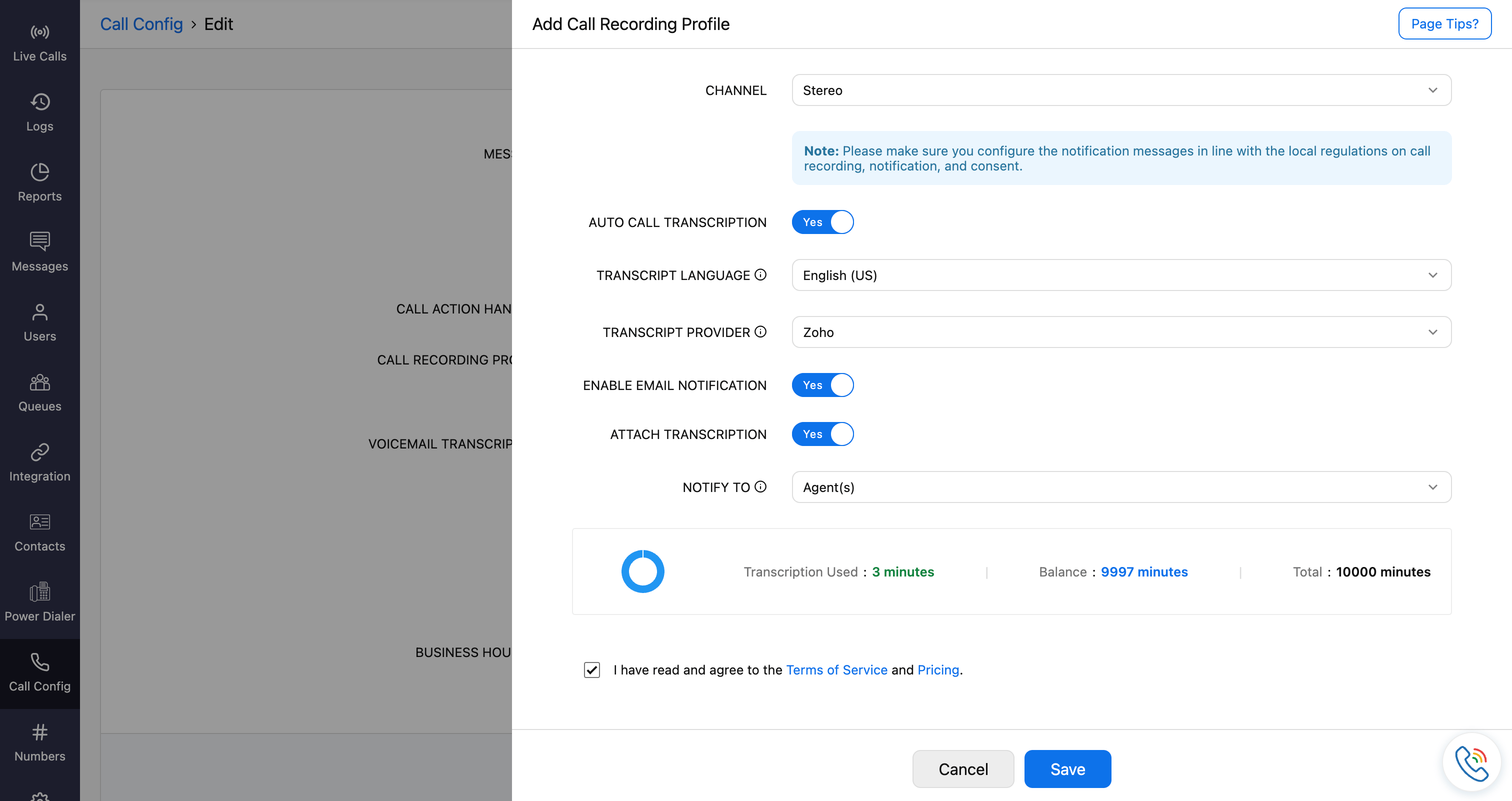
Transcript Language:
The language that is to be transcribed. Select it from the dropdown. The selected transcript language must match the call-recorded language.
Alternatively, select Autodetect to let the system automatically identify the spoken language during the conversation and generate the transcript without manual selection.
Note
- Autodetect is supported only with the Zoho transcript provider.
- Supported languages for autodetect are English, Hindi, Russian, Spanish, Italian, German, Dutch, French, and Portuguese.
- Call Intelligence is not supported for transcripts generated with autodetect.
Transcript provider: Select Zoho or Google provider from the dropdown.
Enable Email Notification: When enabled, an email notification will be sent after the transcription is completed.
Attach Recording and Transcription: When enabled, the recording and the transcription will be attached and sent along with the email notification.
Notify To: Select to whom (only the respective agents, or agents and their supervisor) the notification has to be triggered.
You will be able to view the used transcription minutes, balance minutes, and the total minutes.
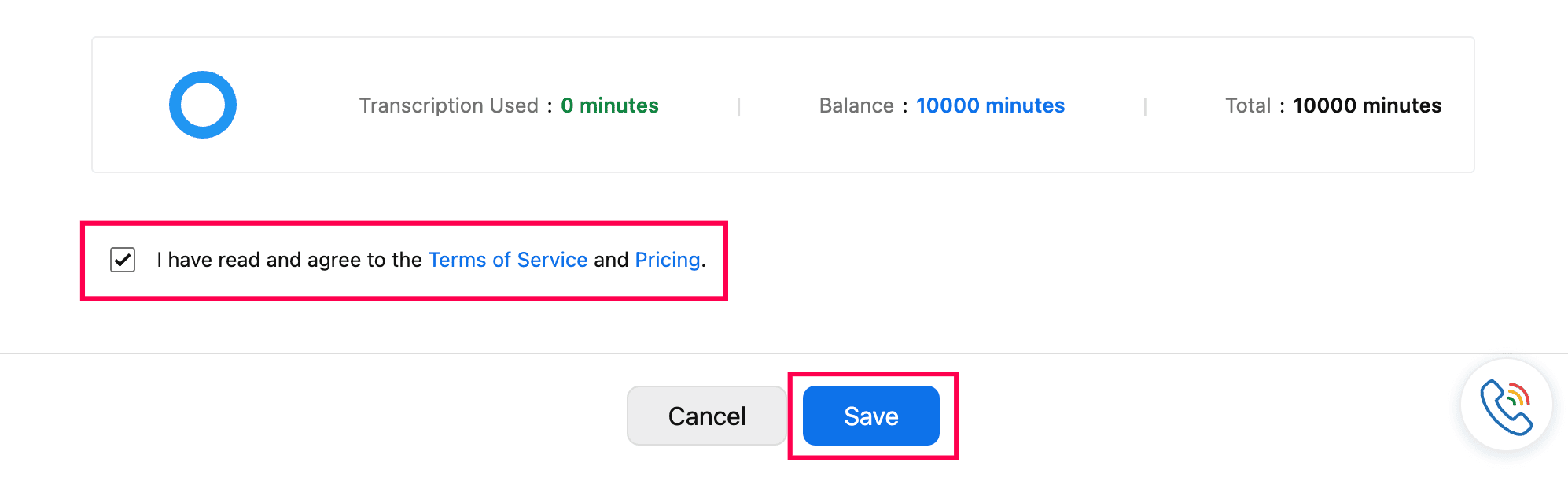
Read and agree to the Terms of Services and Pricing.
Click Save.
Note
- Zoho Voice supports up to 10,000 minutes of transcription per month. For more demanding business needs, transcription minutes can be added upon request.
- Transcription is billed per request and charged per minute (rounded up). The applicable charges are deducted from your Zoho Voice credit balance.
- Zoho Provider: 0.0125 credits/minute (Mono) and 0.025 credits/minute (Stereo).
- Google Provider: 0.025 credits/minute (Mono) and 0.05 credits/minute (Stereo).
How to generate call transcription on-demand in Zoho Voice?
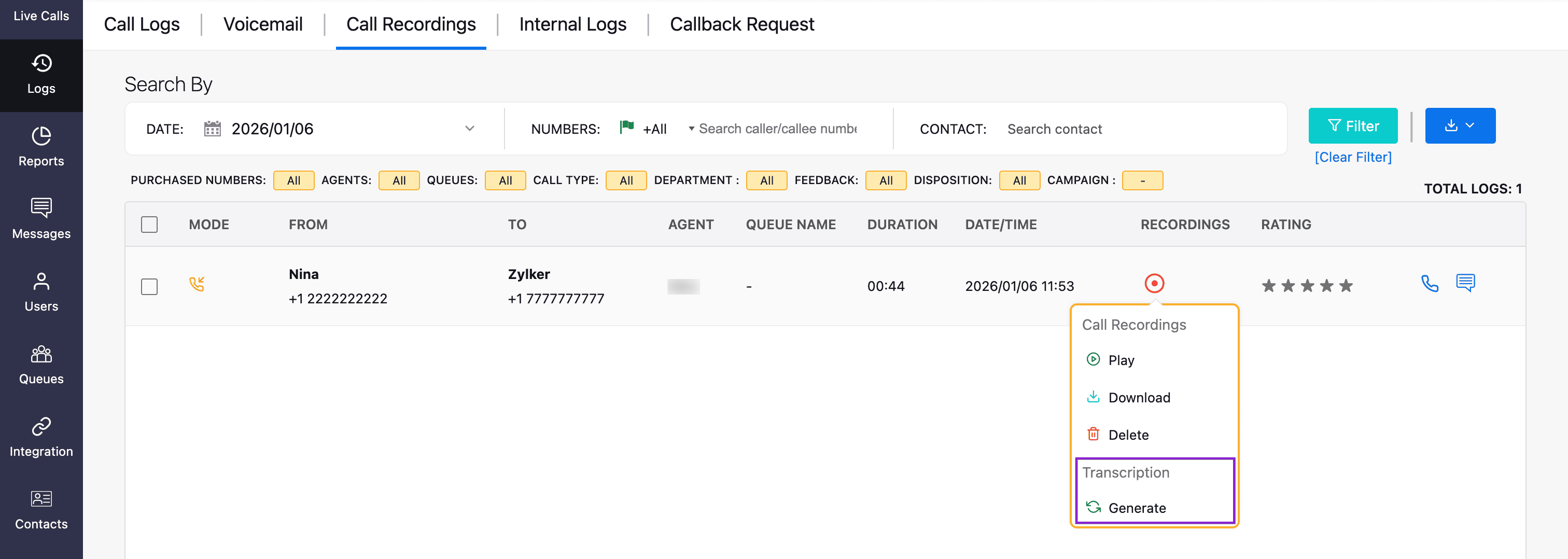
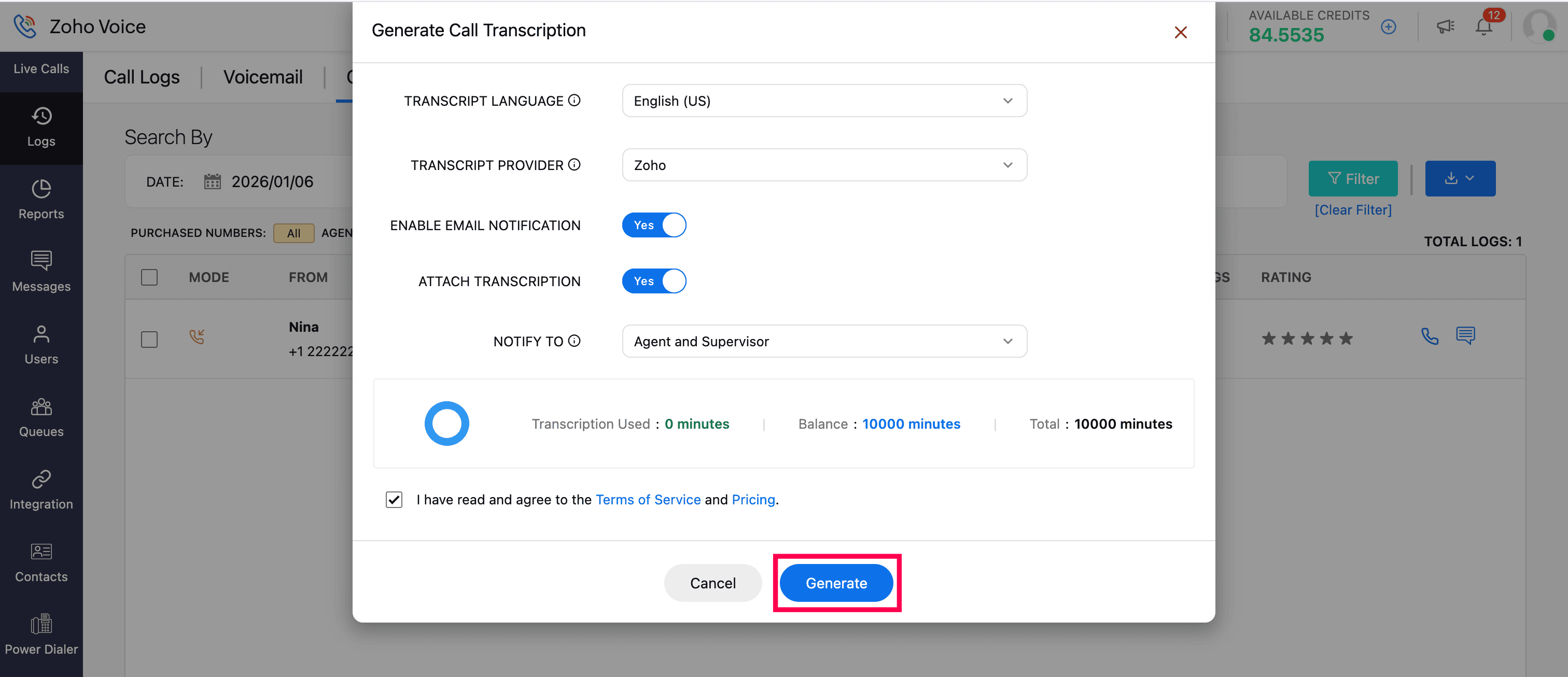
In the Logs module, Hover over the call recording icon and click Generate.
Fill in the required fields and click Generate.
Fields:
Transcript Language: The language that is to be transcribed, select from the dropdown.
Note
The selected transcript language must match the call-recorded language.
Transcript provider: Select Zoho or Google provider from the dropdown.
Enable Email Notification: When enabled, an email notification will be sent after the transcription is completed.
Attach Recording and Transcription: When enabled, the recording and the transcription will be attached and sent along with the email notification.
Notify To: Select to whom(only the respective agent(s) or agent(s) and their supervisor) the notification has to be triggered.
You will be able to view the used transcription minutes, balance minutes, and the total minutes.
Read and agree to the Terms of Services and Pricing.
Once agreed to the terms of service and pricing, click Generate.
Note
Agreeing to the terms of services is a one-time process.
Notification of generating call transcription will be displayed as Processing.
How to view the generated call transcription in Zoho Voice?
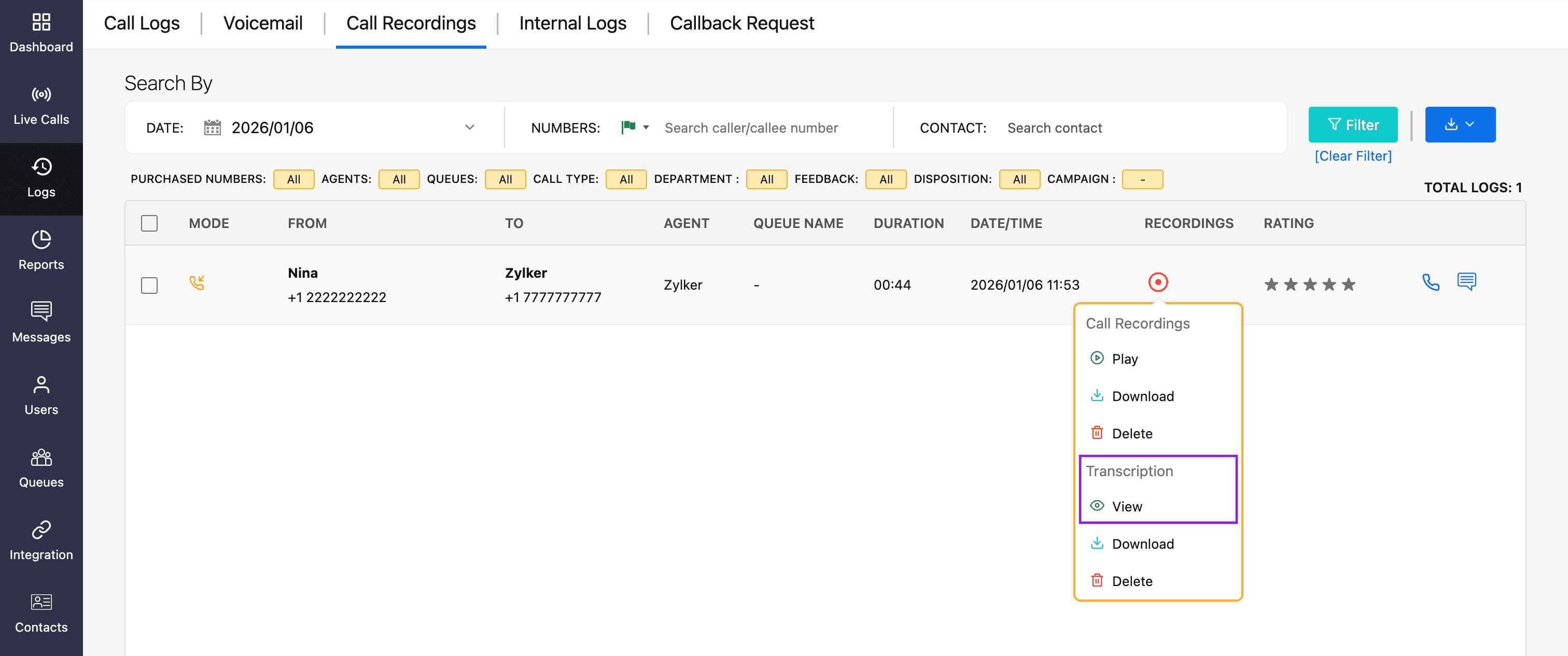
For the call transcription generated recording (both Auto-call and On-demand generation), hover over the call recording icon and click on View. You can also download and delete the transcription.
Once deleted, you can regenerate the transcription again.
Note
Additional charges apply each time you regenerate a transcript. A transcript can be regenerated a maximum of three times.
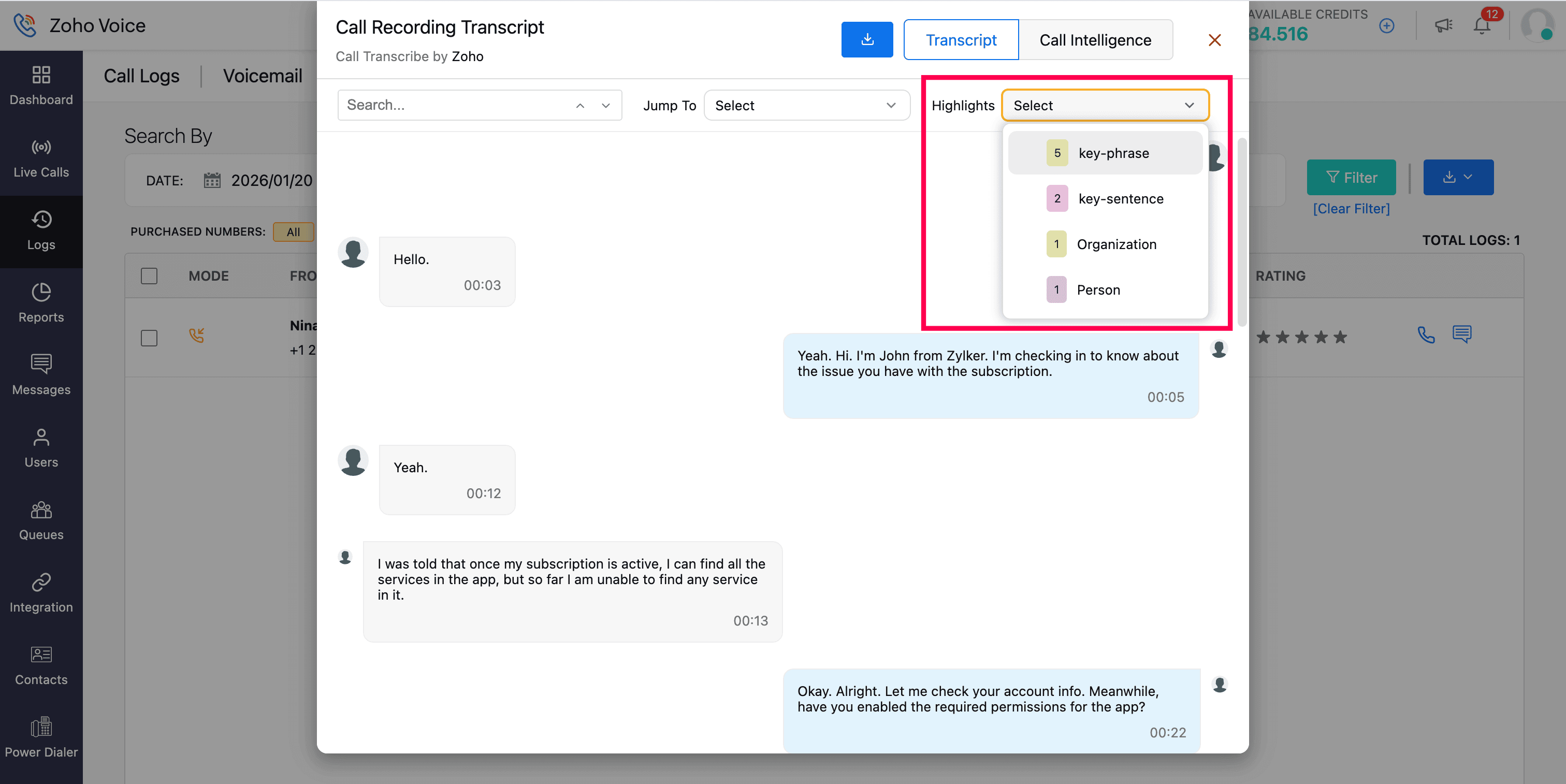
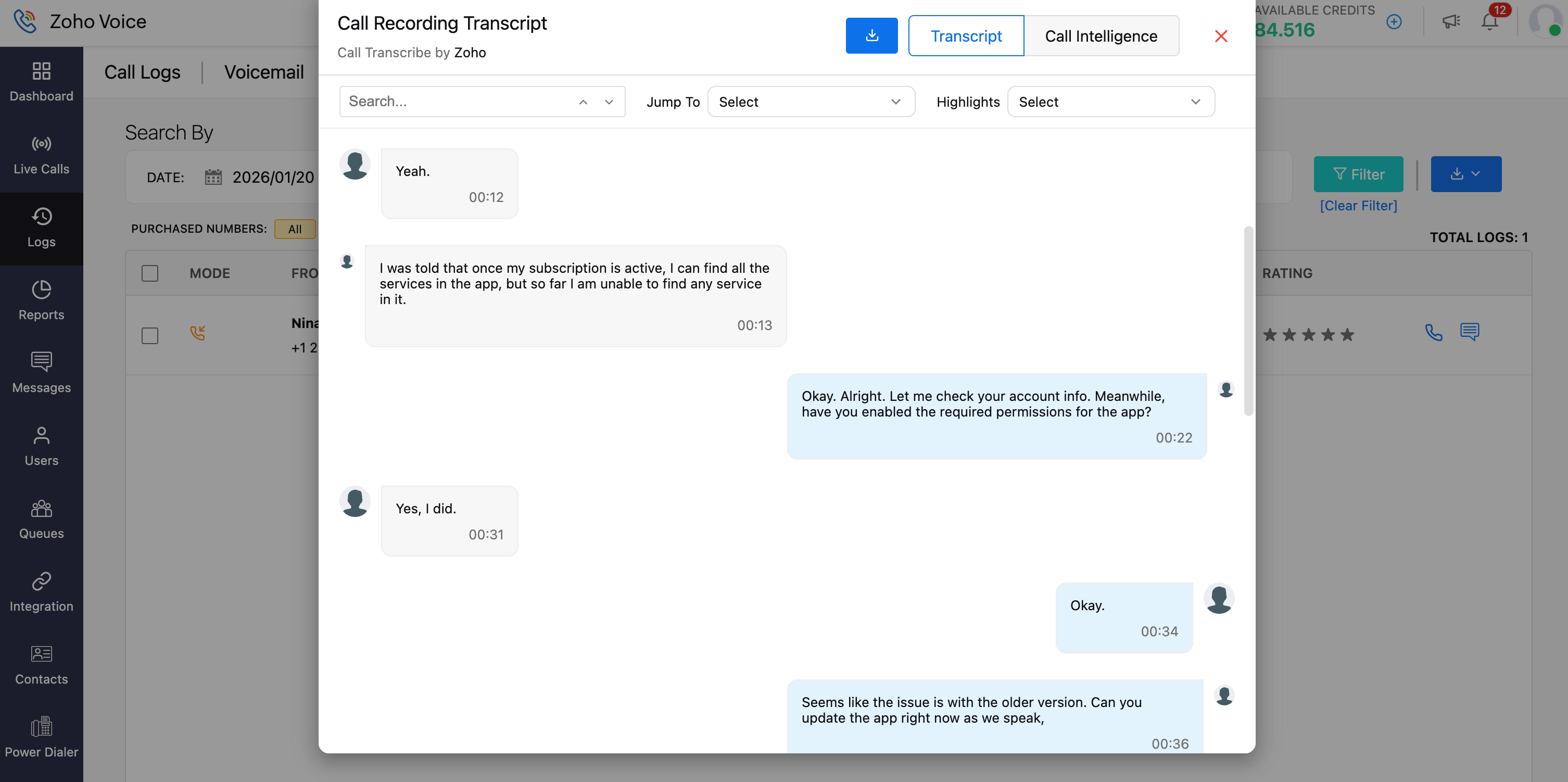
In the Call Recording Transcript screen, you can search for specific content in the Search bar.
Can jump to the exact time of the transcription by selecting the minute in Jump To.
Can exclusively view the important highlights during the conversation like phone number, email, date, and key phrase. Select the required highlights from the dropdown.
What does the generated-trancription look like for Mono & Stereo Channels?
Mono Channel: The transcription will be displayed in descriptive format.
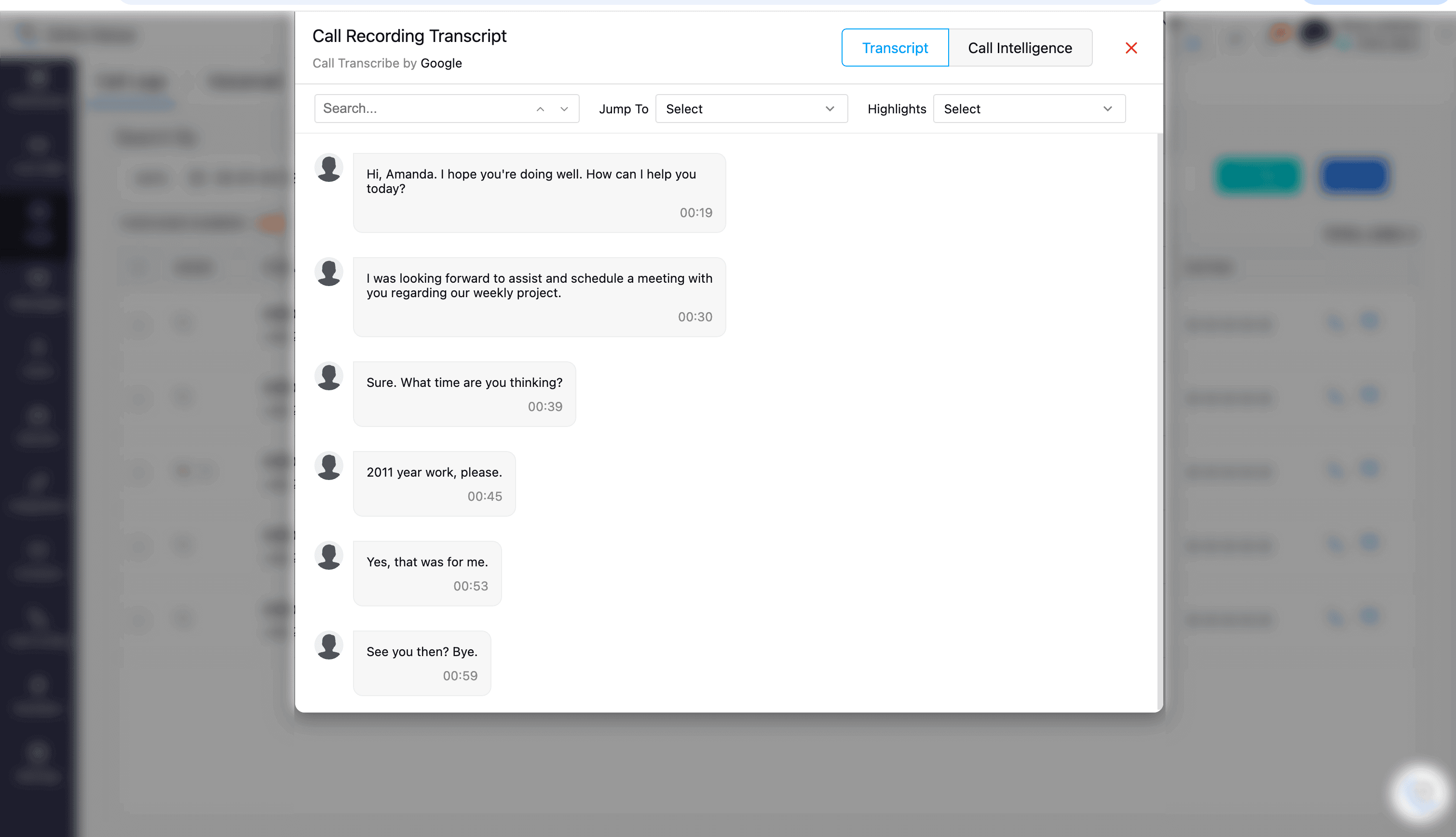
Stereo Channel: The transcription will be displayed in conversational format.
Call Highlights
The call highlights feature is designed to identify keywords automatically and phrases within a call transcript, enabling teams to target customers more effectively and extract valuable insights from the calls. This eliminates the need for time-consuming manual analysis. Various content types in the transcript are highlighted using different colours, making it easy to spot how and where specific keywords were used during the conversation.
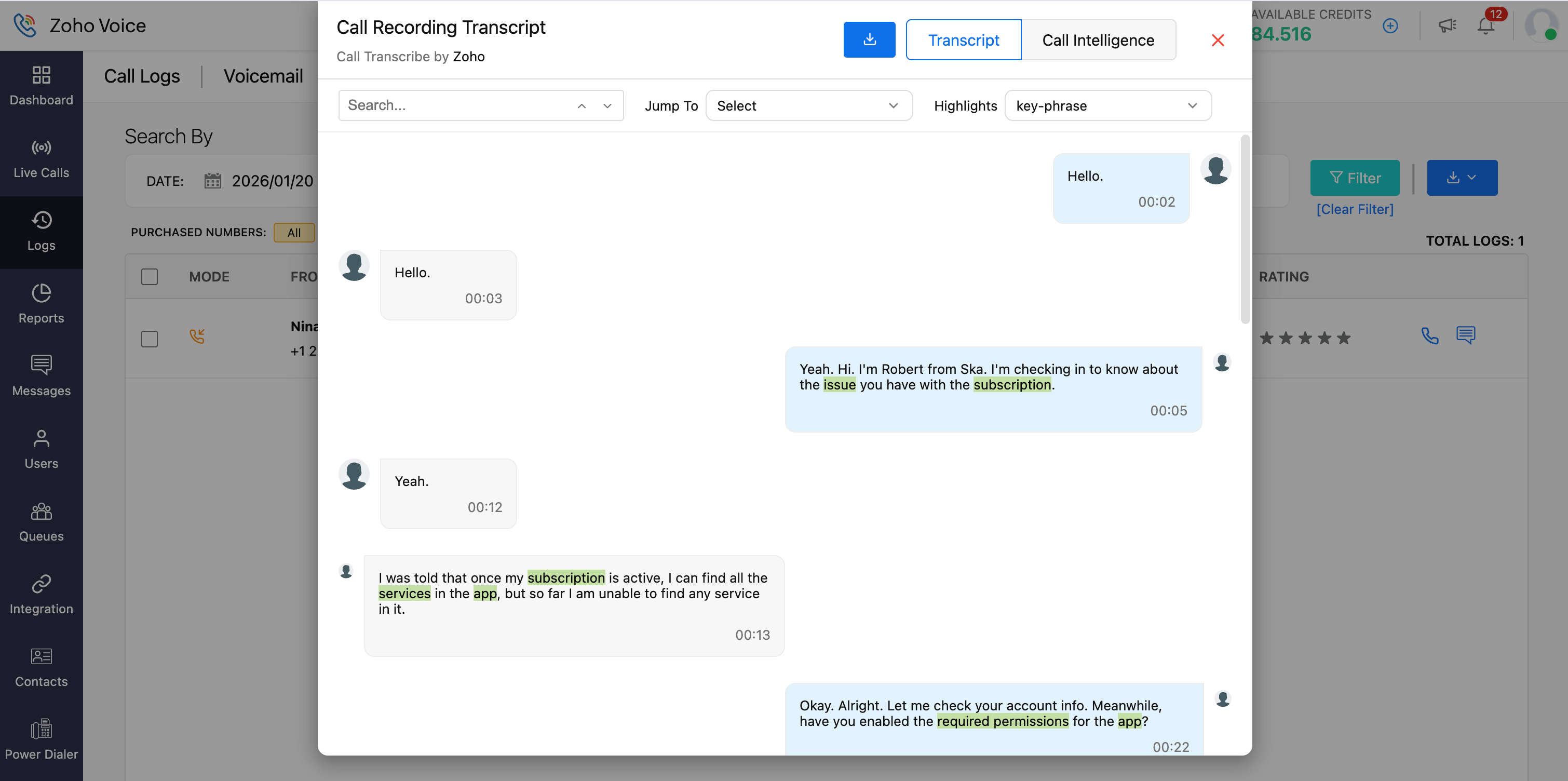 For example, numbers are highlighted with a specific colour, while emails, key phrases, and important sentences are marked with distinct background colours.