



Set Up Sales Tax Automation
To enable Sales Tax Automation in Zoho Inventory:
Go to Settings.
Select Taxes under Taxes & Compliance.
Click Set Up Sales Tax Automation.
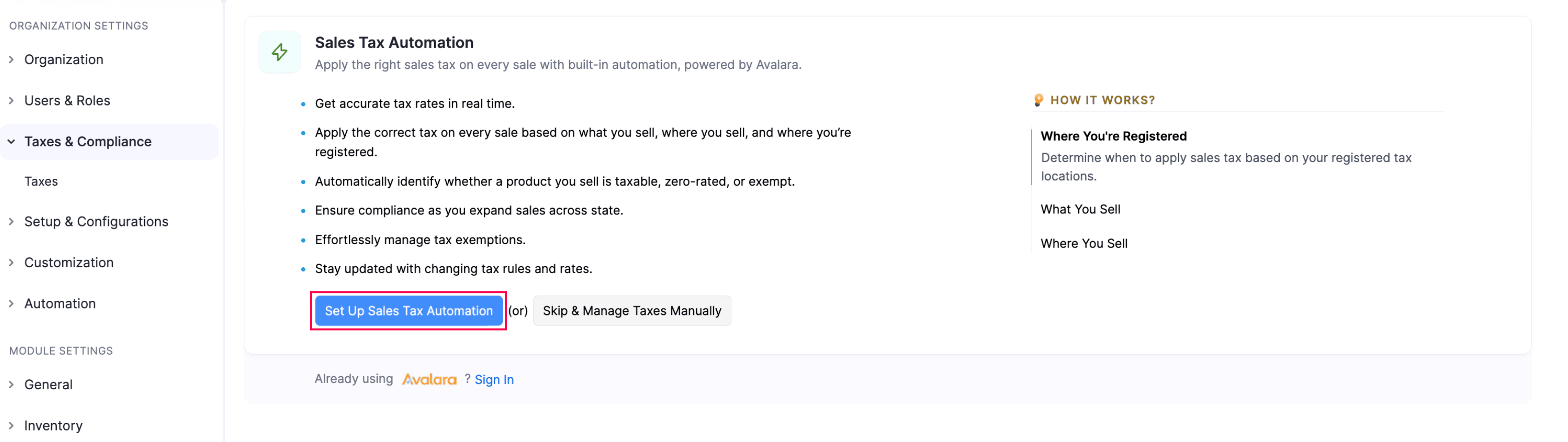
In the next page, under Automate Sales Tax, read the terms and check I agree to the terms and consent to share the necessary data with Avalara for tax calculation.
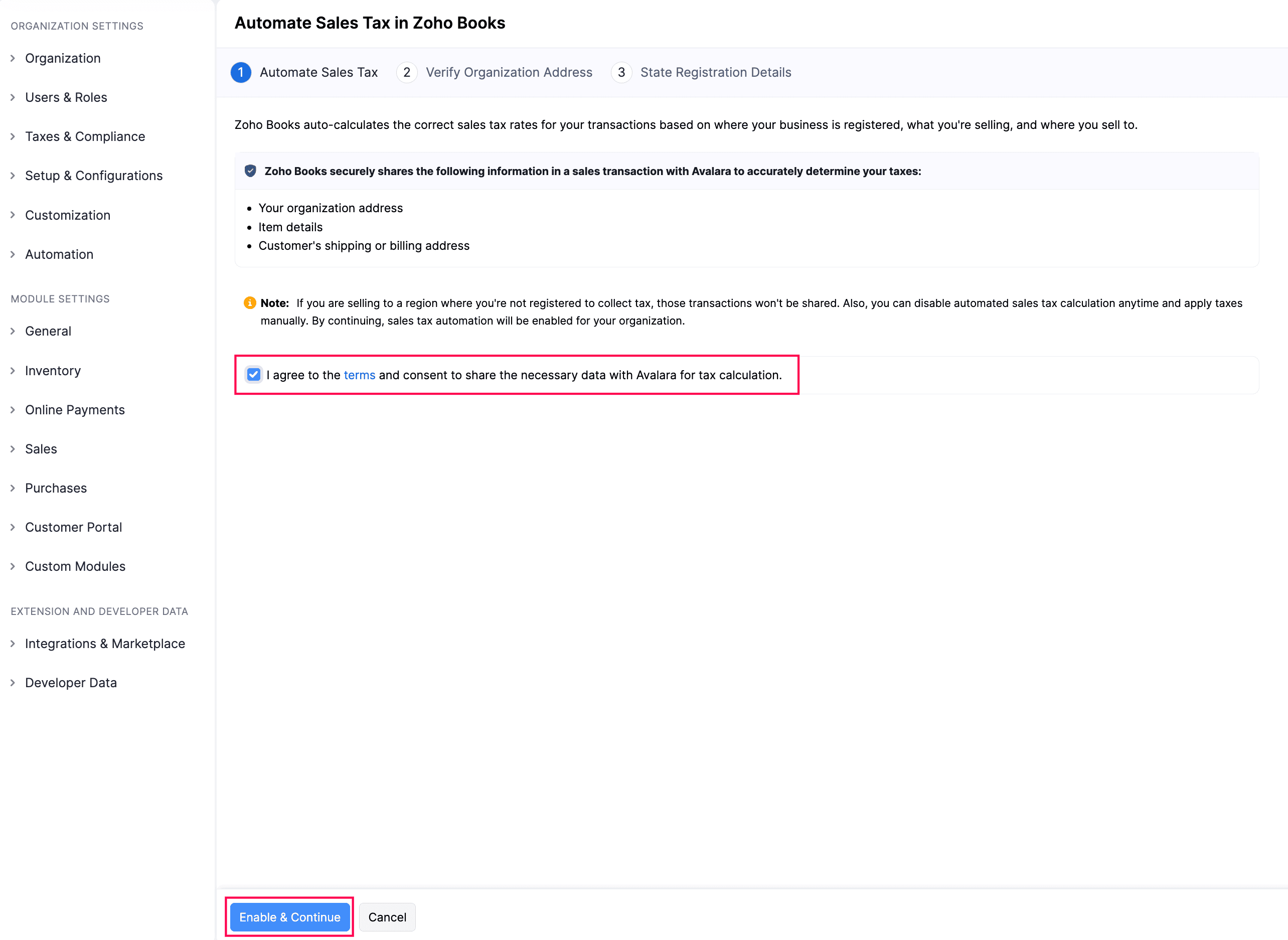
Click Enable & Continue. Sales Tax Automation will now be enabled in your Zoho Inventory organization.
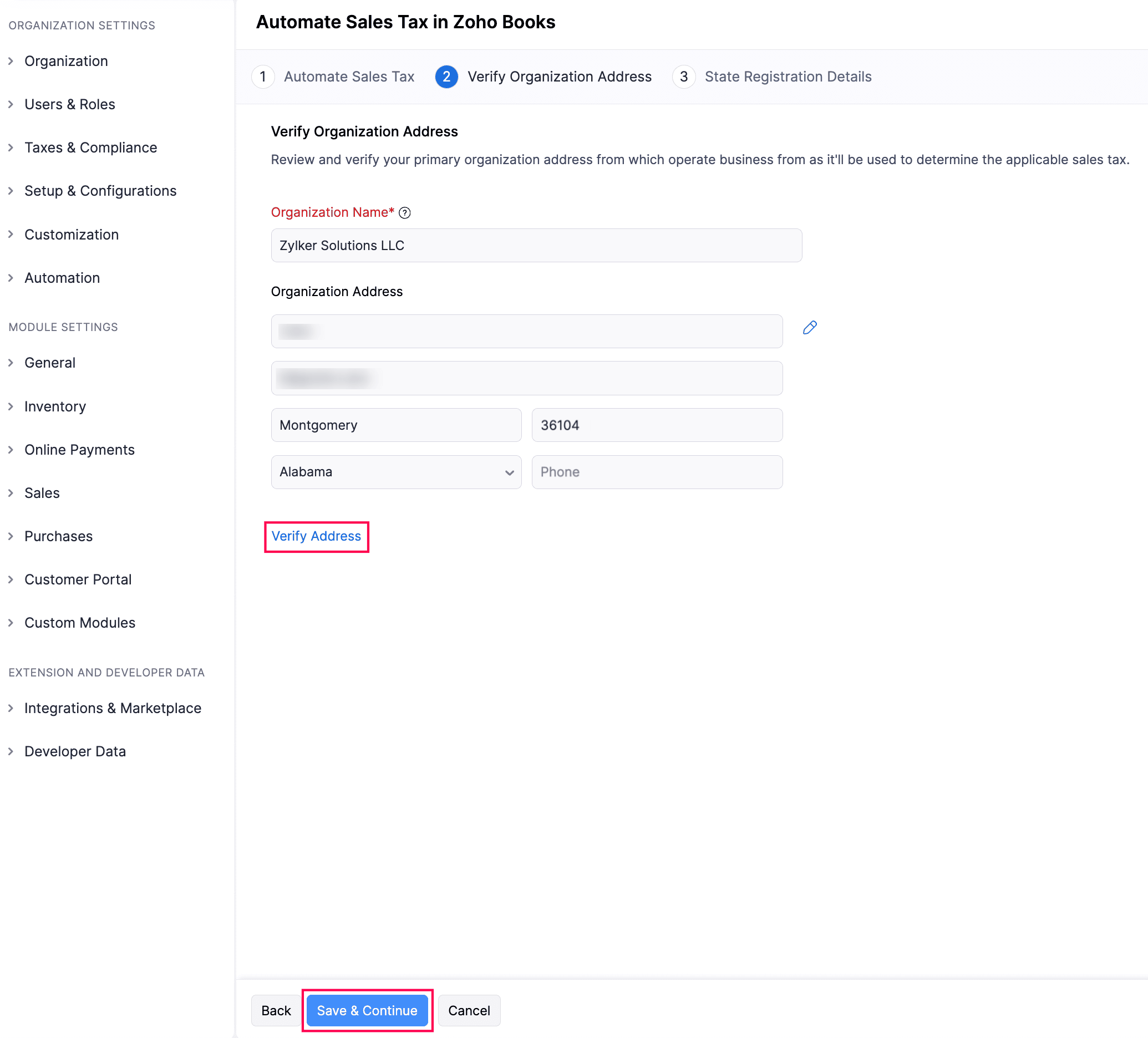
Under Verify Organization Address, check your Organization Name and Organization Address. Ensure the details are correct, as Zoho Inventory uses your business address to determine the right sales tax. Click the Edit icon to update the address and choose if you want to update it only for new transactions or for all the transactions.
- Once done, click Verify Address.
- If your organization address is invalid, edit the address and verify it again.
- Once verified, click Save & Continue.
Under Tax Authority Mapping, map the Existing Tax Authorities to the System Tax Authorities and select their State. This allows Zoho Inventory to recognize your existing tax authorities and use them for tax calculations in Tax Automation. Each tax authority can be mapped to only one system tax authority. Once mapped, the existing tax authority will be renamed to the corresponding system tax authority name. This ensures that tax automation can determine and apply the correct tax rates for your transactions while keeping your existing tax data and reports consistent. If you are unable to find the correct authority for mapping, ensure that the state associated with the tax authority is selected correctly. After enabling Tax Automation, only the mapped system tax authorities will be used.
- Once you have completed the mapping, click Save & Continue.
- Click Confirm in the confirmation pop-up that appears.
Note: Ensure you map the mandatory tax authorities, as they may have tax payments recorded.
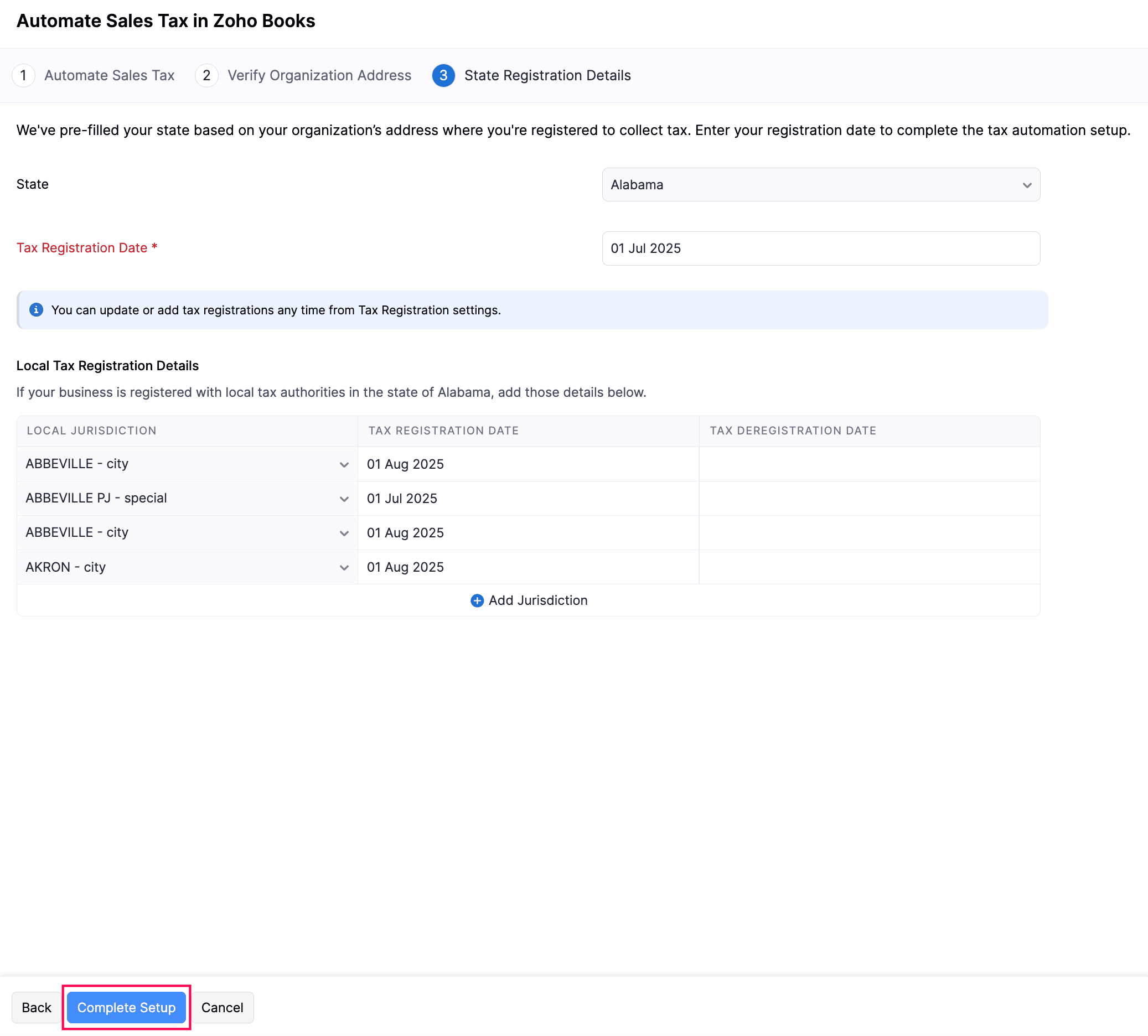
Under State Registration Details, enter your business’s tax registration details. This lets Zoho Inventory apply sales tax for your transactions based on your tax registrations in the relevant states.
- State: The state where your business operates is auto-populated based on your organization address from the previous step.
- Tax Registration Date: Select the date on which your business is registered to collect sales tax in that state.
- Local Tax Registration Details: Apart from the state-level tax, if your business is also registered for taxes at the city, county, or other jurisdiction levels, including special taxes, include them for accurate tax calculation. To do this, click + Add Jurisdiction, select the required jurisdictions, and select the Tax Registration Date for each. You can also include this later by editing your tax registration details.
Note:
If you have additional tax registration details other than where your business operates, you can later include it in Zoho Inventory.
- Click Complete Setup.
Add Tax Registration Details
If your business is liable to collect taxes in a state other than where it operates from, you must register for taxes in that state. Add these tax registrations in Zoho Inventory for accurate sales tax calculation.
To add tax registration details:
Go to Settings.
Select Taxes under Taxes & Compliance.
In the Taxes pane, click Tax Registration.
Click + New Tax Registration in the top right corner.

In the New Tax Registration pop-up, fill in the following fields:
- State: Select the state where you’re registered to collect sales tax.
- Tax Registration Date: Select the date on which your business is registered to collect sales tax in that state. Sales tax will be applied to transactions created on or after this date.
- Local Tax Registration Details: If your business is registered for taxes at the city, county, or other jurisdiction levels, including special taxes, include them for accurate tax calculations.
Click Save.
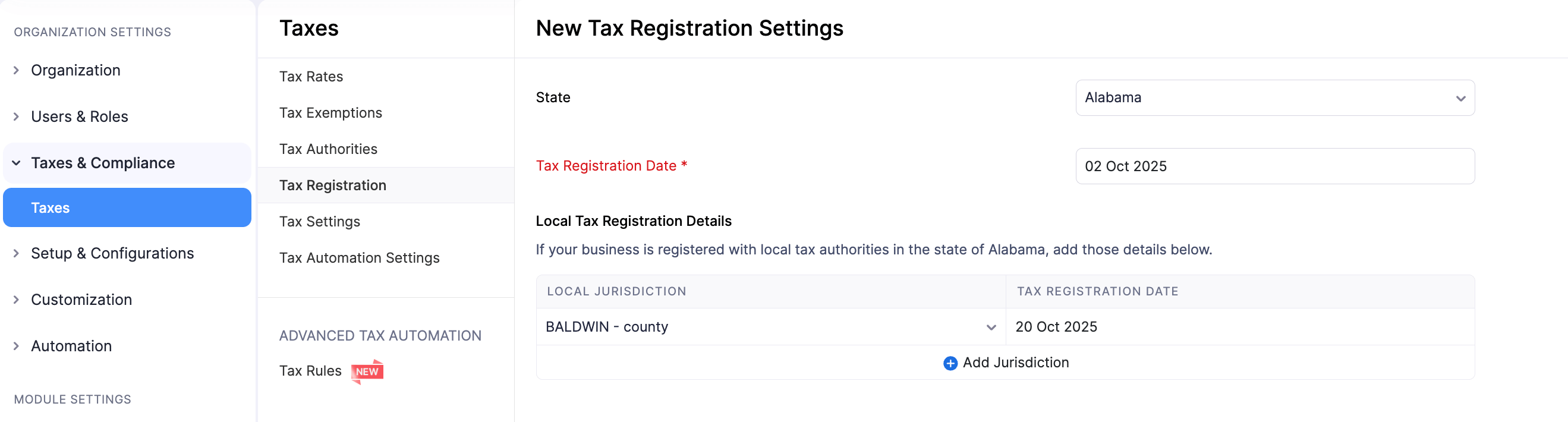
The tax registration details will be recorded.
Next >