



Submitting Expenses
In this help document you will learn how to resolve violations and submit your expenses for approval using the web and iOS applications in Zoho Expense.
Resolve Violations in Expenses
If your expense has violated your organization’s policies, the violations will be highlighted in the expense. You can resolve the violations and add the expense to the report. There are two types of policy violations:
- Warning Violations:
This type of violation warns you regarding the policy violations you’ve made in your expense. You can either resolve the violation, or add the expense to the report and leave it to the approver to approve or reject it. - Blocking Violations:
This violation blocks you from submitting a report with violated expenses. You have to resolve the blocking violations to submit the report.
To resolve the violations:
- Go to Expenses on the left sidebar.
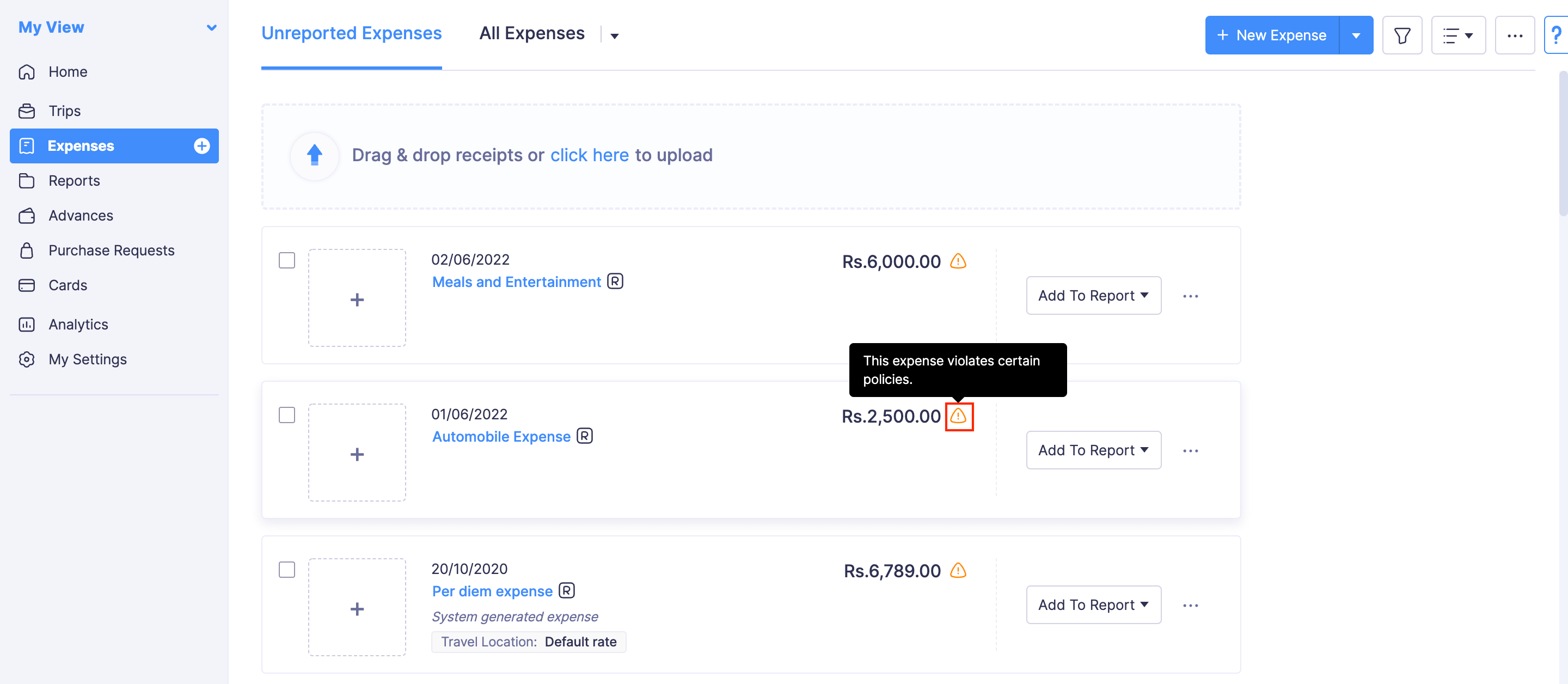
- Click the expense with policy violations. An expense with policy violations will be marked as shown in the image below.
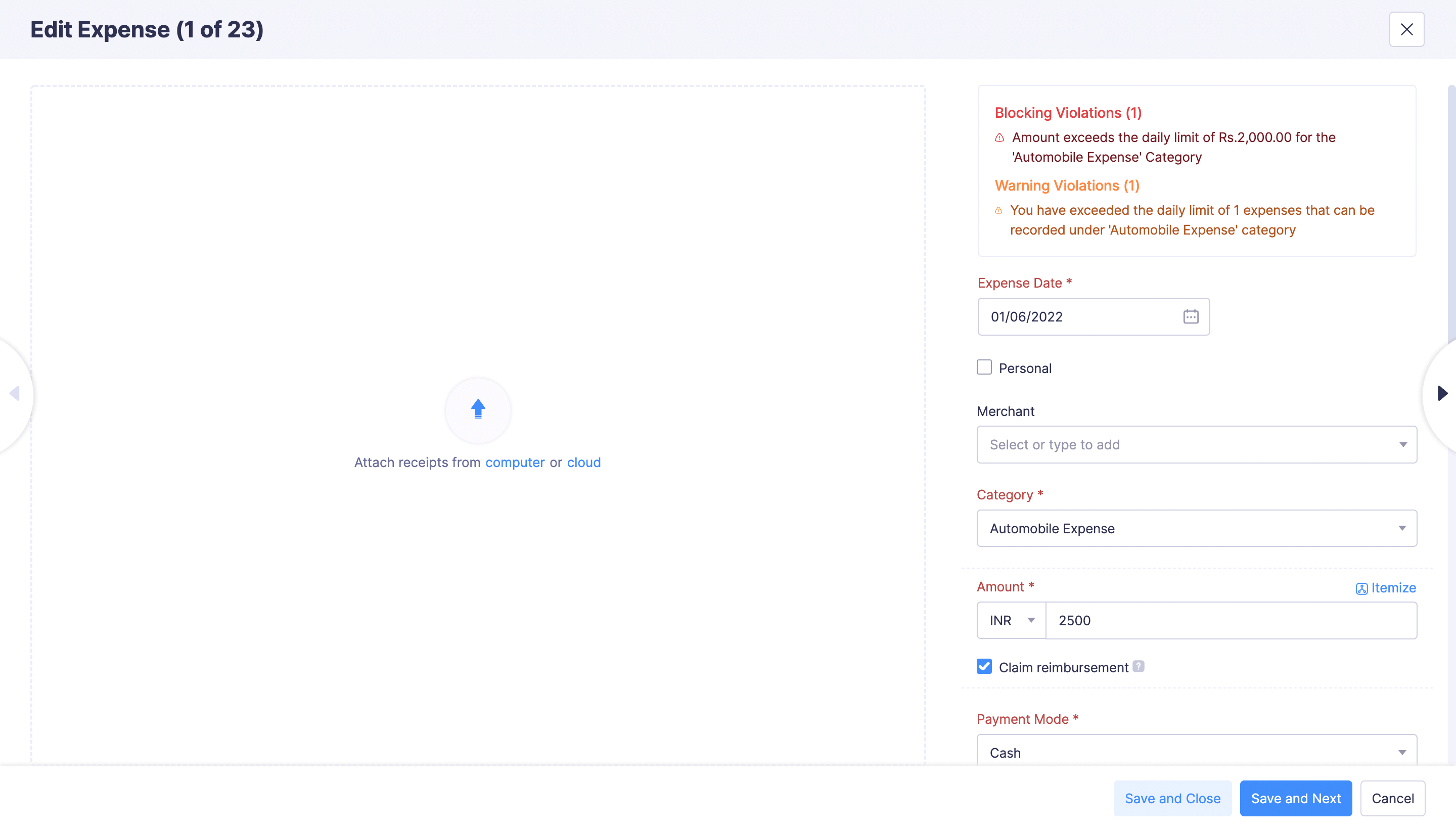
- You can edit the expense as per your company’s policy and save the expense by clicking Save and Close.
Add Expenses to a Report to Submit
You are required to add the expenses to a report to submit them for approval. You can add the expenses to an existing report or to a new report. To add expenses to a report:
- Go to Expenses on the left sidebar.
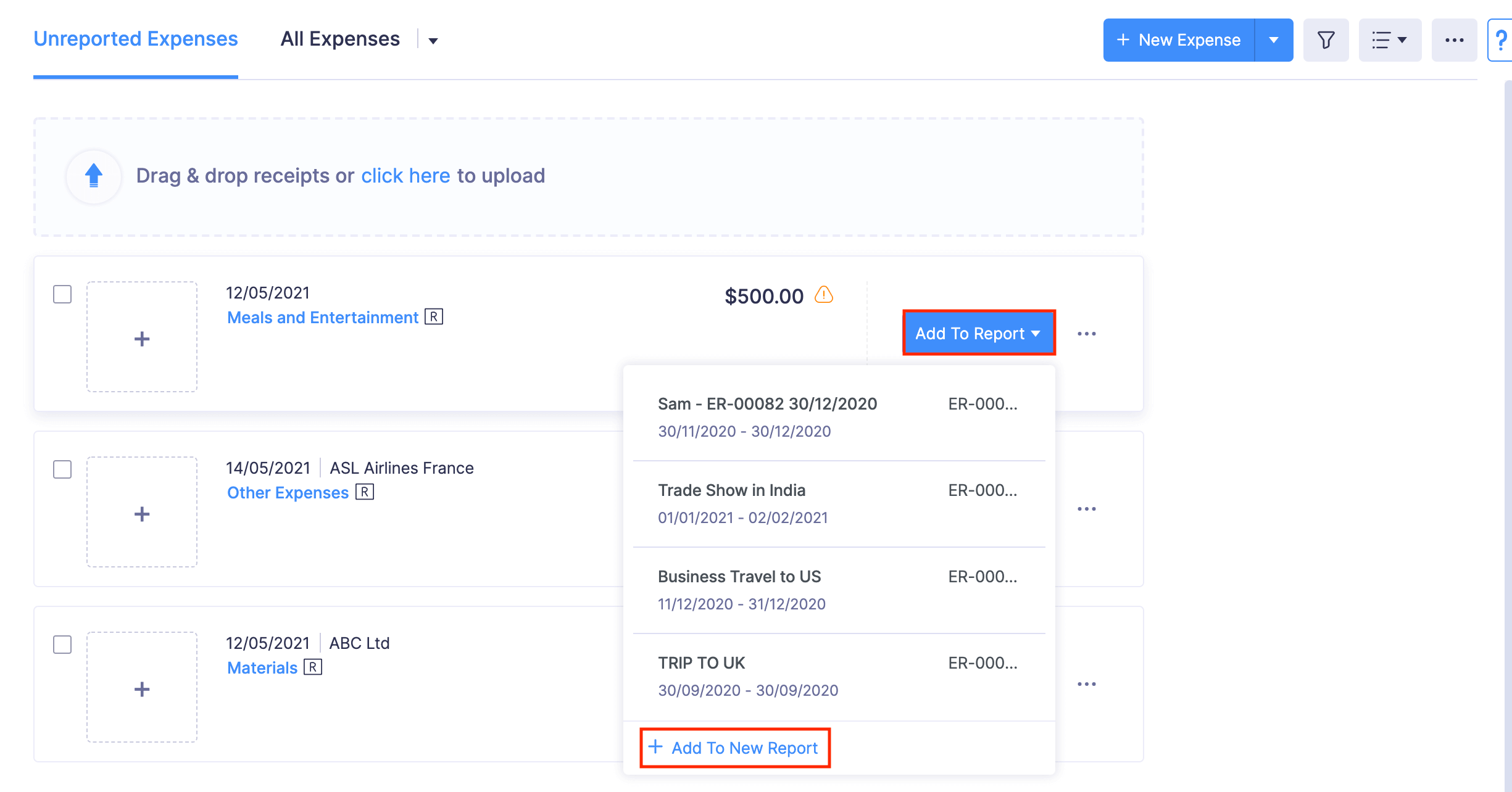
- Click Add To Report dropdown at the right corner of the expense you want to add to a report.
- Select an existing report to add the expenses to it or create a new report by clicking + Add To New Report and the expense will be added to it.
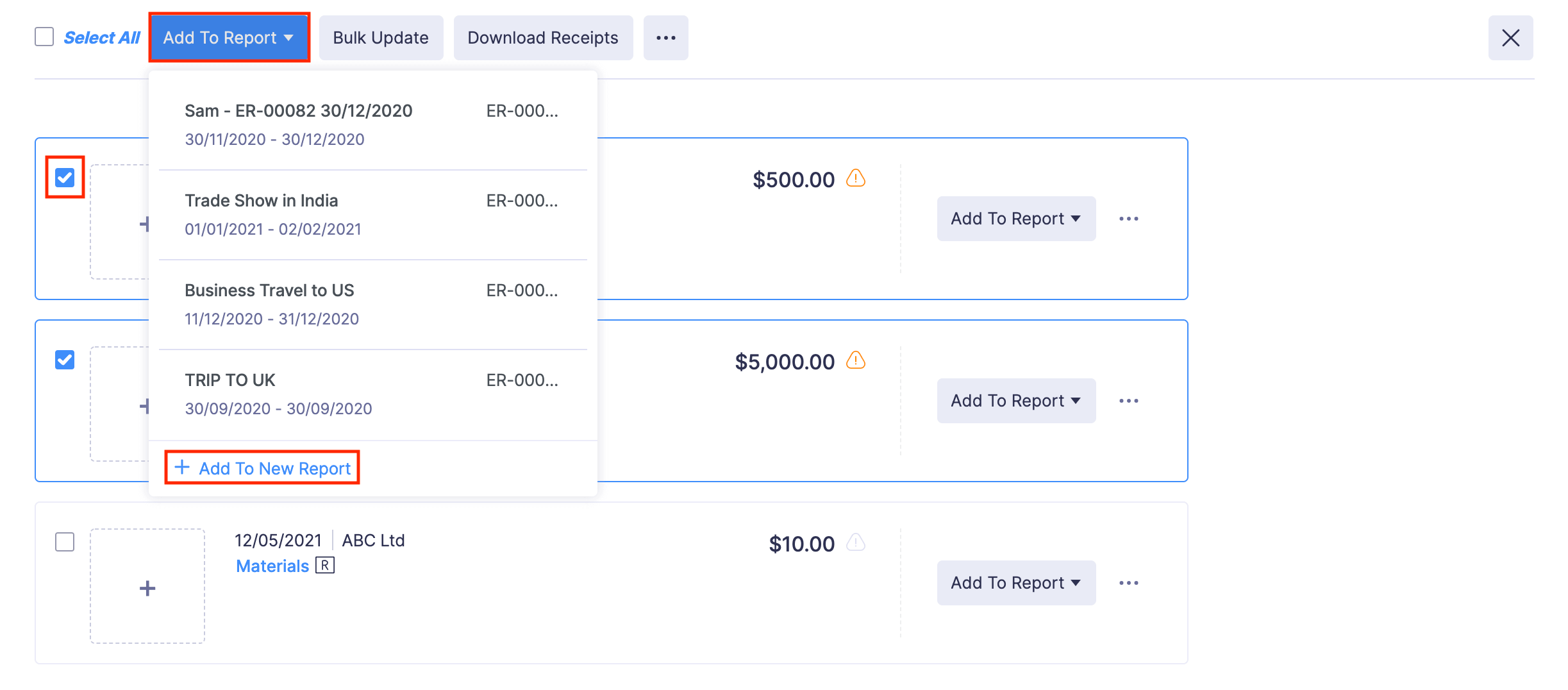
- You can also select the expenses in bulk and click the Add To Report dropdown at the top of the page. Select an existing report or create a new report by clicking + Add To New Report, to add the expense to it.
- Once you’ve added the expenses, you can submit the report for approval.
Resolve Violations in Expenses
If your expense has violated your organization’s policies, the violations will be highlighted in the expense. You can resolve the violations and add the expense to the report. There are two types of policy violations:
Warning Violations:
This type of violation warns you regarding the policy violations you’ve made in your expense. You can either resolve the violation, or add the expense to the report and leave it to the approver to approve or reject it.Blocking Violations:
This violation blocks you from submitting a report with violated expenses. You have to resolve the blocking violations to submit the report.
To resolve the violations:
- Open the Zoho Expense app on your device.
- Tap the Menu icon in the top left corner.
- Navigate to the Expenses module.
- Tap the expense with policy violations.
- Tap View next to Warning Violations.
- Then tap Edit to edit the expense as per your company’s policy and tap Save Expense.
- If there’s a duplication, tap Resolve Now.
- Tap Delete or Not a Duplicate to retain the expense.
- Tap Done in the top right corner.
Add Expense to a Report to Submit
You are required to add the expenses to a report to submit them for approval.
- Open the Zoho Expense app on your device.
- Tap the Menu icon in the top left corner.
- Navigate to the Expenses module.
- Tap Select at the top right corner of the screen.
- Select the expenses you want to add to a report.
- Tap Add To Report in the bottom left corner of the screen.
- In the pop-up, select an existing report to add the expenses to it or create a new report by clicking + icon in the right corner. Once you’ve added the expenses, you can submit the report for approval.
Bulk Add Expenses to a Report
You can add multiple expenses to a report to submit them for approval. To do this:
- Open the Zoho Expense app on your device.
- Tap the Menu icon in the top left corner.
- Navigate to the Expenses module.
- Tap Select in the top right corner of the screen.
- Select the expenses you want to add to a report.
- Tap Add To Report in the bottom right corner.
- In the pop-up, select an existing report to add the expense to it or create a new report by clicking + icon in the right corner. Once you’ve added the expenses, you can submit the report for approval.
 Yes
No
Yes
No
Thank you for your feedback!