



Custom Reports
Custom Reports in Zoho Expense allow you to create personalized reports by selecting the data you want to track and analyze. You can apply filters, group information, and customize the layout to match your business needs, making it easier to gain insights and make informed decisions.
Create a new custom report by customizing an existing report as a new custom report. This way, all the preferences applied to a report will be saved and you can access it instantly.
Note: The number of custom reports you can create in your organization will differ based on your pricing plan.
Create a New Custom Report
You can create a custom report in two ways. Here’s how:
- Go to Analytics on the left sidebar.
- Click the report you want to customize and create as a custom report.
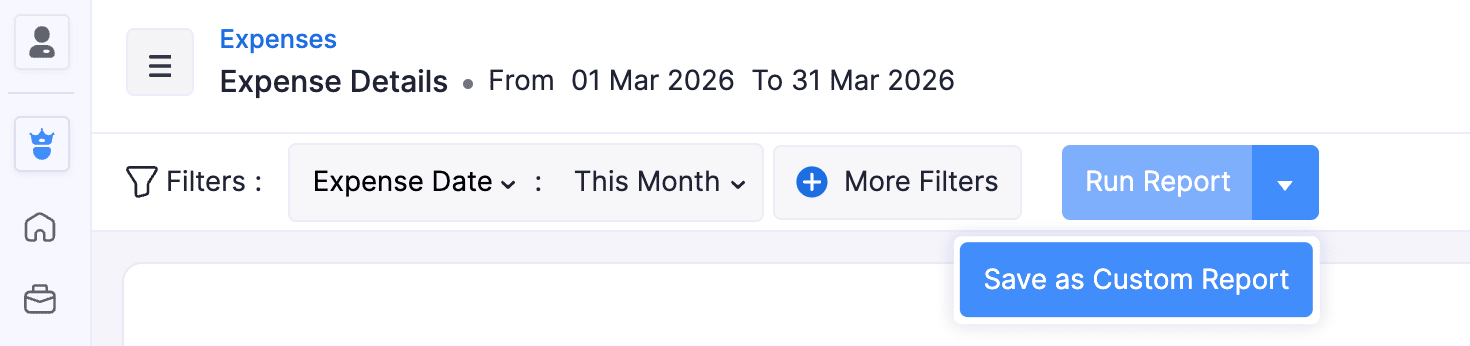
- Click the dropdown next to Run Report.
- Select Save as Custom Report. You can continue from the steps mentioned in the Filters section.
(or)
- Go to Analytics on the left sidebar.
- Click Create Custom Report on the top left corner.
- Click the report you want to customize and create a new custom report.
- In the pop-up, click Proceed.
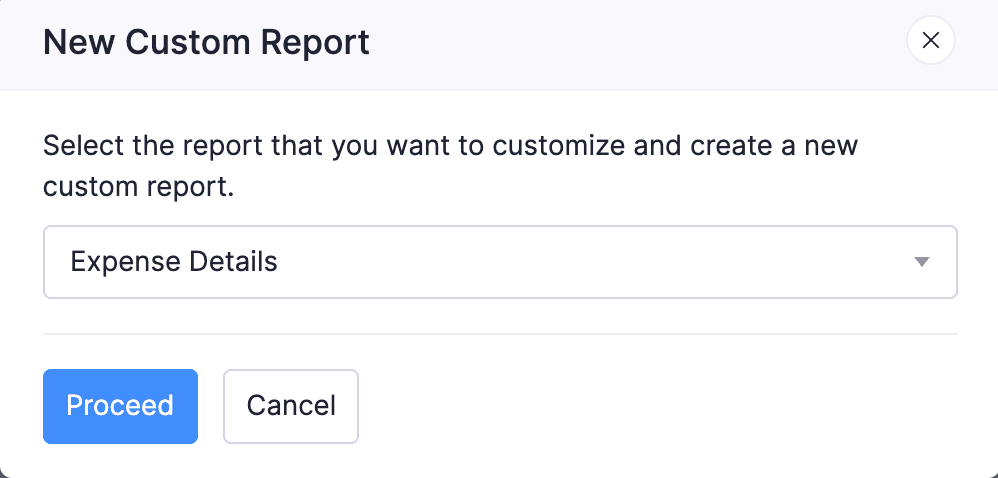
- You will be redirected to the Filters section.
Filters
In the Filters section, you can customize your report based on the following filters:
- Date Range: By selecting a date range, you can generate the report for a specific week, month, quarter, or year, or set a custom duration.
- Group By: Select the parameter by which you want to group this report.
- Apply Filter Criteria: Set criteria to display information based on specified conditions.
Show/Hide Columns
In this section, you can customize the columns displayed in your report. Here’s how:
- Go to the Columns Hidden section, hover your cursor over the column you want to add, and click the + icon next to it. It will be moved to the Columns Shown section. In the Columns Shown section, you can view the existing columns of your report.
- In case you do not want to display certain columns, go to the Columns Shown section, hover your cursor over the column you want to remove, and click the - icon next to it. It will be moved to Columns Hidden.
- Click Next.
Report Layout
In the Report Layout section, you can configure the layout of your report using the following fields:
Note: The report layout customizations will be applied only to exported files and print.
- Table Density: This option affects the size of the rows in the report that is printed or exported. You can select from three options: Classic, Compact, and Super Compact.
- Table Design: Select the design of the table in the report that is printed or exported. You can select from four options: Default, Bordered, Alternate Rows, or Alternate Columns.
- Mark the checkbox to Re-size the table and its font automatically to fit the content within the table.
- Paper Size: Based on the medium where this would be printed, you can select either A4 or Letter sizes.
- Orientation: Select either Portrait or Landscape based on how you’re displaying the report.
- Font Family: This is the font that will be used to display content in this report. A note will appear under the selected font explaining which language it’s best suited for.
Pro Tip: If you are using Arabic, Hebrew, or other right-to-left languages, we recommend using Dynamic Font.
- Margins: The margins of the reports determine the distance between the report’s content and the edges of the medium on which it is printed.
- Click Next.
Report Preferences
In this section, you can configure the name, description, and share permissions of the report.
- Enter the Report Name.
- Enter a name for the report in the Name in Export field, which will be the report’s name when it is exported.
- In the Configure Permissions section, configure who can view, export, or schedule the custom report. You can find different share options such as:
- Only Me: Only you will be able to view, export, or schedule the custom report.
- Only Selected Users & Roles: Only the selected users will be able to view, export, or schedule the custom report. Select the user from the dropdown and click Add User.
- Everyone: Everyone in the organization will be able to view, export, or schedule the custom report.
- Click Save Custom Report. All the customizations made will now be saved as a custom report in My Reports.
Schedule a Custom Report
You can schedule the custom reports to be generated automatically and sent to multiple users at a time. You can set the frequency at which the reports must be generated and select the users to whom the reports should be sent as an email.
- Go to Analytics on the left sidebar.
- Navigate to My Reports on the left pane.
- Click the custom report you want to schedule.
- In the custom report details page, click the Schedule icon at the top right next to Export.

- Choose how frequently you want to generate and send the custom reports (Weekly, Monthly, Quarterly, or Yearly).
- Provide a date and time at which you want to generate your analytic custom report.
- Select the users to whom you want to send the scheduled custom reports in the Email Recipients dropdown.
- In case you want to send these scheduled reports to people who are not a part of your Zoho Expense organization, enter their email addresses separated by commas in the Additional Recipients section.
- Choose the format, such as CSV, XLS, or PDF, in which you want your report to be attached to the email.
- Click Save to schedule the custom report. The report will be sent to the selected users at the scheduled time.
Edit a Custom Report
Once you’ve created a custom report, you can edit it later if required.
To edit a custom report:
- Go to Analytics on the left sidebar.
- Navigate to My Reports on the left pane.
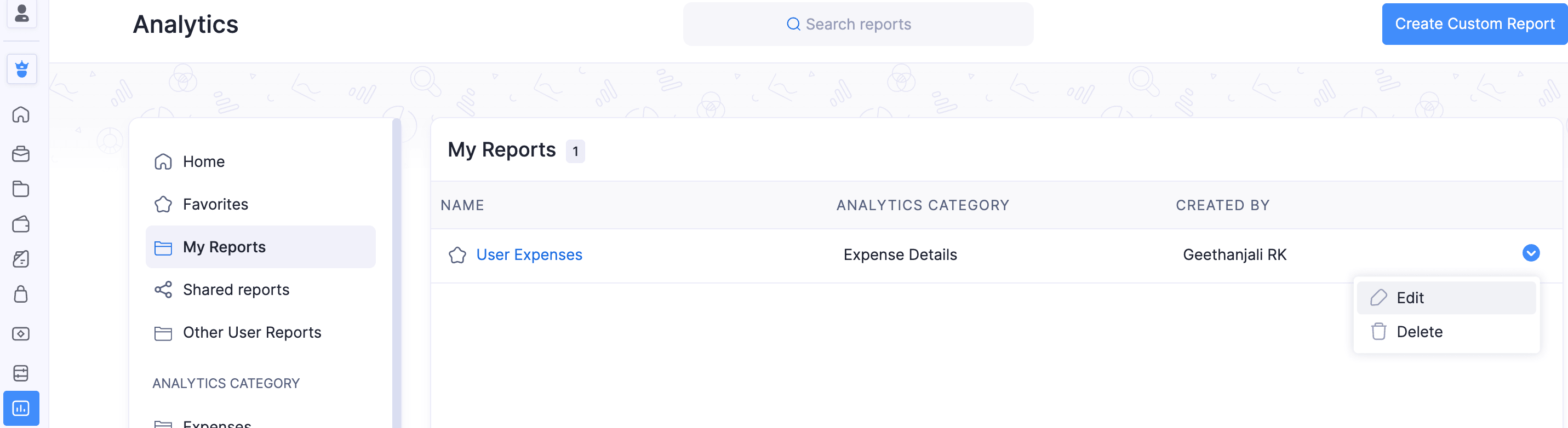
- Click the dropdown at the end of the custom report.
- Select Edit.
(or)
Click the custom report you want to edit and click Edit Custom Report at the top left corner.
- Make the necessary changes and click Save Custom Report.
Delete a Custom Report
If you no longer need a custom report you’ve created, you can delete it.
To delete a custom report:
- Go to Analytics on the left sidebar.
- Navigate to My Reports on the left pane.
- Click the dropdown at the end of the custom report.
- Select Delete.
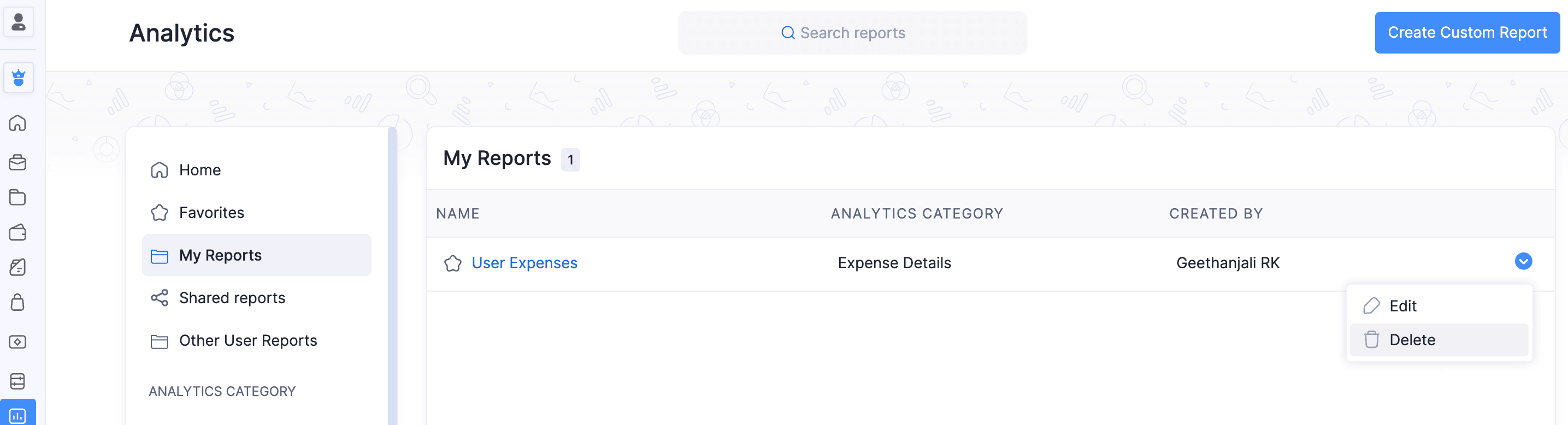
- In the pop-up, click Delete again to confirm your action.
Export Custom Report
In Zoho Expense, you can export your custom report in any of the following formats:
- CSV
- XLS or XLSX
To export a custom report:
- Go to Analytics on the left sidebar.
- Navigate to My Reports on the left pane.
- Click the custom report you want to export.
- Click the Export dropdown at the top right corner of the page. Select the format, such as PDF, XLS, XLSX, or CSV, in which you want to export your custom report. You can also export your custom report to Zoho Sheet and make use of the customizations available in Zoho Sheet.
- If you want to protect this file with a password, mark I want to protect this file with a password and enter a password with at least 6 characters.
- Click the Customize the details in the export file dropdown to update the details to display in the exported file and add any additional information about this report as a note to display it at the footer of the report when it is exported.
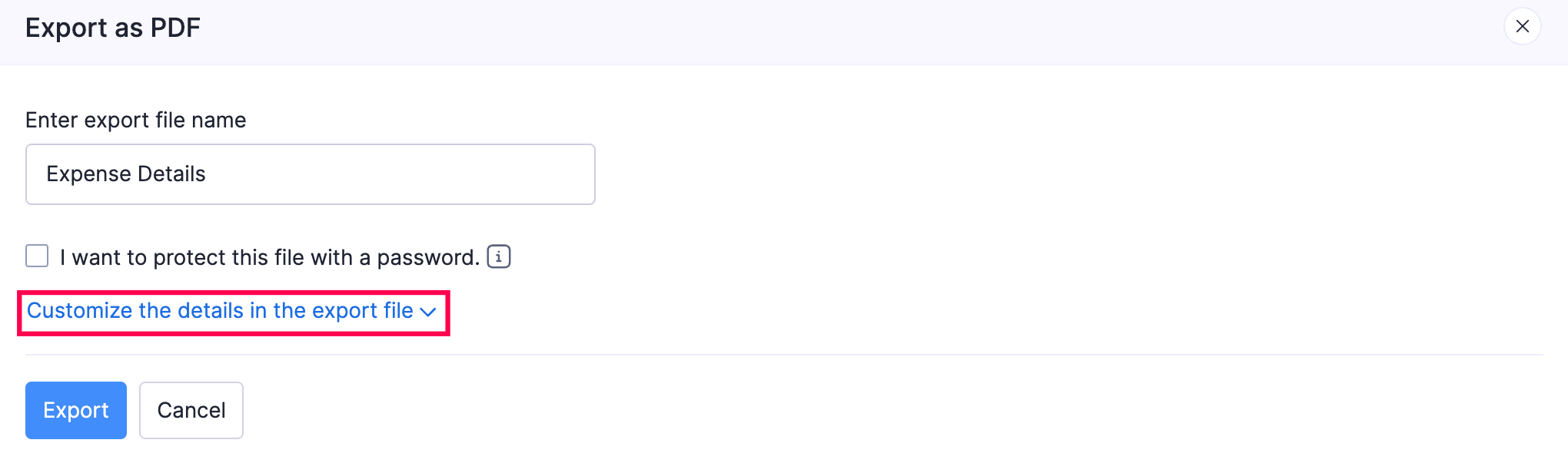
- Click Export to export the custom report.
 Yes
No
Yes
No
Thank you for your feedback!