



Sales Tax Automation - Reports
Sales Tax Liability Reports
The Sales Tax Liability report displays the list of sales transactions for which the sales tax was applied. It helps you track how much sales tax you’re liable to collect and pay to the respective tax authorities.
To view the Sales Tax Liability report:
Go to Reports on the left sidebar.
Scroll down to the Taxes section, and select Sales Tax Liability.
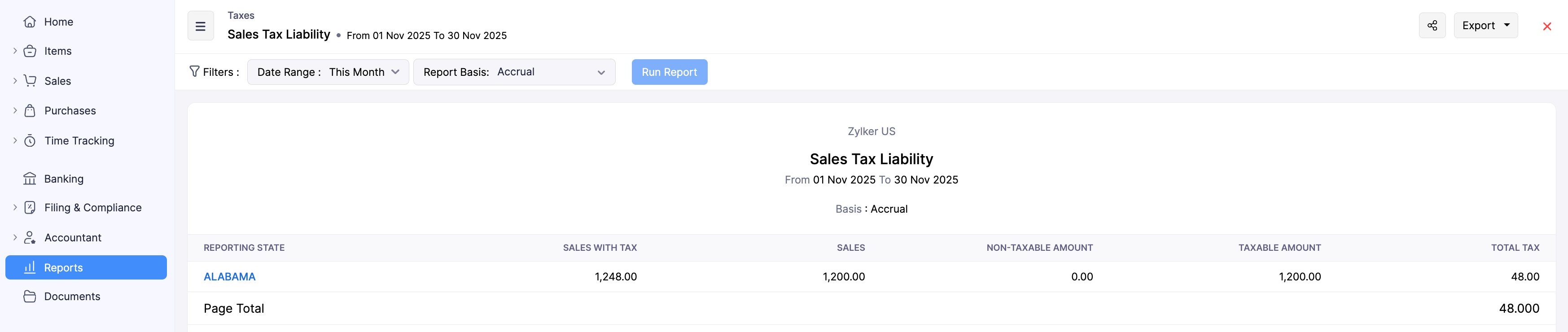
The list of transactions based on the Reporting State will be displayed.
- Click on the reporting state to view the transactions grouped by the respective Reporting Tax Authority.
- Click on a tax authority to view the transactions based on the taxes applied to the transactions. They’re basically grouped as the Taxes available in your organization and Non-Taxable Sales.
- Click on a tax to view the associated customers and their transactions.
By default, the report will be generated on an Accrual basis. To generate the report on a Cash basis:
- In the Sales Tax Liability report page, click the Report Basis dropdown at the top and select Cash from the dropdown.
- Click Run Report.
The report will be generated accordingly.
Exception Reports
Zoho Books automatically calculates sales tax using your organization’s address, the customer’s billing or shipping address, the tax category of items, and your tax registrations.
If any of these details are missing or incorrect, the sales tax may not be calculated correctly. Such transactions appear in the Exception Report, along with the reason. You can review and make the necessary changes so that the taxes are applied correctly to your future transactions.
Note:
If you manually apply taxes to your transactions when Sales Tax Automation is enabled, those transactions also appear in the Exception Report.
To view the Exception Report:
Go to Reports on the left sidebar.
Scroll down to the Activity section, and select Exception Report.
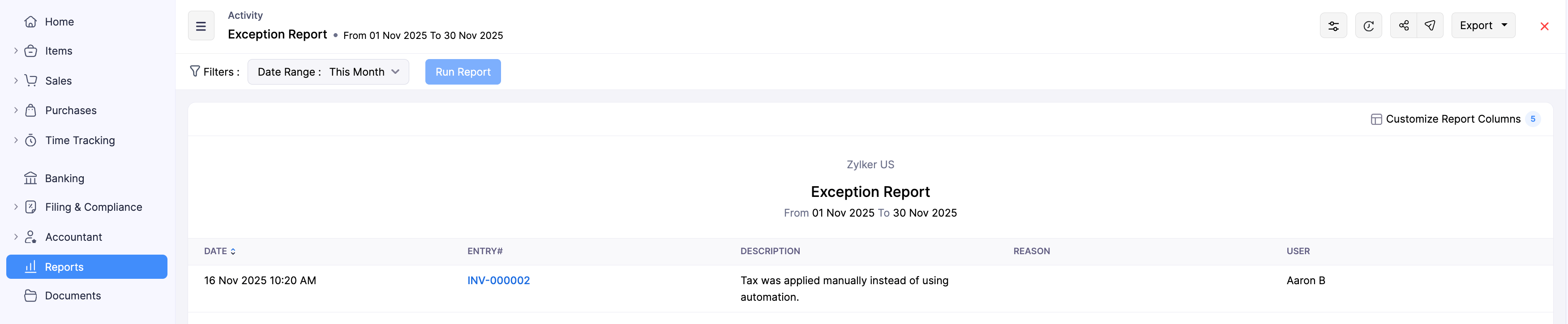
The report will be generated.
Next >
 Yes
No
Yes
No
Thank you for your feedback!