



Automate Sales Tax Calculation
Create Items
When you create an item, the Tax Category field lets you categorize goods and services that you sell. When you include an item in a transaction, the tax category associated with it determines the right sales tax based on your customer’s billing or shipping address and your tax registrations.
To add a tax category for an item:
Go to Items on the left sidebar and select Items.
Click + New in the top right corner.
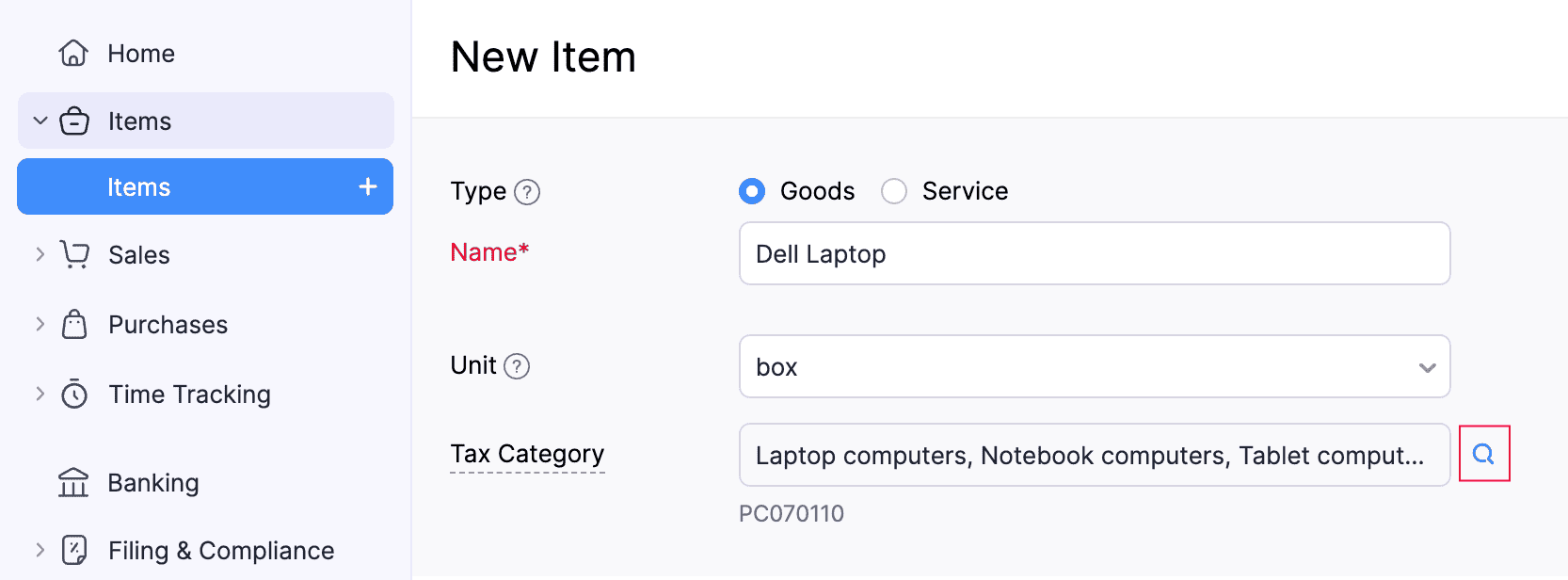
In the New Item page, enter the required details.
Click the Search icon next to the Tax Category field.
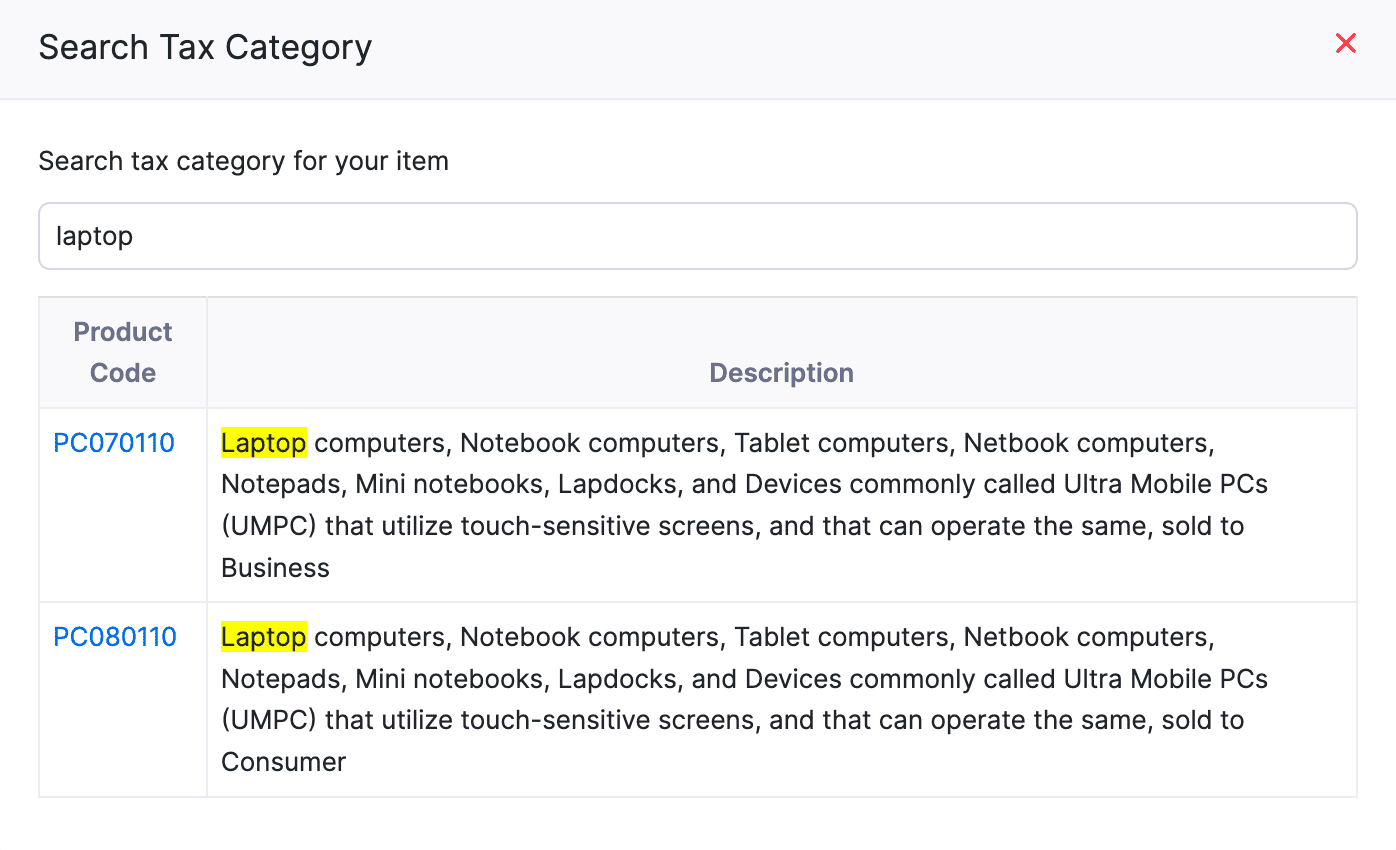
In the Search Tax Category pop-up, search and select the appropriate tax category based on the item type.
Click Save.
The item will be created, along with the tax category.
Record Transactions
When you create a sales transaction in Zoho Books, the sales tax is automatically calculated based on your business’s tax registration in the respective state, the customer’s billing or shipping address, and the tax category of the line items. Here’s how:
- Go to Sales on the left sidebar and select the transaction you want to create (for example, Invoices).
- Click + New in the top right corner.
- In the New Invoice page, select the required customer. Their billing or shipping address will be displayed. If you haven’t verified the address while creating the customer, click Verify Address.
- If the address is invalid, click the Edit icon and update the billing address. Once done, verify the address again.
- In the Item Table, select the items you want to include in the transaction. If the line item already has a tax category, the tax will be calculated automatically.
- If the selected item does not have a tax category, add one. You can also update the tax category of the line item, if required.
Note:
The tax will be automatically calculated for every line item included in the transaction. Use Default Tax Category if not added.
- Enter the other required details.
- Click Save and Send or Save as Draft and send it to your customer later.
The transaction will be created.
Switch Tax Modes
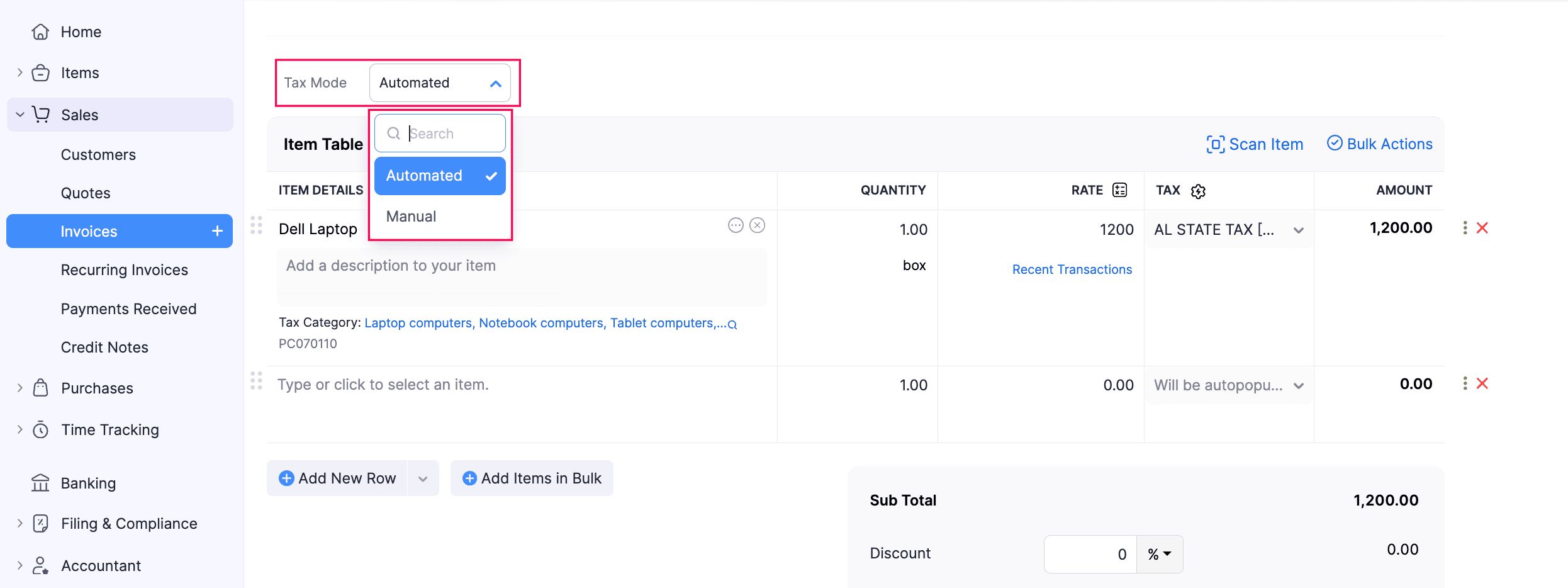
If you’ve enabled Sales Tax Automation, taxes are automatically calculated for your transactions. If the required taxes aren’t fetched, or if you prefer to apply taxes yourself, you can switch the tax mode and update the taxes manually.
View Tax Calculation Details
When you create a transaction, sales tax is automatically calculated based on your business’s tax registration, the customer’s billing or shipping address, the tax category of each item, and whether the item is taxable. This ensures accurate tax calculation on every transaction.
To view this information:
Go to Sales on the left sidebar to create a transaction (for example, Invoices).
Click + New in the top right corner.
In the New Invoice page, fill in the required details.
In the Total section, click Tax Calculation Details.
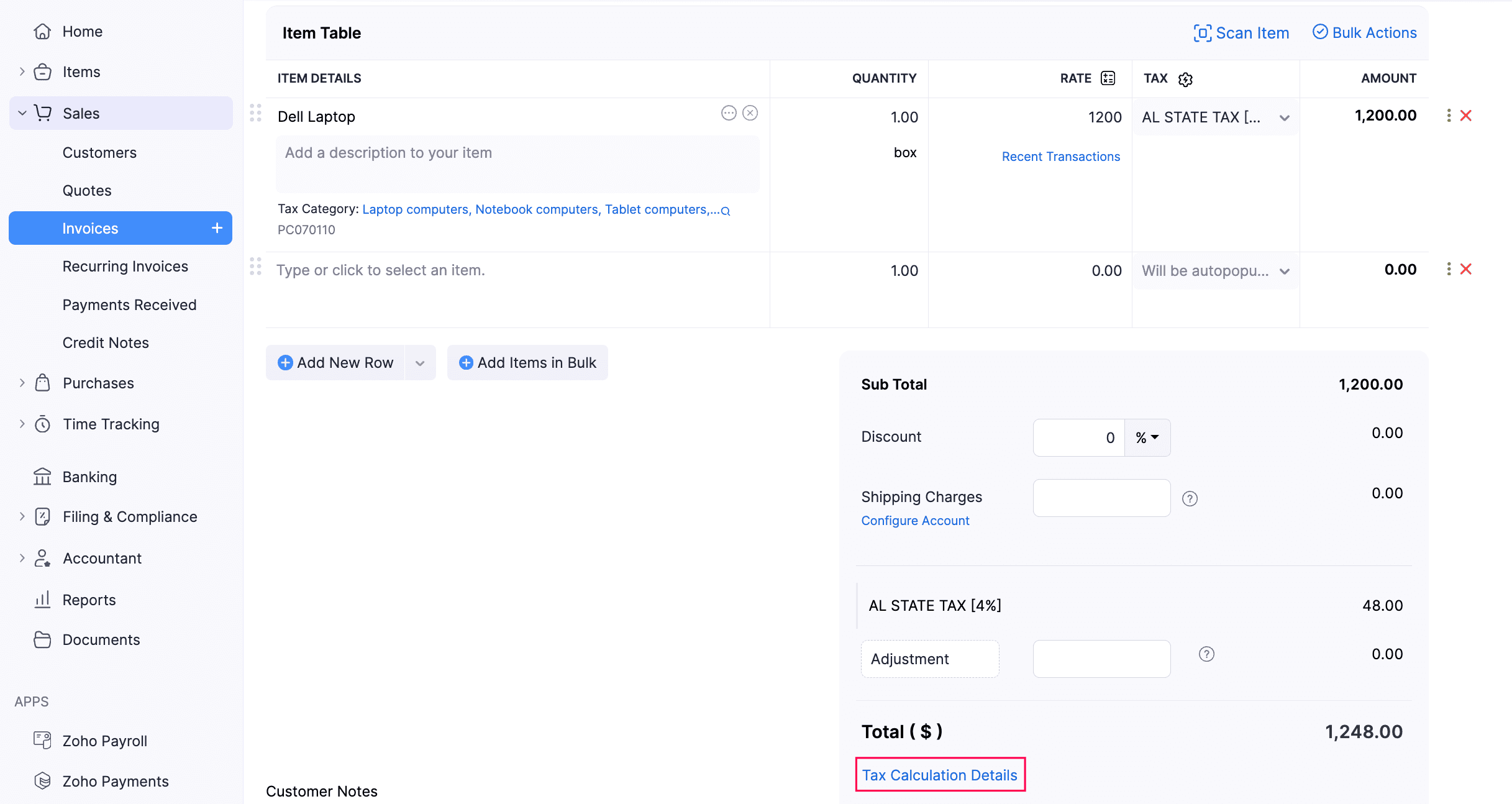
In the right pane that appears, you can view how taxes are calculated for the respective transaction.
Next >
- Sales Tax Automation - Reports
- Sales Tax Automation - Operations
- Manage Sales Tax Automation Methods
- Disable Sales Tax Automation
 Yes
No
Yes
No
Thank you for your feedback!