


Email Alerts

Email Alerts in Zoho Books are automated email notifications that are sent when specific actions configured in an associated workflow rule are triggered. They ensure that the right stakeholders are informed at the right time.
Scenario: Let’s say an invoice in your organization crosses its due date without payment. The accounts team may not notice it right away. By setting up an email alert for overdue invoices and associating it with a workflow rule, the accounts team is notified by email as soon as the invoice becomes overdue, so they can follow up on the payment.
Create Email Alerts
To associate email alerts with workflow rules, you must first create them. Here’s how:
- Go to Settings in the top right corner of the page.
- Select Workflow Actions under Automation.
- In the Workflow Actions pane, select Email Alerts.
- Click + New Email Alert in the top right corner.
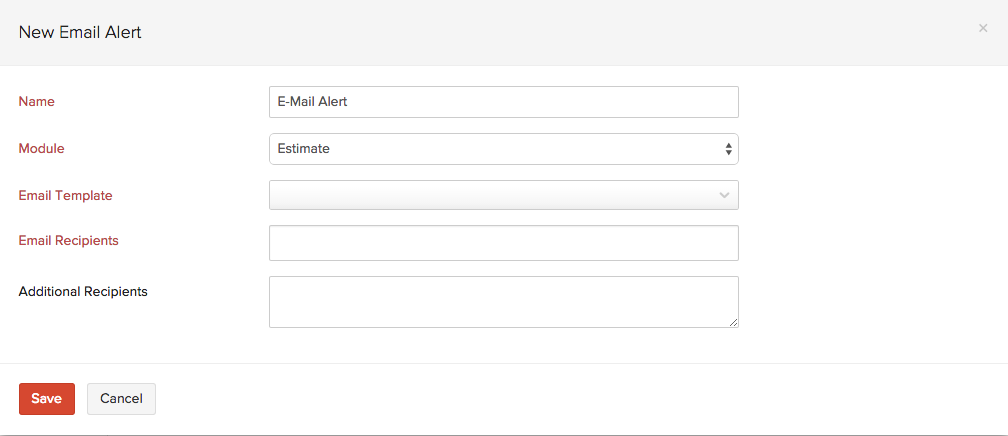
- On the New Email Alert page, fill in the following fields:
| Field | Description |
|---|---|
| Name | Enter a name for the email alert. |
| Module | Select the module for which you want to create the email alert. |
| From | Select the sender displayed in the recipient’s mailbox. You can choose any of the verified senders configured in your organization, or select Created By to send the email on behalf of the user who created the record. |
| Email Template | Select an existing email template from the dropdown, or click + New Email Template to create a new one. |
| Email Recipients | Select the users and roles to be notified. |
| Cc | Enter the email addresses of additional recipients to be copied on the email. |
| Bcc | Enter the email addresses of recipients to be blind-copied on the email. |
| Attachments | Choose what should be sent with the email. The attachment options shown depend on the selected module. |
- Click Save.
Associate Email Alerts with Workflow Rules
The email alerts you create should be associated with workflow rules so that they are triggered automatically when the required conditions are met. To associate email alerts with workflow rules:
- Go to Settings.
- Select Workflow Rules under Automation.
- Click + New Workflow Rule in the top right corner.
- Enter the necessary details. See Workflow Rules.
- Under Actions, choose Email Alerts as the Type and select the email alert you want to associate with the workflow rule.
- Click Save.
Now, whenever the criteria is met, the workflow rule will be triggered, which in turn will trigger the email alert.
Edit Email Alerts
If you want to update the details of an email alert, you can edit it. Here’s how:
- Go to Settings on the top right corner of the page.
- Select Workflow Actions under Automation.
- In the Workflow Actions pane, select Email Alerts.
- Hover over the email alert you want to edit, click the dropdown to the right, and select Edit.
- Make the necessary changes and click Save.
Filter Email Alerts
To filter the email alerts list, follow these steps:
- Go to Settings in the top right corner of the page.
- Select Workflow Actions under Automation.
- In the Workflow Actions pane, select Email Alerts.
- Under Module, select a module from the dropdown for which the email alert has been created.
Based on your selection, the corresponding email alerts will be displayed as a list.

Note:
- You can create a maximum of 5 email alerts for each workflow rule.
- The number of email alerts you can trigger per day varies by your Zoho Books plan.
Delete Email Alerts
Warning: Deleting an email alert is permanent and cannot be undone. If the email alert is associated with a workflow rule, the workflow rule will not be executed.
To delete an email alert, hover the cursor next to an email alert on the list and click the Delete icon.

 Yes
Yes