


Tax Reports

The Taxes section in Reports gives you a complete overview of the taxes collected, reported, and reconciled across your business.
Sales Tax Liability
The Sales Tax Liability report summarizes the sales taxes you have collected across different states. The report groups tax authorities by state, so you can drill down into a specific state to view its associated tax authorities and the corresponding tax amounts.
To view the Sales Tax Liability report:
- Go to Reports on the left sidebar.
- Select Sales Tax Liability under Taxes.
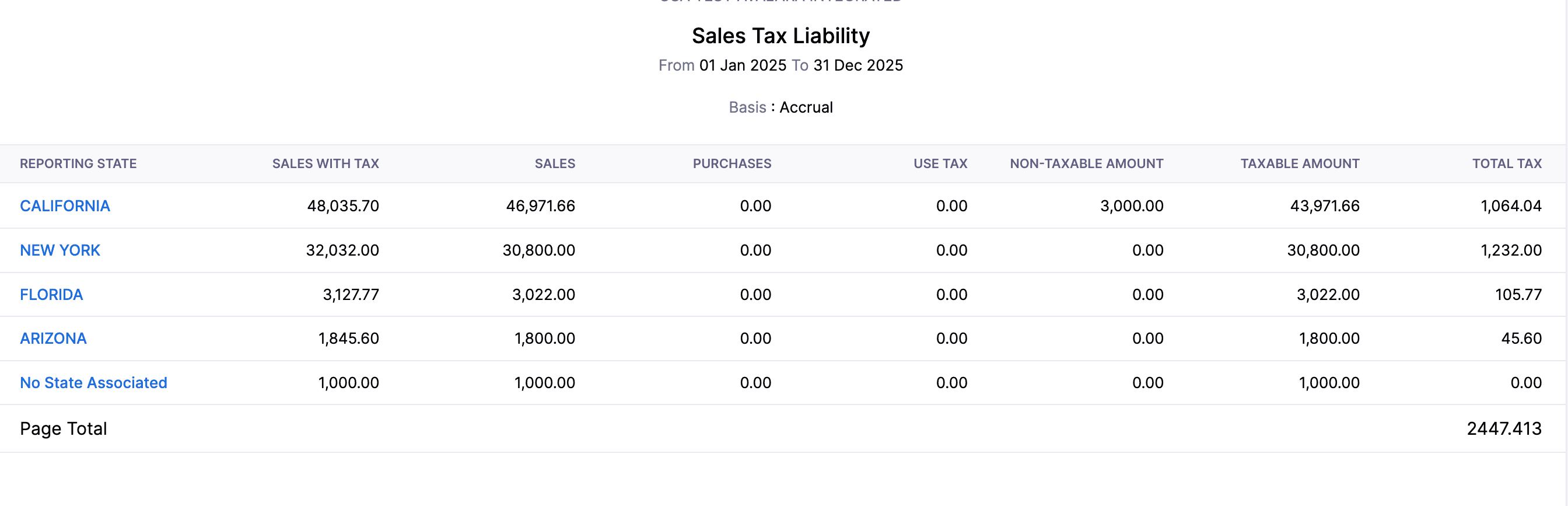
The Sales Tax Liability report contains the following columns:
| Column | Description |
|---|---|
| Reporting State | The state for which the sales tax liability is being reported. Click a Reporting State to view its associated tax authorities. |
| Sales With Tax | The total value of taxable and non-taxable sales, inclusive of tax. |
| Sales | The total value of all sales, exclusive of tax. |
| Purchases | The total value of purchase transactions recorded for the period. |
| Use Tax | The use tax amount applicable on purchases where sales tax was not collected at the point of sale. |
| Non-Taxable Amount | The portion of your sales that is exempt from sales tax. |
| Taxable Amount | The portion of your sales on which sales tax applies. |
| Total Tax | The total sales tax collected across all transactions for the state. |
You can generate this report based on the following filters:
| Filter | Description |
|---|---|
| Date Range | Select the time period for which you want to generate the report. |
| Report Basis | Accrual: Values are generated when transactions are created. Cash: Values are generated when payment is received or made. |
- Click Run Report to apply the filters.
Reverse Charge Summary
The Reverse Charge Summary report summarizes the tax details of all purchase transactions for which you have recorded the reverse charge.
To view the Reverse Charge Summary report:
- Go to Reports on the left sidebar.
- Select Reverse Charge Summary under Taxes.

The Reverse Charge Summary report contains the following columns:
| Column | Description |
|---|---|
| Tax Name | The name of the tax for which the reverse charge has been recorded. |
| Tax Percentage | The tax rate applied on the transaction. |
| Taxable Amount (Tax Payable) | The total transaction value on which tax is payable. |
| Tax Payable | The tax amount you are required to pay on the taxable amount. |
| Taxable Amount (Tax Claimable) | The total transaction value for which you can claim tax back. |
| Tax Claimable | The tax amount you are eligible to claim on the claimable taxable amount. |
| Net Tax Amount | The net tax you owe after deducting the claimable amount from the payable amount. |
Note: You can click any highlighted amount in the report to view the individual purchase transactions recorded under that tax.
Customize Report
To customize this report:
- Click the Customize icon.
You can customize the report using the General and Show / Hide Columns tabs.
General
Under General, you can customize the report based on the following filters:
| Filters | Description |
|---|---|
| Date Range | Select the time period for generating the report. |
| Report Basis | Accrual: Values are generated when transactions are created. Cash: Values are generated when payment is received or made. |
| Entities | Select the purchase transaction types to include in the report. |
| Advanced Filters | Apply custom filters based on report fields, locations, contacts, or reporting tags. |
- Click Run Report to view the report once you apply the filter.
Show / Hide Columns
In this section, you can choose which columns to display in the report.
- In the Available Columns section, hover over the column you want to add.
- Click the + icon next to it to add it to the report.
- In the Selected Columns section, drag and drop a column to reorder it.
- Click Run Report to apply the customization and view the report.
 Yes
Yes