


Manage Recurring Invoices

Recurring invoices in Zoho Books can be filtered or sorted in different ways.
Filter Recurring Invoices
You can filter recurring invoices based on their statuses. Here’s how:
- Go to Sales > Recurring Invoices.
- Click the All Recurring Invoices drop-down in the left side of the page.
- Select the status based on which you want to want to filter the recurring invoices.
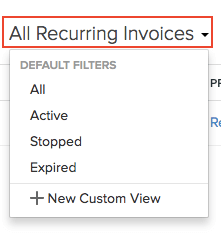
If you want to filter the recurring invoices based on your own criteria, click + New Custom View. Learn more about Custom Views.
Custom Views
You can create custom views to filter recurring invoices based on criteria you set. Learn more about Custom Views.
Sort Recurring Invoices
You can sort recurring invoices based on the different columns or fields of the recurring invoice. Here’s how:
- Go to Sales > Recurring Invoices.
- Click the column which you want to sort.
- The sorting can be done based on the ascending or descending order (based on the arrow). Click the field again to change the sorting order.

Rearrange Columns
In the Recurring Invoice module, you can choose which fields are displayed and which are not in the main page. You can also rearrange the columns or fields in the same page. Here’s how:
- Go to Sales > Recurring Invoices.
- Click the Table icon in the left side of the page.
- Select the fields that you want to display.
- Rearrange the order of the columns by dragging and dropping the icons next to them.
- Click Save.
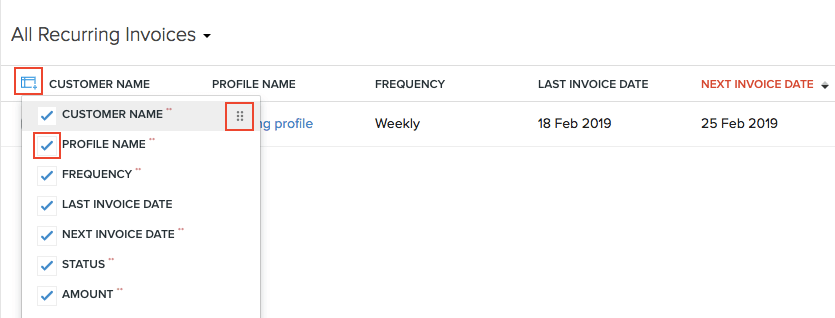
Insight: Fields which are mandatory (marked by **) cannot be unchecked.
Next >
Other Actions for Recurring Invoice
Related
 Yes
Yes

