


Manage Bills

The bills that you record for your vendors can be filtered and sorted in many ways.
Status of a Bill
A bill in Zoho Books can have any one of the following statuses.
| Status | Description |
|---|---|
| Draft | The bill is created but not yet active. |
| Pending Approval | If you have enabled transaction approval, then every bill that you create has to be approved by someone with appropriate access. Until then, the bill will be in the pending approval state. |
| Open | The bill is active. |
| Overdue | The due date for paying the bill has been crossed. |
| Unpaid | No payment has been recorded for the bill. |
| Partially Paid | The bill amount is recorded partially. |
| Paid | The bill amount is completely paid. |
| Void | The bill is no longer active. |
Filter Bills
You can filter the bills based on their status. Here’s how:
- Go to Purchases on the left sidebar and select Bills.
- Click the All Bills dropdown on top of the page.
- Select the type of bills you want to filter.
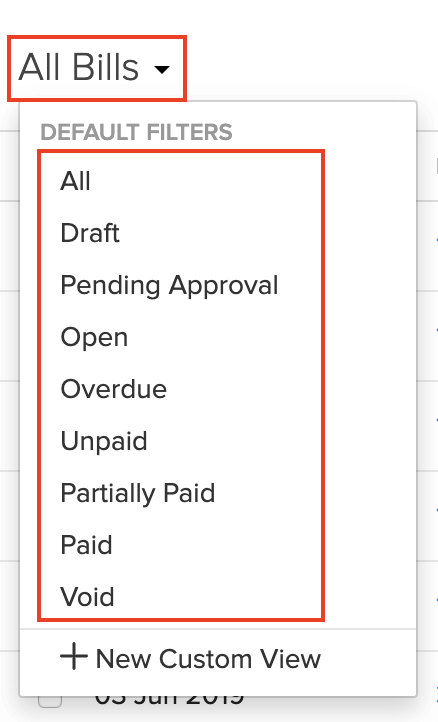
If you want to filter the bills based on certain parameters of your own, you can do it through custom views. Learn more about Custom Views.
Custom Views
You can create custom views to filter bills based on criteria you set. Learn more about Custom Views.
Sort Bills
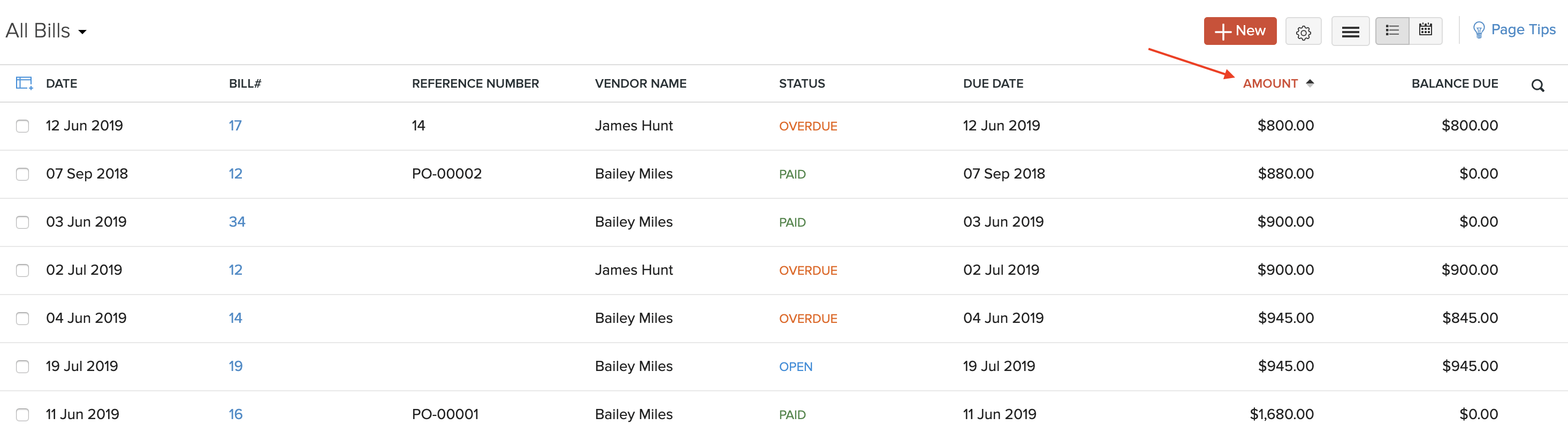
You can sort bills based on their different columns or fields. Here’s how:
- Go to Purchases on the left sidebar and select Bills.
- Click the column which you want to sort.
- The sorting can be done based on ascending or descending order (indicated by the arrow). Click the field again to change the sorting order.
Rearrange Columns
In the Bills module, you can choose which fields are to be displayed in the main page. You can also rearrange the order of the columns or fields in the same page. Here’s how:
- Go to Purchases on the left sidebar and select Bills.
- Click the Table icon on the left side of the page.
- Select the fields that you want to display.
- Rearrange the order of the columns by dragging and dropping the icons next to them.
- After making the changes, click Save.
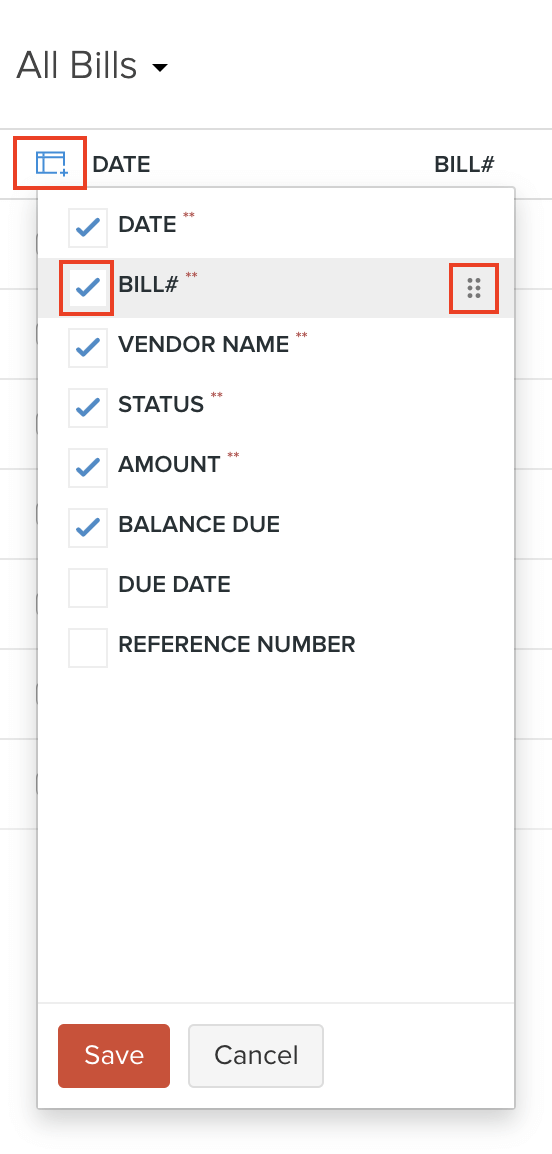
Insight: Fields which are mandatory (marked by **) cannot be unchecked.
Calendar View
You can view all your overdue bills and their overdue amounts in different months of the year in the calendar view. Here’s how:
- Go to Purchases > Bills.
- Click the Calendar icon in the top right corner of the page.
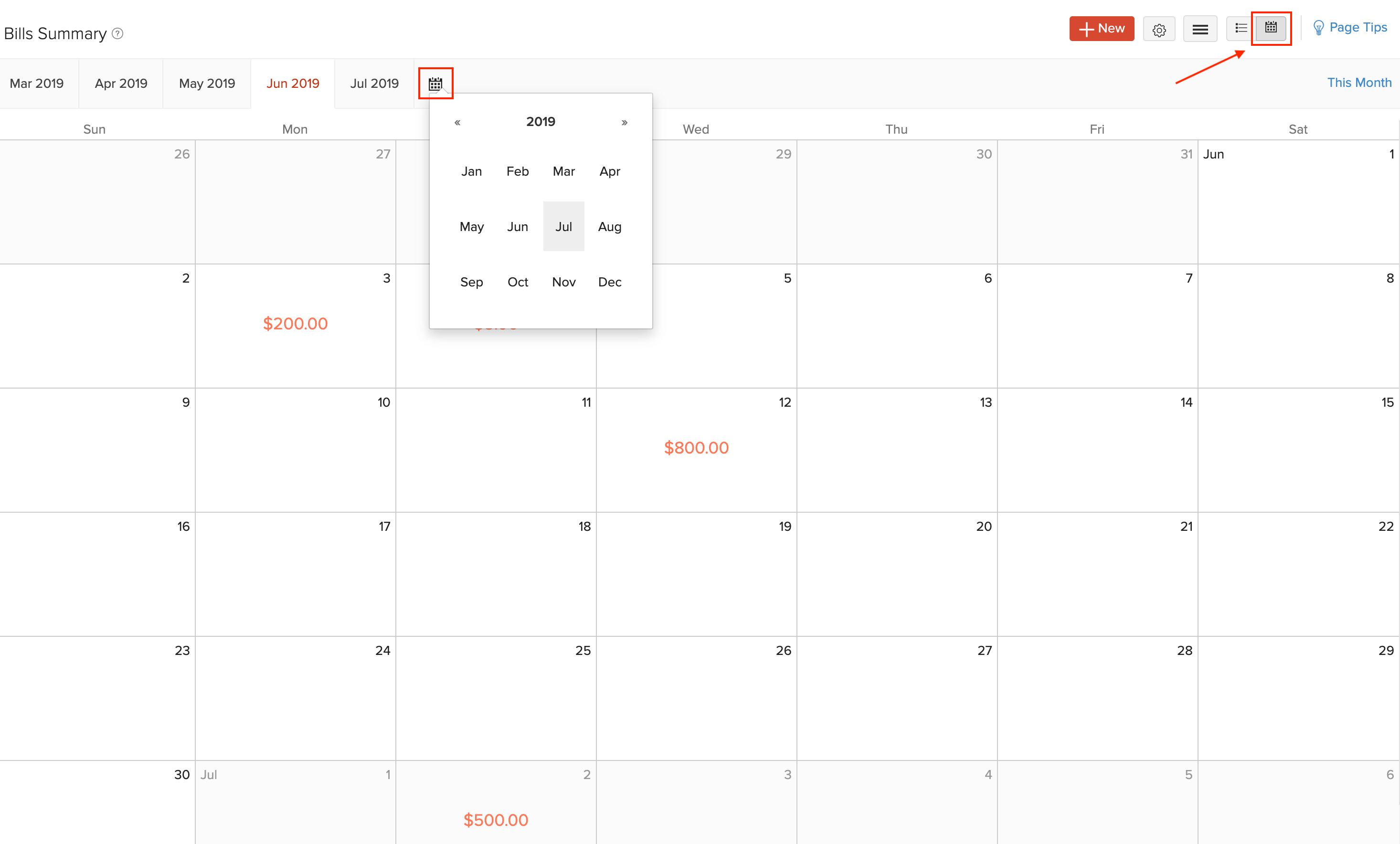
You can switch between different months of different years by clicking the Calendar icon within this view. To go back to the current month, click This month in the top right corner of the page.
To switch back to the regular view, click the List icon next to the Calendar icon.
Export Current View
If you have filtered your bills, or rearranged their columns, then you can export that particular view of your bills. Here’s how:
- Go to Purchases on the left sidebar and select Bills.
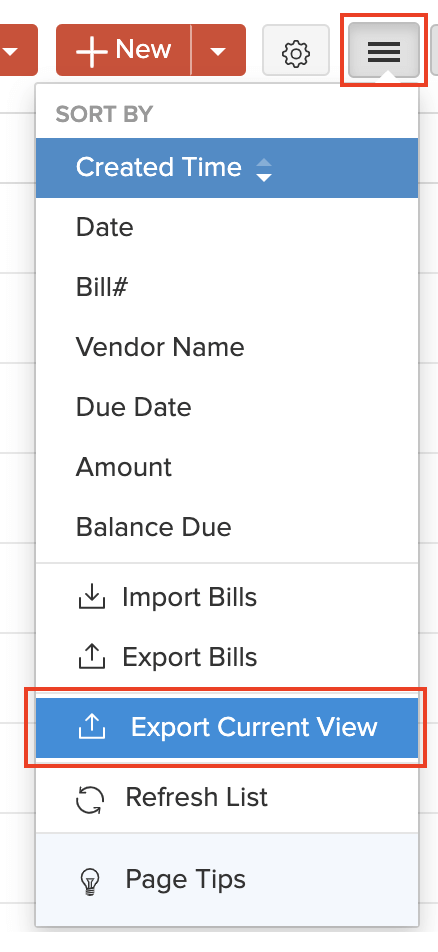
- Click the More icon in the top right corner of the page.
- Select Export Current View.
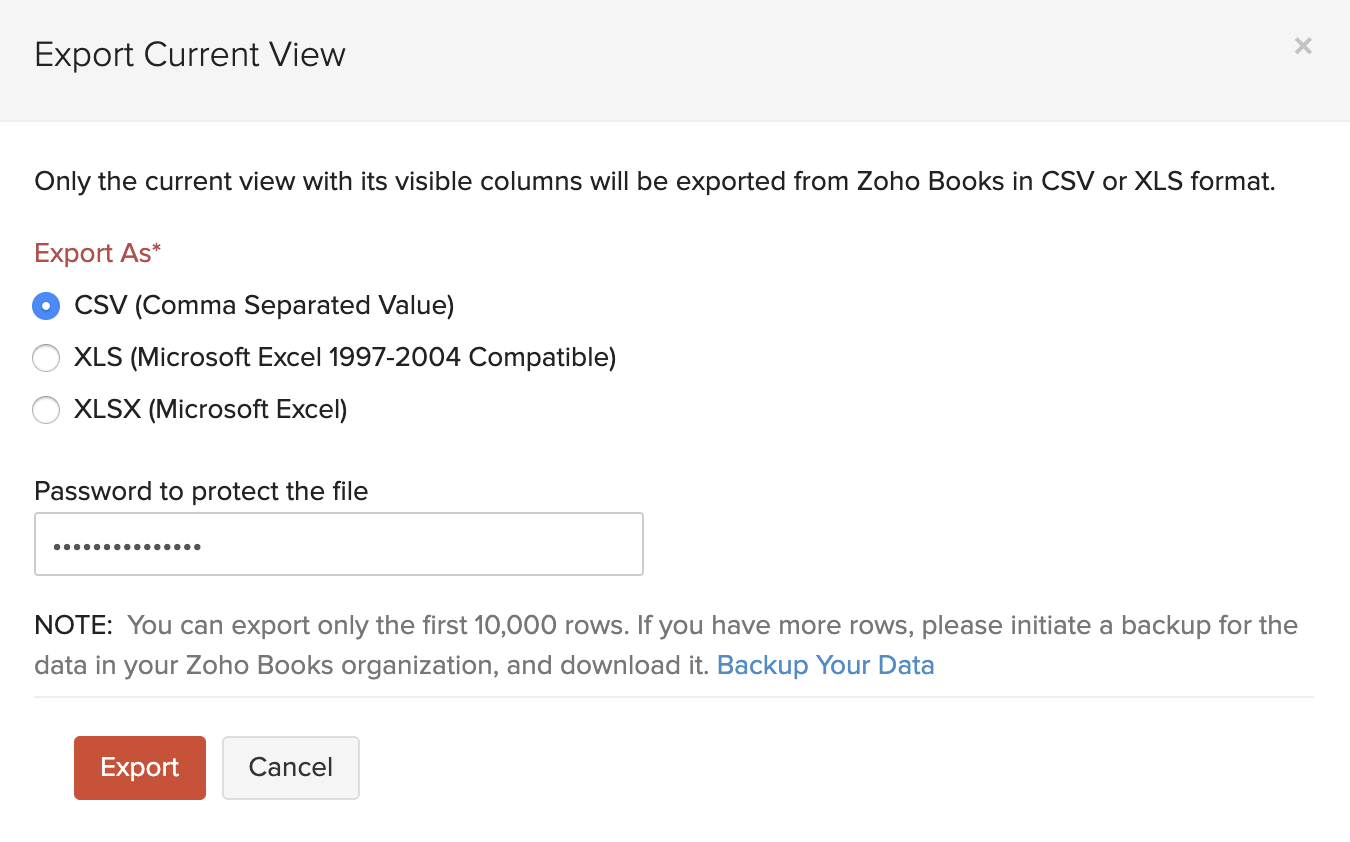
- Select the format for export under Export As and enter a Password to secure your export file.
- Click Export.
Refresh List
To get the updated list of bills, you can refresh the list of your bills. Here’s how:
- Go to Purchases on the left sidebar and select Bills.
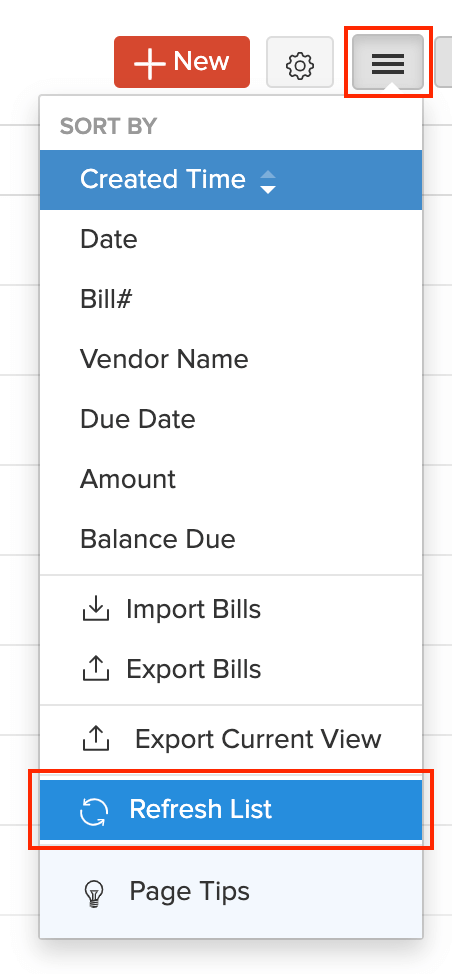
- Click the More icon in the top right corner of the page.
- Click Refresh List.
Next >
Other Actions for Bills
Related
 Yes
Yes