

How do I mark a Zoho CRM contact as the primary contact in Zoho Invoice during import?

The first step would be to create a custom field for Contacts in Zoho CRM. To create a custom field,
- Click the spanner icon on the top right corner and select Setup. Under Customization, go to Modules and Fields and select Contacts from the module list.
- In the following page, you can view the fields of different datatypes. Drag and drop the Checkbox field on the right.
- Fill up Label as, for example, “Is Primary Contact” and hit the Save Layout button.
- Now click the Contacts tab in Zoho CRM, go to the contacts which you wish to set as primary contacts and click the checkbox against Is Primary Contact field. Also, make sure they are associated to an Account in Zoho CRM.
- In Zoho Invoice, click the Settings icon on the top right corner of the page and select Integrations > Zoho Apps > Zoho CRM, click Show Details.
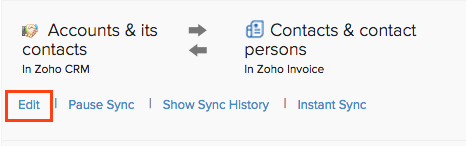
- Click Edit below the contact sync module integration settings as shown in the image below,
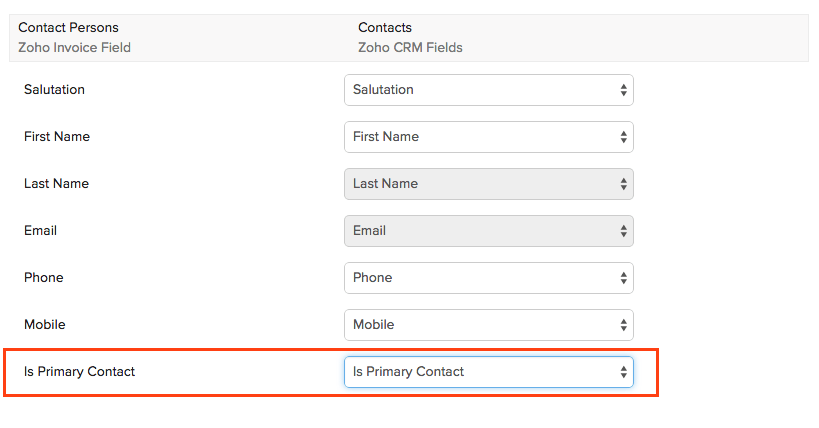
- Then, at the bottom of the page, map the Is Primary Contact field in Zoho Invoice with Is Primary Contact field in Zoho CRM as shown in the image below,
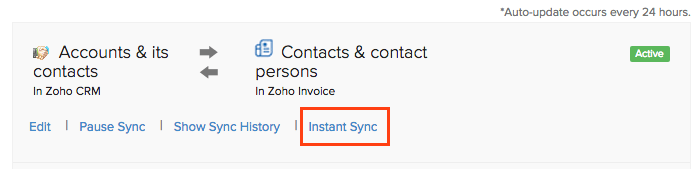
- Finally, click Save and Sync. Then, in the CRM integration details page, click Instant Sync as shown in the image below,
Henceforth, the contacts for which you have enabled the “Is Primary Contact” field in Zoho CRM, would be set as a Primary Contact for those customers in Zoho Invoice.
 Yes
Yes