



Managing Expenses
In this help document, you will learn how to perform actions on your expenses like edit, clone, search, export, and more using the web and iOS applications in Zoho Expense.
Edit Expenses
If you want to make changes to an expense, you can edit it.
Prerequisites:
- You can edit only Unreported and Unsubmitted expenses.
- You cannot edit Expired expenses.
To edit an expense:
- Navigate to Expenses on the left sidebar.
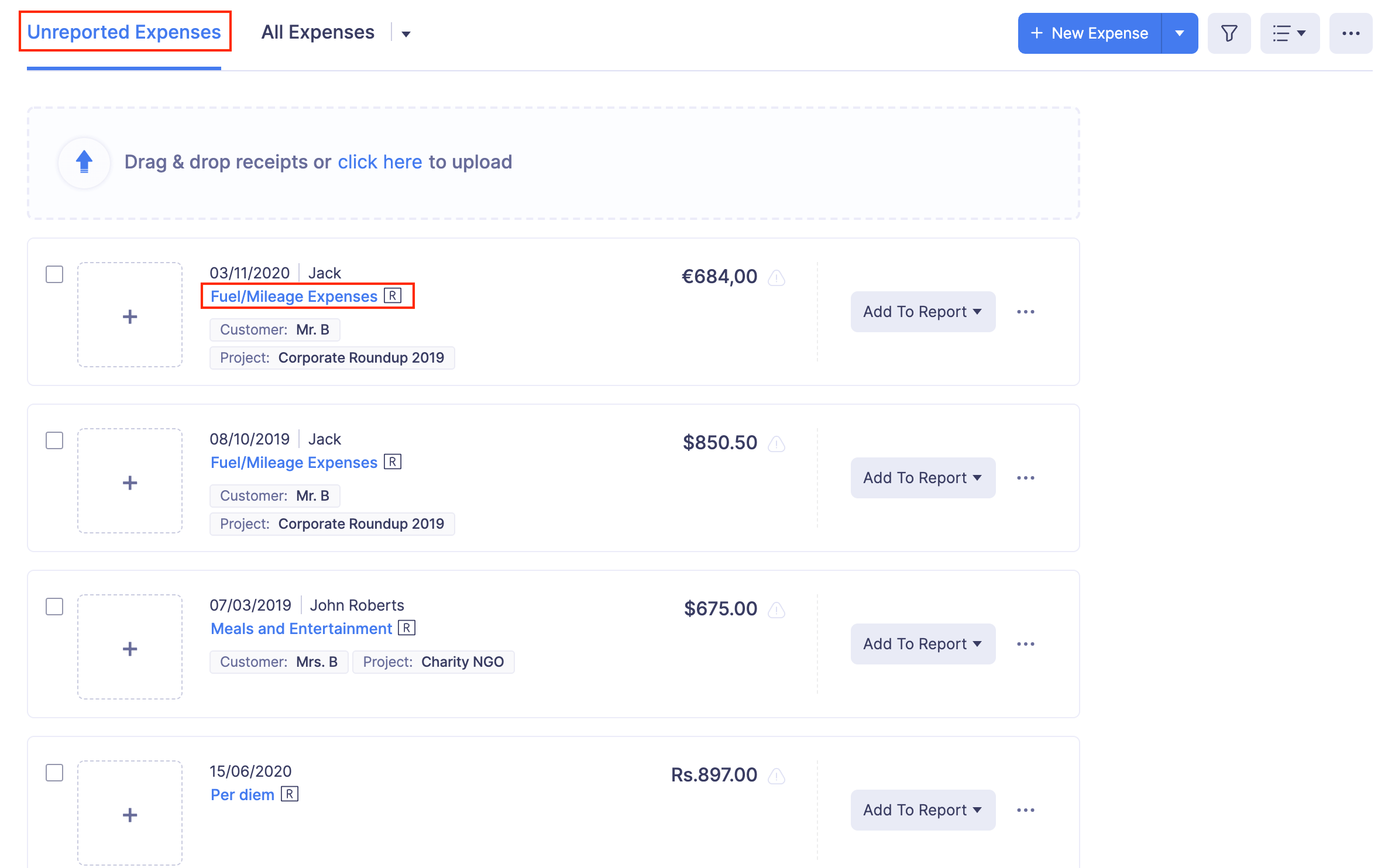
- If you’re in the Unreported Expenses tab, click the expense you want to edit and the Edit Expense page will open.
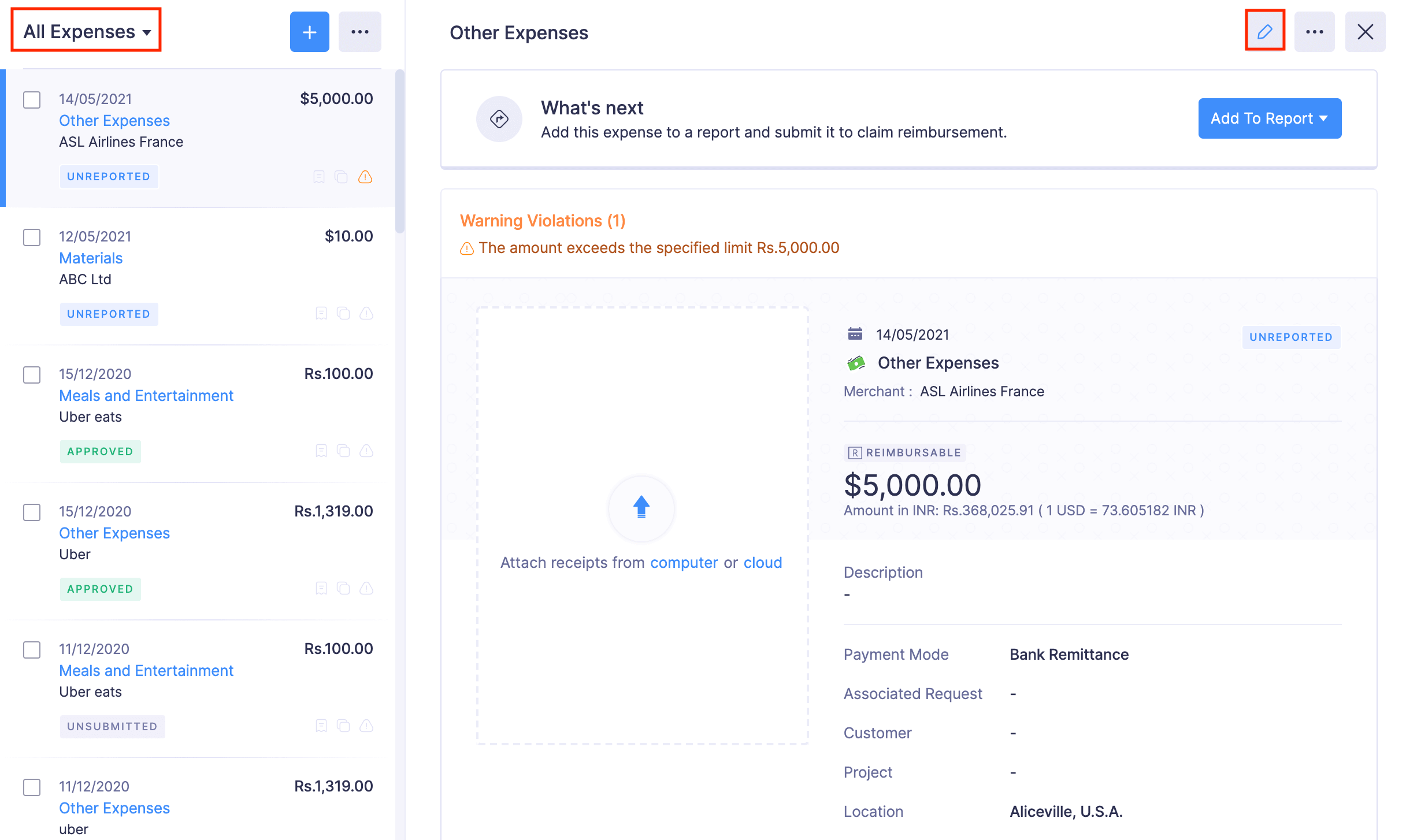
- If you’re in the All Expenses tab, click the expense you want to edit and click the edit icon at the top right corner of the page.
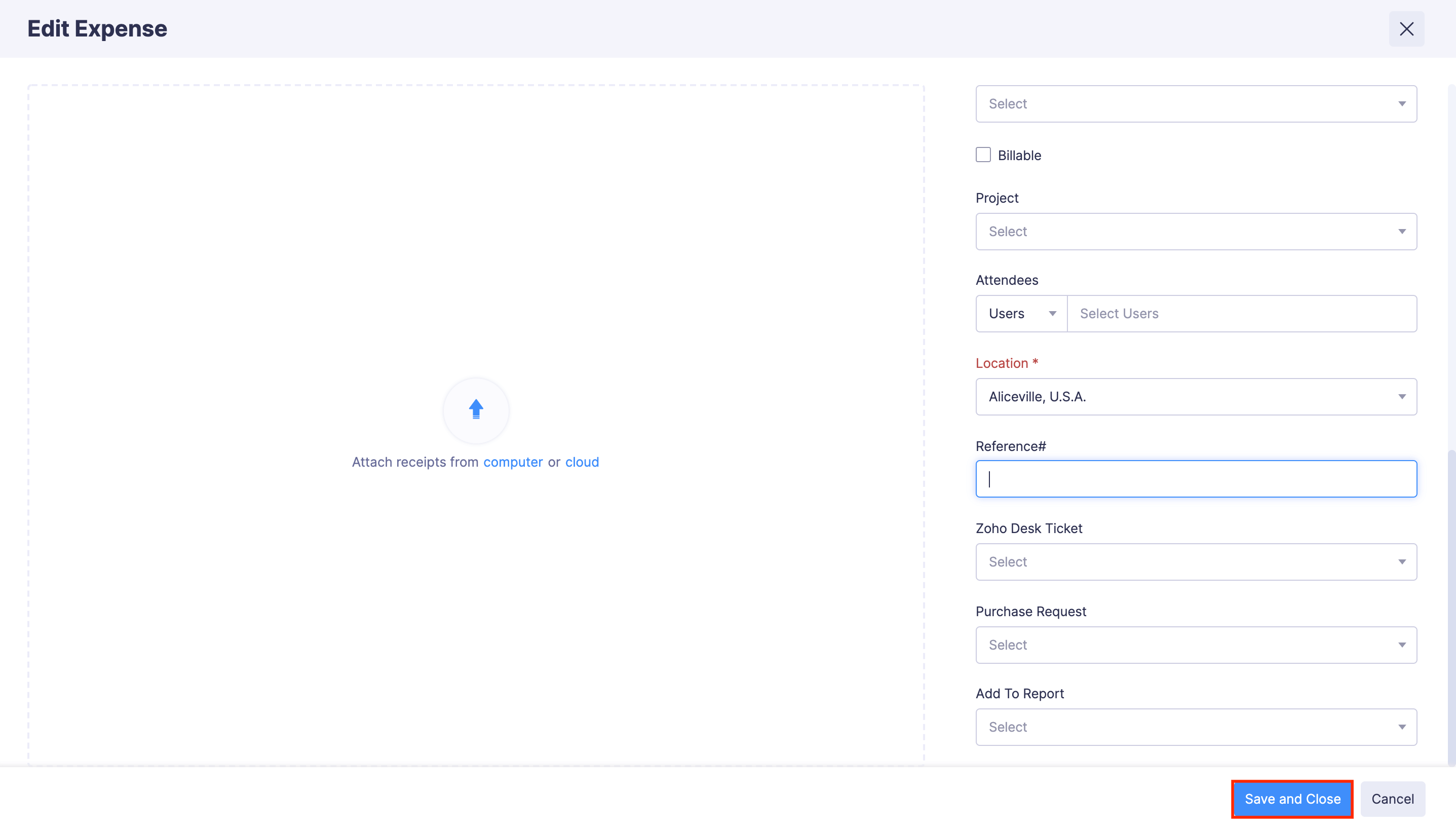
- Make the necessary changes in the Edit Expense page.
- Click Save and Close.
Inline Editing
You can now update the expenses you’ve recorded directly from the expense detail page, without going to the edit expense page.
Here’s the list of fields you can edit from the expense detail page :
| Expenses | Editable Fields |
|---|---|
| Expense Records / Expenses in Reports | Expense category, date, amount, merchant name, currency, and description |
| Mileage Expense | Description only |
| Itemized Expenses | Expense date and merchant name |
| Per Diem Expense | Description only |
| Manually Created Card Expenses | Expense date, category, and merchant name |
To update an expense record using inline editing:
Note: You can edit only one field at a time.
- Navigate to Expenses.
- In the All Expenses tab, click the expense you want to edit.
- Hover over the field you want to edit and click the Edit icon that appears next to it.
- After making the necessary changes, click the tick icon next to the date field to save your updates.

You can follow the same steps to edit your other expenses, including mileage, per diem, and itemized expenses, by navigating to the expense details page of the respective expense.
Clone Expenses
Clone an expense to duplicate all the essential details of an expense. Here’s how:
- Go to Expenses on the left sidebar.
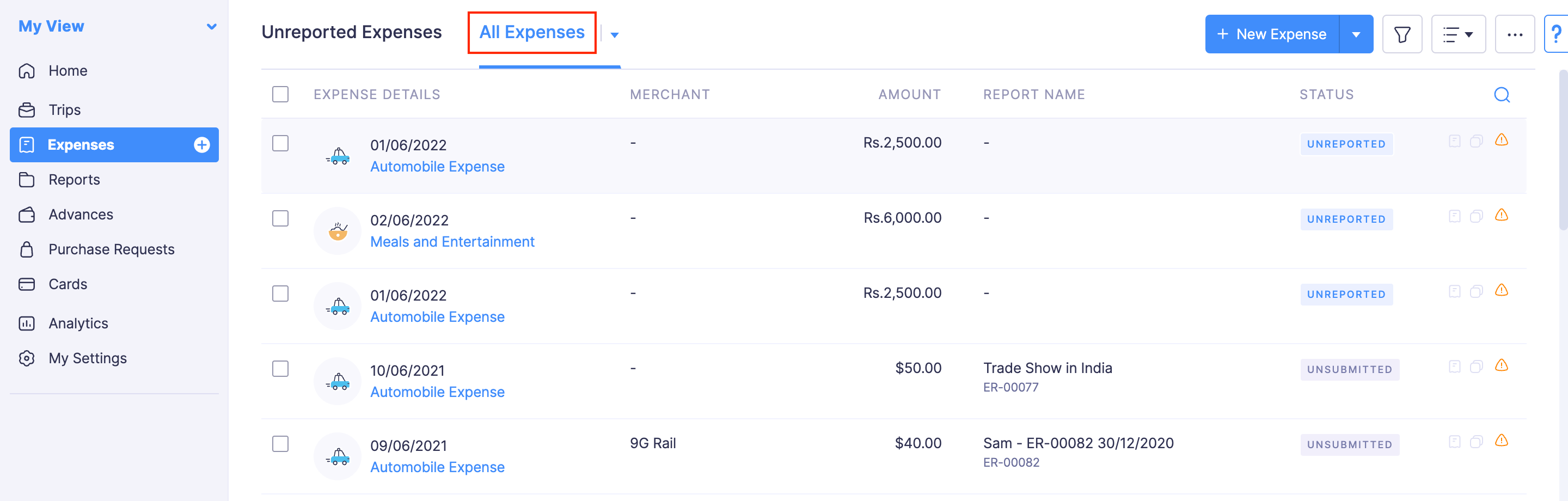
- Navigate to the All Expenses tab.
- Click the expense you want to clone.
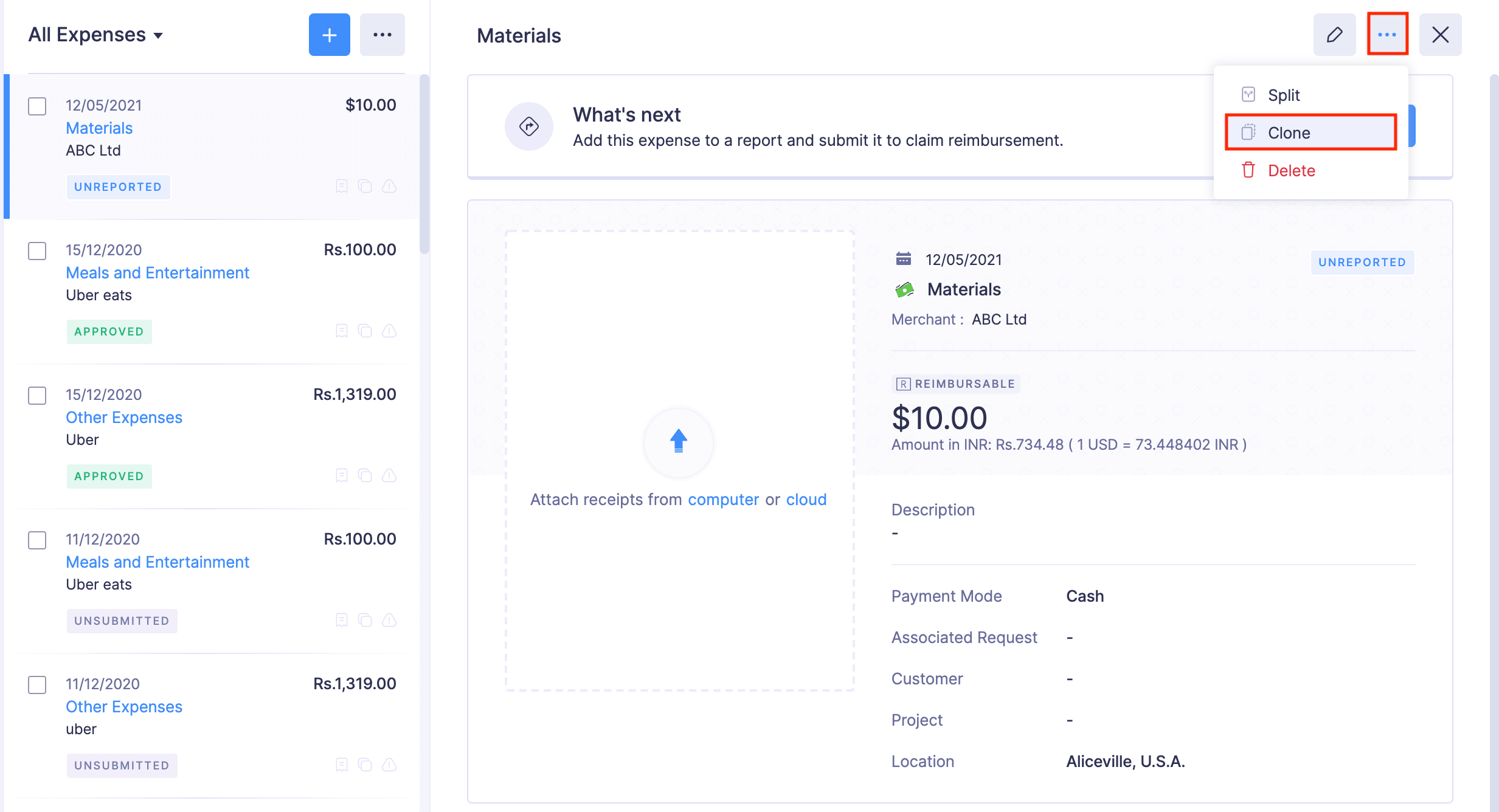
- Click the More icon at the top right corner and select Clone. (In case of approved and reimbursed reports, click the Clone button at the top right corner of the page.)
- Make changes if necessary.
- Click Save and Close to create a new expense.
Delete Expenses
If you no longer require an expense or created it by mistake, you can delete it.
Note: You cannot delete expenses in the Submitted, Approved, and Reimbursed statuses.
Warning: Once an expense is deleted, it cannot be retrieved.
To delete an expense:
- Go to the Expenses module.
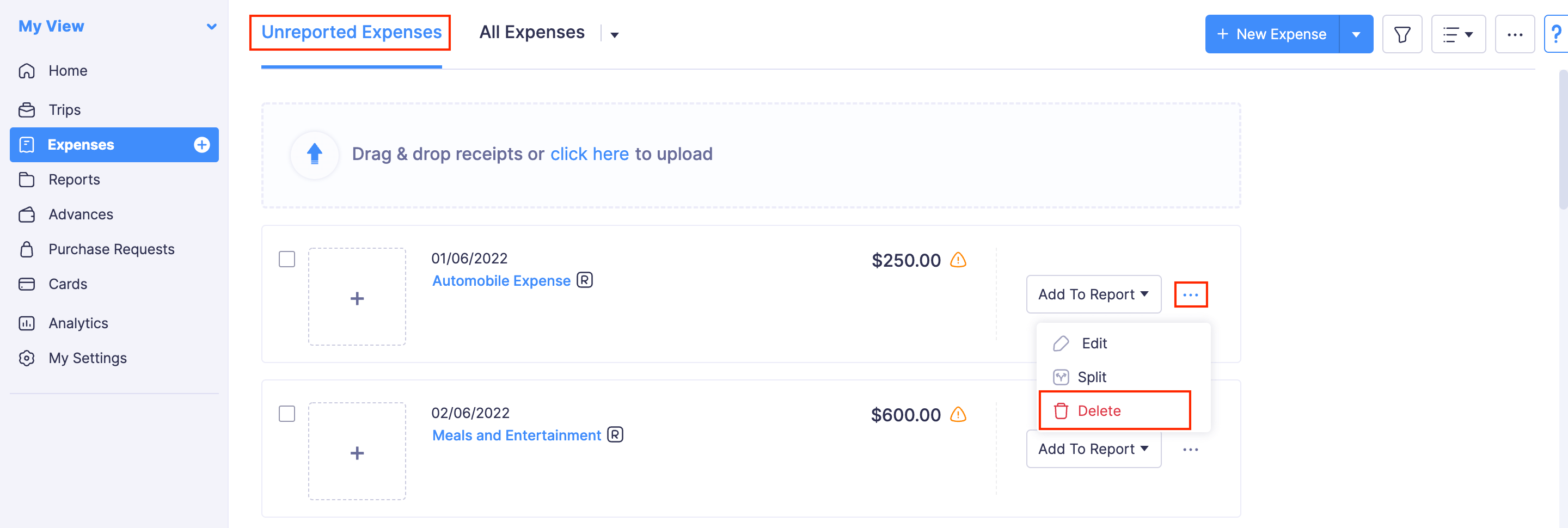
- If you’re in the Unreported Expenses tab, click the More icon at the right corner of the expense you want to delete and click Delete.
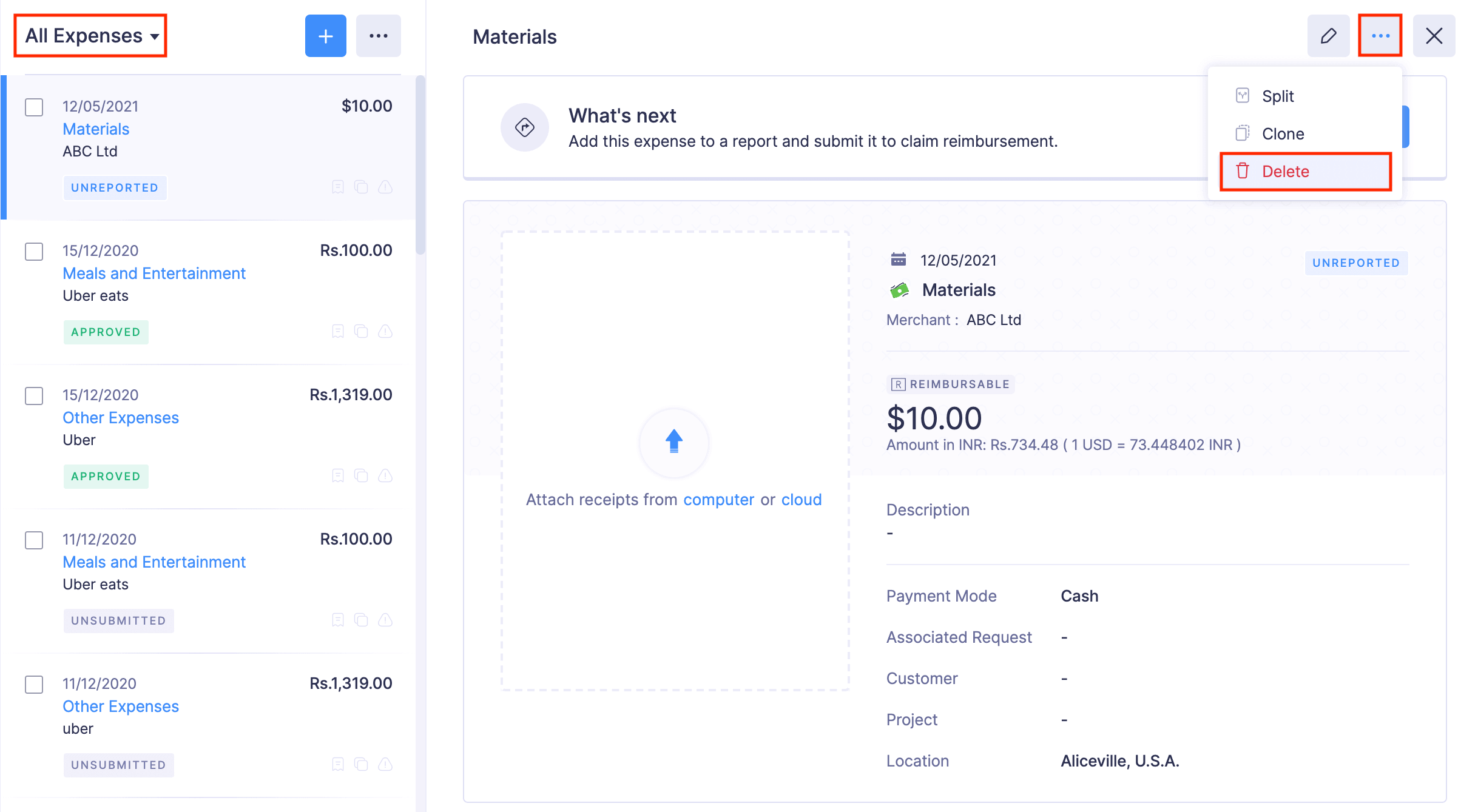
- If you’re in the All Expenses tab, click the expense you want to delete. Click the More icon at the top right corner of the expense and click Delete.
- In the pop-up that follows, select Delete to delete the expense.
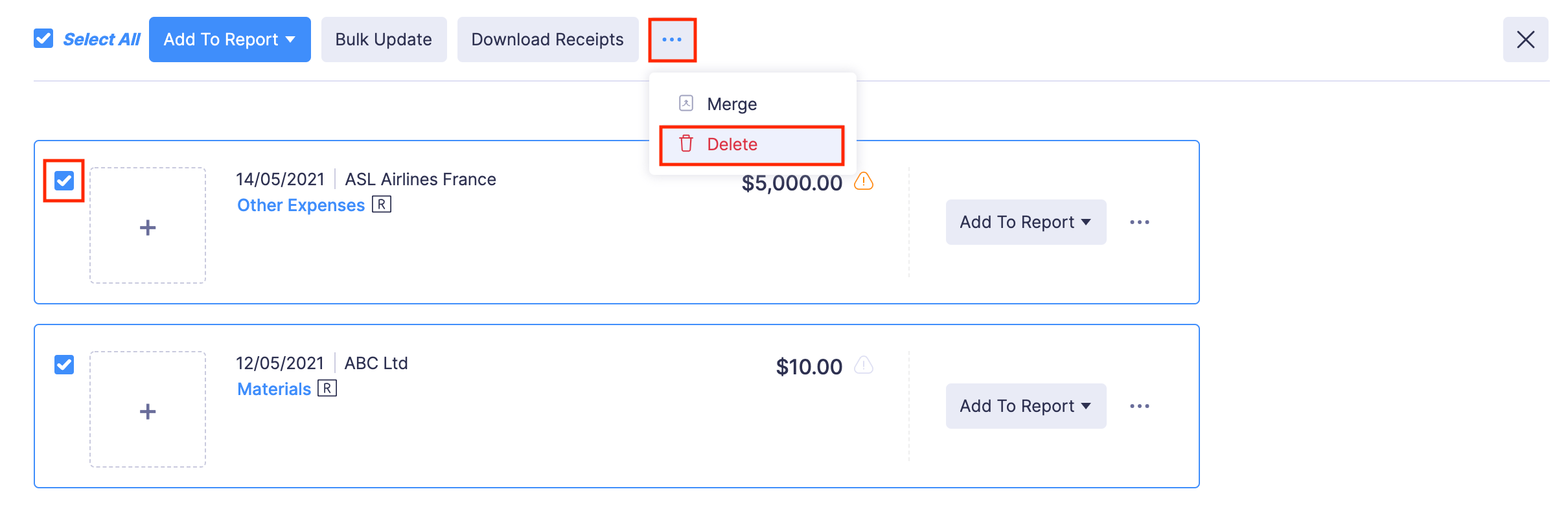
- If you want to delete the expenses in bulk, then select the expenses and click the More icon at the top of the page.
- Select Delete. All the selected expenses will be deleted.
Search Expenses
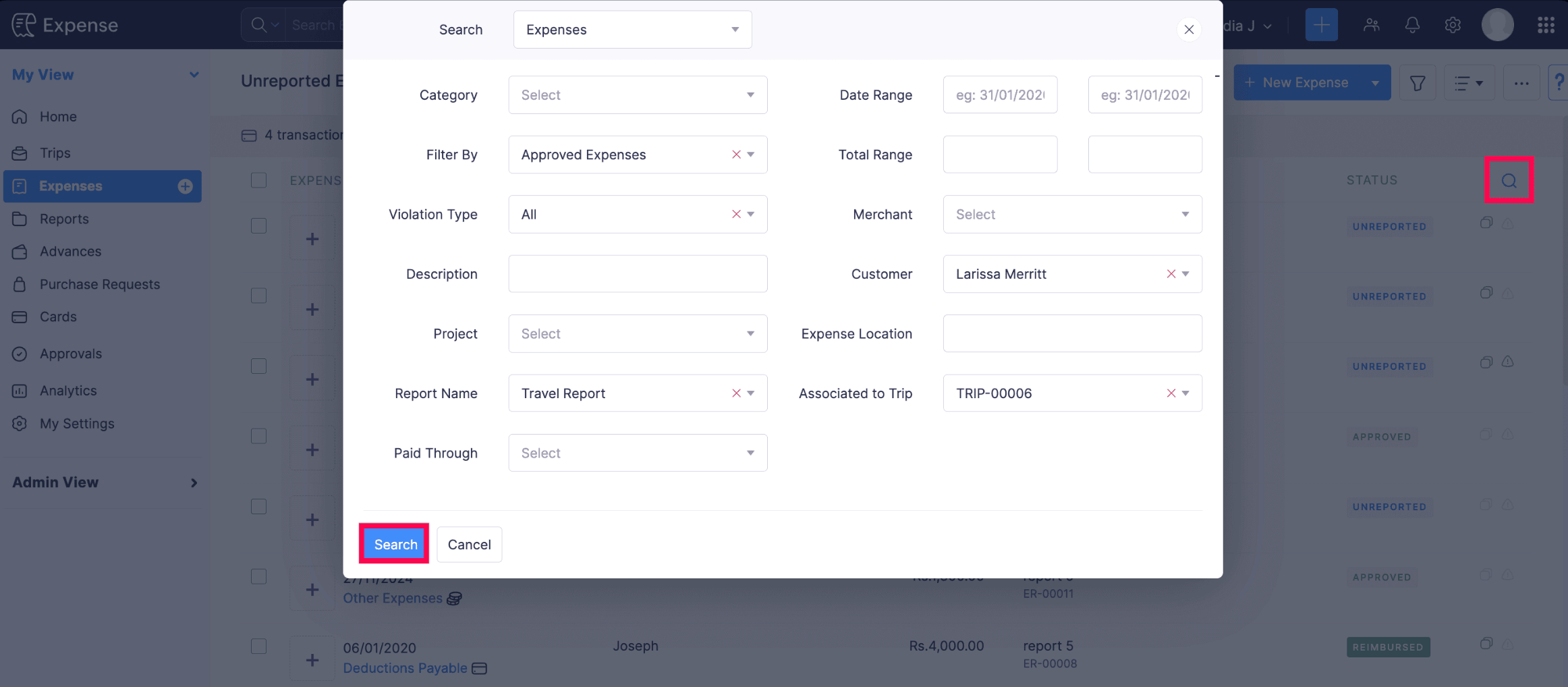
If you want to locate a particular expense from a group of expenses, you can search for the expense. Here’s how:
- Go to My View on the left sidebar.
- Click Expenses on the left sidebar.
- Click the Search icon in the right corner.
- You can enter any field value of the particular expense that you want to view.
- Click Search.
Export Expenses
Expenses can be exported in two formats:
- CSV - Comma Separated Values
- XLS (XLSX) - Microsoft Excel
To export expenses:
- Navigate to Expenses.
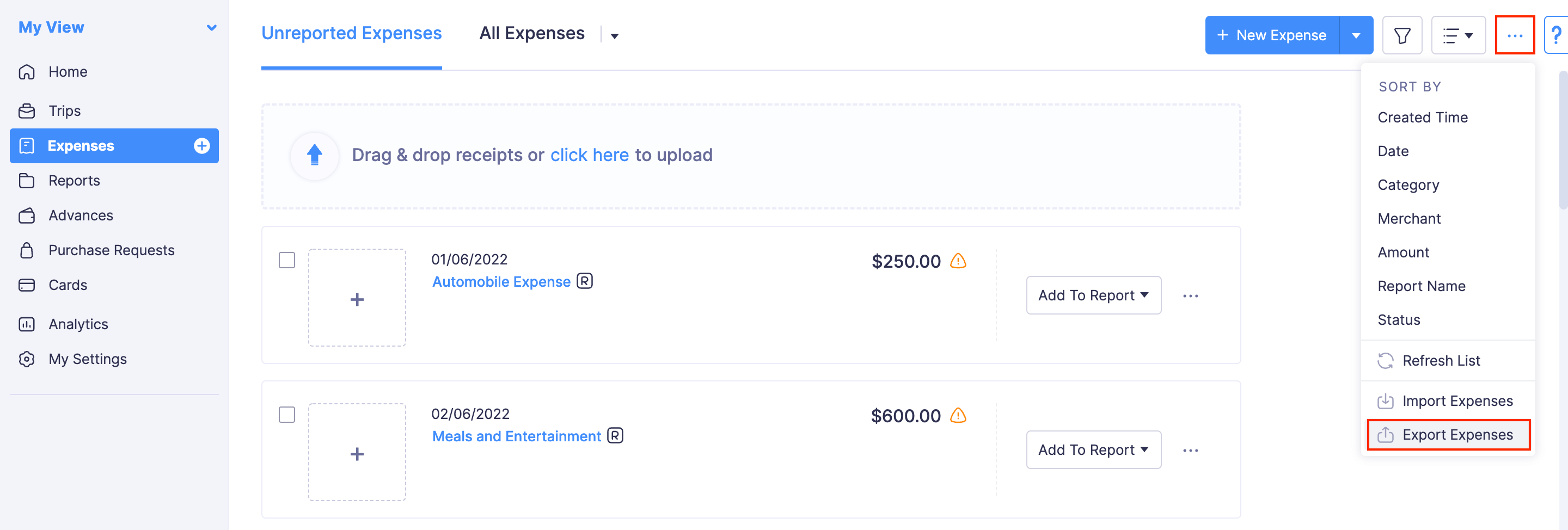
- Click the More icon on the top right corner of the page.
- Select Export Expenses.
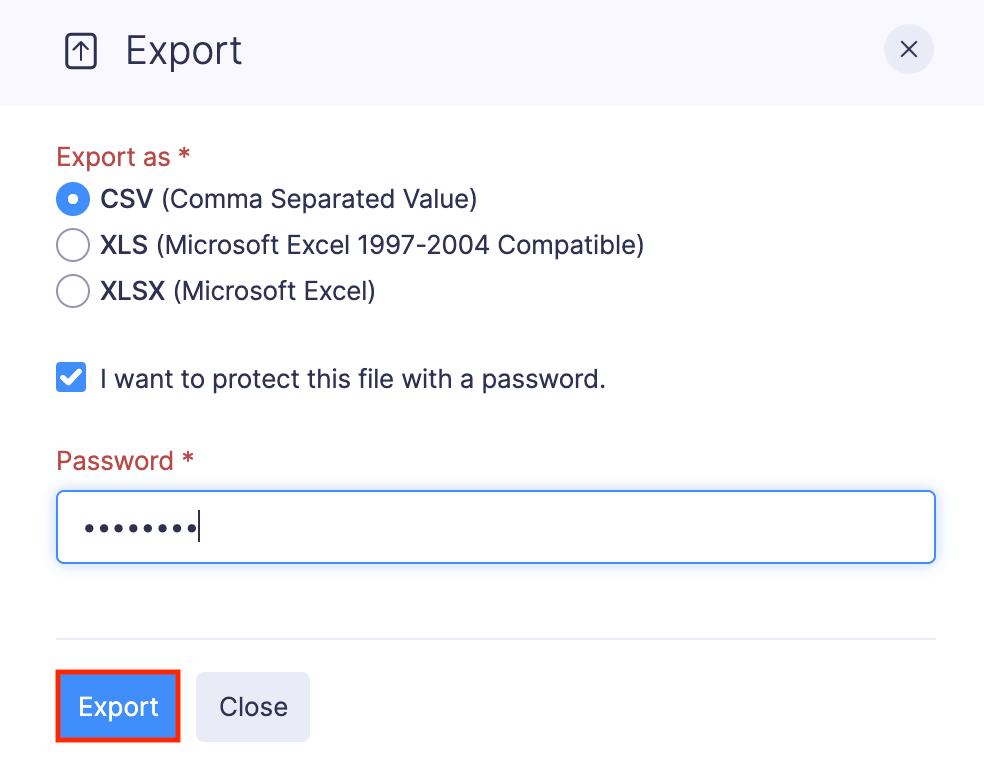
- Select the format (CSV, XLS or XLSX) in which you would like to export your expense data.
- Mark Include Sensitive Personally Identifiable Information (PII) while exporting to export expenses with PII such as name of the user, email address, etc.
- You can also protect the export file with a password. Mark I want to protect this file with a password and provide a password in the Password field.
- Click Export and your export file will be downloaded.
Bulk Actions
Bulk Actions allow you to perform a particular action on a group of expenses. You can update multiple expenses, add multiple expenses to a report, merge expenses, delete multiple expenses, and download expense receipts.
Bulk Update Expenses
Here’s how you can bulk update expenses:
- Go to Expenses on the left sidebar.
- Navigate to the All Expenses tab.
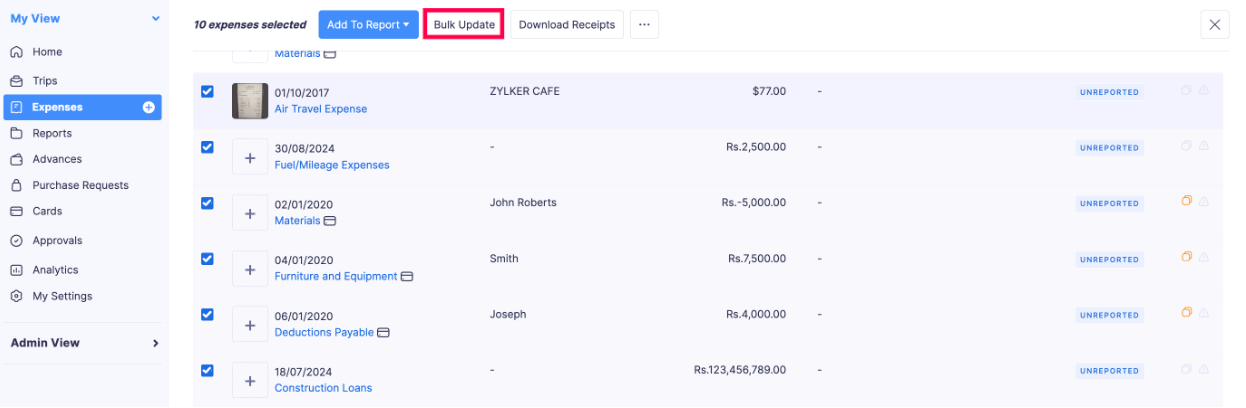
- Select all the expenses you want to update.
- Click Bulk Update in the top pane.
- You can update fields such as Date, Category, Reimbursement Claim, Description, Merchant, Project, Paid Through and Reference#. Click the More Fields dropdown if you want to update more fields.
- Click Save.
Bulk Add Expenses to Reports
Here’s how you can bulk add expenses to a report:
- Go to Expenses on the left sidebar.
- In the Unreported Expenses tab, select the unreported expenses you want to add to a report.
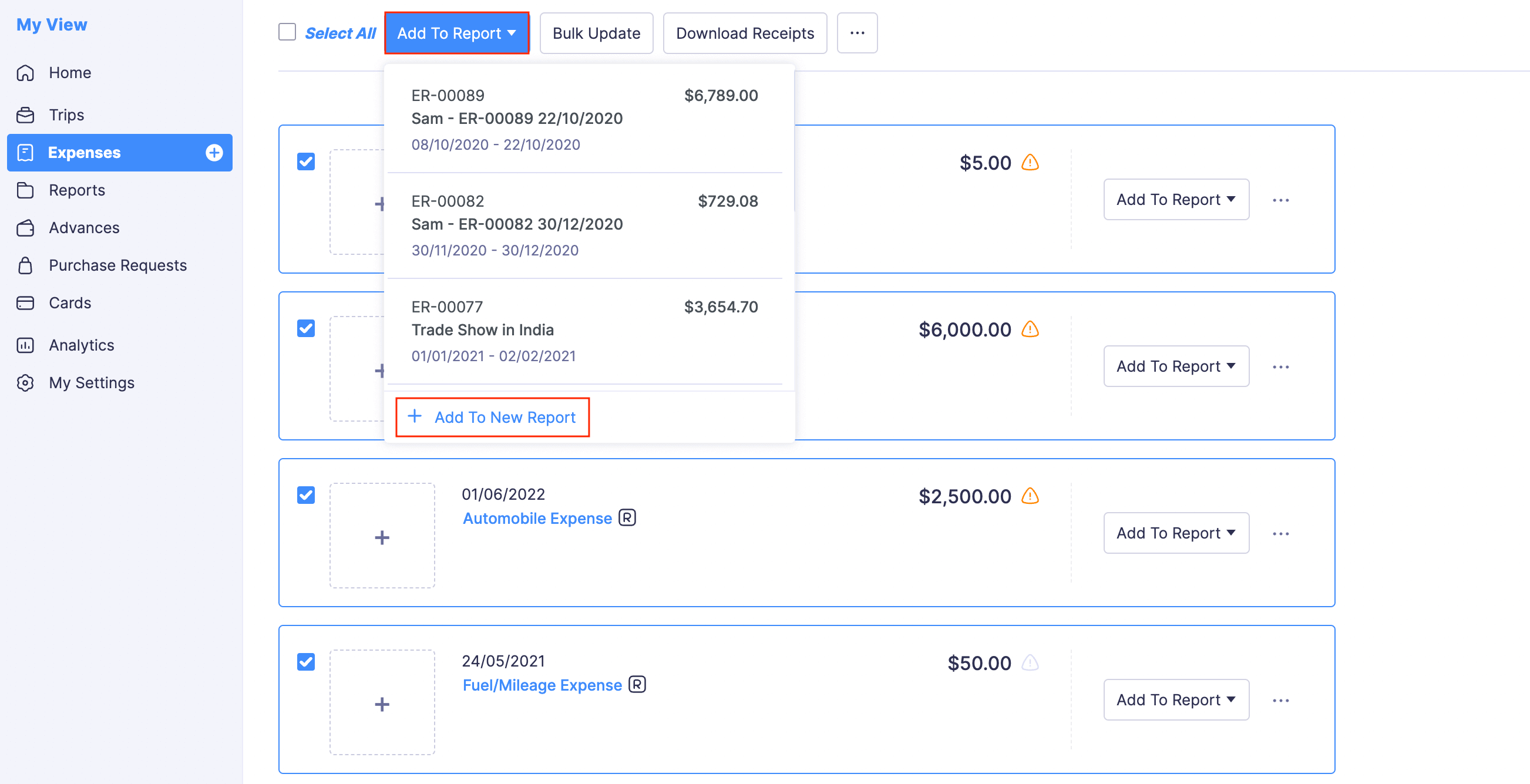
- Click the Add to Report dropdown in the top pane.
- Select a report from the dropdown. All the expenses you’ve selected will be added to that report.
- If you want to create a new report for the selected expenses, click + Add to New Report from the dropdown.
Merge Expenses
If you find that an expense has been duplicated, you can merge it with its parent expense. Upon merging, both the expenses will be automatically deleted and a new expense will be created.
Prerequisite: You cannot merge Submitted, Approved, and Reimbursed expenses.
Warning: Once you merge two expenses, you cannot undo it.
To merge:
- Go to Expenses on the left sidebar.
- Mark the expenses you want to merge (only two).
- Click the More icon on the top of the page.
- Select Merge.
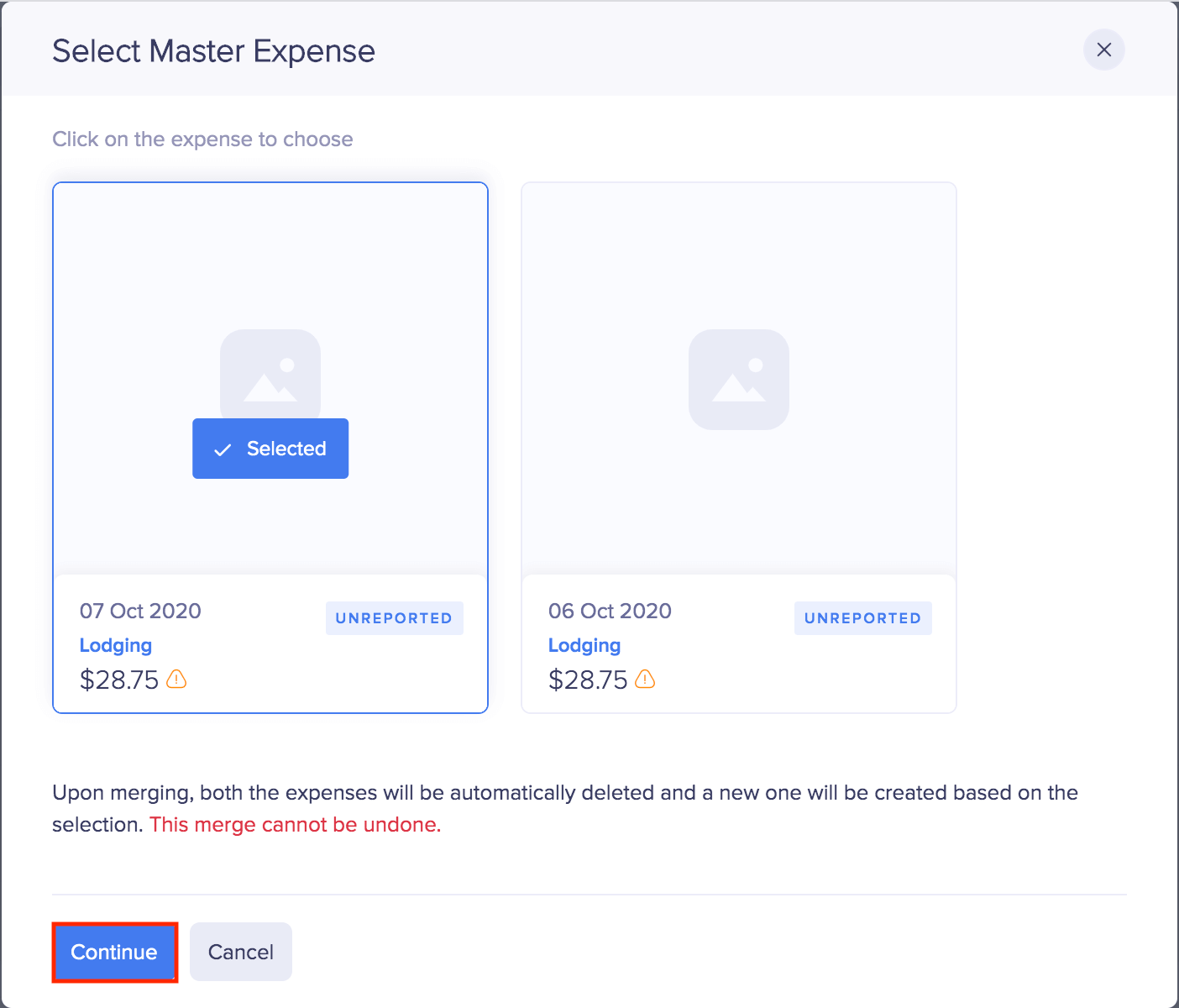
- In the pop-up that follows, hover over the expense you want to select as the master expense and click Select.
- All the missing information (description, location, reference number, report information) from the master expense will be fetched from the child expense.
- Click Continue. Both the expenses will be deleted and a new expense will be created.
Download Expense Receipts
Here’s how you can download the expense receipts:
- Go to Expenses on the left sidebar.
- Navigate to the All Expenses tab.
- Select the expenses for which you want to download the receipts.
- Click Download Receipts in the top pane.
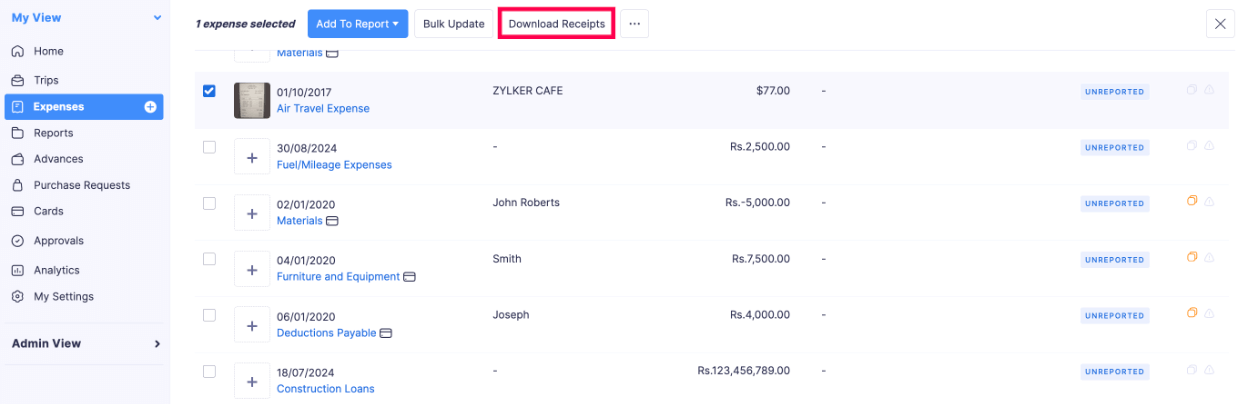
The expense receipt will be downloaded to your device.
Split an Expense
You can split a single expense into multiple expenses based on amount, days, or fields in the expense. You can create equal splits or edit the amount of the split expenses.
Note: You cannot split your per diem and mileage expenses.
For example, while recording the expenses incurred on a business trip, the lodging bill might include the restaurant charges as well. However, your expense policy mandates that you record these two expenses separately, since the expense limits for them are different. In that case, you can split the expense based on the category. Here’s how it’s done.
- Go to Expenses module.
- Click the More icon at the right corner of the lodging (parent) expense you would like to split.
- Click Split.
- In the split expense page, first, select the type of split. You can split the expense by amount, days, or field.
- On splitting the expense by amount and choosing the number of splits, the total expense amount will be split equally into that many expenses.
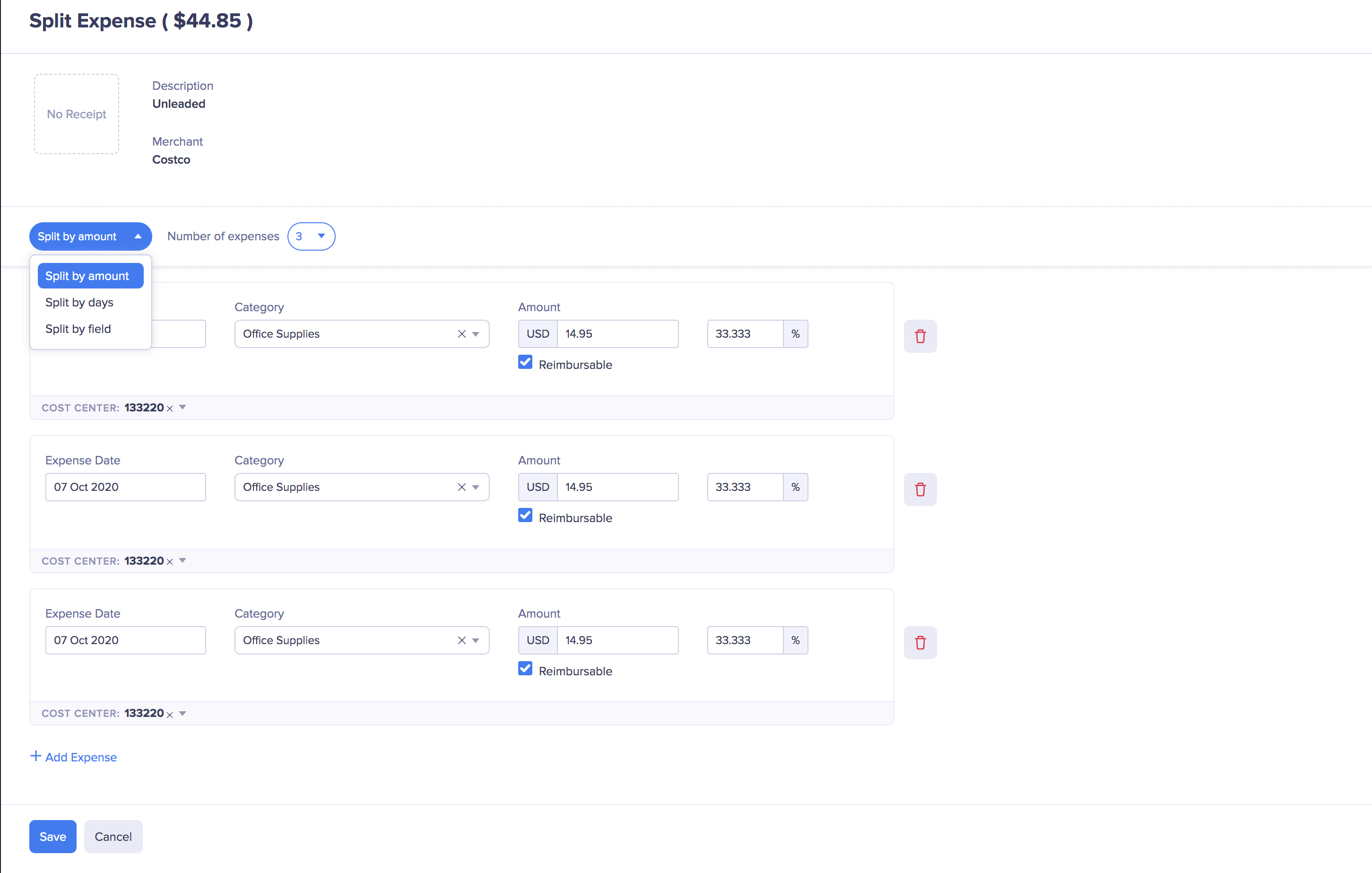
- To split the expense amount by days, configure the starting and the ending date. The total expense amount will be split into the number of days configured.
- You can also split an expense by field. Select the field and the number of expenses. Let’s say, you’ve selected the field as Customer and the number of expenses as 3. Now, the expense will be split into 3 and you can select a customer for each expense.
- Edit the expense amount of each split and change the category.
- Click Save.
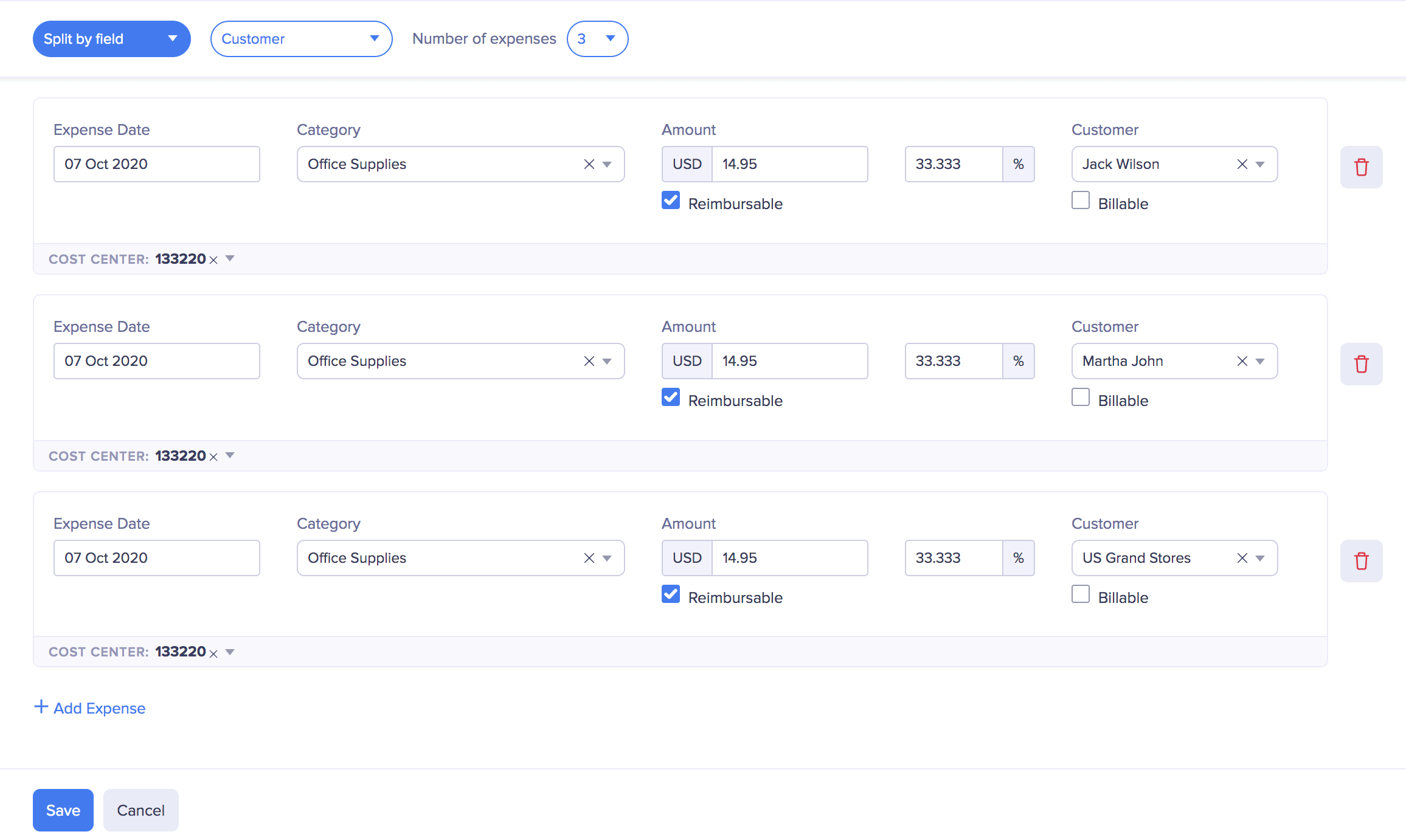
If your parent expense is already added to a report, the split expenses will be automatically added to the same report.
Itemize an Expense
Let’s take an instance where you meet a client for lunch and want to record the expense in Zoho Expense. While doing so, you want to apply tax only on the food and not on the tip you paid. You can record easily by itemizing the expense.
Note: You cannot itemize your per diem and mileage expenses.
To itemize:
- Go to Expenses.
- Click + New Expense.
- Click Itemize on the expense creation form. Your page expands to include expenses as items.
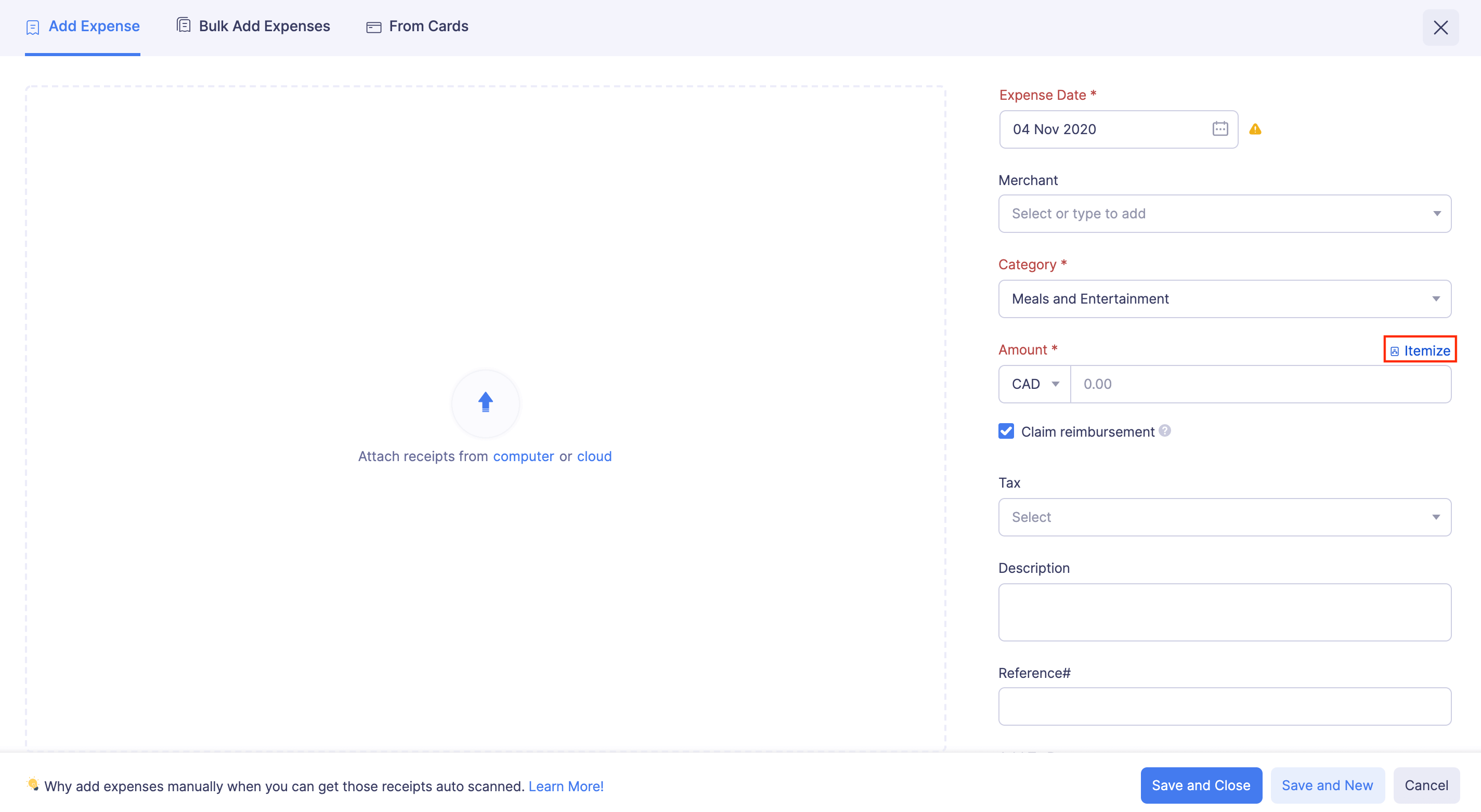
- Enter the meals expense as your first item and apply tax on it.
- Add the tip you paid as your second item and associate it with a different category if you like. The expense total will be automatically calculated, with tax applied only to the meals expenses.
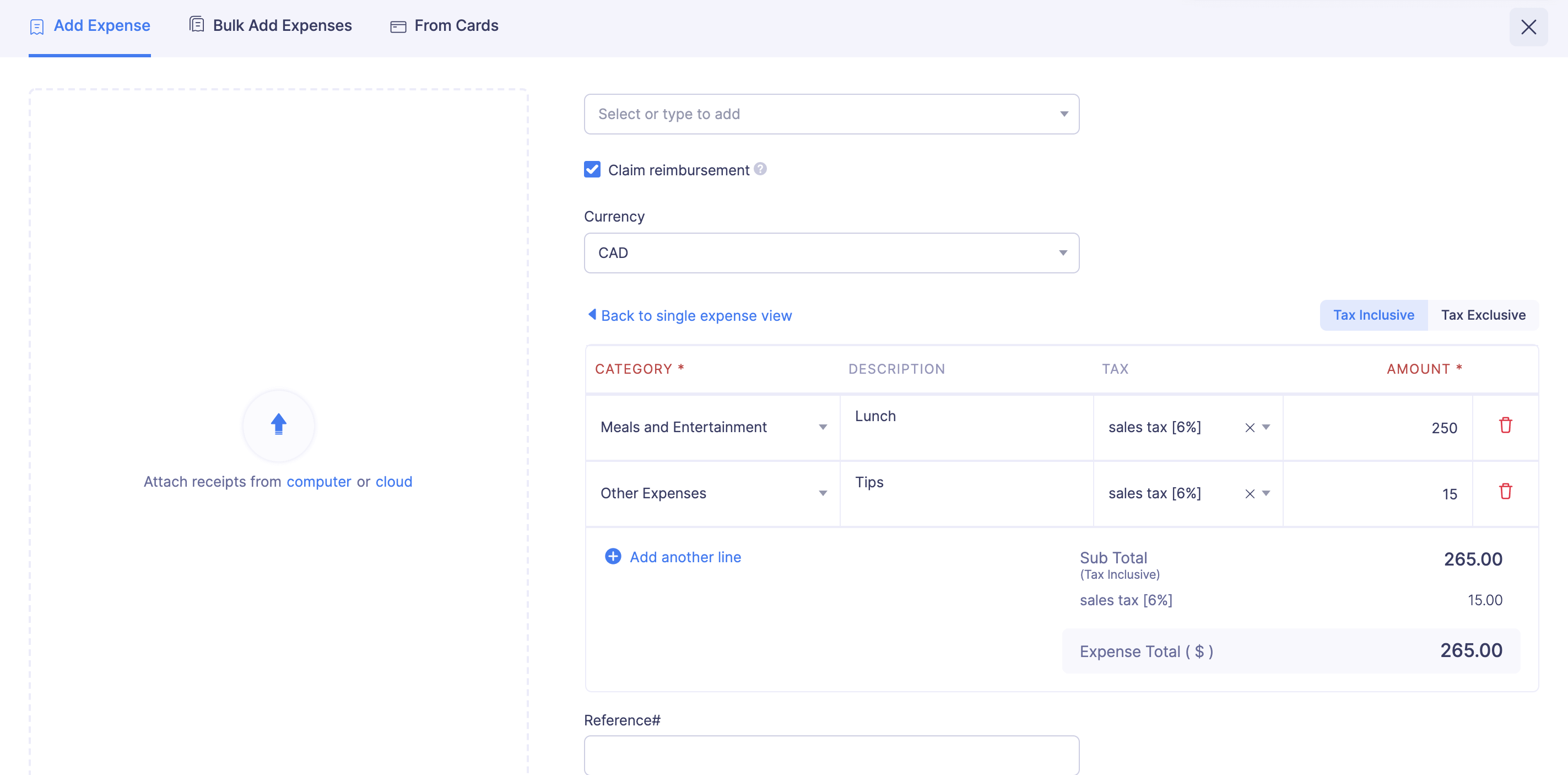
- Associate the expense with the customer and make it billable, if required.
- Add it to an existing report or to a new report.
- Click Save and Close.
Edit Expenses
If you want to make changes to an expense, you can edit it.
Notes:
- You can edit only Unreported and Unsubmitted expenses.
- You cannot edit Expired expenses.
To edit an expense:
- Open the Zoho Expense app on your device.
- Tap the Menu icon in the top left corner.
- Navigate to the Expenses module.
- Tap the expense you want to edit.
- Tap Edit in the bottom left corner.
- Make the necessary changes and tap Save Expense.
Delete Expenses
If you do not require an expense anymore because you’ve created it by mistake, you can delete it.
Note: You cannot delete expenses in the Submitted, Approved, and Reimbursed statuses.
Warning: Once an expense is deleted, it cannot be retrieved.
To delete an expense:
- Open the Zoho Expense app on your device.
- Tap the Menu icon in the top left corner.
- Navigate to the Expenses module.
- Tap the expense you want to delete.
- Tap the More icon in the bottom right corner.
- Select Delete.
- In the pop-up tap Delete again to confirm your action.
Search Expenses
If you want to locate a particular expense from a group of expenses, you can search for the expense.
To search a expense:
- Open the Zoho Expense app on your device.
- Tap the Menu icon in the top left corner.
- Navigate to the Expenses module.
- Tap the Search bar in the bottom of the screen.
- You can enter any field value of the particular expense that you want to view.
- Tap the Search icon on the keyboard.
Split an Expense
You can split a single expense into multiple expenses based on amount, days or the fields in the expense. You can create equal splits or edit the amount of the split expenses.
Note: You cannot split your per diem and mileage expenses.
For example, while recording the expenses incurred on a business trip, the lodging bill might include the restaurant charges as well. However, your expense policy mandates that you record these two expenses separately, since the expense limits for them are different. In that case, you can split the expense based on the category. Here’s how it’s done.
- Open the Zoho Expense app on your device.
- Tap the Menu icon in the top left corner.
- Navigate to the Expenses module.
- Tap the expense you would like to split.
- Tap the More icon in the bottom right corner of the screen.
- Select Split.
- Select the type of split. You can split the expense by amount, days, or field.
- Enter the Number of Split. On splitting the expense by amount and choosing the number of splits, the total expense amount will be split equally into that many expenses.
- To split the expense amount by days, configure the starting and the ending date. The total expense amount will be split into the number of days configured.
- You can also split an expense by field. Select the field and the number of expenses. Let’s say you’ve selected the field as Customer and the number of expenses as 3. Now, the expense will be split into 3 and you can select a customer for each expense.
- Edit the expense amount of each split and change the category.
- Tap Save. If your parent expense is already added to a report, the split expenses will be automatically added to the same report.
Itemize an Expense
Let’s take an instance where you meet a client for lunch and want to record the expense in Zoho Expense. While doing so, you want to apply tax only on the food and not on the tip you paid. You can record easily by itemizing the expense.
Note: You cannot itemize your per diem and mileage expenses.
To itemize an expense:
- Open the Zoho Expense app on your device.
- Tap the Menu icon in the top left corner.
- Navigate to the Expenses module.
- Tap the expense you would like to itemize.
- Tap the More icon in the bottom right corner of the screen.
- Select Itemize.
- Enter the meals expense as your first item and apply tax on it.
- Add the tip you paid as your second item and associate it with a different category if you like. The expense total will be automatically calculated, with tax applied only to the meals expenses.
- Associate the expense with the customer and make it billable, if required.
- Add it to an existing report or to a new report.
- Tap Save Expense.
Clone Expenses
Clone an expense to duplicate all the essential details of an expense. Here’s how:
- Open the Zoho Expense app on your device.
- Tap the Menu icon in the top left corner.
- Navigate to the Expenses module.
- Tap the expense you want to clone.
- Tap the More icon in the bottom right corner.
- Select Clone. (In case of approved and reimbursed reports, tap the Clone button at the bottom of the screen.)
- Make changes if necessary.
- Tap Save Expense.
 Yes
No
Yes
No
Thank you for your feedback!