



Corporation Tax
Corporation Tax is a tax that UK-registered limited companies pay on their taxable profits from trading, investments, and the sale of assets. It is managed by HMRC, and every company must calculate, report, and pay this tax for each accounting period.
Filing Corporation Tax helps your business stay compliant with UK tax laws and avoid penalties. It also gives you a clear view of your company’s financial performance. The Corporation Tax return (CT600) is the report you submit to HMRC with details of your income, expenses, profits, and the tax you owe. It is usually filed along with Final Accounts and iXBRL reports.
In Zoho Books, you can enable Corporation Tax to automatically calculate your tax liability based on your transactions. Zoho Books helps you generate your Final Accounts and Corporation Tax return in the required format for submission to HMRC and Companies House.
Corporation Tax Filing Requirements
- Limited companies operating in the UK must register for Corporation Tax when they start trading.
- A company must file a Corporation Tax Return for each financial year, whether it makes a profit or not.
- Deadlines:
- Register with HMRC: Within 3 months of starting to trade.
- Pay Corporation Tax: Within 9 months and 1 day from the end of the accounting period.
- File the Company Tax Return (CT600): Within 12 months of the end of the accounting period.
Micro-Entities
A micro-entity is a very small company eligible to prepare simpler annual accounts and reports. To qualify, a company must meet at least two out of the following criteria:
- A turnover of £1 million or less
- A balance sheet total of £500,000 or less
- 10 employees or fewer
This allows qualifying businesses to benefit from reduced reporting requirements under UK company law.
Note: Corporation Tax filing is currently available only for micro-entities.
How Corporation Tax Works
- In Zoho Books, first enable Corporation Tax for your business by entering the required details, such as your Company Registration Number (CRN), Unique Taxpayer Reference (UTR), company type, and select the required Corporation Tax accounts.
- Once enabled, you can generate your Corporation Tax Return by entering the start and end dates for the period that matches your Accounting Reference Date (ARD). Then, map your accounts to the relevant categories.
Insight:
Accounting Reference Date: The last date of the financial year that marks the end of your business’s financial year for preparing and filing its Corporation Tax return with HMRC.
- After mapping the accounts, review and verify the details.
- Next, go to the Supplementary Forms tab and enable Loans and Arrangements to Participators by Close Companies if applicable. This section is only applicable to close companies that lend money to their directors, shareholders, and associates.
- Once all the required details are entered and verified, generate the return and submit it for approval.
- Once approved, you can either submit it directly to HMRC by entering your Government Gateway User ID and Password, or export the tax return and manually file it through the HMRC portal. Once filed, you can mark the return as Filed in Zoho Books.
Enable Corporation Tax
To enable corporation tax for your business:
- Go to Settings.
- Select Taxes under Taxes & Compliance.
- In the Taxes pane, under Other Taxes, select Corporation Tax.
- Slide the toggle next to Are you liable to pay Corporation Tax, and fill in the following fields:
- Company Registration Number (CRN): Enter your company’s CRN. It’s a unique identifier for limited companies, made up of eight digits or two letters followed by six digits.
- Unique Taxpayer Reference (UTR): Enter your 10-digit UTR. This is a unique number for every UK taxpayer, needed for filing tax returns.
- Type of Company: Choose the business type from the dropdown.
- Number of Associated Companies: Enter the number of companies associated with your business.
- Marginal Relief: If your business earns profit between £50,000 and £250,000, check Apply Marginal Relief for my business to apply it during tax calculations. Learn more about Marginal Relief.
Note: The thresholds are subject to change. You can check the latest rates and allowances from the HMRC website.
Choose your Corporation Tax Accounts:
- Corporation Tax Liability Account: The account where your tax liability amounts will be recorded.
- Corporation Tax Expense Account: The account where the associated expenses will be recorded.
Click Save.
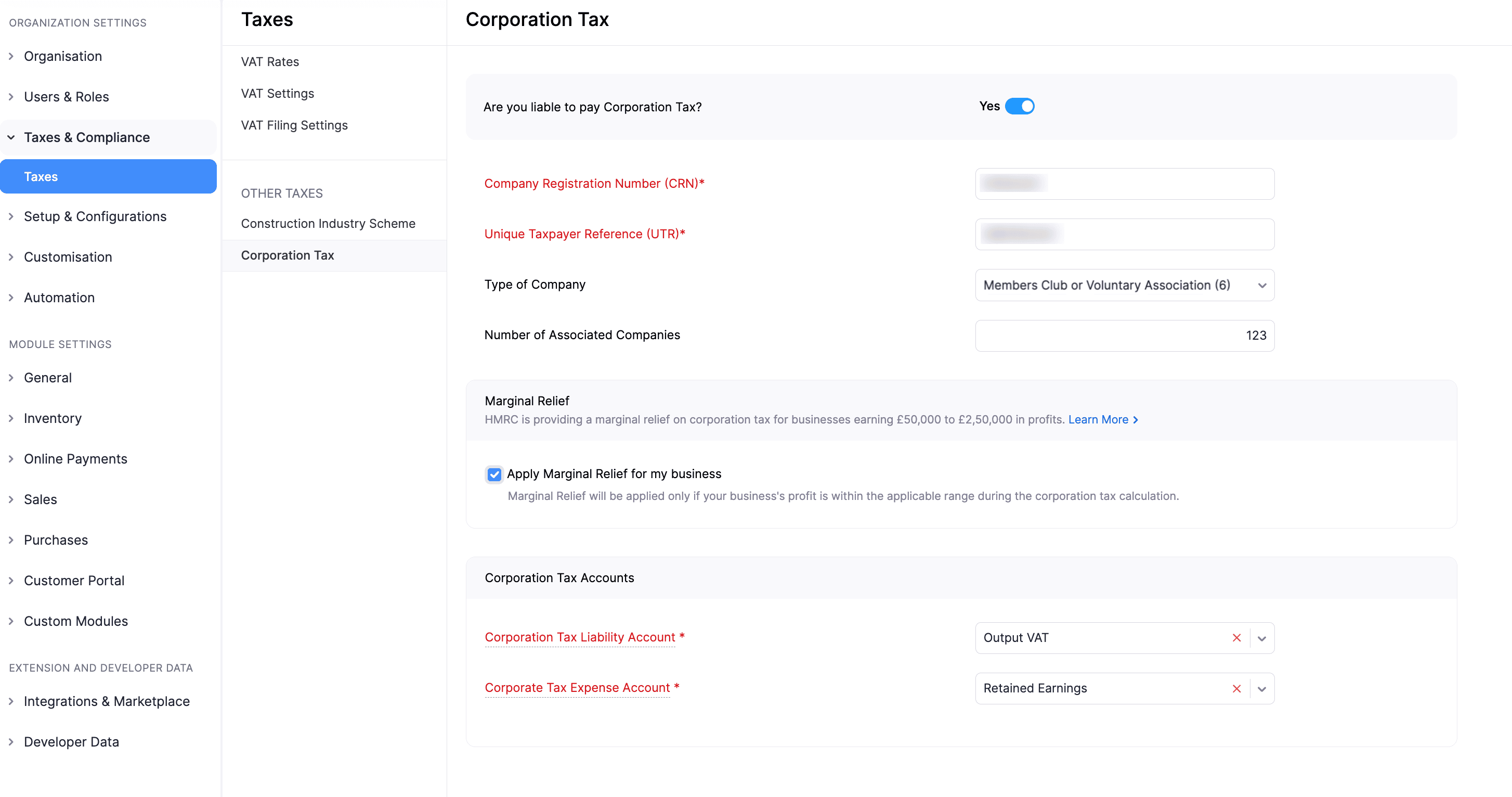
Corporation Tax will now be enabled for your organisation. You can start creating Corporation Tax Returns and file them with HMRC.
How Zoho Books Computes Corporation Tax
Zoho Books calculates taxable profits in these stages:
Profit or Loss from Accounts
This is the profit or loss as per your financial statements before tax adjustments.
Add Back Expenses
Certain expenses are not tax-deductible. These are added back to your profit when calculating taxable income.
Income Deductions
Income not chargeable for Corporation Tax is deducted from your accounting profit. This could include items like dividend income from UK companies.
Non-Trading Activities
Income and expenses from activities not part of your main trade are separated and included based on HMRC rules.
Losses and Carry Forwards
Trading losses from earlier years can be carried forward and offset against current or future profits. Zoho Books applies these automatically once entered.
Loan Arrangements
For close companies, if loans are made to participators, Zoho Books accounts for this within the tax return computation.
Prorated Apportionment
If your accounting period spans more than one tax year, taxable profits and tax rates are apportioned accordingly.
Note: Capital allowances aren’t supported yet. This feature will be available in a future update.
Marginal Relief
If your business earns profits between £50,000 and £250,000 (thresholds subject to change), you may qualify for Marginal Relief, which reduces the Corporation Tax you pay to HMRC. It provides a gradual increase in the tax rate between the small profits rate (19% for profits below £50,000) and the main rate (25% for profits above £250,000). This helps lower your Corporation Tax if your profits fall within that range.
If you want to apply Marginal Relief in your Corporation Tax Returns generated in Zoho Books, you can do it while you enable Corporation Tax in Zoho Books. Here’s how:
Go to Settings.
Select Taxes under Taxes & Compliance.
In the Taxes pane, select Corporation Tax under Other Taxes.
Under Marginal Relief, check the Apply Marginal Relief for my business option.
Click Save.
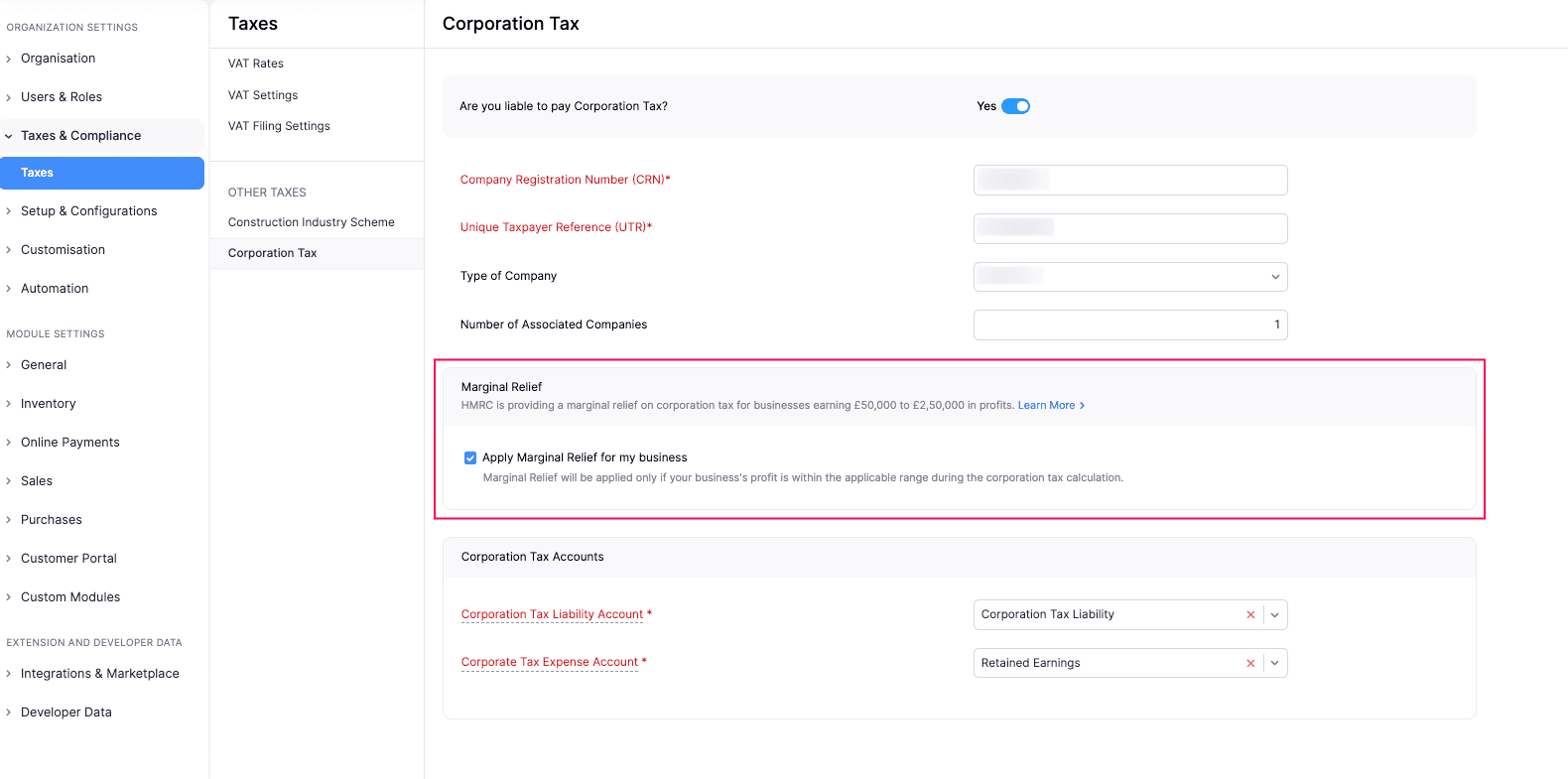
Marginal Relief will now be enabled for your organisation. It will be applied in your corporation tax returns if your profits are in the eligible range.
Carry Forward Losses in Zoho Books
If your business makes a trading loss, you can carry it forward to the next reporting period to offset against future profits. In Zoho Books, these losses are calculated and automatically applied when generating future tax returns.
Supplementary Pages
Loans and Arrangements (CT600A)
If your business lends money to directors or shareholders and it isn’t repaid within the allowed period, you may have to pay additional tax. While generating the return, record these loans in the Loans to Participators section. Zoho Books will handle their tax implications and report them on the CT600A form.
Note: Zoho Books currently supports only the supplementary page CT600A. Support for other supplementary pages will be introduced soon.
Track Outstanding, Repaid, and Written-Off Loans
In the Loans to Participators section track:
- Outstanding loans
- Repaid amounts
- Written-off loans
Written-off loans affect the Corporation Tax computation and are reported in CT600 box 480. If there’s nothing to repay or write off, enter 0 in the respective fields.
Generate Corporation Tax Returns
Once you’ve enabled Corporation Tax in your organisation, you can generate a Corporation tax return based on your financial data and account mappings. To do so:
Go to Filing & Compliance on the left sidebar, and select Corporation Tax Returns.
Enter the Accounting Period Start Date and Accounting Period End Date for which you want to generate the return. Your first Corporation Tax Return can cover a period longer than the standard 12 months. Based on the dates you provide, Zoho Books automatically generates two returns for that period, and you can file each return separately.
Click Generate Return.
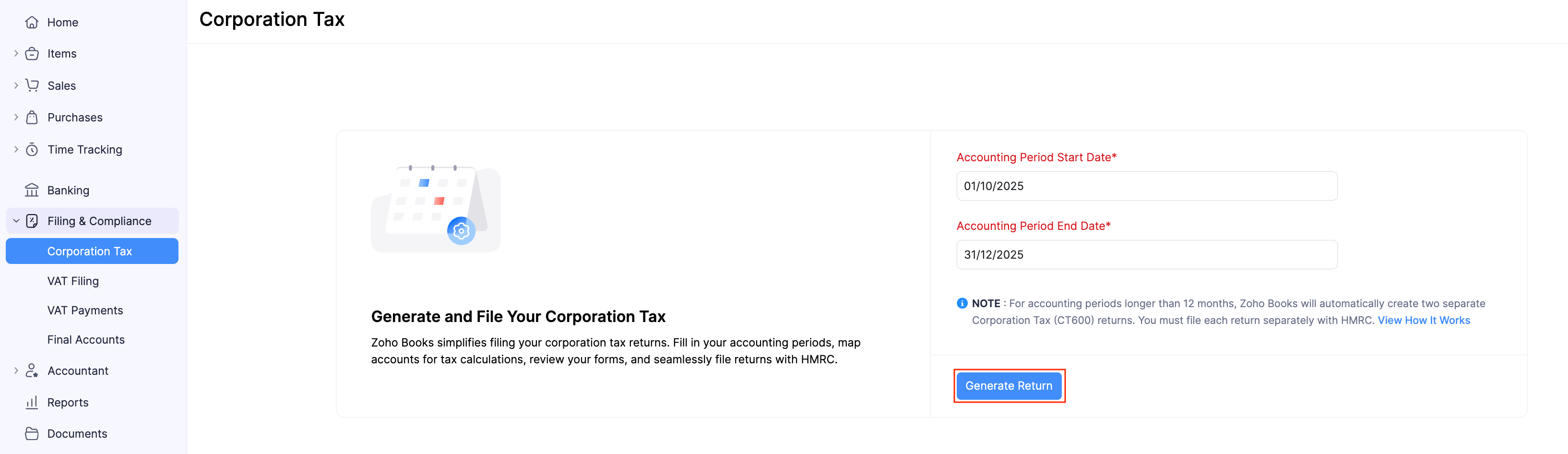
Map Accounts
Add the accounts you want to include in the Corporation Tax Return.
Under Add Backs, click + Add Accounts to map accounts to the relevant boxes, such as Entertainment Expenses.
Under Deductions, click + Add Accounts to map accounts to the relevant box, such as Non Taxable Income.
Under Non Trading Accounts, click + Add Accounts to map accounts to the relevant box, such as Interest Received.
Click Next.
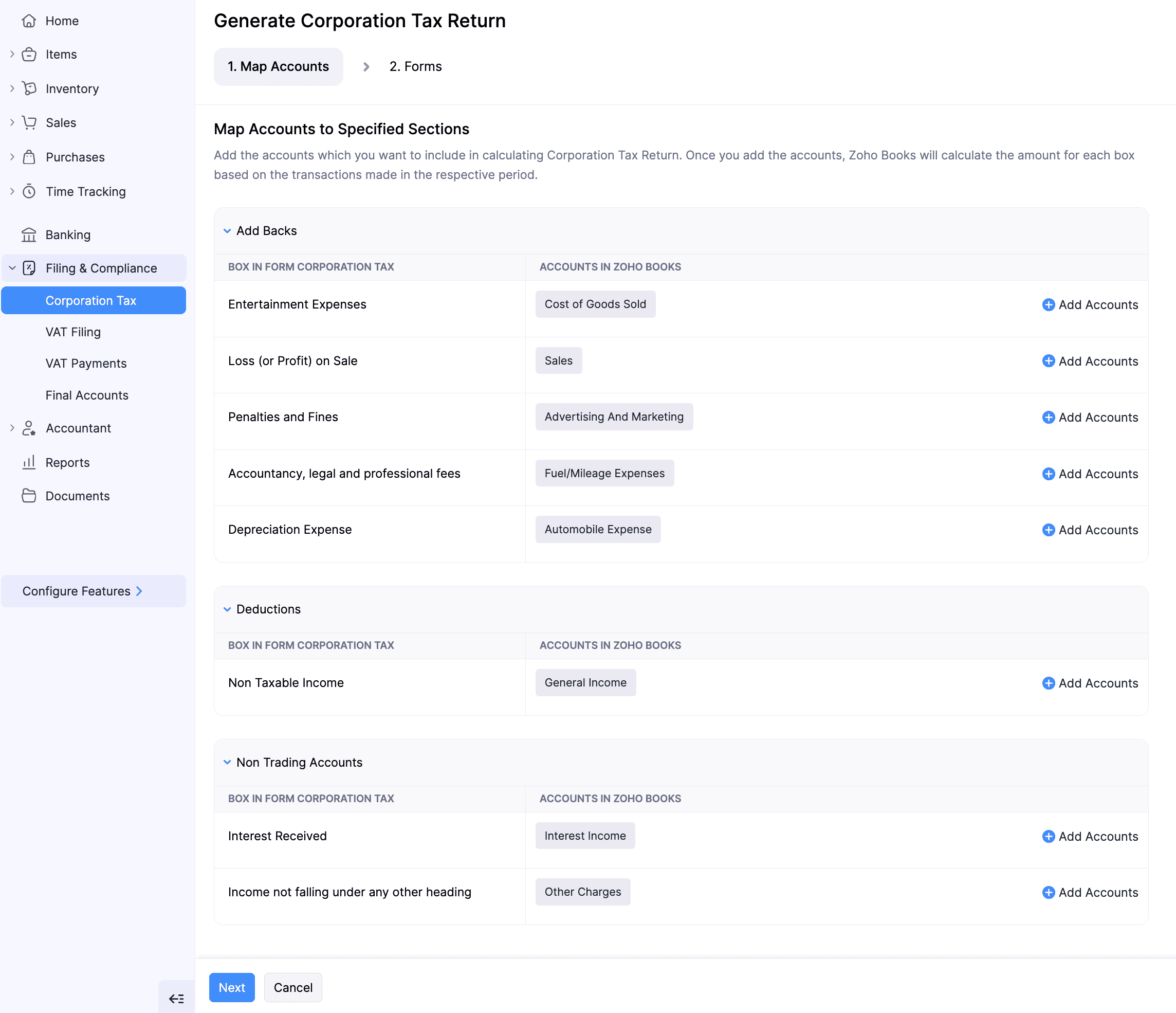
Review Forms
Under Forms, review the values filled in each section based on the mapped accounts.
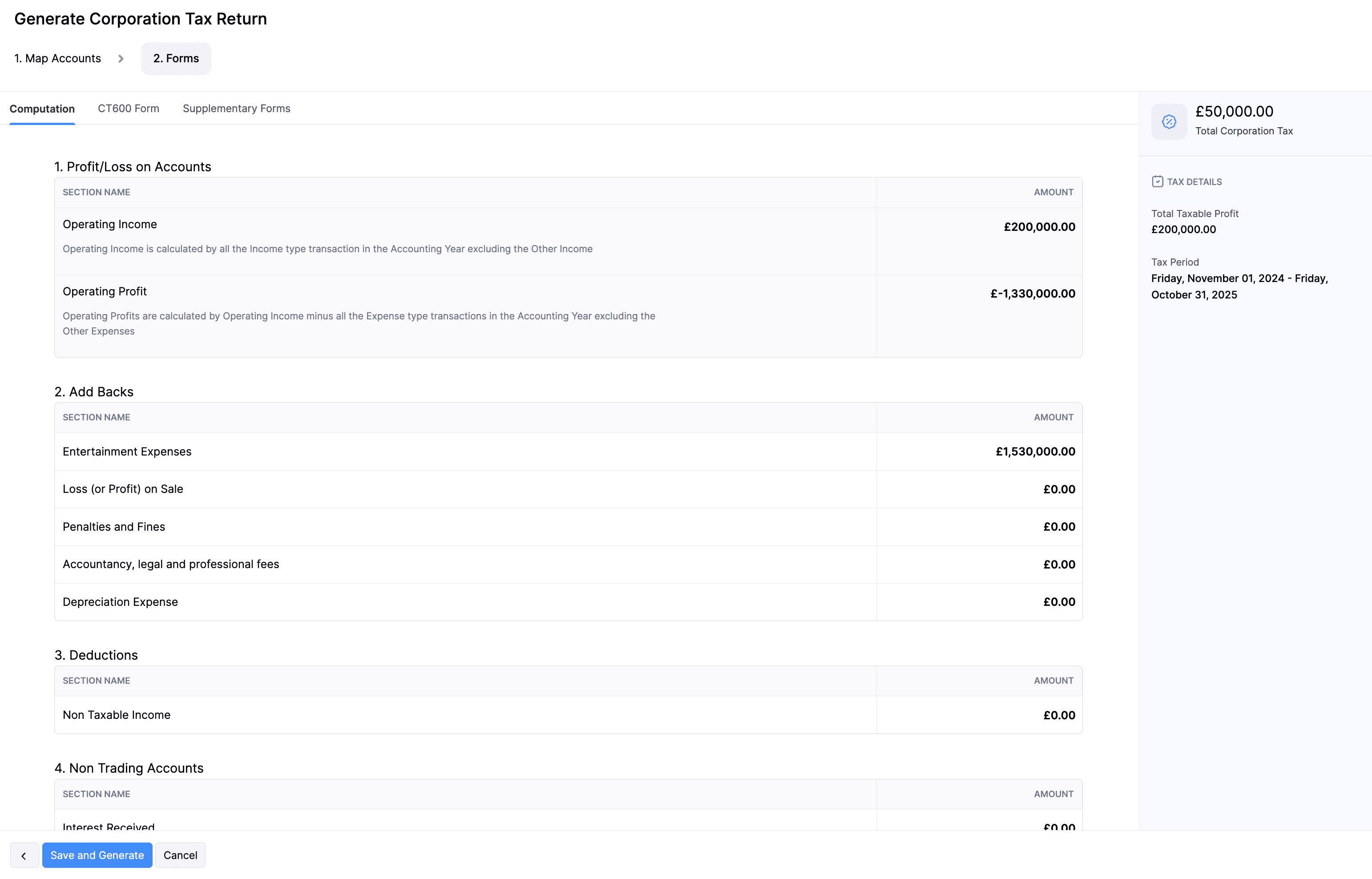
In the Computation section, review the following boxes:
- Profit/Loss on Accounts
- Add Backs
- Deductions
- Non Trading Accounts
- Profit/Loss including Adjustments
- Trading Losses
- Profit After Losses
- Loans to Participators
- Apportionment
- Corporation Tax Liability
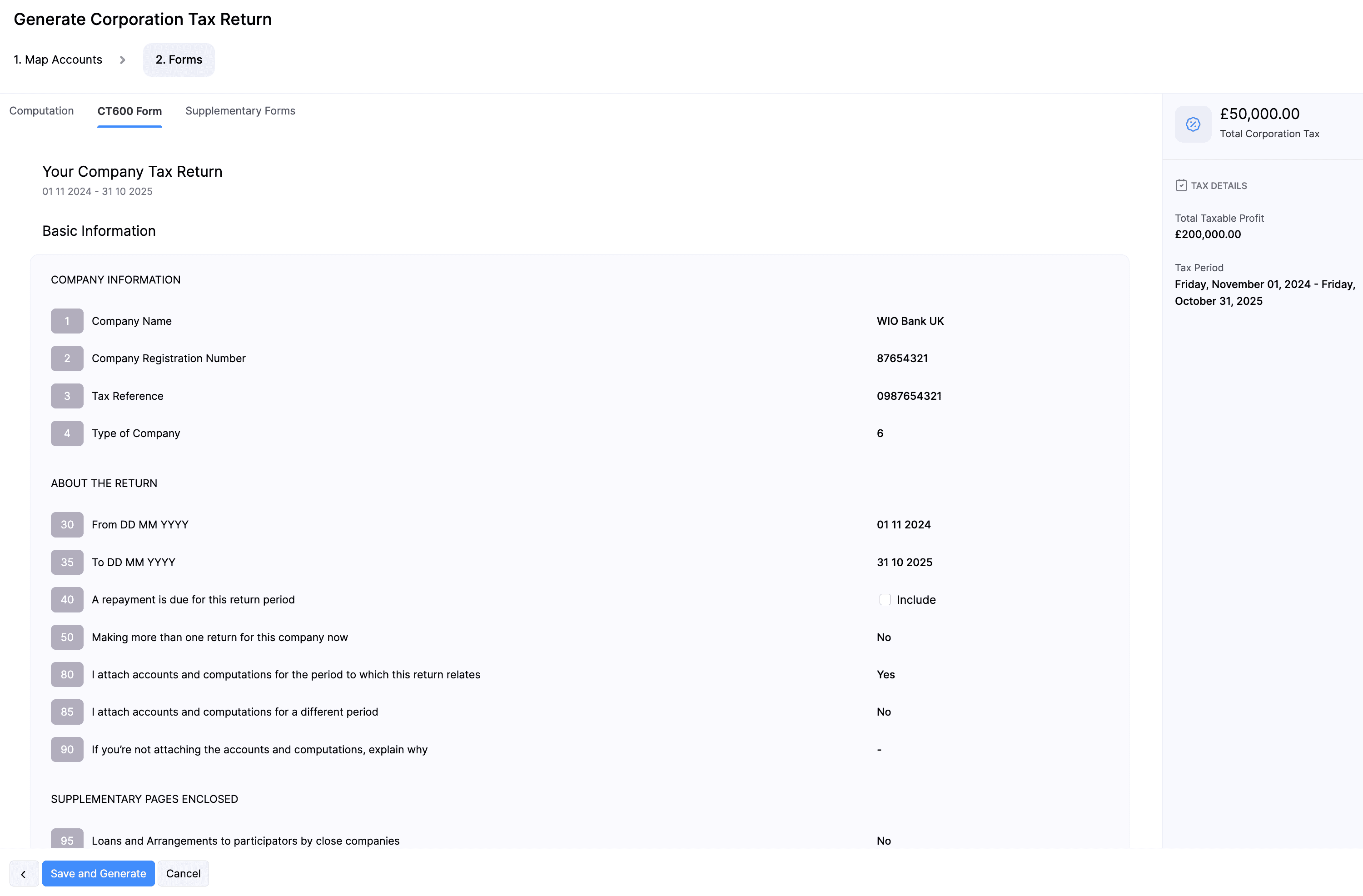
In the CT600 Form, review the following:
- Basic Information: Company Information, About the Return, Supplementary Pages Enclosed
- Tax Calculation: Turnover, Income, Profits Before Deductions and Reliefs, Deductions and Reliefs, Tax Calculation, Calculation of Tax Outstanding or Overpaid, Tax Reconciliation, Indicators and Information
- Losses, Deficits, and Excess Amounts: Amount Arising
- Declaration: Name, Date, Status
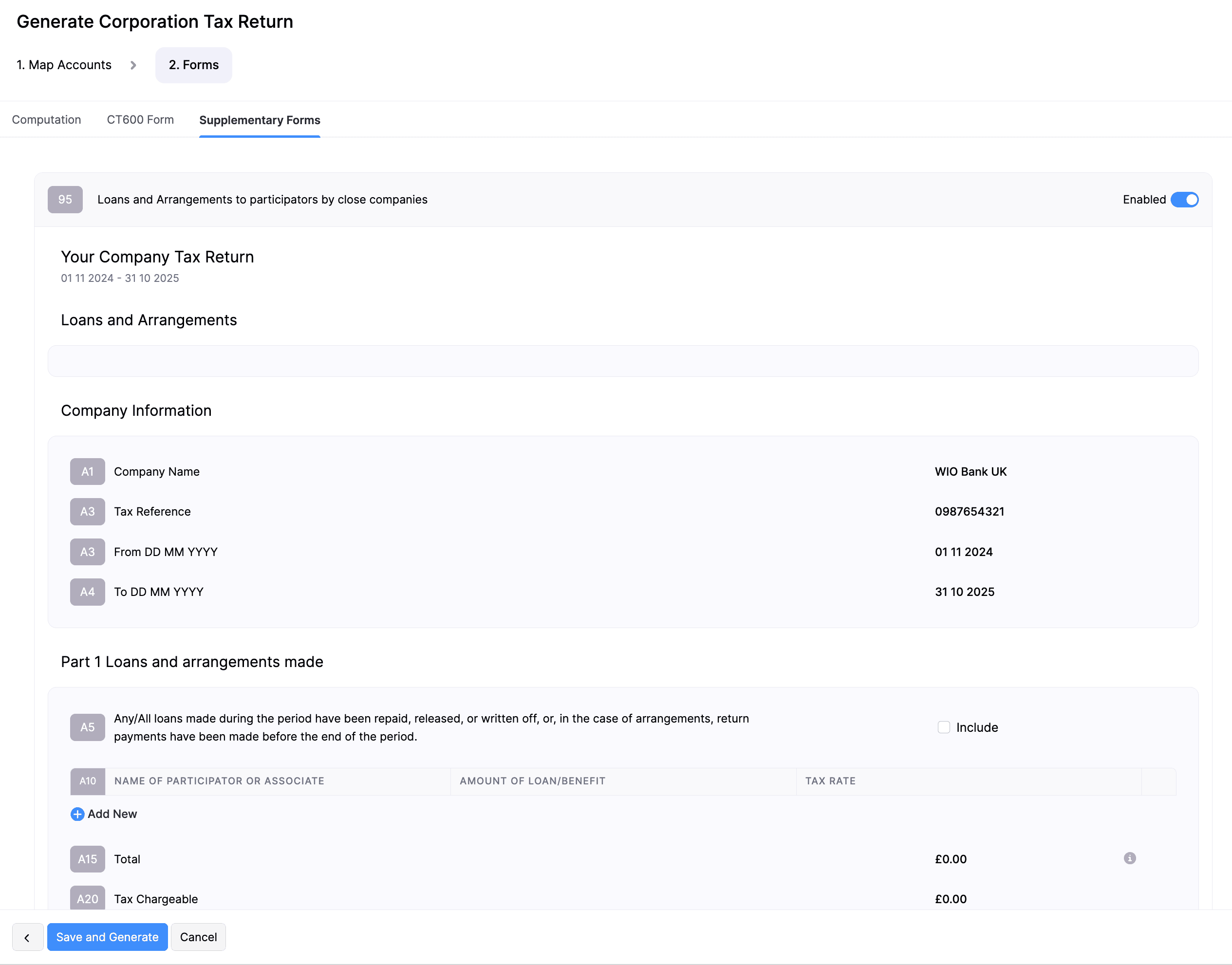
In the Supplementary Forms section, enable the toggle next to Loans and Arrangements to participators by close companies, and review:
- Loans and Arrangements
- Company Information
- Part 1: Loans and Arrangements Made: Ensure amounts are matched to the respective boxes
- Part 2: Relief for Return Payments and/or Amounts Repaid, Released or Written Off within 9 Months: Verify if the amounts are correctly mapped.
- Summary Information: Enter the value in Box A75: Total of all loans and arrangements, for all periods, outstanding at the end of the return period, if applicable.
Once you’ve reviewed all the boxes, click Save and Generate.
In the confirmation pop-up, read and agree to the terms and click Continue To Generate.
The Corporation Tax Return will now be generated. You can now submit the return for approval to an admin in your organisation.
Submit For Approval
Once you’ve generated the Corporation Tax return, you can submit it for approval to an admin in your organisation. They’ll review the return and approve it. To submit for approval:
Go to Filing & Compliance on the left sidebar and select Corporation Tax.
Select the return you want to submit for approval.
In the next page, click Submit for Approval in the top right corner of the page.

In the confirmation pop-up, click Submit.
The return will be submitted for approval.
Approve Corporation Tax Returns
Once the return is submitted for approval, the admin can review and approve the return.
Note: If you are an admin of your organisation, you can approve it yourself.
Go to Filing & Compliance on the left sidebar and select Corporation Tax.
Select the return you want to approve.
In the next page, click Approve Return in the top right corner.

In the confirmation pop-up, click Approve Now.
The Corporation Tax return will be approved.
Reject Corporation Tax Returns
If the return submitted for approval contains any errors or amount mismatches, you can reject the approval. Once rejected, the respective user has to generate a new return and submit it again for approval. To reject:
Go to Filing & Compliance on the left sidebar and select Corporation Tax.
Select the return you want to reject.
In the next page, click the More icon in the top right corner and select Reject.

In the Reason for Pending Approval pop-up, enter a reason to reject the return.
Click Submit.
The Corporation Tax return will be rejected.
Revoke Approval
To revoke the approval for a Corporation Tax return you had already approved:
Go to Filing & Compliance on the left sidebar and select Corporation Tax.
Select the return for which you want to revoke the approval.
In the next page, click the More icon in the top right corner, and select Revoke Approval from the dropdown.

In the Reason for Revoking Approval pop-up, enter the reason to revoke approval.
Click Submit.
The approval for the return will be revoked.
Submit Corporation Tax Returns to HMRC
Once your admin has approved the return, you can directly submit the return from your Zoho Books organisation. Here’s how:
Go to Filing & Compliance on the left sidebar and select Corporation Tax.
Select the return you want to submit to HMRC.
In the next page, click Submit to HMRC in the top right corner.

In the Submit to HMRC pop-up, read and agree to the terms and fill in the following details:
- Government Gateway User ID: Enter the user ID you use to sign in to your HMRC online account.
- Password: Enter the password associated with the above user ID.
- Information Correct Declaration: Check the I confirm that the details are accurate and that I’m authorised to file this Corporation Tax return on behalf of the company option.
Click Submit.
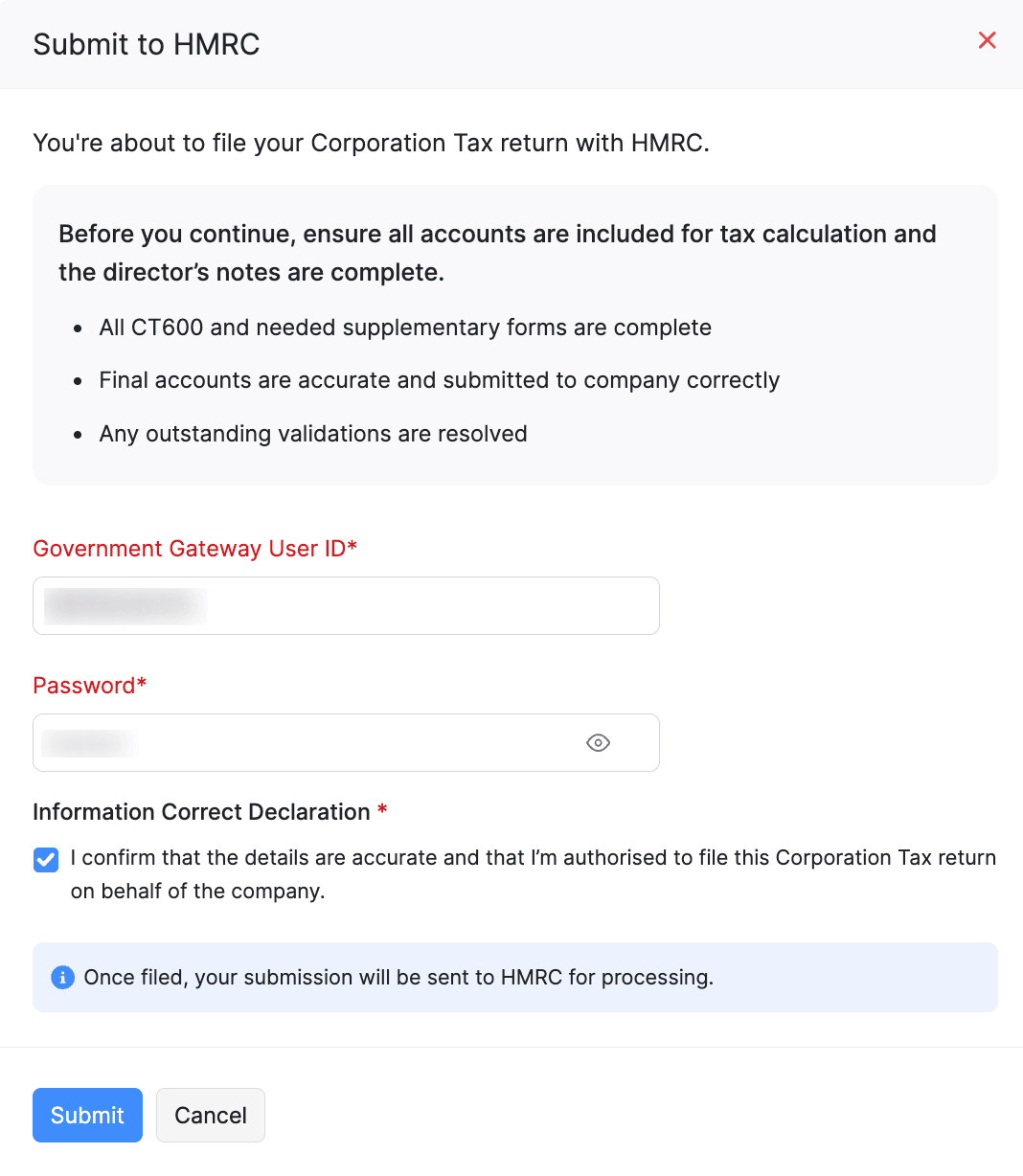
The Corporation Tax return will be submitted to HMRC.
Mark Corporation Tax Returns as Filed
Once you’ve submitted the Corporation Tax return directly to the HMRC website, you can mark it as Filed in Zoho Books. Here’s how:
Go to Filing & Compliance on the left sidebar and select Corporation Tax.
Select the return you want to mark as Filed.
In the next page, click Mark as Filed in the top right corner.

In the Mark Corporation Tax as Filed pop-up, enter the Date of Filing.
Click Mark as Filed.
The return will be marked as Filed.
Mark Corporation Tax Returns as Unfiled
If you find any errors in a Corporation Tax return that you’ve already marked as Filed, you can unfile it, make changes, and submit it for approval. To do this:
Go to Filing & Compliance on the left sidebar and select Corporation Tax.
Select the return you want to mark as Unfiled.
In the next page, click Mark as Unfiled in the top right corner.

The return will be marked as Unfiled. You can edit the return, make changes, and submit the return again for approval.
Corporation Tax Returns - Operations
Edit Corporation Tax Returns
Note: This option will appear only for reports that are marked as Generated.
To edit the Corporation Tax return:
Go to Filing & Compliance on the left sidebar and select Corporation Tax.
Select the return you want to edit.
In the next page, click the More icon in the top right corner, and select Edit.

In the Edit Corporation Tax? pop-up, click Continue To Edit.
In the Generate Corporation Tax Return page, follow the same process as generating the return.
The Corporation Tax return will be updated.
Delete Corporation Tax Returns
Note: This option will appear only for reports that are marked as Generated.
To delete the return you had generated:
Go to Filing & Compliance on the left sidebar and select Corporation Tax.
Select the return you want to delete.
In the next page, click the More icon in the top right corner, and select Delete.

In the confirmation pop-up, click Delete again.
The return will be deleted.
Download Computation iXBRL
The Corporation Tax Computation shows how your taxable profits and tax due are calculated.
When ready, generate the computation and export it in the iXBRL format, which HMRC requires for online filing. Always review this file before submitting your tax return, and verify any iXBRL tags with your accountant to ensure everything’s correctly tagged and reported. To do this:
Go to Filing & Compliance on the left sidebar and select Corporation Tax.
Select the return you want to download in the iXBRL format.
In the next page, click the More icon in the top right corner, and select Download Computation iXBRL.

The Corporation Tax return will be downloaded in the iXBRL format.
Download as PDF
You can also download the Corporation Tax return as a PDF for backup purposes. Here’s how:
Go to Filing & Compliance on the left sidebar and select Corporation Tax.
Select the return you want to download as PDF.
In the next page, click the More icon in the top right corner, and select PDF Full Form.

The return will be downloaded as a PDF.
View List of Approvers
You can view the list of approvers to whom you can submit the return for approval. To do this:
Go to Filing & Compliance on the left sidebar and select Corporation Tax.
Select the return for which you want to view the list of approvers.
In the next page, click the More icon in the top right corner, and select View List of Approvers from the dropdown.

The list of approvers will be displayed in the Approvers pane.
 Yes
No
Yes
No
Thank you for your feedback!