


Self Assessment

Note: Self Assessment is available in all the plans of Zoho Books.
Note:
This feature is available only for organisations with business type set as Sole Trader, Limited Companies or Landlord.
Self Assessment is the system HMRC uses to collect income tax that is not deducted at source through PAYE (Pay As You Earn). If you are a sole trader, a landlord with rental income, a company director, or you have other untaxed income such as dividends or foreign earnings, you must file a Self Assessment tax return (SA100) each year to report your income, claim allowable expenses and reliefs, and settle your tax liability.
With Zoho Books you can generate and fill in the SA100 main return along with the following supplementary forms:
- Employment
- Self-Employment
- UK Property
- Tax Calculation
Once you fill in the required forms, you can get the return approved within your organisation, and submit it directly to HMRC.
Warning:
If you have any additional income sources that are not covered by the supported forms listed above, you will not be able to file your Self Assessment return using Zoho Books.
Points to Remember
- You can use the HMRC Self Assessment checker to verify whether you need to file an SA100 return.
- Self Assessment applies to individuals with qualifying income below the current MTD for Income Tax threshold. If your qualifying income exceeds the threshold, you must use Making Tax Digital (MTD) for Income Tax instead. These thresholds are set by HMRC and may change in future tax years.
- You can currently generate Self Assessment returns only for the 2025–26 tax year (April 6, 2025 to April 5, 2026).
- The deadline to submit your online return and make payment is 31 January following the end of the tax year.
Note:
It is recommended to get your figures verified by an accountant before submitting your return to HMRC. The Zoho Books support team can help with product-related queries but cannot advise on tax calculations or provide tax guidance.
Forms Supported in Zoho Books
Self Assessment consists of a main return form and a set of supplementary forms. Each supplementary form covers a specific type of income. Zoho Books currently supports the following forms:
| Form | Name | Purpose |
|---|---|---|
| SA100 | Self Assessment (Main) Tax Return | Consolidates all income, allowances, and adjustments to calculate your final tax position. |
| SA102 | Employment | Reports salary, benefits, and pensions from employment along with PAYE tax already deducted. |
| SA103S | Self-Employment (Short) | Reports business income and allowable expenses for self-employed individuals with simpler accounts. |
| SA105 | UK property | Reports rental income from UK property and captures allowable expenses to calculate property profit or loss. |
| SA110 | Tax Calculation | Summarises the net tax due or refund owed, including Class 2 and Class 4 NICs, and Student Loan and Postgraduate Loan repayments. |
| SA302 | Tax Breakdown Summary | Shows how your tax is calculated and the components involved. This form is for your reference only and is not submitted to HMRC. |
Generate Self Assessment Return
Note:
The Self Assessment module will be available by default under Filing & Compliance for Sole Trader, Limited Companies or Landlord organisations.
To generate a Self Assessment return:
- Go to Filing & Compliance on the left sidebar and select Self Assessment.
- Click Generate Self Assessment Return in the top right corner.
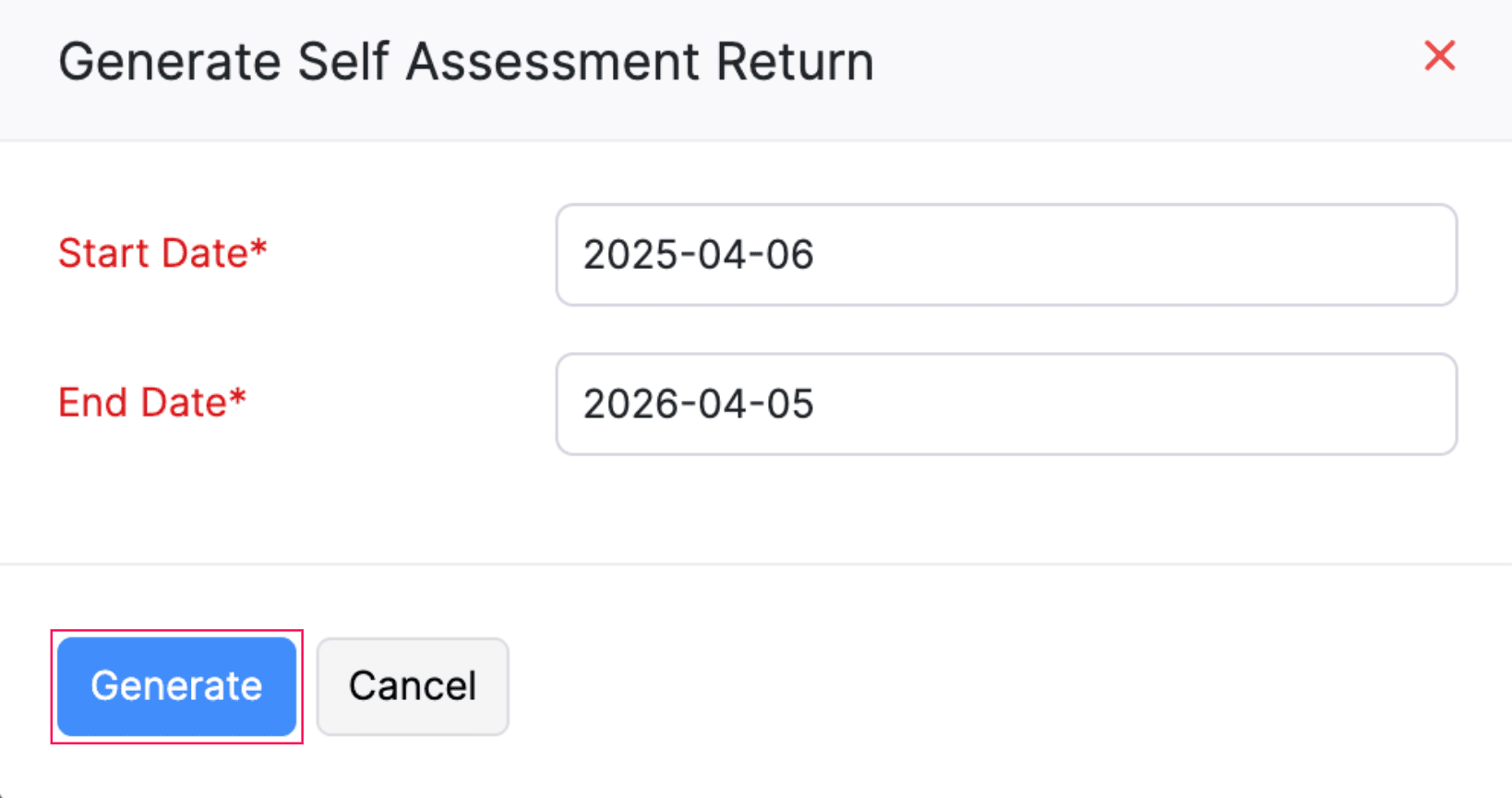
- In the Generate Self Assessment Return pop-up, enter the Start Date and End Date for the tax year.
- Click Generate.
Map Accounts (Sole Traders Only)
Note:
This step applies only to organisations with the business type set as Sole Trader or Landlord.
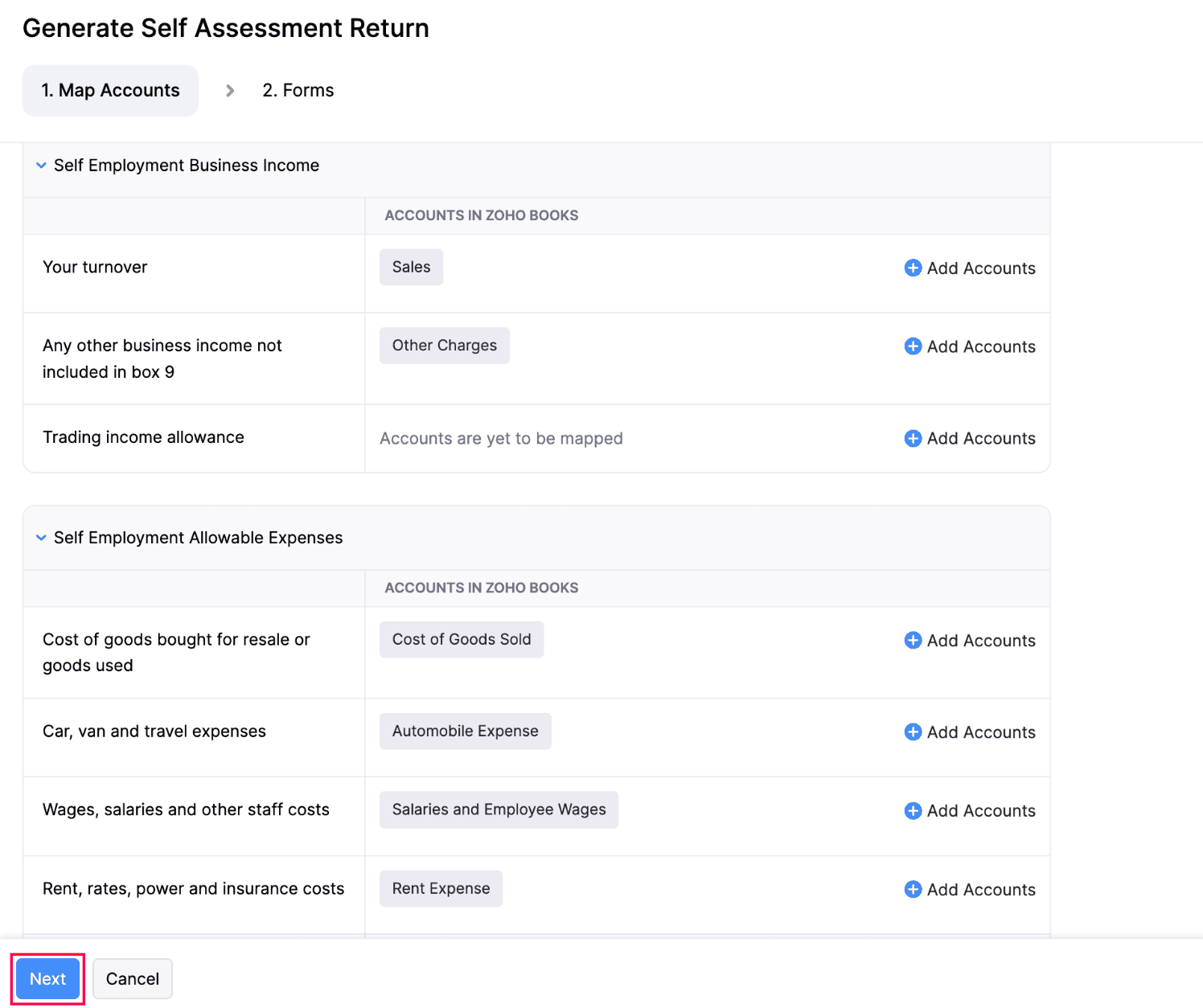
In the Map Accounts tab, you can assign the accounts from your chart of accounts to the relevant sections of the SA103S form (for sole traders) and SA105 (for landlords). This mapping determines which accounts feed into the business income and allowable expense figures on the return.
Here’s how:
- Go to Filing & Compliance in the left sidebar and select Self Assessment.
- Under each section, click + Add Accounts to map the relevant accounts.
- Click Next.
You will be redirected to the Forms tab.
Forms
The Forms tab displays all the forms: SA100, Employment, Self-Employment Short, UK Property, Tax Calculation, and Tax Breakdown Summary. You can navigate to the relevant form tab and fill in the required details.
Self Assessment Tax Return - SA100 form
The SA100 is the main Self Assessment tax return. It brings together your total income, tax reliefs, allowances, and adjustments for the tax year to determine your final tax position. Every individual filing a Self Assessment must complete this form.
In Zoho Books, the SA100 form is organised into the following sections:
| Section | Description |
|---|---|
| Your personal details | Name, date of birth, phone number, Unique Taxpayer Reference (UTR), taxpayer status, and National Insurance number. |
| Income | Dividends and interest from UK banks and building societies, UK pensions, annuities and other state benefits received, and other UK income not included on supplementary pages. |
| Tax Reliefs | Payments into registered pension schemes, charitable giving, and Blind Person’s Allowance. |
| Student Loan and Postgraduate Loan repayments | Student Loan and Postgraduate Loan details, including the loan type, repayment plan, and deductions taken by your employer. |
| High Income Child Benefit Charge | Total Child Benefit received, the number of children, and the date payments stopped (if applicable). |
| Winter Fuel Payment | Winter Fuel Payment (WFP) and Pension Age Winter Heating Payment (PAWHP) amounts. |
| Marriage Allowance | Details about transferring or receiving marriage allowance, including your spouse or civil partner’s personal information. |
| Finishing your tax return | Tax refunded or set off, underpaid tax, overpaid tax, any other information, and declaration. |
Enable the toggle for the sections that apply to you and enter the relevant details.
Employment - SA102 form
The SA102 form captures details of your employment income. If you have employment income to report, enable the toggle next to Do you need to fill out this Employment form?, and enter the relevant details.
The form is organised into the following sections:
| Section | Description |
|---|---|
| Employment income | Pay from this employment, payrolled benefits that affect your student loan repayments, UK tax taken off pay, tips and other payments not on your P60, PAYE tax reference of your employer, your employer’s name, whether you were a company director, close company details, and whether the employment income is from inside off-payroll working engagements. |
| Class 4 National Insurance maximum charge | Earnings for Class 1 from P60, used to calculate the correct Class 4 NIC liability if you are both self-employed and employed. |
| Benefits from your employment | Benefits received from your employment, as reported on your form P11D (or equivalent information). |
| Employment expenses | Business expenses you paid yourself while doing your job. |
Self-Employment (short) - SA103S form
The SA103S form is the short version of the Self-Employment supplementary pages. If you have self-employment income to report, enable the toggle next to Do you need to fill out the Self Employment section?, and enter the relevant details. The Business income and Allowable business expenses will be auto-populated for sole traders. The form is organised into the following sections:
| Section | Description |
|---|---|
| Business Details | Your business description, postcode, whether your business started or ceased during the tax year, the date your books are made up to, and whether you used traditional accounting or cash basis. |
| Business income | Your turnover (takings, fees, sales, or money earned), any other business income, and the trading income allowance. |
| Allowable business expenses | Deductible expenses including cost of goods, car and travel expenses, wages, rent, repairs, accountancy fees, interest charges, office costs, and other allowable expenses. |
| Net profit or loss | The net profit or net loss calculated from your income and expenses. |
| Capital allowances | Annual Investment Allowance, zero-emission car allowance, other capital allowances, Structures and Buildings Allowance, and total balancing charges. |
| Calculating your taxable profit | Net business profit for tax purposes, factoring in goods or services for personal use, losses brought forward from earlier years, and any other business income. |
| Total taxable profits or net business loss | The total taxable profits from your business or the net business loss for tax purposes. |
| Losses, Class 2 and Class 4 NICs and CIS deductions | Losses set off against other income, losses to be carried back or forward, Class 2 NICs voluntary payment options, Class 4 NICs exemptions, and Construction Industry Scheme (CIS) deductions. |
UK Property - SA105 form
The UK Property form (SA105) captures details of your UK property income. If you have UK property income to report, enable the toggle next to Do you need to fill out the UK Property section?. The Business income and Allowable business expenses will be auto-populated for landlords.
The form is organised into the following sections:
| Section | Description |
|---|---|
| UK property details | Number of properties rented out, whether property income ceased during the tax year, whether income is from property let jointly, and Rent a Room relief eligibility. |
| Property income | Total rents and other income from property, property income allowance, whether traditional accounting or cash basis is used, tax taken off property income, premiums for the grant of a lease, and reverse premiums and inducements. |
| Property expenses | Rent, rates, insurance and ground rents, property repairs and maintenance, finance costs (including mortgage interest), legal and professional costs, cost of services provided, and other allowable property expenses. |
| Calculating your taxable profit or loss | Adjusted profit for the year, losses brought forward from previous years, and taxable profit or loss after all adjustments. |
Tax Calculation - SA110 form
The SA110 form provides a summary of the tax calculation for the return period. You can also add adjustments to the return if any. It is organised into the following sections:
| Section | Description |
|---|---|
| Tax and National Insurance due | Total tax due or overpaid, Class 2 NICs, and Class 4 NICs due, Student Loan and Postgraduate Loan repayments. |
| Underpaid tax and other debts | Any underpaid tax for earlier years or the current year included in your tax code, as well as outstanding debts. |
| Payments on account | Claim to reduce payments on account for the next tax year and enter your first payment on account amount. |
| Blind person’s surplus allowance and married couple’s surplus allowance | Any surplus allowances available. |
| Adjustments to tax due | Increases or decreases in tax due because of adjustments to earlier years, and any next tax year repayment being claimed. |
| Payments on Account Paid (This Year) | First and second payments on account made already for the current tax year (31 January and 31 July). |
Tax Breakdown Summary - SA302 form
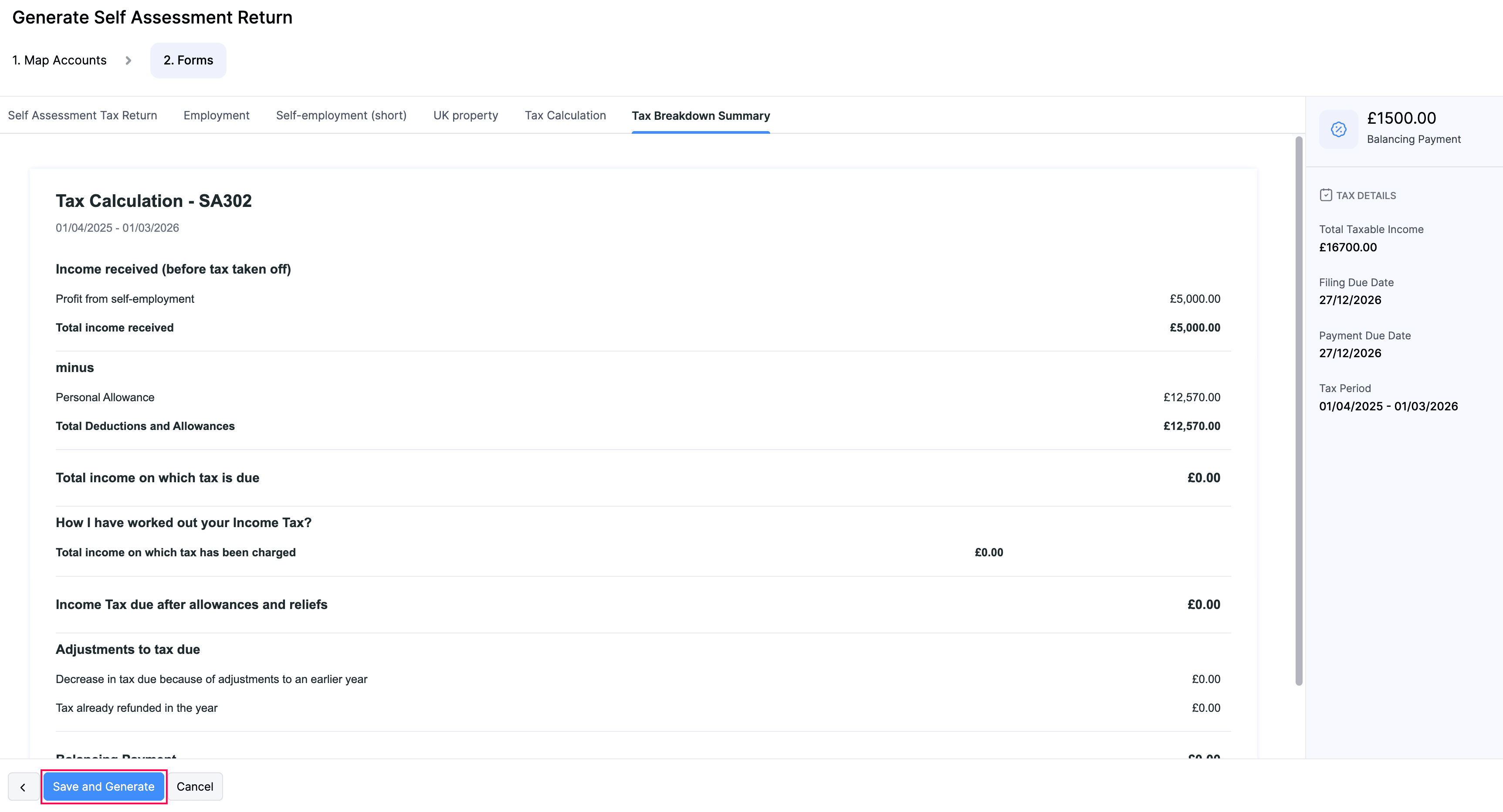
The Tax Breakdown Summary (SA302) provides a high-level breakdown of your tax calculation, showing your total income, Personal Allowance, taxable income, tax due after reliefs, any adjustments, and the final balancing payment or refund. It is for your reference only and is not submitted to HMRC.
Once you’ve filled in and reviewed the required forms, click Save and Generate.
In the confirmation pop-up, read the terms and click Finalise Return.
The Self Assessment return will be generated.
Approve a Self Assessment Return
Once you’ve generated the return, the admins in your organisation can review and approve it. To do this, your admins should:
- Go to Filing & Compliance in the left sidebar and select Self Assessment.
- Select the return they want to approve.
- In the Self Assessment page, click Approve Return.

- In the confirmation pop-up, click Approve Now.
The Self Assessment return will be approved.
Revoke Approval
To revoke the approval for a Self Assessment return you had already approved:
- Go to Filing & Compliance in the left sidebar and select Self Assessment.
- Select the return for which you want to revoke approval.
- In the Self Assessment page, click the More icon in the top right corner, and select Revoke Approval from the dropdown.

- In the Reason for Revoking Approval pop-up, enter the reason to revoke approval.
- Click Submit.
The approval for the return will be revoked.
Submit a Self Assessment Return to HMRC
Once an admin has approved the return, you can directly submit the return from your Zoho Books organisation. Here’s how:
- Go to Filing & Compliance in the left sidebar and select Self Assessment.
- Select the return you want to submit to HMRC.
- In the Self Assessment page, click Submit to HMRC.

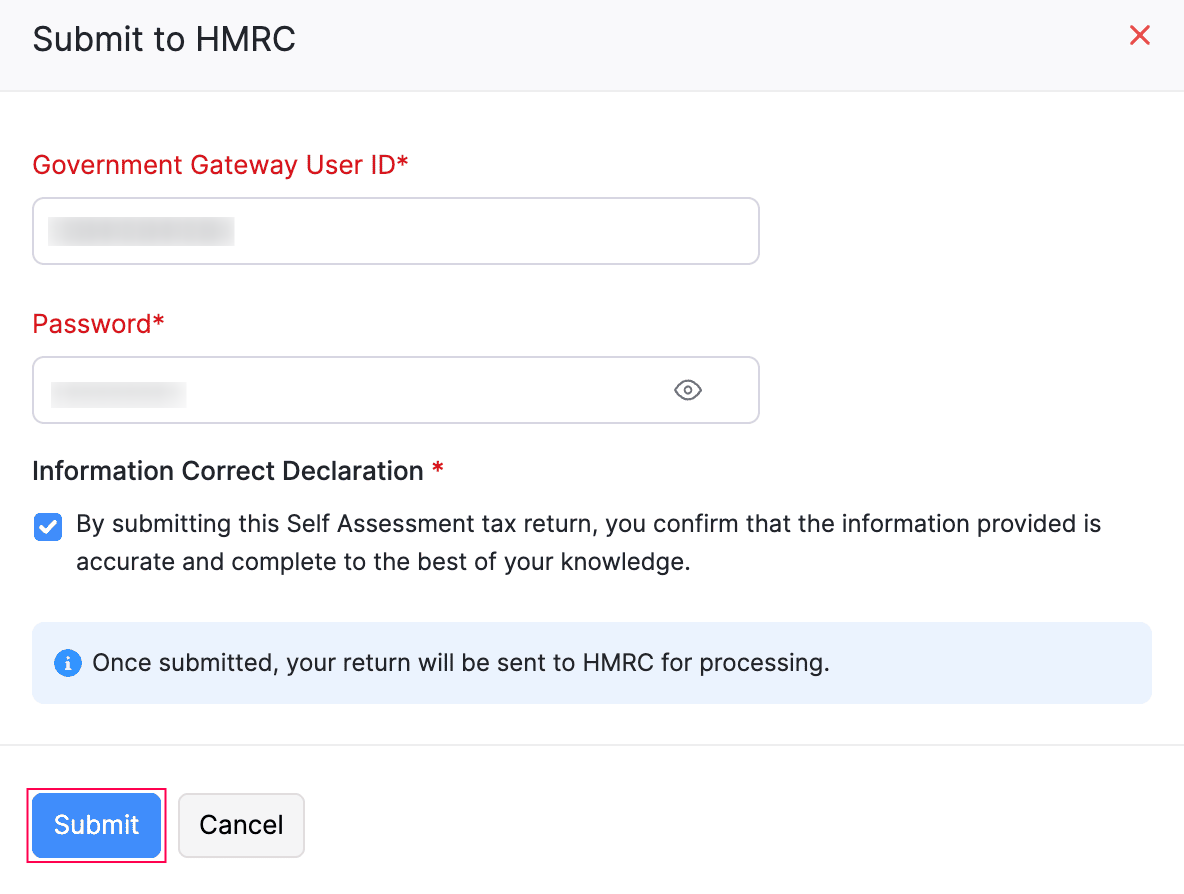
- In the Submit to HMRC pop-up, fill in the following details:
- Government Gateway User ID: Enter the user ID you use to sign in to your HMRC online account.
- Password: Enter the password associated with the above user ID.
- Read and agree to the terms and click Submit.
The Self Assessment return will be submitted to HMRC.
Note:
You can start submitting your Self Assessment tax return once the respective tax year ends on 6 April. The deadline to submit your online return and make payment to HMRC is 31 January following the end of the tax year. For example, for the 2025–26 tax year, the return must be submitted and payment made on or before 31 January 2027.
Submission Status
Once you submit the Self Assessment return to HMRC, the return will go through different statuses based on HMRC’s response:
| Status | Description |
|---|---|
| Filing in Progress | The return has been sent and is being processed by HMRC. |
| Filed | HMRC has successfully received and accepted the return. A Document Reference No and IRMark will be displayed for your records. |
| Filing Failed | The submission was not accepted by HMRC. Click View Errors to check what went wrong, edit the return to fix the issues, and resubmit it. Refer to Understanding HMRC Error Codes for a list of error codes and the forms they relate to. |
Here’s how the status appears once HMRC has accepted the return:
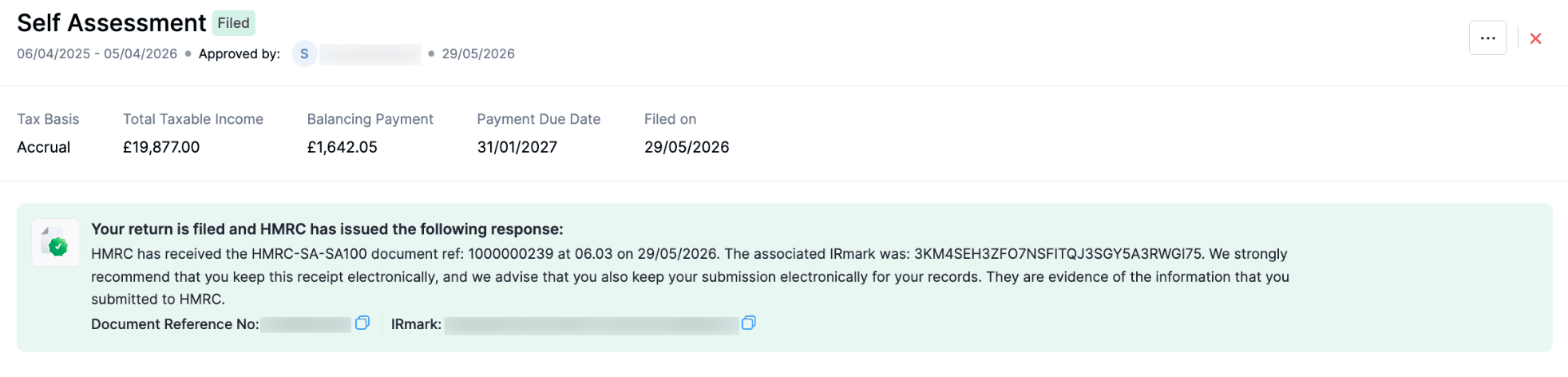
Make sure to note down the IRMark and Document Reference No for your records, as you may need them for future correspondence with HMRC.
Here’s how the status appears if your return submission to HMRC has failed:
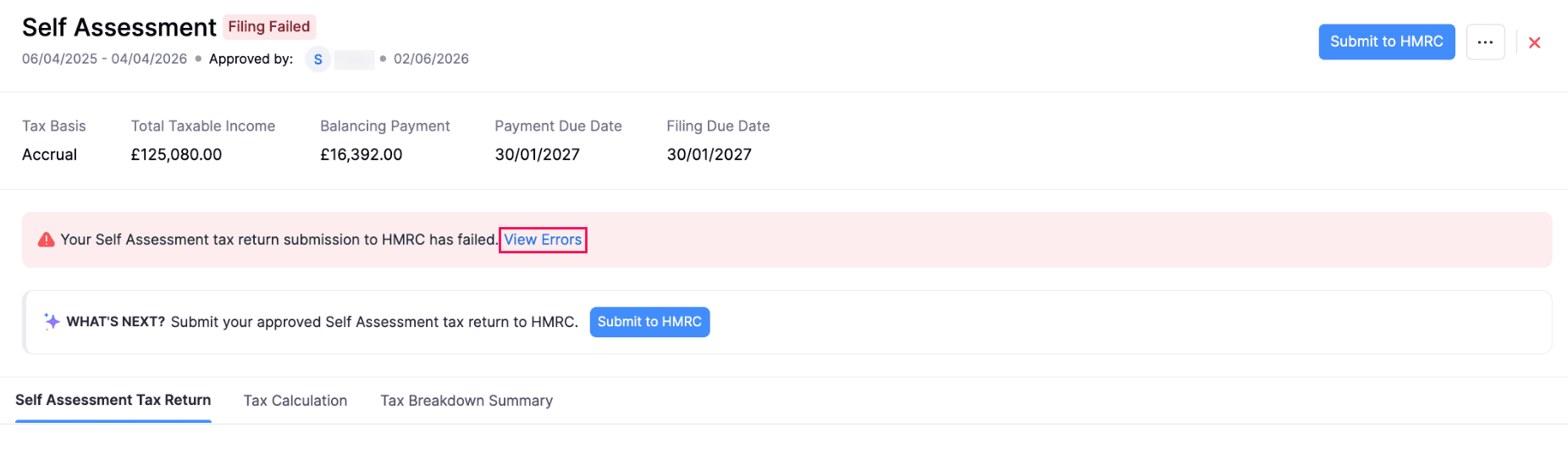
Click View Errors to see what went wrong and fix the issues before resubmitting.
Understanding HMRC Error Codes
When you submit your Self Assessment return to HMRC, the submission may sometimes be rejected with error codes. The following codes help you identify the form that needs correction.
Error Codes
| Error Code | Description |
|---|---|
| EMP | Refers to the Employment form (SA102). |
| SSE | Refers to the Short Self-employment form (SA103S). |
| CAL | Refers to the Tax Calculation Summary form (SA110). |
| PRO | Refers to the Income from Property form (SA105). |
Insight:
HMRC may return multiple errors in a single rejection. Address all listed errors before submitting it again to avoid repeated rejections.
Self Assessment Returns - Operations
Edit a Self Assessment Return
Note:
If the return has been approved, you must first revoke the approval, then edit the return to make the required changes, and re-approve it once the changes are complete.
To edit a Self Assessment return:
- Go to Filing & Compliance in the left sidebar and select Self Assessment.
- Select the return you want to edit.
- In the Self Assessment page, click the More icon in the top right corner, and select Edit.
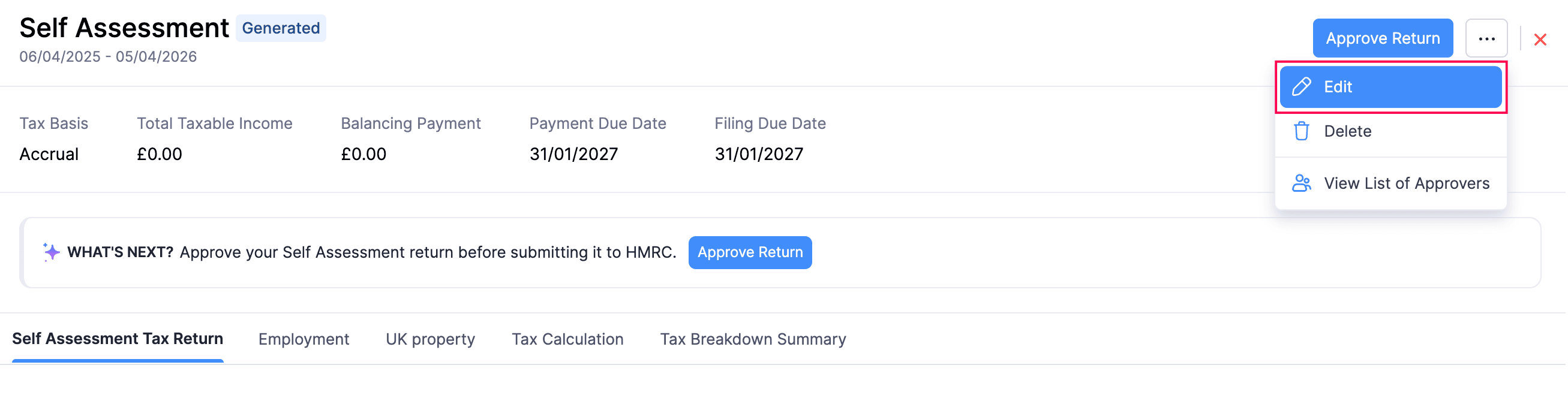
- In the confirmation pop-up, click Continue to Edit.
- In the Generate Self Assessment Return page, follow the same process as generating the return. If you are a sole trader or landlord, map the accounts first and review the forms. If you are a limited company, review the forms directly.
The Self Assessment return will be updated.
Delete a Self Assessment Return
Note:
To delete an approved return, you must revoke the approval first.
To delete the return you had generated:
- Go to Filing & Compliance in the left sidebar and select Self Assessment.
- Select the return you want to delete.
- In the Self Assessment page, click the More icon in the top right corner, and select Delete.
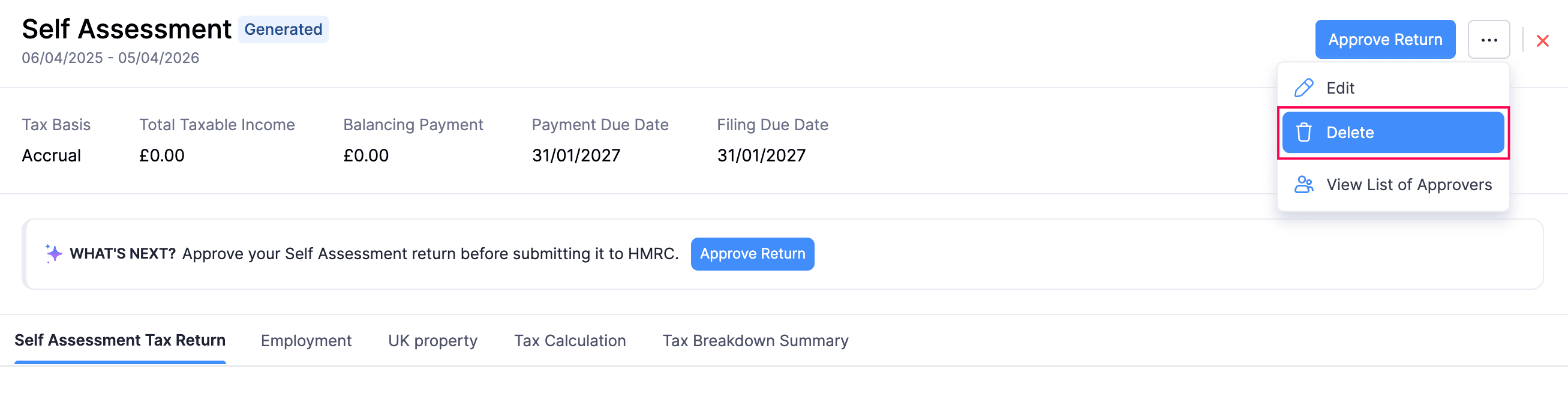
- In the confirmation pop-up, click Delete again.
The return will be deleted.
Note:
You cannot delete a return in the Filed status.
 Yes
Yes