

Other Actions in Properties

Edit a Property
You can update a property’s details after it has been created. To do so:
- Log in to your Zoho Books organisation.
- Navigate to Properties from the left sidebar.
- Select the property you want to edit.
- On the property’s details page, click Edit.
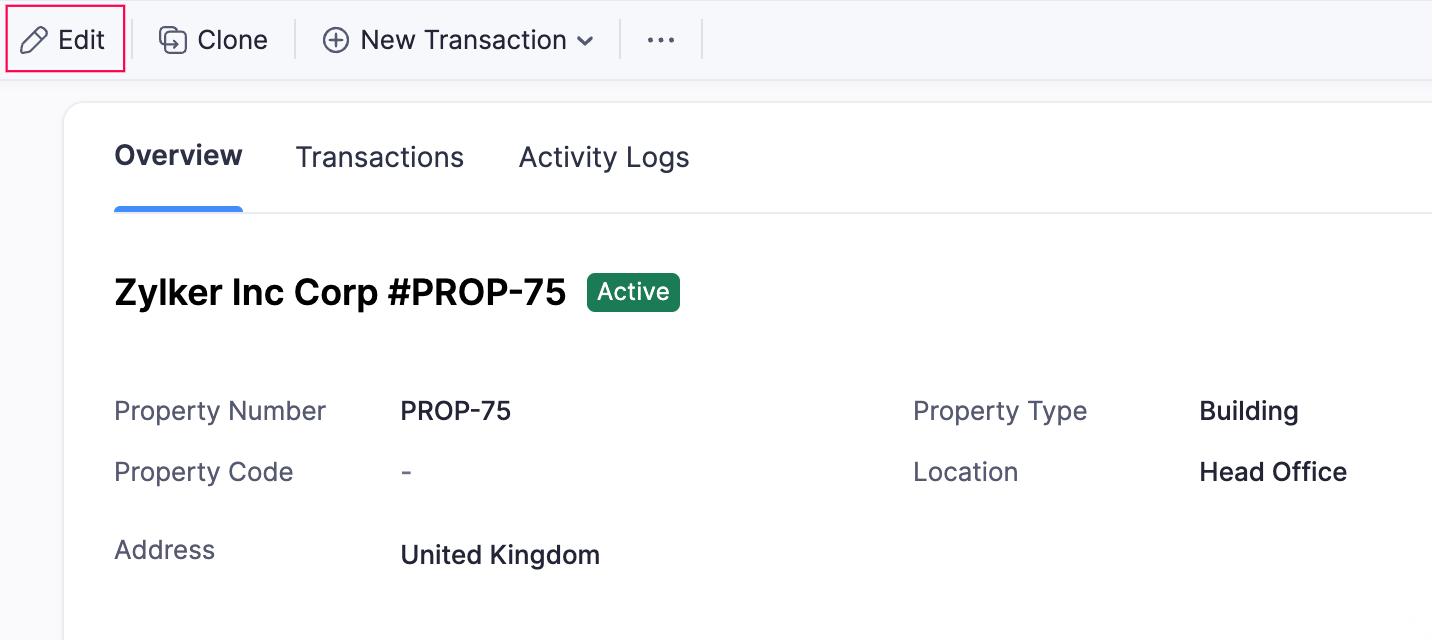
- In the Edit Property page, make the necessary changes.
- Click Save to apply your changes.
Once edited, all changes made to the property are recorded in the Activity Logs tab on the property’s details page.
Clone a Property
You can clone a property to create a new property with the same details. To do so:
- Log in to your Zoho Books organisation.
- Navigate to Properties from the left sidebar.
- Select the property you want to clone.
- On the property’s details page, click Clone at the top.
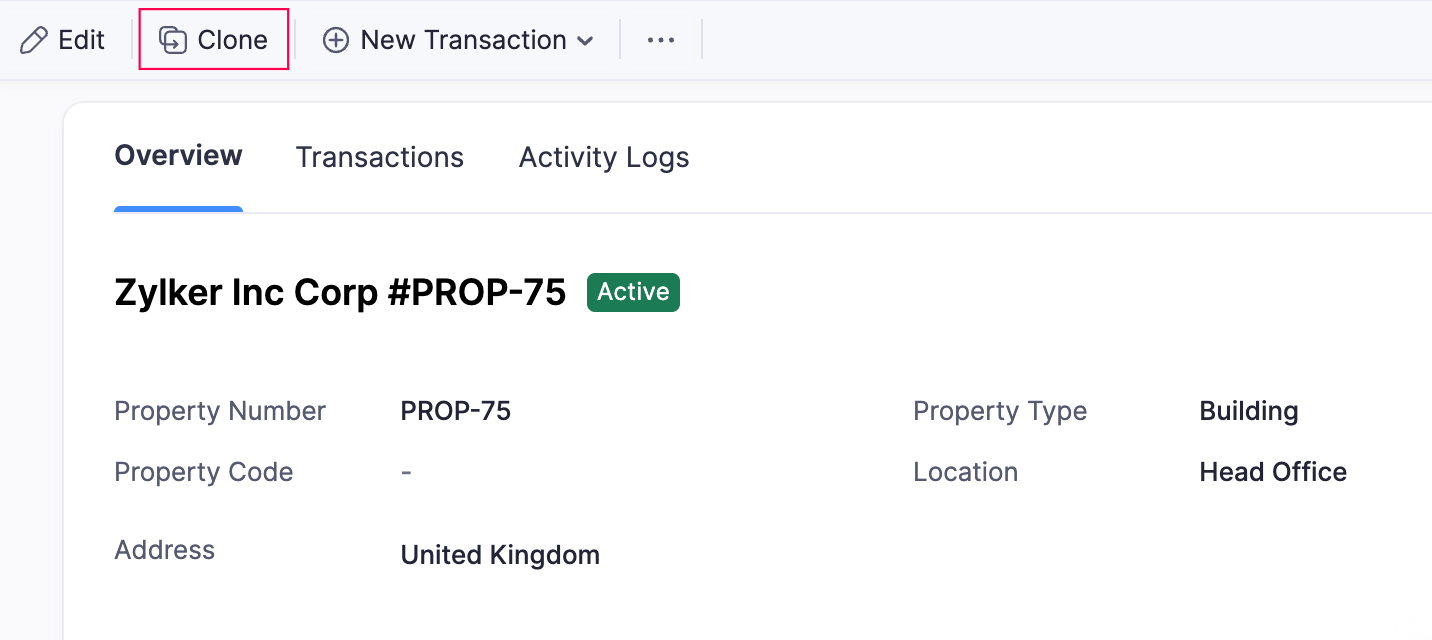
- In the Create New Property page, all details from the original property will be pre-filled. Update the fields as needed.
- Click Save to create the cloned property.
Once cloned, the new property is recorded in the Activity Logs tab on the property’s details page.
Mark a Property as Inactive
If you don’t want to delete a property, you can mark it as inactive. Once a property is marked as inactive, you can no longer associate transactions with it.
To mark a property as inactive:
- Log in to your Zoho Books organisation.
- Navigate to Properties from the left sidebar.
- Select the property you want to mark as inactive.
- On the property’s details page, click the More icon at the top.
- Select Mark as Inactive from the dropdown.
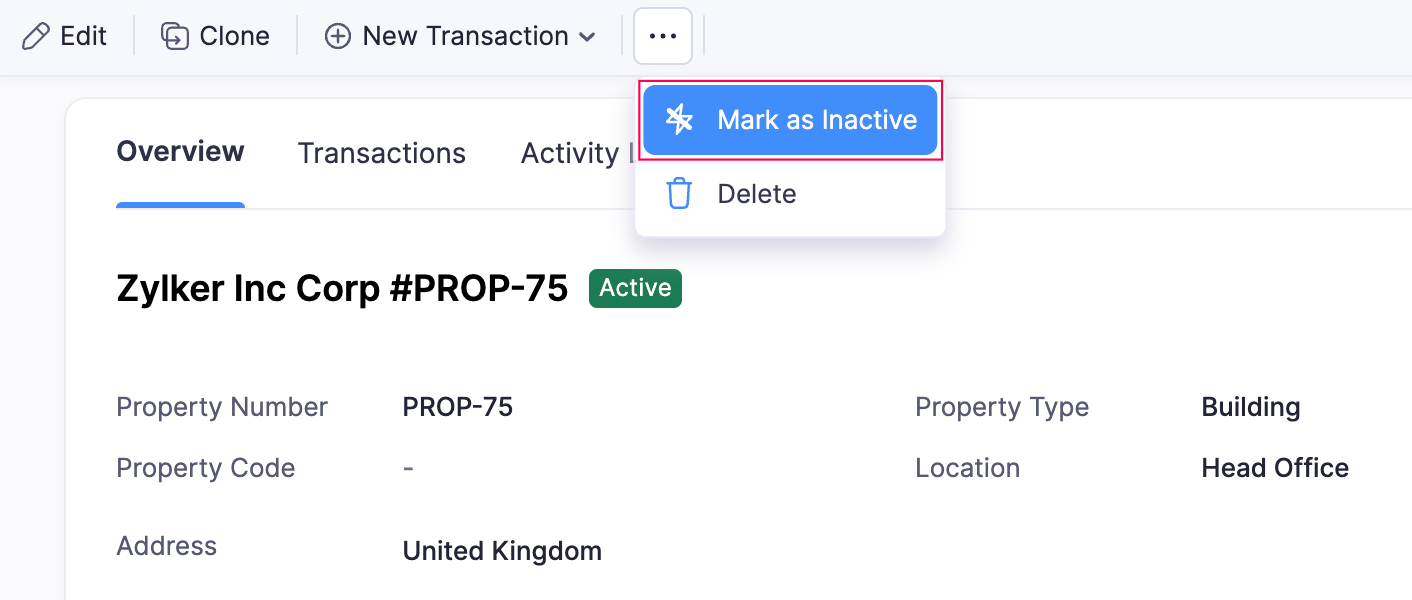
Once marked inactive, the property status will be updated as inactive, and the action will be recorded in the Activity Logs tab on the property’s details page.
Mark a Property as Active
To mark an inactive property as active:
- Log in to your Zoho Books organisation.
- Navigate to Properties from the left sidebar.
- Select the inactive property you want to reactivate.
- On the property’s details page, click Mark as Active at the top.
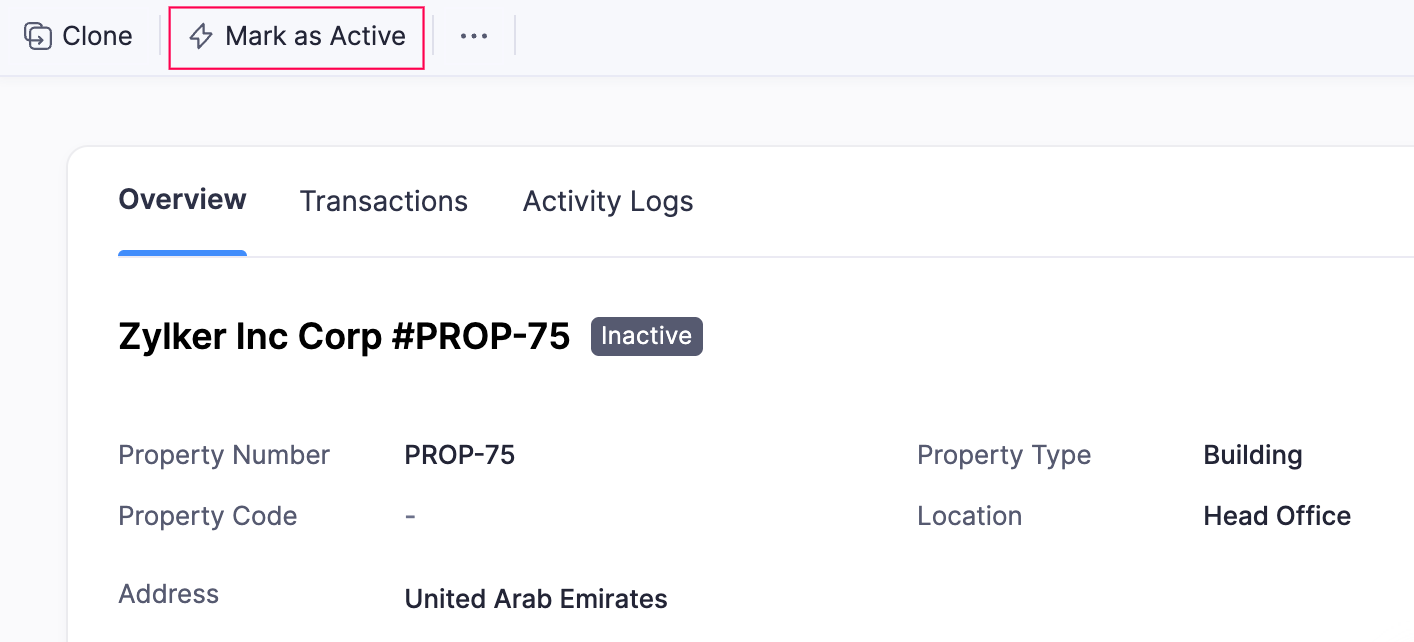
Once marked active, the property will be available for association with new transactions, and the action will be recorded in the Activity Logs tab on the property’s details page.
Delete a Property
If a property is no longer required, you can delete it from your organisation.
To delete a property:
- Log in to your Zoho Books organisation.
- Navigate to Properties from the left sidebar.
- Select the property you want to delete.
- On the property’s details page, click the More icon at the top and select Delete from the dropdown.
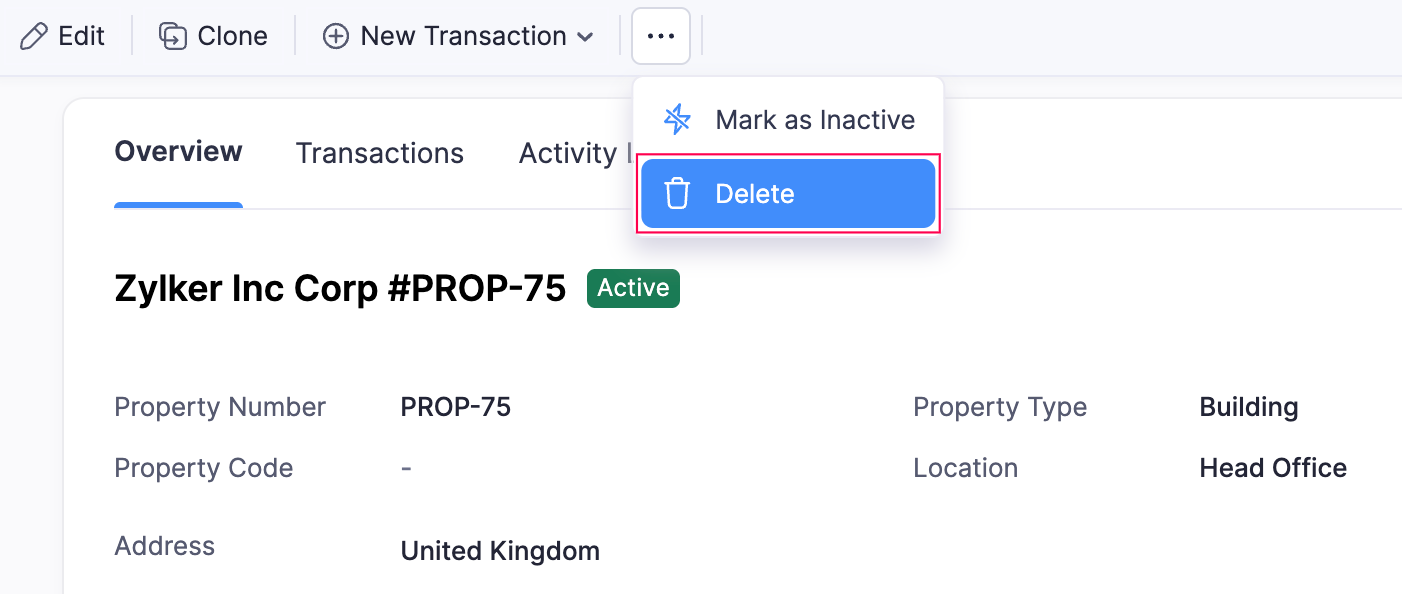
- In the confirmation pop-up, click Delete to confirm.
The selected property will be deleted.
Note: You cannot delete a property if it has transactions associated to it. Ensure all associated transactions are removed to delete a property.
 Yes
Yes