


Tax Return

Tax Return is the end-of-year submission under UK’s Making Tax Digital (MTD) for Income Tax regime. It brings together all income, expenses, adjustments and reliefs associated with your NINO (National Insurance Number) for a tax year. By submitting it, you confirm to HMRC that all your records are complete and accurate. HMRC then uses this information to calculate the final tax liability or refund for that tax year.
With tax return, you do not add any new information. All the details you had earlier submitted will be fetched into Zoho Books, which you can review, finalise and submit to HMRC.
Prerequisite: Before you proceed to submit the tax return, ensure that you:
- Submit all four quarterly updates to HMRC.
- Record income from all applicable sources, including business, property, interest and dividend income.
View Tax Estimate and HMRC Assist Suggestions
In Zoho Books, you can use the Tax Estimate feature to check your estimated tax liability before finalising your tax return and the HMRC Assist feature to view suggestions provided by HMRC based on your submitted data to help you identify and correct potential discrepancies in your tax filings.
Tax Estimate
Tax Estimate shows a running estimate of the income tax you owe for the selected tax year, based on the data retrieved from HMRC. The estimate is calculated using the income and expense data submitted to the HMRC.
Zoho Books automatically updates the estimate value after each submission. However, to reflect the updates made in other software it is still essential to recompute manually to ensure that the estimate value remains accurate.
To recompute your tax estimate:
- Go to Filing & Compliance on the left sidebar and select Income Tax.
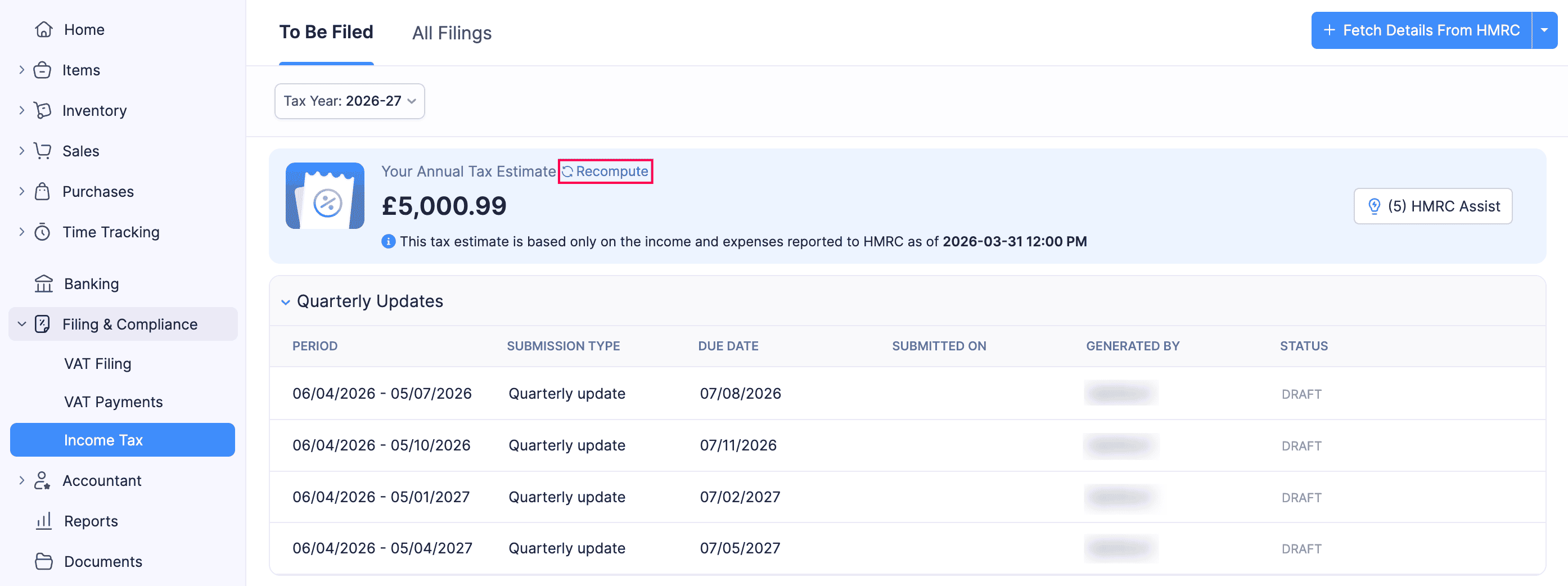
- The Your Annual Tax Estimate banner displays the current estimate for the selected tax year.
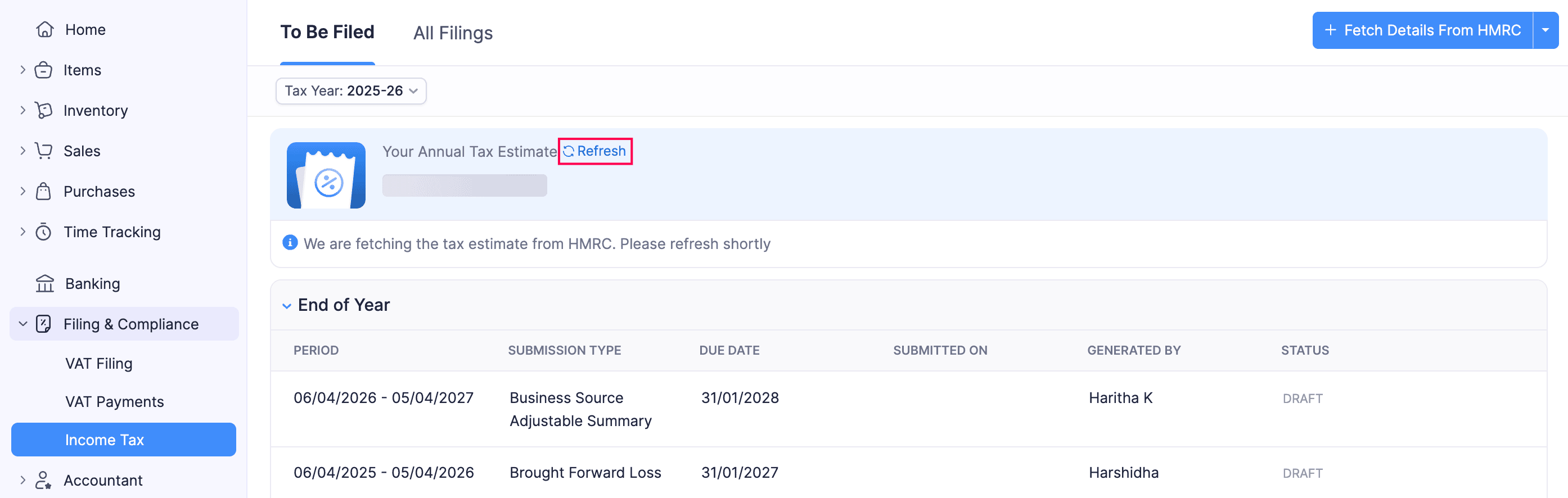
- Click Recompute to reflect the latest values in the estimate. Please note that it may take some time for the updates to appear in Zoho Books.
- Click Refresh to check the progress.
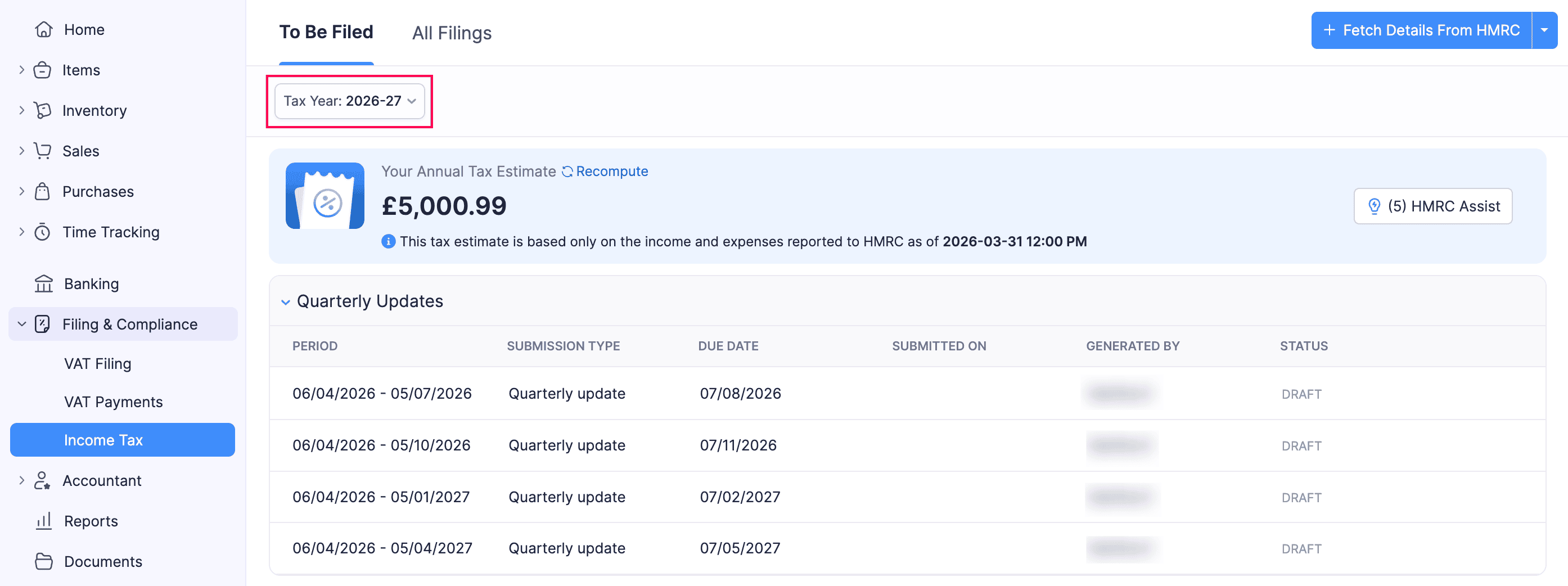
Now, the estimate will reflect the most recent values.
- To view the estimate for a different tax year, click the Tax Year dropdown and select the relevant year.
HMRC Assist
HMRC Assist in Zoho Books displays issues, warnings, feedback, and suggestions identified by HMRC based on your submitted data. Each suggestion includes a description of the potential issue, guidance on how to resolve it, and links to relevant HMRC resources.
To view HMRC Assist details:
- Go to Filing & Compliance on the left sidebar and select Income Tax.
- Click HMRC Assist in the Your Annual Tax Estimate banner.
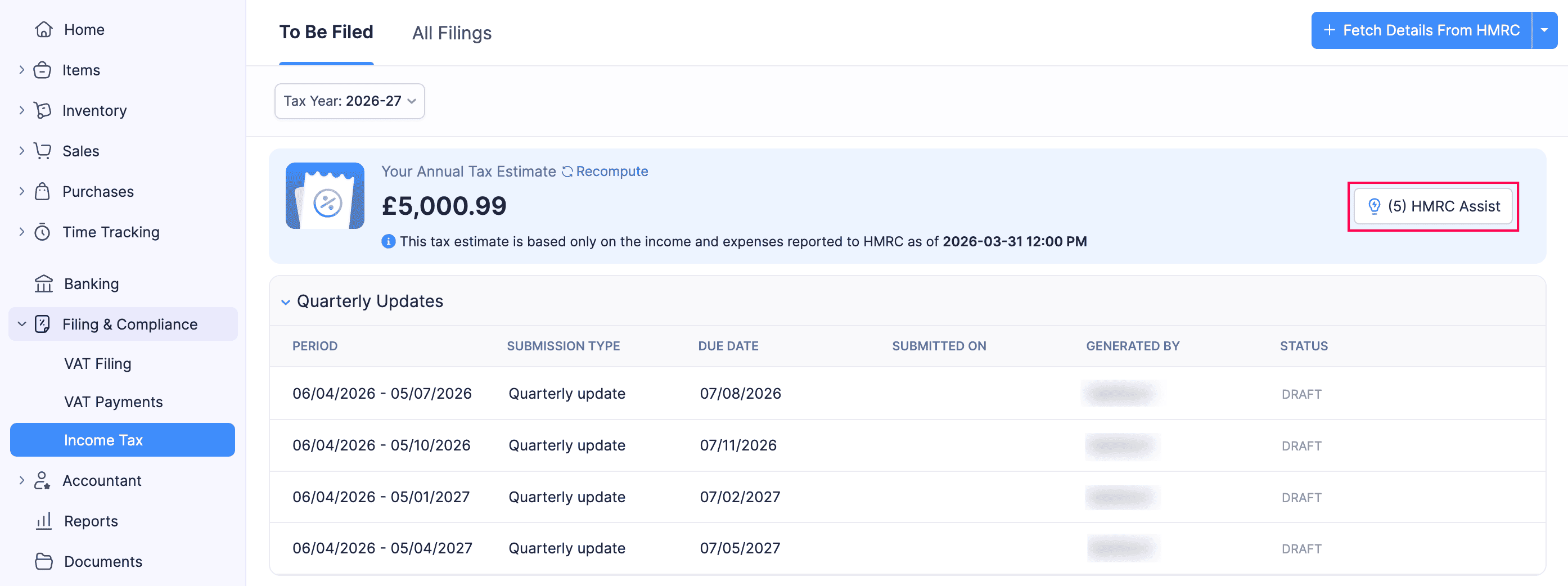
The HMRC Assist panel will open on the right.
- Click any suggestion to expand it and view the full details.
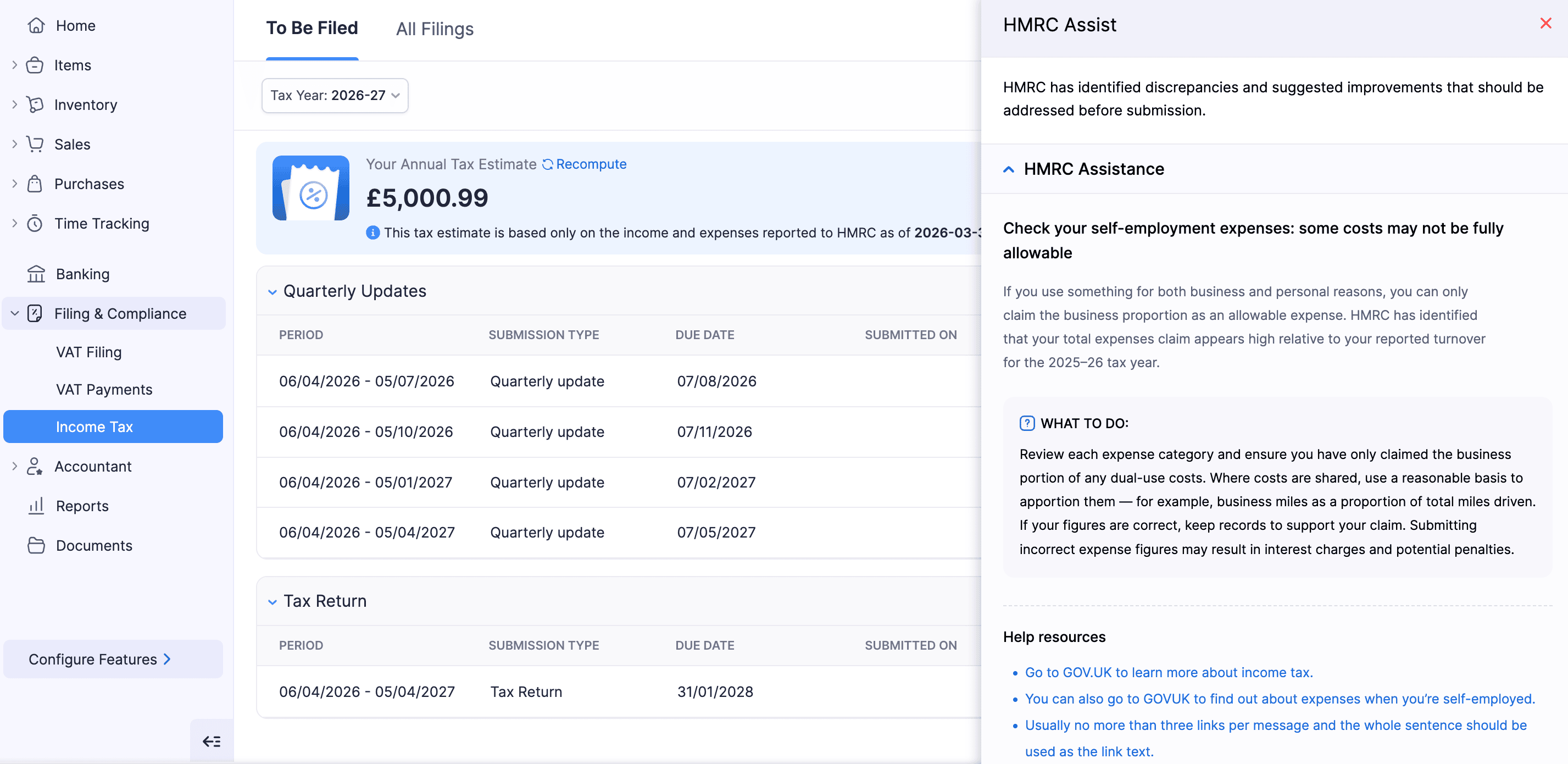
Each HMRC Assist suggestion describes a specific issue and tells you what to review or correct. Once you identify the issue, you can amend it in the upcoming quarterly updates or by creating the relevant BSAS, Annual Submission or Other Income Sources forms.
Note:
You can also view the HMRC Assist suggestions within a finalised tax return. Go to Filing & Compliance > Income Tax. Select a finalised tax return under the Tax Return section and click HMRC Assist.
Fetch Tax Return into Zoho Books
To fetch the tax return values, all your quarterly updates and tax return for the tax year must be listed in your Zoho Books organisation.
Here’s how:
- Go to Filing & Compliance on the left sidebar and select Income Tax.
- Click Fetch Obligations From HMRC.
- In the Fetch Obligations from HMRC pop-up, fill in the following fields:
- Tax Year: Select the tax year for which you want to fetch obligations.
- Business: Select the business for which you want to fetch obligations.
- Period Type: Select the period type (Standard or Calendar).
- Tax Basis: Select the tax basis (Accrual or Cash).
- Click Fetch Obligation.
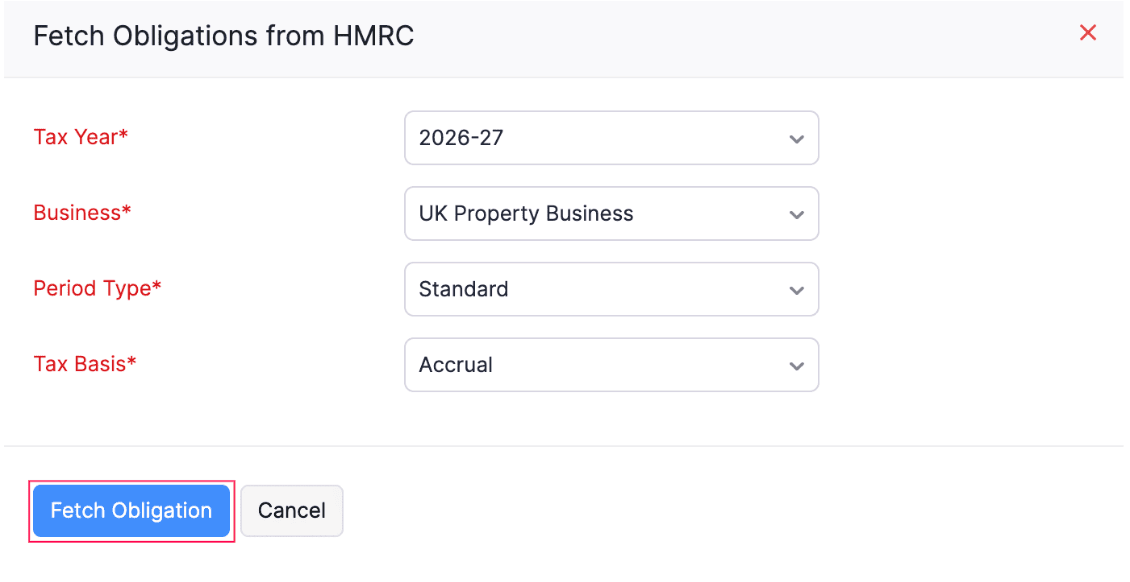
All the quarterly updates and tax return associated with your NINO will be displayed in the Tax Return section.
Finalise Tax Return
Making your Final Declaration is a two-step process:
Step 1: Confirm Business Details
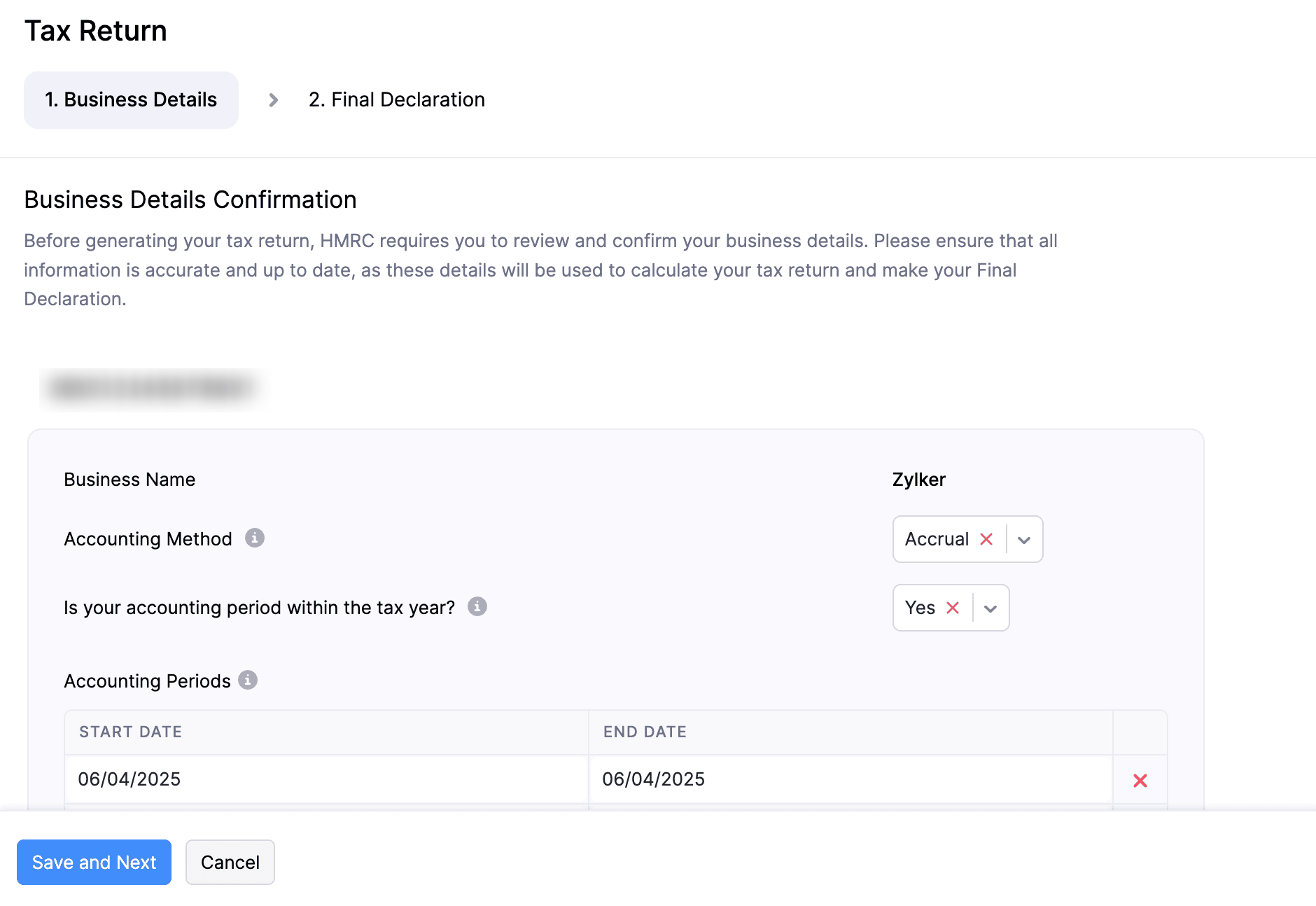
In the Business Details tab, you can review and update your business information, including accounting method and accounting periods, for each business registered under your NINO. Here’s how:
- Go to Filing & Compliance on the left sidebar and select Income Tax.
- In the Tax Return section, select the tax return you want to finalise.
- In the Tax Return page, under the Business Details tab, review and update the following fields for each business:
- Business Name: The name of the business as registered with HMRC.
- Accounting Method: Select the accounting method used by your business (Accrual or Cash).
- Is your accounting period within the tax year?: Select Yes if your accounting period aligns with the standard tax year (6 April to 5 April). Select No if your business follows a different accounting period.
- Accounting Periods: Enter the start and end dates of your accounting periods. If your business has multiple accounting periods within the tax year, click + Add New to add a period. Click the delete icon next to a period to remove it.
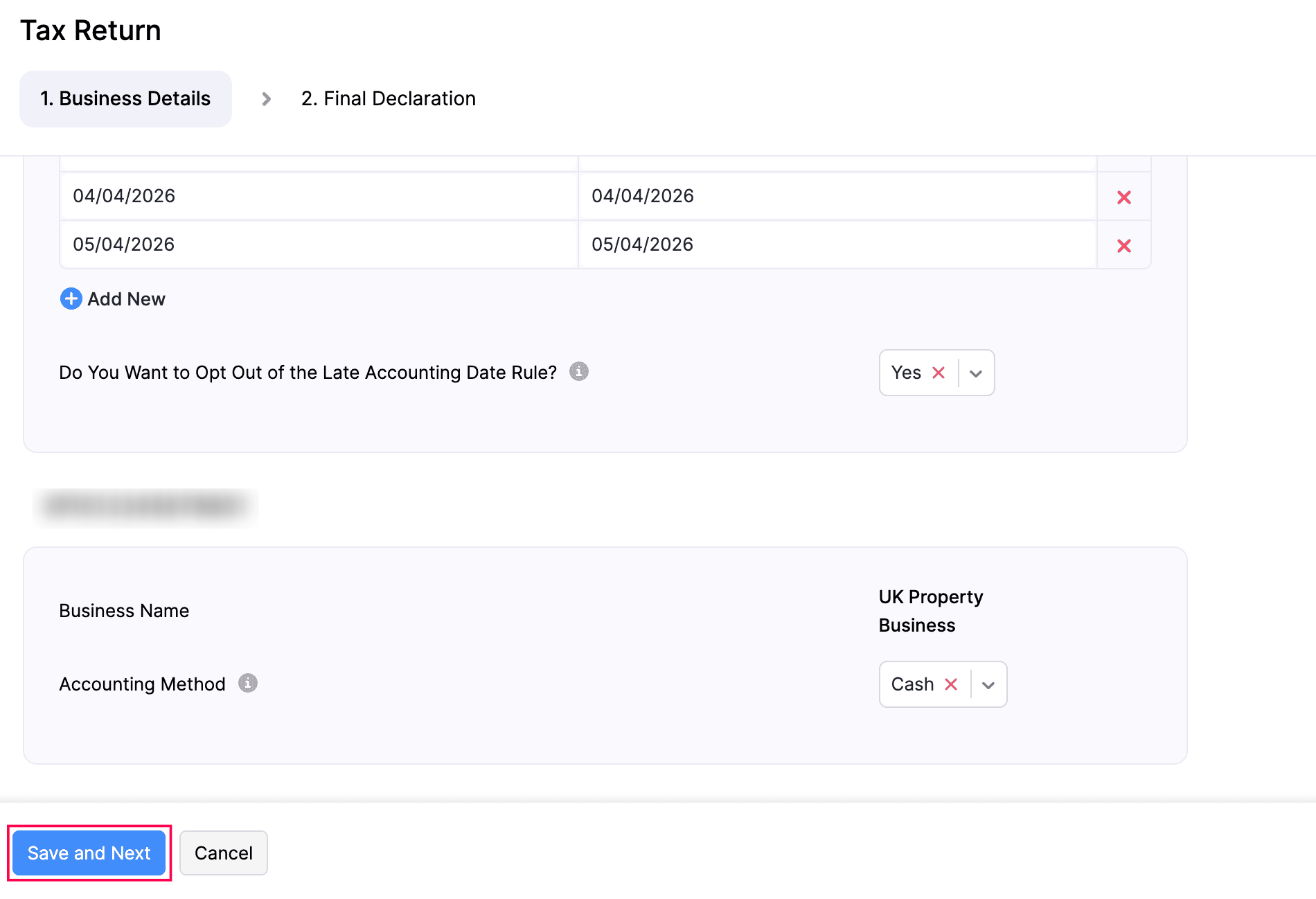
- Do You Want to Opt Out of the Late Accounting Date Rule?: If your accounting period end date falls between 1 April and 5 April, HMRC applies the late accounting date rule by default, which treats your accounts as if they end on 5 April. Select Yes to opt out of this rule, or No to keep it applied.
Note:
For UK Property businesses, Cash is the only available accounting method.
Note:
All the businesses under your NINO will be displayed here, irrespective of the business you have configured in Zoho Books.
- Click Save and Next.
Step 2: Review Final Declaration
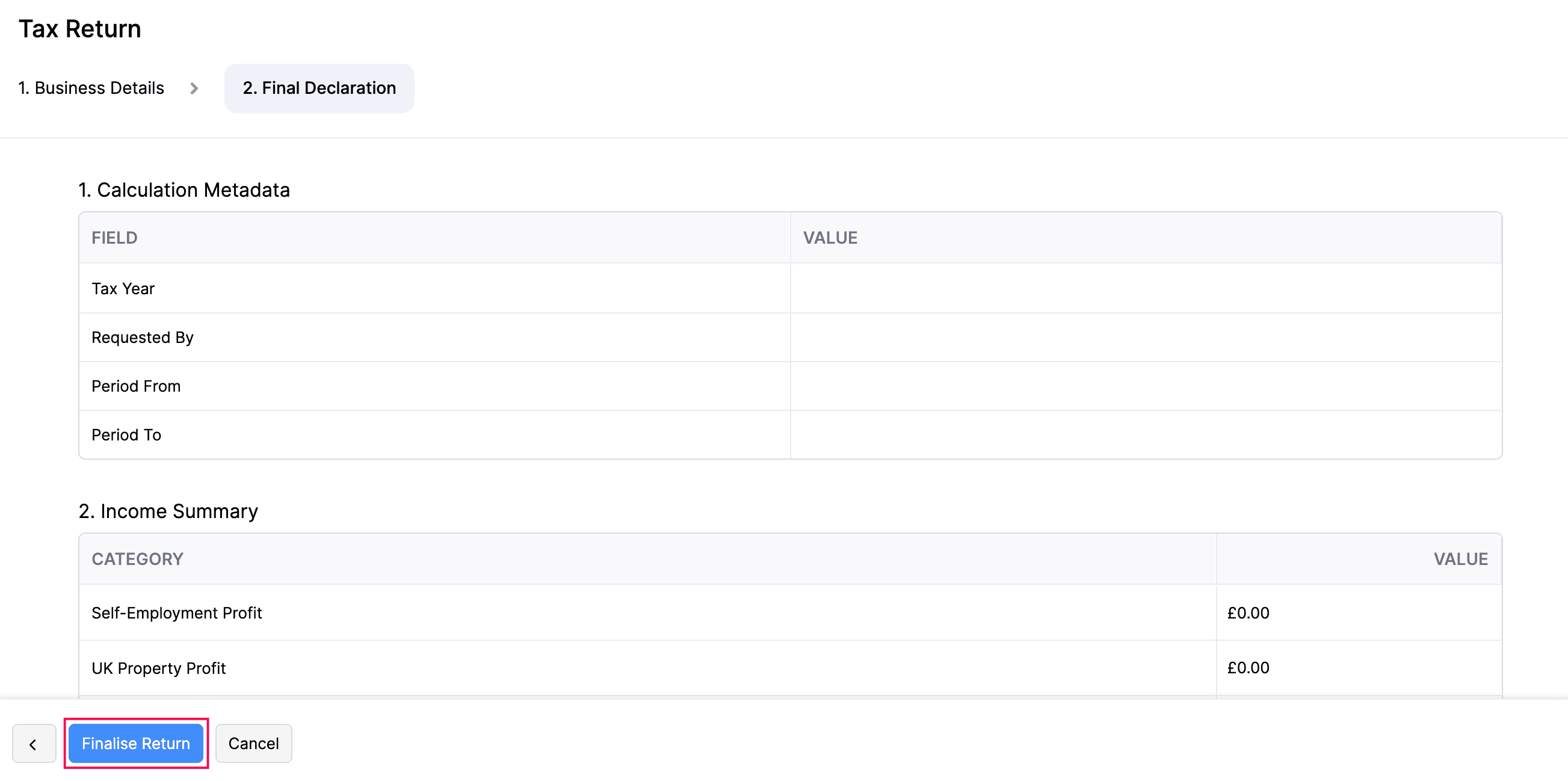
In the Final Declaration tab, you can review the tax calculation and outstanding balance due from HMRC and finalise the return. Here’s how:
- Under the Final Declaration tab, review the tax calculation and the outstanding balance due displayed by HMRC in the respective sections.
- Click Finalise Return.
- In the confirmation pop-up, read the terms and click Finalise Update.
The tax return will be marked as Finalised.
Refresh Tax Return Calculation
If there are any discrepancies in your tax return, such as missing or incorrect information, you can update the relevant details in Zoho Books and refresh the calculation so that HMRC can recompute your tax using the latest information.
To refresh your tax return calculation in the Draft status:
- Go to Filing & Compliance on the left sidebar and select Income Tax.
- In the Tax Return section, select the tax return you want to recompute.
- In the Final Declaration tab, click Refresh Calculation in the top right corner.
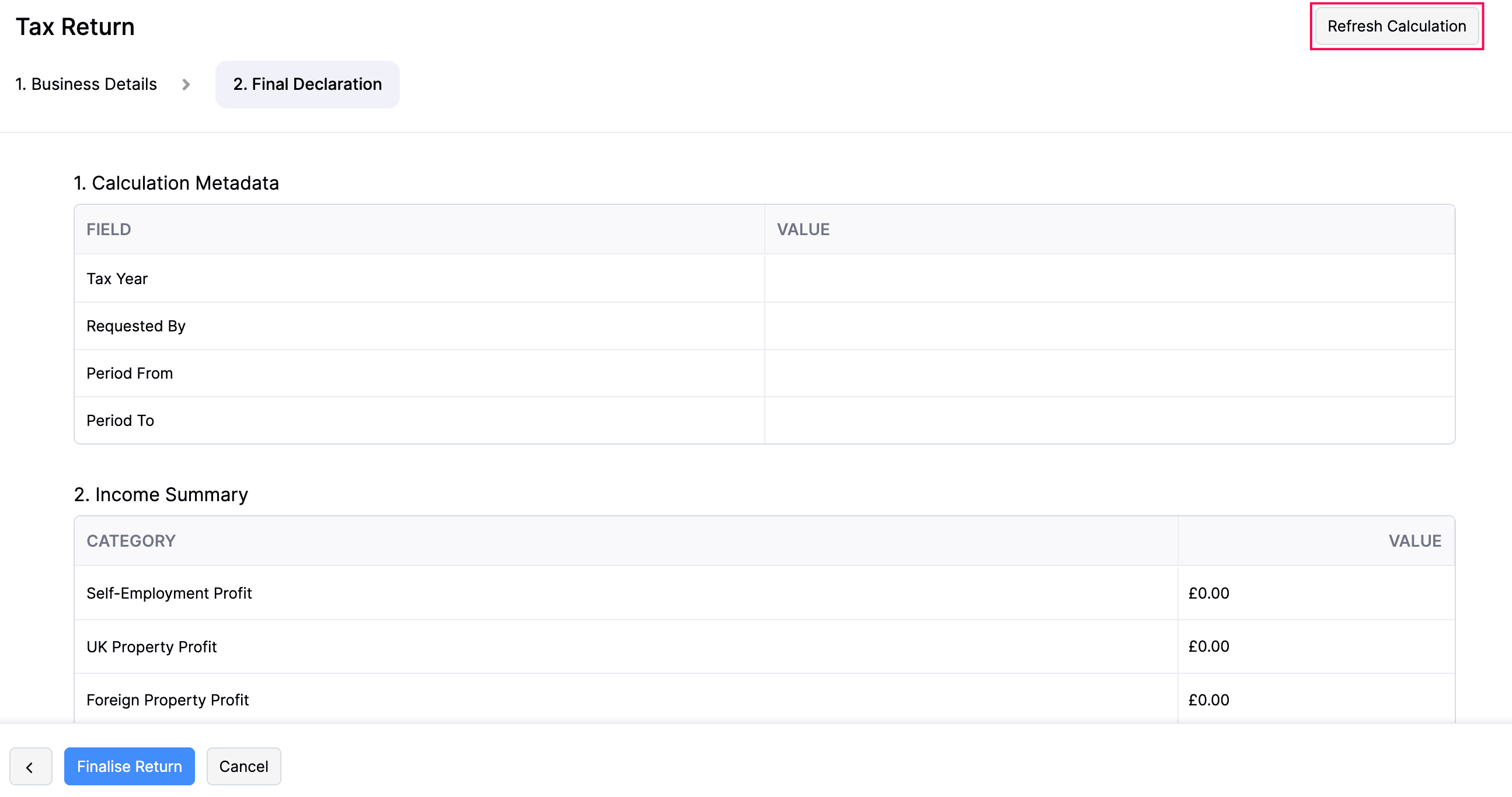
The values will now be recomputed and updated.
To recompute your tax return in the Finalised status:
- Go to Filing & Compliance on the left sidebar and select Income Tax.
- In the Tax Return section, select the finalised tax return you want to recompute.
- Click the More icon on the top right and select Edit.
- In the confirmation pop-up, click Continue to Edit.
Now, the tax return will be changed to Draft status and you can update the relevant details. Once done, navigate to the Final Declaration tab and click Refresh Calculation in the top right corner.
The values will be refreshed in Zoho Books to match the updated ones available in HMRC.
Note:
Once the values are refreshed, you must finalise the return again.
Submit Tax Return to HMRC
Once the tax return is finalised, you can review and agree to the tax calculation from HMRC, and then submit it to complete your final declaration.
Here’s how:
- Go to Filing & Compliance on the left sidebar and select Income Tax.
- In the Tax Return section, select the finalised tax return you want to submit to HMRC.
- In the Tax Return page, after reviewing your tax calculation from HMRC, click Make Declaration.
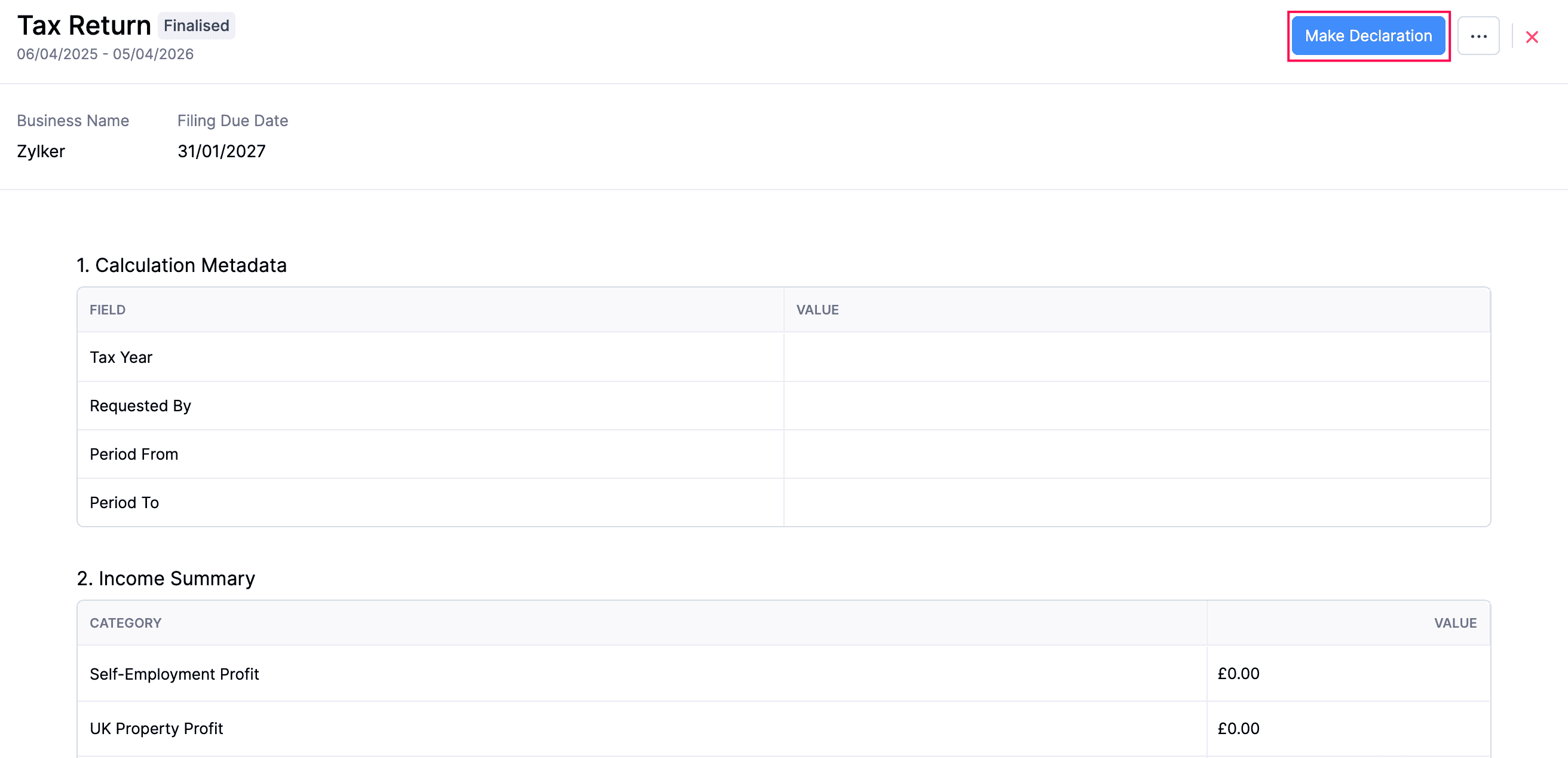
- In the confirmation pop-up, read and agree to the terms and click Make Declaration again.
Your confirmation will be sent to HMRC to complete the final declaration process, and the tax return will be marked as Submitted in Zoho Books.
Note:
You can start submitting your tax return once the respective tax year ends on April 6th. The deadline to complete your final declaration to HMRC is January 31st following the end of the tax year. For example, for the 2026–27 tax year, the final declaration must be completed on or before January 31st, 2028.
 Yes
Yes