


Quarterly Updates

Under Making Tax Digital for Income Tax, you must submit quarterly updates to HMRC to report your business income and expenses. In Zoho Books, you can fetch your quarterly submission obligations from HMRC, map your accounts to the relevant categories, and submit the updates directly.
Prerequisite:
Before you can fetch and submit quarterly updates, ensure that you have enabled Making Tax Digital for Income Tax and connected your Zoho Books organisation with HMRC.
Fetch Quarterly Updates
To fetch quarterly updates from HMRC into Zoho Books:
- Go to Filing & Compliance on the left sidebar and select Income Tax.
- Click Fetch Obligations From HMRC.
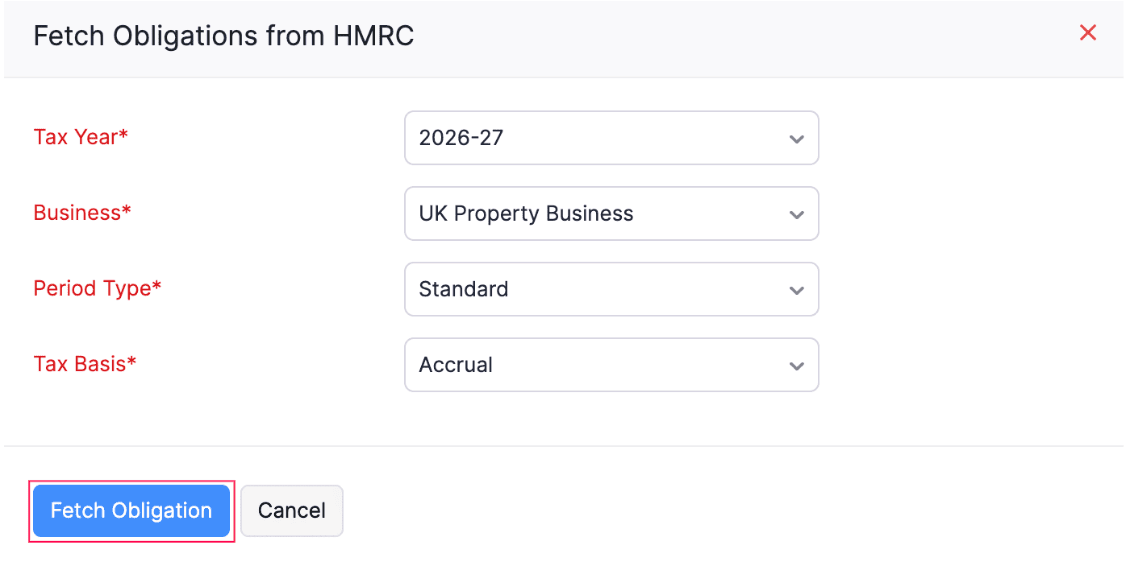
- In the Fetch Obligations from HMRC pop-up, fill in the following fields:
- Tax Year: Select the tax year for which you want to fetch obligations.
- Business: Select the business for which you want to fetch obligations.
- Period Type: Select the period type:
- Standard: Quarters follow the standard tax year, starting from 6 April (e.g., 6 Apr – 5 Jul, 6 Jul – 5 Oct, and so on).
- Calendar: Quarters follow calendar months, starting from 1 April (e.g., 1 Apr – 30 Jun, 1 Jul – 30 Sep, and so on).
- Tax Basis: Select the tax basis (Accrual or Cash).
- Click Fetch Obligation.
The quarterly submission periods will be fetched from HMRC and listed under the Quarterly Updates section.
Finalise Quarterly Updates
To finalise your quarterly update:
- Select the quarterly update that you want to finalise in the Quarterly Updates section.
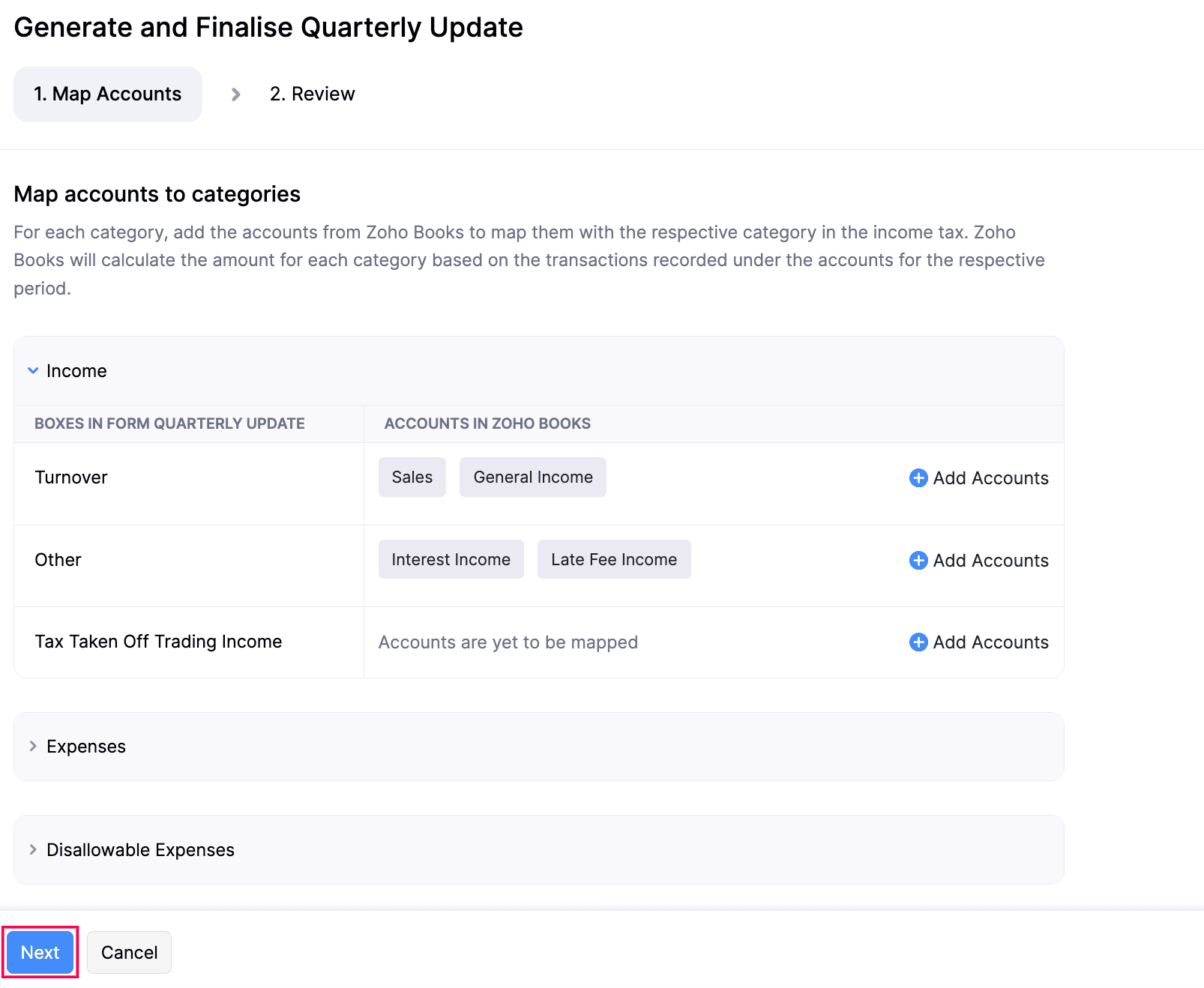
- In the Generate and Finalise Quarterly Update page, under the Map Accounts tab, map your Zoho Books accounts to the respective income tax fields under Income, Expenses, and Disallowable Expenses sections. Click + Add Accounts next to a field to add accounts to it.
- Once you’ve mapped the required accounts, click Next.
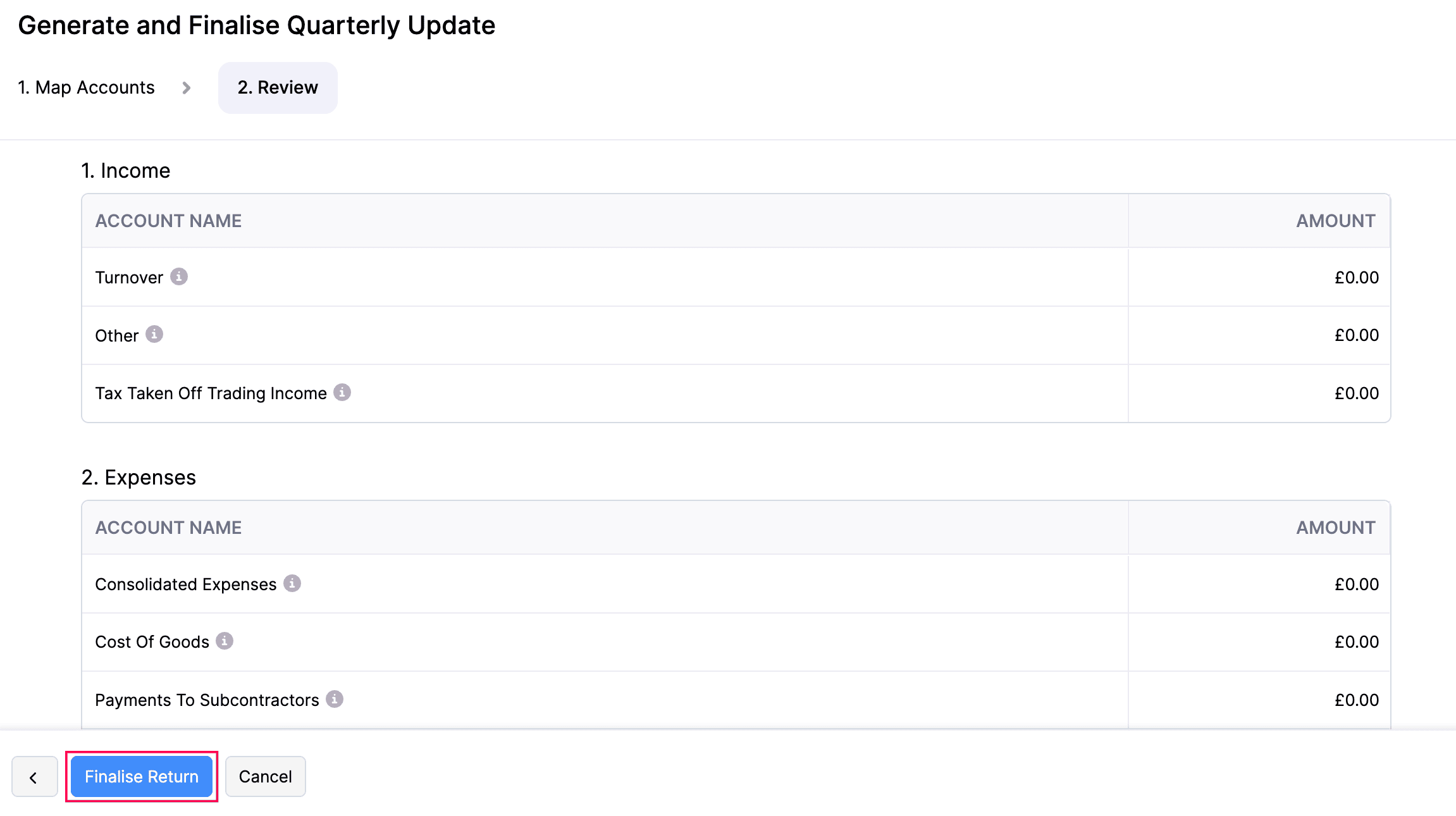
- Under the Review tab, verify the amounts calculated for each income tax field under Income, Expenses, and Disallowable Expenses.
- Click Finalise Return.
- In the confirmation pop-up, read the note and click Finalise Update.
The quarterly update will be marked as Finalised and you can now submit your quarterly updates to HMRC.
Submit Quarterly Updates
Prerequisite:
Before submitting the quarterly updates to HMRC, ensure that your Zoho Books organisation is connected to HMRC. If not, reauthorise your connection with HMRC to submit the updates.
To submit your quarterly updates to HMRC:
- Go to Filing & Compliance on the left sidebar and select Income Tax.
- Select the quarterly update you want to submit.
- In the Quarterly Update page, click Send Update in the top right corner.
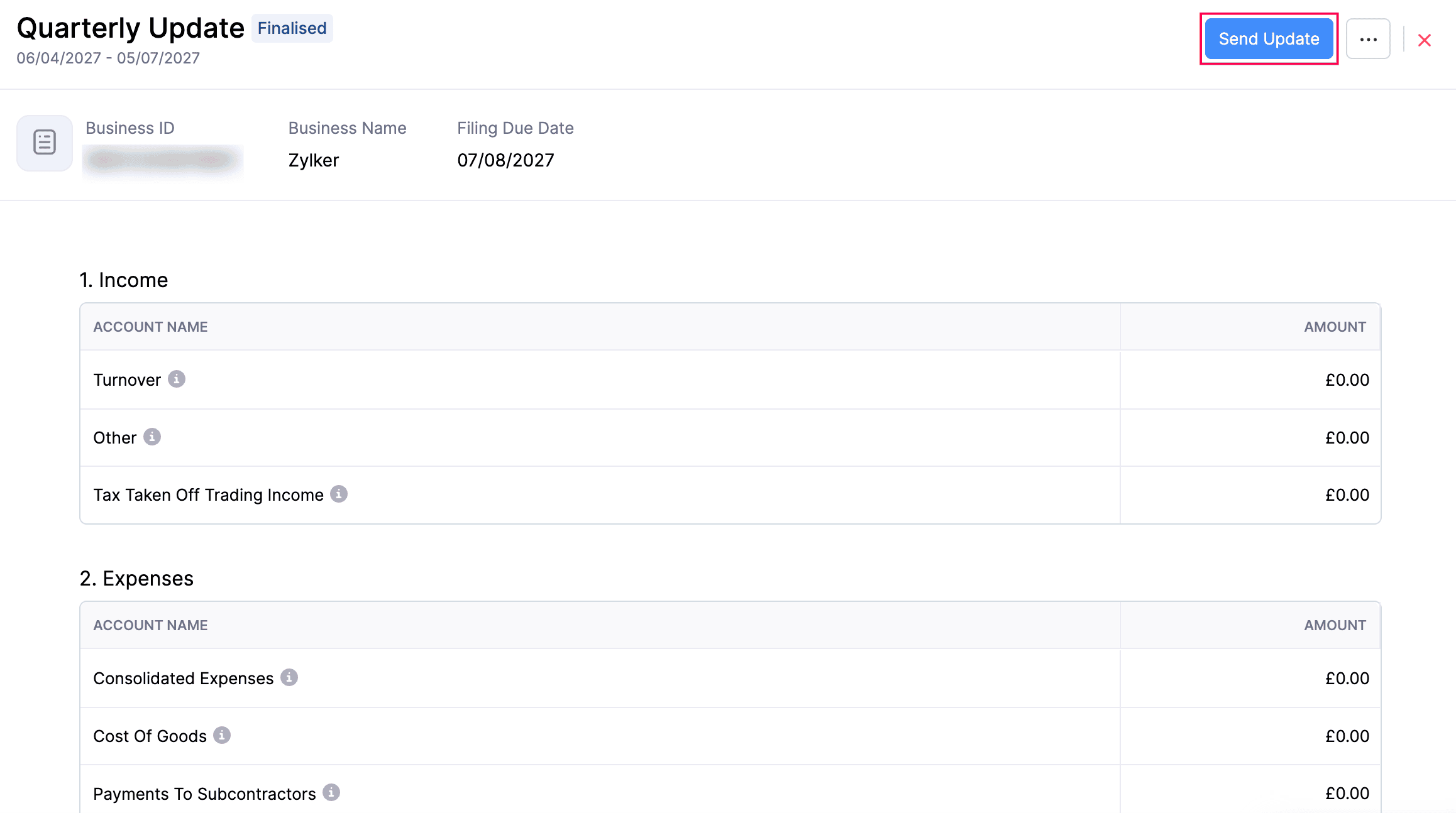
The quarterly update will be marked as Submitted.
Edit Quarterly Updates
To edit a quarterly update:
- Go to Filing & Compliance on the left sidebar and select Income Tax.
- Select the quarterly update you want to edit.
- In the Quarterly Update page, click the More icon in the top right corner and select Edit from the dropdown.
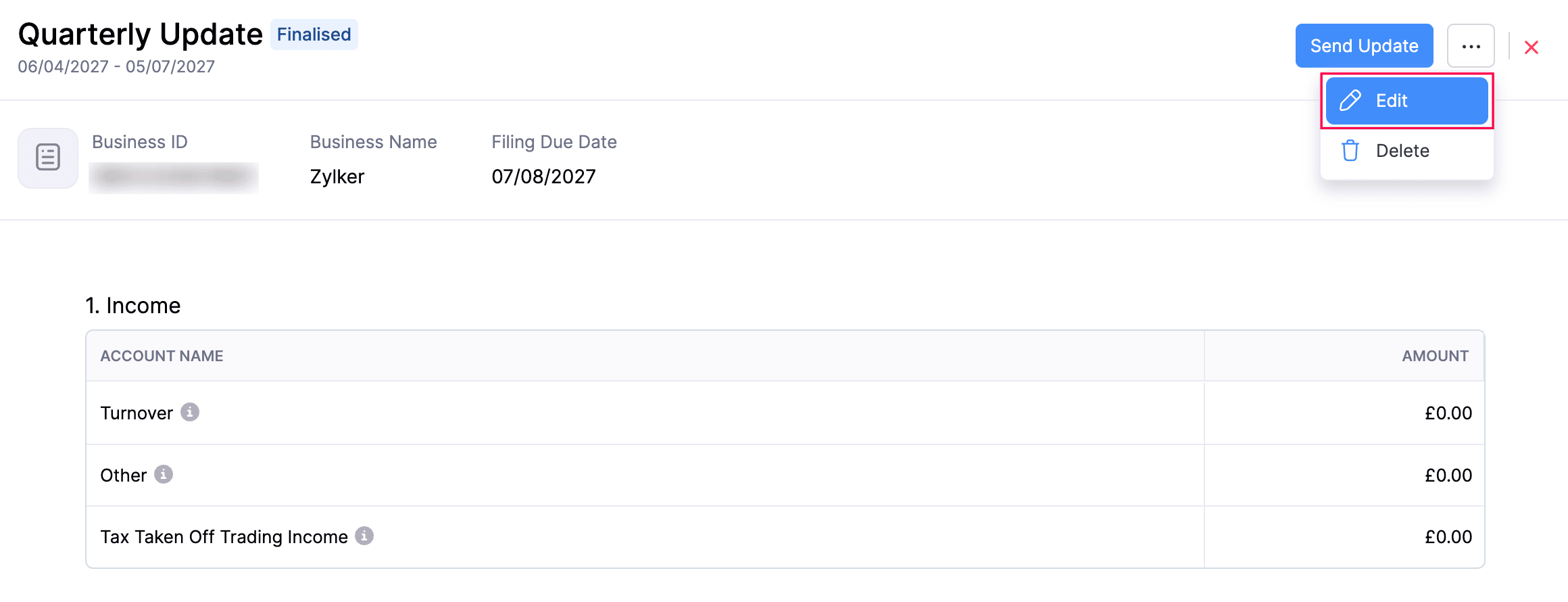
- In the Edit Quarterly update pop-up, click Continue to Edit.
- In the next page, make the necessary changes, review and finalise the quarterly update.
The quarterly update will be updated.
 Yes
Yes