


Other Income Sources

Under Making Tax Digital (MTD) for Income Tax in Zoho Books, you can create other income source forms to report extra tax details for a tax year. These forms are used when you need to add information such as dividend income, savings interest, employment income, benefits, charitable donations, or other disclosures before submitting your Final Declaration to HMRC.
Zoho Books supports the following other income source forms. You can generate, edit, delete and submit these forms from Zoho Books.
Supported Forms
UK Dividends
Use this form if you received dividends from shares in UK companies during the tax year. This helps you report that income correctly in your Income Tax records before you submit your Final Declaration to HMRC.
UK Savings Account
Use this form if you earned interest from savings in a UK bank or building society account during the tax year. This helps ensure that your taxable savings income is recorded correctly before submission to HMRC.
Marriage Allowance
Use this form if Marriage Allowance was transferred between you and your spouse or civil partner, or if you received it during the tax year. This helps reflect the correct tax position before the Final Declaration is submitted.
Charitable Giving
Use this form if you made eligible charitable donations during the tax year. This helps ensure that any related tax relief is taken into account correctly in your Income Tax submission.
High Income Child Benefit Charge
Use this form if the High Income Child Benefit Charge applies to you for the tax year. This helps ensure that the charge is included correctly in your Income Tax records before your Final Declaration is submitted to HMRC.
Disclosures
Use this form if you need to provide additional tax-related information to HMRC for the relevant tax year. This helps you include extra details that support the accuracy and completeness of your Income Tax submission.
Employment Income
Use this form if you received income through employment during the tax year. This helps you record salary-related income and other employment details correctly before submission to HMRC.
Non-PAYE Employment Income
Use this form if you received employment-related income that was not taxed through PAYE. This helps ensure that untaxed employment income is included correctly in your total Income Tax liability for the tax year.
Student Loan Benefits in Kind
Use this form if you need to report benefits in kind that are relevant for student loan and tax reporting purposes. This helps ensure that those benefits are included correctly in your Income Tax information for the tax year.
State Benefits
Use this form if you received taxable state benefits during the tax year. This helps ensure that this income is included accurately in your Income Tax records before your Final Declaration is submitted to HMRC.
Pension Reliefs
Use this form if you made contributions to a registered pension scheme or a retirement annuity during the tax year, where tax relief was not applied at source. This helps ensure that the associated tax relief is reflected correctly in your Income Tax records before your Final Declaration is submitted to HMRC.
Other Expenses
Use this form if you incurred allowable expenses during the tax year that are not captured elsewhere in your Income Tax submission. This helps ensure that all eligible deductions are included correctly in your Income Tax records before your Final Declaration is submitted to HMRC.
Manage Other Income Source Forms
Generate Other Income Source Form
Before generating an Other Income Source form, you must first create an Other Income Source form. Here’s how:
- Go to Filing & Compliance on the left sidebar and select Income Tax.
- Click Create Additional Submission in the top right corner.
- In the Create Additional Submission pop-up, fill in the following fields:
- Select the relevant tax year in the Tax Year field.
- Select the required form in the Submission Type field.
- Click Create.
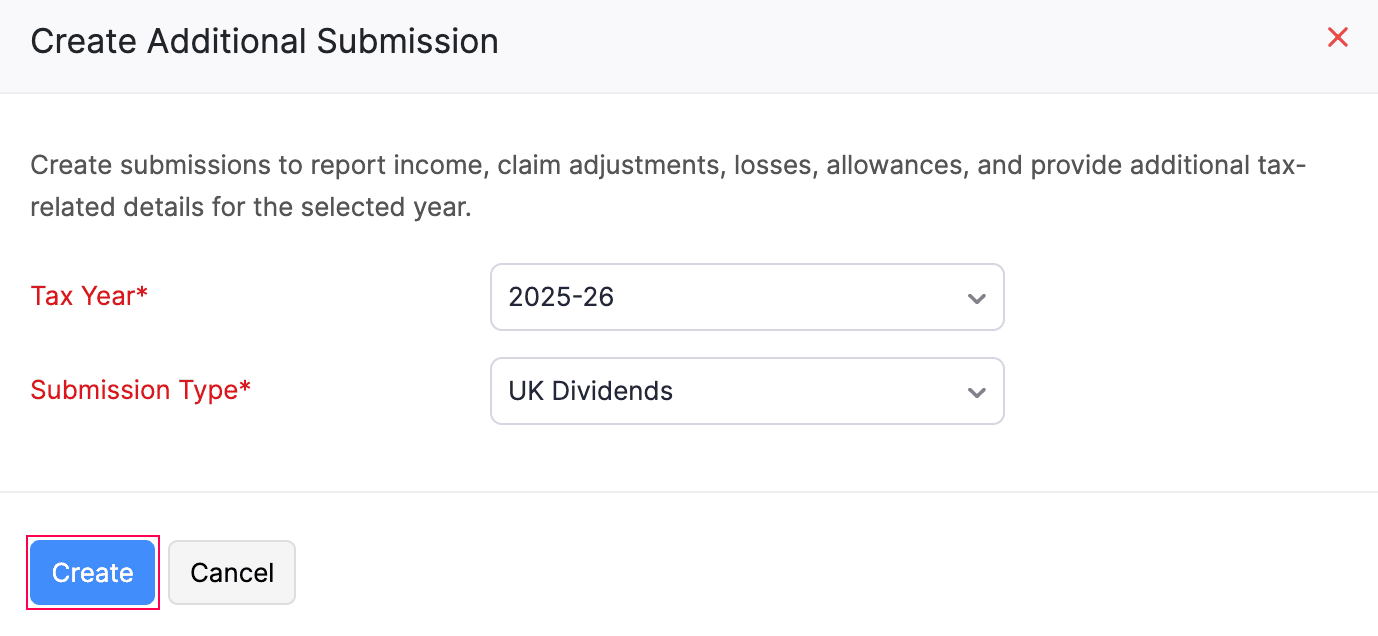
The Other Income Source form will now be created in the Draft status and listed under the End of Year section of the To Be Filed tab.
To generate the Other Income Source Form:
- Click the newly created form from the End of Year section.
- On the form page, enter the required details.
- Once you’ve entered all the values, click Save and Generate.
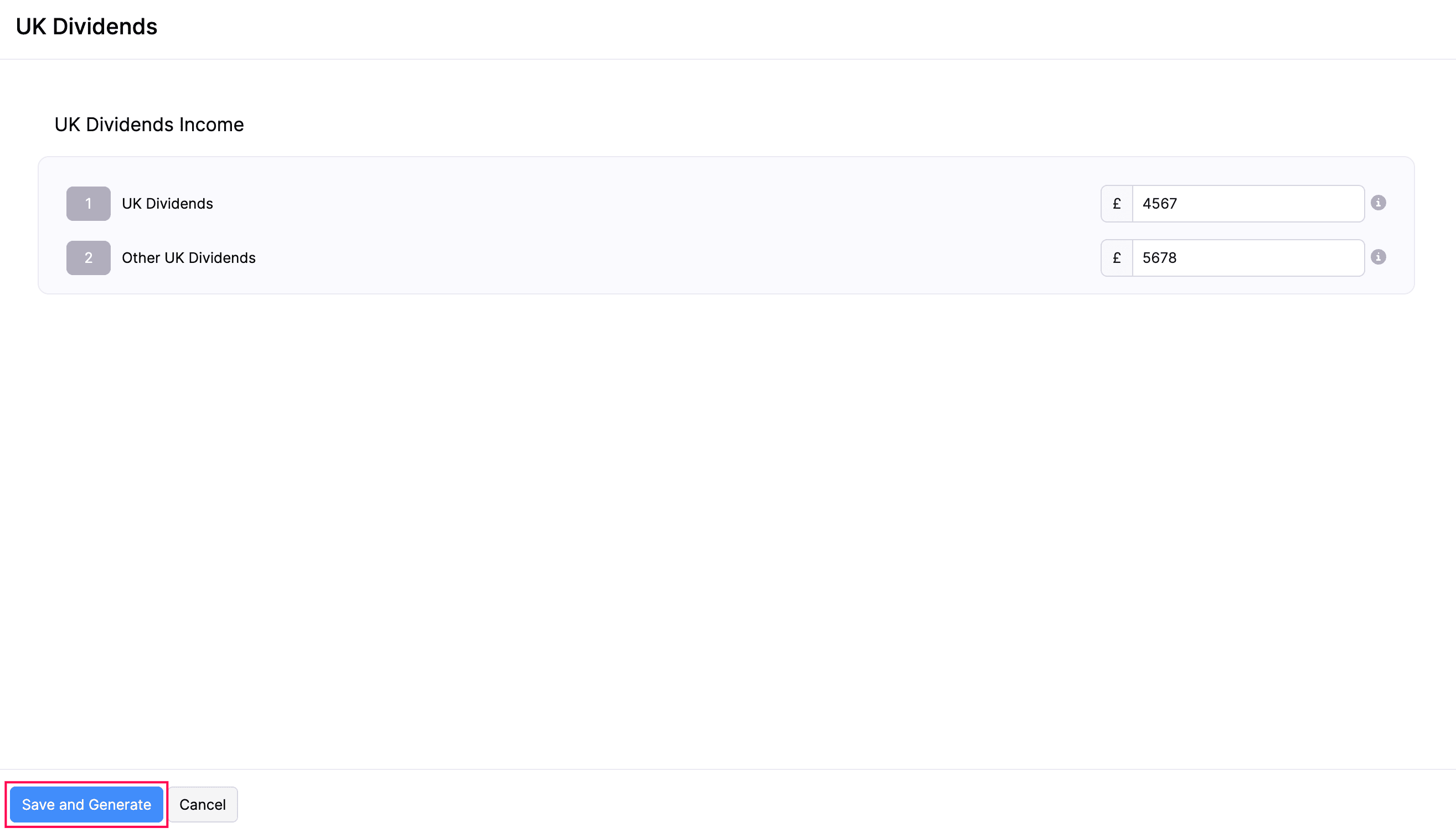
- In the confirmation pop-up, click Finalise Update.
The form will now be saved in Zoho Books and its status will change to Finalised.
Note:
When you generate an Employment Income tax form, a separate employment form must be created for each employer. If you have more than one employer, generate and submit a separate form to HMRC for each employment.
Edit Other Income Source Form
To edit an other income source form that is in Finalised status before submitting it to HMRC:
- Go to Filing & Compliance on the left sidebar and select Income Tax.
- Select the required form in Finalised status.
- On the form page, click the More icon in the top right corner and select Edit.
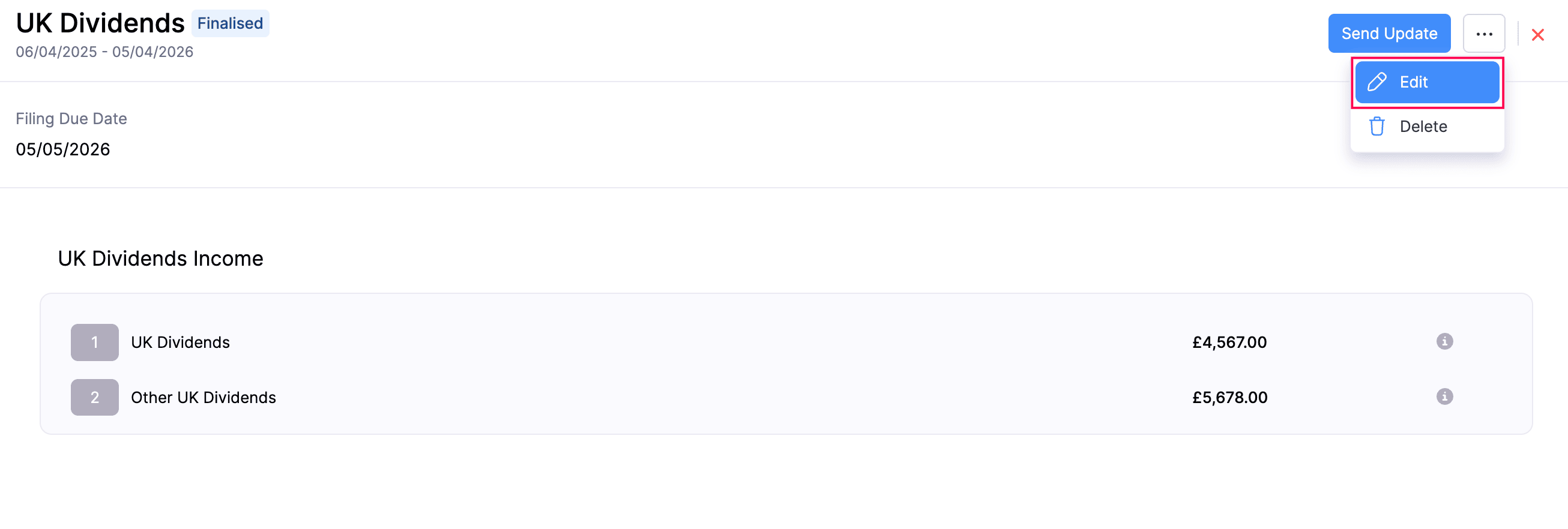
- In the confirmation pop-up, click Continue to Edit.
- Make the necessary changes and click Save and Generate.
The form will now be updated with the latest changes.
To edit an other income source form that is in Submitted status:
- Go to Filing & Compliance on the left sidebar and select Income Tax.
- Select the required form in Submitted status.
- On the form page, click the More icon in the top right corner and select Edit.
- In the confirmation pop-up, click Continue to Edit.
- Make the necessary changes and click Save and Generate.
After editing the form, submit it again so that the latest changes are sent to HMRC.
Delete Other Income Source Form
To delete an other income source form that is in Finalised status before submitting it to HMRC:
- Go to Filing & Compliance on the left sidebar and select Income Tax.
- Hover over the required form in the Finalised status.
- Click the dropdown that appears and select Delete.
(or)
- Select the required form in Finalised status that you want to delete.
- On the form page, click the More icon in the top right corner and select Delete.
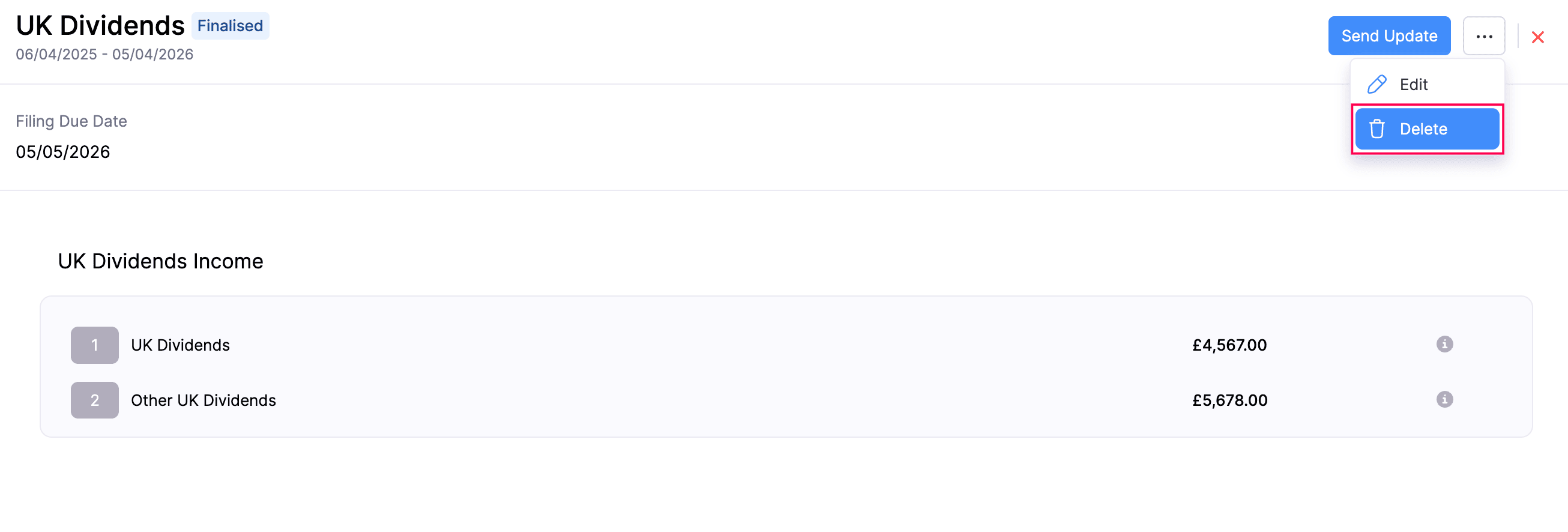
The form will now be deleted from Zoho Books.
To delete an other income source form that is in the Submitted status:
- Go to Filing & Compliance on the left sidebar and select Income Tax.
- Select the required form in Submitted status that you want to delete.
- On the form page, click the More icon in the top right corner and select Delete.
For supported forms, the deletion will also be reflected in HMRC. If you require the form again, you have to generate and submit a new one.
Note:
HMRC deletion is not available for the UK Savings Account and Marriage Allowance forms. Deleting these forms removes them only from Zoho Books.
Submit Other Income Source Form
Once you’ve entered all the required details and the form is in Finalised status, you can submit it to HMRC.
Here’s how:
- Go to Filing & Compliance on the left sidebar and select Income Tax.
- Select the required form in Finalised status.
- On the form page, click Send Update in the top right.
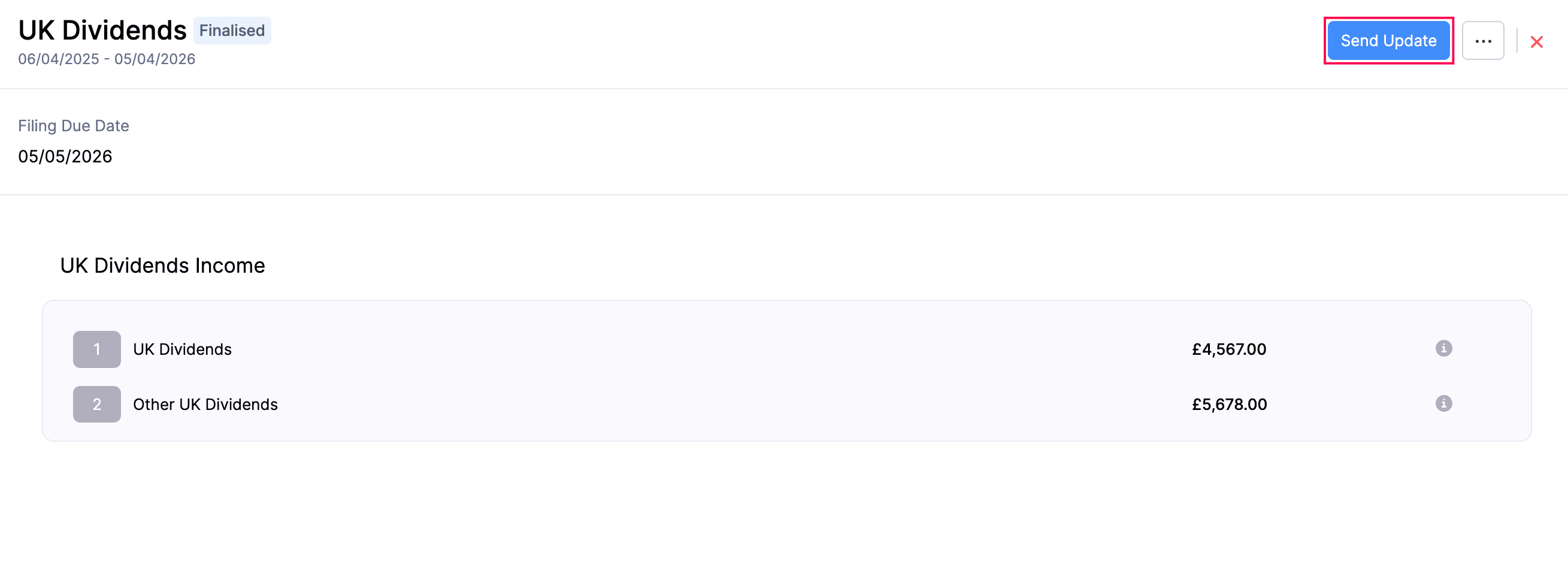
- In the confirmation pop-up, read the terms and click Send Update again.
The form will be sent to HMRC and marked as Submitted in Zoho Books.
 Yes
Yes