


Final Accounts

The Final Accounts (also called Year-End Accounts) report shows your business’s performance and financial position at the end of a financial year. It includes key details from your organisation’s Balance Sheet, Income Statement, Disclosures, and more, for filing purposes. These accounts must follow specific standards to remain accurate and comply with HMRC and Companies House requirements.
Zoho Books lets you generate the Final Accounts report, map accounts to the respective sections, and submit the report directly to Companies House or along with your Corporation Tax returns to HMRC.
Points to Remember
- Micro-entity businesses need to prepare simpler statutory accounts. They only have to submit a reduced Balance Sheet with limited information to Companies House and can use the same reporting exemptions as small companies. To check if your business qualifies as a micro-entity, visit the HMRC website to review the eligibility requirements.
- The Final Accounts report generated in Zoho Books follows the FRS 105 (Financial Reporting Standard for Micro-Entities) standards.
- Zoho Books automatically fetches your company’s details from your Company Registration Number (CRN) and uses it to generate the report for the current financial year.
Generate Final Accounts Report
Prerequisite:
Enter a valid Company Registration Number (CRN) in the Company ID field within the organisation profile settings. This is required to generate the Final Accounts report.
To generate the Final Accounts report in Zoho Books:
- Go to Filing & Compliance on the left sidebar and select Final Accounts.
- Click + Generate Final Accounts in the top right corner.
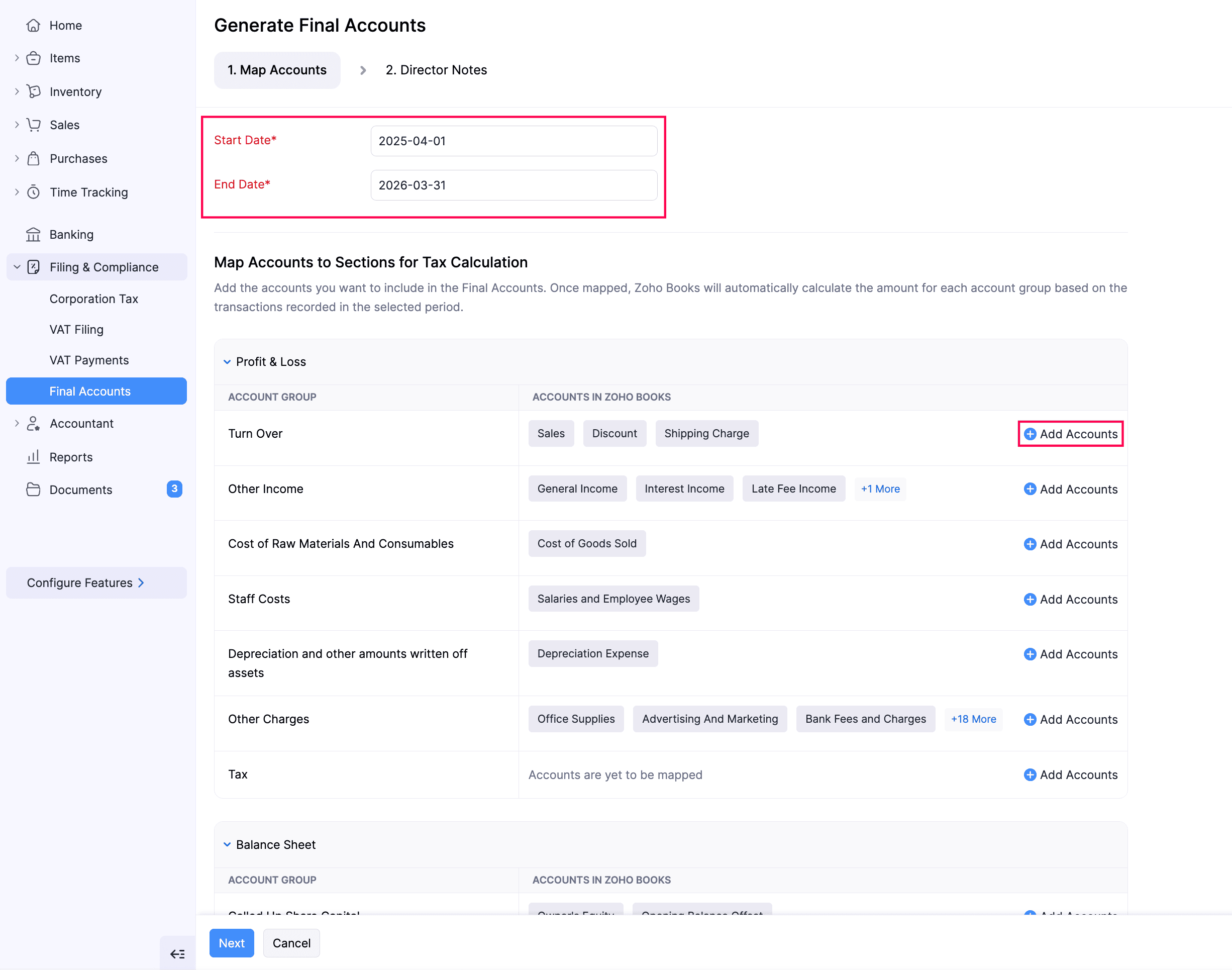
- In the Generate Final Accounts page, under the Map Accounts tab, the Start Date and End Date for which you want to generate the final accounts will be auto-populated based on the data fetched from Companies House.
- Under Map Accounts to Sections for Tax Calculation, you can map the accounts that should be included in the Final Accounts. The accounts from the Income Statement and Balance Sheet reports will be auto-populated. If you want to change the mapped accounts or add another account:
- Click + Add Accounts next to the section you want to map accounts.
- In the Add Accounts pop-up, select the required accounts.
- Click Save.
Note:
Ensure you select at least one account in each section and map all accounts with non-zero transactions to the appropriate sections for accurate reporting.
- Once you’ve selected the required accounts, click Next.
You will be redirected to the Disclosures tab.
- Under Disclosures, fill in the following fields:
- Average number of employees: Enter the average number of employees in your organisation during the financial year. Ensure that it doesn’t exceed 10.
- General Information: A general overview about your company.
- Statement Of Compliance: A formal declaration stating that the financial statements have been prepared in accordance with the relevant accounting standards.
- Basis Of Preparation: The accounting principles, standards, and policies used in preparing financial statements for transparency and comparability.
- Under Other Notes, include any obligations of your business that don’t appear in the Balance Sheet or Income Statement reports.
| Fields | Description |
|---|---|
| Contingent Liabilities Note | Record any possible obligations that may arise from future events. |
| Director Advances Credit Note | Record any amounts your company owes to its directors. |
| Director Guarantees Note | Record any personal guarantees the directors have given for company obligations. |
| Financial Commitments Note | Record any agreements made by your company to make future payments. |
| Capital Commitments Note | Record any approved expenses on fixed assets that your company has not yet paid or received. |
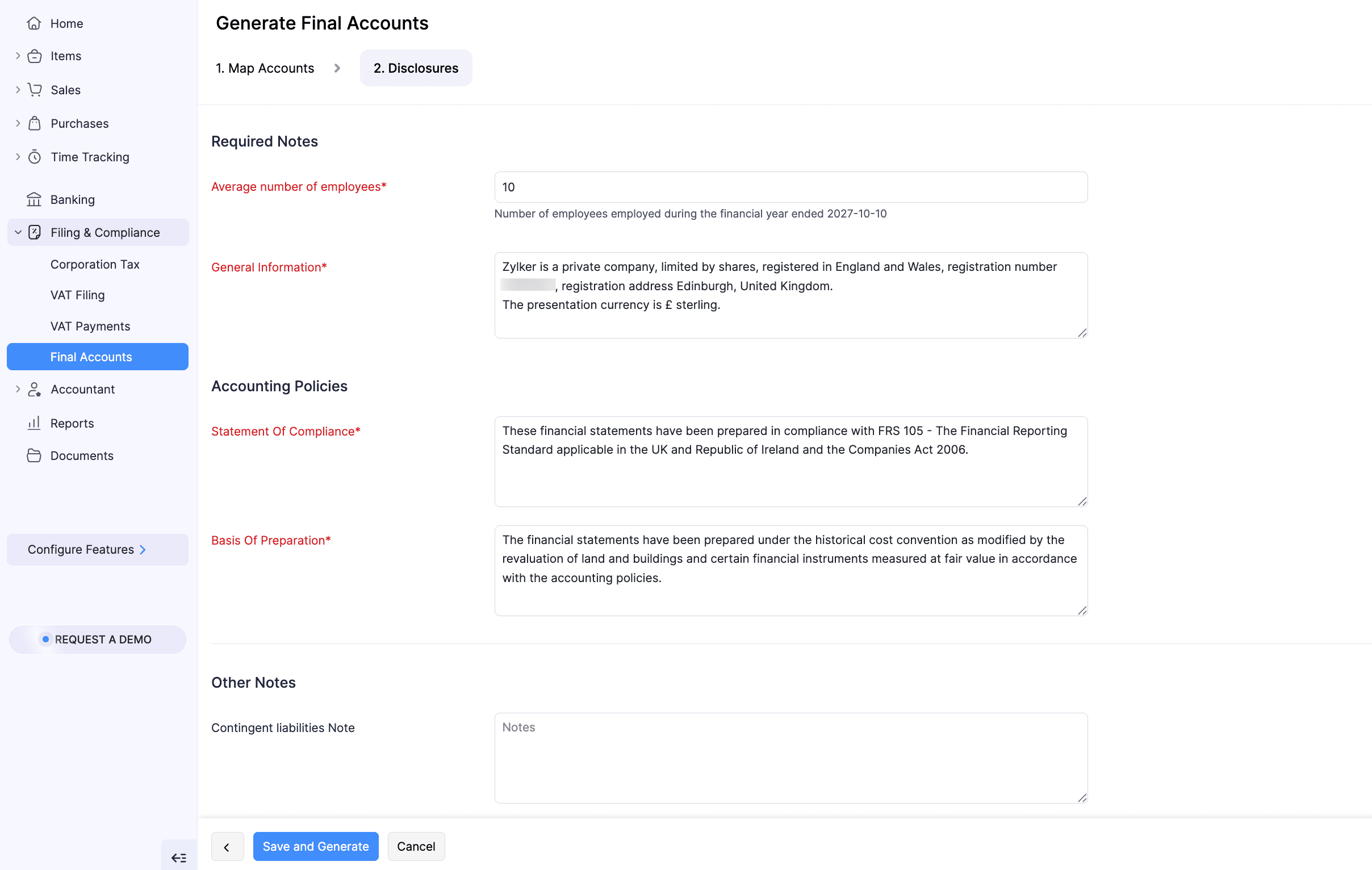
Click Save and Generate.
In the pop-up that appears, read the terms and click Continue To Generate.
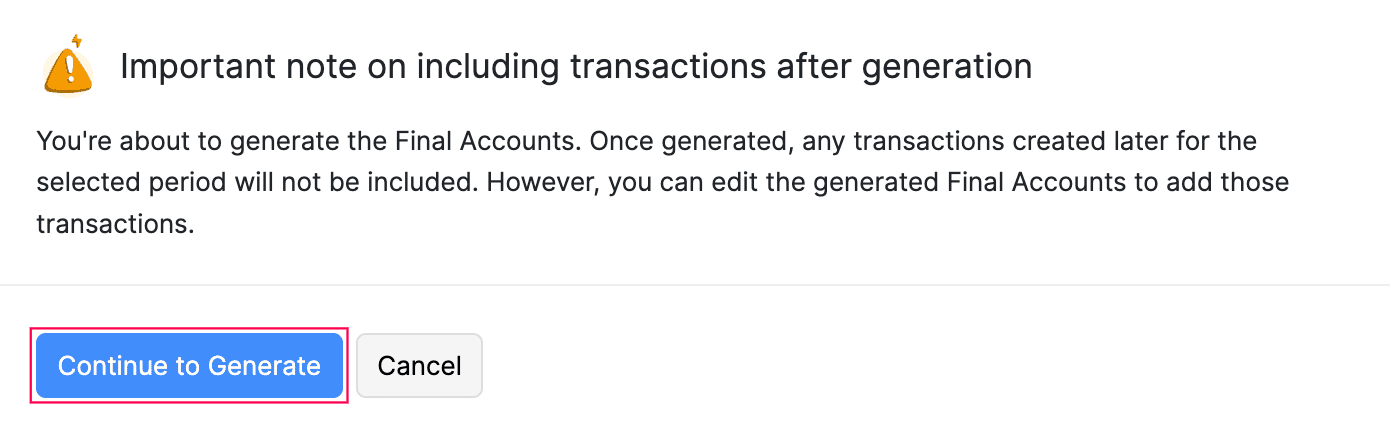
The Final Accounts report will be generated in your Zoho Books organisation.
Approve Final Accounts Report
Once the report is generated, an admin can verify the amounts included in each section of the report, ensure that they’re correct and approve the report. Here’s how:
- Go to Filing & Compliance on the left sidebar and select Final Accounts.
- Select the report you want to approve.
- In the next page, click Approve and Proceed.
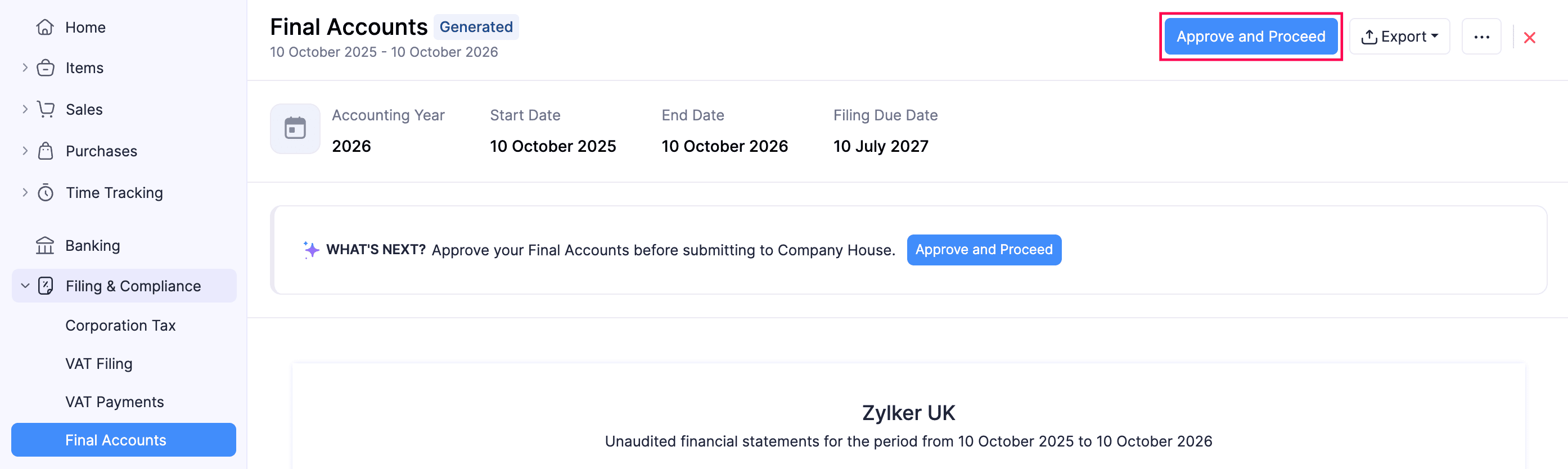
- In the confirmation pop-up, read the terms and click Approve Now.
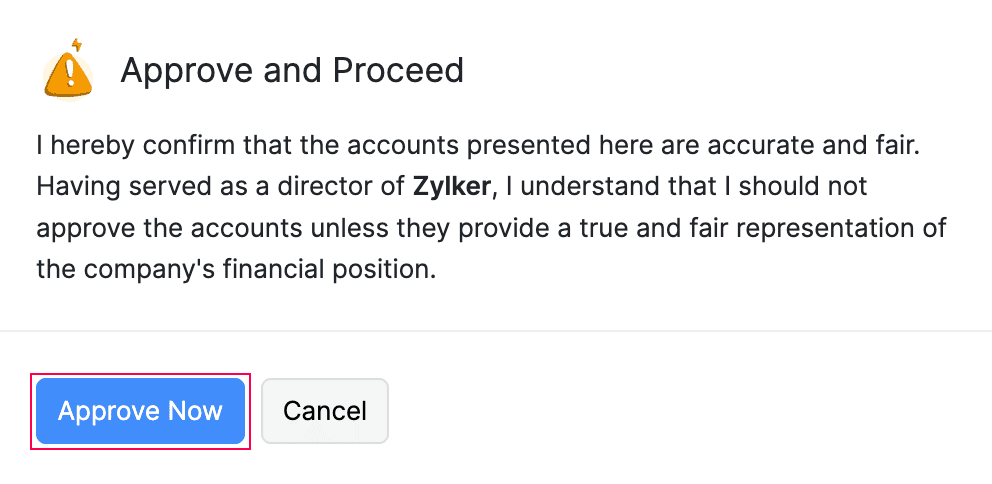
The report will be approved.
Note:
The name of the approver will be used as the director’s signature in the Final Accounts report.
Revoke Approval
To revoke approval for a Final Accounts report that you already approved:
- Go to Filing & Compliance on the left sidebar and select Final Accounts.
- Select the report for which you want to revoke the approval.
- In the next page, click the More icon in the top right corner, and select Revoke Approval from the dropdown.
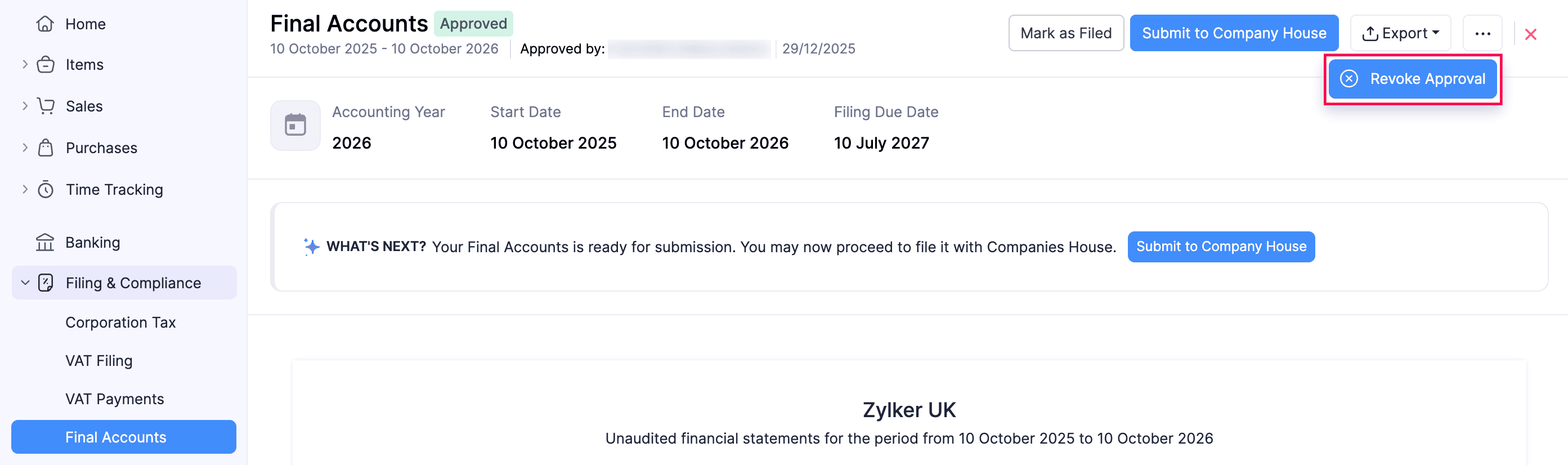
- In the Reason for Reverting Approval pop-up, enter the reason to revoke the approval, and click Submit.
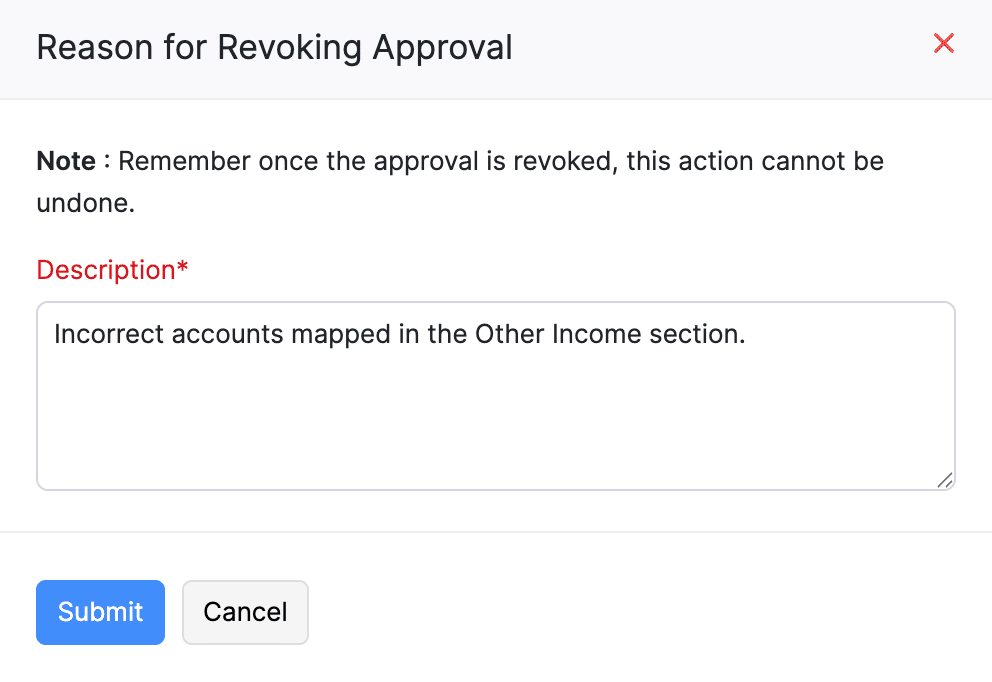
The approval for the respective Final Accounts report will be reverted.
Submit to Companies House
Prerequisites:
To submit your Final Accounts report to Companies House from Zoho Books, you must have the following credentials:
Presenter ID: A unique ID issued when your Companies House presenter account is approved. IDs from the current online service start with E followed by 10 digits (e.g., E1234567890). IDs issued through the older process contain 11 digits.
Presenter Auth Code: The authentication code issued along with your Presenter ID. It acts as your filing password and authorises each submission.
If you don’t have a presenter account, you can apply for it through the Companies House website.
Company Authentication Code: A 6-character alphanumeric code that serves as your company’s digital signature, required for every filing. You can request it through Companies House WebFiling. It is sent only by post to your registered office address and may take up to 10 working days to arrive. Ensure that you request it ahead of your filing deadline.
Learn more about the requirements for filing company information.
Once an admin has approved the Final Accounts report, you can proceed to submitting the return to Companies House. Here’s how:
- Go to Filing & Compliance on the left sidebar and select Final Accounts.
- Select the report you want to submit to Companies House.
- In the next page, click Submit to Company House in the top right.
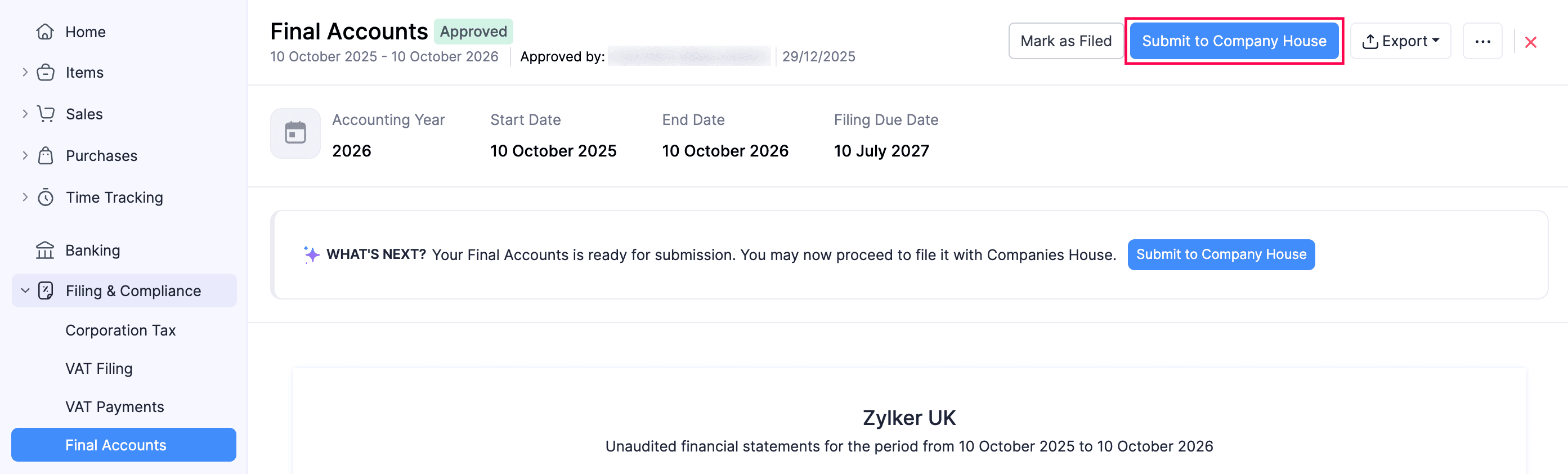
- In the pop-up that appears, fill in the required fields.
- Read and agree to the terms under Information Correct Declaration, and click Submit.
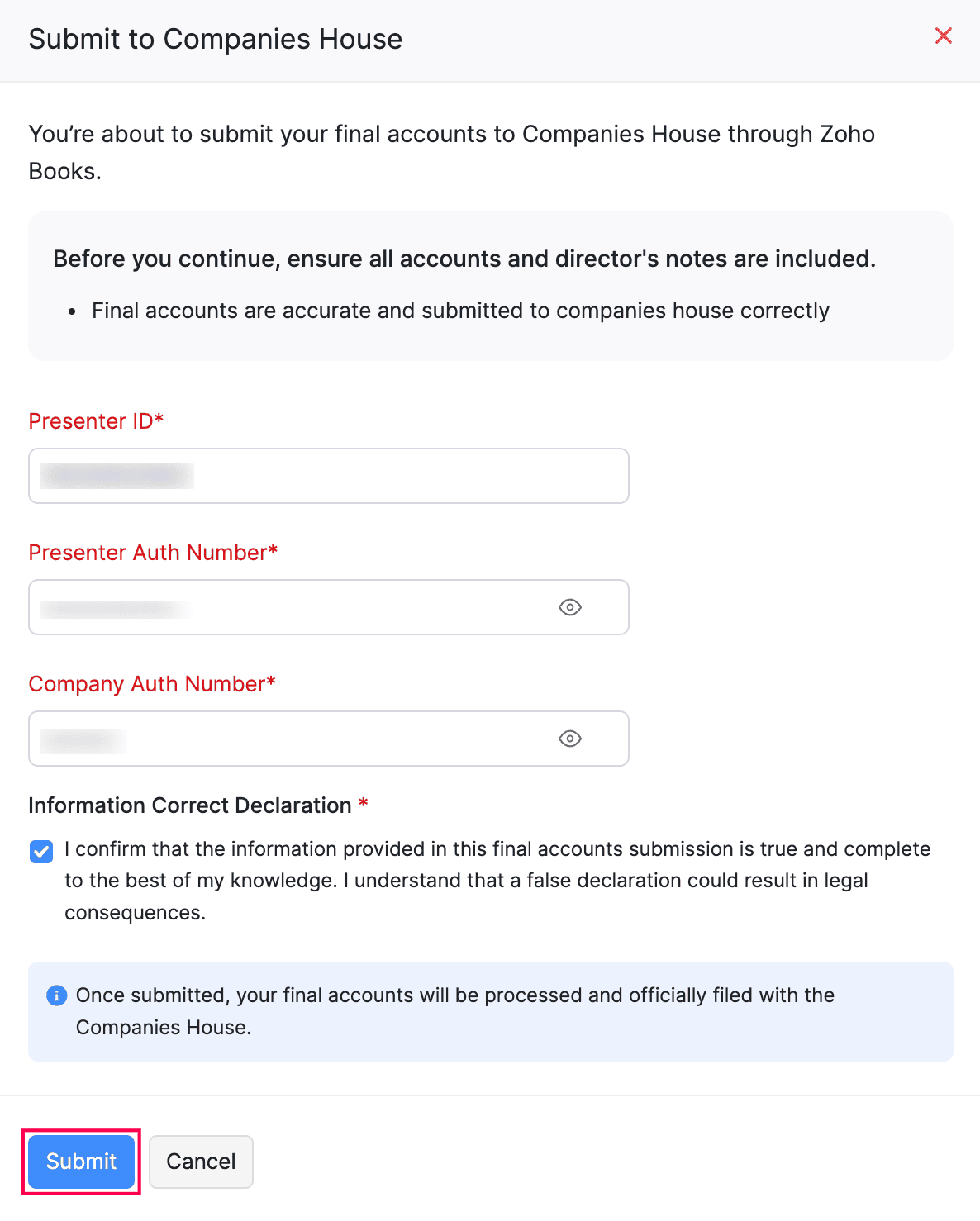
The Final Accounts report will now be submitted to the Companies House.
Submission Status
After you submit the Final Accounts report to Companies House, the report will go through different statuses based on the response from Companies House:
| Status | Description |
|---|---|
| Submission in Progress | The report has been sent to Companies House and is undergoing format validation. This process may take up to 3 hours. Learn more. |
| Submission in Progress (Awaiting Review) | The report has passed format validation and is now under review by Companies House. This review may take up to 2 working days. Learn more. |
| Submission Failed | The report did not pass the initial format validation by Companies House. Click View Errors to review what went wrong, edit the report to fix the issues, and resubmit it. |
| Submitted to Companies House | The report has been successfully submitted to Companies House and is queued for further processing. A Submission Number and Submission Timestamp will be displayed for your records. |
| Accepted by Companies House | Companies House has accepted the submission, and your filing is officially recorded. A Submission Number and Submission Timestamp will be displayed for your records. |
| Rejected by Companies House | Companies House has rejected the submission after review, due to validation or date errors. Click View Errors to review the error details, edit the report to correct the information, and resubmit it. A Submission Number and Submission Timestamp will also be available for reference. |
Here’s how the status appears once Companies House has accepted the submission:

Final Accounts - Operations
Mark Final Accounts As Filed
If you want to submit the Final Accounts report directly to Companies House, or file it along with your Corporation Tax return with HMRC, you can mark it as Filed in Zoho Books:
- Go to Filing & Compliance on the left sidebar and select Final Accounts.
- Select the report you want to mark as Filed.
- In the next page, click Mark As Filed in the top right.
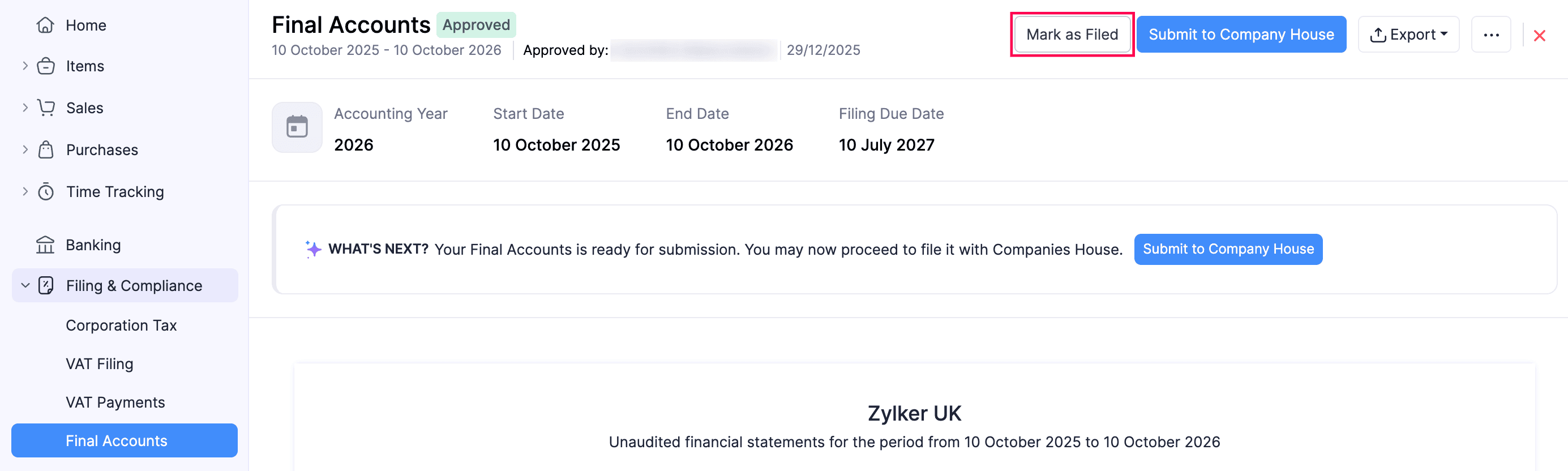
- In the pop-up that appears, select the required Date of Filing.
- Click Mark As Filed.
The respective Final Accounts report will be marked as Filed.
Mark Final Accounts As Unfiled
If you find any errors in a Final Accounts report that you’ve already marked as Filed, you can mark it as Unfiled, make changes, and submit it for approval. To do this:
- Go to Filing & Compliance on the left sidebar and select Final Accounts.
- Select the report you want to unfile.
- In the next page, click Mark As Unfiled in the top right.

The respective report will be marked as Unfiled, and its status will be changed to Generated. You can review changes in the report and submit it for approval again.
Edit Final Accounts Report
Note:
This option will appear only for reports that are in the Generated status.
To edit the Final Accounts report:
- Go to Filing & Compliance on the left sidebar and select Final Accounts.
- Select the report you want to edit.
- In the next page, click the More icon in the top right corner, and select Edit from the dropdown.
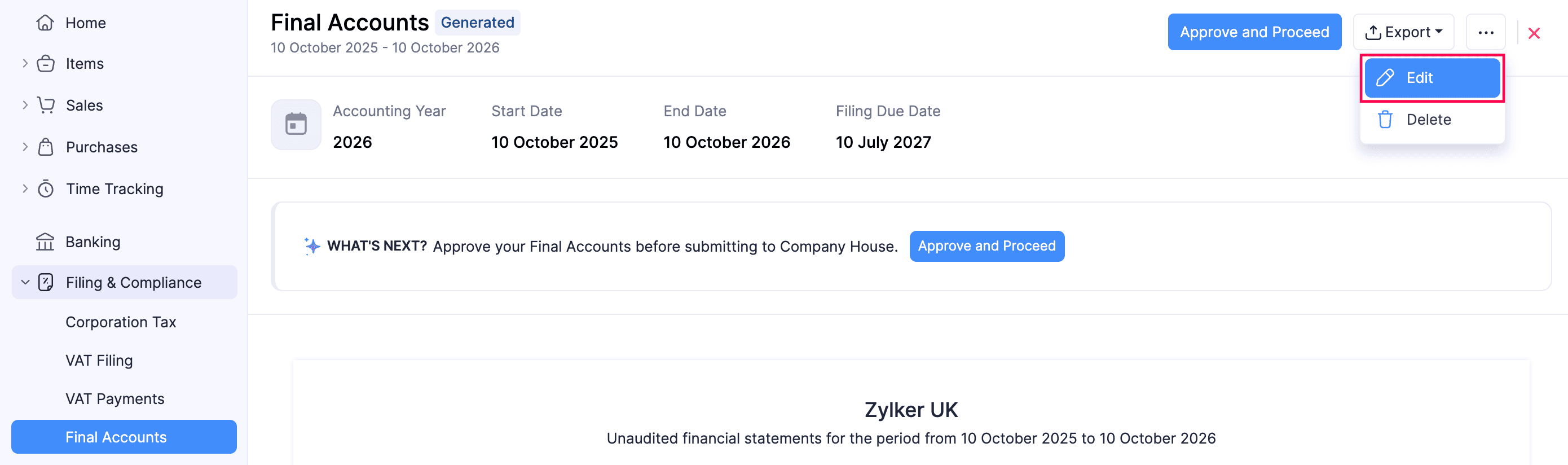
- In the Edit Final Accounts? pop-up, click Continue to Edit.
In the Generate Final Accounts page, follow the same process as generating the Final Accounts report.
The Final Accounts report will be updated.
Delete Final Accounts Report
Note:
This option will appear only for reports that are in the Generated status.
To delete a Final Accounts report you had generated:
- Go to Filing & Compliance on the left sidebar and select Final Accounts.
- Select the report you want to delete.
- In the next page, click the More icon in the top right corner, and select Delete from the dropdown.
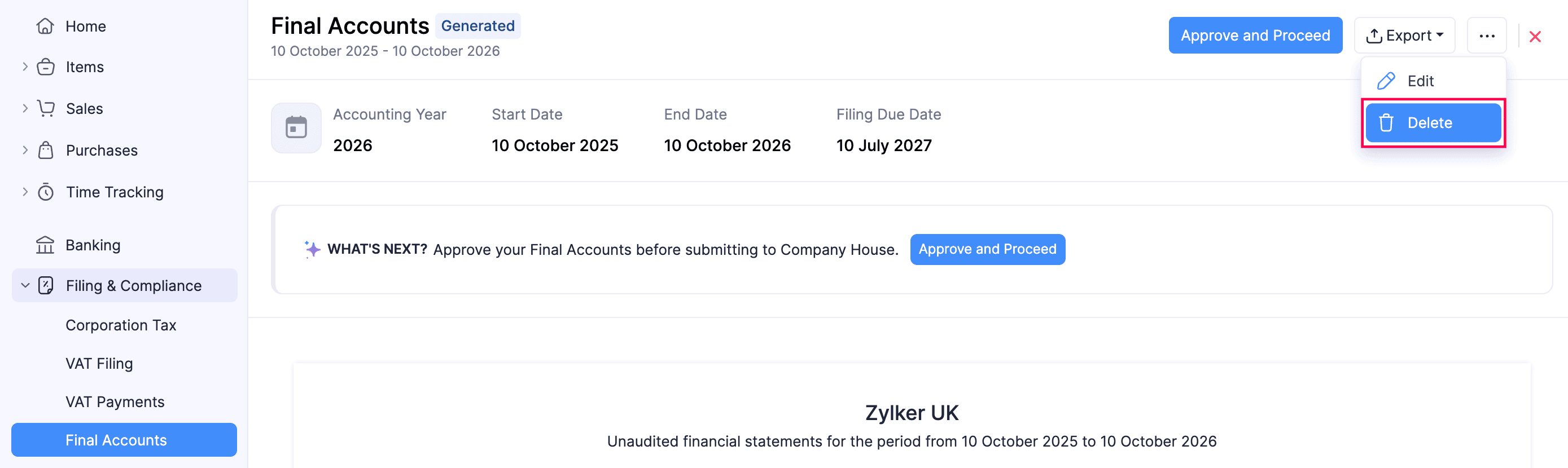
- In the confirmation pop-up, click Delete again.
The respective Final Accounts report will be deleted from your Zoho Books organisation.
Download Abridged Accounts iXBRL
The abridged version of your Final Accounts is a simplified report that includes only the Balance Sheet and Disclosures for filing purposes. You can download the abridged version of the Final Accounts report in the iXBRL (inline eXtensible Business Reporting Language) format, which makes it easier to process your financial information. Here’s how:
- Go to Filing & Compliance on the left sidebar and select Final Accounts.
- Select the report you want to export in the abridged format.
- In the next page, click Export.
- Select Download Abridged Accounts iXBRL from the dropdown.
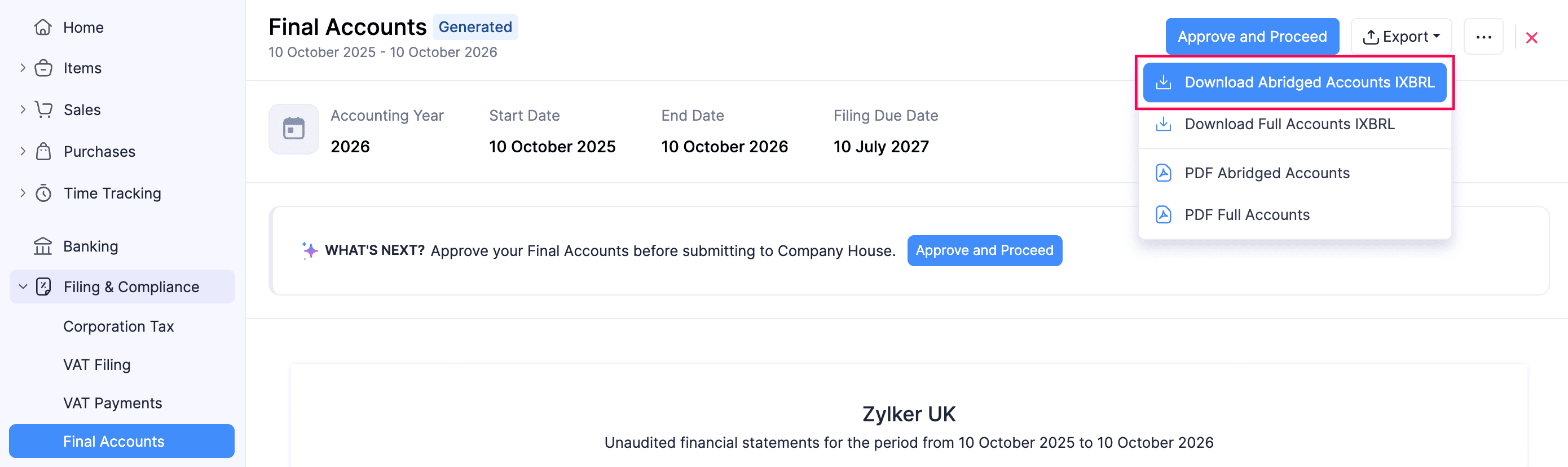
The Final Accounts report will be exported in the respective format.
Download Full Accounts iXBRL
Unlike the abridged version, the Full Accounts iXBRL includes the Income Statement, Balance Sheet and Disclosures. You can submit this report along with your Corporation Tax return to HMRC. Here’s how:
- Go to Filing & Compliance on the left sidebar and select Final Accounts.
- Select the report you want to export.
- In the next page, click Export.
- Select Download Full Accounts iXBRL from the dropdown.
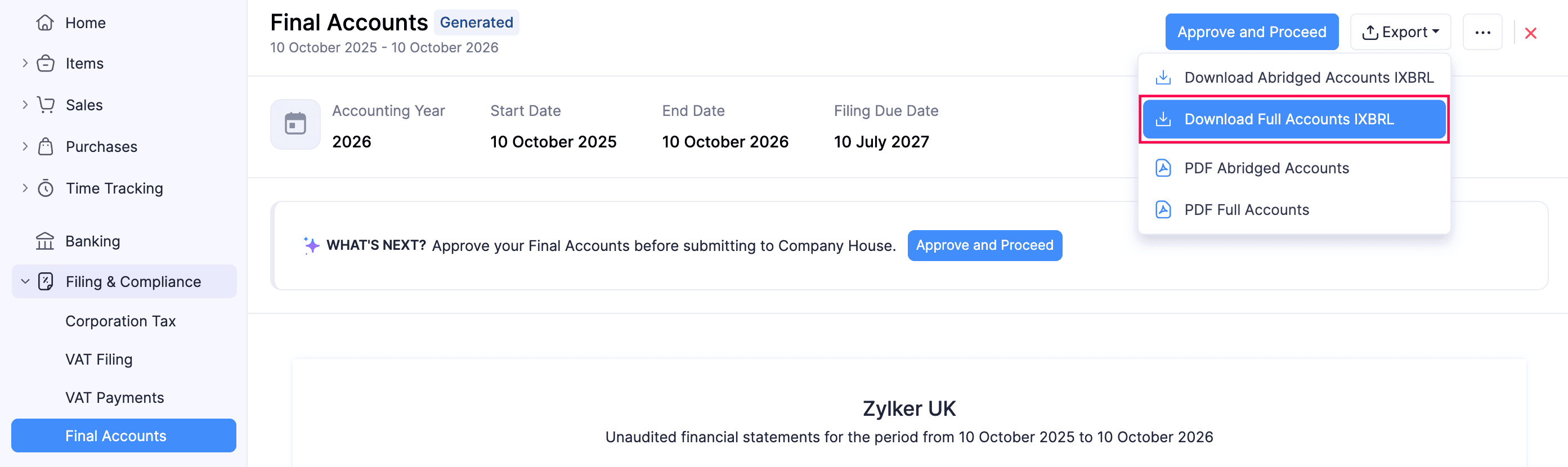 The Final Accounts report will be exported in the respective format.
Download as PDF
Apart from the iXBRL format, you can also download the Abridged and Full Accounts in the PDF format. Here’s how:
- Go to Filing & Compliance on the left sidebar and select Final Accounts.
- Select the report you want to export.
- In the next page, click Export.
- Select PDF Abridged Accounts to download the Abridged version. (or)
- Select PDF Full Accounts to download the Full version.
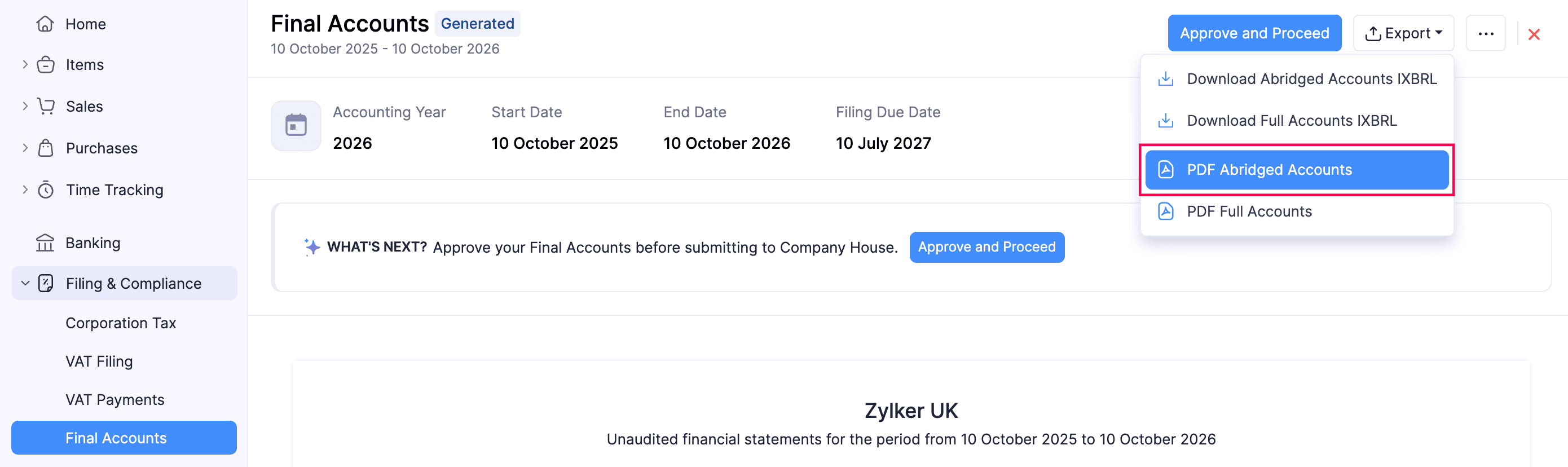
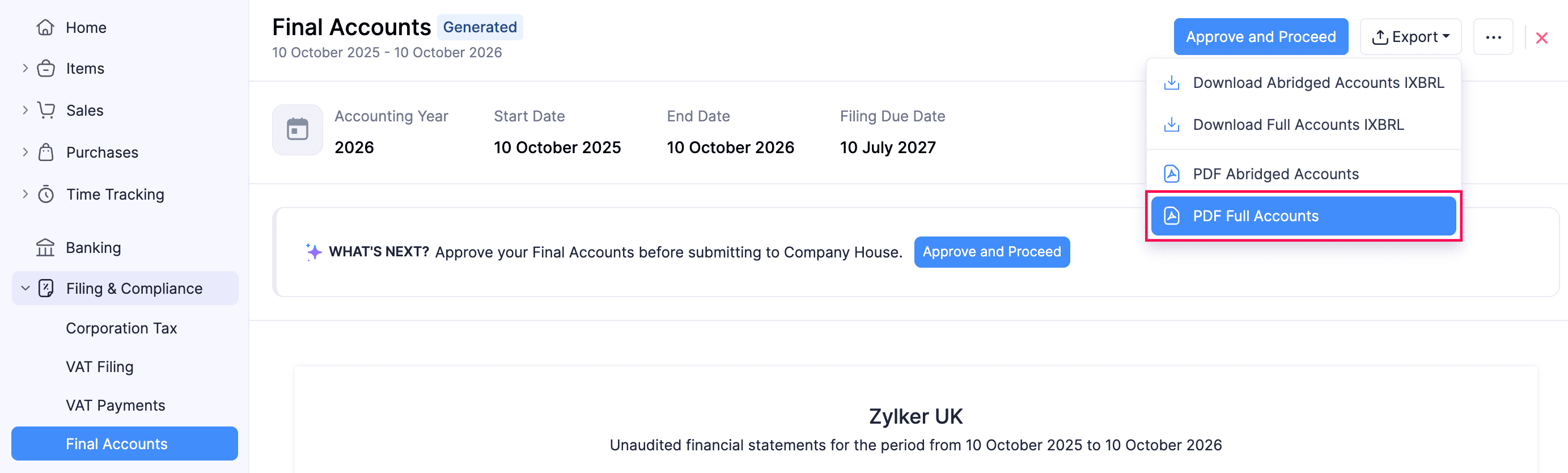
The respective report will be downloaded as a PDF.
 Yes
Yes