


Corporation Tax

Corporation Tax is a tax that UK-registered limited companies pay on their taxable profits from trading, investments, and the sale of assets. It is managed by HMRC, and every company must calculate, report, and pay this tax for each accounting period.
Filing Corporation Tax helps your business stay compliant with UK tax laws and avoid penalties. It also gives you a clear view of your company’s financial performance. The CT600 Form is the report you submit to HMRC with details of your income, expenses, profits, and the tax you owe. It is usually filed along with the year-end Final Accounts.
In Zoho Books, Corporation Tax can be used to automatically calculate your tax liability based on your transactions. Zoho Books helps you generate your Final Accounts and Corporation Tax return in the required format for submission to HMRC and Companies House.
Corporation Tax Filing Requirements
- All UK-registered limited companies, as well as certain organisations such as clubs, societies, or associations, must register for Corporation Tax when they start trading and file a Corporation Tax Return (CT600) for each accounting period, regardless of whether they make a profit.
- Deadlines:
- Register with HMRC: Within 3 months of starting to trade.
- Pay Corporation Tax: Within 9 months and 1 day from the end of the accounting period.
- File the CT600 Form: Within 12 months of the end of the accounting period.
Note:
Corporation Tax is currently available only for micro-entities in Zoho Books. The criteria for qualifying as a micro entity are subject to change. For the latest updates, visit the HMRC website.
Prerequisite:
- In Zoho Books, Corporation Tax will be available only if your Business Type is Limited Companies.
- You must enter your Company Registration Number (CRN) in the Company ID field within the organisation profile in order to configure the Corporation Tax settings.
Configure Corporation Tax
Note:
Zoho Books currently supports only companies that do not fall under any specific company type. For example, company types such as unit trusts, close investment-holding companies, insurance companies, and charities are not supported for now.
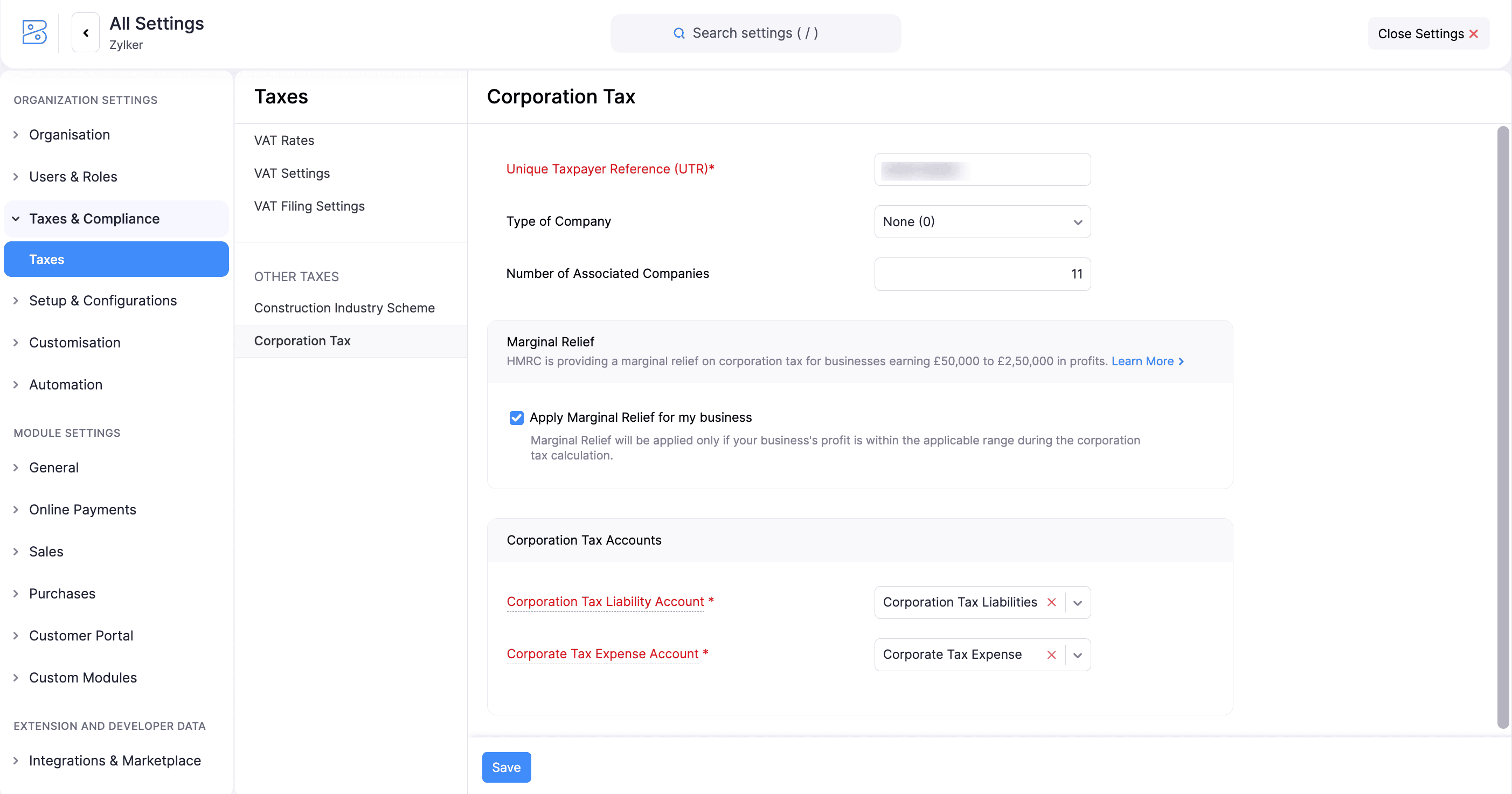
To configure Corporation Tax for your business:
- Go to Settings.
- Select Taxes under Taxes & Compliance.
- In the Taxes pane, under Other Taxes, select Corporation Tax.
- Enter the following details:
- Unique Taxpayer Reference (UTR): Enter your 10-digit UTR. This is a unique number for every UK taxpayer, needed for filing tax returns.
- Type of Company: Choose the business type from the dropdown
- Number of Associated Companies: Enter the number of companies associated with your business.
- Marginal Relief: If your business earns profit between £50,000 and £250,000, check Apply Marginal Relief for my business to apply it during tax calculations.
Insight:
If your business makes profits between £50,000 and £250,000, you may be able to claim Marginal Relief. These limits are subject to change. You can check the latest rates and allowances from the HMRC website.
With Marginal Relief, instead of moving straight to the higher main rate (25%), your Corporation Tax increases step by step. Businesses with lower profits pay the small rate of 19%, while businesses with higher profits pay the main rate of 25%. If your profits fall between these two levels, you pay a reduced rate based on your profit level.
- Choose the Corporation Tax Accounts for posting the journal balance:
- Corporation Tax Liability Account: The account where your tax liability amounts will be recorded.
- Corporation Tax Expense Account: The account where the associated expenses will be recorded.
- Click Save.
Once Corporation Tax is configured for your organisation, you can generate your Corporation Tax return by entering the start and end dates for the period that matches your Accounting Reference Date (ARD).
Insight:
Accounting Reference Date marks the end of your business’s financial year for preparing and filing its Corporation Tax return with HMRC.
Generate Corporation Tax Returns
Once you’ve configured Corporation Tax in your organisation, you can generate a Corporation Tax return based on your financial data and account mappings. To do so:
- Go to Filing & Compliance on the left sidebar, and select Corporation Tax.
- Enter the Accounting Period Start Date and Accounting Period End Date for which you want to generate the return. Your first Corporation Tax return can cover a period longer than the standard 12 months. Based on the dates you provide, Zoho Books automatically generates two returns for that period, and you can file each return separately.
- Click Generate Return.
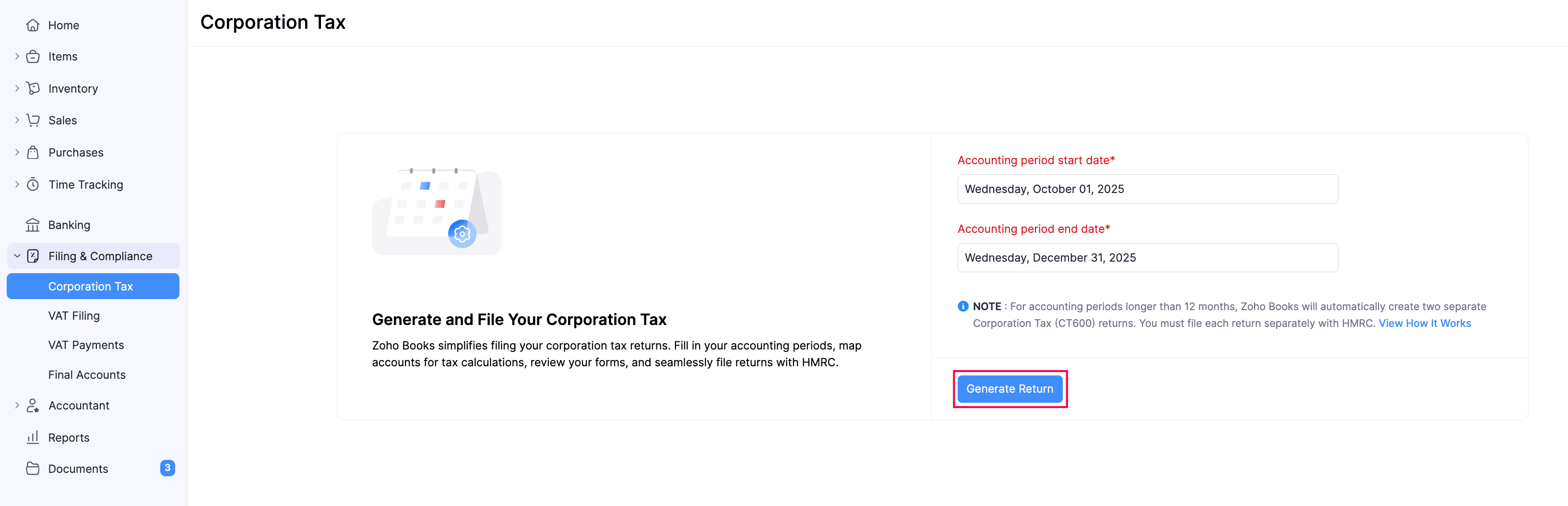
You’ll then be redirected to the Generate Corporation Tax Return page, where you can map your accounts to the relevant sections.
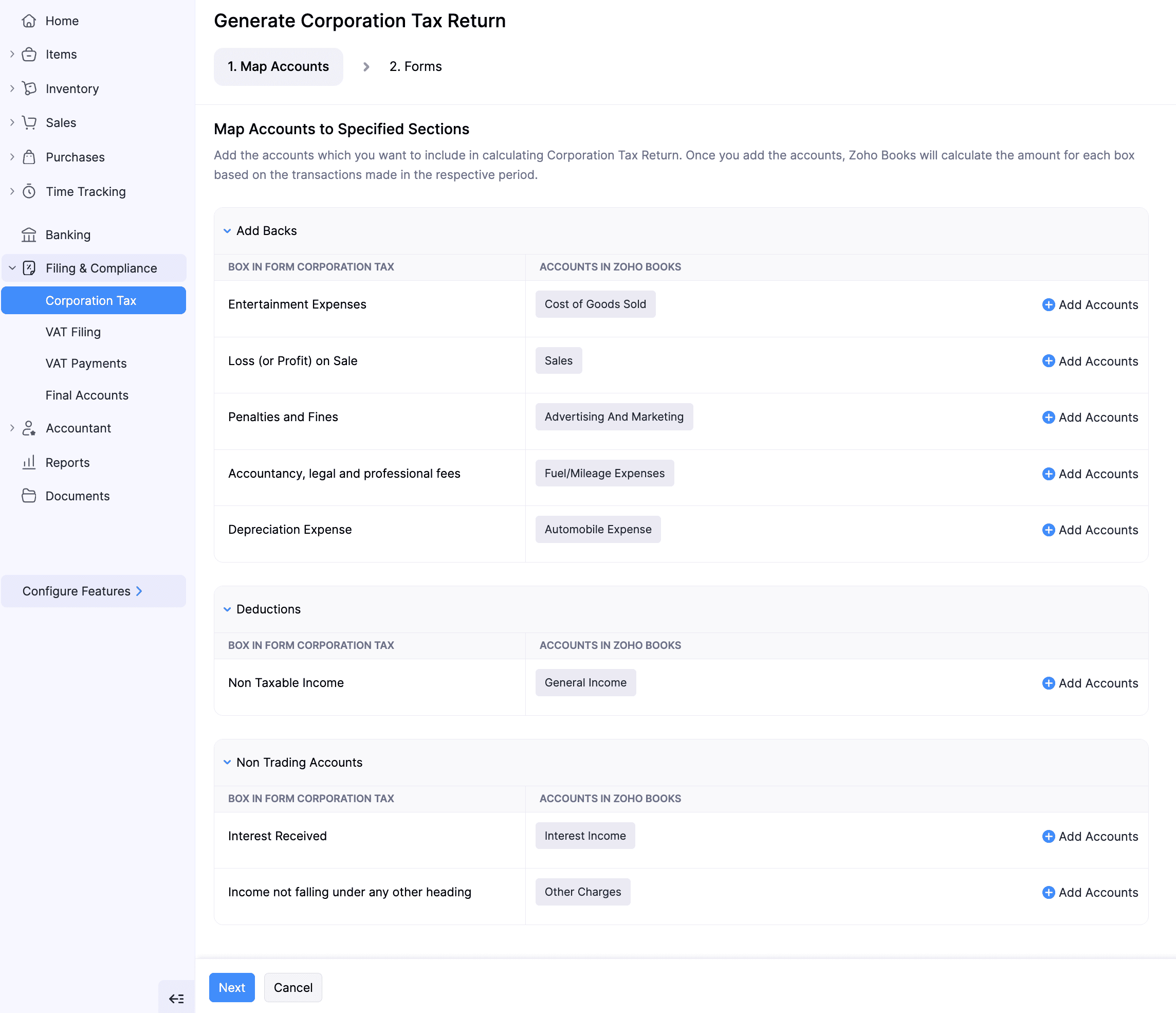
Map Accounts
In the Map Accounts tab, you can assign the accounts to be used for calculating Corporation Tax to the relevant sections of the Corporation Tax form. Here’s how:
- Under each section, click + Add Accounts to map the relevant accounts.
| Section | Description |
|---|---|
| Add Backs | Expenses recorded in your accounts that are not allowed as tax deductions (e.g., entertainment expenses, fines, and other non-allowable expenses). These amounts are added back to your accounting profit, increasing your taxable profit and the tax you owe. |
| Deductions | Amounts subtracted from your taxable profit when calculating Corporation Tax (e.g., non-taxable income, capital allowances, and other eligible tax reliefs). These reduce your taxable profit and lower the total tax payable. |
| Non-Trading Accounts | Income from activities that are not part of your main trade (e.g., investment income, rental income, or interest received). These are separated from your trading profits and reported individually based on HMRC rules. |
- Click Next.
You will be redirected to the Forms tab.
Review Forms
The Forms tab includes the Corporation Tax Computation, CT600, and any required supplementary forms. In this section, you can review all the generated forms, check the details, make any necessary updates, and then proceed with the next steps of the filing process.
Computation Form
To review the computed amount for each section:
- Under Forms, navigate to the Computation tab and review the following sections:
| Section | Description |
|---|---|
| Profit/Loss on Accounts | This is the profit or loss as per your financial statements before tax adjustments. |
| Add Backs | Certain expenses are not tax-deductible. These are added back to your profit when calculating taxable income. |
| Deductions | Income not chargeable for Corporation Tax is deducted from your accounting profit. This could include items like dividend income from UK companies. |
| Non-Trading Accounts | Income and expenses from activities not part of your main trade are separated and included based on HMRC rules. |
| Capital Allowances | Capital allowances let you deduct the cost of qualifying capital assets from your taxable profits. Learn more. |
| Profit/Loss including Adjustments | Profit after adjusting with Addback and deduction adjustments. |
| Trading Losses | Trading losses from earlier years can be carried forward and offset against current or future profits. Zoho Books applies these automatically once entered. If your business makes a trading loss, you can carry it forward to the next reporting period to offset against future profits. |
| Net Profit After Losses | Profit left after subtracting any losses from previous periods. |
| Loans to Participators | For close companies, if loans are made to participators, Zoho Books accounts for this within the tax return computation. |
| Apportionment of Corporation Tax | If the company’s accounting period doesn’t match HMRC’s fiscal year, the tax will be calculated proportionately. |
| Corporation Tax Liability | The taxable amount. |
Capital Allowances
Capital allowances are tax reliefs that let UK businesses deduct the cost of qualifying capital assets such as machinery, equipment and vehicles from their taxable profits. Unlike day-to-day expenses (e.g. rent or salaries), spending on capital assets cannot be deducted directly as a business expense. Instead, Capital allowances provide a structured way to claim tax relief on these investments, either in full in the same year or gradually over time.
The main benefit of capital allowances is that they reduce the amount of Corporation Tax a business has to pay by lowering its taxable profits. They can also improve cash flow, especially when 100% relief is available in the first year, giving businesses more funds to use elsewhere.
Among the various types of capital allowances, Zoho Books currently supports the Main Pool, which covers general plant and machinery. The supported allowance types are Annual Investment Allowance (AIA), Writing-Down Allowances (WDA), and Small Pool Allowance.
- Annual Investment Allowance (AIA): Provides 100% tax relief in the first year on qualifying plant and machinery purchases, up to the current limit of £1,000,000 per year.
- Writing-Down Allowance (WDA): For expenditure that exceeds the AIA limit or is not eligible for it, WDA allows you to deduct a fixed percentage of the remaining asset pool value each year. The main rate is 18% for the Main Pool (general plant and machinery) and 6% for the Special Rate Pool (integral building features, long-life assets, and thermal insulation).
- Small Pool Allowance: If the balance of a pool falls below the small pool threshold (currently £1,000), you can write off the entire remaining balance in one go instead of applying the WDA percentage.
When you generate a Corporation Tax return, the Capital Allowances section in the Computation form includes the following fields:
| Field | Description |
|---|---|
| Opening Asset Pool | The total value of assets carried forward from the previous period. |
| Purchases qualifying for Annual Investment Allowances | The cost of new qualifying assets purchased during the period. |
| Annual Investment Allowances | The allowance amount claimed under the AIA scheme (up to the current limit of £1,000,000 per year). |
| Writing-Down Allowances | The allowance calculated on the remaining pool balance after deducting the AIA, based on the applicable WDA rate. |
| Small Pool Allowance | If the pool balance is below the small pool threshold (£1,000), you can write off the full amount. |
| Writing-Down Allowance not claimed | Any portion of the Writing-Down Allowance you choose not to claim for this period. |
| Total Writing-Down Allowance claimed | The total WDA after accounting for any unclaimed portion. |
| Closing Asset Pool | The remaining pool value carried forward to the next period. |
| Total Capital Allowances by pool | The total capital allowances calculated for the Main Pool. |
| Total Capital Allowances | The overall capital allowances to be deducted from your taxable profits. |
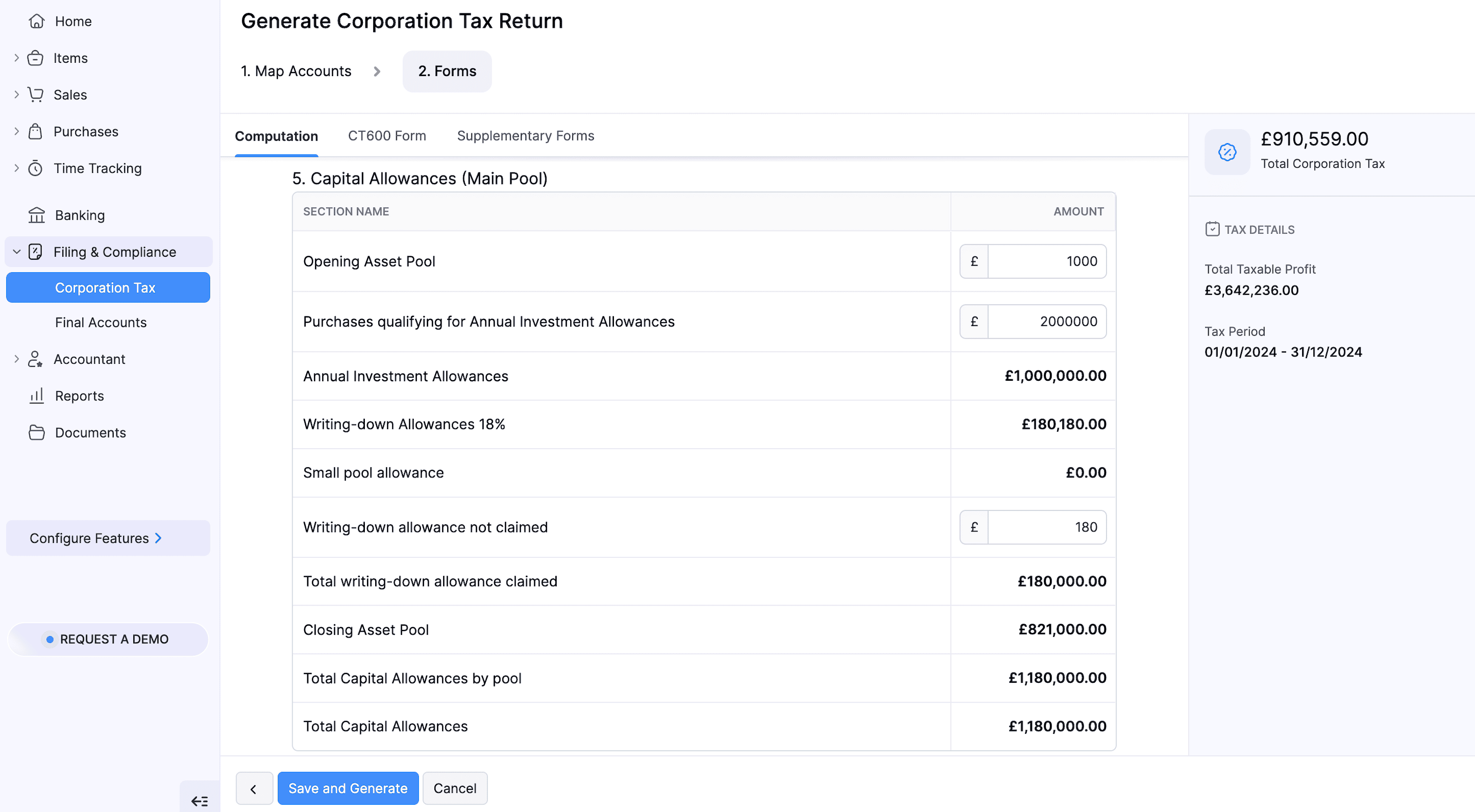
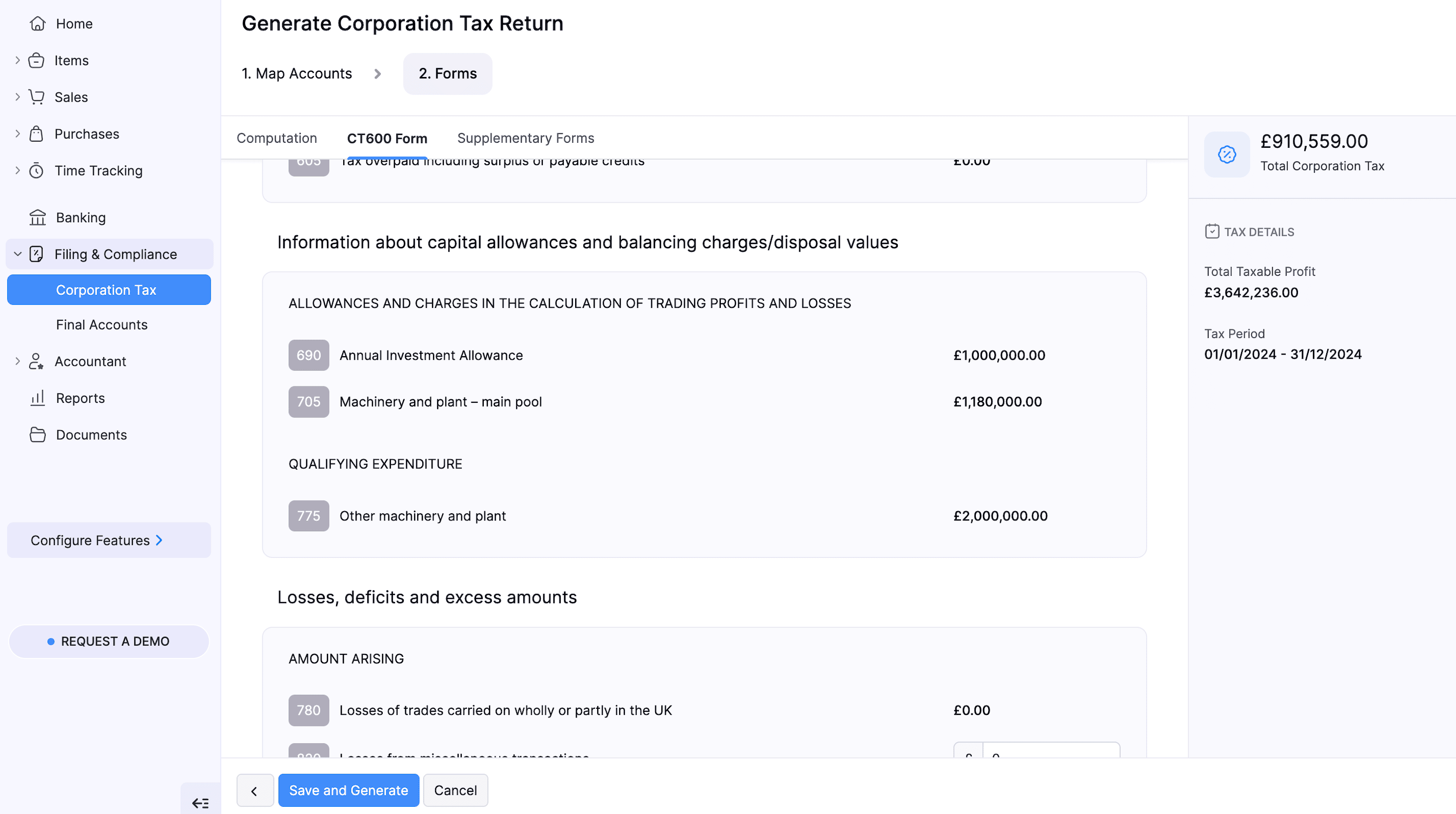
Once you enter the capital allowance details in the Computation form, the corresponding values are automatically populated in the CT600 Form under the Information about Capital Allowances and Balancing Charges/Disposal Values section. Review the auto-populated values and make changes if necessary before generating the return.
CT600 Form
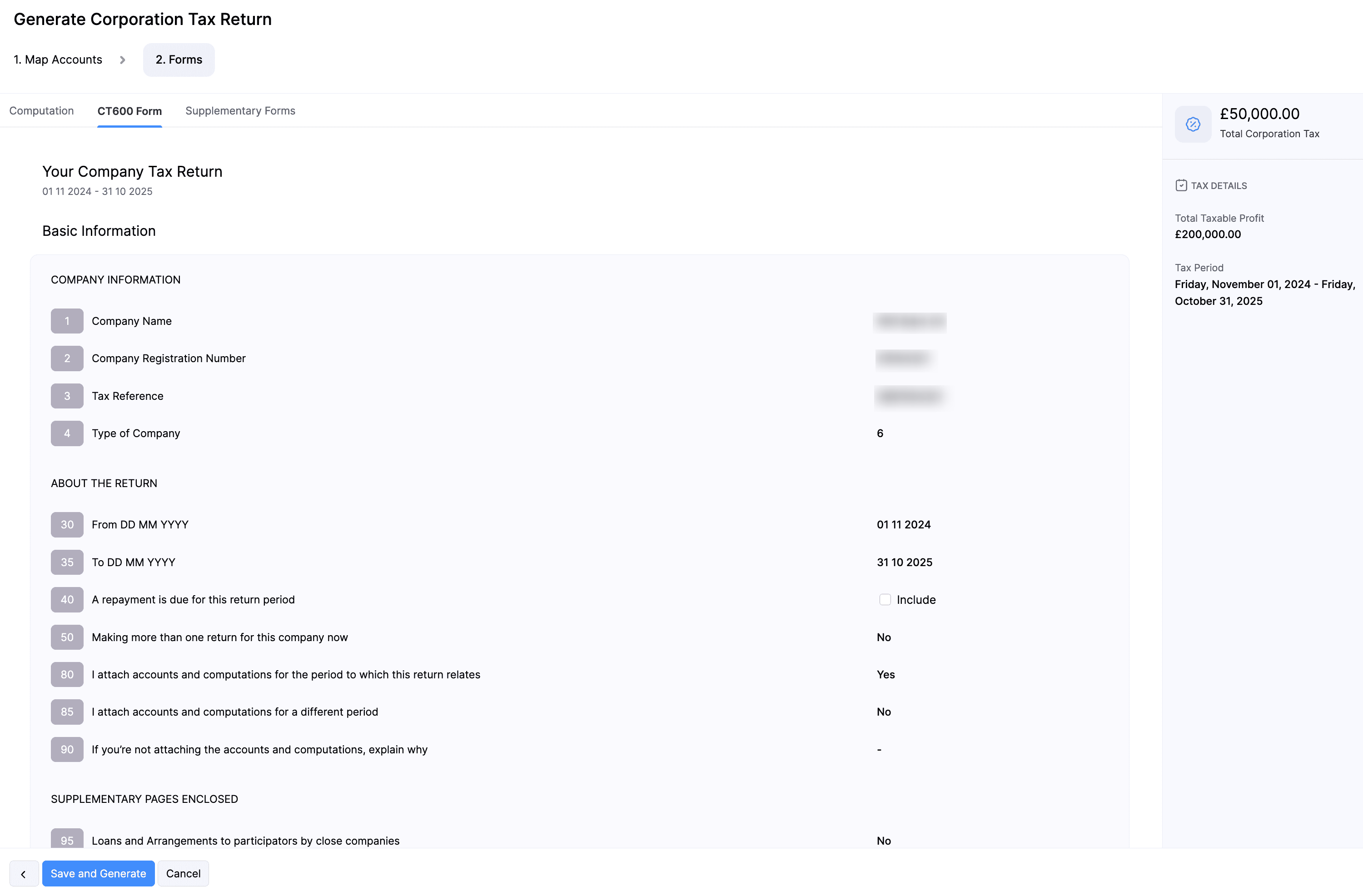
- In the CT600 Form, review the following and make necessary changes:
| Section | Description |
|---|---|
| Basic Information | Includes Company Information, details About the Return, and lists whether there are any Supplementary Pages Enclosed. |
| Tax Calculation | Includes Turnover, Income, Profits Before Deductions and Reliefs, Deductions and Reliefs, Tax Calculation, Calculation of Tax Outstanding or Overpaid, Tax Reconciliation, Indicators and Information. |
| Losses, Deficits, and Excess Amounts | Includes the Amount Arising. |
| Declaration | Includes confirmation that the information in the return is complete and correct, along with the name, role, and signature of the authorised person (director) submitting the return. |
Supplementary Forms
Note:
Zoho Books currently supports only the CT600A supplementary page. Support for other supplementary pages will be added in future updates.
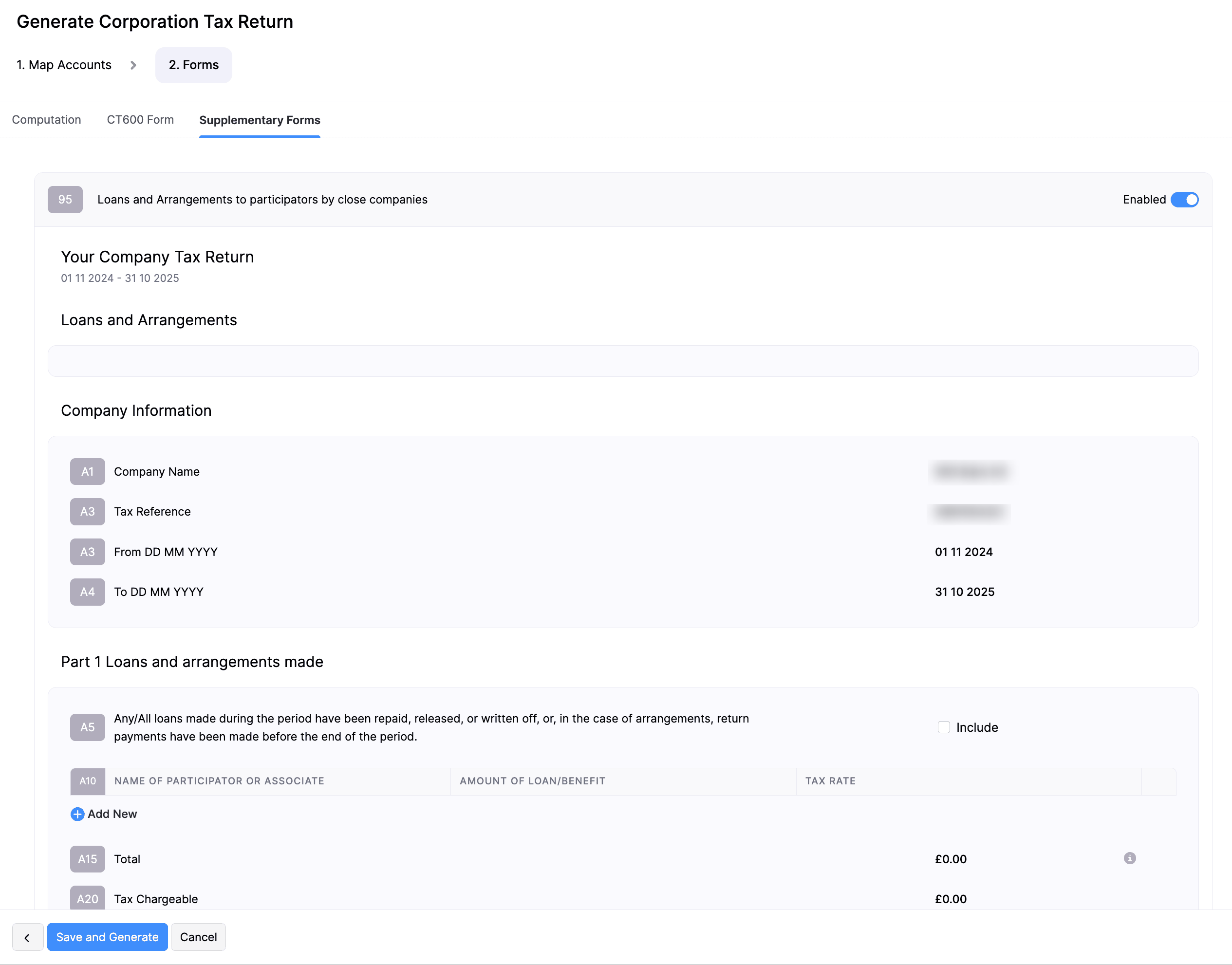
The Supplementary Forms section applies only to close companies that lend money to their directors, shareholders, or their associates. If this applies to your business, here’s how you can review the required forms:
- Go to the Supplementary Forms tab.
- Enable the toggle for Loans and arrangements to participators by close companies and review the following details:
| Section | Description |
|---|---|
| Company Information | Verify your company details. |
| Part 1: Loans and Arrangements Made | If your company lends money to directors or shareholders and the loan is not repaid within the permitted period, additional tax may be payable. When generating the return, record these loans in the A 10 box. Zoho Books will automatically calculate the related tax and report it on the CT600A form. Check that the amounts are correctly mapped to the relevant boxes. |
| Part 2: Relief for Return Payments and/or Amounts Repaid, Released, or Written Off Within 9 Months | In the A 25 box, track the Outstanding loans, Amounts repaid and Loans written off. Written-off loans impact the Corporation Tax computation and are reported in CT600 Box 480. If there are no amounts to repay or write off, enter 0 in the relevant fields. Verify that all amounts are accurately mapped. |
| Summary Information | Enter the amount in Box A75, which represents the total of all loans and arrangements outstanding at the end of the return period. |
- Once you’ve reviewed all the boxes, click Save and Generate.
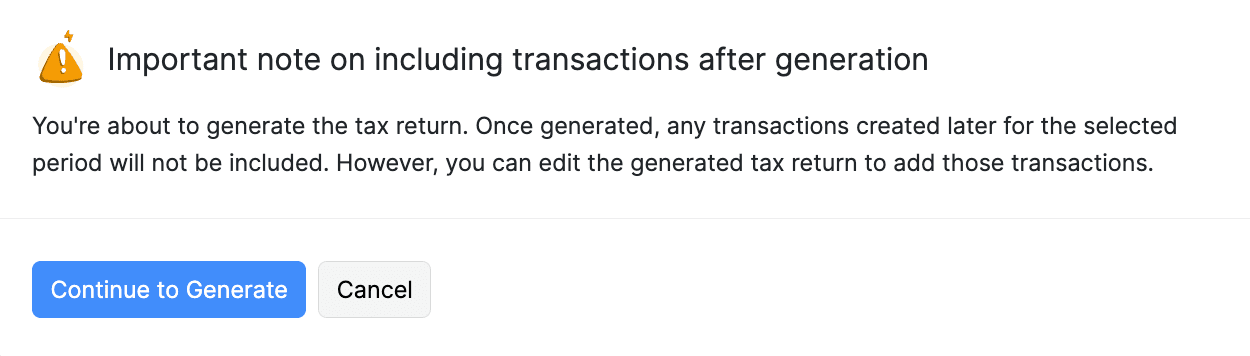
- In the confirmation pop-up, read and agree to the terms and click Continue To Generate.
The Corporation Tax return will now be generated.
Approve Corporation Tax Returns
Once the return is generated, admins can review and approve it. Here’s how:
- Go to Filing & Compliance on the left sidebar and select Corporation Tax.
- Select the return you want to approve.
- In the next page, click Approve Return.
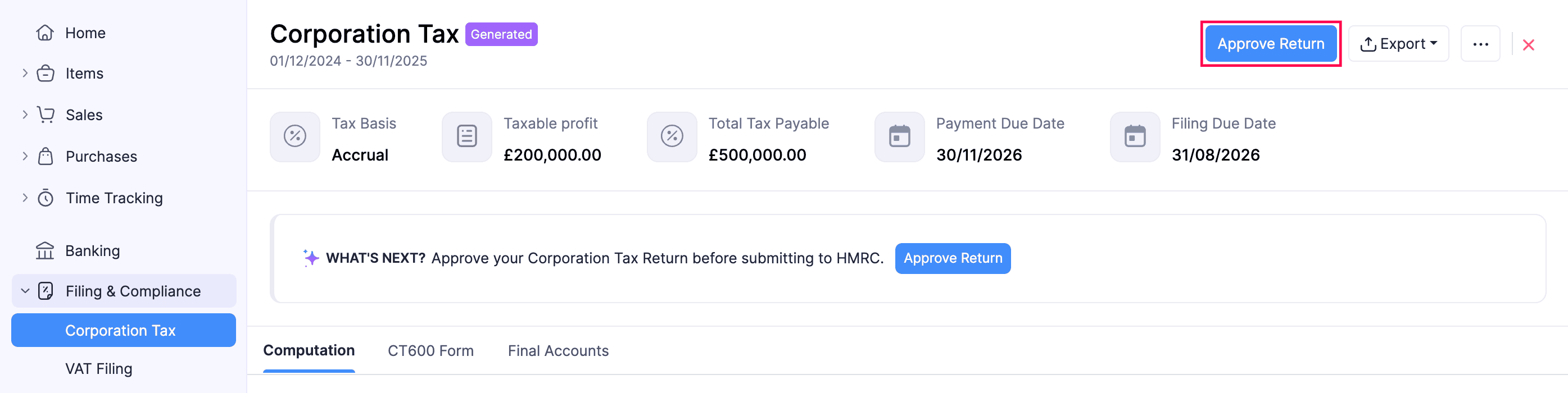
- In the confirmation pop-up, click Approve Now.
The Corporation Tax return will be approved.
Notes:
- Once a Corporation Tax return is approved, Zoho Books automatically posts a journal entry to record the Corporation Tax liability using the accounts selected when you configured Corporation Tax for your organisation.
- The name of the approver will be used as the director’s signature in the CT600 form.
Revoke Approval
To revoke the approval for a Corporation Tax return you had already approved:
- Go to Filing & Compliance on the left sidebar and select Corporation Tax.
- Select the return for which you want to revoke the approval.
- In the next page, click the More icon in the top right corner, and select Revoke Approval from the dropdown.
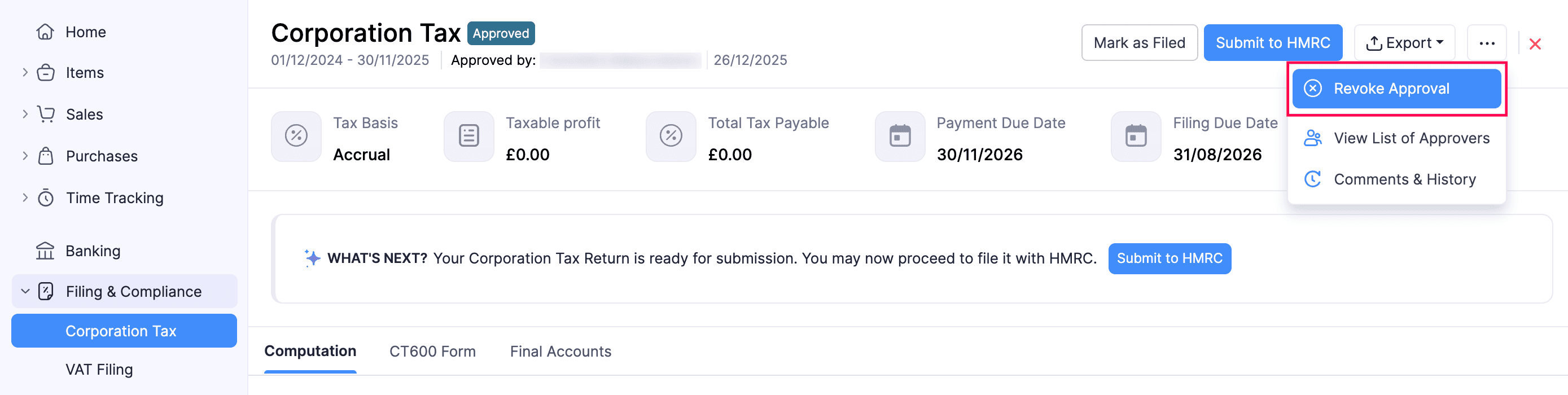
- In the Reason for Revoking Approval pop-up, enter the reason to revoke approval.
- Click Submit.
The approval for the return will be revoked.
Note:
When an approved return is revoked or edited, the journal entry will be deleted. Approve the return again to recreate the journal.
Submit Corporation Tax Returns to HMRC
Note:
The online filing service via the HMRC portal will close on 31 March 2026. Filings and amendments can be made only until this date.
Once an admin has approved the return, you can directly submit the return from your Zoho Books organisation. Here’s how:
Note:
Before submitting your Corporation Tax return make sure that all the necessary fields are filled in and also review the Computation and iXBRL accounts with your accountant to ensure accuracy.
- Go to Filing & Compliance on the left sidebar and select Corporation Tax.
- Select the return you want to submit to HMRC.
- In the next page, click Submit to HMRC.
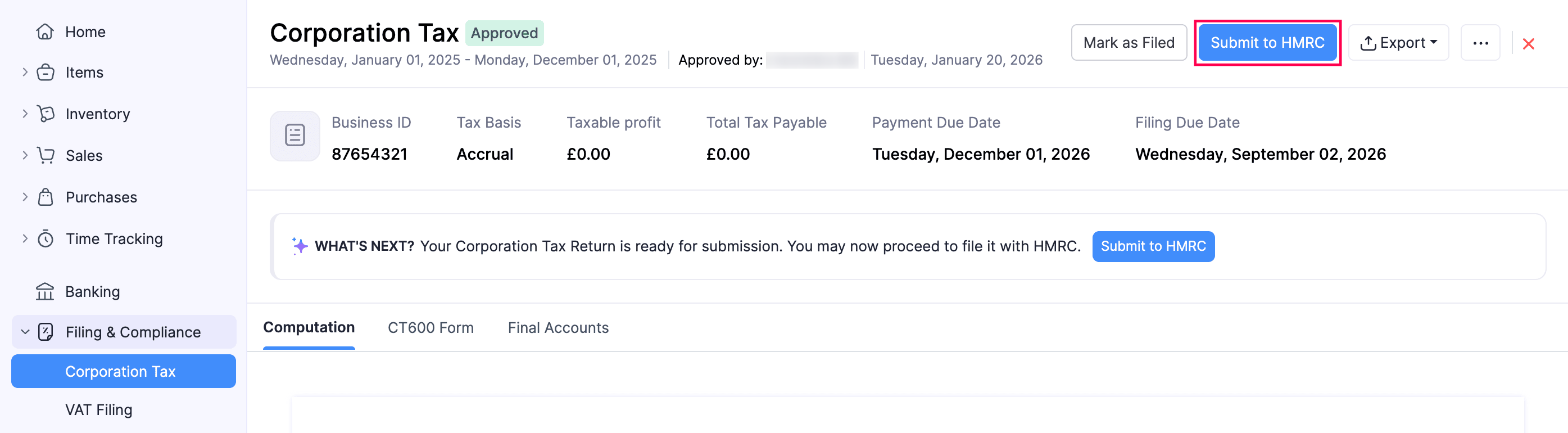
- In the Submit to HMRC pop-up, read and agree to the terms and fill in the following details:
- Government Gateway User ID: Enter the user ID you use to sign in to your HMRC online account.
- Password: Enter the password associated with the above user ID.
- Information Correct Declaration: Check the I confirm that the details are accurate and that I’m authorised to file this Corporation Tax return on behalf of the company option.
- Click Submit.
The Corporation Tax return will be submitted to HMRC.
Insight:
Corporation tax should be submitted along with the final accounts covering the same accounting period to ensure compliance with tax laws. Failure to do so can result in penalties, interest, or investigations.
Submission Status
After you submit the Corporation Tax return to HMRC, the return will go through different statuses based on HMRC’s response:
| Status | Description |
|---|---|
| Filing in Progress | The return has been sent and is being processed by HMRC. |
| Filed to HMRC | HMRC has successfully received and accepted the return. A Document Reference No and IRMark will be displayed for your records. |
| Filing Failed | The submission was not accepted by HMRC. Click View Errors to check what went wrong, edit the return to fix the issues, and resubmit it. |
Here’s how the status appears once HMRC has accepted the return:
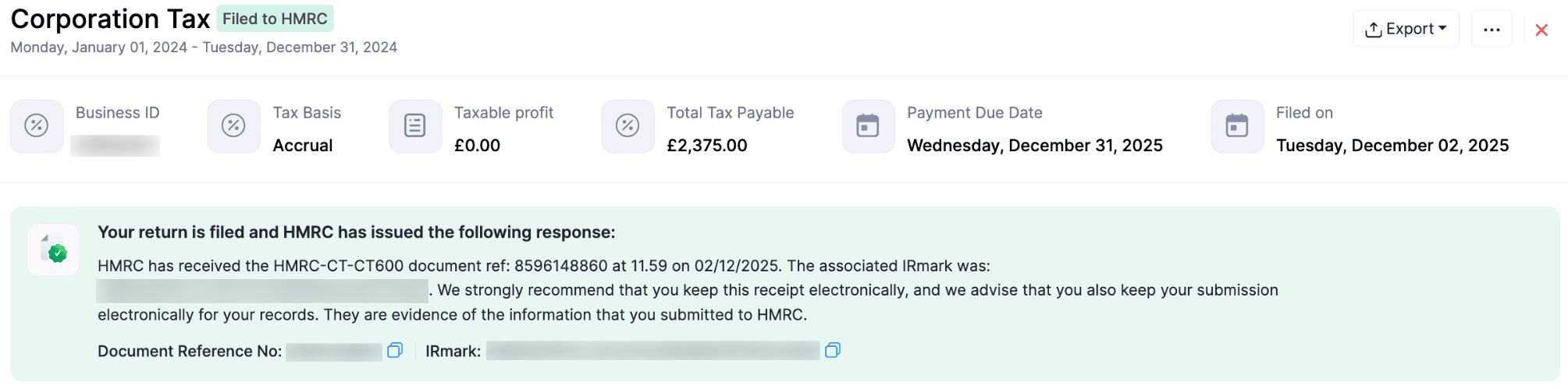
Corporation Tax Returns - Operations
Mark Corporation Tax Returns as Filed
If you have submitted the Corporation Tax return directly to the HMRC website, you can mark it as Filed in Zoho Books. Here’s how:
- Go to Filing & Compliance on the left sidebar and select Corporation Tax.
- Select the return you want to mark as Filed.
- In the next page, click Mark as Filed in the top right.
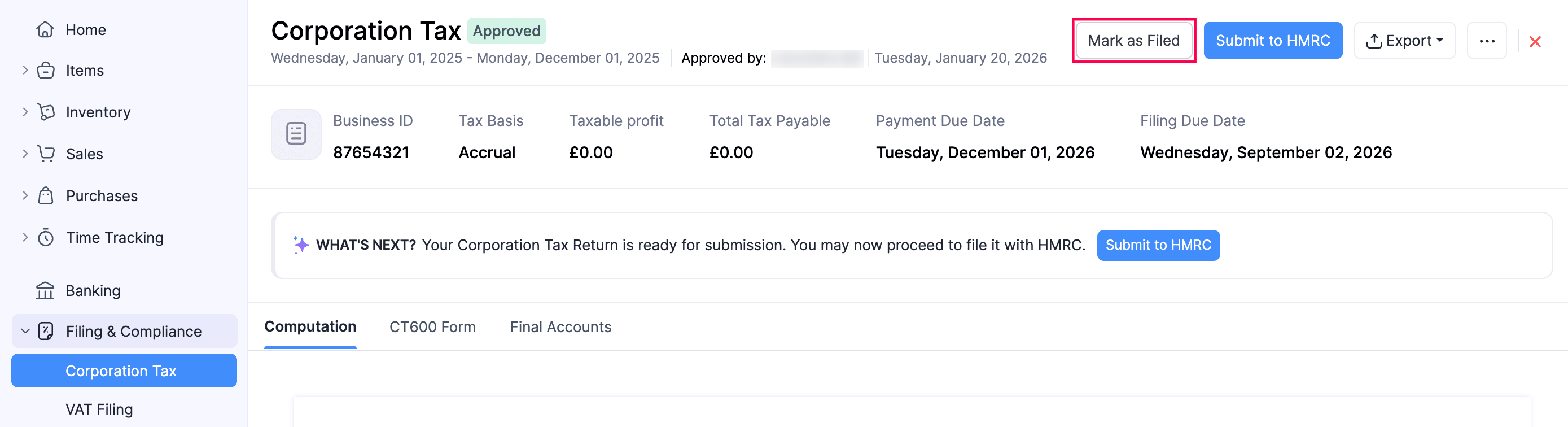
- In the Mark Corporation Tax as Filed pop-up, enter the Date of Filing.
- Click Mark as Filed.
The return will be marked as Filed.
Mark Corporation Tax Returns as Unfiled
If you find any errors in a Corporation Tax return that you’ve already marked as filed, you can unfile it and make the changes. To do this:
- Go to Filing & Compliance on the left sidebar and select Corporation Tax.
- Select the return you want to mark as Unfiled.
- In the next page, click Mark as Unfiled in the top right.
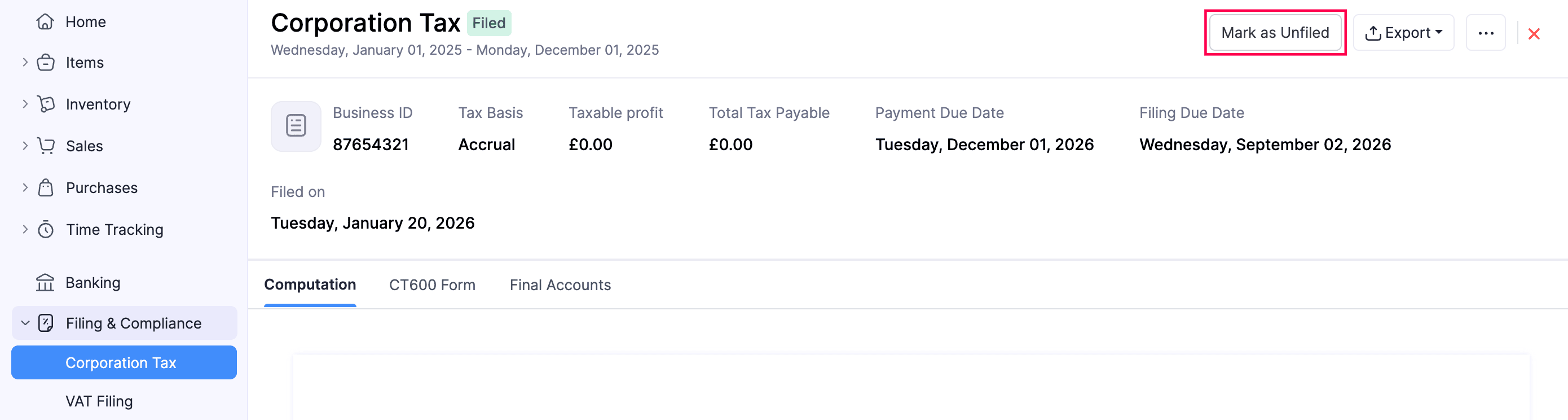
- The return will be marked as Unfiled.
You can edit the return, make changes, and approve it again.
Edit Corporation Tax Returns
To edit the Corporation Tax return:
- Go to Filing & Compliance on the left sidebar and select Corporation Tax.
- Select the return you want to edit.
- In the next page, click the More icon in the top right corner, and select Edit.

- In the Edit Corporation Tax? pop-up, click Continue To Edit.
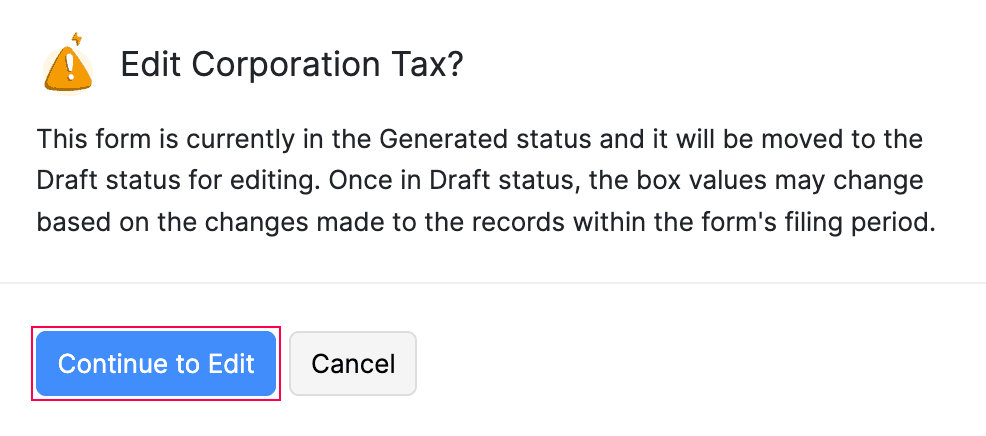
- In the Generate Corporation Tax Return page, follow the same process as generating the return.
The Corporation Tax return will be updated.
Note:
To edit an approved return, you must first revoke the approval, then edit the return to make the required changes, and re-approve it once the changes are complete. When an approved return is revoked or edited, the journal entry will be deleted and will only be recreated once the return is approved again.
Delete Corporation Tax Returns
Note:
This option will appear only for returns that are marked as Generated.
To delete the return you had generated:
- Go to Filing & Compliance on the left sidebar and select Corporation Tax.
- Select the return you want to delete.
- In the next page, click the More icon in the top right corner, and select Delete.

- In the confirmation pop-up, click Delete again.
The return will be deleted.
Amend Corporation Tax Returns
If you need to correct or update a Corporation Tax return that has already been filed, you can amend it in Zoho Books. Amending a return takes it back to Draft status, where you can review and update the details before finalising and resubmitting it.
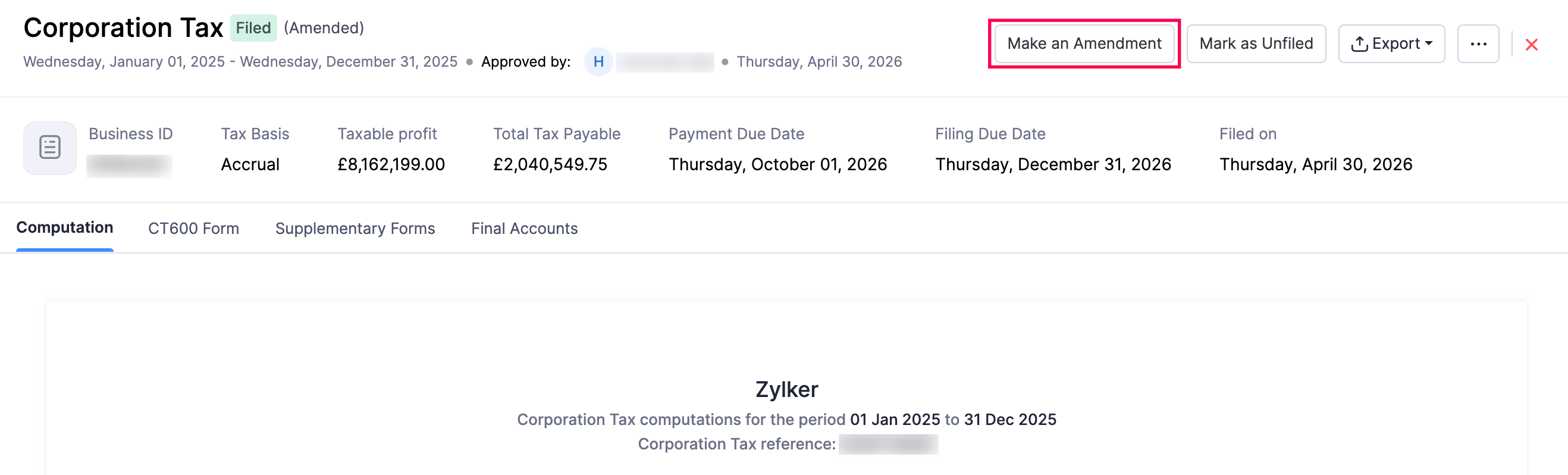
To amend a Corporation Tax return:
- Go to Filing & Compliance on the left sidebar and select Corporation Tax.
- Select the filed return you want to amend.
- In the next page, click Make an Amendment in the top right.
- In the Amend this return? pop-up, review the details and click Proceed.
You will be redirected to the Generate Corporation Tax Return page from where you can map your accounts and review the forms again to update the return.
Once the amended return is generated, it will appear in the Corporation Tax list page in the Generated (Amended) status. You can then approve and submit it to HMRC.
Download Computation iXBRL
The Corporation Tax Computation shows how your taxable profits and tax due are calculated. When ready, generate the computation and export it in the iXBRL format, which HMRC requires for online filing.
To do this:
- Go to Filing & Compliance on the left sidebar and select Corporation Tax.
- Select the return you want to download in the iXBRL format.
- In the next page, click the Export button.
- Select Download Computation iXBRL.
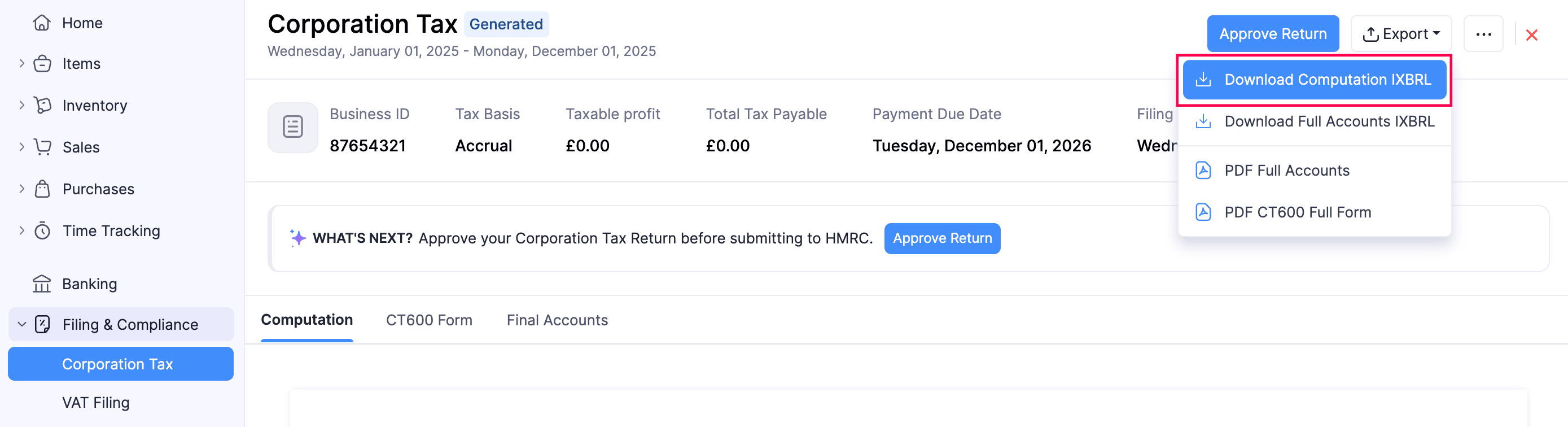
The Corporation Tax computation will be downloaded in the iXBRL format.
Insight:
iXBRL is the machine-readable format required by HMRC, where tags identify what each number in your computation represents. Always review the downloaded file before submitting your tax return. You can upload it to any iXBRL validator to check for tagging errors. For detailed guidance on verifying iXBRL tags, consider consulting your accountant.
Download Full Accounts iXBRL
You can download the Full Accounts in iXBRL format, which include the Income Statement, Balance Sheet, Director Notes, and Director Signature. Here’s how:
- Go to Filing & Compliance on the left sidebar and select Corporation Tax.
- Select the return for which you want to download the Full Accounts in the iXBRL format.
- In the next page, click the Export button in the top right.
- Select Download Full Accounts iXBRL.
The Full Accounts will be downloaded in the iXBRL format.
Download as PDF
You can also download the Full Accounts and the CT600 full form as a PDF for backup purposes. Here’s how:
- Go to Filing & Compliance on the left sidebar and select Corporation Tax.
- Select the return you want to download as PDF.
- In the next page, click the Export button.
- Select PDF Full Accounts for downloading the Full Accounts
(or)
- Select PDF CT600 Full Form for downloading the CT600 form.
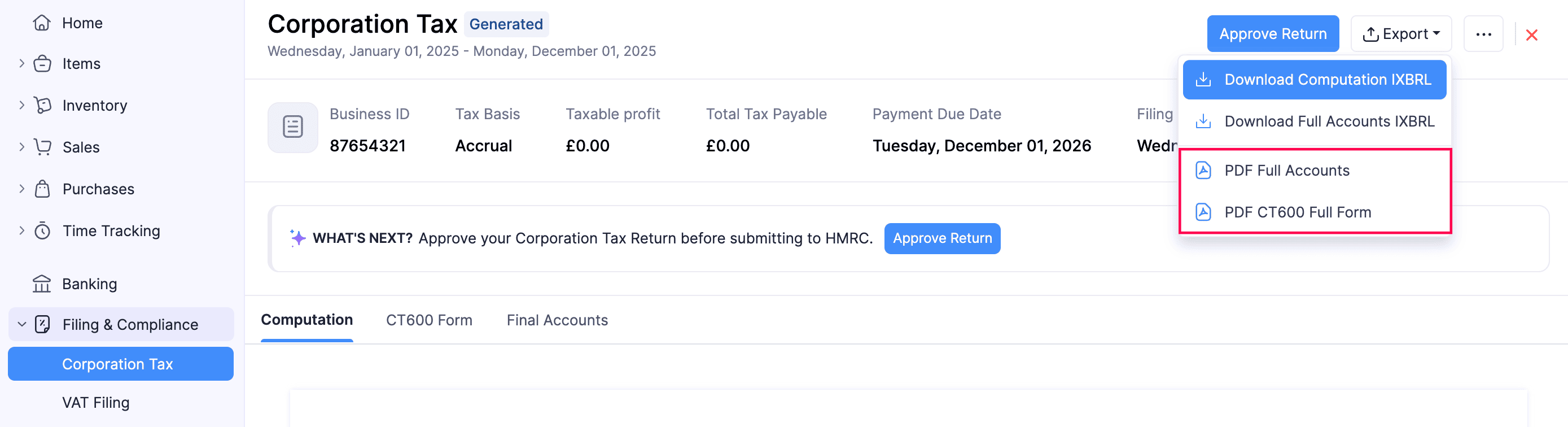
The Full Accounts (or) the CT600 form will be downloaded as a PDF.
View List of Approvers
You can view the list of approvers to whom you can submit the return for approval. To do this:
- Go to Filing & Compliance on the left sidebar and select Corporation Tax.
- Select the return for which you want to view the list of approvers.
- In the next page, click the More icon in the top right corner, and select View List of Approvers from the dropdown.
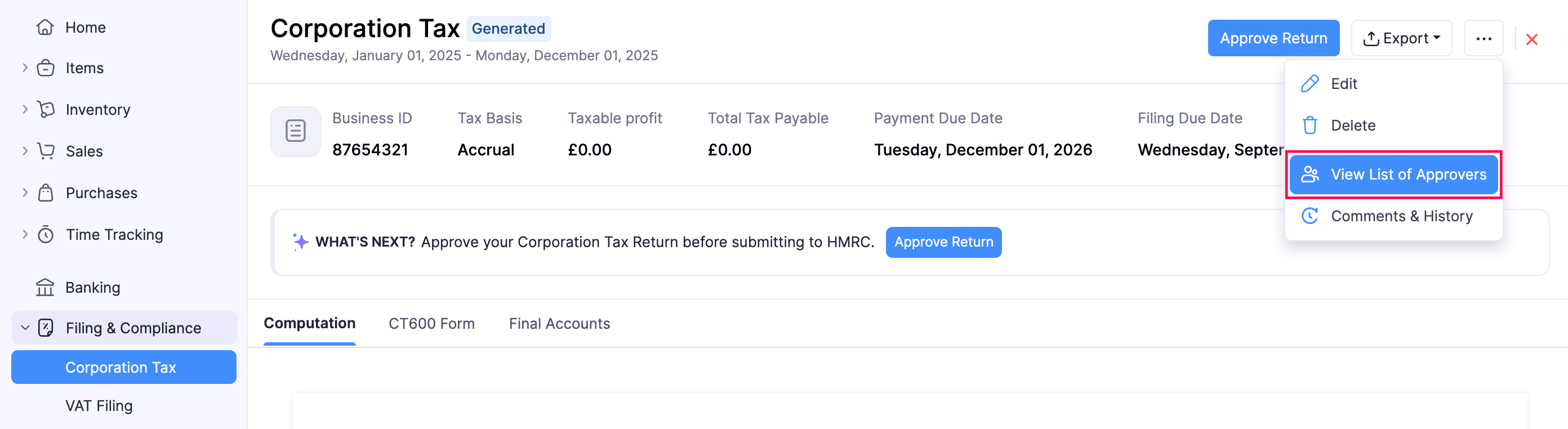
The list of approvers will be displayed in the Approvers pane.
 Yes
Yes