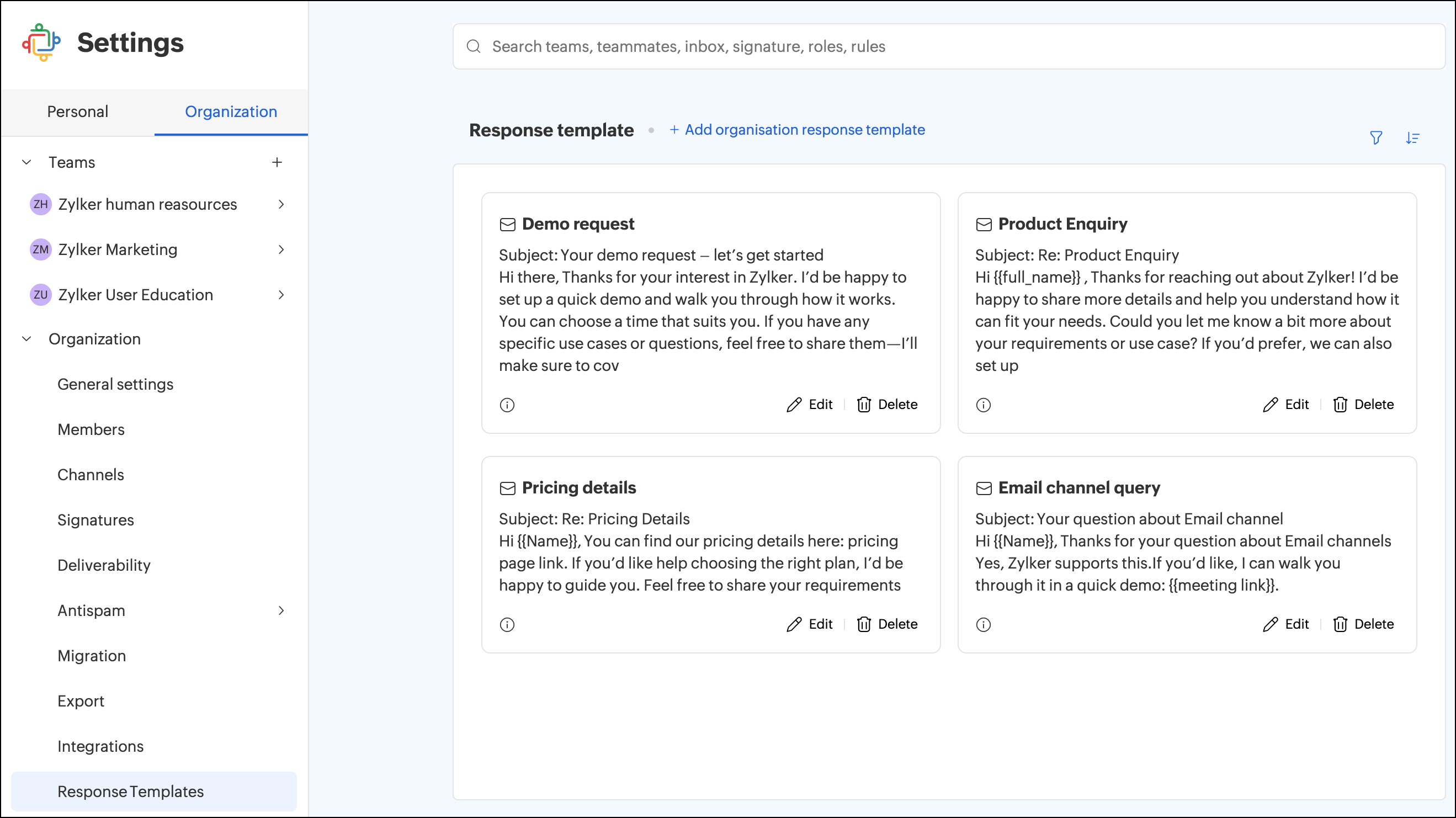
Organization response templates
Organization response templates help your teams reply faster and more consistently to customer queries. Instead of rewriting the same messages, you can create reusable templates that standardize communication across your organization.
Zoho TeamInbox supports two types of organization response templates:
- Email response templates — for standard email replies.
- WhatsApp message templates- pre-approved message templates for WhatsApp Business accounts.
Roles and permissions
- Only Organization admin and moderators can create, edit, and delete organization response templates.
- Team admins can choose which inboxes in their team have access to organization templates. Cannot edit or delete templates unless they also hold admin or moderator permissions at the organization level.
- Team members can view and use templates assigned to their team when replying to customers.
Email response templates
Email response templates are reusable message drafts that agents can select when composing replies. They support dynamic variables, so content like customer names or order details can be filled in automatically at the time of sending.
Creating an organization email response template
- Log in to Zoho TeamInbox with your admin or moderator credentials.
- Go to Settings> More Settings.
- Under Organization, open the Response Templates tab.
- Click Add Organization Response Template and Email as thetype.
- Enter a template name, subject, and the message content. You can also include variables which will be replaced with users' values. Type ' { ' (curly bracket) into the editor which will show you a list of the variables you can use. Choose one from them.
- Under Team access, choose which teams can use this template. You can grant access to all teams or select specific ones.
- Click Save.
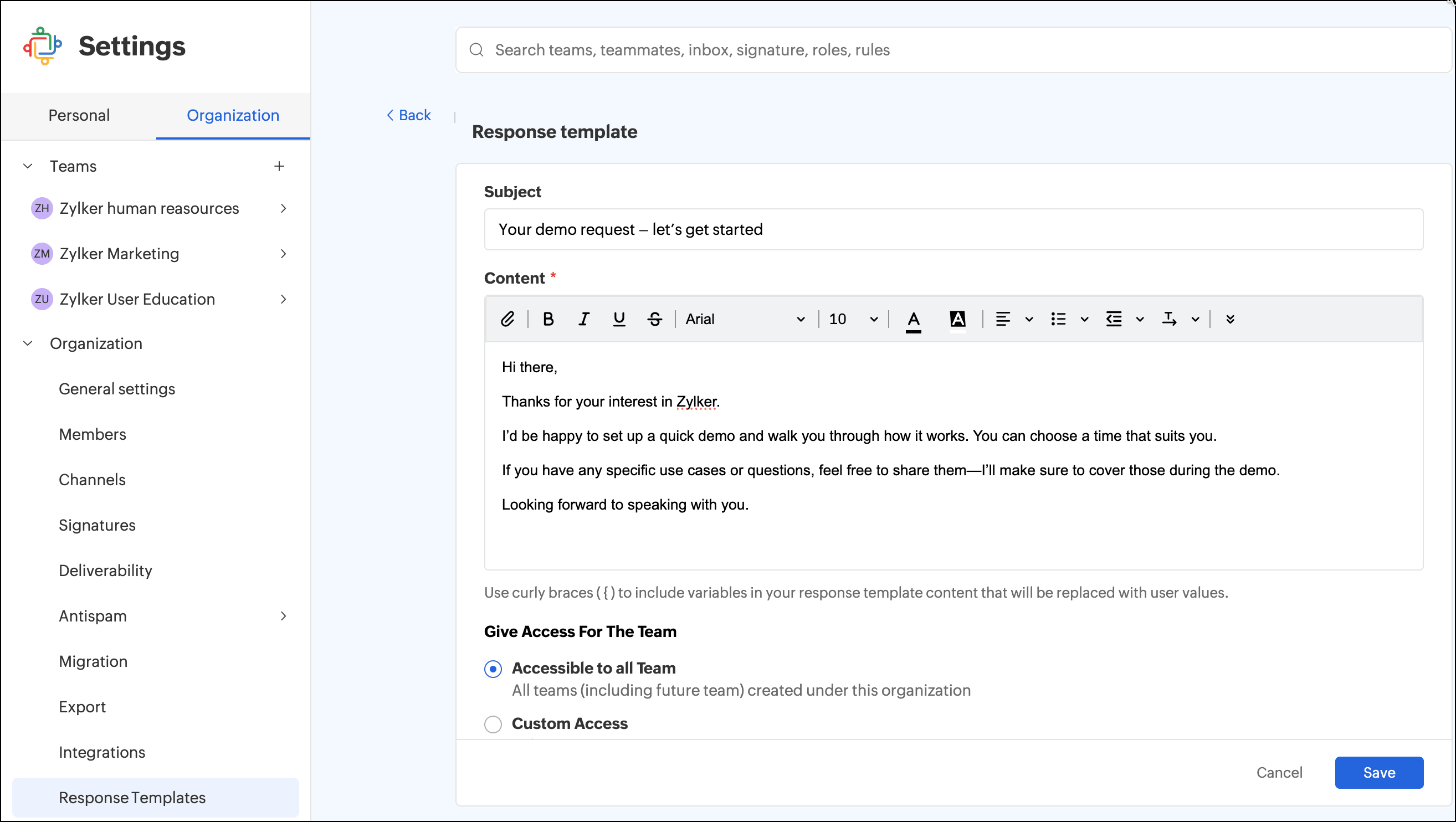
Once saved, the email template appears in the Response Templates folder under the Organization tab.
WhatsApp message templates
A WhatsApp message template is a pre-approved message used to send notifications to customers who have opted in. Before a template can be used, it must be submitted to WhatsApp and approved by Meta.
Types of WhatsApp message templates
WhatsApp supports two types of interactive buttons in templates:
Call-to-Action (CTA)
CTA buttons help guide customers to take action, such as calling your business or visiting your website.You can add up to two CTA buttons:
- One to call your business
- One to open a website or landing page
Note: The call button must connect to a landline or mobile number that is different from your WhatsApp Business API number. You cannot call a WhatsApp Business API number.
Quick Replies
Quick Replies let customers choose from preset options with a single tap.You can add up-to ten quick reply buttons. Each template can also include text or media along with these buttons.This makes it easy for customers to tell you what they need.
How WhatsApp templates work in Zoho TeamInbox
- Each template belongs to a specific channel (the WhatsApp business account mapped to that channel).
- If a channel is later connected to a different WhatsApp business account existing templates will not be migrated.
After changing the WhatsApp business account, you must create new templates.
Creating a WhatsApp template message
When creating a template:
- Add your message text and optional media.
- You may include parameter placeholders (for example, customer name, contact number and so on).
- Make sure the content:
- Has no new lines or tabs.
- Does not contain more than four consecutive spaces.
- Meets WhatsApp’s length requirements.
Media options in WhatsApp template message
While creating the template message you can:
- Choose the header type (Image, Video, or Document) and upload the media.
- When the message is sent, Zoho TeamInbox uses this saved attachment automatically.
Creating a WhatsApp Message Template
Before you begin, make sure your WhatsApp Business phone number is verified and activated.
- Log in to Zoho TeamInbox as an Admin or Moderator.
- Go to Settings > More Settings.
- Under Organization, open the Response Templates tab.
- Click Add Organization Response Template and select WhatsApp.
- Select your WhatsApp Business Account from the drop-down list. All templates must be linked to a WABA.
- Enter a Template Name and choose a Category.
- Enter header text or media. You can insert placeholders by typing {{ and selecting from the list.
- Write your main message body. Type {{ to insert variables that will be replaced with real values when the message is sent.
- Add CTA buttons or Quick Reply buttons (optional).
- Choose which teams can use this template — all teams or selected teams.
- Click Create WhatsApp Template and await WhatsApp's approval.
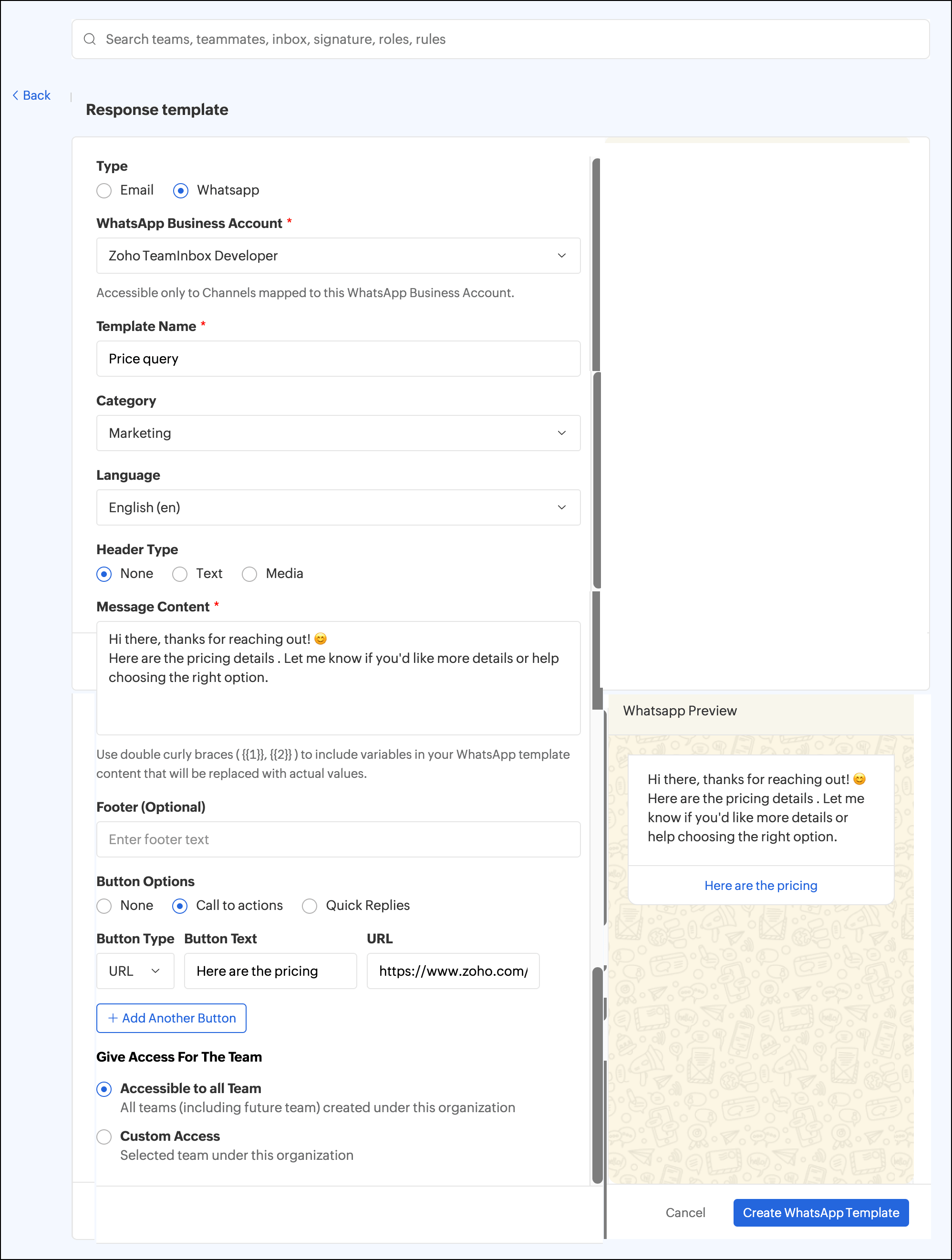
Once submitted, Zoho TeamInbox automatically sends the template to WhatsApp for approval using your connected WABA ID. Approval typically takes 5 minutes to 24 hours, depending on the language and content. If a template is submitted under the wrong category (e.g., marked as Utility when the content is marketing in nature), Meta will automatically reclassify it. For details, refer to Meta's official documentation on template category.
WhatsApp Template message approval status
You can view a template's status next to the template.
- Approved - Successfully approved by Meta.
- Pending - Request created and sent to Meta.
- Rejected - Rejected by Meta.
WhatsApp template message limitations
Keep the following limits in mind when creating or editing WhatsApp message templates:
- Template name: maximum 512 characters.
- Template content: maximum 1,024 characters.
- A template can only be edited when its status is Approved or Rejected.
- Each template can be edited once per day, and up to 10 times per month.
- WhatsApp Business Accounts can create a maximum of 100 message templates per hour.
Managing organization templates
From the Response Templates list, you can take the following actions on any template:
- You can sort templates by Name, Created time, or Updated time using the sort options.
- Click the Edit icon to update the template name, subject, content, or team access. For WhatsApp templates, editing is only available when the template status is Approved or Rejected.
- Click the Delete icon to permanently remove a template.